


The tabs you opened on Monday are still there. Chrome has been working all week, which makes it easy to forget the last time it restarted.
A November security update makes that worth checking. Start with the version on your screen, not with a banner that says your browser is old.
Overview
Google confirmed that the Chrome flaw was already being used
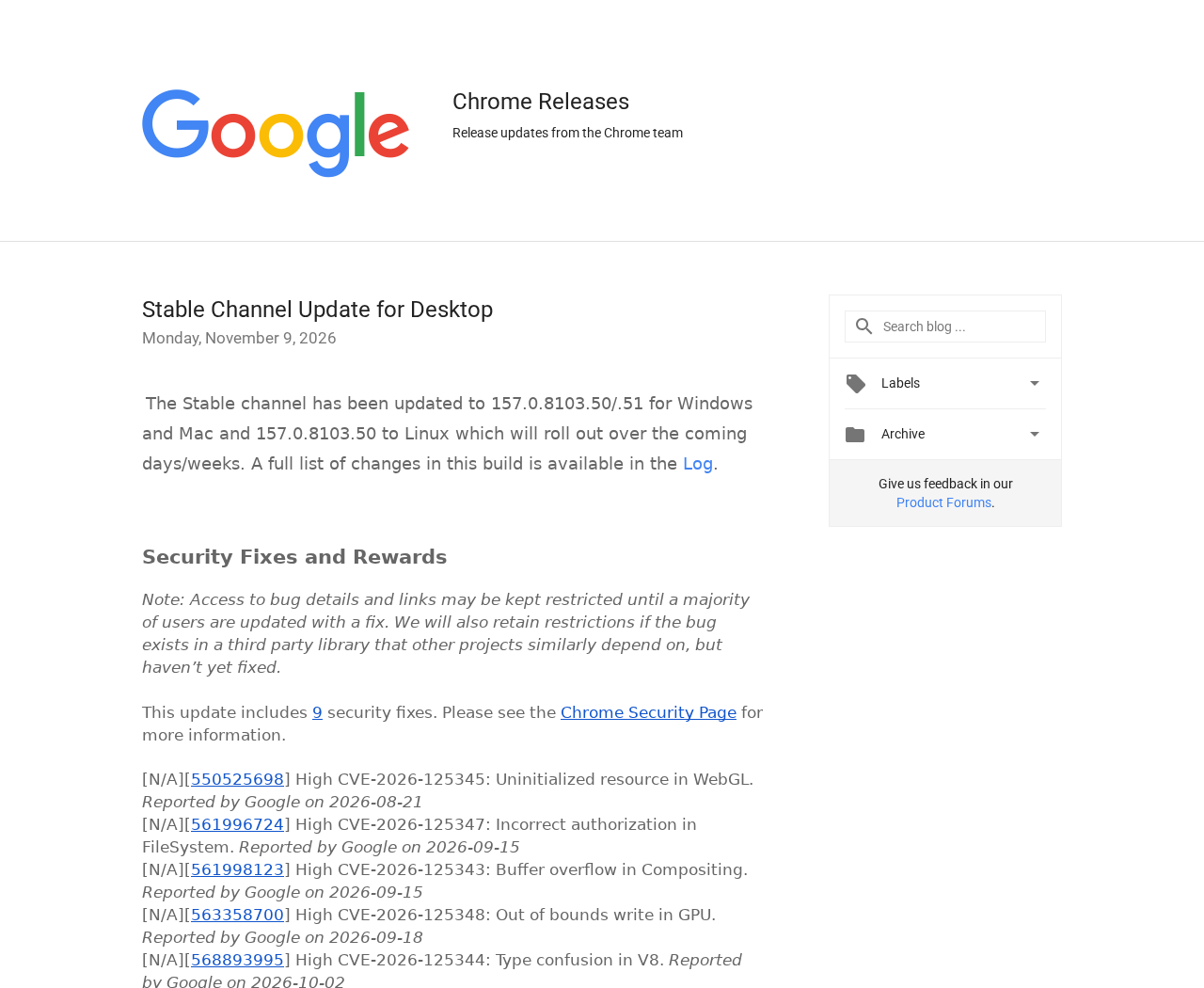
Google’s November 9 update fixed CVE-2026-125350. Its release notice says an exploit for the issue exists in the wild.
The notice identifies a problem in Chrome’s handling of XML. For readers, the urgent part is applying the fix, not trying to recreate the behavior.
Google didn’t identify affected individuals or say that every person on an older version was attacked. An outdated browser is a reason to update, not a diagnosis.
There is a patched build for more than one release track
The November 9 desktop notice lists 157.0.8103.50 or .51 for Windows and Mac, and 157.0.8103.50 for Linux on Stable.
Google listed 156.0.8078.96 in its separate Extended Stable announcement for Windows and Mac. The lower major number alone doesn’t mean that branch lacks the fix.
On November 11, Google announced newer desktop Stable builds. If you’re offered a newer supported build through the official channel, don’t try to install the older one.
Pick the update route for the device in your hand
- Windows or Mac: Check About Google Chrome and relaunch if the app asks.
- Linux: Check the package source used to install your copy, then confirm the running version after restarting the browser.
- Android: Use the real Chrome listing in Google Play. A new desktop build number doesn’t tell you the state of the phone app.
- Work device: If updates are managed, give support your current build and the advisory number rather than changing policies yourself.
Finish with the browser open again. An update waiting to be applied isn’t the same as a patched copy running on your computer.
How to Check Chrome Without Using an Update Pop-Up
Windows and Mac: Start from Chrome’s own menu
Open Chrome the way you normally do. From its menu, choose Help and About Google Chrome. The version appears on that page.
Opening About also lets Chrome check for an update on a typical desktop installation. Give it time to finish before reading the result.
If you see a Relaunch button, save your work first. Be especially careful with partially completed forms, unsent messages, and pages that expire after a delay.
Chrome normally reopens ordinary tabs after the relaunch. That doesn’t guarantee that every site will restore an unsaved draft or an in-progress transaction.
Copy important unsent text somewhere appropriate before restarting. Don’t save sensitive data to a shared note just to get a browser update out of the way.
Open About again after the restart. This is the check that tells you what version is running rather than what version was offered.
Linux: Use the channel that supplied the installed browser
If Chrome was installed through a Linux package repository, check for updates through the package manager used by your system. Verify the running build afterward.
Don’t add a repository from a forum post just because it lists a higher version number. First check whether the usual source is working.
You may have both Google Chrome and Chromium installed. An update to one does not automatically apply to the other application.
Open the app you actually use for banking or work and confirm its name on the About page. That avoids checking the wrong browser by accident.
On a workstation managed by an employer, don’t install another browser as a workaround. Ask whether the managed package has received the security update.
Android: Check Google Play and reopen Chrome
Use Google Play to find your installed Chrome app. If an update is offered, install it there rather than through an APK advertised on a page.
Google’s November 9 Android notice lists 157.0.8103.50. Google later announced 157.0.8103.78 for Android on November 11. Use the supported update your store offers.
Open Chrome after installation. If your phone supports a separate work profile, check whether the Chrome copy inside that profile is managed separately.
A family member’s phone may not receive an offer at the same time as yours. Don’t solve a rollout difference by taking a download link from social media.
If the Play Store says the app is current but the build is unexpectedly old, check for device compatibility and ask the administrator if it’s a managed phone.
What the Version Number Can and Can’t Tell You
Use the original fix as a reference, not a download target
The November 9 version numbers show where Google announced the fix on Stable. They’re useful when you need to interpret an older computer’s version.
Google’s November 11 desktop announcement lists 157.0.8103.78 or .79 for Windows and Mac, and 157.0.8103.78 for Linux.
If your Stable copy is already newer, don’t roll back. The aim is to use the current supported build, not to match the number in an older screenshot.
On Extended Stable, confirm the branch and its security update rather than comparing only the first digit with regular Stable.
Check the actual browser rather than its family name
Some other browsers use Chromium underneath. That doesn’t mean they ship on Chrome’s release schedule or that a Chrome installer updates them.
If you mainly use Edge or another browser, use that vendor’s update screen and release information. Don’t swap Chrome’s version numbers into a different product.
Chrome on iPhone also has its own update path. Don’t treat an Android build number as an iPhone target. Check the App Store and iOS updates separately.
For a Chromebook, check ChromeOS update information rather than trying to install the Windows or Linux Chrome package as a replacement.
Don’t mistake a restarted window for a finished update
It’s possible to close a window while another browser window or a background process is still open. Use the update screen’s instructions if it asks you to relaunch.
If you have two installed channels, make sure you relaunch the one you want to verify. An icon on the taskbar may point to a different copy.
For a shared machine, note which operating-system account you checked if users have their own installations. The build you see may not cover every person.
Keep the actual number in a support request. “I clicked update” tells someone less than the build and the time you confirmed it.
What to Do if Chrome Is Still Out of Date
- Use the built-in check. Start at About Google Chrome on desktop or the official store on Android. Ignore updates offered by a webpage.
- Save your work and complete the restart. When Chrome asks to relaunch, let it do so and then verify the running version.
- Note the full error message. If it can’t update, write down the version and error instead of repeatedly reinstalling from search results.
- Match your release track. Confirm Stable, Extended Stable, or your organization’s managed channel. Ask which supported build should be present.
- Tell support if you opened a suspicious download. Include where it came from and whether you ran it. That’s a separate issue from the browser patch.
- Keep a working alternative. If the browser can’t be patched promptly, use an updated supported browser or another trusted device for sensitive work.
When you get an update error
Start with Google’s Chrome update troubleshooting guide. Compare your actual error with its instructions rather than choosing the first “repair” in search results.
Check whether your operating system is supported and whether the device can reach its normal update service. A work network may have a specific procedure for this.
If the problem persists, record when you last had a successful update. That can help support tell an isolated error from a browser that’s been stalled for months.
Don’t disable security software or management controls to make an unofficial installer run. Ask the device owner how to obtain the supported release.
When the update warning came from a webpage
Close the page and use the browser menu. A webpage can display a familiar logo without knowing whether your version is current or which update you need.
If you downloaded but didn’t run a file, keep that distinction clear. If you ran it, tell the device owner or a trusted support provider promptly.
Do not run it again to get a screenshot. Save the original page address or download name if you can do so without reopening the file.
If you gave the page credentials, protect that account through its real sign-in route. Updating Chrome doesn’t undo information you typed into a fake page.
Check the Computers That Don’t Get Used Every Day
Think about the spare laptop used for travel or the family computer that only comes out when someone needs to print a form.
Those computers may be behind even if the main one updated automatically. Open the browser, apply updates, and restart before signing into anything sensitive.
For a household with several devices, check the ones that actually have Chrome. Updating a phone does not send the same update to a laptop.
If a machine can’t run a supported version, stop using that browser for important accounts while you plan a supported option. Avoid keeping it for occasional banking.
If you help someone remotely, ask them to read the full version from About. Don’t ask for remote access just to confirm a number they can see.
Also leave automatic updates enabled unless an administrator has an approved reason to manage them. A check today does not replace next month’s fixes.
How to handle a long-running work session
Start by finding the tab that would cost you the most to lose. Save the work through the site, or finish the task before choosing Relaunch.
If you’re in a call, schedule the restart as soon as the call ends. Don’t keep dismissing the update for the rest of the day.
Users with several Chrome profiles should check what each one has open before restarting the app. Another profile can have work you didn’t see in the current window.
Private windows won’t restore like ordinary tabs. If you need to preserve anything from one, do so safely before closing it, without saving secrets to shared storage.
Save local files before closing browser-based editors. An app showing a document name doesn’t necessarily mean it has finished syncing your most recent changes.
How to help a family member verify the fix
Tell them to ignore any update box inside the page they’re visiting. Ask them to open Chrome’s own menu and read the version displayed there.
If they describe a prompt for a payment or remote assistance, stop the conversation about the patch and help them close that page first.
On Android, ask what the Play Store button says for Chrome. An Update button and an Open button tell you different things about the current offer.
If the check returns an error, get the exact words. An old operating system and a temporary connection problem require different next steps.
When their update completes, ask them to reopen Chrome and read the full number again. It is easy to skip this last check when everything looks unchanged.
What to give an administrator
Send the device name, operating system, Chrome channel if shown, and the complete version. Include when you checked and whether the browser asked for a relaunch.
Ask whether the machine is meant to receive the new build through a central package. A managed machine may not follow the same path as your home laptop.
If the organization provides a patched browser for the meantime, use it for work rather than switching to an unsupported download from a third party.
Frequently Asked Questions
Which Chrome desktop update first fixed CVE-2026-125350?
Google lists 157.0.8103.50 or .51 for Windows and Mac and .50 for Linux on November 9 Stable. Install a newer supported build if offered.
Do I need to restart the whole computer?
Chrome normally asks you to relaunch the browser. Follow any additional operating-system or administrator instructions and check the build after it’s open again.
Why does my employer still show Chrome 156?
It may use Extended Stable. Google listed 156.0.8078.96 for that branch’s November 9 fix. Confirm the branch and build with your administrator.
Is the Chrome on my phone updated when I update my laptop?
No. Android Chrome updates independently. Open Google Play and check the app there, then reopen it after installation.
Does this vulnerability mean my browser was hacked?
No. Google confirmed exploitation exists, not that every outdated installation was compromised. Report signs of unusual activity or a suspicious download separately.
Can I trust an alert that links to a Chrome update?
Don’t use the link to decide. Check from Chrome’s own menu or the official app store. If a fix is available, that route can deliver it.
The Bottom Line
Update Chrome through its own settings or the official store. Relaunch and confirm the version on the device you actually use.
If an update won’t install, use another patched device for sensitive work until it’s resolved. If you ran a download from a fake alert, report that separately.

Join the discussion
0 commentsShare your experience or ask a question about this article.
Discussion
Start the conversation
Have a question or something useful to share? Add the first comment.