


A password manager can hold years of logins. When its maker asks you to protect what you’ve stored, it’s hard to know where to begin.
Start with the accounts that would be hardest to lose. You don’t have to empty the entire vault to make progress.
Overview
What the mSecure security notice told users
On November 3, mSeven Software told current and former mSecure customers it had detected suspicious activity connected to the password manager.
The notice advised protecting stored information, including changing passwords, reviewing two-factor authentication and removing or replacing passkeys where appropriate.
The initial notice didn’t explain whether an attacker could read vault contents. That gap matters when you have dozens of entries and limited time.
What later support replies say about Cloud Sync
Customers reproduced a reply attributed to mSecure support that describes an encrypted database copy and says the issue pertains to mSecure Cloud users.
The reply says the company had no evidence of access to the confidential contents. The statement comes from reported support replies, not a published forensic report.
That doesn’t establish that anyone read your vault. It does give people who used mSecure Cloud a reason to check how their most important accounts are protected.
Start with the logins that can unlock other accounts
- Primary email: Start here because other services often send recovery messages to this inbox.
- Financial access: Prioritize accounts that hold money, accept payment instructions, or let someone see sensitive financial records.
- Work and school: Tell your administrator before changing shared or centrally managed credentials.
- Second factors: Separate saved authenticator codes, recovery codes, and passkeys from ordinary passwords. They require different changes.
Make those changes at the accounts themselves. Editing the corresponding entry in mSecure doesn’t replace the login at the bank, email provider, or other service.
How to Check Whether You Used mSecure Cloud
Look at the sync method, not just whether you have an account
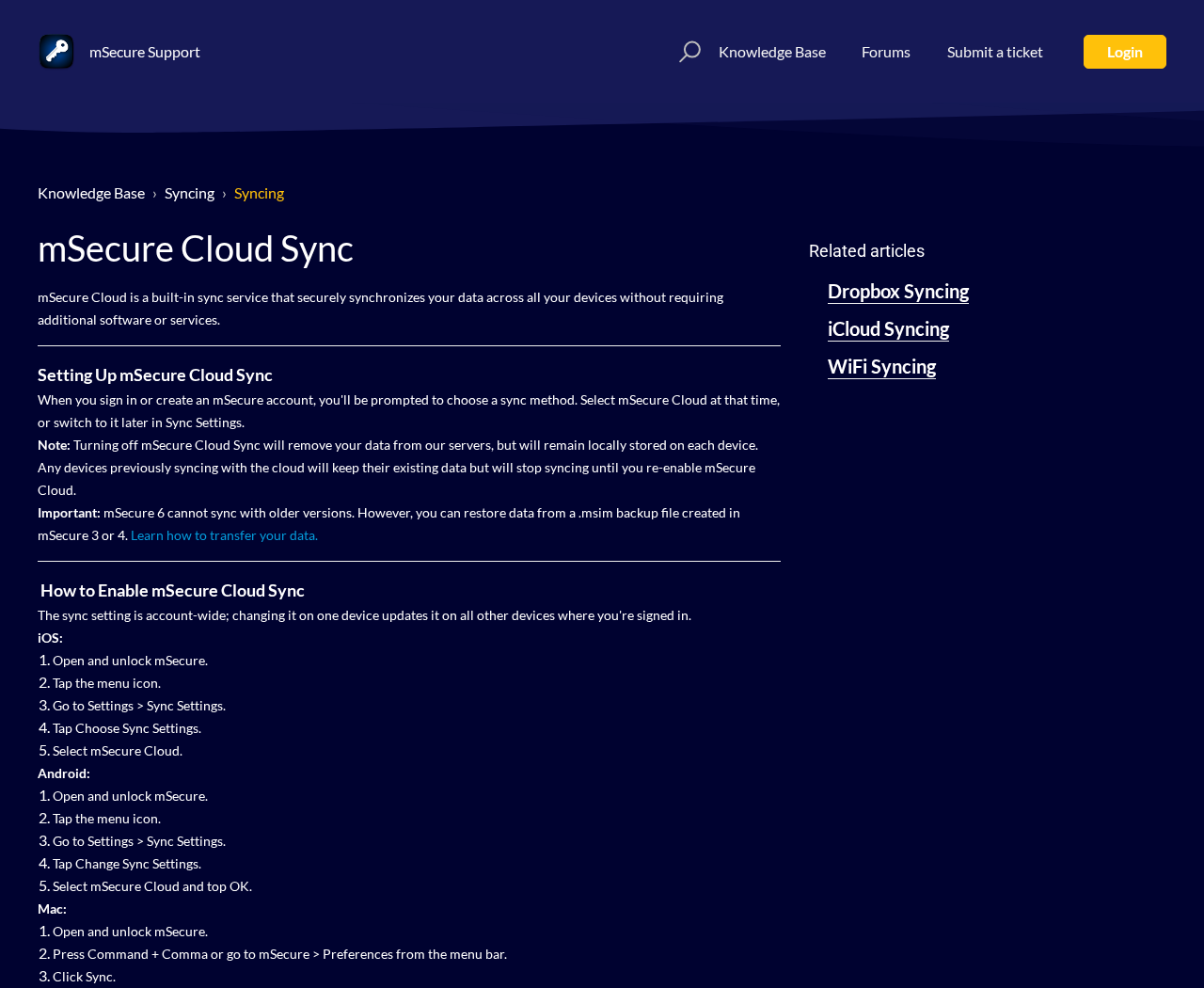
Unlock your app normally and open its sync settings. The mSecure Cloud Sync guide shows where to find them on supported platforms.
For example, the guide directs iPhone users to Sync Settings in the app. On a Mac, it describes a Sync pane in mSecure Preferences.
Read the option selected before changing it. You’re gathering information, not trying to remove your only usable copy of the vault.
A signed-in mSecure account is not the same as a vault synchronized with the vendor’s cloud. The sync settings give you a more specific answer.
Think about old devices and previous settings
Today’s selection can’t tell you every sync method you’ve used. Think about how an old phone or a replaced computer first received its copy of the vault.
If you previously used mSecure Cloud and later switched, don’t use today’s setting as proof that the vault was never stored there.
If you never used that service and only used another sync option, the reported scope is narrower. Ask the company if you need confirmation for your account.
Former users should consider whether important credentials from the old vault are still valid. If you’ve already replaced an old password, record that instead of replacing it twice.
Turning off sync isn’t a way to recall an older copy
The company says turning off mSecure Cloud Sync removes server data while leaving data stored locally. Devices stop receiving changes from that service.
That describes normal sync behavior. It doesn’t establish what happened to any older database copy or what was present in it.
Don’t uninstall or reset the app before you know where you can still unlock your records. An urgent cleanup can leave you without a recovery code.
If your devices have conflicting copies, ask support how to preserve the one you need. Don’t upload the entire vault to a public file-sharing page.
What to Do After Receiving the mSecure Security Notice
- Open mSecure independently. Check your sync method, which devices can still unlock the vault, and whether any existing credentials need immediate attention.
- Secure the primary email account. Set a unique password, review recovery addresses and forwarding rules, and check for sessions you don’t recognize.
- Work through the accounts with the greatest consequences. Prioritize banking, payroll, identity, and other accounts that can reset access elsewhere.
- Replace affected second factors at the service. If a vault held authenticator seeds or backup codes, use the service’s security settings to rotate them where supported.
- Add and test a replacement passkey. Confirm you can sign in before removing the old registration from the website or app that accepts it.
- Use a trusted place for replacements. Decide where new secrets go before changing dozens of them. Don’t create an unprotected export as a shortcut.
- Tell the account owner about anything unfamiliar. Report transactions to the bank and workplace activity to IT through channels you already trust.
A password change is only complete when the service accepts it
Use the website or app you normally use, find its security settings, and change the password there. Generate a unique one for that service.
Keep a session open while you confirm the replacement works in a separate sign-in. That gives you a route back if the new login fails.
Once you can get in, review the recovery phone and email. Look at devices or sessions and remove anything you don’t recognize where the service allows it.
The vendor’s unauthorized sign-in guide also distinguishes between stored copies and the real credentials for the individual services.
Replace the source of an authenticator code, not the displayed number
Time-based codes change often, but they can be generated from the same secret. Waiting for a different six-digit number doesn’t replace that underlying secret.
If the original authenticator setup was stored in the vault, use the account’s own procedure to set up a fresh authenticator enrollment where available.
Check that the new code works before discarding the old setup. If the account can regenerate recovery codes, save the new ones securely and mark old ones obsolete.
If a site doesn’t allow a second method during the transition, read its recovery instructions or ask verified support before removing the one that still works.
Remove a passkey registration only after testing another way in
A passkey can let you sign in without typing a password. Some accounts support multiple passkeys, and each registration can have its own label.
Start on the account’s security page and identify which passkey was saved in mSecure. Avoid deleting entries blindly if family or work devices have similar names.
Add a replacement where the account allows it. Test a fresh sign-in, then remove the old passkey from the account itself if it should no longer work.
Deleting a saved record on your phone is different from telling the service not to accept that credential. Verify the registration list afterward.
How to Work Through a Large Vault Without Losing Access
Use a checklist that contains no secrets
Write down account names and statuses such as unchecked, password changed, or new passkey tested. Don’t write passwords, setup keys, or recovery codes in the checklist.
Mark whether each account uses the affected vault for both its password and its second factor. The second item can be easy to overlook.
Leave retired accounts for later unless they still have sensitive data or an active payment method. A password that no longer works can’t open an account.
For services you still need but rarely use, check recovery details while you can sign in. Old telephone numbers are easier to fix before a lockout.
Handle shared and business accounts with their owners
If someone else needs the same account, don’t silently change access and leave them guessing. Ask the owner to coordinate the rotation.
For a company account, report whether an authenticator enrollment or recovery code was stored too. A password reset alone may not address the team’s concern.
Ask whether the company wants to use its own approved vault for the replacements. Don’t put work credentials in a personal storage service without permission.
If you find a saved recovery phrase or an API credential, don’t treat it like a web password. Ask the relevant service how to replace that credential safely.
Keep a record of changes without exporting a readable vault
Export and migration options vary. Some formats can contain readable credentials. Check the documentation and don’t leave such a file in Downloads or cloud-synced folders.
Before moving anything, decide what storage is appropriate and how you’ll verify that important entries still work. You don’t need a screenshot of every password.
Set aside time to revisit the accounts you put off. A short second session is safer than removing every recovery method when you’re tired.
Watch for new emails that cite the incident and offer to check your vault. A genuine notice doesn’t make follow-up requests for secrets trustworthy.
What to Check After You Change the First Few Accounts
Make sure email recovery still points to you
Look at more than the password field. A recovery email or phone number you don’t recognize can matter even after you choose a strong new password.
Check forwarding rules and filters too. If a filter automatically archives password reset messages, you might not see important notices when they come in.
Ask a trusted administrator for help if you find a rule you didn’t create. For a personal account, follow the provider’s official instructions for suspicious activity.
If you use that inbox to recover your password manager, verify that messages still reach you. Don’t delete a working recovery address until the replacement is confirmed.
Review recent sign-ins using the provider’s own security page. If you find an unfamiliar event, note its time and device before reporting it.
Look beyond entries labeled password
A vault can hold notes alongside login records. A note might contain a recovery code, a payment reference, or information you copied for a service years ago.
Read the category or label first. Decide whether the information is still usable and which organization controls it. Don’t move everything into another note without checking.
If you stored a card number and notice an unrecognized charge, call the issuer through its usual number. A password reset won’t reverse a card payment.
If you stored a code for a family alarm or another shared service, ask the person who manages it to change it rather than changing access alone.
Keep those tasks separate from account passwords. You can finish protecting email in one sitting and still have a few important notes to deal with later.
Decide where you’ll store new credentials before rotating more
If you’d rather use a different manager while you wait for clarification, choose the storage method first. Make sure it works on the devices you actually use.
Test that you can recover access without the device in your hand. For an employer’s accounts, use its approved tool rather than choosing a personal alternative.
Don’t assume that copying entries from one vault to another changes anything at the service. An old password can still work even after you’ve moved its record.
If you start migrating, keep track of where each replacement is stored. Otherwise you may try an old password and mistake the resulting error for a new incident.
Put off lower-priority accounts until your new process is working. It is better to complete three critical changes properly than to start thirty and lose track.
Know what a real support conversation should cover
Use the company’s published help site and ask about the sync method and period relevant to your account. Don’t open a ticket from an unsolicited message.
Ask whether the reported issue covered the account setup you used, and what evidence the company can share about the type of information involved.
Never send a master password or vault export as proof of ownership. A support reply can explain a precaution without needing the contents of your vault.
Frequently Asked Questions
Did mSecure confirm that someone read my passwords?
No. The reproduced support reply describes an encrypted database copy and says the company had no evidence that its confidential contents were accessed.
What if I never synchronized with mSecure Cloud?
The support replies describe a narrower scope involving that service. Check your current and past settings and ask mSecure through its official support route if uncertain.
Will changing my mSecure password change my bank password?
No. A vault login and the passwords stored inside it are different. Change the bank password through the bank, then update your saved copy.
Should I remove all my passkeys first?
No. Confirm a working alternative or replacement before removing an old registration. Otherwise you could lose the only way to sign in.
Is it enough to turn off sync or delete the app?
No. Neither action changes passwords at other services or retracts an older copy. Make account changes where the credentials are actually accepted.
What should I do with old backup codes?
If they may be exposed, use the account’s controls to replace them where possible. Keep the new set securely and confirm the old set no longer applies.
The Bottom Line
If you used mSecure Cloud or aren’t sure, start with email, financial, and other high-impact logins. Replace credentials at the services themselves rather than just editing the vault.
Keep working access while you replace passkeys and second factors. If you’ve seen activity you don’t recognize, report it to that account’s owner or provider now.

Join the discussion
0 commentsShare your experience or ask a question about this article.
Discussion
Start the conversation
Have a question or something useful to share? Add the first comment.