


You turned off the viewing-data setting when you set up the TV. The next time you open a streaming app, the picture looks exactly the same.
What the TV sends out is harder to see. Researchers put that setting to the test on Samsung and Vizio sets, among others.
Overview
What a TV’s viewing-data setting controls
Automatic content recognition, or ACR, helps a smart TV identify what’s playing. It can be separate from the information a streaming app collects about your account.
That’s why it’s worth checking more than one menu. Turning off ad personalization in an app may not turn off the TV maker’s viewing-data feature.
Likewise, turning off TV-level recognition won’t stop a streaming service from keeping a watch history for the account you use to open it.
What researchers saw after opting out
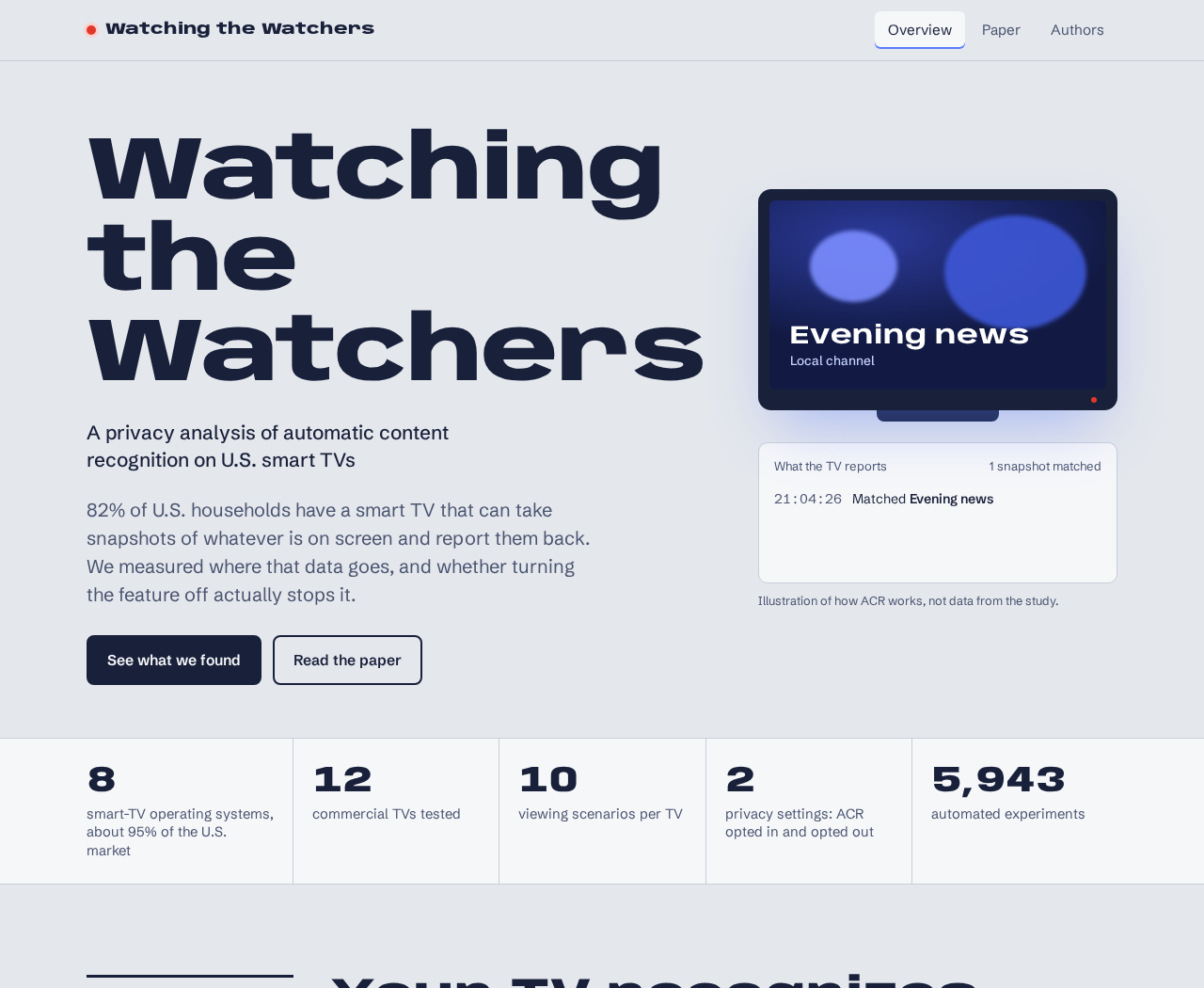
The Watching the Watchers study examined 12 televisions and eight operating systems. The team ran 5,943 automated experiments across different ways of watching.
On a tested Samsung TV, the researchers still saw traffic patterns consistent with ACR in some scenarios after opting out, including certain HDMI and antenna sessions.
On the tested Vizio setup, the setting did not produce a visible drop in traffic to the endpoint the team associated with ACR.
Those observations matter, but most of the traffic was encrypted. The researchers couldn’t read the contents or confirm what the companies kept or processed.
What you can change without measuring traffic
- Turn off the TV’s own viewing-data feature: Find the setting for your model rather than relying on the streaming service’s advertising menu.
- Check the apps you use: Their history, advertising, and account options are separate.
- Try HDMI with the TV offline: That can keep the television itself from sending network data while preserving a working picture.
- Don’t overlook the external device: A streamer can have its own data collection and account settings even when the TV isn’t online.
The study doesn’t show that your exact TV sends your entire viewing history. It gives you a reason to check what your setup allows.
What the Study Can See and What It Can’t
How the tests separated different ways of watching
The researchers tested more than a single streaming app. They compared antenna viewing, built-in streaming, third-party apps, HDMI input, and other conditions.
That matters because the same television can behave differently when you use it as a monitor or open a service from its home screen.
They ran scenarios with ACR enabled and after opting out. A difference in traffic between those runs can help identify which activity is tied to viewing.
Something else can still use the network while you’re watching. The study looked for patterns connected to the content and the destinations receiving the traffic.
Traffic that looks like ACR isn’t a readable viewing history
Encrypted traffic can reveal when a device contacts a service, even when researchers can’t see the information it sends. The study treats those as separate observations.
On the tested Samsung system, the team saw traffic consistent with ACR in 18 of 30 HDMI runs after opting out.
That’s a measurement of repeated runs on the test setup, not a claim that 60% of Samsung owners are tracked after switching the setting off.
The Vizio result is different: traffic to a particular destination did not noticeably change with the setting. That does not identify the contents of every message.
Use those findings to choose a privacy setup, not to assert that any given person’s viewing history was sold or retained.
Vizio’s WatchFree+ finding was separate
The researchers also found that Vizio’s built-in WatchFree+ service exposed some program or channel names in unencrypted network lookups or connection metadata.
That finding isn’t the same as reading encrypted ACR traffic. It concerns information visible during delivery of the streaming service itself.
If you’re deciding what to turn off, remember that an ACR switch is not necessarily a master privacy switch for a streaming service.
Nothing about that observation tells you what a different app on a separate streamer will do. Check its controls before choosing it as a replacement.
How to Find the Relevant Settings on Samsung and Vizio
Samsung: Look for Viewing Information Services
Samsung’s U.S. support page describes ACR as optional and says you can change your preferences in the TV’s Settings menu.
Look for Viewing Information Services in the privacy settings or notice for your model. Menu wording and placement can differ across regions and software versions.
Check whether the TV has other privacy options for advertising or account data. Take note of those settings separately rather than treating one switch as universal.
If you set up a used TV, check what the previous owner left enabled. Don’t assume it has your preferences because it is signed into your Wi-Fi.
Vizio: Check Viewing Data and other settings separately
In its privacy policy, Vizio directs TV owners to All Settings, Privacy & Legal, then Viewing Data. Older TVs can place it under Admin & Privacy.
Check the switch and note the menu path. If you can’t find it, use the model number to locate the correct manual or current support instructions.
Vizio describes Activity Data and account linking separately. Turning off Viewing Data doesn’t necessarily apply the same choice to every service or linked account.
Don’t reset the whole television just to find a setting. If you’re considering a reset for a specific purpose, check which preferences and sign-ins it clears.
When the same model shows different menus
Use the settings page for the television rather than relying on a screenshot for a different country. Check the model and current software version first.
Photograph the relevant setting if you want a reminder for later. Keep your home network name and account details out of the photo if you share it.
After changing anything, return to the menu and make sure it saved. Recheck following a reset, a replacement TV, or a setup process that asks for consent again.
What to Do if You Want Less Smart TV Tracking
- Disable viewing recognition where available. Find the manufacturer setting for your model, turn it off, and check that the choice stayed off.
- Review each account separately. Check advertising, history, and sharing options in the streaming apps you use and any accounts linked to the TV.
- Decide which built-in features you need. List the ones that require internet access, such as streaming, voice services, casting, or updates.
- Disconnect the TV if your setup allows it. Remove its Wi-Fi connection and unplug Ethernet. Check that neither connection remains active.
- Test your normal inputs. Make sure antenna channels, a console, or an external streamer still works through the setup you chose.
- Check the external device’s privacy settings too. An offline television doesn’t prevent an online streaming device or its apps from collecting data.
- Plan how you’ll apply updates. Use the maker’s official instructions for your model and recheck connectivity after any temporary reconnection.
Try an offline setup before committing to one
Make a short list of what you actually watch. If it mostly comes from a console, antenna, or a separate HDMI streamer, start there.
Disconnect the TV itself and try each input. An external device can still use the internet over its own connection while sending picture and sound over HDMI.
The TV’s built-in apps may stop working offline. If you depend on one of them, decide whether using an alternative is worth the privacy trade-off.
If you use a phone to cast directly to the TV, test that too. An offline TV may no longer appear as an available device.
Before reconnecting for a firmware update, read the manufacturer’s instructions. Return to the settings after the update if you intended to keep the TV offline.
Know what staying online means
You may decide built-in streaming is worth keeping. That’s a practical choice, not a reason to leave every optional sharing control enabled.
Use the TV’s privacy controls, then choose the app settings that fit how you watch. Make those decisions for the account and device actually in use.
Don’t assume all traffic is tracking or block a domain simply because you saw it in a study. Shared services can support other parts of the TV.
If a person in your household depends on an accessibility feature or remote control app, check it before removing network access from the television.
What This Means When You’re Buying or Replacing a TV
Before paying, check whether the model supports the inputs and offline features you need. A display that works without an account gives you more choices.
Look at the actual manual rather than a label saying the TV is smart. Check whether an internet connection is required for setup or features you use.
If you want to use your own streamer, check which HDMI ports meet your needs. That matters if you also connect a game console or sound system.
Ask whether firmware can be updated without leaving the TV connected all the time. Look for the model’s published update procedure rather than guessing.
Don’t choose another brand solely from one lab result. The paper studied specific combinations of sets and software, not every future model sold under the name.
For a TV you already own, make one change and test your setup. You don’t need a new television just to find out whether yours works offline.
Keep shared screens and accounts in mind
A household TV can have several people’s profiles on it. Before signing out of a service, tell them which account you’re changing and why.
Someone may rely on a history setting to pick up a show later. Explain the difference between a useful account history and optional TV-level recognition.
If you move to a separate streamer, review its defaults when setting it up. Otherwise you may trade one device’s default choices for another’s.
Keep the TV remote handy. Some input and privacy controls aren’t available from the external device’s remote, even when it can change volume and power.
When giving the TV away, follow its official reset instructions and remove it from linked accounts where appropriate. Disconnecting the internet alone doesn’t remove saved sign-ins.
Check which device supplies each part of the setup
For example, your TV might display a film from a streaming box while a separate soundbar plays the audio. Only one may need its own internet connection.
Use the input menu to see where the picture is coming from. A service opened on the TV’s home screen isn’t running on the streaming box.
On the same evening, try your usual live channel and a streaming program. Check whether either one disappears when you take the television off the network.
Write down what actually stopped working. That lets you decide whether to reconnect the television for one specific feature or use a different way to watch.
If you rely on a smart speaker to control the television, verify basic controls with the remote before disconnecting anything. Keep the setup usable for everyone.
Don’t confuse a privacy setting with a promise to delete data
Turning off a feature addresses future use according to its policy. It doesn’t necessarily delete viewing information that the company collected while the feature was enabled.
If you want to ask about older records, start with the maker or service’s account privacy controls. Ask which information it can identify and what deletion covers.
Use the provider’s official privacy route, not a site that offers to scan your TV for tracking. You shouldn’t need to disclose your home Wi-Fi password.
Keep a distinction between deleting a watch history in an app and asking the company to delete associated data. They may be different controls.
For a TV shared with other people, explain which settings you intend to change. Get permission before making a request for an account that isn’t yours.
Frequently Asked Questions
Did the study read Samsung and Vizio’s encrypted ACR traffic?
No. For the encrypted flows, the team drew conclusions from observable behavior. The separate WatchFree+ finding concerned information exposed outside that encrypted ACR traffic.
Does opting out stop every type of tracking?
No. ACR, app history, advertising settings, and other data controls are separate. Check the ones that apply to your TV and accounts.
Does using HDMI automatically stop the TV from reporting viewing data?
No. Some tested setups showed ACR-related traffic during HDMI use. If your goal is to stop the TV’s network communication, disconnect the TV itself.
Can I still stream while keeping the TV offline?
Yes, if you use a separate internet-connected streamer and the TV accepts its HDMI signal offline. Review the streamer’s own privacy options.
Where is the Vizio Viewing Data setting?
Vizio lists All Settings, then Privacy & Legal, then Viewing Data. Older models may use Admin & Privacy instead. Check your actual model.
Does the study mean I should replace my TV?
Not on that evidence alone. Try the privacy controls or an offline HDMI setup first. Decide based on how your actual model behaves.
The Bottom Line
Turn off TV-level viewing recognition, but don’t treat the switch as proof that all viewing data stops. Review streaming accounts separately.
If you want the television itself off the network, disconnect both Wi-Fi and Ethernet and use an external input. Check the privacy controls on that device too.

Join the discussion
0 commentsShare your experience or ask a question about this article.
Discussion
Start the conversation
Have a question or something useful to share? Add the first comment.