


A warning about photos not syncing can feel more urgent than an ordinary billing notice. It only takes a second to think about the pictures you couldn’t replace.
This email names a storage limit, counts the items at risk and suggests there’s one way to protect them. Start with your library, not the warning.
Overview
The reported number makes the warning feel personal
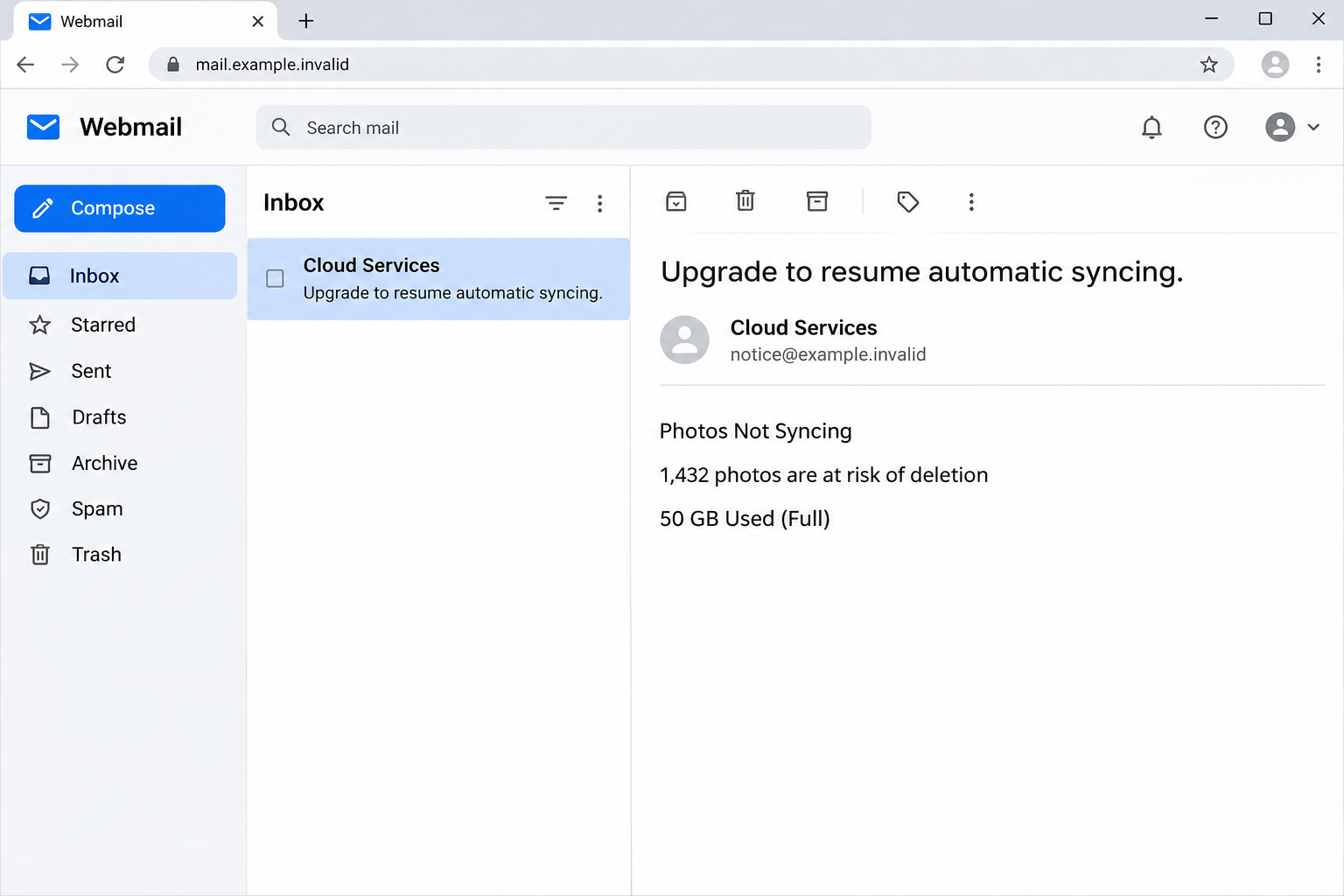
The Cloud Photos Not Syncing email scam says a 50 GB storage plan is completely full. It claims 1,432 photos and 12 videos are no longer syncing.
The message suggests a 200 GB plan as the remedy. Its subject asks you to upgrade to resume automatic syncing, even though it doesn’t identify a provider you normally use.
The image above recreates the opening warning and its distinctive photo count. It does not show a real account, plan or backup report.
A precise count can feel like something only your photo service would know. In this notice, it is part of the sales message, not something confirmed from your library.
The link changes the story from storage to whatever can be sold
The reported link led to pages that repeated the storage alarm. Some warnings shifted to an expired subscription or payment problem and threatened loss if nothing was renewed.
The reported paths used referral tracking and advertised products under security names including McAfee and XSHIELD.
That is not the same as opening an account page to buy more photo storage.
The supposed storage problem takes you through commercial links instead of your photo account. Neither brand name on the page identifies who sent the email.
A paid product can be real without solving the problem used to sell it. A checkout total isn’t proof that the service will protect a single photo from your library.
A real sync pause is a different thing from deletion
A genuine storage limit can stop new uploads. That alone doesn’t establish that existing photos have been erased, or that pictures still on a device are about to disappear.
Device storage, cloud storage and a separate backup can each show different results. Before clearing space or buying a plan, find out where your photos actually exist.
These checks are more useful than any item count in the email:
- Open the photo app you already use and confirm which account it’s signed into.
- Check the actual upload or sync status, not just the device’s storage screen.
- Look from a trusted web session or another device to see which recent photos reached the account.
- Keep an independent copy before deleting items or changing how the library syncs.
How the Cloud Photos Not Syncing Scam Works
Step 1: A familiar storage problem gets a personal-looking inventory
Many people have seen a phone or cloud account run out of space. The email starts with a situation that already makes sense without explanation.
Then it adds a count of photos and videos. That makes the reader more likely to picture specific memories instead of checking whether the count comes from their actual library.
A provider might know the state of a library that uses its service. An email naming objects and numbers is not a reliable way to establish that connection.
If your photos have really stopped uploading, the app may tell you why. You don’t have to open a new page supplied by a message to see it.
Step 2: A possible loss is written as a reason to act now
The message describes what could happen to pictures still on a device if something happened to that device. It then points readers toward an upgrade as the only answer.
The underlying idea isn’t completely invented: one copy can be fragile. That makes the emotional pressure stronger than a vague claim that your account has a problem.
The deception is tying that concern to an unverified purchase. Independent backup, checking a sync failure and buying storage from your provider are different choices.
Don’t let the threat make you delete anything in a hurry. Removing the only copy of a photo is harder to correct than waiting to verify a warning.
Step 3: The promised plan acts like a predefined solution
The email presents 200 GB as the answer before you have checked your current service. It sounds tailor-made for the reported 50 GB limit.
But a real storage purchase should identify the account, plan, price and terms that will change. The provider you actually use can show that information when you open it yourself.
Something else may be wrong. The app could be signed into the wrong account, syncing might be paused, or your device might be offline.
None of those questions can be answered by an upgrade link from a sender calling itself Cloud Services. Check the service, then decide whether a purchase is worthwhile.
Step 4: The next warning presents a new reason to pay
A visitor may move from a sync notice to another page claiming renewal failed or payment details expired.
The problem changes, but the instruction stays the same: continue toward a purchase.
The mismatch is useful. If the copy changes what’s supposedly wrong while never proving a connection to your account, stop looking for a fix there.
A genuine plan status isn’t something a random second page can determine. Check it with the provider whose app, receipt or statement you recognize.
Don’t go back to work out which warning appeared first. Save any safe records you already have, and focus on whether you entered information or accepted a paid offer.
Step 5: A commercial referral can earn money without restoring anything
Referral links can identify which promoter sent a visitor to a seller. They have legitimate uses, but a tracked referral does not authenticate the warning that got you there.
The recorded paths showed security-product advertising. Even if a checkout belongs to a real vendor, paying for that product is not the same as expanding cloud storage.
Before any purchase, look at the final product name, merchant and renewal terms independently. A scare page can leave you remembering the threat instead of what you actually ordered.
If you already paid, start with the receipt. It should help identify the real seller or payment channel, even when the email’s brand was vague.
How to Check Your Actual Photos and Backups
Identify the service and the account first
Start with the app you already have installed. Check the email address or account shown in its settings, especially if you use more than one profile.
Open the provider’s account independently and check whether the library there contains your most recent photos. A phone gallery can show local items that haven’t reached the cloud.
If the library is managed by a family member or work account, ask who owns the storage plan. Your login may not be the one that pays for it.
Knowing the right account can save a purchase. Upgrading the wrong plan won’t move files that the app is trying to upload to another account.
Read the status inside the provider’s app
Apple’s iCloud Photos sync guidance explains how to look for the library status and work through reasons for a pause.
For Google Photos, use its backup troubleshooting guide. Check the status of a recent photo as well as the account configured for backup.
A pause isn’t always about storage. Follow the explanation shown by your provider rather than assuming a full plan is the cause.
Don’t turn syncing off or delete pictures just to make a warning go away. Look up what the change would do to all synced devices first.
Keep another copy before clearing space
Sync helps keep a library consistent. Depending on your service, deleting an item in one place can remove it from other connected devices.
If a photo is important and exists only on one device, make another copy through a trusted method before changing the library. Confirm you can actually open that copy.
If you pay for more space after checking, make the purchase through your real account. Verify that the new plan applies to the correct library and watch its upload status.
Keep the purchase receipt separate from the fake email. A charge you made through the real provider should not be confused with an offer triggered by the notification.
When a family library is involved, work out whose files are where
A shared album is not necessarily an independent backup of everything in the library. Check whether the owner and other members can see the actual files you want to preserve.
Don’t remove someone from a shared plan just to free space while you’re still diagnosing the problem. Ask the account owner what storage the library uses.
On a replacement phone, check that older pictures and new uploads appear under the same expected account. A visible album alone can hide a gap in recent backups.
If there are unsynced files you cannot replace, prioritize copying them to trusted storage before troubleshooting the subscription. You can sort out the billing later.
What to Do If You Fell Victim
-
Leave the upgrade page and check your library separately.
If all you did was read the email or see the website, report it as phishing. Don’t pay, subscribe or download anything to test the warning.
Use the service you already trust to check the real sync state. Leave the photos where they are until you can confirm which copies exist.
If possible, keep the subject and any receipt you received. Avoid forwarding the lure with a working link to somebody who might try to help.
-
If you paid, identify what you actually bought.
Find the purchase confirmation, product name and merchant. Check whether the charge was for software, cloud space, a one-time payment or a plan that renews.
Use the merchant’s verified account or support route to ask about cancellation or a refund. Keep written confirmation if the subscription or renewal is stopped.
If you don’t recognize the seller or can’t resolve the charge, contact the issuer through the number on your card or its app.
-
If you entered card details or approved a banking prompt, tell the issuer.
Explain that the details were entered following a deceptive storage warning. Tell them what you provided, including any one-time code or payment confirmation.
Ask which card controls or replacement steps fit the exposure. Pay attention to unfamiliar merchant names or repeat charges, not just the first amount.
A canceled subscription and a potentially exposed payment card are separate matters. Ask the merchant about the subscription and the card issuer about security.
-
If you entered a password, go to the actual account.
Change it through the genuine provider and check recent sign-ins, active devices and recovery settings. Change it elsewhere if you reused it.
If somebody changed your account email or recovery details, use the provider’s recovery process. Don’t trust a new message promising to secure your library.
If you notice missing files, check the provider’s recovery options and your independent copies. Don’t delete additional items to try to force a resync.
-
If you installed anything, treat that as a separate action.
Write down what you installed and where it came from. An advertisement for a recognizable product doesn’t verify the file or mean the software was needed.
For work devices, report it to IT. On a personal device, use trusted help if you launched an unknown download or notice new browser or device behavior.
A page visit or a fake storage warning alone doesn’t establish infection. Choose security and recovery steps based on what happened, not on what the email claimed.
Frequently Asked Questions
Are 1,432 of my photos really at risk?
The number is part of the recorded scam. Find your most recent uploads in your own account before concluding that anything stopped syncing.
Does a full cloud account immediately delete my photos?
A full account can affect uploads or other services, but a real provider explains its own conditions. Check your account and keep copies before making changes.
Should I buy the 200 GB plan shown in the email?
Not through the email. If you need additional storage, choose a plan inside the actual service and confirm that it covers the account where the library lives.
Why did the link lead to a security product?
The fake warnings can send people to products using referral tracking. Buying security software through that path doesn’t fix an unverified storage or sync problem.
What if I already paid for something else?
Look up the product, charge and renewal terms using the receipt. Ask the real merchant about cancellation, and contact your card issuer if the charge or disclosure is suspicious.
Can I delete photos on my phone to fix the problem?
First confirm what is backed up and how your service handles deletion. Some changes sync to other devices. Make an independent copy before removing anything important.
The Bottom Line
Don’t pay to protect photos through this email. Check your actual photo account and verify which recent pictures have uploaded before making any changes.
If you already paid, find the merchant on the receipt. If you gave away a password or card details, secure that account or contact the issuer first.

Join the discussion
0 commentsShare your experience or ask a question about this article.
Discussion
Start the conversation
Have a question or something useful to share? Add the first comment.