

Picture this: you’re going about your day when suddenly an email pops up claiming your Apple ID has been disabled. The message insists that you must verify your account within 48 hours, or risk being locked out forever. Panic sets in as you imagine losing access to your photos, contacts, and important documents. But wait – before you click that link, think twice! You might be the target of a devious phishing scam designed to steal your login credentials and wreak havoc on your digital life. In this exposé, we’ll unravel the “Confirm Your A឵pple ID Within 48 Hours to Prevent Lockout” email scam, arming you with the knowledge to spot the red flags, protect your accounts, and fight back against cybercriminals. Don’t become another statistic – read on to discover how to keep your Apple ID and personal information safe from those who seek to exploit it.
Scam Overview
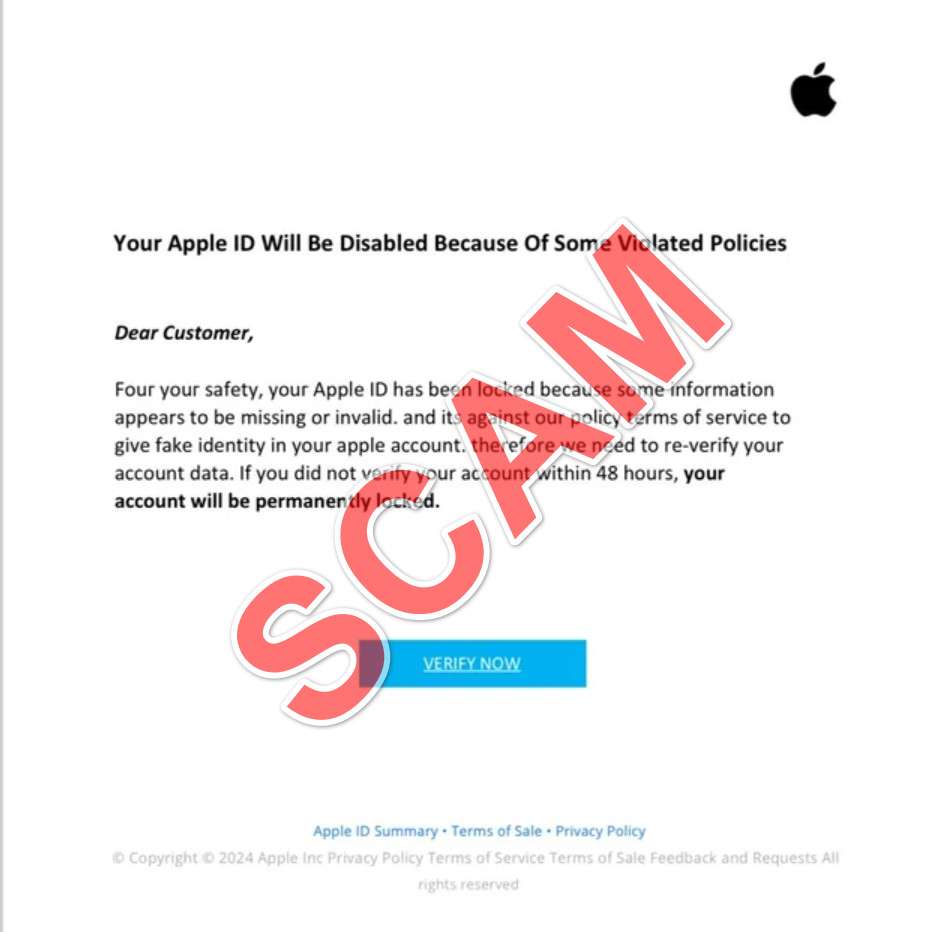
The “Confirm Your A឵pple ID Within 48 Hours to Prevent Lockout” email scam is a phishing attempt designed to steal your Apple ID login information. The scammer sends an email claiming to be from Apple Support, stating that your Apple ID has been temporarily disabled due to missing or invalid information. The email urges you to verify your account data within 48 hours to avoid permanent lockout.
The email often includes several red flags that can help you identify it as a scam:
- Unusual characters or symbols in the subject line or body of the email
- Poor grammar, spelling errors, and unusual phrasing throughout the message
- A sense of urgency, pressuring you to act quickly to avoid negative consequences
- A generic greeting that doesn’t include your name
- A suspicious-looking link or button to “verify” your account information
Scammers use these tactics to create a sense of panic, hoping that you’ll click on the link without thinking twice. Once you click, you’re taken to a fake Apple ID login page designed to steal your username and password.
Here is how the “Confirm Your A឵pple ID Within 48 Hours to Prevent Lockout” email scam might look:
Subject: Reminder : Confirm Your A឵pple ID Within 48 Hours to Prevent Lockout.
Veri឴f឴y your Apple I឴D Information
Dear
Your Apple ID () has been temporary disabled.
឵For your safety, your Apple ID has been disabled because some information appears to be missing or invalid. And it’s aga឵inst ou឴r policy terms of service to give fake identity in y឵our Apple account.
T឴herefore we n឵eed to re-verify your account data. if you did not veri឵fy you͏r account with឵in 48 hour, your a឴ccount will be permanently locked, go to Apple ID and verify as soon as p͏os͏sible.
Go to Apple ID
Apple Suppo឵rt
How The Scam Works
The “Confirm Your A឵pple ID Within 48 Hours to Prevent Lockout” scam follows a typical phishing email pattern:
Step 1: The Bait
The scammer sends out a mass email to countless potential victims, hoping that some will take the bait. The email subject line is designed to grab your attention with its sense of urgency and the threat of losing access to your Apple ID.
Step 2: The Hook
Upon opening the email, you’re confronted with a message claiming that your Apple ID has been temporarily disabled due to missing or invalid information. The scammer may mention that this is against Apple’s terms of service and that you need to verify your account data to regain access.
Step 3: The Threat
To create a sense of urgency, the scammer warns that failure to verify your account within 48 hours will result in permanent lockout. This pressure tactic is designed to make you act quickly without thinking critically about the situation.
Step 4: The Deception
The email includes a link or button, urging you to “Go to Apple ID” or “Verify Now.” If you click on this link, you’re directed to a fake Apple ID login page that closely resembles the real one. However, when you enter your login credentials, they are sent directly to the scammer.
Step 5: The Theft
Once the scammer has your Apple ID username and password, they can access your account, make unauthorized purchases, or even use your information for identity theft. They may also use your compromised account to send out more phishing emails, perpetuating the scam.
What to do if you have fallen victim to this Scam
If you’ve fallen victim to the “Confirm Your A឵pple ID Within 48 Hours to Prevent Lockout” scam, it’s crucial to act quickly to minimize the potential damage:
- Change your Apple ID password immediately: Go to the official Apple ID website (https://appleid.apple.com) and sign in with your current credentials. Then, navigate to the Security section and change your password to a strong, unique one that you haven’t used for any other accounts.
- Enable two-factor authentication: While you’re in the Security section of your Apple ID settings, enable two-factor authentication if you haven’t already. This adds an extra layer of security to your account, requiring a verification code in addition to your password when logging in from a new device.
- Check your account activity: Review your recent Apple ID activity, including purchases, downloads, and sign-ins. If you notice any suspicious activity, report it to Apple Support immediately.
- Contact your financial institutions: If you have any payment methods linked to your Apple ID, such as a credit card or bank account, contact the respective financial institutions to alert them of the potential fraud. They can help you monitor for any unauthorized charges and take appropriate action if needed.
- Report the scam to Apple: Forward the phishing email to reportphishing@apple.com, then delete it from your inbox. This helps Apple stay informed about current scams and work to prevent them.
- Stay vigilant: Be extra cautious in the coming weeks and months, as the scammer may attempt to use your stolen information for further fraud or identity theft. Monitor your accounts closely and report any suspicious activity to the relevant authorities.
Frequently Asked Questions About the “Confirm Your A឵pple ID Within 48 Hours to Prevent Lockout” Email Scam
Q1: What is the “Confirm Your A឵pple ID Within 48 Hours to Prevent Lockout” email scam?
A1: The “Confirm Your A឵pple ID Within 48 Hours to Prevent Lockout” email scam is a phishing attempt designed to steal your Apple ID login credentials. The scammer sends an email posing as Apple Support, claiming that your Apple ID has been temporarily disabled due to missing or invalid information. They urge you to verify your account data within 48 hours to avoid permanent lockout, but the link provided leads to a fake Apple ID login page designed to steal your username and password.
Q2: How can I identify the “Confirm Your A឵pple ID Within 48 Hours to Prevent Lockout” email as a scam?
A2: There are several red flags to look out for when identifying this scam email:
- Unusual characters or symbols in the subject line or body of the email
- Poor grammar, spelling errors, and strange phrasing throughout the message
- A sense of urgency, pressuring you to act quickly to avoid negative consequences
- A generic greeting that doesn’t include your name
- A suspicious-looking link or button to “verify” your account information
Q3: What should I do if I receive the “Confirm Your A឵pple ID Within 48 Hours to Prevent Lockout” email?
A3: If you receive this scam email, do not click on any links or provide any personal information. Instead, forward the email to reportphishing@apple.com and then delete it from your inbox. If you’re unsure about the legitimacy of an email claiming to be from Apple, contact Apple Support directly through their official website or app.
Q4: What steps should I take if I’ve fallen victim to the “Confirm Your A឵pple ID Within 48 Hours to Prevent Lockout” scam?
A4: If you’ve accidentally clicked on the link and provided your Apple ID login credentials, take the following steps immediately:
- Change your Apple ID password on the official Apple ID website (https://appleid.apple.com)
- Enable two-factor authentication for your Apple ID
- Review your recent Apple ID activity for any suspicious purchases, downloads, or sign-ins
- Contact your financial institutions if you have payment methods linked to your Apple ID
- Report the scam to Apple by forwarding the email to reportphishing@apple.com
- Stay vigilant and monitor your accounts closely for any further suspicious activity
Q5: How can I protect myself from similar phishing scams in the future?
A5: To protect yourself from phishing scams like the “Confirm Your A឵pple ID Within 48 Hours to Prevent Lockout” email, follow these best practices:
- Be cautious when opening unsolicited emails, especially those that create a sense of urgency
- Check for red flags such as poor grammar, generic greetings, and suspicious links
- Always go directly to the official website or app instead of clicking on links in emails
- Use strong, unique passwords for each of your online accounts
- Enable two-factor authentication whenever possible
- Keep your software and devices updated with the latest security patches
- Educate yourself about current scams and stay informed about online security best practices
The Bottom Line
The “Confirm Your A឵pple ID Within 48 Hours to Prevent Lockout” email scam is a serious threat to your online security and personal information. By understanding how this scam works and what red flags to look for, you can protect yourself from falling victim to it. Always be cautious when receiving unsolicited emails, especially those that create a sense of urgency or ask for your personal information. If you’re ever unsure about the legitimacy of an email claiming to be from Apple, contact Apple Support directly through their official channels. Stay informed, stay vigilant, and stay safe online.








