

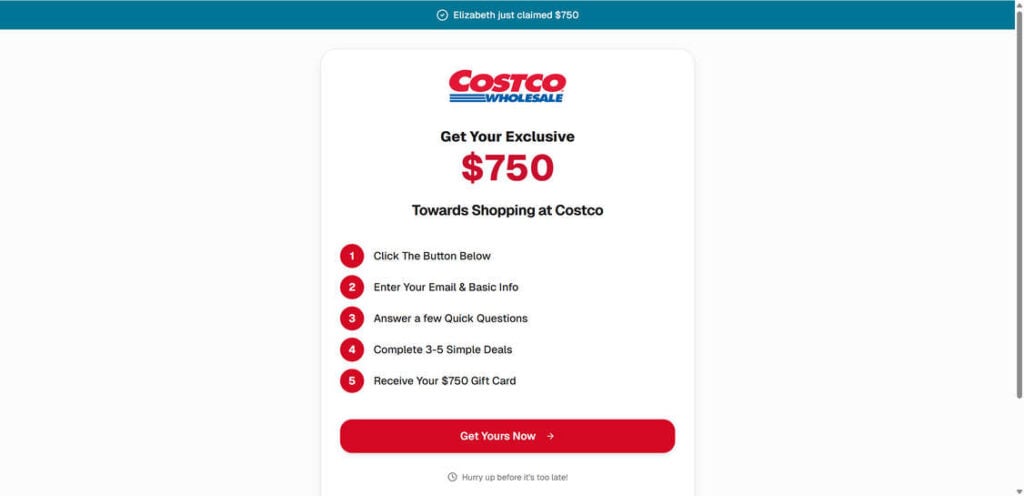
CostGifter tries to look like a Costco rewards page, but the real purpose is very different. It uses Costco-style branding, fake payout claims, and misleading messages to convince people they can earn up to $750 for sharing shopping feedback.
That offer is not real.
CostGifter is not an official Costco program. It appears to be part of a lead-generation and affiliate funnel built to collect personal information, push users into unwanted offers, and generate commissions for the people behind it. Users may end up wasting time, handing over personal data, and signing up for trials or subscriptions, while receiving nothing in return.
Below is a closer look at how the CostGifter Costco gift card scam works, the biggest warning signs, and what to do if you already interacted with it.
Scam Overview
CostGifter presents itself as a Costco-related rewards platform where users can supposedly earn cash or gift cards for completing feedback tasks. It claims participants can join a special review program, answer simple questions, and get rewarded with up to $750.
But once you look past the branding, the offer falls apart. There is no credible evidence that Costco is involved. There is no legitimate review program paying people hundreds of dollars for basic shopping feedback. And there is no reliable sign that anyone actually receives the promised reward.
Instead, CostGifter shows the classic traits of an exposing-style scam story: borrowed branding, fake credibility signals, misleading promises, and a funnel designed to profit from the user rather than reward them.

What CostGifter Claims
The site tries to sell a simple story:
- You join a Costco-related review program.
- You share your shopping experience.
- You complete a few quick steps.
- You receive up to $750 in rewards.
That pitch is designed to sound easy, official, and low-risk. In reality, it leads users into third-party offers, personal data collection, and possible subscription traps.
Why This Offer Is Not Credible
There are several major reasons this setup should not be trusted:
- It uses Costco branding without proving any real connection. A site can copy logos and colors, but that does not make it official.
- The payout promise is unrealistic. Legitimate feedback programs do not casually hand out up to $750 for basic reviews.
- The process depends on outside “offers.” That is a common sign that the real business model is affiliate monetization, not rewards.
- There is no transparent proof of payment. Big reward claims with no verifiable payout evidence are a serious red flag.
- The structure benefits the operators, not the user. The site makes money when users click, sign up, and complete third-party actions.
The Biggest Red Flags
CostGifter follows a familiar scam pattern. Warning signs include:
- Unauthorized use of a trusted retail brand.
- Promises of easy money for almost no work.
- Fake urgency and fake “recent earnings” notifications.
- Requests for personal details early in the process.
- Pressure to complete extra deals to “unlock” the reward.
- Possible exposure to spam, telemarketing, and recurring charges.
- No meaningful customer support or accountability.
These are not minor concerns. Together, they strongly suggest the site is designed to exploit consumer trust rather than provide any real benefit.
How the Site Tries to Look Legitimate
Scam pages like this rarely look sloppy. In fact, they often look polished on purpose. CostGifter appears to use a clean layout, Costco-style colors, persuasive copy, and trust-building messages to lower suspicion.
It may also display things like:
- Pop-ups claiming other users just got paid.
- Messages suggesting the offer is limited or exclusive.
- Fake testimonials or generic success stories.
- Buttons such as “Start Earning” or “Claim Your Reward Now.”
These are standard manipulation tactics. They are there to push people through the funnel before they stop and question whether the offer makes sense.
What the Operators Really Want
The real objective does not appear to be rewarding users. It appears to be monetizing them.
That usually happens in two main ways:
- Lead generation: collecting names, phone numbers, email addresses, ZIP codes, and other personal details that can be sold or reused.
- Affiliate commissions: earning money each time a user signs up for a trial, downloads an app, completes a survey, or enters payment information through a third-party offer.
That means even if the user gets nothing, the operators can still profit from every completed step.
What Victims Commonly Experience
People who go through these fake reward funnels often report the same outcome:
- No $750 reward.
- No Costco gift card.
- No meaningful support response.
- More spam emails, texts, and calls afterward.
- Unexpected subscription charges tied to “free” trials.
- Difficulty unsubscribing or getting answers.
That pattern is exactly why sites like CostGifter deserve to be treated as scam operations, not reward programs.
How the Scam Works
CostGifter follows a familiar step-by-step path used by many fake gift card and survey scams. Here is how the funnel typically works.
Step 1: The User Sees a Fake Reward Pitch
The scam often begins with an ad, promoted post, email, or redirect page claiming the user can earn money for reviewing Costco products or sharing shopping feedback.
Typical bait includes:
- “Get up to $750 for your opinion.”
- “Exclusive Costco feedback program.”
- “Limited spots available.”
- “Recent members are earning fast.”
The goal is simple: get the click before the user thinks too hard about whether the offer makes any sense.
Step 2: The Site Uses Brand Familiarity to Lower Suspicion
Once the user lands on CostGifter, the page tries to feel safe and familiar. Costco colors, logo-like branding, and polished design elements create the illusion that this is somehow tied to a real company.
This is a key part of the deception. People are far more likely to trust a page that looks connected to a major retailer than a random unknown website.
Step 3: The User Is Asked for Personal Information
Before any reward appears, the site usually asks for personal details such as:
- Full name
- Email address
- Phone number
- ZIP code or location details
That information is valuable on its own. It can be used for lead generation, spam campaigns, remarketing, or passed to other advertisers and questionable partners.
Step 4: The “Reward” Gets Locked Behind Extra Tasks
After the user signs up, the offer usually changes. Suddenly, the promised reward is no longer immediate. The user is told they must complete several extra deals or verification steps first.
These tasks may include:
- Completing third-party surveys
- Downloading mobile apps
- Signing up for trial memberships
- Entering payment details for “free” offers
- Registering for unrelated services
This is where the scam becomes profitable for the operators.
Step 5: Each Completed Offer Generates Revenue for the Scam
Every time a user finishes one of these deals, the people behind the funnel may earn an affiliate commission. That means the site does not need to pay users at all. It can make money simply by pushing enough people through the process.
In other words, the user is not the customer. The user is the product being monetized.
Step 6: Fake Progress Messages Keep the User Engaged
To prevent people from leaving, the funnel may show progress bars, milestone messages, or “almost there” prompts. These are psychological nudges designed to keep users invested.
Examples include:
- “Step 2 of 3 completed”
- “Only one more offer required”
- “Your reward is waiting”
- “Verification in progress”
These messages create the illusion that the payout is real and close, even when it never arrives.
Step 7: Hidden Charges May Follow
If the user enters payment information for trial offers, subscription charges may start appearing later. These charges are often buried in terms most users never see clearly during the sign-up process.
That turns the fake reward pitch into something even worse: a funnel that can cost victims real money.
Step 8: The Promised Reward Never Comes
Once the user completes the required steps, the site may show a vague confirmation message. But no Costco gift card arrives. No cash payment appears. No trustworthy support team helps resolve the issue.
This is the end of the trap. The operators got the data, clicks, and commissions. The user got nothing.
Step 9: The Data Keeps Circulating
Even after the user leaves the site, the damage may continue. Submitted details can lead to:
- Spam email campaigns
- Unwanted texts and robocalls
- More fake reward or survey offers
- Exposure to related scam funnels
That is why users often feel like one bad click turned into a much larger privacy problem.
Step 10: The Same Scheme Often Reappears Under New Names
Sites like CostGifter are rarely one-off operations. When one domain gets reported or loses effectiveness, the same playbook can be reused with a new name, new branding, or a different retailer theme.
That is why these scams keep resurfacing. The design may change slightly, but the structure stays the same: fake reward, fake trust signals, personal data capture, affiliate funnel, no payout.
What to Do If You Have Fallen Victim to the CostGifter Scam
If you interacted with CostGifter, the priority now is damage control. The faster you act, the better your chances of limiting spam, subscription charges, or further misuse of your information.
1. Stop Using the Site
Do not complete any more offers, forms, or verification steps. Close the site and avoid clicking any follow-up links sent by email or text.
2. Watch for Spam and Scam Follow-Ups
If you submitted your email or phone number, expect a possible increase in spam messages. Be cautious with every new offer that references prizes, surveys, or rewards.
3. Check Your Bank and Credit Card Statements
If you entered any payment details during the process, review your recent transactions closely. Look for unfamiliar charges, trial conversions, or recurring subscription fees.
4. Cancel Any Trial Offers Immediately
If you signed up for any “free” deal during the process, cancel it as soon as possible. Do not assume the charge will stop on its own.
5. Change Passwords If You Reused Them
If you used an email address tied to other accounts, and especially if you reused passwords anywhere, update them now. Use strong, unique passwords and enable two-factor authentication where possible.
6. Report Suspicious Charges to Your Bank
If you see unauthorized or misleading billing, contact your card issuer or bank right away. Ask about disputing the charges and whether your card should be replaced.
7. Scan Your Device If You Downloaded Anything
If the funnel asked you to install apps or download files, run a full security scan using trusted antivirus or anti-malware software.
8. Report the Scam
Reporting helps limit the spread and creates a record of the abuse. You can report the site to:
- Federal Trade Commission (FTC): reportfraud.ftc.gov
- Internet Crime Complaint Center (IC3): ic3.gov
- Better Business Bureau Scam Tracker: bbb.org/scamtracker
- Costco customer support: to report misuse of the company’s name and branding.
9. Block Future Spam
Mark follow-up emails as spam, block suspicious numbers, and avoid engaging with any “reward recovery” messages. Scam funnels often lead to even more scam funnels.
10. Treat Similar Reward Pages With Extreme Caution
Any site promising large gift cards or cash for minimal effort should be treated as suspicious, especially when it uses a major brand name on a domain that clearly does not belong to that brand.
Is Your Device Infected? Run a Free Malware Scan
Slow performance, constant pop-ups, or strange behavior? These are classic signs of a malware infection. The fastest way to find out is to scan your device with Malwarebytes Free — one of the most trusted malware removal tools available.
The free version detects and removes the most common threats, including:
- Adware — the cause of those annoying pop-ups
- Browser hijackers — unwanted redirects and changed homepages
- Trojans and spyware — hidden programs stealing your data
- Potentially unwanted programs (PUPs) — software you never asked for
👉 Select your device below — Windows, Mac, or Android — then follow the simple steps to download Malwarebytes, scan your system, and remove any threats it finds. The scan usually takes 5 to 20 minutes.
Run a Malware Scan with Malwarebytes for Windows
Malwarebytes is one of the most popular and trusted anti-malware tools for Windows — and it’s completely free for removing infections. It catches threats that many antivirus programs miss, including adware, browser hijackers, and trojans. Follow the steps below to scan and clean your PC in just a few minutes.
Download Malwarebytes
Click the button below to download the latest version of Malwarebytes for Windows from the official source. The free version is all you need — it will scan your computer and remove adware, browser hijackers, and other malicious software at no cost.
Download MalwarebytesOfficial installer for Windows 11 and 10. Your download starts right away.Want real-time protection? See Malwarebytes Premium Malwarebytes Free for WindowsScans and removes malware at no cost
-
Install Malwarebytes
When the download finishes, open your Downloads folder and double-click the MBSetup file. If Windows shows a User Account Control pop-up, click “Yes” to allow the installation.

Follow the On-Screen Prompts to Install Malwarebytes
The setup wizard will walk you through a few quick screens:
-
Choose where you’re installing the program — “Personal Computer” or “Work Computer” — then click Next.

-
Malwarebytes will now install on your device. This usually takes under a minute.

-
When installation is complete, the “Welcome to Malwarebytes” screen will open automatically.

-
On the final screen, click Open Malwarebytes to launch the program.

-
Enable “Scan for Rootkits”
Before scanning, turn on rootkit detection so Malwarebytes can find even the most hidden threats. Click the Settings gear icon on the left side of the screen.

In the settings menu, find “Scan for rootkits” and click the toggle so it turns blue.

Done? Click “Dashboard” in the left pane to return to the main screen.
Start the Scan
Click the blue Scan button. Malwarebytes will automatically update its virus database and start checking your computer for malware.

-
Wait for the Scan to Finish
The scan checks your entire system for browser hijackers and other malicious programs, so it can take 5 to 20 minutes depending on your computer. Feel free to do something else — just check back occasionally to see the progress.

-
Quarantine the Detected Threats
When the scan is done, you’ll see a list of everything Malwarebytes found — malware, adware, and potentially unwanted programs. Click the “Quarantine” button to remove all of them at once.

Malwarebytes will now remove the malicious files and registry entries and move them safely into quarantine.

-
Restart Your Computer
Some threats can only be fully removed after a reboot. If Malwarebytes asks you to restart, click Yes. Once you’re logged back in, Malwarebytes has finished removing the threats it found.

That’s it — your Windows PC is now clean of trojans, adware, and other malware, and should be back to running smoothly.
If you are still having problems with your computer after completing these instructions, then please follow one of the steps:
- Run a computer scan with ESET Online Scanner
- Ask for help in our Windows Malware Removal Help & Support forum.
Run a Malware Scan with Malwarebytes for Mac
Malwarebytes for Mac is a free on-demand scanner that removes the malware other security software tends to miss — adware, browser hijackers, and unwanted programs included. Cleaning an infected Mac with Malwarebytes has always been completely free, and it’s our go-to recommendation. Follow the steps below to scan and clean your Mac in just a few minutes.
-
Download Malwarebytes for Mac
Click the button below to download the latest version of Malwarebytes for Mac.
Download MalwarebytesOfficial installer for macOS. Your download starts right away.Want real-time protection? See Malwarebytes PremiumMalwarebytes Free for MacScans and removes malware at no cost -
Open the Malwarebytes setup file
When the download finishes, open your Downloads folder and double-click the setup file to begin the installation.

-
Follow the On-Screen Prompts to Install Malwarebytes
The Malwarebytes for Mac Installer will guide you through a few quick screens. Click “Continue” and keep following the prompts until the installation completes.



When the installation is complete, Malwarebytes opens to the Welcome to Malwarebytes screen. Click “Get started“.
-
Select “Personal Computer” or “Work Computer”
Malwarebytes will ask what type of computer you’re installing it on. Click either Personal Computer or Work Computer, whichever applies.

-
Start the Scan
Click the “Scan” button. Malwarebytes will automatically update its detection database and begin checking your Mac for malware.

-
Wait for the Scan to Finish
Malwarebytes will scan your Mac for adware, browser hijackers, and other malicious programs. This can take a few minutes, so feel free to do something else — just check back occasionally to see the progress.

-
Quarantine the Detected Threats
When the scan is done, you’ll see a list of everything Malwarebytes found. Click the “Quarantine” button to remove all the threats at once.

-
Restart Your Mac
Malwarebytes will now remove all the malicious files it found. Some threats can only be fully removed after a reboot — if Malwarebytes asks you to restart, allow it. Once you’re logged back in, your Mac is clean.

That’s it — your Mac is now free of adware, rogue browser extensions, and other potentially harmful software.
If you are still experiencing problems while trying to remove a malicious program from your computer, please ask for help in our Mac Malware Removal Help & Support forum.
Run a Malware Scan with Malwarebytes for Android
Malwarebytes for Android automatically detects and removes dangerous threats like malware and ransomware so you don’t have to worry about your most-used device being compromised. Aggressive detection of adware and potentially unwanted programs keeps your Android phone or tablet running smooth.
-
Download Malwarebytes for Android.
You can download Malwarebytes for Android by clicking the link below.
Get Malwarebytes for AndroidOpens Google Play in a new tab.Want real-time protection? See Malwarebytes Premium for AndroidMalwarebytes for AndroidScans your phone and removes malware at no cost -
Install Malwarebytes for Android on your phone.
In the Google Play Store, tap “Install” to install Malwarebytes for Android on your device.

When the installation process has finished, tap “Open” to begin using Malwarebytes for Android. You can also open Malwarebytes by tapping on its icon in your phone menu or home screen.

-
Follow the on-screen prompts to complete the setup process
When Malwarebytes will open, you will see the Malwarebytes Setup Wizard which will guide you through a series of permissions and other setup options.
This is the first of two screens that explain the difference between the Premium and Free versions. Swipe this screen to continue.
Tap on “Got it” to proceed to the next step.
Malwarebytes for Android will now ask for a set of permissions that are required to scan your device and protect it from malware. Tap on “Give permission” to continue.
Tap on “Allow” to permit Malwarebytes to access the files on your phone.
-
Update database and run a scan with Malwarebytes for Android
You will now be prompted to update the Malwarebytes database and run a full system scan.

Click on “Update database” to update the Malwarebytes for Android definitions to the latest version, then click on “Run full scan” to perform a system scan.

-
Wait for the Malwarebytes scan to complete.
Malwarebytes will now start scanning your phone for adware and other malicious apps. This process can take a few minutes, so we suggest you do something else and periodically check on the status of the scan to see when it is finished.

-
Click on “Remove Selected”.
When the scan has been completed, you will be presented with a screen showing the malware infections that Malwarebytes for Android has detected. To remove the malicious apps that Malwarebytes has found, tap on the “Remove Selected” button.

-
Restart your phone.
Malwarebytes for Android will now remove all the malicious apps that it has found. To complete the malware removal process, Malwarebytes may ask you to restart your device.
That’s it — your Android phone is now clean — no more malicious apps, adware, or browser redirects.
If you are still having problems with your phone after completing these instructions, then please follow one of the steps:
- Restore your phone to factory settings by going to Settings > General management > Reset > Factory data reset.
- Ask for help in our Mobile Malware Removal Help & Support forum.
Stay Protected: Block Ads and Malicious Sites
Now that your device is clean, keep it that way. Most infections start with a malicious ad or a fake download button — so blocking them at the source is your best defense.
We recommend AdGuard, which blocks malicious ads, phishing pages, and dangerous redirects before they can reach you.
👉 Download AdGuard and browse safely
Frequently Asked Questions
What is CostGifter?
CostGifter is a website that presents itself as a Costco-related rewards or feedback platform. It claims users can earn up to $750 by sharing shopping opinions or completing review-style tasks. In reality, the site shows multiple signs of being a scam-style affiliate and data-harvesting funnel rather than a legitimate Costco program.
Is CostGifter really connected to Costco?
No credible evidence suggests that CostGifter is officially connected to Costco. The use of Costco branding appears to be there to build trust, not to prove a legitimate partnership.
Does CostGifter really pay $750?
There is no reliable reason to believe it does. The large reward claim appears to be bait used to push users into completing offers, submitting personal data, and possibly signing up for trial programs that benefit the site operators financially.
Why is CostGifter considered a scam?
It raises serious concerns because it combines unauthorized brand-style presentation, unrealistic payout promises, personal data collection, outside offer completion requirements, and a lack of transparent proof that any real reward is ever delivered.
What are the main red flags?
The most obvious warning signs include:
- A domain that is not owned by Costco.
- Huge rewards for little effort.
- Fake-looking urgency and payout notifications.
- Requests for personal information up front.
- Pressure to complete unrelated deals or trials.
- No trustworthy proof of actual payouts.
What happens if I signed up?
You may start receiving spam emails, texts, or calls. If you completed outside offers or entered payment details, you could also face unwanted subscription charges or repeated marketing contact.
Can CostGifter misuse my information?
It can expose your information to marketers, lead buyers, affiliate networks, or other questionable partners. That is why it is important to act quickly if you submitted personal or financial details.
What should I do if I gave them my card details?
Contact your bank or card issuer immediately, review your recent charges, dispute anything suspicious, and ask whether your card should be canceled and replaced.
Will I ever receive the promised reward?
Users should not expect any real payout. Scam funnels like this are structured to profit from the victim’s actions, not to deliver the advertised reward.
Are there other sites like CostGifter?
Yes. Similar pages often appear under new domains and reuse the same formula: brand impersonation, fake gift cards or cash offers, lead collection, affiliate tasks, and no real reward.
The Bottom Line
CostGifter is not a harmless rewards page. It appears to be a deceptive funnel that borrows Costco-style branding to make a fake reward offer look real. The promised $750 payout is the hook. The real business seems to be collecting user data, pushing people into third-party offers, and earning commissions while victims get nothing.
If you come across CostGifter or a similar site, do not treat it like a legitimate Costco promotion. Treat it like a scam warning. The safest move is to leave the page, avoid entering any information, and verify promotions only through a company’s official website.
When a website promises easy money, uses a trusted brand name, and then hides the reward behind personal data collection and offer walls, that is usually not an opportunity. It is a trap.








