

Few inbox warnings feel more personal than “your account will be deleted.” The Deleting Old Emails Scam pairs that fear with a made-up server congestion problem, then offers a verification button that steals the very login it claims to protect.
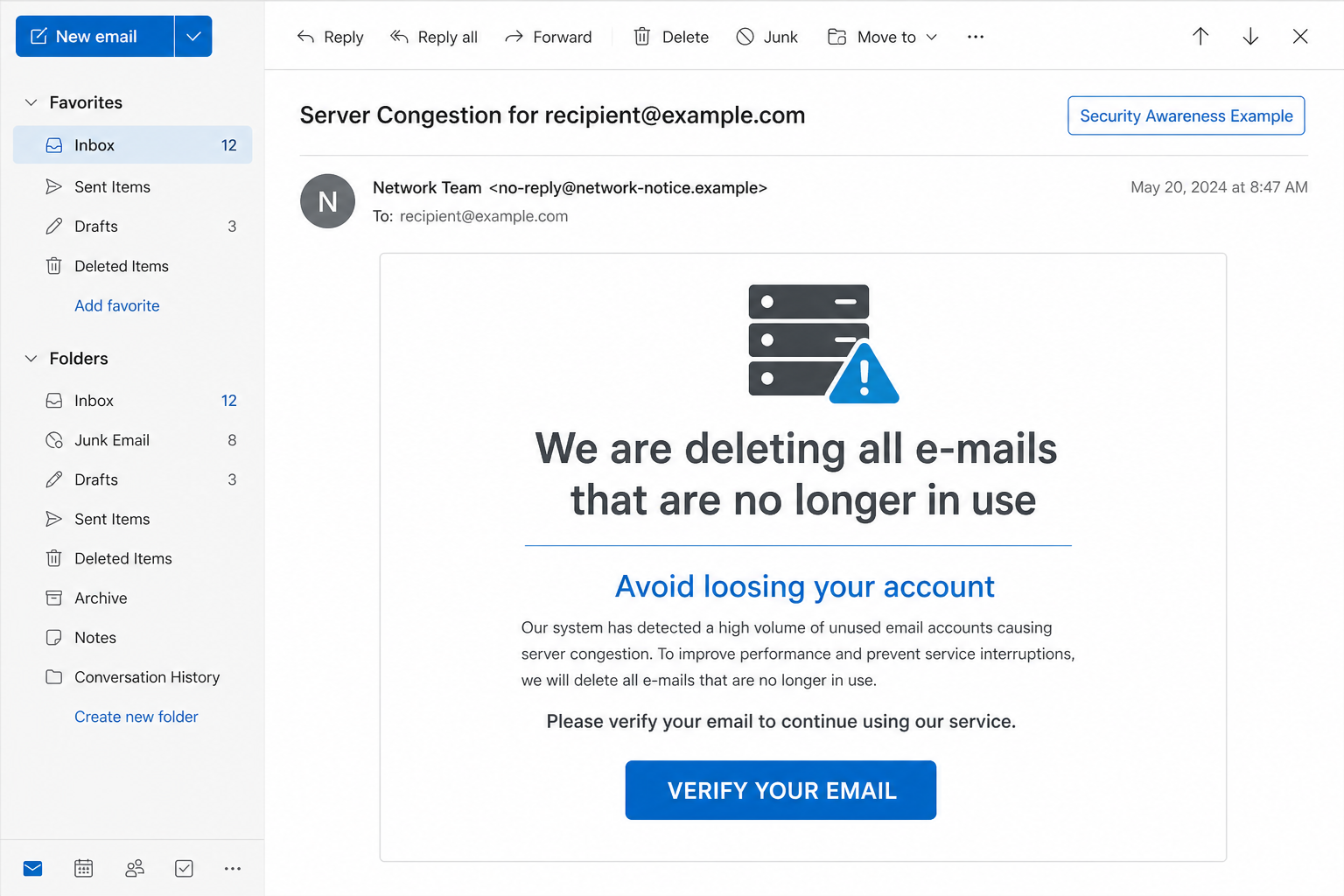
The message may use a subject such as “Server Congestion for [recipient]” and say the provider is deleting email accounts that are no longer in use. The recipient is told to verify the mailbox to avoid losing it.
Awkward wording such as “deleteing” and “loosing” can appear in the campaign, but grammar is not the main test. The larger problem is that an unnamed provider supposedly needs an unsolicited link and the current password to decide whether an active address is active.
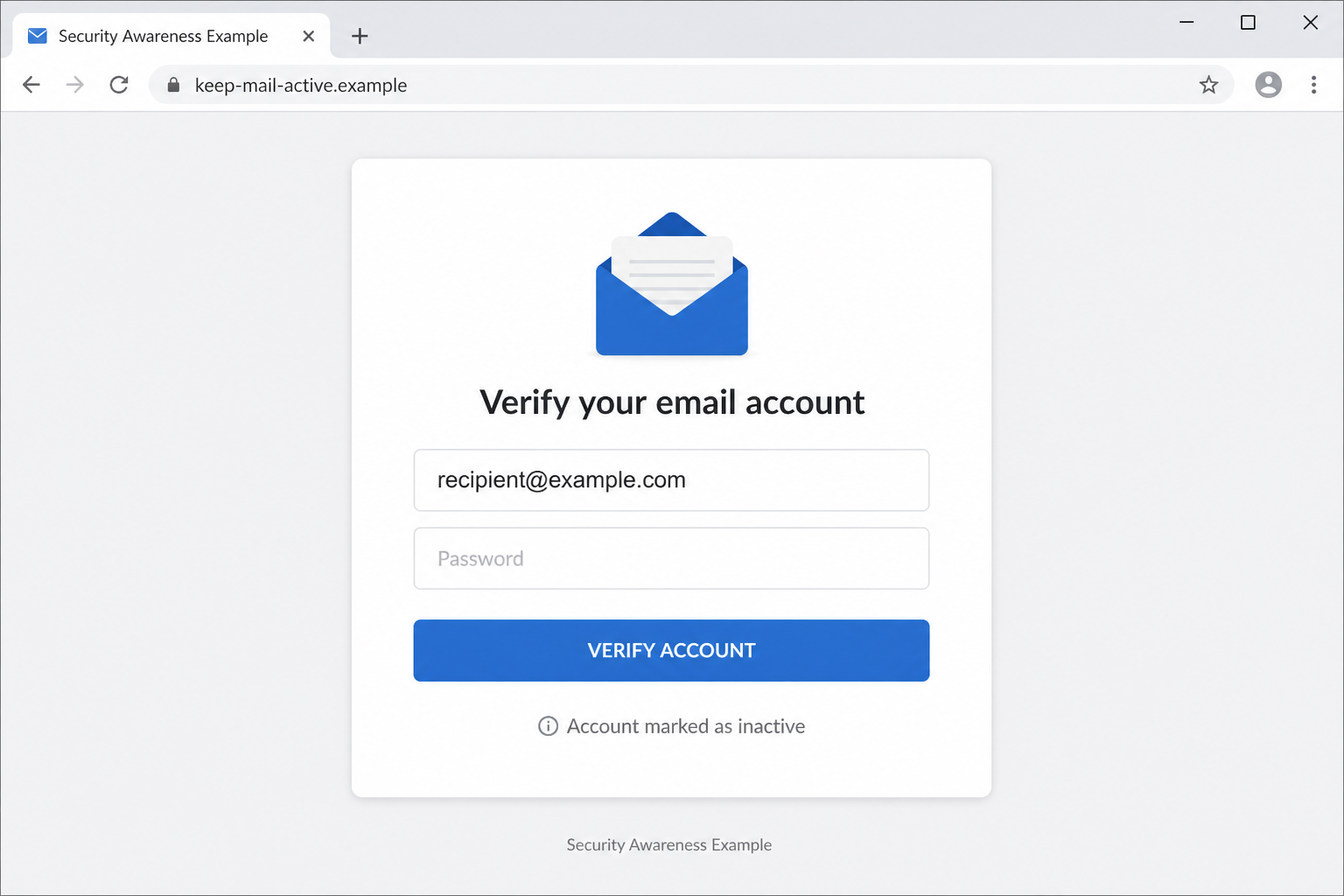
The observed destination was no longer accessible during later analysis, a common outcome for short-lived phishing pages. Its disappearance does not make the email safe; the verification story and credential request reveal the intended account-takeover pattern.
Overview
A Fake Capacity Problem Threatens the Account
The warning combines two familiar concerns: full servers and inactive accounts. By merging them, the message invents a policy that sounds technical even though the provider supposedly enforcing it is never clearly identified.
Putting the recipient’s address in the subject adds a personal touch at no cost to the attacker. The address came from the same mailing list used to send the message and proves nothing about mailbox status.
The threat feels permanent. People may tolerate a temporary login problem, but the possible loss of years of messages, receipts, photos, and recovery links makes the verification button harder to ignore.
Verification Becomes a Password Harvest
VERIFY YOUR EMAIL is presented as a way to mark the mailbox active. In reality, the provider already records logins, sent mail, storage, and subscription data and does not need an external password form for that decision.
The original destination later stopped responding, which is common for short-lived phishing infrastructure. An offline page is not retroactively harmless; any credentials entered while it worked may remain in the attacker’s hands.
A Dead Link Does Not Erase the Risk
Provider-themed pages can adjust their colors and logos after reading the victim’s domain. That visual customization still cannot move authentication from the real mail service to an unrelated host.
A captured inbox becomes a recovery hub for other accounts. It can expose private correspondence, accept password-reset links, and send new deletion warnings that look more convincing because they come from someone the next victim knows.
The supposed cleanup never preserves storage or confirms activity with the real provider. Instead, it gives the criminal a verified, working mailbox and enough context to decide whether identity theft, account recovery abuse, or contact impersonation offers the best return. The promised protection becomes the mechanism of compromise.
- Typical subject: Server Congestion for [recipient].
- False claim: unused accounts are being deleted to improve server performance.
- Pressure: verify now to avoid losing the mailbox.
- Button: VERIFY YOUR EMAIL.
- Language clues: misspellings such as deleteing and loosing may appear.
- Likely objective: steal webmail credentials through a provider-themed login page.
Why the Server Congestion Explanation Makes No Sense
Providers Already Know When an Account Is Used
A mail platform records successful sign-ins, sent messages, storage use, and subscription status. It does not need the user to prove activity by typing a password into a page reached from mass email.
An organization may have a documented inactive-account policy, but it is communicated through known channels and can be verified inside the account or with an administrator.
Capacity Is Managed Without Random Credential Forms
Mail providers manage storage with quotas, retention policies, paid plans, and administrator controls. Deleting active customer accounts because a server is congested would be an extraordinary response and would not be hidden behind one button.
The Deleting Old Emails Scam uses technical-sounding language because server capacity is difficult for ordinary users to verify. That uncertainty becomes the attacker’s leverage.
Unavailable Phishing Sites Are Still Evidence
Fraudulent pages are frequently removed by hosts, abandoned by operators, or rotated to new domains. A later connection error says nothing about whether the page captured earlier visitors’ credentials.
Do not reopen a suspicious link to see whether it works today. Preserve the address, report it, and respond based on what was entered when the site was active.
How the Deleting Old Emails Scam Works
Step 1: The Campaign Personalizes the Subject
The attacker places the recipient’s address in a server-congestion subject. This information was already available from the mailing list, but seeing it in the warning can make the notice feel account-specific.
Personalization is cheap in bulk campaigns. It proves only that the sender knew where to deliver the email, not that the sender could inspect the mailbox.
Step 2: A Technical Problem Explains the Deletion
The body claims unused accounts consume server resources and must be removed. It frames deletion as routine maintenance rather than punishment or a billing issue.
The explanation sounds plausible to anyone who has seen a full mailbox warning. However, storage pressure and account inactivity are different conditions, and providers already measure both internally.
Step 3: The Fear of Permanent Loss Creates Urgency
Email can contain years of conversations, receipts, photographs, and password-reset access. A threat to erase it can override the hesitation someone would normally feel about an unknown button.
The scam may avoid a precise deadline because immediate danger is implied. The recipient is led to believe that any delay could allow an automated deletion process to continue.
Step 4: VERIFY YOUR EMAIL Opens a Provider-Themed Page
The button leads outside the normal mailbox route. The page can inspect the address in the URL and display a familiar provider style, making one campaign work against many organizations.
The visible design is selected for persuasion. The registered domain remains controlled by the phisher or an abused hosting account and should be compared with the known mail address.
Step 5: The Password Is Presented as Proof of Activity
The fake page asks the victim to enter the current mail password. It may say successful verification will mark the account active and cancel deletion.
A login performed on an unrelated site authenticates nothing to the real provider. The only system receiving proof is the attacker’s collection panel.
Step 6: The Page May Fail, Redirect, or Disappear
After submission, the site can show a success message, send the user to the real provider, or stop responding. Any of these endings can hide the theft and reduce immediate suspicion.
Hosts and defenders may later remove the page. Victims should not assume their information was discarded just because the destination is now offline.
Step 7: The Stolen Inbox Becomes a Recovery Hub
Criminals can use the captured mailbox to reset social, retail, payment, and workplace accounts. They may also search old messages for identity data or financial relationships.
The account can send additional Deleting Old Emails Scam messages that appear to come from someone familiar. That trust transfer is often more damaging than the original generic lure.
Company, Address, and Fulfillment Checks
Company: Name the Real Mail Provider
Identify whether the mailbox belongs to an employer, school, hosting company, Microsoft, Google, or another service. The email’s generic Network Team or support label is not enough.
Open the provider through a bookmark or official app and inspect storage, subscription, and policy notices there. An authentic deletion warning should be visible through that trusted route.
Address: Compare the Login Domain
Before entering credentials, check the registered domain in the browser. Provider names placed in subdomains, paths, page titles, or icons cannot transfer ownership to an unrelated host.
If the original page is gone, do not search for a replacement copy. Give the defanged URL to the security team or host and focus on securing any information already submitted.
Support: Verify the Retention Policy
Employers and schools may deactivate accounts after departure or long inactivity, but those rules are documented. Contact the administrator using a directory, contract, or official support page.
Ask for the policy, date, and account record. A legitimate support agent can explain status without directing the user back to a suspicious verification form.
Fulfillment: Look for a Real Account Change
The scam promises that verification will preserve the mailbox, yet it cannot show an authenticated account status before collecting the password. No genuine retention action is fulfilled.
Check sign-in history and settings after the incident. The only observable account change may be unauthorized access, new forwarding, or password-reset activity caused by the stolen login.
Warning Signs in a Server Congestion Account Deletion Email
Spelling mistakes are useful clues, but the Deleting Old Emails Scam is exposed more clearly by its impossible account-management process.
- An unnamed provider claims active users must prove that their mailbox is used.
- Server congestion is given as the reason for deleting entire accounts.
- The subject repeats the recipient’s address as false evidence of account access.
- The only rescue path is a VERIFY YOUR EMAIL button in the warning itself.
- The link opens outside the normal provider or organization domain.
- Misspellings such as deleteing and loosing appear in an alleged system notice.
- The real account contains no matching deletion, quota, or policy notification.
A legitimate provider can explain retention through an authenticated portal and published policy. It does not need an unknown website to tell it that a mailbox receiving the warning is active.
What to Do if You Have Fallen Victim to This Scam
If the verification form received your password, secure the mailbox even if the page is now unavailable. Criminals can retain submitted information after their visible site disappears.
- Change the email password through the known provider. Create a unique replacement from a clean device. State that the Deleting Old Emails Scam captured the old password when contacting support.
- Sign out all other sessions. Revoke browser tokens, mail clients, mobile sessions, and application passwords. A vanished phishing page does not remove an attacker’s authenticated session.
- Enable strong multifactor authentication. Prefer passkeys or security keys, then an authenticator app. Remove unfamiliar recovery addresses, telephone numbers, devices, and verification methods.
- Inspect forwarding rules and hidden filters. Attackers may copy incoming mail or hide security alerts. Review delegates, shared access, OAuth applications, and automatic replies too.
- Secure every account that reused the password. Start with banking, shopping, cloud, social, and work services. Give each account a different password stored in a reputable password manager.
- Review password-reset and security messages. Search the mailbox for changes you did not request, then inspect Deleted and Archive folders. Contact affected services directly rather than following links in those messages.
- Run Malwarebytes after any unexpected download. The core lure targets credentials, but variants can include files or extensions. Update Malwarebytes, scan all drives, quarantine detections, and preserve the report.
- Add AdGuard for another layer against malicious hosts. AdGuard may block known phishing pages and redirectors. It cannot identify every new domain, so continue checking addresses and never rely on a blocklist alone.
- Notify the administrator and affected contacts. The provider can review access logs and block the campaign. Warn contacts if the mailbox sent deletion notices, documents, or unusual payment requests.
- Save and report the evidence. Keep the original message, headers, screenshots, and defanged link. Report the domain to its host and follow local identity-theft or data-breach procedures when sensitive mail was exposed.
Is Your Device Infected? Run a Free Malware Scan
Slow performance, constant pop-ups, or strange behavior? These are classic signs of a malware infection. The fastest way to find out is to scan your device with Malwarebytes Free — one of the most trusted malware removal tools available.
The free version detects and removes the most common threats, including:
- Adware — the cause of those annoying pop-ups
- Browser hijackers — unwanted redirects and changed homepages
- Trojans and spyware — hidden programs stealing your data
- Potentially unwanted programs (PUPs) — software you never asked for
👉 Select your device below — Windows, Mac, or Android — then follow the simple steps to download Malwarebytes, scan your system, and remove any threats it finds. The scan usually takes 5 to 20 minutes.
Run a Malware Scan with Malwarebytes for Windows
Malwarebytes is one of the most popular and trusted anti-malware tools for Windows — and it’s completely free for removing infections. It catches threats that many antivirus programs miss, including adware, browser hijackers, and trojans. Follow the steps below to scan and clean your PC in just a few minutes.
Download Malwarebytes
Click the button below to download the latest version of Malwarebytes for Windows from the official source. The free version is all you need — it will scan your computer and remove adware, browser hijackers, and other malicious software at no cost.
Download MalwarebytesOfficial installer for Windows 11 and 10. Your download starts right away.Want real-time protection? See Malwarebytes Premium Malwarebytes Free for WindowsScans and removes malware at no cost
-
Install Malwarebytes
When the download finishes, open your Downloads folder and double-click the MBSetup file. If Windows shows a User Account Control pop-up, click “Yes” to allow the installation.

Follow the On-Screen Prompts to Install Malwarebytes
The setup wizard will walk you through a few quick screens:
-
Choose where you’re installing the program — “Personal Computer” or “Work Computer” — then click Next.

-
Malwarebytes will now install on your device. This usually takes under a minute.

-
When installation is complete, the “Welcome to Malwarebytes” screen will open automatically.

-
On the final screen, click Open Malwarebytes to launch the program.

-
Enable “Scan for Rootkits”
Before scanning, turn on rootkit detection so Malwarebytes can find even the most hidden threats. Click the Settings gear icon on the left side of the screen.

In the settings menu, find “Scan for rootkits” and click the toggle so it turns blue.

Done? Click “Dashboard” in the left pane to return to the main screen.
Start the Scan
Click the blue Scan button. Malwarebytes will automatically update its virus database and start checking your computer for malware.

-
Wait for the Scan to Finish
The scan checks your entire system for browser hijackers and other malicious programs, so it can take 5 to 20 minutes depending on your computer. Feel free to do something else — just check back occasionally to see the progress.

-
Quarantine the Detected Threats
When the scan is done, you’ll see a list of everything Malwarebytes found — malware, adware, and potentially unwanted programs. Click the “Quarantine” button to remove all of them at once.

Malwarebytes will now remove the malicious files and registry entries and move them safely into quarantine.

-
Restart Your Computer
Some threats can only be fully removed after a reboot. If Malwarebytes asks you to restart, click Yes. Once you’re logged back in, Malwarebytes has finished removing the threats it found.

That’s it — your Windows PC is now clean of trojans, adware, and other malware, and should be back to running smoothly.
If you are still having problems with your computer after completing these instructions, then please follow one of the steps:
- Run a computer scan with ESET Online Scanner
- Ask for help in our Windows Malware Removal Help & Support forum.
Run a Malware Scan with Malwarebytes for Mac
Malwarebytes for Mac is a free on-demand scanner that removes the malware other security software tends to miss — adware, browser hijackers, and unwanted programs included. Cleaning an infected Mac with Malwarebytes has always been completely free, and it’s our go-to recommendation. Follow the steps below to scan and clean your Mac in just a few minutes.
-
Download Malwarebytes for Mac
Click the button below to download the latest version of Malwarebytes for Mac.
Download MalwarebytesOfficial installer for macOS. Your download starts right away.Want real-time protection? See Malwarebytes PremiumMalwarebytes Free for MacScans and removes malware at no cost -
Open the Malwarebytes setup file
When the download finishes, open your Downloads folder and double-click the setup file to begin the installation.

-
Follow the On-Screen Prompts to Install Malwarebytes
The Malwarebytes for Mac Installer will guide you through a few quick screens. Click “Continue” and keep following the prompts until the installation completes.



When the installation is complete, Malwarebytes opens to the Welcome to Malwarebytes screen. Click “Get started“.
-
Select “Personal Computer” or “Work Computer”
Malwarebytes will ask what type of computer you’re installing it on. Click either Personal Computer or Work Computer, whichever applies.

-
Start the Scan
Click the “Scan” button. Malwarebytes will automatically update its detection database and begin checking your Mac for malware.

-
Wait for the Scan to Finish
Malwarebytes will scan your Mac for adware, browser hijackers, and other malicious programs. This can take a few minutes, so feel free to do something else — just check back occasionally to see the progress.

-
Quarantine the Detected Threats
When the scan is done, you’ll see a list of everything Malwarebytes found. Click the “Quarantine” button to remove all the threats at once.

-
Restart Your Mac
Malwarebytes will now remove all the malicious files it found. Some threats can only be fully removed after a reboot — if Malwarebytes asks you to restart, allow it. Once you’re logged back in, your Mac is clean.

That’s it — your Mac is now free of adware, rogue browser extensions, and other potentially harmful software.
If you are still experiencing problems while trying to remove a malicious program from your computer, please ask for help in our Mac Malware Removal Help & Support forum.
Run a Malware Scan with Malwarebytes for Android
Malwarebytes for Android automatically detects and removes dangerous threats like malware and ransomware so you don’t have to worry about your most-used device being compromised. Aggressive detection of adware and potentially unwanted programs keeps your Android phone or tablet running smooth.
-
Download Malwarebytes for Android.
You can download Malwarebytes for Android by clicking the link below.
Get Malwarebytes for AndroidOpens Google Play in a new tab.Want real-time protection? See Malwarebytes Premium for AndroidMalwarebytes for AndroidScans your phone and removes malware at no cost -
Install Malwarebytes for Android on your phone.
In the Google Play Store, tap “Install” to install Malwarebytes for Android on your device.

When the installation process has finished, tap “Open” to begin using Malwarebytes for Android. You can also open Malwarebytes by tapping on its icon in your phone menu or home screen.

-
Follow the on-screen prompts to complete the setup process
When Malwarebytes will open, you will see the Malwarebytes Setup Wizard which will guide you through a series of permissions and other setup options.
This is the first of two screens that explain the difference between the Premium and Free versions. Swipe this screen to continue.
Tap on “Got it” to proceed to the next step.
Malwarebytes for Android will now ask for a set of permissions that are required to scan your device and protect it from malware. Tap on “Give permission” to continue.
Tap on “Allow” to permit Malwarebytes to access the files on your phone.
-
Update database and run a scan with Malwarebytes for Android
You will now be prompted to update the Malwarebytes database and run a full system scan.

Click on “Update database” to update the Malwarebytes for Android definitions to the latest version, then click on “Run full scan” to perform a system scan.

-
Wait for the Malwarebytes scan to complete.
Malwarebytes will now start scanning your phone for adware and other malicious apps. This process can take a few minutes, so we suggest you do something else and periodically check on the status of the scan to see when it is finished.

-
Click on “Remove Selected”.
When the scan has been completed, you will be presented with a screen showing the malware infections that Malwarebytes for Android has detected. To remove the malicious apps that Malwarebytes has found, tap on the “Remove Selected” button.

-
Restart your phone.
Malwarebytes for Android will now remove all the malicious apps that it has found. To complete the malware removal process, Malwarebytes may ask you to restart your device.
That’s it — your Android phone is now clean — no more malicious apps, adware, or browser redirects.
If you are still having problems with your phone after completing these instructions, then please follow one of the steps:
- Restore your phone to factory settings by going to Settings > General management > Reset > Factory data reset.
- Ask for help in our Mobile Malware Removal Help & Support forum.
Stay Protected: Block Ads and Malicious Sites
Now that your device is clean, keep it that way. Most infections start with a malicious ad or a fake download button — so blocking them at the source is your best defense.
We recommend AdGuard, which blocks malicious ads, phishing pages, and dangerous redirects before they can reach you.
👉 Download AdGuard and browse safely
Frequently Asked Questions
Do email providers delete accounts because of server congestion?
Not through the process described here. Providers use quotas, retention rules, and account policies that can be checked through official settings. They do not need a password entered on an unrelated site.
Does my address in the subject prove the warning is personal?
No. The attacker already needs the address to send the message and can automatically insert it into the subject and page. That is mail-merge personalization, not account access.
What if the verification site no longer opens?
Treat any information previously entered as exposed. Phishing sites are often removed or rotated, while collected credentials remain usable and may already have been sold.
Are the spelling mistakes enough to identify the scam?
They support suspicion but should not be the only test. A polished version would still be fraudulent because the domain, deletion story, and password request are wrong.
Could my work or school account genuinely expire?
Yes, under a documented policy. Confirm the status with the known administrator or official portal. Do not use the contact details or verification button inside the unexpected warning.
What if I clicked but entered nothing?
Close the page, check for downloads, and report the link. Review the real account for warnings. The largest risk begins when credentials, recovery data, or permissions are submitted.
The Bottom Line
The Deleting Old Emails Scam invents a server-capacity emergency to make a password form look like account maintenance. Its personalized subject and technical language do not overcome the absence of a real provider, policy, or authenticated notice.
Verify retention warnings through the account you already know. If you used the fake page, replace the password, revoke sessions, remove mailbox persistence, and respond even when the original phishing host has gone offline.

Join the discussion
0 commentsShare your experience or ask a question about this article.
Discussion
Start the conversation
Have a question or something useful to share? Add the first comment.