

Dropbox is a popular cloud storage service that allows users to store and share files online. It was founded in 2007 by Drew Houston and Arash Ferdowsi and has since grown to become one of the most widely used cloud storage platforms in the world. With over 600 million registered users, Dropbox offers a range of features and benefits that make it a convenient tool for individuals and businesses alike.
What is Dropbox?
Dropbox is a cloud-based file hosting service that allows users to store and share files and folders online. It provides a secure and convenient way to access files from any device with an internet connection. Users can upload files to their Dropbox account and access them from their computer, smartphone, or tablet.
One of the key features of Dropbox is its synchronization capability. When a file is added or modified in the Dropbox folder on one device, it is automatically updated on all other devices connected to the same Dropbox account. This ensures that users always have the latest version of their files available, regardless of the device they are using.
Benefits of Using Dropbox
There are several benefits to using Dropbox:
- Easy file sharing: Dropbox allows users to share files and folders with others, making collaboration and file sharing effortless. Users can send a link to a file or folder, and recipients can access and download the files without needing a Dropbox account.
- Automatic backup: Dropbox automatically backs up files and folders, providing an extra layer of protection against data loss. If a device is lost, stolen, or damaged, files can be easily restored from the Dropbox account.
- File version history: Dropbox keeps a history of file versions, allowing users to revert to previous versions if needed. This is particularly useful when working on collaborative projects or when changes need to be undone.
- Offline access: Dropbox allows users to access files even when they are offline. Files can be marked for offline access, ensuring that they are available even without an internet connection.
- Integration with other apps: Dropbox integrates with a wide range of third-party apps, allowing users to seamlessly work with their files in different applications.
Should I Uninstall Dropbox?
While Dropbox offers many benefits, there may be situations where uninstalling it is necessary or preferable. Here are a few scenarios where uninstalling Dropbox might be considered:
1. Limited storage space:
If you have limited storage space on your device, uninstalling Dropbox can free up valuable space. Dropbox syncs files to your device, which means they take up storage space on your hard drive. If you find that your device is running out of space, uninstalling Dropbox can help alleviate the issue.
2. Privacy concerns:
Some users may have privacy concerns about storing their files on a cloud-based service. While Dropbox has implemented security measures to protect user data, there is always a risk of data breaches or unauthorized access. If you have sensitive or confidential files that you prefer to keep offline, uninstalling Dropbox may be a viable option.
3. Alternative cloud storage services:
If you are already using another cloud storage service that meets your needs, uninstalling Dropbox can help streamline your digital storage. Having multiple cloud storage accounts can lead to confusion and inefficiency, so consolidating your files into a single service may be a better option.
4. Performance issues:
In some cases, Dropbox may consume significant system resources, leading to performance issues on your device. If you notice that your device is slowing down or experiencing frequent crashes, uninstalling Dropbox can help improve performance.
How to Uninstall Dropbox
If you have decided to uninstall Dropbox, here are the steps to do so:
- Windows:
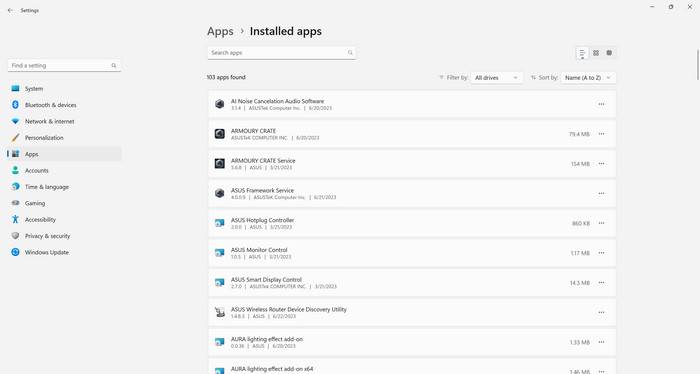
- Click on the “Start” button and go to “Settings.”
- Select “Apps” or “Apps & features.”
- Scroll down and find Dropbox in the list of installed apps.
- Click on Dropbox and select “Uninstall.”
- Follow the on-screen instructions to complete the uninstallation process.
- Mac:
- Open the “Applications” folder.
- Find Dropbox in the list of applications.
- Drag and drop Dropbox into the Trash.
- Right-click on the Trash and select “Empty Trash.”
After uninstalling Dropbox, it is recommended to scan your device for any potential malware or unwanted programs. Malwarebytes Free is a reliable and effective tool for scanning and removing malware. You can download and run a scan with Malwarebytes Free from their official website: Malwarebytes Free.
Conclusion
Dropbox is a versatile cloud storage service that offers numerous benefits for individuals and businesses. However, there may be situations where uninstalling Dropbox is necessary or preferable. Limited storage space, privacy concerns, alternative cloud storage services, and performance issues are some of the factors to consider when deciding whether to uninstall Dropbox. If you do decide to uninstall Dropbox, make sure to follow the appropriate steps for your operating system and consider scanning your device for malware using Malwarebytes Free. Ultimately, the decision to uninstall Dropbox depends on your specific needs and preferences.

Join the discussion
0 commentsShare your experience or ask a question about this article.
Discussion
Start the conversation
Have a question or something useful to share? Add the first comment.