


An installer finishes, but the expected application is nowhere obvious. Later, an alert names EtherRAT, a threat that sounds more like cryptocurrency software than a Windows problem.
The name can send you looking in the wrong direction. Understanding what the installer introduced is more useful than guessing from the word Ether.
Overview
What EtherRAT does
EtherRAT malware gives an operator a way to run code on an infected system. Researchers have documented Node.js-based payloads and multiple delivery contexts.
The backdoor can execute code received from its operator. File access, system changes, and further payloads become possible within the permissions available to that process.
How the Windows infection starts
Malwarebytes researchers analyzed distribution infrastructure hosting MSI installers and PowerShell scripts. In the examined Windows chain, loaders prepared the runtime and launched the remote-access code.
The analyzed MSI chain placed several components in a user-accessible directory. It looked for Node.js and could download the legitimate runtime if it was absent.
The Windows loader used concealed execution and a registry startup entry. The payload could therefore operate without presenting the normal interface a user expects from an installed application.
What to do when EtherRAT is detected
Stop using the affected Windows computer for sensitive accounts. Disconnect it and preserve the installer details and alert before starting removal.
- Save the detection name, affected path, and approximate execution time.
- Record the download address or original message.
- Use a trusted device for password changes and account recovery.
- On a work computer, contact security before restarting or installing cleaners.
Do not wait for a visible ransom note or an empty account. Unauthorized remote execution is already a reason to contain and investigate the system.
How to Remove EtherRAT From Windows
For a work or school computer, contact its IT or security team before installing tools or restarting. Its investigation may need evidence from the running system.
If remote access is suspected, disconnect Wi-Fi or Ethernet and stop using this PC for sensitive accounts. Arrange trusted downloads and updates before proceeding with cleanup.
Start with Malwarebytes. HitmanPro and ESET are optional second opinions for unresolved findings or continuing symptoms. Run one scanner at a time.
- STEP 1: Use RKill only if malware blocks your scanner
- STEP 2: Scan and quarantine threats with Malwarebytes
- STEP 3: Optional: Check unresolved threats with HitmanPro
- STEP 4: Optional: Run a second-opinion scan with ESET
Step 1: Use RKill only if malware blocks your scanner
RKill attempts to stop known malware processes so your security software can run. It does not remove the infection.
Use it only on a personal Windows PC when malware is blocking your scanner. Otherwise, skip directly to Malwarebytes.
-
Download Rkill.
Download RKill using the button below. On the download page, choose the iExplore.exe version.
This is a renamed copy of RKill, provided for infections that block security tools by filename.
RKillStops malware processes so other tools can runDownload RKillOpens the BleepingComputer download page in a new tab.
-
Run RKill.
Open your Downloads folder and double-click iExplore.exe. Allow the program time to finish checking for processes that interfere with cleanup.
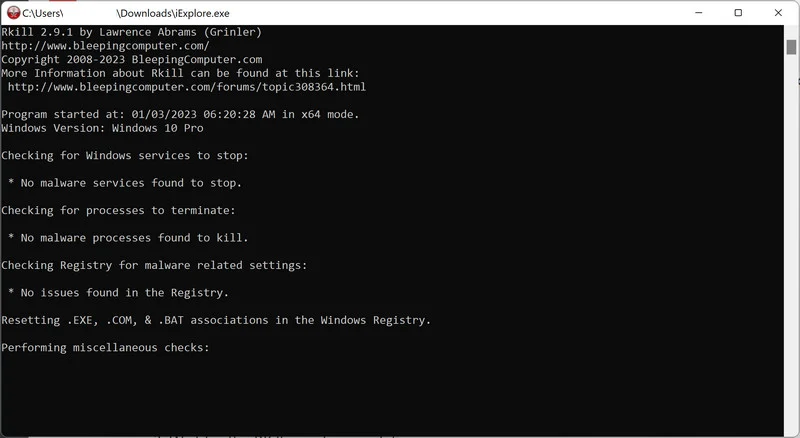
When the black window closes, a log opens. Keep the log, do not restart yet, and continue directly to Malwarebytes.
Step 2: Scan and quarantine threats with Malwarebytes
Malwarebytes for Windows can scan for malware and quarantine detected threats. Use the free Custom Scan below; a paid plan is not required for this cleanup.
-
Download Malwarebytes
Click the button below to download Malwarebytes for Windows. Paid real-time protection is optional.
Malwarebytes Free for WindowsScans and removes malware at no costDownload MalwarebytesMalwarebytes free scanner informationOfficial installer for Windows 11 and 10. Your download starts right away.Want real-time protection? See Malwarebytes Premium
-
Install Malwarebytes
When the download finishes, open Downloads and double-click MBSetup. If Windows asks for permission, check that the prompt identifies Malwarebytes, then click Yes.

-
Follow the On-Screen Prompts to Install Malwarebytes
The setup wizard will walk you through a few quick screens:
Installer screens and optional offers vary. Skip unwanted Browser Guard, trial, or paid-plan offers. The free Custom Scan remains available; Threat Scan may require a paid plan.
-
Choose Personal for your own computer, then click Next. For a work-managed device, use your organization’s approved response instead.

-
Wait for installation to finish.

-
If the Welcome to Malwarebytes screen appears, click Get started and follow the remaining prompts.

-
On the final screen, click Open Malwarebytes to launch the program.

-
-
Choose the scan type and optional rootkit check
On the Scanner tile, click the three dots, choose Advanced Scan, then Custom Scan.
Expand the folder selector and select the C:\ system drive. Include any other drive where the suspicious files were stored.
If Scan for rootkits is available, you can enable it. This setting is unavailable on Windows ARM devices; leave Windows security protections enabled.
Review how potentially unwanted programs and modifications will be handled. Keep detection enabled rather than automatically ignoring these items.
-
Start the Scan
Click Start Custom Scan. Allow Malwarebytes to update its detection information if prompted.
-
Wait for the Scan to Finish
Wait for the Custom Scan to finish. The time required depends on the selected locations and the amount of data.
-
Quarantine the Detected Threats
When the scan finishes, review the detections and keep the threats you want removed selected. Click Quarantine.
If a detection is unclear, save the report and ask for help before excluding or restoring it.

Wait while Malwarebytes quarantines the selected items. Do not restore a file merely because an unfamiliar name appears in the results.

-
Restart Your Computer
If Malwarebytes asks for a restart, save your work and click Yes. After signing back in, reopen Malwarebytes and check the report for unresolved detections.

Step 3: Optional: Check unresolved threats with HitmanPro
HitmanPro is a second-opinion scanner for Windows. It examines suspicious files using cloud analysis, including SophosLabs. An internet connection is needed for that check.
Scanning is free. Removing detections requires an eligible one-time 30-day trial or a paid license.
A computer that already used its trial may not qualify again. You do not have to buy HitmanPro to follow the Malwarebytes cleanup above.
-
Download HitmanPro
Click the button below to download HitmanPro if you want a second opinion on unresolved symptoms or detections.
HitmanProSecond-opinion malware scanner from SophosDownload HitmanProFree scan. Removal requires an eligible 30-day trial or a paid license. Opens the official HitmanPro page in a new tab.
-
Install HitmanPro
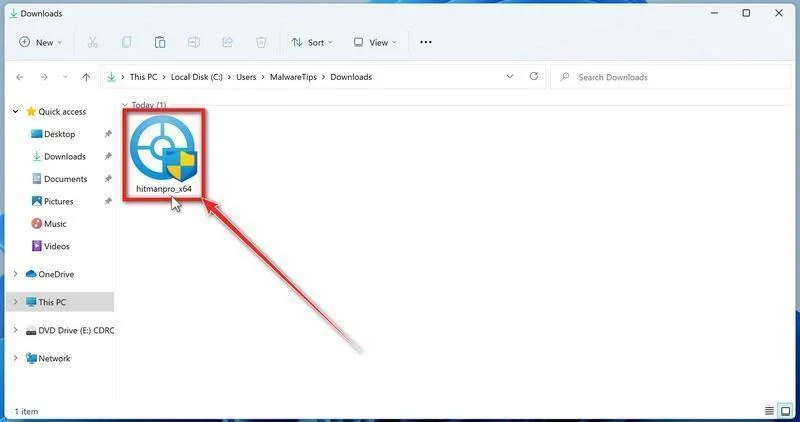
When the download finishes, open your Downloads folder and double-click the file: “hitmanpro.exe” on 32-bit Windows, or “hitmanpro_x64.exe” on 64-bit Windows.
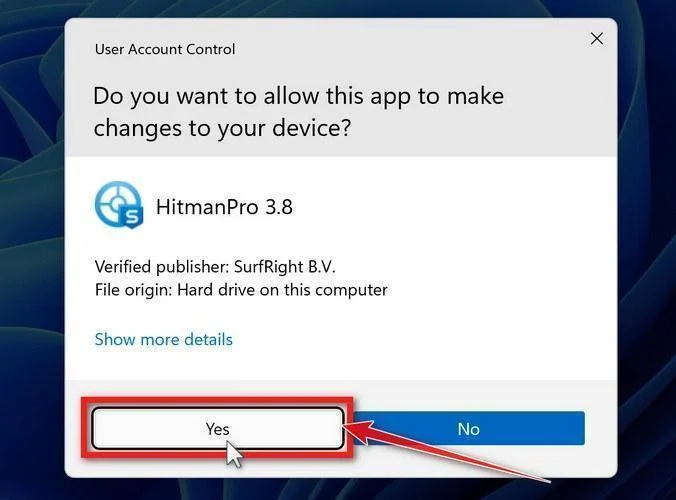
If a User Account Control pop-up asks whether HitmanPro can make changes to your device, click “Yes” to continue.
-
Follow the On-Screen Prompts
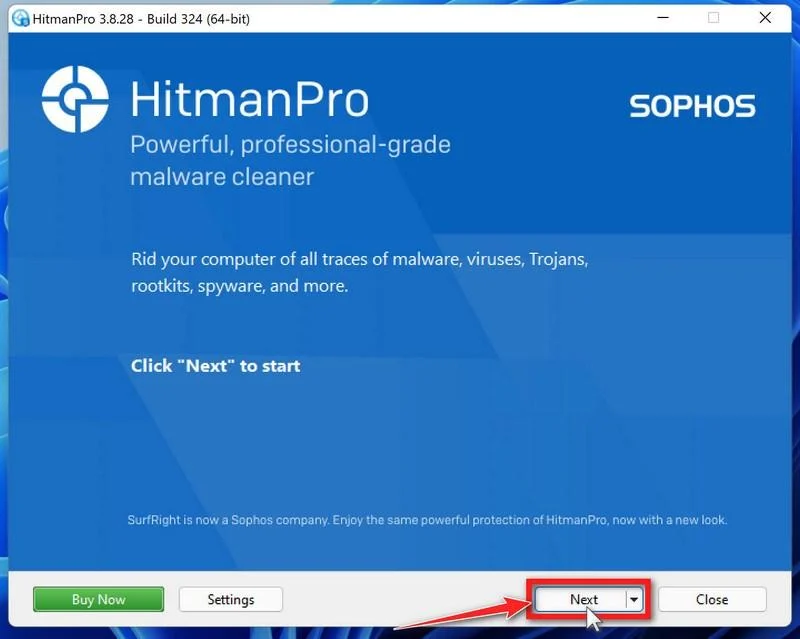
On the HitmanPro start screen, click Next. Read and accept the terms if you agree, then continue.
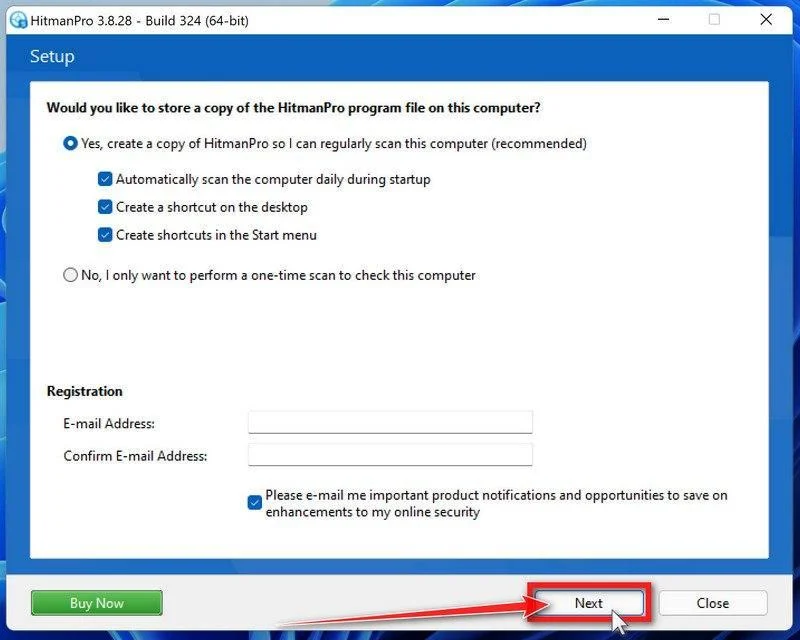
Choose whether to keep a copy for later use or run a one-time scan. Review optional startup and email preferences, then click Next.
-
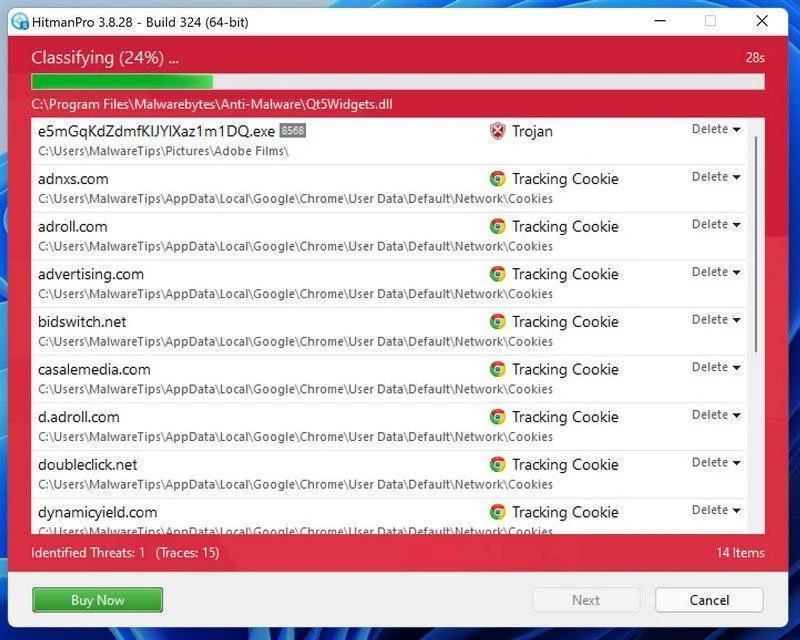
Wait for the Scan to Finish
Let HitmanPro finish scanning. Review its findings once the scan has completed.
-
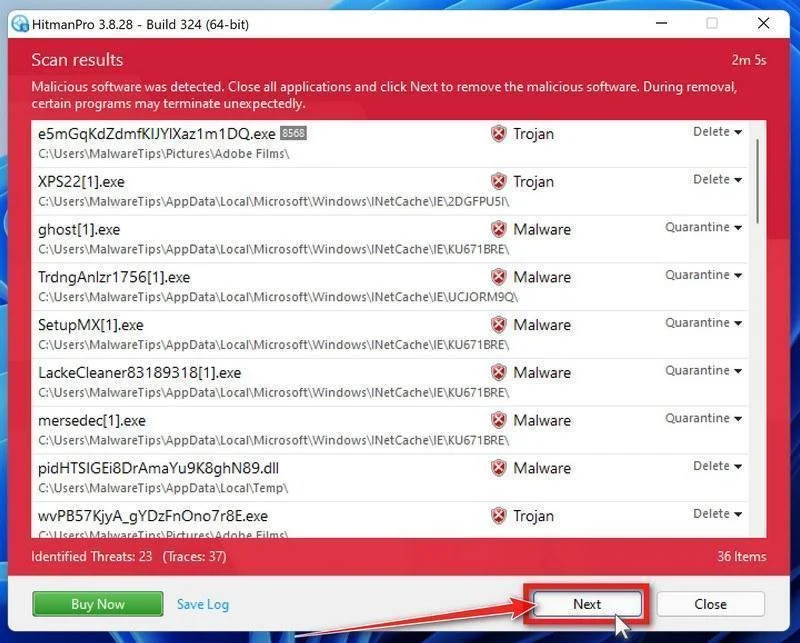
Review the Results and Click “Next”
Review the detected items and their proposed actions. Save the log if you need help with an unfamiliar detection, then click Next to proceed.
-
Click “Activate Free License”
If this computer qualifies, click Activate free license and follow the activation prompts.
If no trial is available, use an existing license or save the report for assistance. Do not assume a purchase is necessary to continue cleanup.
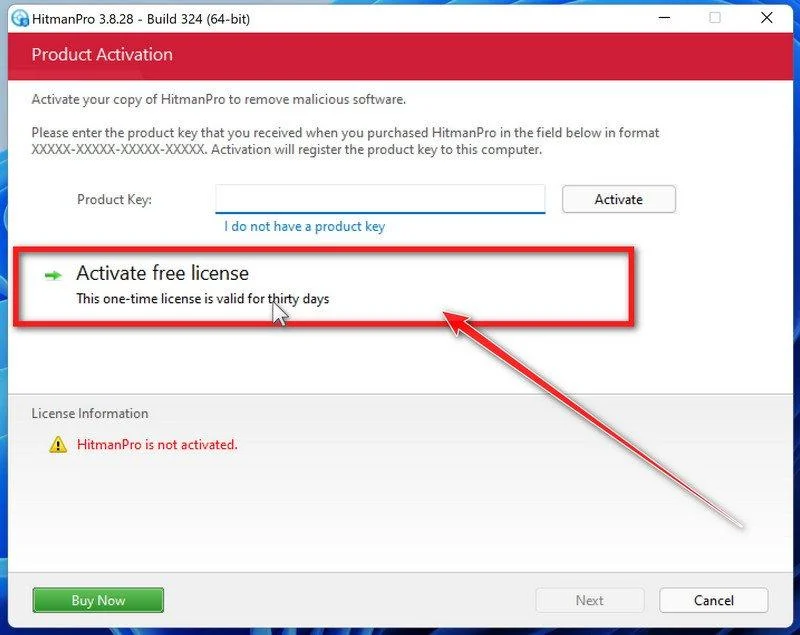
After removal, review the summary and click Next. Choose Reboot if requested, or Close if no restart is needed.
If detections return or the original symptoms persist, keep the reports and ask for help. A clean scan cannot rule out every threat.
Step 4: Optional: Run a second-opinion scan with ESET
ESET Online Scanner is a free second-opinion scanner for Windows. Use it if you need another check after cleanup, rather than running several scanners together.
-
Download ESET Online Scanner
Click the button below to download ESET Online Scanner.
ESET Online ScannerFree one-time malware scan from ESETDownload ESET Online ScannerOpens the official download page in a new tab.
-
Run the Installer
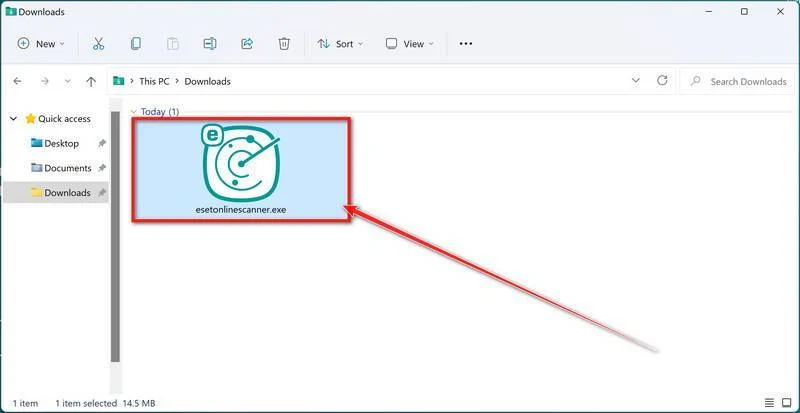
When the download finishes, open Downloads and double-click esetonlinescanner.exe. Approve the Windows permission prompt after checking that it identifies ESET.
-
Install ESET Online Scanner
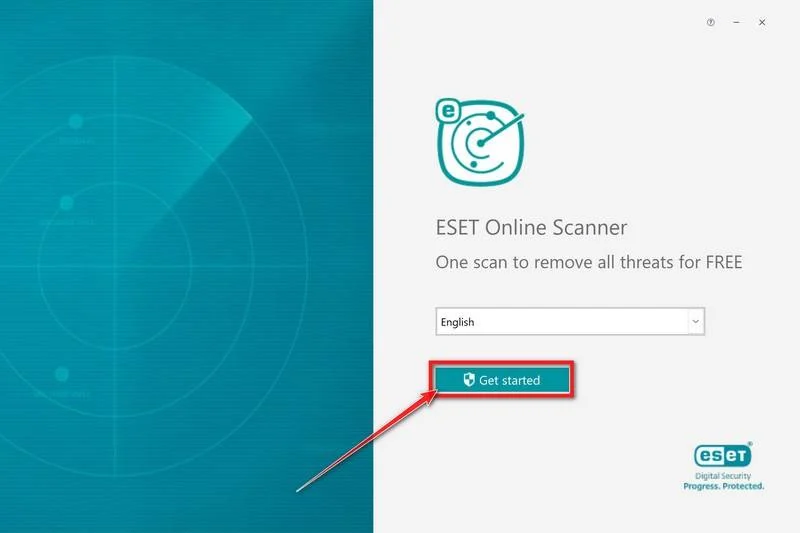
On the start screen, select your language from the drop-down menu and click Get started.
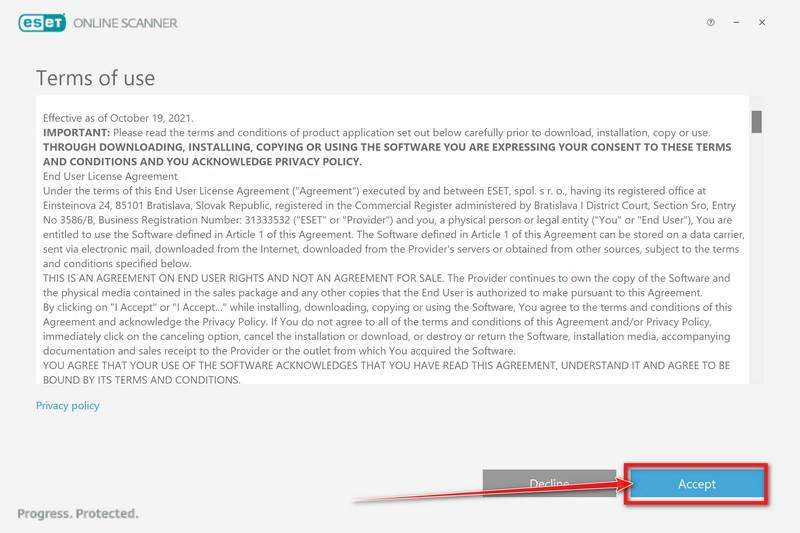
Read the Terms of use. Click Accept if you agree, then Get started if that screen appears again.
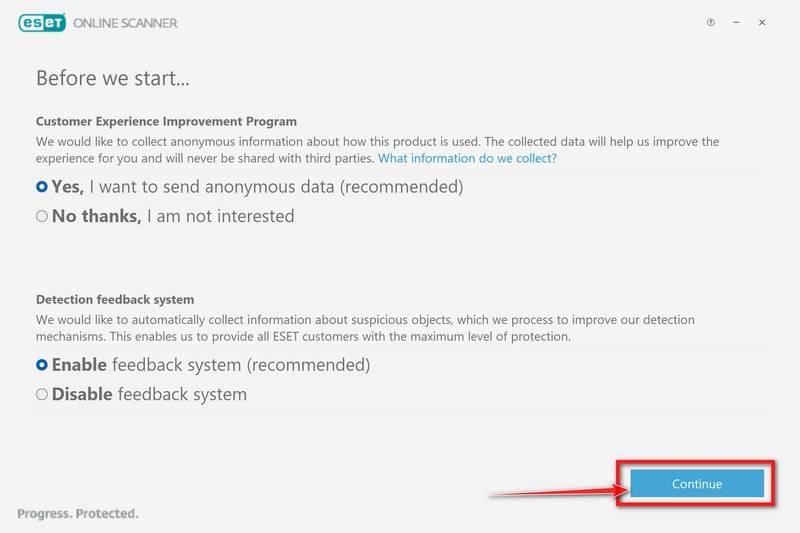
Choose your preferences for the Customer Experience Improvement Program and the Detection feedback system (either choice is fine), then click Continue.
-
Start a Full Scan
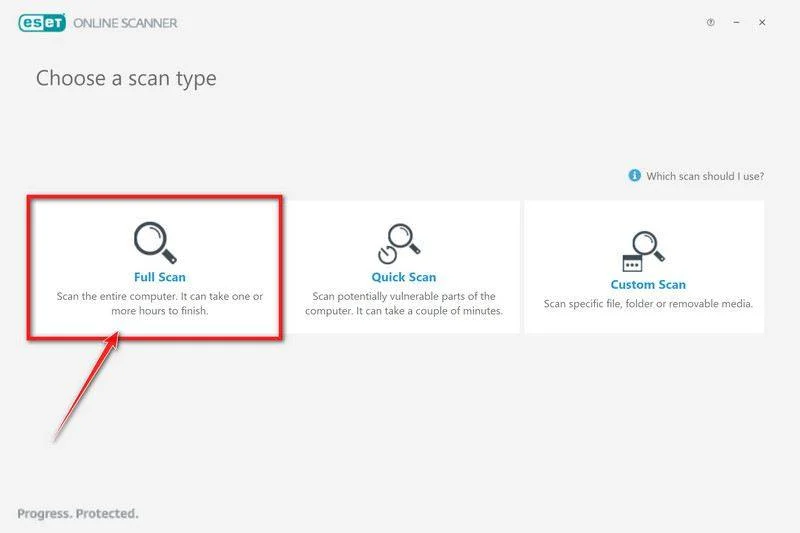
Click Full Scan for a broader check than the quick-scan option.
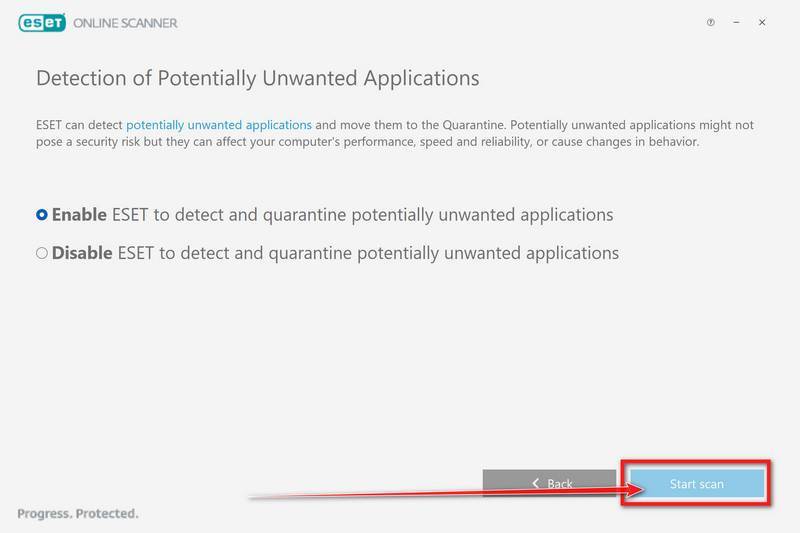
Select Enable for Detection of Potentially Unwanted Applications. Then click Start scan.
-
Wait for the Scan to Finish
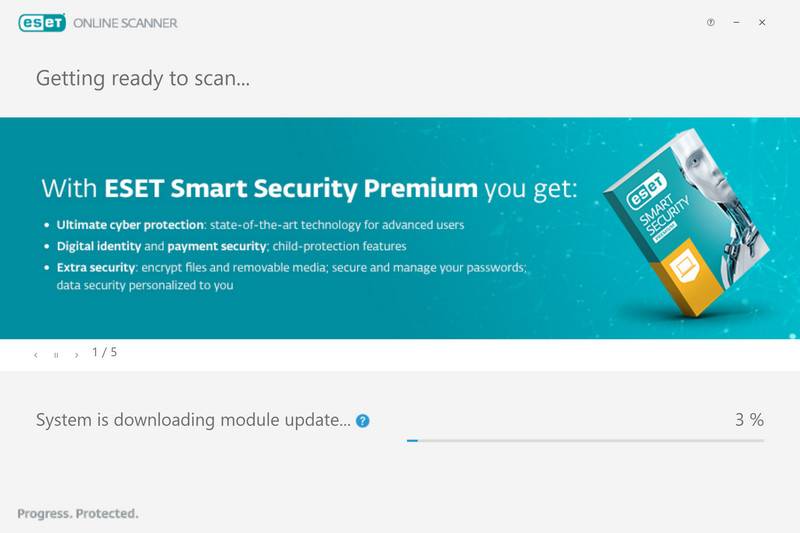
Allow the detection modules to download and update. The file scan begins afterward.
Leave the scan running until it finishes. A full scan can take an hour or longer, depending on your computer and the data being checked.
-
Review the Results
When the scan finishes, open View detailed results and check the action recorded for each detection.
ESET attempts to clean and quarantine detected threats. If an item remains unresolved, keep its details for assistance.
Click Save scan log to keep the results. Then click Continue.
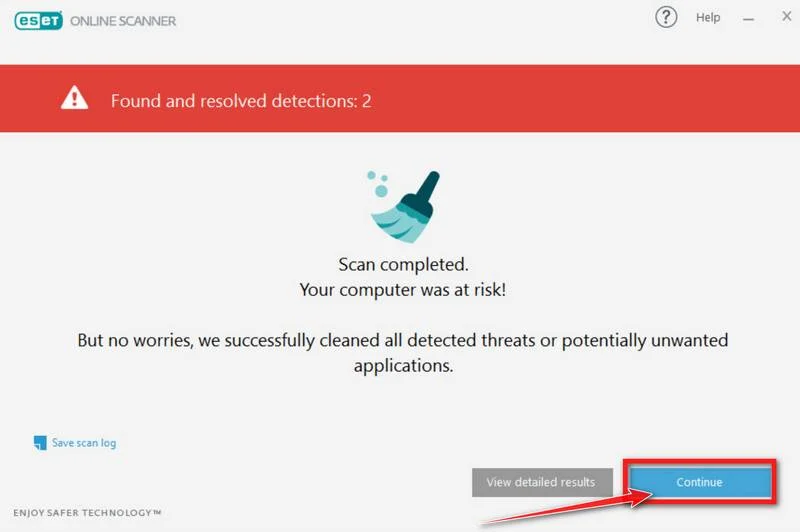
Restart if ESET requests it. Afterward, check whether detections or the original symptoms return.
If problems continue, keep the scan reports and ask for help in the MalwareTips removal forum. Do not repeatedly restore quarantined files.
What to Do After Removing EtherRAT
-
Secure exposed accounts. Prioritize accounts used during the exposure and accounts with administrative or financial privileges.
Replace exposed passwords and tokens, revoke suspicious sessions, and inspect recovery settings. Cleaning a file cannot cancel access already established through a stolen login.
-
Check for further changes. Ask whether unusual remote tools, new accounts, changed permissions, or unexpected connections appeared around the incident.
A corporate response should examine reachable systems and relevant logs. Do not interpret one antivirus result as proof that the entire organization is clear.
-
Get help if the infection returns. Keep the computer offline if detections or remote activity continue. Have an administrator assess whether a clean Windows installation is needed.
Ethereum Lookups and Linux Server Cases
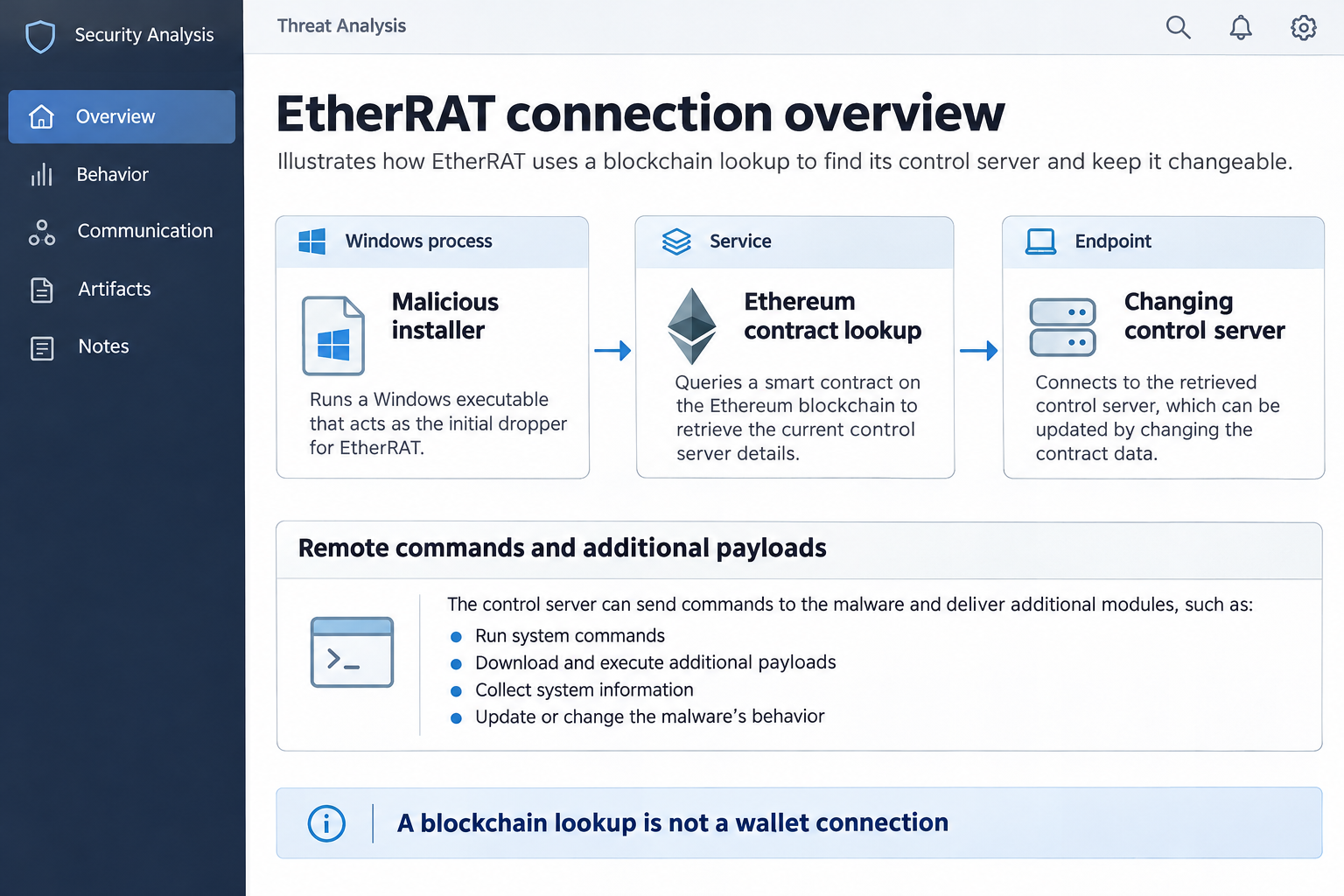
EtherRAT queries information associated with an Ethereum smart contract to obtain its current control-server destination. The operator can change that destination without replacing every infected installer.
The blockchain is acting as a directory. The infection does not require you to own cryptocurrency, connect a wallet, or approve a blockchain payment.
Earlier EtherRAT reporting described Linux intrusions involving React2Shell exploitation. The Windows removal guide cannot repair a Linux server.
The server administrator needs to preserve evidence, patch the affected application, replace exposed service credentials, and restore trusted software before reconnecting it.
Trace the script behind the Node.js process
An unfamiliar Node.js process is a lead, not a verdict. Developers, desktop applications, and legitimate services may already use the same runtime.
More useful questions concern its origin: what launched it, which script it opened, where those files came from, and whether a new startup entry points to them.
Save the command line, script location, and relevant startup entry for the removal helper. Do not delete registry entries solely because they launch Node.js.
The documented implementation also sent its script to the server for a newly obfuscated version. A changing file hash can therefore accompany continued malicious behavior.
Blocking a previously reported domain may interrupt a particular route, but does not prove the host no longer contains the implant.
For a server incident, check deployment logs and newly created service accounts before restoring access. Revoke credentials exposed to the compromised service, not only personal passwords.
Frequently Asked Questions
Does EtherRAT require access to my cryptocurrency wallet?
No. EtherRAT uses Ethereum to look up its control server. The documented Windows infection does not need access to your wallet.
Does finding Node.js mean the computer is infected?
No. Node.js is legitimate software. Investigate the actual launching process, script, installation source, and security findings rather than deleting every copy.
Can uninstalling the fake application remove everything?
Not reliably. The loader and payload may not have a normal uninstall entry, and startup changes or additional operator-delivered components need investigation.
Will blocking one control domain solve the problem?
It may disrupt communication, but EtherRAT can retrieve a changed destination. The affected system still needs containment and removal or rebuilding.
Does every EtherRAT infection lead to ransomware?
No. Follow-on actions vary. Contact your security team immediately if files become encrypted or a ransom note appears.
Do these Windows steps also clean a Linux server?
No. A server incident needs its own platform-specific investigation, software remediation, secret rotation, and recovery plan. Do not apply Windows tools to that environment.
The Bottom Line
Treat confirmed EtherRAT execution as a remote-access incident. Isolate the affected system, preserve the installation trail, and remove or rebuild it through an appropriate response.
Protect exposed accounts separately. Neither disconnecting a wallet nor blocking one domain resolves a backdoor that can receive fresh instructions from its operator.

Join the discussion
0 commentsShare your experience or ask a question about this article.
Your progress
Did these steps help?
Let us know how the guide worked for you.
Describe what you see and the step you reached. Keep passwords and other private information out.
Discussion
Start the conversation
Have a question or something useful to share? Add the first comment.