

Facebook Marketplace is one of the easiest places to sell used items locally, but it also attracts scammers posing as buyers. These scams often look simple at first: someone is interested, wants to pay fast, and seems ready to pick up the item.
The problem is that many fake buyers are not trying to buy anything. They are trying to steal money, personal information, account access, or the item itself.
Scam Overview
Facebook Marketplace buyer scams usually begin with a message from someone who seems eager to purchase your item. They may respond within minutes of your listing going live, offer the full asking price, avoid asking normal questions, and push the conversation toward payment or pickup very quickly.
At first, this can feel like an easy sale. The buyer may say they are busy, out of town, buying the item for a family member, or sending someone else to collect it. They may also claim they can pay immediately through PayPal, Zelle, Venmo, Cash App, bank transfer, or another payment app.
That is where the scam begins.
Instead of completing a normal transaction, the fake buyer creates a situation where you are pressured to trust a fake payment, reveal your email address or phone number, send back “extra” money, click a link, pay a fake fee, or share a verification code.
These scams work because they target sellers who are trying to move quickly. The scammer acts like a serious buyer and creates urgency. They may say another person will pick up the item soon, that payment has already been sent, or that you must complete one extra step before receiving the money.
In reality, the money is fake, delayed, reversible, or never sent at all.
Why Sellers Are Targeted on Facebook Marketplace
Most people think online marketplace scams target buyers. That is true, but sellers are also common targets.
Scammers know that sellers often want three things:
- A fast sale
- A simple pickup
- Guaranteed payment
Fake buyers exploit exactly those expectations. They pretend to be cooperative, flexible, and ready to pay. Instead of bargaining, they may offer the full price immediately. Some even offer more than the asking price to make the deal feel too good to ignore.
Many sellers also assume they are safe because they are the ones receiving money. That is the trap. In several Facebook Marketplace buyer scams, the seller ends up losing money even though they never intended to buy anything.
The scam may involve a fake payment email, a fake overpayment, a fake courier pickup, or a code that helps the scammer take over another account.
Common Facebook Marketplace Buyer Scams
1. The Overpayment Trick
The overpayment scam is one of the oldest tricks used against online sellers.
A fake buyer agrees to buy your item and claims to send payment. Then they say they accidentally sent too much money. For example, if you listed a sofa for $300, they may claim they sent $600 by mistake.
They ask you to refund the extra amount.
The scammer may say something like:
“I accidentally sent too much. Can you send back the difference?”
Or:
“My assistant made the payment and included the mover’s fee by mistake.”
The payment may appear to come through as a check, fake app notification, fake PayPal email, or pending bank transfer. In some cases, the scammer sends an image or screenshot that looks like proof of payment.
The seller then sends back the “extra” money.
Later, the original payment fails, bounces, gets reversed, or turns out to have never existed. The scammer keeps the refund, and the seller is left with the loss.
The key warning sign is simple: a real buyer does not need you to refund extra money before the payment fully clears.
2. Fake Payment Notifications
Another common Facebook Marketplace buyer scam involves fake payment emails.
The buyer asks for your email address, claiming they need it to pay through PayPal, Zelle, Venmo, Cash App, or another service. After you provide it, you receive an email that appears to be from the payment platform.
The email may say that money has been sent, but there is a problem.
Common fake messages include:
- “Your payment is pending.”
- “You need to upgrade to a business account.”
- “The buyer must send extra funds to release your payment.”
- “You must refund the buyer before the funds are available.”
- “A small fee is required to activate your account.”
- “Your account has exceeded the receiving limit.”
This is not how normal peer-to-peer payments work.
The email is fake. It is designed to make you believe that money is waiting, but you must take action first. The scammer may then pressure you to pay a fee, send a refund, or continue communicating outside Facebook.
A real payment should appear inside your actual payment account or banking app. An email alone is not proof that money was sent.
3. The “Business Account Upgrade” Scam
This scam is especially common with fake PayPal or Zelle payment messages.
The fake buyer claims they sent the money, but you receive an email saying your account cannot accept the payment because it is not a business account. The email may claim the buyer must send an additional amount to “expand” or “upgrade” your account.
Then the scammer tells you they already sent the extra money and asks you to reimburse them.
For example:
“I sent you $300, but PayPal says your account needs to be upgraded. I had to send an extra $200. Please refund the $200 so the full payment can be released.”
This is a scam.
There is no legitimate reason for a buyer to send extra money to upgrade your account and then demand repayment. The entire situation is invented to make you send real money while waiting for a fake payment that will never arrive.
4. The Phone Verification Code Scam
In this scam, the fake buyer asks for your phone number.
They may say they want to confirm you are a real person before buying. Then they tell you they are sending a code and ask you to read it back to them.
This code is not for verifying your identity as a seller.
The scammer is usually trying to use your phone number to create or access an account, such as Google Voice, email, social media, or another online service. When you give them the code, you may help them take control of an account or attach your phone number to something they control.
Typical messages include:
- “I’ve been scammed before. Can I send you a code to prove you’re real?”
- “Facebook requires verification before I can pay.”
- “Send me the 6-digit code so I know this is not fake.”
- “I need to verify your phone number before pickup.”
Never share a verification code with someone from Facebook Marketplace.
A real buyer does not need a code from your phone to purchase a used item.
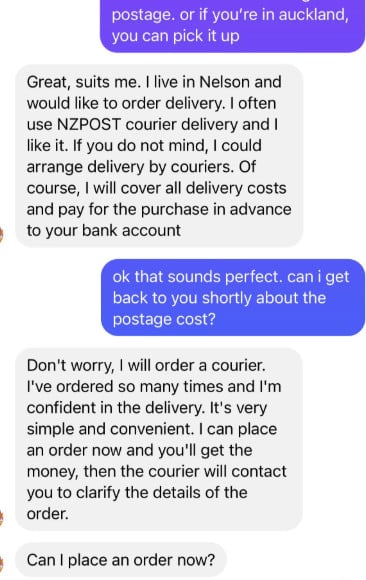
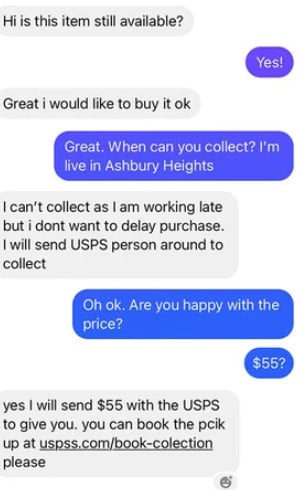
5. The “Courier,” “Mover,” or Family Member Pickup Scam
This scam usually starts with a buyer who says they cannot pick up the item personally.
They may claim they are:
- Out of town
- At work
- Buying for a relative
- Sending a son, nephew, brother, or friend
- Sending a courier, mover, or delivery company
This is not always a scam by itself. Sometimes a real buyer may send someone else. The danger appears when the buyer combines this story with fake digital payment, overpayment, or pressure to release the item before payment clears.
The scammer may say:
“My cousin will pick it up after I send payment.”
Or:
“I will send a courier, but I need your address and email first.”
Or:
“The mover will come today. I already paid you, check your email.”
The goal is to make the transaction feel urgent and complicated. You may be asked to hand over the item to a third party, send money to the “courier,” or trust a fake payment confirmation.
A safe rule is simple: do not release the item until you have confirmed the money inside your actual account, not through an email screenshot or promise.
6. Fake Shipping or Pickup Fee Scam
Some scammers pretend to arrange a courier pickup and claim there is a small fee that must be paid before the courier can come.
They may say the buyer already paid for the item, but the seller must pay insurance, handling, pickup confirmation, or a refundable courier fee.
Common fake fees include:
- Insurance fee
- Pickup fee
- Delivery confirmation fee
- Account activation fee
- Refundable security deposit
- Courier verification fee
The scammer may send a fake email from a supposed courier company. The email may look official and include logos, tracking numbers, or payment instructions.
The goal is to make you pay a fee for a delivery service that does not exist.
Real buyers do not require sellers to pay random courier fees through gift cards, payment apps, crypto, or wire transfers.
7. Fake Check Scam
A fake buyer may offer to pay by check, cashier’s check, certified check, or company check.
They may send the check by mail or email a digital image of it. The check may appear to deposit successfully at first, but that does not mean it has cleared.
Banks can make funds temporarily available before the check is fully verified. Days or weeks later, the check can bounce or be identified as fraudulent. When that happens, the bank removes the funds from your account.
The scammer may combine this with overpayment.
For example, they send a fake check for more than the item price and ask you to send the extra money to a mover or back to them. Once the check fails, you lose whatever money you sent.
For Facebook Marketplace sales, checks are high risk. Cash in person or verified instant payment is much safer.
How Fake Buyers Usually Approach Sellers
Most scam buyers follow a predictable pattern. Their messages often feel generic, rushed, or oddly formal.
A fake buyer may ask:
“Is this item still available?”
Then, almost immediately:
“I want it. I will pay now.”
They may avoid normal buyer questions about condition, size, location, defects, or price. They may not care about seeing the item first. They may not negotiate. They may not even mention the item by name.
That is a red flag.
Real buyers usually ask practical questions. Fake buyers often focus on payment, email addresses, phone numbers, courier pickup, or sending someone else.
Warning Signs of a Facebook Marketplace Buyer Scam
Be cautious if a buyer:
- Offers to pay more than the asking price
- Says they accidentally overpaid
- Asks for your email address to send payment
- Sends a payment email that does not appear in your actual account
- Claims you need to upgrade to a business account
- Asks you to pay a fee before receiving money
- Wants a verification code sent to your phone
- Refuses to meet in person for a local item
- Says a courier or family member will pick up the item
- Pressures you to act quickly
- Sends screenshots instead of real payment
- Wants to move the conversation away from Facebook
- Uses strange grammar or copy-pasted messages
- Avoids answering direct questions
- Wants the item released before payment clears
One warning sign does not always prove a scam, but several together should be treated seriously.
Example of a Fake Buyer Conversation
A typical scam may look like this:
Buyer: “Hi, is this still available?”
Seller: “Yes.”
Buyer: “Great. I want to buy it today. I’m out of town, but my cousin can pick it up.”
Seller: “Okay, cash on pickup is fine.”
Buyer: “I can pay now through PayPal. Send me your email.”
Seller: “I sent it.”
Buyer: “Payment sent. Check your email.”
The seller then receives a fake email saying the payment is pending and that the seller must upgrade to a business account. The buyer then claims they sent extra money and asks the seller to refund the difference.
This is the moment the seller should stop.
The payment is fake. The email is fake. The buyer’s urgency is part of the scam.
Why Fake Payment Emails Look Convincing
Scammers know that many people trust familiar names like PayPal, Zelle, Venmo, Cash App, Facebook, or courier companies. That is why fake emails often copy logos, colors, formatting, and official-sounding language.
Some fake emails include:
- Transaction IDs
- Payment reference numbers
- Buyer names
- Fake support addresses
- Urgent warnings
- Threats of account suspension
- Instructions to send money
But a professional-looking email does not prove anything.
The only reliable way to verify payment is to log in directly to your payment account or banking app. Do not click links in the email. Open the app or website yourself and check whether the funds are actually there.
If the payment does not appear in your real account, you have not been paid.
How to Sell Safely on Facebook Marketplace
Meet in Person When Possible
For local sales, the safest option is usually an in-person exchange in a public place.
Good meeting locations include:
- Police station safe exchange zones
- Busy shopping center parking lots
- Public lobbies
- Well-lit areas with cameras
- Bank branches if large cash is involved
Avoid isolated places, especially for expensive items.
Prefer Cash for Local Sales
Cash is simple and final when handled carefully. For local Facebook Marketplace sales, many sellers prefer cash because it avoids fake payment emails, reversals, app disputes, and pending transfer scams.
For higher-value items, consider meeting at a bank so the cash can be checked or deposited immediately.
Confirm Digital Payments Inside the App
If you accept a digital payment, check your actual account before releasing the item.
Do not rely on:
- Screenshots
- Emails
- Text messages
- “Pending” notices
- Buyer promises
- Fake support messages
Open the payment app yourself. Confirm the money is received and available.
Never Refund an Overpayment
If someone sends too much money, treat it as suspicious.
Do not send money back through another method. Do not pay a courier. Do not refund extra funds before the original payment is fully cleared and verified.
The safest response is to cancel the transaction and tell the buyer to send the correct amount through a secure method.
Never Share Verification Codes
No Marketplace buyer needs your verification code.
Never share codes from:
- PayPal
- Zelle
- Venmo
- Cash App
- Your bank
- Your email provider
- Any social media account
A verification code is for you only. Anyone asking for it is likely trying to access or create an account using your information.
Keep Communication on Facebook
Scammers often try to move the conversation to text, WhatsApp, email, or another app.
Keeping the conversation on Facebook makes it easier to review messages, report the account, and avoid giving away extra personal information.
You do not need to provide your email or phone number just because someone claims they want to pay.
What to Do If You Think a Buyer Is a Scammer
If a Facebook Marketplace buyer seems suspicious, stop the conversation immediately. Do not send money, share codes, provide sensitive details, or release the item until everything is verified.
Immediate Steps to Take
- Do not click any links the buyer sent.
- Do not ship the item.
- Do not hand over the item to a courier, friend, or family member.
- Do not refund any “extra” payment.
- Do not pay any courier, insurance, verification, or account upgrade fee.
- Check your payment account directly by opening the official app or website.
- Do not rely on screenshots, emails, or text messages as proof of payment.
Secure the Evidence
Before blocking the buyer, save anything that may help later.
- Take screenshots of the full conversation.
- Save the buyer’s profile name and profile link if possible.
- Save phone numbers, email addresses, payment usernames, and links they used.
- Keep copies of fake payment emails or courier messages.
- Write down the date, time, item name, and amount involved.
Report and Block the Buyer
Once you have saved the evidence:
- Report the buyer’s profile to Facebook.
- Report the Marketplace conversation if possible.
- Block the buyer.
- Do not continue arguing with them.
- Do not let them pressure you into completing the transaction.
If You Shared Sensitive Information
Act quickly if you gave the buyer any personal or account-related details.
- Change passwords for affected accounts.
- Turn on two-factor authentication.
- Contact your bank or payment provider if payment information was shared.
- Watch for suspicious login attempts, new recovery emails, or unknown devices.
- Report unauthorized activity to the affected platform.
What to Do If You Shared a Verification Code
If you gave a scammer a verification code, move fast. That code may have been used to access an account, create a new account using your phone number, or connect your number to a service controlled by the scammer.
Check the Account Connected to the Code
Start with the service that sent the code.
For example:
- If the code came from Google, check your Google account and Google Voice settings.
- If the code came from Facebook, check your login sessions, phone number, email address, and security settings.
- If the code came from WhatsApp, check whether your account is still active on your phone.
- If the code came from your bank or payment app, contact support immediately.
Lock Down Your Accounts
Take these steps as soon as possible:
- Change your password.
- Turn on two-factor authentication.
- Remove unknown devices.
- Remove unknown recovery emails.
- Remove unknown recovery phone numbers.
- Check recent login activity.
- Review connected apps and permissions.
- Check email forwarding rules.
- Report unauthorized access to the platform.
If Your Phone Number Was Used for Google Voice
One common version of this scam involves Google Voice. The scammer uses your phone number to claim a Google Voice number, then asks you for the verification code.
If this happened:
- Go to Google Voice recovery options.
- Try to reclaim your phone number.
- Remove your number from any account you do not recognize.
- Secure your Google account with a new password and two-factor authentication.
What to Do If You Sent Money to a Fake Buyer
If you sent money to a fake buyer, contact the payment provider immediately. The faster you act, the better your chances of limiting the damage.
Contact the Payment Service
Depending on how you paid, contact:
- Your bank
- Your credit card company
- PayPal
- Zelle
- Venmo
- Cash App
- Your wire transfer provider
- The gift card company
- The cryptocurrency exchange you used
Explain that you were targeted in a marketplace scam and provide all available evidence.
Understand the Recovery Risk
Some payment methods are harder to reverse than others.
High-risk payment methods include:
- Friends-and-family transfers
- Bank wires
- Gift cards
- Cryptocurrency
- Instant payment apps
- Cash deposits
- Payments sent to unknown third parties
Even if recovery is unlikely, still report the transaction. A fast report can help freeze accounts, support a fraud claim, or create a record of the scam.
Report the Scam
You should also report the scam to:
- Facebook Marketplace
- Your bank or payment provider
- Local law enforcement, if the loss is significant
- Your country’s consumer protection or cybercrime reporting agency
Include as much detail as possible:
- Screenshots
- Buyer profile details
- Phone numbers
- Email addresses
- Payment usernames
- Transaction IDs
- Fake payment emails
- Fake courier messages
- The full message history
How to Respond to a Suspicious Buyer
You do not need to argue with a suspicious buyer. Keep your response short, firm, and final.
Use a Clear Boundary
You can say:
I only accept cash at pickup. I do not accept overpayments, verification codes, courier payments, or account upgrade requests.
Or:
I will only release the item after payment is confirmed inside my actual account. Screenshots and emails are not accepted.
Or:
I do not share phone verification codes. I’m canceling this transaction.
Do Not Continue the Conversation
If the buyer keeps pushing:
- Do not explain further.
- Do not click their links.
- Do not send screenshots of your account.
- Do not give your email or phone number.
- Block and report them.
A legitimate buyer will accept basic safety rules. A scammer will try to pressure you around them.
Safe Selling Checklist
Before completing a Facebook Marketplace sale, review this checklist.
Buyer Behavior
Ask yourself:
- Has the buyer asked normal questions about the item?
- Are they willing to meet in a safe public place?
- Are they pushing to complete the deal too quickly?
- Are they using generic messages that do not mention the item?
- Are they avoiding direct answers?
Payment Safety
Check the payment situation carefully.
- Is the money visible inside your actual payment account?
- Are they relying only on screenshots or emails?
- Are they claiming the payment is “pending”?
- Are they asking you to refund extra money?
- Are they asking you to pay a fee?
- Are they saying you need to upgrade to a business account?
Personal Information Risks
Be careful if the buyer asks for:
- Your email address
- Your phone number
- A verification code
- Your home address too early
- Banking details
- Login information
- Payment app screenshots
Pickup Red Flags
Watch out if the buyer says:
- A courier will collect the item.
- A mover will pick it up.
- A son, nephew, friend, or assistant will come instead.
- They are out of town but want to pay immediately.
- You must hand over the item before the money fully clears.
Final Rule
If the deal feels rushed, confusing, or unnecessarily complicated, stop.
A legitimate Facebook Marketplace sale should be simple: clear communication, safe pickup, and verified payment.
Is Your Device Infected? Run a Free Malware Scan
Slow performance, constant pop-ups, or strange behavior? These are classic signs of a malware infection. The fastest way to find out is to scan your device with Malwarebytes Free — one of the most trusted malware removal tools available.
The free version detects and removes the most common threats, including:
- Adware — the cause of those annoying pop-ups
- Browser hijackers — unwanted redirects and changed homepages
- Trojans and spyware — hidden programs stealing your data
- Potentially unwanted programs (PUPs) — software you never asked for
👉 Select your device below — Windows, Mac, or Android — then follow the simple steps to download Malwarebytes, scan your system, and remove any threats it finds. The scan usually takes 5 to 20 minutes.
Run a Malware Scan with Malwarebytes for Windows
Malwarebytes is one of the most popular and trusted anti-malware tools for Windows — and it’s completely free for removing infections. It catches threats that many antivirus programs miss, including adware, browser hijackers, and trojans. Follow the steps below to scan and clean your PC in just a few minutes.
Download Malwarebytes
Click the button below to download the latest version of Malwarebytes for Windows from the official source. The free version is all you need — it will scan your computer and remove adware, browser hijackers, and other malicious software at no cost.
Download MalwarebytesOfficial installer for Windows 11 and 10. Your download starts right away.Want real-time protection? See Malwarebytes Premium Malwarebytes Free for WindowsScans and removes malware at no cost
-
Install Malwarebytes
When the download finishes, open your Downloads folder and double-click the MBSetup file. If Windows shows a User Account Control pop-up, click “Yes” to allow the installation.

Follow the On-Screen Prompts to Install Malwarebytes
The setup wizard will walk you through a few quick screens:
-
Choose where you’re installing the program — “Personal Computer” or “Work Computer” — then click Next.

-
Malwarebytes will now install on your device. This usually takes under a minute.

-
When installation is complete, the “Welcome to Malwarebytes” screen will open automatically.

-
On the final screen, click Open Malwarebytes to launch the program.

-
Enable “Scan for Rootkits”
Before scanning, turn on rootkit detection so Malwarebytes can find even the most hidden threats. Click the Settings gear icon on the left side of the screen.

In the settings menu, find “Scan for rootkits” and click the toggle so it turns blue.

Done? Click “Dashboard” in the left pane to return to the main screen.
Start the Scan
Click the blue Scan button. Malwarebytes will automatically update its virus database and start checking your computer for malware.

-
Wait for the Scan to Finish
The scan checks your entire system for browser hijackers and other malicious programs, so it can take 5 to 20 minutes depending on your computer. Feel free to do something else — just check back occasionally to see the progress.

-
Quarantine the Detected Threats
When the scan is done, you’ll see a list of everything Malwarebytes found — malware, adware, and potentially unwanted programs. Click the “Quarantine” button to remove all of them at once.

Malwarebytes will now remove the malicious files and registry entries and move them safely into quarantine.

-
Restart Your Computer
Some threats can only be fully removed after a reboot. If Malwarebytes asks you to restart, click Yes. Once you’re logged back in, Malwarebytes has finished removing the threats it found.

That’s it — your Windows PC is now clean of trojans, adware, and other malware, and should be back to running smoothly.
If you are still having problems with your computer after completing these instructions, then please follow one of the steps:
- Run a computer scan with ESET Online Scanner
- Ask for help in our Windows Malware Removal Help & Support forum.
Run a Malware Scan with Malwarebytes for Mac
Malwarebytes for Mac is a free on-demand scanner that removes the malware other security software tends to miss — adware, browser hijackers, and unwanted programs included. Cleaning an infected Mac with Malwarebytes has always been completely free, and it’s our go-to recommendation. Follow the steps below to scan and clean your Mac in just a few minutes.
-
Download Malwarebytes for Mac
Click the button below to download the latest version of Malwarebytes for Mac.
Download MalwarebytesOfficial installer for macOS. Your download starts right away.Want real-time protection? See Malwarebytes PremiumMalwarebytes Free for MacScans and removes malware at no cost -
Open the Malwarebytes setup file
When the download finishes, open your Downloads folder and double-click the setup file to begin the installation.

-
Follow the On-Screen Prompts to Install Malwarebytes
The Malwarebytes for Mac Installer will guide you through a few quick screens. Click “Continue” and keep following the prompts until the installation completes.



When the installation is complete, Malwarebytes opens to the Welcome to Malwarebytes screen. Click “Get started“.
-
Select “Personal Computer” or “Work Computer”
Malwarebytes will ask what type of computer you’re installing it on. Click either Personal Computer or Work Computer, whichever applies.

-
Start the Scan
Click the “Scan” button. Malwarebytes will automatically update its detection database and begin checking your Mac for malware.

-
Wait for the Scan to Finish
Malwarebytes will scan your Mac for adware, browser hijackers, and other malicious programs. This can take a few minutes, so feel free to do something else — just check back occasionally to see the progress.

-
Quarantine the Detected Threats
When the scan is done, you’ll see a list of everything Malwarebytes found. Click the “Quarantine” button to remove all the threats at once.

-
Restart Your Mac
Malwarebytes will now remove all the malicious files it found. Some threats can only be fully removed after a reboot — if Malwarebytes asks you to restart, allow it. Once you’re logged back in, your Mac is clean.

That’s it — your Mac is now free of adware, rogue browser extensions, and other potentially harmful software.
If you are still experiencing problems while trying to remove a malicious program from your computer, please ask for help in our Mac Malware Removal Help & Support forum.
Run a Malware Scan with Malwarebytes for Android
Malwarebytes for Android automatically detects and removes dangerous threats like malware and ransomware so you don’t have to worry about your most-used device being compromised. Aggressive detection of adware and potentially unwanted programs keeps your Android phone or tablet running smooth.
-
Download Malwarebytes for Android.
You can download Malwarebytes for Android by clicking the link below.
Get Malwarebytes for AndroidOpens Google Play in a new tab.Want real-time protection? See Malwarebytes Premium for AndroidMalwarebytes for AndroidScans your phone and removes malware at no cost -
Install Malwarebytes for Android on your phone.
In the Google Play Store, tap “Install” to install Malwarebytes for Android on your device.

When the installation process has finished, tap “Open” to begin using Malwarebytes for Android. You can also open Malwarebytes by tapping on its icon in your phone menu or home screen.

-
Follow the on-screen prompts to complete the setup process
When Malwarebytes will open, you will see the Malwarebytes Setup Wizard which will guide you through a series of permissions and other setup options.
This is the first of two screens that explain the difference between the Premium and Free versions. Swipe this screen to continue.
Tap on “Got it” to proceed to the next step.
Malwarebytes for Android will now ask for a set of permissions that are required to scan your device and protect it from malware. Tap on “Give permission” to continue.
Tap on “Allow” to permit Malwarebytes to access the files on your phone.
-
Update database and run a scan with Malwarebytes for Android
You will now be prompted to update the Malwarebytes database and run a full system scan.

Click on “Update database” to update the Malwarebytes for Android definitions to the latest version, then click on “Run full scan” to perform a system scan.

-
Wait for the Malwarebytes scan to complete.
Malwarebytes will now start scanning your phone for adware and other malicious apps. This process can take a few minutes, so we suggest you do something else and periodically check on the status of the scan to see when it is finished.

-
Click on “Remove Selected”.
When the scan has been completed, you will be presented with a screen showing the malware infections that Malwarebytes for Android has detected. To remove the malicious apps that Malwarebytes has found, tap on the “Remove Selected” button.

-
Restart your phone.
Malwarebytes for Android will now remove all the malicious apps that it has found. To complete the malware removal process, Malwarebytes may ask you to restart your device.
That’s it — your Android phone is now clean — no more malicious apps, adware, or browser redirects.
If you are still having problems with your phone after completing these instructions, then please follow one of the steps:
- Restore your phone to factory settings by going to Settings > General management > Reset > Factory data reset.
- Ask for help in our Mobile Malware Removal Help & Support forum.
Stay Protected: Block Ads and Malicious Sites
Now that your device is clean, keep it that way. Most infections start with a malicious ad or a fake download button — so blocking them at the source is your best defense.
We recommend AdGuard, which blocks malicious ads, phishing pages, and dangerous redirects before they can reach you.
👉 Download AdGuard and browse safely
Final Thoughts
Facebook Marketplace buyer scams are designed to make sellers feel like they are about to complete an easy sale. The fake buyer seems eager, sends payment quickly, and creates a reason why you must trust them before the money is truly confirmed.
The safest approach is to slow everything down.
Do not refund overpayments. Do not trust fake payment emails. Do not share verification codes. Do not hand over items before confirming payment. Be especially careful with buyers who claim they are sending a courier, mover, relative, or friend to collect the item.
A real buyer can follow basic safety rules. A scammer will usually pressure you to ignore them.

Join the discussion
0 commentsShare your experience or ask a question about this article.
Discussion
Start the conversation
Have a question or something useful to share? Add the first comment.