

Facebook page administrators beware – there is an insidious new phishing scam making the rounds targeting admins of Facebook pages. Scammers are sending convincing but fake warning messages claiming your page has been restricted for violating Facebook’s policies. The messages urge you to appeal the restriction through a provided link which leads to a sophisticated phishing site designed to steal your Facebook login credentials.
This scam has already claimed many unsuspecting victims who have had their pages hijacked as a result. If you are a Facebook page admin, it is crucial that you educate yourself about this scam so you don’t fall prey to it.
This comprehensive guide will provide an in-depth look at how the Facebook “Your Page Accessibility Is Limited” phishing scam operates, how to identify fraudulent messages, what to do if you clicked the link, and steps to secure your Facebook page going forward.
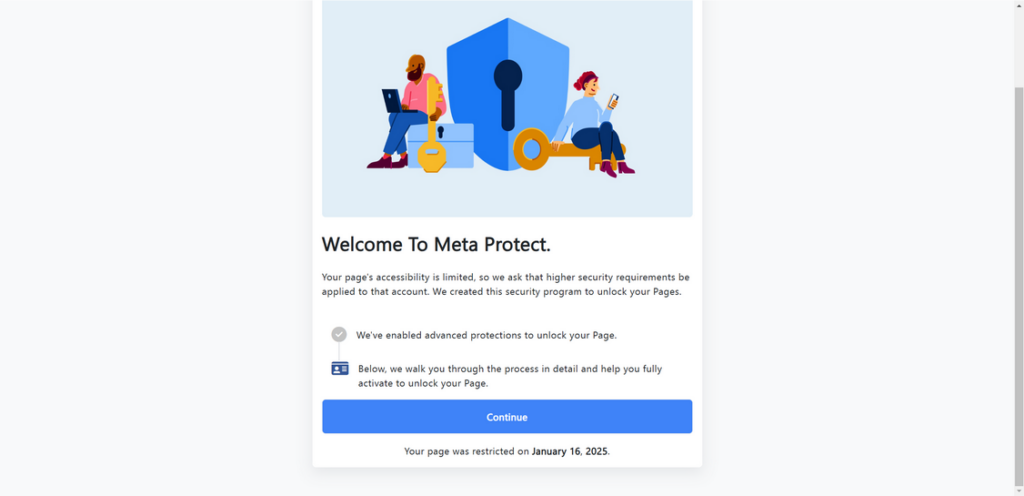
Overview of the Scam
The Facebook page restriction phishing scam is a sophisticated new tactic being used to target owners and administrators of Facebook pages. Scammers are sending fake notification messages stating that the recipient’s page has been restricted or disabled for violating Facebook’s policies.
The messages go on to provide a link to appeal the restriction. However, this link sends victims to a convincing phishing site designed to steal Facebook login credentials in order to hijack the victim’s page.
This scam works by taking advantage of a page admin’s worst fear – having their page unexpectedly restricted or deleted without warning. The threatening language pressures admins to act quickly to recover their page before it is permanently disabled. This sense of urgency pushes victims into clicking the provided link without proper vetting, leading them right into the scammer’s trap.
Once lured onto the phishing site, victims are prompted to enter their Facebook login email and password. These credentials are stolen and soon after used by the scammers to gain full access to both the admin’s personal Facebook account as well as their managed pages.
With an hacked page in hand, scammers can post any content they please. Oftentimes, they use the page to perpetuate the scam by sending the same fake restriction messages to the page’s followers. This allows the scam to spread exponentially.
Some warning signs a page restriction notification is an phishing attempt:
- The message uses intimidating language about immediate permanent deletion of the page. Real Facebook notifications are calm in tone.
- Links lead to odd third-party domains instead of facebook.com links.
- Message requests personal info like password resets. Facebook would never request passwords.
- No notification of any violation within the actual Facebook platform itself.
- Sent from an unknown source like text message or email address. Facebook uses official channels.
By 2023, over 100,000 Facebook pages had already been compromised by variants of this scam. Government, business, community organization and personal pages have all fallen victim. High-follower pages are prime targets.
Once scammers control a page, severe damage can be done through spreading misinformation, spam ads, malware and additional phishing attempts to the page’s followers. Compromised pages also suffer reputational damage and loss of followers’ trust.
Recovering hijacked pages can be extremely difficult, especially if the scammers change credentials. Many victims end up having to delete their page entirely and start fresh. Prevention is crucial.
All Facebook page owners should educate themselves on how this scam works so they can avoid falling for fake page restriction messages. Do not click questionable links, provide info to unverified sources or input your Facebook login credentials after following links in messages. Apply increased security settings to safeguard your page.
How the Scam Works
To help you identify and avoid this scam, let’s break down exactly how the Facebook page restriction phishing scam operates:
1. Scammers Send Fake Warning Messages
The first step involves scammers identifying potential target Facebook pages and collecting contact info for their administrators. Pages with large followings are ideal targets.
Scammers then send messages through Facebook Messenger, email, SMS text, or other platforms warning that the recipient’s page has been restricted for violating Facebook’s terms.
Again, these messages appear quite official, using language like:
“Your Facebook page [Page Name] has been restricted due to multiple Community Standards violations. You must submit an appeal within 24 hours through this link or your page will be disabled: [Malicious Link]”
The messages instill fear that admins will permanently lose access to their page if they do not act quickly. This pressures recipients to click the provided “appeal” link without proper scrutiny.
2. The Link Goes To A Phishing Site
While made to look official, the link in the message does not lead to Facebook but rather a phishing site that mimics Facebook’s login page and support site.
These phishing pages are sophisticated, incorporating Facebook branding and imagery to appear legitimate. For example, the login page will look identical to the real Facebook login.
The rest of the phishing site pretends to be Facebook’s Support dashboard. There will be text about restricted page appeals and fields for users to enter info like their page name, email address, etc.
3. Admins Are Prompted To Enter Login Credentials
After clicking the link in the warning message, page admins will first be brought to the fake Facebook login page. The phishing site will prompt them to enter their account email and password to “verify their identity.”
Since the page looks real, many will enter their actual Facebook credentials at this step, especially if they are rushed and worried about their page being restricted.
4. The Phishing Site Collects The Victim’s Data
Once admins enter their email and password, that sensitive login information is harvested by the scammers behind the phishing site. Their credentials are now compromised.
The phishing site may also have additional forms prompting for other personal data like their name, phone number, page name, etc. Any details entered will be collected by the scammers.
5. Scammers Gain Access And Control Of The Page
With the victim’s Facebook login credentials, the scammers can now access and take control of their Facebook account and pages.
They can post scam messages and links through the page to its followers. This allows them to rapidly spread the scam and phishing site to more potential victims.
The scammers may also restrict the original admin’s access to their own page. Or they may keep the admin’s access intact to avoid detection while they use the page illicitly behind the scenes.
Identifying Fake Warning Messages
The Facebook page restriction scam can be convincing. But there are several indicators to help you determine whether a warning message is fake or legitimate:
- Generic greeting – Real messages from Facebook contain your name or page’s name. Fake messages use generic greetings like “Dear user” or “Hi there.”
- Spelling and grammatical mistakes – Phishing messages often contain typos, bad grammar or awkward phrasing.
- Urgent call to action – Scam messages use urgency and threats of account deletion to pressure you. Facebook’s real messages are calm.
- Unusual sender – Messages can come from unfamiliar email addresses, phone numbers, Messenger accounts, etc. Verify the sender.
- Suspicious link – Hovers your mouse over the link without clicking to see the actual URL. It should go to facebook.com not an unrelated or odd domain.
- No notification within Facebook – There will be no notification of any restriction within your actual Facebook account or page.
- No official communication – Facebook communicates restrictions through their Help Center, emails, page notifications, etc. Not random texts or messages.
When in doubt, log directly into your Facebook account through the secure Facebook website (not via any emailed link) to check for notifications. Contact Facebook support if you suspect a scam message but aren’t sure.
What To Do If You Clicked The Link
If you received a fake warning message about your page being restricted and clicked the phishing link, don’t panic. Here are the steps you should immediately take:
1. Change Your Facebook Password
If you entered your Facebook login credentials, immediately change your password. Do this through the official Facebook website while logged into your account. This prevents the scammers from accessing your account with the compromised password.
2. Enable Two-Factor Authentication
Enable two-factor authentication for your Facebook account. This adds an extra layer of security, requiring a special code from your phone anytime someone tries logging in from an unrecognized device.
3. Check Connected Apps And Third Parties
Review the list of apps and services connected to your Facebook account. Remove anything suspicious that may have been added by scammers with access to your account.
4. Scan Your Computer For Malware
The phishing link may have downloaded malware onto your computer. Scan your full system using security software to check for and remove anything suspicious.
5. Monitor Your Page And Account Activity
Closely monitor your page and Facebook account for suspicious posts, messages or changes over the next few weeks. Watch for scam messages sent to your followers through your page.
6. Report The Phishing Link
Alert Facebook by reporting the phishing link, suspicious third-party apps connected to your account, or messaging scams sent through your page.
7. Contact Your Followers
If scammers used your page to spread scam links or messages, send a post apologizing and warning all your followers. Urge them not to click and to secure their own accounts.
Taking these steps quickly can help secure your account and prevent the scam from spreading further through your page.
Securing Your Facebook Page Going Forward
Here are some tips to lock down your Facebook page’s security going forward:
- Use a strong password – Don’t reuse passwords. Make your Facebook password long, complex and unique.
- Turn on login notifications – Get alerts whenever someone logs into your Facebook account from a new device.
- Limit admin access – Only let essential trustworthy admins control your page. Don’t add temporary admins.
- Vet messages thoroughly – Double check any alleged warnings about your page before acting.
- Use security keys – Consider adding physical security keys as an option for accessing your Facebook account.
- Monitor page activity – Routinely check your page’s posts, messages, connected apps, etc.
- Educate admins – Ensure all your page’s admins know about the latest Facebook scams and phishing tactics.
Staying vigilant is crucial. Scammers are developing increasingly sophisticated tactics to fool Facebook page administrators. But armed with the right information, you can avoid falling victim and keep your page secure.
Is Your Device Infected? Run a Free Malware Scan
Slow performance, constant pop-ups, or strange behavior? These are classic signs of a malware infection. The fastest way to find out is to scan your device with Malwarebytes Free — one of the most trusted malware removal tools available.
The free version detects and removes the most common threats, including:
- Adware — the cause of those annoying pop-ups
- Browser hijackers — unwanted redirects and changed homepages
- Trojans and spyware — hidden programs stealing your data
- Potentially unwanted programs (PUPs) — software you never asked for
👉 Select your device below — Windows, Mac, or Android — then follow the simple steps to download Malwarebytes, scan your system, and remove any threats it finds. The scan usually takes 5 to 20 minutes.
Run a Malware Scan with Malwarebytes for Windows
Malwarebytes is one of the most popular and trusted anti-malware tools for Windows — and it’s completely free for removing infections. It catches threats that many antivirus programs miss, including adware, browser hijackers, and trojans. Follow the steps below to scan and clean your PC in just a few minutes.
Download Malwarebytes
Click the button below to download the latest version of Malwarebytes for Windows from the official source. The free version is all you need — it will scan your computer and remove adware, browser hijackers, and other malicious software at no cost.
Download MalwarebytesOfficial installer for Windows 11 and 10. Your download starts right away.Want real-time protection? See Malwarebytes Premium Malwarebytes Free for WindowsScans and removes malware at no cost
-
Install Malwarebytes
When the download finishes, open your Downloads folder and double-click the MBSetup file. If Windows shows a User Account Control pop-up, click “Yes” to allow the installation.

Follow the On-Screen Prompts to Install Malwarebytes
The setup wizard will walk you through a few quick screens:
-
Choose where you’re installing the program — “Personal Computer” or “Work Computer” — then click Next.

-
Malwarebytes will now install on your device. This usually takes under a minute.

-
When installation is complete, the “Welcome to Malwarebytes” screen will open automatically.

-
On the final screen, click Open Malwarebytes to launch the program.

-
Enable “Scan for Rootkits”
Before scanning, turn on rootkit detection so Malwarebytes can find even the most hidden threats. Click the Settings gear icon on the left side of the screen.

In the settings menu, find “Scan for rootkits” and click the toggle so it turns blue.

Done? Click “Dashboard” in the left pane to return to the main screen.
Start the Scan
Click the blue Scan button. Malwarebytes will automatically update its virus database and start checking your computer for malware.

-
Wait for the Scan to Finish
The scan checks your entire system for browser hijackers and other malicious programs, so it can take 5 to 20 minutes depending on your computer. Feel free to do something else — just check back occasionally to see the progress.

-
Quarantine the Detected Threats
When the scan is done, you’ll see a list of everything Malwarebytes found — malware, adware, and potentially unwanted programs. Click the “Quarantine” button to remove all of them at once.

Malwarebytes will now remove the malicious files and registry entries and move them safely into quarantine.

-
Restart Your Computer
Some threats can only be fully removed after a reboot. If Malwarebytes asks you to restart, click Yes. Once you’re logged back in, Malwarebytes has finished removing the threats it found.

That’s it — your Windows PC is now clean of trojans, adware, and other malware, and should be back to running smoothly.
If you are still having problems with your computer after completing these instructions, then please follow one of the steps:
- Run a computer scan with ESET Online Scanner
- Ask for help in our Windows Malware Removal Help & Support forum.
Run a Malware Scan with Malwarebytes for Mac
Malwarebytes for Mac is a free on-demand scanner that removes the malware other security software tends to miss — adware, browser hijackers, and unwanted programs included. Cleaning an infected Mac with Malwarebytes has always been completely free, and it’s our go-to recommendation. Follow the steps below to scan and clean your Mac in just a few minutes.
-
Download Malwarebytes for Mac
Click the button below to download the latest version of Malwarebytes for Mac.
Download MalwarebytesOfficial installer for macOS. Your download starts right away.Want real-time protection? See Malwarebytes PremiumMalwarebytes Free for MacScans and removes malware at no cost -
Open the Malwarebytes setup file
When the download finishes, open your Downloads folder and double-click the setup file to begin the installation.

-
Follow the On-Screen Prompts to Install Malwarebytes
The Malwarebytes for Mac Installer will guide you through a few quick screens. Click “Continue” and keep following the prompts until the installation completes.



When the installation is complete, Malwarebytes opens to the Welcome to Malwarebytes screen. Click “Get started“.
-
Select “Personal Computer” or “Work Computer”
Malwarebytes will ask what type of computer you’re installing it on. Click either Personal Computer or Work Computer, whichever applies.

-
Start the Scan
Click the “Scan” button. Malwarebytes will automatically update its detection database and begin checking your Mac for malware.

-
Wait for the Scan to Finish
Malwarebytes will scan your Mac for adware, browser hijackers, and other malicious programs. This can take a few minutes, so feel free to do something else — just check back occasionally to see the progress.

-
Quarantine the Detected Threats
When the scan is done, you’ll see a list of everything Malwarebytes found. Click the “Quarantine” button to remove all the threats at once.

-
Restart Your Mac
Malwarebytes will now remove all the malicious files it found. Some threats can only be fully removed after a reboot — if Malwarebytes asks you to restart, allow it. Once you’re logged back in, your Mac is clean.

That’s it — your Mac is now free of adware, rogue browser extensions, and other potentially harmful software.
If you are still experiencing problems while trying to remove a malicious program from your computer, please ask for help in our Mac Malware Removal Help & Support forum.
Run a Malware Scan with Malwarebytes for Android
Malwarebytes for Android automatically detects and removes dangerous threats like malware and ransomware so you don’t have to worry about your most-used device being compromised. Aggressive detection of adware and potentially unwanted programs keeps your Android phone or tablet running smooth.
-
Download Malwarebytes for Android.
You can download Malwarebytes for Android by clicking the link below.
Get Malwarebytes for AndroidOpens Google Play in a new tab.Want real-time protection? See Malwarebytes Premium for AndroidMalwarebytes for AndroidScans your phone and removes malware at no cost -
Install Malwarebytes for Android on your phone.
In the Google Play Store, tap “Install” to install Malwarebytes for Android on your device.

When the installation process has finished, tap “Open” to begin using Malwarebytes for Android. You can also open Malwarebytes by tapping on its icon in your phone menu or home screen.

-
Follow the on-screen prompts to complete the setup process
When Malwarebytes will open, you will see the Malwarebytes Setup Wizard which will guide you through a series of permissions and other setup options.
This is the first of two screens that explain the difference between the Premium and Free versions. Swipe this screen to continue.
Tap on “Got it” to proceed to the next step.
Malwarebytes for Android will now ask for a set of permissions that are required to scan your device and protect it from malware. Tap on “Give permission” to continue.
Tap on “Allow” to permit Malwarebytes to access the files on your phone.
-
Update database and run a scan with Malwarebytes for Android
You will now be prompted to update the Malwarebytes database and run a full system scan.

Click on “Update database” to update the Malwarebytes for Android definitions to the latest version, then click on “Run full scan” to perform a system scan.

-
Wait for the Malwarebytes scan to complete.
Malwarebytes will now start scanning your phone for adware and other malicious apps. This process can take a few minutes, so we suggest you do something else and periodically check on the status of the scan to see when it is finished.

-
Click on “Remove Selected”.
When the scan has been completed, you will be presented with a screen showing the malware infections that Malwarebytes for Android has detected. To remove the malicious apps that Malwarebytes has found, tap on the “Remove Selected” button.

-
Restart your phone.
Malwarebytes for Android will now remove all the malicious apps that it has found. To complete the malware removal process, Malwarebytes may ask you to restart your device.
That’s it — your Android phone is now clean — no more malicious apps, adware, or browser redirects.
If you are still having problems with your phone after completing these instructions, then please follow one of the steps:
- Restore your phone to factory settings by going to Settings > General management > Reset > Factory data reset.
- Ask for help in our Mobile Malware Removal Help & Support forum.
Stay Protected: Block Ads and Malicious Sites
Now that your device is clean, keep it that way. Most infections start with a malicious ad or a fake download button — so blocking them at the source is your best defense.
We recommend AdGuard, which blocks malicious ads, phishing pages, and dangerous redirects before they can reach you.
👉 Download AdGuard and browse safely
Frequently Asked Questions
1. What is the Facebook “Your Page Accessibility is Limited” scam?
This is a phishing scam where scammers send fake messages to Facebook page admins stating their page has been restricted or disabled for policy violations. The messages contain a link supposedly to appeal the restriction, but it actually leads to a phishing site designed to steal Facebook login credentials in order to hijack the victim’s page.
2. How does the Facebook page restriction scam work?
Scammers identify potential target pages and collect contact info for their admins. They send fake but convincing notification messages about page restrictions via platforms like email or text. The messages urge admins to appeal quickly through a provided link or else the page will be deleted. The link goes to a phishing site mimicking Facebook’s login and support sites. If admins enter their Facebook login info, the scammers gain access and control of the page.
3. What are some tactics used in the page restriction scam messages?
These fake notification messages use tactics like:
- Official looking Facebook branding and logos
- Threatening language about urgent permanent deletion
- Short 24 hour timeline to trigger urgency
- Link to a fake support site instead of Facebook.com
- Request for personal info like passwords
4. What are signs a page restriction message is fake?
Some indicators a notification is a scam include:
- Generic greeting instead of your name
- Spelling/grammar errors
- Sent from an unknown sender
- Link goes to an odd domain
- No notification within your actual Facebook account
5. What should I do if I clicked the phishing link?
If you entered your Facebook login information, take these steps immediately:
- Change your Facebook password
- Enable two-factor authentication
- Check for suspicious connected apps
- Scan devices for malware
- Monitor your page for unauthorized activity
- Report phishing link to Facebook
6. How can I better secure my Facebook page?
Ways to secure your page include:
- Using strong unique passwords
- Enabling login notifications
- Limiting page admin access
- Vetting messages thoroughly
- Using security keys
- Monitoring page activity
- Educating all admins on phishing tactics
7. What happens if scammers take over my Facebook page?
If scammers access your page, they can post damaging content like misinformation, spam ads or malware links. Your page’s reputation will suffer. Recovering a hacked page can be very difficult, sometimes requiring deleting and starting a new page entirely.
8. How can I spot fake messages about my page being disabled?
Closely examine any messages about your page being restricted. Fake messages often have urgent threats about disabling your page, poor grammar, brand logos to appear real, and links to sketchy websites. Verify messages within your Facebook account.
9. Should I click links or provide my password if told my page is restricted?
Never provide your password or click links in unsolicited messages claiming your page is restricted. Always log into Facebook directly through the real website to verify any notification and report suspicious messages.
10. How widespread is the Facebook page restriction scam?
This scam has grown quickly, impacting thousands of pages already. All sizes and types of pages have been targeted. High follower pages are frequent targets. The damage can be severe if scammers access your page.
The Bottom Line
The “Your Page Accessibility is Limited” phishing scam targeting Facebook page admins presents a dangerous new threat. Highly-convincing fake restriction warnings are luring unsuspecting victims to phishing sites, resulting in compromised accounts and hijacked pages.
If you oversee a Facebook page, extreme caution is warranted when receiving messages about restrictions. Always thoroughly vet any unusual warnings and never click questionable links or provide your login information. Should the worst happen, take steps immediately to lock down your account and limit the damage.
Stay vigilant about this scam and educate all of your page’s admins. Applying increased security best practices can help safeguard your page going forward. Don’t let scammers maliciously silence your page and its followers. Awareness of tactics like the page restriction phishing scam is one of the best defenses.

Join the discussion
0 commentsShare your experience or ask a question about this article.
Discussion
Start the conversation
Have a question or something useful to share? Add the first comment.