


A traffic-fine message arrives when you’re busy, offering a quick way to see the details. The attachment carries a familiar transport-office name.
It looks like something you should settle before it becomes a bigger problem. Before opening that receipt, look closely at what the message wants installed.
Overview
The supposed fine leads to an Android installation
The fake e-Challan scam impersonates Indian traffic-enforcement notifications. Instead of simply directing you to independently verified fine details, the message supplies an unofficial Android application.
Messages may arrive through SMS or messaging services, offering an attachment or download link. The transport-office branding gives the installation a reason to seem necessary.
An APK is an Android installation package, not an ordinary receipt. Its name can resemble official transport services while concealing who actually supplied the software.
CERT-In has documented a malicious two-stage campaign
India’s Computer Emergency Response Team has confirmed an RTO/e-Challan malware campaign, including a second installation presented as an update.
The warning describes dangerous permissions, counterfeit financial screens, and interception of security messages. This is documented malicious software, rather than an unresolved complaint about a genuine service.
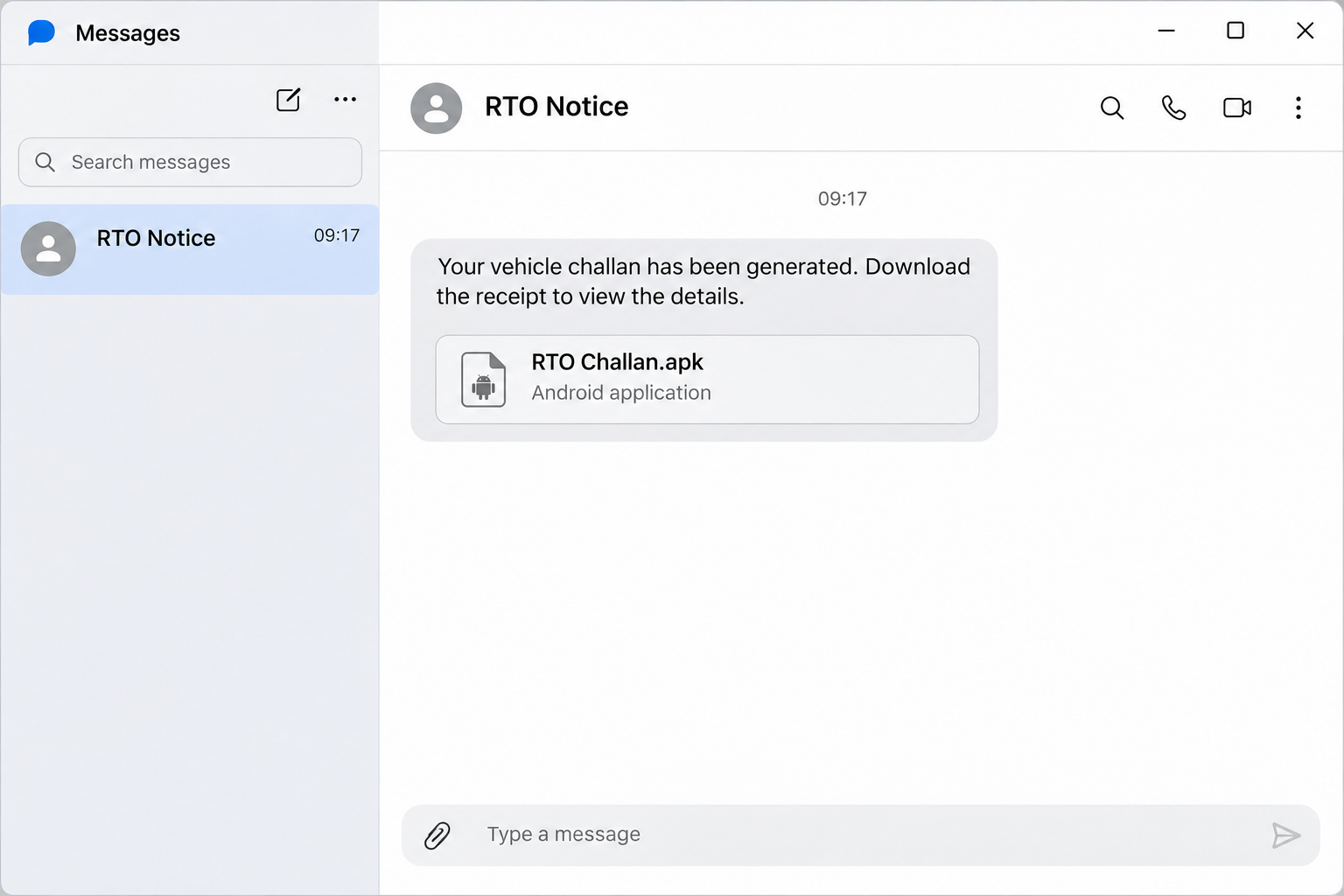
The opening chat image reconstructs the download lure. Its wording and layout are illustrative, without reproducing a victim’s private conversation or a working download address.
A genuine fine check should not depend on the message
You can check a suspected fine through the official e-Challan portal or the relevant state traffic police service. Reach that service independently before acting.
- Only received the notice: leave its links and attachments alone while checking through the genuine service.
- Downloaded an APK without installing it: avoid opening it and prevent an accidental installation later.
- Installed the supposed receipt or update: isolate the phone and follow the Android cleanup steps below.
- Entered banking information or noticed missing money: contact the bank from another trusted device immediately.
Why a Traffic Receipt Shouldn’t Become a Banking Emergency
The message starts with a believable nuisance: an outstanding traffic fine. You may not remember every journey well enough to dismiss the notice immediately.
A demand to view evidence or download a receipt offers an easy next step. The problem is the transition from checking a fine to installing unfamiliar software.
Once that transition happens, the sender is asking for trust beyond the original notice. A transport-office name on an app does not authenticate its publisher.
Nor does an official-looking icon establish what an installation will do. Check where the software came from and why it wants each permission.
The genuine e-Challan portal is the destination CERT-In recommends for verification. Your state traffic police may also provide an official checking service.
Locate that service independently rather than treating the message’s own link as proof. A copied name, familiar wording, or personal detail cannot authenticate the download.
A reported loss following a fine message does not establish every technical detail. Clicking, downloading, installing, granting permissions, and entering banking information are separate stages.
This guide addresses the confirmed installation campaign. It does not claim that merely reading an SMS automatically gives an attacker access to every account.
How the Fake e-Challan Scam Works
Step 1: A false notice borrows traffic-enforcement authority
The recipient is told a vehicle challan has been generated or remains pending. The message offers a receipt, details, or another reason to continue.
Because the notice concerns enforcement, the recipient may worry about ignoring it. That makes an installation request feel like a practical way to clear things up.
The safest interruption happens here, before the sender defines the verification process. Open the genuine government service yourself and check whether a fine actually exists.
Step 2: The attachment disguises an app as the next necessary step
CERT-In lists transport-themed APK names, including RTO Challan and MParivahan variations. The filenames imitate a purpose; they do not establish government approval.
The first app is a dropper, meaning it introduces another malicious component. An initial screen can therefore look less alarming than the software it later delivers.
Android may require permission to install applications from the browser or messaging route involved. Do not override that boundary just because the sender promises a receipt.
Step 3: An update prompt supplies the second installation
The documented first-stage app offers an Install Update action. Following it installs the additional payload rather than merely updating an independently verified government application.
This extra stage matters during cleanup because deleting the first visible icon may leave another component behind. Review the complete installation sequence, not just the original filename.
Keep the approximate installation time and any scanner findings. Those details help distinguish the unwanted components from genuine transport, banking, or other everyday applications.
Step 4: Sensitive permissions extend the attack
The campaign seeks access relevant to financial theft, including messages and phone functions. It also requests background operation and a VPN connection in the analyzed version.
A VPN permission can change how traffic is handled. The word VPN does not make a connection trustworthy when an unverified app controls the request.
Do not assume every malicious version uses identical permissions. Identify what your installation actually received and preserve the findings for the bank or incident responder.
Step 5: Fake financial screens and intercepted codes put accounts at risk
Counterfeit screens can persuade someone to enter financial credentials. Combined with intercepted messages, that can expose information intended to protect logins or transactions.
A code arriving on your phone does not make the surrounding request legitimate. Check the actual institution and action before typing or approving anything.
Removing the software addresses the device, but it cannot recall secrets already transmitted. The separate financial response is essential if account information was exposed.
How to Remove a Fake e-Challan App From Android
If this is a work-managed phone, contact your administrator before deleting software or changing management settings. An incident may require preserving evidence before cleanup.
For a personal phone, keep another trusted device available for bank calls and password changes. Do not conduct recovery through the suspected application.
Step 1: Disconnect the phone and preserve the useful details
Turn off mobile data and Wi-Fi to interrupt the app’s normal online connection. Use another phone to contact the bank if money or credentials are at risk.
Record the message, download source, installation time, and visible app names without reopening the suspicious software. Do not forward the APK to friends for testing.
If only a download occurred, do not install it to investigate. After preserving necessary incident details, delete the package from Downloads to prevent accidental installation.
Step 2: Identify and uninstall the unofficial components
Open Android Settings, then Apps and See all apps where available. Use the full settings list rather than relying only on home-screen icons.
Compare installation timing, source, and the steps you followed. Review both the original transport-themed app and any additional application installed through its update prompt.
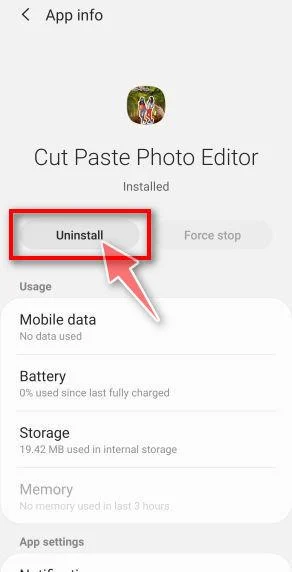
Select a confirmed unwanted app to open its information page. Tap Uninstall and approve Android’s confirmation, checking the selected name before removal.
The older Android example below shows the uninstall control for a different app. Your phone’s labels and the application involved may differ.
Check the installed-app list after removal. A missing launcher icon alone is insufficient, and you should seek help if the second component cannot be identified.
Step 3: Deal with blocked removal and review granted access
If uninstalling is blocked, search Settings for Device admin apps. Remove that privilege only from an identified unwanted app, then retry its uninstall control.
Review Accessibility, VPN, message permissions, and other special access granted during the incident. Revoke access associated with the malicious installation.
Keep legitimate assistive services, employer management, and known VPN configurations intact. These features have valid uses, so an unfamiliar setting deserves investigation rather than indiscriminate removal.
If the app interferes with navigation, consult your manufacturer’s Safe Mode instructions. Downloaded apps are temporarily disabled there, which can make ordinary uninstallation possible.
Restart normally after removal and check again. If the problem app returns or you cannot distinguish the components, obtain qualified help before resuming banking.
Step 4: Install the genuine Android scanner and run a manual check
Once the unwanted apps are removed, reconnect through a trusted network for updates. If removal remains blocked, seek assistance before bringing the phone back online.
Use the genuine Google Play listing below, rather than an APK offered by the original sender. The free manual scan is separate from optional paid protection.
Get Malwarebytes for AndroidOpens Google Play in a new tab.See optional Malwarebytes Premium for Android protection
Tap Install, then Open; update an existing installation through Google Play. The historical store screenshot illustrates that action, while current listing details may differ.

Follow the welcome screens and review subscription choices. Use the free manual-scanning option if that is all you want, rather than accepting an unwanted renewing trial.
From the dashboard’s Device area, tap Scan now. Grant requested storage access if you want accessible files checked as well as installed apps.
Let the scan complete and open the results. Use the menu beside a detected malicious application, choose Uninstall app, and confirm Android’s removal prompt.
Do not select Always allow for an unverified application. That excludes an item from future checks instead of removing the threat.
Keep detection names and removal results, and restart if requested. A scan without detections does not establish that exposed passwords or banking details remain safe.
Step 5: Close the installation route and escalate unresolved problems
Search Settings for Install unknown apps. Disable unnecessary installation permission for the browser, file manager, or messaging route used during the incident.
Install available Android security updates through Settings. In Google Play, open your profile menu, choose Play Protect, and check that its scanning protection is enabled.
Review further warnings rather than dismissing them automatically. Deleting the downloaded APK and removing its installed application are separate actions, and both may be needed.
If suspicious behavior continues, ask your manufacturer or the MalwareTips removal-help community for assistance. Share symptoms and detection names, never banking codes.
A factory reset erases local data and needs backup and account-access planning. Consider it with qualified guidance when supported removal cannot establish a trustworthy device.
Do not restore the same unofficial APK afterward. Avoid clearing every browser’s data unless a separate browser problem warrants that potentially disruptive action.
MalwareTips may earn a commission through paid-product links. A Premium purchase is not required for the manual-scan procedure described above.
What to Do if You Have Fallen Victim to This Scam
-
Report financial exposure immediately from another trusted device. Contact the bank or payment provider through its genuine channel, without waiting for cleanup to finish.
Explain the false traffic-fine app and identify any exposed credentials, intercepted codes, or unfamiliar payments. Ask about blocking access and investigating the transactions.
-
Use India’s official cybercrime reporting channels when applicable. Report financial cyberfraud through 1930 or the National Cyber Crime Reporting Portal.
Keep the complaint reference and follow the official process. Reporting quickly is useful, but neither a helpline nor a private helper can guarantee recovery.
-
Replace exposed credentials through genuine account-recovery procedures. Use a trusted device for password changes, and ask the bank about payment access or UPI credentials.
Review unfamiliar sessions, enrolled devices, and changed contact details where supported. Account recovery remains necessary even after the malicious application has been removed.
-
Keep evidence without circulating the malicious package. Preserve relevant messages, transaction references, installation details, scanner results, and correspondence with the bank or authorities.
Provide private information only through verified reporting channels. Do not post account numbers, security messages, personal identifiers, or complete banking screenshots publicly.
-
Check any genuine traffic matter separately. Use the official portal or relevant state police service to establish whether a real challan exists.
Do not pay the suspicious sender to make the incident disappear. A real fine and a malicious message can require entirely separate responses.
-
Reject follow-up recovery and cleanup offers from strangers. Do not install another app, share a new code, or pay a recovery charge on their instructions.
Continue through the bank, official reporting channel, and verified device support. Keep checking later statements for activity that still needs investigation.
Frequently Asked Questions
Is every e-Challan message a scam?
Genuine traffic-fine services exist, but a message’s name cannot authenticate it. Check through the official portal or state police before following its instructions.
Does clicking the link automatically infect my phone?
The documented campaign involves app installation and further interaction. Identify whether you only viewed a page, downloaded a file, or actually installed its software.
Why would a challan receipt have an APK extension?
An APK installs Android software rather than functioning as an ordinary receipt. Do not install a package supplied through an unverified fine message.
Is deleting the first transport-themed app enough?
The confirmed campaign can install a second component through its update prompt. Review the installation sequence, run a scan, and seek help with unidentified remnants.
Can removing the app reverse a bank transfer?
Device cleanup cannot reverse an existing transaction or recall transmitted credentials. Contact the bank separately and use the official financial-cyberfraud reporting process.
Can this Android APK install normally on an iPhone?
An Android APK is not an iPhone application. An iPhone recipient should still avoid phishing pages, payments, or configuration requests associated with the message.
The Bottom Line
Do not install a transport-themed APK to check a fine received by message. Verify the challan independently through the genuine government or state police service.
If the app was installed, isolate and clean the phone. If banking information or money was exposed, contact the bank and report the incident immediately.

Join the discussion
0 commentsShare your experience or ask a question about this article.
Community experiences
Did this happen to you?
Your experience could help someone recognize the same scam. Submit a private report for our team to review.
I experienced this tooReports are reviewed before publication. Sharing publicly is always your choice.
Discussion
Start the conversation
Have a question or something useful to share? Add the first comment.