


A caller says your copy of QuickBooks Desktop has stopped talking to its servers. The person sounds ready to fix it while you have the program open.
You follow along until the caller sends you to a Windows screen crowded with warnings. Now they’re asking to see your computer for themselves.
Overview
The call starts with a problem you haven’t reported
The fake QuickBooks support call starts with a familiar product and a vague connection problem. The caller treats an account of something going wrong as a diagnosis.
A real connection issue can interrupt payroll, payments or reconciliation. That’s a good reason to check the software yourself through Intuit, especially if you’re near a deadline.
In one recent report, the customer checked for a QuickBooks update on the caller’s instructions. The request then moved outside the accounting program and into Windows.
A legitimate Windows tool becomes part of the pitch
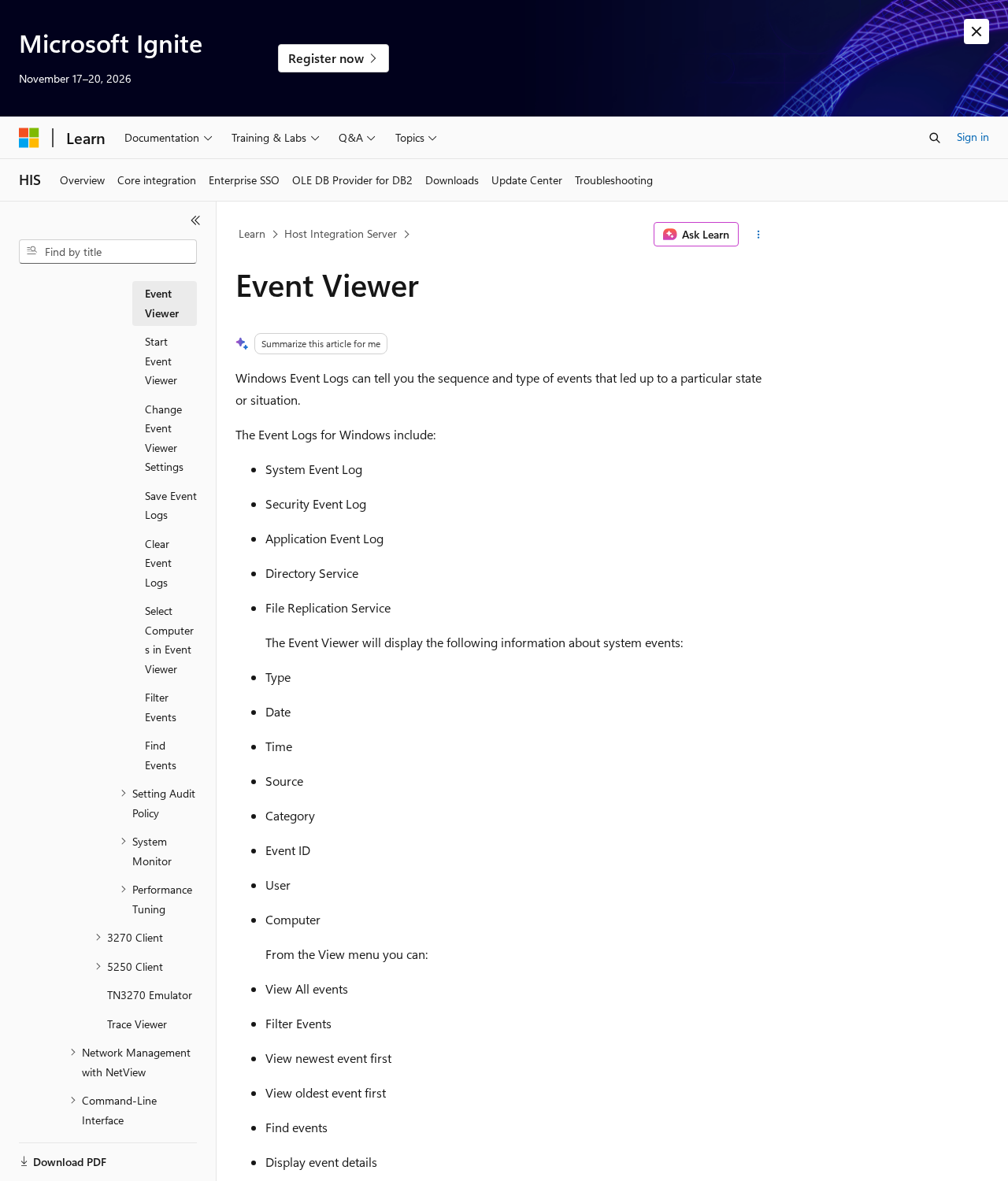
Event Viewer displays records that Windows and applications write about their activity. It gives a technician somewhere to investigate when a symptom needs an explanation.
The imposter leaned on that familiar warning icon. The caller treated entries in the log as evidence of the particular QuickBooks connection problem announced at the beginning.
The person who received the call declined the remote session. There was no reported installation, remote connection or account loss from that encounter.
The immediate decision is whether to let the caller in
Intuit’s Desktop support directory warns about unsolicited callers who claim to have found a technical problem. It directs customers to support they initiate themselves.
Three details can help you identify this version while you are still on the phone.
- The person contacts you about a Desktop issue you haven’t opened a support case for.
- They interpret a list of Windows entries as proof of a problem without identifying a specific relevant event.
- They make remote viewing or control a condition of resolving a problem you haven’t confirmed.
An unexpected caller can know your name or know that your business uses QuickBooks. Make the decision about access based on how you contacted support.
What the Windows Logs Can Actually Tell You
Microsoft’s Event Viewer documentation describes logs organized around the system, applications and security. They record different kinds of activity for different purposes.
A log entry belongs to the component that wrote it. Its time and details help someone connect it with a problem they can reproduce.
Imagine QuickBooks closed normally this morning, but Windows logged a printer service warning last week. That warning tells you where to investigate a printer symptom.
The caller never needs to show that connection. They can tell you to look for any errors, then wait for you to spot something worrying.
Even a relevant-looking entry needs context. Which operation failed? What were you doing at the time? Does the same thing happen again when you repeat that work?
Those questions are useful when you already have a problem. Reading unfamiliar logs aloud to an unsolicited caller gives them an opening to keep directing the conversation.
The easiest check starts with the symptom the caller named. Did QuickBooks actually show an error during a task you expected it to complete?
Write down the message if there is one. Keep the time and the product edition handy for your own IT team or a support case you open.
How the Fake QuickBooks Support Call Scam Works
Step 1: The caller claims to know the status of your software
The person introduces themselves as support and says QuickBooks is failing to communicate. For an office that depends on the software, this sounds like something worth fixing quickly.
A phrase like “not communicating with the server” leaves plenty of room for interpretation. It could sound like an issue with updates, a company file or online services.
The reported caller didn’t wait for the customer to describe a symptom. They supplied both the supposed problem and the next thing to try.
Pause before following those instructions. If the business already uses an IT provider, ask that team whether there is an open incident matching the claim.
Step 2: An ordinary update check keeps you on the call
The caller asks you to use the familiar QuickBooks update option. Because you’re working in software you already use, the instruction can feel like a normal diagnostic step.
Checking for an update in your own copy of the program is a different action from authorizing an outside session. You can stop between those two requests.
In the reported encounter, no update appeared. The caller switched to a Windows diagnostic screen. Their original claim remained unsupported by anything the customer could see.
If your screen shows an actual QuickBooks error, copy its wording into your own notes. Ask a verified support representative to explain that error independently.
Step 3: The caller uses a crowded log as a demonstration
With Event Viewer open, the customer saw a list of entries. The caller had put the reader in front of something technical, unfamiliar and easy to misinterpret.
Think about what changed between the two screens. You started with a claim about a particular accounting program. You are now looking at a record of computer activity.
A caller can exploit the distance between those two facts. They decide what every entry supposedly means while you have little time to read any of it.
You can close the window without deleting records. Leave the entries available for a technician you trust if you have a real problem to investigate.
Step 4: The caller asks to connect to the computer
In this report, the caller asked to view the computer remotely and insisted the issue couldn’t be addressed otherwise. That’s where the recipient ended the interaction.
Fake support operators sometimes ask you to install a remote tool, approve a connection or disclose a session code. The FTC’s tech support guide documents this broader pattern.
What an outsider could see or do depends on the access you grant. A shared screen could reveal a payroll report, an email preview or a vendor record.
Control of the mouse and keyboard raises a different set of concerns. Treat a session in which the person could operate your machine as a security incident.
Why an Accounting Computer Deserves Special Care
A bookkeeping workstation can bring information from several parts of the business together. An open company file might sit alongside vendor emails, tax documents or a browser session.
A person watching an authorized user’s screen might see details about employees or customers even when the accounting app works exactly as designed.
An accountant may also be signed in to more than one client’s workspace. If that applies to you, record which account or company file was open during the session.
Tell your IT team about other devices involved. A shared screen on the bookkeeper’s computer is a separate issue from a remote session on the machine hosting company files.
Give the person responding the actual sequence. Say whether you opened a Windows tool, followed a web link, downloaded a program, approved sharing or saw the mouse move.
Those distinctions help determine what can be checked. They can also save time when another employee hears about the call and assumes every company file was exposed.
Look at business processes as well as the computer. Ask the person who handles payments to verify any new supplier account instructions through a known contact.
If someone handles payroll for you, let them know about any possible account exposure before the next run. They can review changes through the service they normally use.
You may need someone responsible for client or employee information to assess what was visible. Preserve the facts they will need to decide whether further action is appropriate.
How to Get Actual Help With QuickBooks
For a connection or update problem, start where you normally open QuickBooks. Use the in-product Help route or find the support directory independently.
If you’re part of an organization, follow the process it already uses for vendor support. A managed computer may require permission before anyone can install a support utility.
Say what you can reproduce. For example, note that an update check finishes but the particular task you’re trying to complete still produces an error.
Include the time and the text of the error. If someone wants to look at logs, ask which application, operation or time period they want to examine.
If you opened a real ticket before the incoming call, retrieve it through your original support account. Ask the official team to match the proposed session to that ticket.
Discuss the scope of any approved screen sharing before it starts. Close unrelated account pages and documents, especially anything showing credentials, payroll information or a customer list.
If you encounter an error while following guidance on your own, keep the message for support. A failed update can be investigated without going back to a stranger’s number.
Before You Resume Bookkeeping
If an outsider had control, ask your technician to identify the session start and end times. Those times give you a sensible window for reviewing business activity.
If the computer was shared, ask the staff who used it what they saw. Give them a specific time range so ordinary work isn’t mistaken for suspicious activity.
If accounting records changed, keep a copy of the current records and consult the person responsible for them before restoring a backup. An immediate restore can obscure the changes.
You can also compare an unexpected payment request with earlier correspondence from the same vendor. Verify any new instructions by calling a person you already know.
What to Do if You Have Fallen Victim to This Scam
-
End the call and check how far you went. Write down the software you opened and any prompts you accepted. Give your own support team that account.
If you only viewed the logs and refused the connection, keep the call details. Focus on whether you took any other action beyond opening a built-in tool.
-
Isolate a computer the caller could control. Disconnect its network connection if you can do so safely. Call your internal IT or a trusted technician from another device.
Give them the name of the remote program or the support link. If the machine supports other staff, tell the response team before returning it to service.
-
Preserve the session evidence. Save caller details, case references, downloaded filenames and any receipt from the remote tool. Keep screenshots that you already have.
Let your technician decide what records to retain before removing software. Ask them to review unattended access settings and any other changes made during the session.
-
Use a trusted device for account changes. If sign-ins were exposed, secure the relevant email and accounting accounts. Review active sessions and check recovery settings.
For a shared business account, coordinate with its administrator. They can remove unknown access while helping legitimate users retain the permissions they need.
-
Check business activity with the people responsible for it. Review unusual payments, payroll changes, new users and vendor instructions. Contact your bank if money or banking details were exposed.
Tell the bank which actions you took and which you didn’t authorize. Preserve transaction references and the dates of any changes that need investigation.
-
Ask for a security check when software ran. A trusted technician can inspect the machine and use Malwarebytes to scan for unwanted software where appropriate.
If a suspicious webpage was also involved, AdGuard can help filter malicious web destinations in future browsing. Follow the technician’s plan for the device that was exposed.
-
Report the impersonation through a verified route. Contact Intuit through its support directory and use FTC ReportFraud for a U.S. fraud report.
Include a short timeline. Keep client files, payroll records and other private information out of public posts. Share material privately with the organization handling the incident.
Frequently Asked Questions
Does opening Event Viewer give someone access to my PC?
Opening the built-in Windows tool displays logs on your own computer. Review any other action you took, especially a remote-session approval, an installation or a screen share.
Do red entries mean QuickBooks is disconnected?
A log entry needs a source, time and connection to a particular symptom. Give verified support the exact QuickBooks error if the accounting software is having trouble.
What if the caller knew my account or company name?
Knowing business details may make an introduction convincing. Open your own support case and ask Intuit to check the specific issue the caller described.
I installed the tool but closed it. What should I tell IT?
Say which program you ran, how you got it and whether you approved a session. Ask IT to inspect installation records and check for unattended access.
Should I change my passwords on the same computer?
Use another device you trust if the caller could control the computer. Start with accounts used during the session and let your administrator handle shared business access.
Where can I get genuine QuickBooks Desktop support?
Go to the Help option inside the program or reach Intuit’s Desktop support directory yourself. Have your own case reference and any reproducible error ready.
The Bottom Line
If a caller uses Windows errors to justify a remote connection to QuickBooks, end the call. Get any real Desktop problem checked through support you contact yourself.
If you approved access, disconnect the workstation and bring in trusted IT support. Tell them which company files and accounts were open, then check for unauthorized business activity.

Join the discussion
0 commentsShare your experience or ask a question about this article.
Discussion
Start the conversation
Have a question or something useful to share? Add the first comment.