


The screen says an update is ready. It hardly feels worth a second thought on a phone that asks you to update something every few days.
One detail is worth checking before you dismiss it or tap through. Where did the update actually come from?
Overview
What Fantasy Hub does on Android
Fantasy Hub is a remote access trojan for Android. Zimperium zLabs documented fake app listings and malicious apps that sought control over messages and other sensitive phone data.
The research describes software rented to different operators. That matters because the screen you remember might not resemble the next person’s screen, even if both phones ran related malware.
The researchers observed a page impersonating Telegram. They also described attacks that used false windows to collect banking details. Neither observation means Telegram or the banks distributed the trojan.
Why the texting app matters
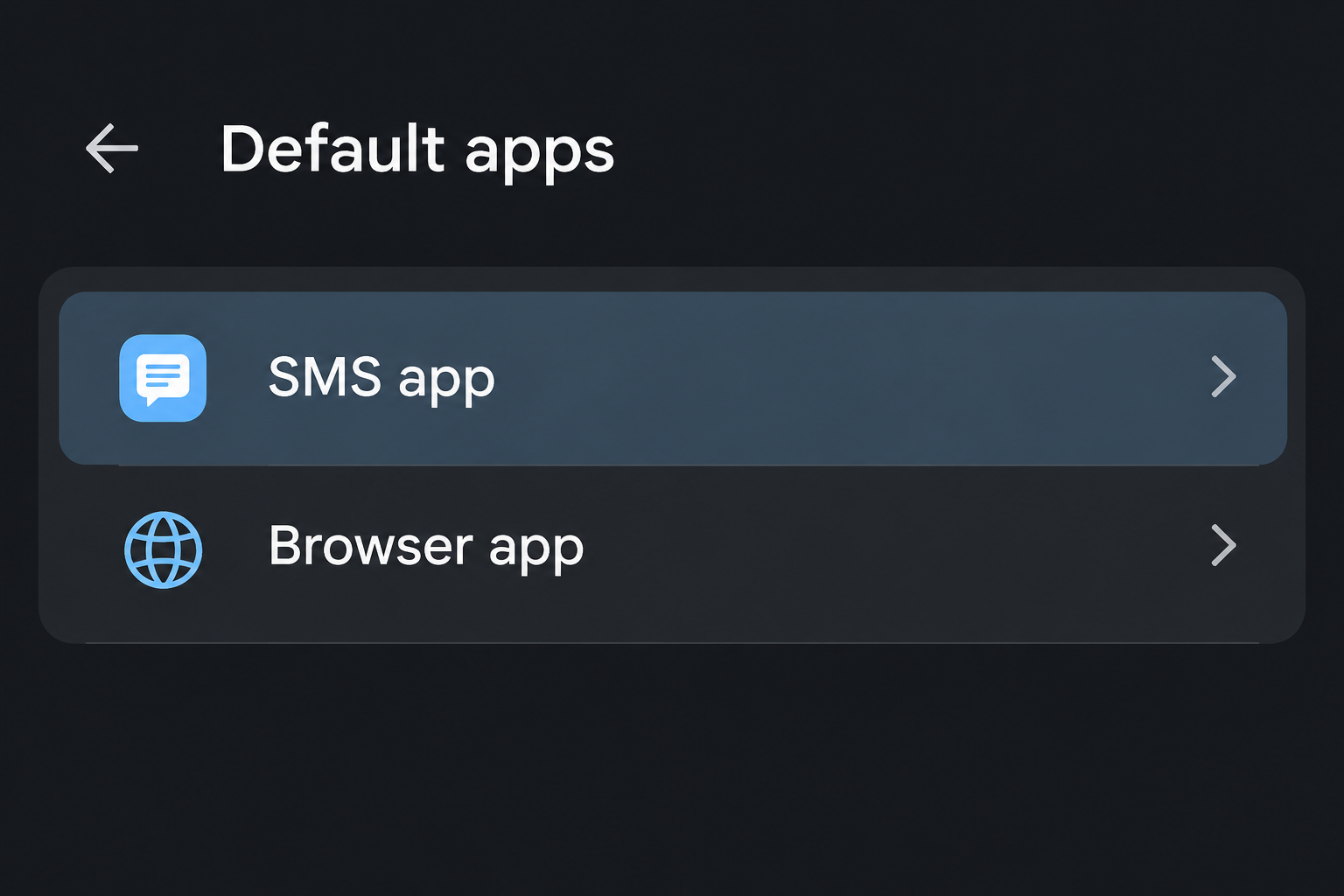
Android lets you choose which app handles text messages. A browser, a game, or what claims to be an update shouldn’t need to take that job to finish installing.
A hostile SMS app can put verification codes and conversations at risk. It may also change what you see when messages arrive, so a quiet inbox isn’t necessarily reassuring.
Start with three details: what you installed, whether it became the SMS app, and what you entered after that.
Which details are worth checking
- The original message or browser tab that asked you to install or update something.
- The app name in Android Settings, which may differ from the label you remember.
- The default SMS app and any unexpected app with permission to install unknown apps.
- Bank or email security notices viewed on another device, where the suspect app cannot interfere.
Battery drain can have ordinary causes, and normal battery use doesn’t rule out infection. A new default SMS app after a download is a more useful clue.
How Fantasy Hub Reaches an Android Phone
Step 1: A web page borrows the look of an app listing
An app can be advertised with a familiar name, polished graphics, and convincing reviews. Those details say nothing about what a file downloaded by your browser actually contains.
Close the link and open Play Store from the Android home screen. Search there or use the link from the developer’s verified site.
Step 2: An installation opens a door the screenshot didn’t show
A listing in a browser can hand you a downloadable Android package. Downloading it isn’t the same as installing it, and you can often check the difference in Settings.
If the browser is suddenly asking for permission to install unknown apps, back out. An unexpected request to change that setting is a reason to verify the app independently.
Don’t reopen the downloaded file to figure out what it did. The Apps list, download history, and original message give you useful information without running it again.
Step 3: The app asks to handle messages
An update-themed name gives the request an innocent explanation. The practical effect is different: another app can become the one Android uses to handle SMS.
If bank codes are missing, call the bank from another phone. Ask how to secure your sign-in without sending new codes to the suspect device.
Step 4: A normal-looking phone can hide separate risks
Researchers described access to contacts, call logs, and media, alongside reported access to the camera and microphone. The range of capabilities is not proof every feature ran on your device.
A false banking screen is a separate concern. If you used one, treat the details you typed there as exposed even if your real banking app still opens normally.
What to Do If You Installed a Suspect Android App
Take the phone offline if you suspect an active infection.
Turn off Wi-Fi and mobile data. Make urgent calls from another phone, rather than leaving the affected device online while you check your accounts.
Contact your bank if a login, code, or payment was involved.
Use the number printed on the card or the bank’s official site. Explain why you no longer trust the phone receiving your codes.
Tell your workplace if work texts or accounts were on the device.
Ask the help desk before deleting apps or resetting a managed phone. They may need the app name, install time, and evidence of protected accounts that used it.
Check the SMS app and follow the Android cleanup guide below.
Restore your usual messaging app where you can identify it. If the suspect app cannot be removed, note the error instead of trying random removal utilities.
Change exposed credentials without the suspect phone.
Start with primary email and accounts showing unfamiliar activity. Sign out existing sessions and review recovery details as well as the password.
Be selective if you have to reset or replace the device.
Keep personal documents or photos if needed. Install fresh app copies from trusted sources, rather than restoring every app and permission from the old phone.
The cleanup steps below work on personal devices. Menu labels vary by Android version and manufacturer. Ask your employer for instructions if the phone has a managed work profile.
Prioritize the installed app and its permissions. Browser cleanup is optional if you saw redirects or unwanted notifications; clearing browser data alone won’t remove an Android trojan.
- STEP 1: Uninstall malicious apps
- STEP 2: Reset browsers back to default settings
- STEP 3: Use Malwarebytes for Android to remove malicious apps
STEP 1: Uninstall malicious apps
In this first step, we will check if any malicious apps are installed on your phone. Sometimes browser hijackers or adware apps can have usable Uninstall entries that can be used to remove these apps.
-
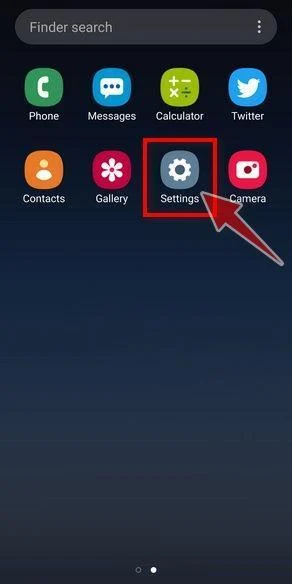
Open the “Settings” menu.
Tap on the “Settings” app from your phone menu or home screen.
-
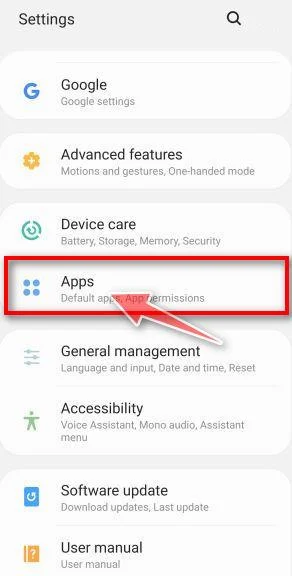
Tap on “Apps”.
When the “Settings” menu opens, tap on “Apps” (or “App Manager”) to see all the installed applications on your phone.
-
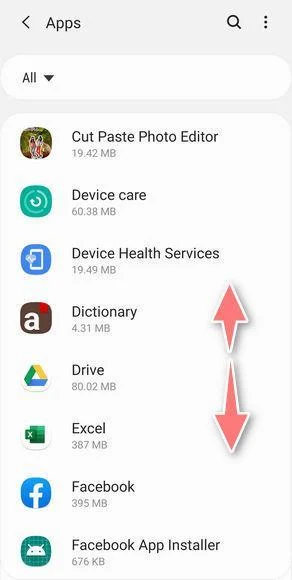
Find the malicious app.
The “Apps” screen will be displayed with a list of all the applications that are installed on your phone. Scroll through the list and look out for any suspicious app that could be behind all the drama – anything you don’t remember downloading or that doesn’t sound like a genuine program.
Most often, cyber criminals hide malware inside video or photo editing apps, weather apps, and camera apps.Check the developer, installation source, and any scanner detection before removing an app. A generic name or unfamiliar icon is not enough. If Android will not let you uninstall a confirmed unwanted app, check Device admin apps in Settings or restart in Safe Mode; do not remove a work or school management app without its administrator.
-
Uninstall the malicious app
When you find a suspicious or malicious app, tap on it to uninstall it. This won’t start the app but will open up the app details screen. If the app is currently running press the “Force stop” button, then tap on “Uninstall”.
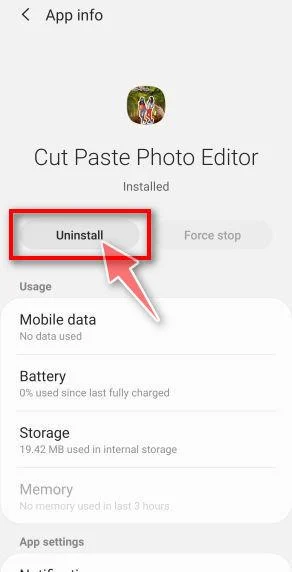
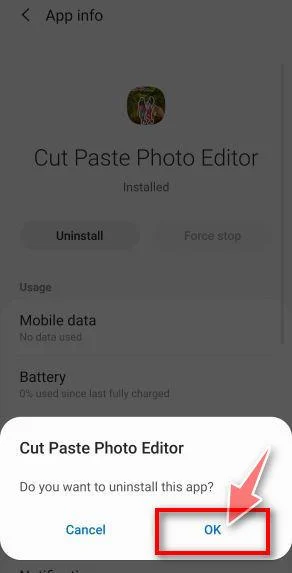
A confirmation dialog should be displayed to confirm you want to uninstall the app, tap on “OK” to remove the malicious app from your phone.
STEP 2: Reset browsers back to default settings
In this second step, we will reset your browser to its default settings to remove spam notifications, unwated search redirects, and restore its factory settings
Before clearing app storage: save important tabs and check that any bookmarks or passwords you need are backed up. This resets local browser data and signs you out of sites; it does not delete your Google or Mozilla account. For notification spam alone, first revoke that site’s notification permission.
Resetting the browser settings to their default it’s an easy task on Windows or Mac computers; however, when it comes to Android, this can’t be done directly because it’s not an option built-in into the browser settings. Restoring the browser settings on Android can be done by clearing the application data. This will remove all the cookies, cache, and other site settings that may have been saved. So let’s see how we can restore your browser to its factory settings.
Remove malware from Chrome for Android
To reset Chrome for Android to its default settings, follow the below steps:
-
Open the “Settings” menu.
Tap on the “Settings” app from your phone menu or home screen.
-
Tap on “Apps”.
When the “Settings” menu opens, tap on “Apps” (or “App Manager”) to see all the installed applications on your phone.
-
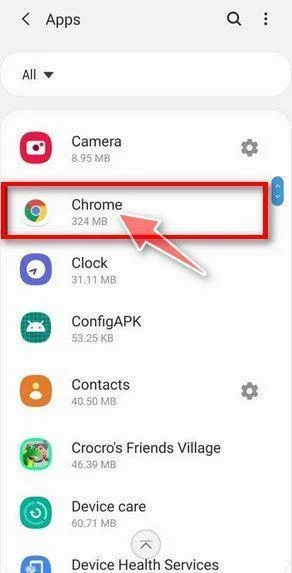
Find and tap on Chrome.
The “Apps” screen will be displayed with a list of all the apps installed on your phone. Scroll through the list until you find the Chrome app, then tap on it to open the app’s details.
-
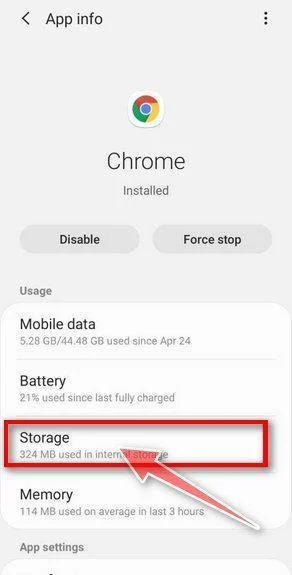
Tap “Storage”.
When Chrome’s app info menu is displayed, tap on “Storage“.
-
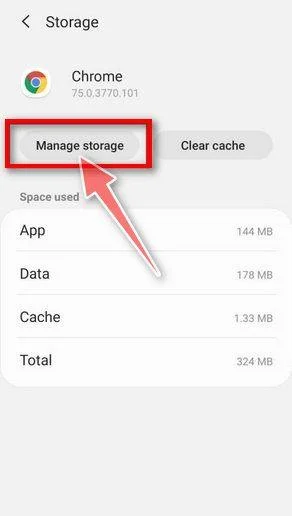
Tap “Manage Space” or “Clear storage”.
Tap Clear storage (Clear data on Samsung). If Chrome instead shows Manage space, tap it to reach Clear all data. Do not choose Clear cache when you need to reset the app’s local data.
-
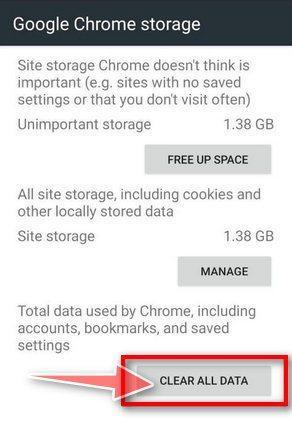
Tap “Clear all data”.
Tap “Clear all data” to delete all Chrome’s data including local sign-ins, unsynced bookmarks, and settings to reset the default settings.
-
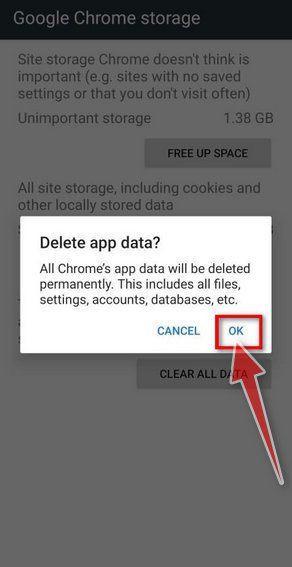
Confirm by tapping “Ok”.
A confirmation dialog should now be displayed, detailing the components that will be restored to their default state should you continue with the reset process. To complete the restoration process, tap “Ok“.
Remove malware from Firefox for Android
To reset Firefox for Android to its default settings, follow the below steps:
-
Open the “Settings” menu.
Tap on the “Settings” app from your phone menu or home screen.
-
Tap on “Apps”.
When the “Settings” menu opens, tap on “Apps” (or “App Manager”) to see all the installed applications on your phone.
-
Find and tap on Firefox.
The “Apps” screen will be displayed with a list of all the apps installed on your phone. Scroll through the list until you find the Firefox app, then tap on it to open the app’s details.
-
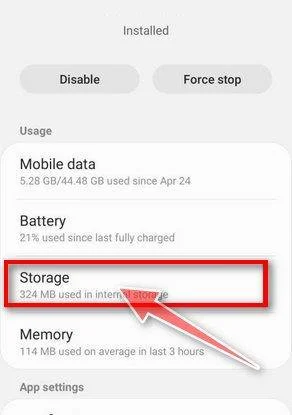
Tap “Storage”.
When Firefox’s app info menu is displayed, tap on “Storage“.
-
Tap “Manage Space” or “Clear storage”.
Tap Clear storage (Clear data on Samsung). If Chrome instead shows Manage space, tap it to reach Clear all data. Do not choose Clear cache when you need to reset the app’s local data.
-
Tap “Clear all data”.
Tap “Clear all data” to delete all Firefox data including local sign-ins, unsynced bookmarks, and settings to reset the default settings.
-
Confirm by tapping “Ok”.
A confirmation dialog should now be displayed, detailing the components that will be restored to their default state should you continue with the reset process. To complete the restoration process, tap “Ok“.
Remove malware from the Opera browser
To reset the Opera browser to its default settings, follow the below steps:
-
Open the “Settings” menu.
Tap on the “Settings” app from your phone menu or home screen.
-
Tap on “Apps”.
When the “Settings” menu opens, tap on “Apps” (or “App Manager”) to see all the installed applications on your phone.
-
Find and tap on Opera.
The “Apps” screen will be displayed with a list of all the apps installed on your phone. Scroll through the list until you find the Opera app, then tap on it to open the app’s details.
-
Tap “Storage”.
When Opera’s app info menu is displayed, tap on “Storage“.
-
Tap “Manage Space” or “Clear storage”.
Tap Clear storage (Clear data on Samsung). If Chrome instead shows Manage space, tap it to reach Clear all data. Do not choose Clear cache when you need to reset the app’s local data.
-
Tap “Clear all data”.
Tap “Clear all data” to delete all Opera’s data including local sign-ins, unsynced bookmarks, and settings to reset the default settings.
-
Confirm by tapping “Ok”.
A confirmation dialog should now be displayed, detailing the components that will be restored to their default state should you continue with the reset process. To complete the restoration process, tap “Ok“.
Remove malware from Samsung Internet Browser
To reset the Samsung Internet Browser to its default settings, follow the below steps:
-
Open the “Settings” menu.
Tap on the “Settings” app from your phone menu or home screen.
-
Tap on “Apps”.
When the “Settings” menu opens, tap on “Apps” (or “App Manager”) to see all the installed applications on your phone.
-
Find and tap on Samsung Internet Browser.
The “Apps” screen will be displayed with a list of all the apps installed on your phone. Scroll through the list until you find the Samsung Internet Browser app, then tap on it to open the app’s details.
-
Tap “Storage”.
When the Samsung Internet Browser’s app info menu is displayed, tap on “Storage“.
-
Tap “Manage Space” or “Clear storage”.
Tap Clear storage (Clear data on Samsung). If Chrome instead shows Manage space, tap it to reach Clear all data. Do not choose Clear cache when you need to reset the app’s local data.
-
Tap “Clear all data”.
Tap “Clear all data” to delete all Samsung Internet Browser’s data including local sign-ins, unsynced bookmarks, and settings to reset the default settings.
-
Confirm by tapping “Ok”.
A confirmation dialog should now be displayed, detailing the components that will be restored to their default state should you continue with the reset process. To complete the restoration process, tap “Ok“.
Remove malware from Microsoft Edge for Android
To reset the Microsoft Edge for Android to its default settings, follow the below steps:
-
Open the “Settings” menu.
Tap on the “Settings” app from your phone menu or home screen.
-
Tap on “Apps”.
When the “Settings” menu opens, tap on “Apps” (or “App Manager”) to see all the installed applications on your phone.
-
Find and tap on Microsoft Edge.
The “Apps” screen will be displayed with a list of all the apps installed on your phone. Scroll through the list until you find the Microsoft Edge app, then tap on it to open the app’s details.
-
Tap “Storage”.
When the Microsoft Edge’s app info menu is displayed, tap on “Storage“.
-
Tap “Manage Space” or “Clear storage”.
Tap Clear storage (Clear data on Samsung). If Chrome instead shows Manage space, tap it to reach Clear all data. Do not choose Clear cache when you need to reset the app’s local data.
-
Tap “Clear all data”.
Tap “Clear all data” to delete all Microsoft Edge’s data including local sign-ins, unsynced bookmarks, and settings to reset the default settings.
-
Confirm by tapping “Ok”.
A confirmation dialog should now be displayed, detailing the components that will be restored to their default state should you continue with the reset process. To complete the restoration process, tap “Ok“.
STEP 3: Use Malwarebytes for Android to remove malicious apps
In this final step, we will install Malwarebytes for Android to scan and remove malicious apps from your phone or tablet.
Malwarebytes for Android can check installed apps and accessible files for threats. The free version supports manual scanning. Review the results and confirm Android’s uninstall prompts for detected malicious apps; automatic and real-time protection features depend on the plan.
-
Download Malwarebytes for Android.
You can download Malwarebytes for Android by clicking the link below.
Get Malwarebytes for AndroidOpens Google Play in a new tab.Want real-time protection? See Malwarebytes Premium for Android Malwarebytes for AndroidManual malware scan; optional paid protection features
-
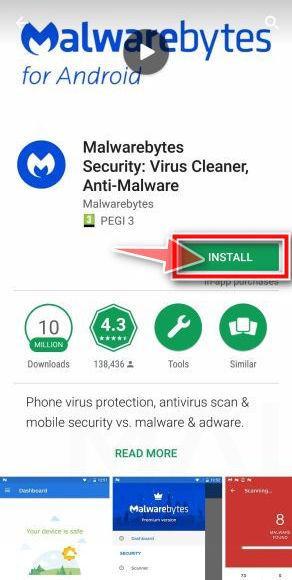
Install Malwarebytes for Android on your phone.
In the Google Play Store, tap “Install” to install Malwarebytes for Android on your device.
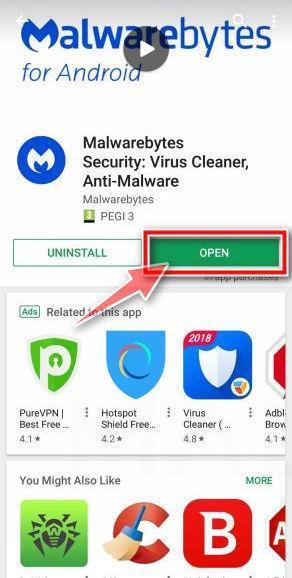
When the installation process has finished, tap “Open” to begin using Malwarebytes for Android. You can also open Malwarebytes by tapping on its icon in your phone menu or home screen.
-
Follow the on-screen prompts to complete the setup process
When Malwarebytes will open, you will see the Malwarebytes Setup Wizard which will guide you through a series of permissions and other setup options.
Tap Get Started, or I have a Subscription if you already pay for the app. Review any plan or trial offer before accepting it.
Follow the setup prompts to reach the dashboard. The free version supports manual scans; real-time protection and scheduled scans depend on the plan. Choose only the optional features you want.
Malwarebytes for Android will now ask for a set of permissions that are required to scan your device and protect it from malware. Tap on “Give permission” to continue.
Tap on “Allow” to permit Malwarebytes to access the files on your phone. -
Run a scan with Malwarebytes for Android
On the current dashboard, find the Device section and tap Scan now.
Allow storage access when prompted so Malwarebytes can check files as well as apps. Let the scan finish and open its results. Keep the app updated through Google Play.
-
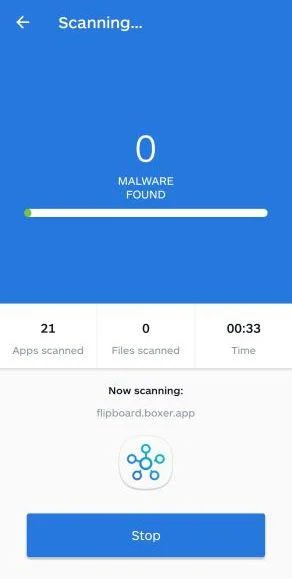
Wait for the Malwarebytes scan to complete.
Malwarebytes will now start scanning your phone for adware and other malicious apps. This process can take a few minutes, so we suggest you do something else and periodically check on the status of the scan to see when it is finished.
-
Review the results and uninstall detected malicious apps.
On the current results screen, tap the menu next to a detected app and choose Uninstall app, then confirm Android’s uninstall prompt. Do not choose Always allow for an app you have not verified.
-
Restart your phone.
Confirm that the selected apps were uninstalled. Restart if requested, then check whether the original problem has stopped. Keep the detection details and ask for help if an app cannot be removed or comes back.
Frequently Asked Questions
Does a Telegram link mean my Telegram account is infected?
One documented lure imitated Telegram, but seeing it doesn’t establish account access. Check active sessions on another device if you entered credentials or approved a sign-in.
Is viewing the download page the same as installing Fantasy Hub?
No. A page visit alone does not establish a Fantasy Hub infection. Check whether any app was installed or sign-in details submitted before deciding what response you need.
Where can I look for the default SMS app?
In Android Settings, search for Default apps and look for SMS app. Names and menus vary; use the manufacturer’s support page if search doesn’t show the option.
Can I run Google Play Protect without installing a new scanner?
Google explains how Play Protect checks apps. Run it as one part of cleanup, not as a verdict on whether information already left the device.
What if the app came back after I removed it?
Write down when it returned and avoid using the phone for account recovery. A qualified technician can help decide whether a clean reset is warranted.
Should I change my phone number?
Not ordinarily just because an app was installed. If your carrier reports changes you didn’t authorize or your line loses service unexpectedly, contact the carrier directly.
The Bottom Line
The key question is not whether an update page looked professional. It’s whether anything was installed and whether that app gained access to your messages.
If it did, deal with account exposure from another device first. Then remove the app and make sure Android is using the messaging app you actually chose.

Join the discussion
0 commentsShare your experience or ask a question about this article.
Your progress
Did these steps help?
Let us know how the guide worked for you.
Describe what you see and the step you reached. Keep passwords and other private information out.
Discussion
Start the conversation
Have a question or something useful to share? Add the first comment.