

Footlocker is one of the largest athletic footwear and apparel retailers in the world. But scammers are exploiting the brand’s reputation to execute an elaborate fake product reviewer scam.
Fraudsters create convincing websites promoting a phony “Footlocker Shoe Reviewer” that claims to pay participants $500 gift cards. It’s nothing but a ruse to steal personal information, money, and identities from victims.
This in-depth guide will unravel how this deceitful con works, identify techniques to spot it, and provide recommendations to avoid getting swindled.
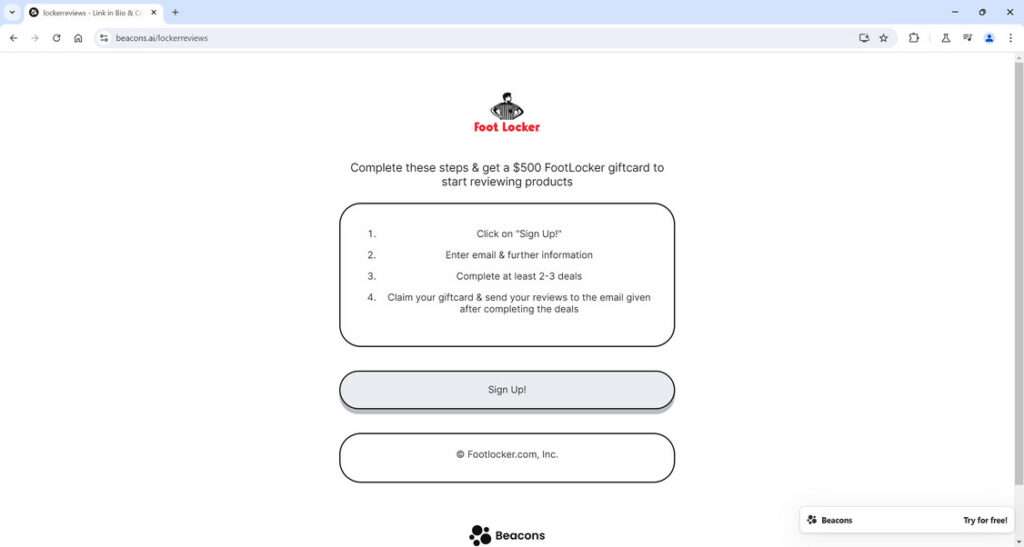
Overview of the Footlocker Product Reviewer Scam
The Footlocker product reviewer scam operates by enticing victims with the opportunity to review shoes and clothes in exchange for $500 gift card rewards. Scammers construct authentic-looking websites with enrollment forms to join this fictitious program.
In reality, there is no such thing as a Footlocker reviewer rewards initiative. The criminals are simply leveraging the brand’s reputation to harvest data for identity theft and expose victims to recurring fees, malware, and account hacking.
By disguising the ruse as a paid reviewer gig, the scammers convince unwitting users to hand over valuable personal information that leads to compromised finances and privacy. But no rewards ever materialize.
How the Scammers Carry Out This Deceptive Scheme
Here are the devious strategies fraudsters deploy to perpetrate this reviewer scam:
- Fake websites – Sophisticated sites mimicking real Footlocker reviewer programs with the company’s logos and imagery.
- Social media ads – Promoted posts on platforms like Instagram and Facebook drive traffic to fraudulent enrollment pages.
- Pop-up browser ads – Deceptive pop-up ads also redirect users to fake Footlocker reviewer platforms.
- Phishing emails – Emails pretending to be Footlocker customer service offering reviewer opportunities.
- Malware downloads – Required downloads contain malware to infect users’ devices.
- Subscription fees – Victims get unwittingly signed up for monthly subscriptions under the guise of completing reviewer “tasks.”
- Rewards fraud – No $500 gift cards are ever dispensed, despite claims.
The scam evolves but continues deceiving eager victims with the false promise of easy money as a product reviewer. In reality, it results in stolen funds and compromised personal data.
Breakdown of the Footlocker Reviewer Scam
Here is an in-depth play-by-play of how this fraudulent Footlocker reviewer program unfolds:
Step 1: Encountering a Fake Reviewer Ad
The scam starts with the victim coming across a digital advertisement promoting the chance to become a paid product reviewer for Footlocker and earn $500 gift cards.
The ads appear credible with eye-catching images of Footlocker products and convincing claims of giving rewards to reviewers. Urgency tactics pressure users to sign up fast before supposed reviewer slots fill.
Step 2: Signing Up for the Fake Program
Tricked by the ads, victims click the link to enroll as a product reviewer. They are taken to slick websites designed with Footlocker’s logo and visuals. The sites feature forms to enter personal details like name, email, phone number, home address, and birth date.
The data harvesting forms masquerade as application pages for the fake reviewer program. But in reality, it’s just a scam to steal user information.
Step 3: Completing Required Offers
After submitting their sensitive data, victims must complete “recommended offers” to finish enrolling in the scam reviewer program. This usually involves signing up for subscription trial offers or downloads.
The downloads frequently contain malware. And the subscription trials start auto-billing the victim’s credit cards monthly after the free trial ends.
Step 4: No Payment and Ongoing Fraud
Unfortunately, victims complete these fraudulent offers but never get the promised $500 Footlocker gift cards. The personal information they provided is now in the hands of scammers.
Their credit cards get charged recurring fees for the deceptive subscriptions. Downloaded malware may have also infected their devices. And identities are stolen to open fraudulent accounts.
In the end, engaging with the fake reviewer program costs victims money through theft and recurring fees. The scammers disappear with their data and profits.
How to Identify This Scam on Social Media and Websites
The Footlocker reviewer scam relies on convincing social media ads and fake websites to lure in victims. Here are tips to detect their deceptive tactics:
Look for These Red Flags on Social Media:
- Ads promoting “easy money” opportunities to review Footlocker products should raise suspicions.
- Urgency tactics in ads insisting you must act fast before reviewer spots fill up indicates a scam.
- Links in social media ads going to odd URLs unrelated to Footlocker’s official site are a major warning sign.
- Poor grammar, spelling mistakes, and other errors in the ad copy are common scam giveaways.
- The ad sponsor name may sound totally fake, nonsensical or impersonate Footlocker.
Watch Out for These Dubious Website Tactics:
- URLs with typos, extra words, or unusual domain extensions like .xyz or .site.
- Homepages using low-quality or stolen Footlocker images in a sloppy, disorganized layout.
- Spelling/grammar errors throughout the site content and instructions.
- Forms asking for personal information and financial details upfront.
- Countdown timers or “act fast” pressures to quickly sign up before fake deadlines.
- Required downloads from outside sources that may contain malware.
- No business registration details, physical addresses, or contact information.
- Lack of SSL certificate and HTTPS protocol on the site.
- No links to Footlocker’s official social media pages or website.
Staying vigilant on social platforms and vetting websites can help spot scam red flags aiming to trick eager victims. Avoid any site asking for personal data upfront or downloads. Verify directly with the brand if an offer seems questionable.
Avoiding the Fake Footlocker Reviewer Scam
Here are recommendations to avoid getting swindled by this con:
- Verify directly on Footlocker’s website – don’t just trust third-party pages claiming affiliation.
- Watch for poor grammar/spelling on pages promoting the deal. This signals fraud.
- Do not enter personal info on unfamiliar sites offering the reviewer program.
- Avoid downloads required to claim rewards – they likely contain malware.
- Read the fine print for any free trials to avoid unwanted recurring charges.
- Use antivirus software and monitor devices used on suspicious sites.
- Check privacy policies on pages asking for data to ensure proper security protocols.
- Report fake ads/emails to raise awareness and get them shut down.
Stay proactive and skeptical when assessing offers that seem too good to be true. Do your due diligence to confirm legitimacy directly through Footlocker’s official channels.
What to Do If You Already Got Scammed
If you suspect you fell victim to the fake Footlocker reviewer scam, take these steps:
- Contact your bank/card issuer regarding any fraudulent charges or subscriptions.
- Change passwords on accounts where you used the same credentials. Monitor for suspicious activity.
- Check credit reports and set up fraud alerts to catch any accounts opened in your name.
- Scan devices for malware if you downloaded anything from links provided.
- Submit complaints about the scam to authorities like the FTC to aid investigations.
- Learn how to spot scams going forward so you don’t get tricked again. Look for urgency tactics, requests for personal details upfront, spelling/grammar mistakes, etc.
Stay vigilant if you suspect you got conned, and help shut down these scams by reporting fake ads, emails, and websites used for fraud.
Is Your Device Infected? Run a Free Malware Scan
Slow performance, constant pop-ups, or strange behavior? These are classic signs of a malware infection. The fastest way to find out is to scan your device with Malwarebytes Free — one of the most trusted malware removal tools available.
The free version detects and removes the most common threats, including:
- Adware — the cause of those annoying pop-ups
- Browser hijackers — unwanted redirects and changed homepages
- Trojans and spyware — hidden programs stealing your data
- Potentially unwanted programs (PUPs) — software you never asked for
👉 Select your device below — Windows, Mac, or Android — then follow the simple steps to download Malwarebytes, scan your system, and remove any threats it finds. The scan usually takes 5 to 20 minutes.
Run a Malware Scan with Malwarebytes for Windows
Malwarebytes is one of the most popular and trusted anti-malware tools for Windows — and it’s completely free for removing infections. It catches threats that many antivirus programs miss, including adware, browser hijackers, and trojans. Follow the steps below to scan and clean your PC in just a few minutes.
Download Malwarebytes
Click the button below to download the latest version of Malwarebytes for Windows from the official source. The free version is all you need — it will scan your computer and remove adware, browser hijackers, and other malicious software at no cost.
Download MalwarebytesOfficial installer for Windows 11 and 10. Your download starts right away.Want real-time protection? See Malwarebytes Premium Malwarebytes Free for WindowsScans and removes malware at no cost
-
Install Malwarebytes
When the download finishes, open your Downloads folder and double-click the MBSetup file. If Windows shows a User Account Control pop-up, click “Yes” to allow the installation.

Follow the On-Screen Prompts to Install Malwarebytes
The setup wizard will walk you through a few quick screens:
-
Choose where you’re installing the program — “Personal Computer” or “Work Computer” — then click Next.

-
Malwarebytes will now install on your device. This usually takes under a minute.

-
When installation is complete, the “Welcome to Malwarebytes” screen will open automatically.

-
On the final screen, click Open Malwarebytes to launch the program.

-
Enable “Scan for Rootkits”
Before scanning, turn on rootkit detection so Malwarebytes can find even the most hidden threats. Click the Settings gear icon on the left side of the screen.

In the settings menu, find “Scan for rootkits” and click the toggle so it turns blue.

Done? Click “Dashboard” in the left pane to return to the main screen.
Start the Scan
Click the blue Scan button. Malwarebytes will automatically update its virus database and start checking your computer for malware.

-
Wait for the Scan to Finish
The scan checks your entire system for browser hijackers and other malicious programs, so it can take 5 to 20 minutes depending on your computer. Feel free to do something else — just check back occasionally to see the progress.

-
Quarantine the Detected Threats
When the scan is done, you’ll see a list of everything Malwarebytes found — malware, adware, and potentially unwanted programs. Click the “Quarantine” button to remove all of them at once.

Malwarebytes will now remove the malicious files and registry entries and move them safely into quarantine.

-
Restart Your Computer
Some threats can only be fully removed after a reboot. If Malwarebytes asks you to restart, click Yes. Once you’re logged back in, Malwarebytes has finished removing the threats it found.

That’s it — your Windows PC is now clean of trojans, adware, and other malware, and should be back to running smoothly.
If you are still having problems with your computer after completing these instructions, then please follow one of the steps:
- Run a computer scan with ESET Online Scanner
- Ask for help in our Windows Malware Removal Help & Support forum.
Run a Malware Scan with Malwarebytes for Mac
Malwarebytes for Mac is a free on-demand scanner that removes the malware other security software tends to miss — adware, browser hijackers, and unwanted programs included. Cleaning an infected Mac with Malwarebytes has always been completely free, and it’s our go-to recommendation. Follow the steps below to scan and clean your Mac in just a few minutes.
-
Download Malwarebytes for Mac
Click the button below to download the latest version of Malwarebytes for Mac.
Download MalwarebytesOfficial installer for macOS. Your download starts right away.Want real-time protection? See Malwarebytes PremiumMalwarebytes Free for MacScans and removes malware at no cost -
Open the Malwarebytes setup file
When the download finishes, open your Downloads folder and double-click the setup file to begin the installation.

-
Follow the On-Screen Prompts to Install Malwarebytes
The Malwarebytes for Mac Installer will guide you through a few quick screens. Click “Continue” and keep following the prompts until the installation completes.



When the installation is complete, Malwarebytes opens to the Welcome to Malwarebytes screen. Click “Get started“.
-
Select “Personal Computer” or “Work Computer”
Malwarebytes will ask what type of computer you’re installing it on. Click either Personal Computer or Work Computer, whichever applies.

-
Start the Scan
Click the “Scan” button. Malwarebytes will automatically update its detection database and begin checking your Mac for malware.

-
Wait for the Scan to Finish
Malwarebytes will scan your Mac for adware, browser hijackers, and other malicious programs. This can take a few minutes, so feel free to do something else — just check back occasionally to see the progress.

-
Quarantine the Detected Threats
When the scan is done, you’ll see a list of everything Malwarebytes found. Click the “Quarantine” button to remove all the threats at once.

-
Restart Your Mac
Malwarebytes will now remove all the malicious files it found. Some threats can only be fully removed after a reboot — if Malwarebytes asks you to restart, allow it. Once you’re logged back in, your Mac is clean.

That’s it — your Mac is now free of adware, rogue browser extensions, and other potentially harmful software.
If you are still experiencing problems while trying to remove a malicious program from your computer, please ask for help in our Mac Malware Removal Help & Support forum.
Run a Malware Scan with Malwarebytes for Android
Malwarebytes for Android automatically detects and removes dangerous threats like malware and ransomware so you don’t have to worry about your most-used device being compromised. Aggressive detection of adware and potentially unwanted programs keeps your Android phone or tablet running smooth.
-
Download Malwarebytes for Android.
You can download Malwarebytes for Android by clicking the link below.
Get Malwarebytes for AndroidOpens Google Play in a new tab.Want real-time protection? See Malwarebytes Premium for AndroidMalwarebytes for AndroidScans your phone and removes malware at no cost -
Install Malwarebytes for Android on your phone.
In the Google Play Store, tap “Install” to install Malwarebytes for Android on your device.

When the installation process has finished, tap “Open” to begin using Malwarebytes for Android. You can also open Malwarebytes by tapping on its icon in your phone menu or home screen.

-
Follow the on-screen prompts to complete the setup process
When Malwarebytes will open, you will see the Malwarebytes Setup Wizard which will guide you through a series of permissions and other setup options.
This is the first of two screens that explain the difference between the Premium and Free versions. Swipe this screen to continue.
Tap on “Got it” to proceed to the next step.
Malwarebytes for Android will now ask for a set of permissions that are required to scan your device and protect it from malware. Tap on “Give permission” to continue.
Tap on “Allow” to permit Malwarebytes to access the files on your phone.
-
Update database and run a scan with Malwarebytes for Android
You will now be prompted to update the Malwarebytes database and run a full system scan.

Click on “Update database” to update the Malwarebytes for Android definitions to the latest version, then click on “Run full scan” to perform a system scan.

-
Wait for the Malwarebytes scan to complete.
Malwarebytes will now start scanning your phone for adware and other malicious apps. This process can take a few minutes, so we suggest you do something else and periodically check on the status of the scan to see when it is finished.

-
Click on “Remove Selected”.
When the scan has been completed, you will be presented with a screen showing the malware infections that Malwarebytes for Android has detected. To remove the malicious apps that Malwarebytes has found, tap on the “Remove Selected” button.

-
Restart your phone.
Malwarebytes for Android will now remove all the malicious apps that it has found. To complete the malware removal process, Malwarebytes may ask you to restart your device.
That’s it — your Android phone is now clean — no more malicious apps, adware, or browser redirects.
If you are still having problems with your phone after completing these instructions, then please follow one of the steps:
- Restore your phone to factory settings by going to Settings > General management > Reset > Factory data reset.
- Ask for help in our Mobile Malware Removal Help & Support forum.
Stay Protected: Block Ads and Malicious Sites
Now that your device is clean, keep it that way. Most infections start with a malicious ad or a fake download button — so blocking them at the source is your best defense.
We recommend AdGuard, which blocks malicious ads, phishing pages, and dangerous redirects before they can reach you.
👉 Download AdGuard and browse safely
Frequently Asked Questions About the Footlocker Product Reviewer Scam
1. What is the Footlocker product reviewer scam?
The Footlocker product reviewer scam is a fraudulent scheme where scammers create fake websites and ads promoting a non-existent rewards program for reviewing Footlocker products in exchange for gift cards.
2. How do the scammers attract potential victims?
Scammers use social media ads, pop-ups, spam emails, and fake websites advertising a lucrative Footlocker product reviewer opportunity. The ads promise rewards like gift cards for reviewing products.
3. What happens when victims sign up through the scammers’ links?
Victims are taken to convincing fake sites and asked to enter personal information and complete offers/downloads to enroll in the fake reviewer program. The scammers then steal their data and money.
4. What methods do the scammers use?
Tactics include fake Footlocker-branded websites, phishing emails, social media ads, pop-up ads, malware downloads, and subscription fee scams, among others. They adapt their methods often.
5. What types of data do victims end up providing?
Scammers trick victims into giving names, emails, physical addresses, phone numbers, birthdates, passwords, and sometimes financial information like credit card numbers.
6. Are there any legitimate Footlocker product reviewer programs offering rewards?
No. Footlocker does not currently have any public product reviewer programs rewarding participants with gift cards. Be suspicious of any ads claiming otherwise.
7. What are signs of the Footlocker reviewer scam?
Bad grammar/spelling, high-pressure tactics, asking for personal info immediately, links going to odd URLs rather than Footlocker’s site, required downloads, and more.
8. What should I do if I shared my information?
Change passwords, monitor accounts, check for identity theft, scan devices for malware, watch out for recurring fees, and report the scam.
9. How can I avoid this scam moving forward?
Verify offers on Footlocker’s real site, avoid entering personal data on unfamiliar sites, use antivirus software, learn red flags of scams, don’t download from random links, etc.
10. Where can I learn more about spotting and avoiding online scams?
Reputable cybersecurity blogs, technology websites, consumer protection agencies, and fraud awareness advocates on social media. Also, the FTC and FBI websites.
The Bottom Line
The Footlocker product reviewer scam preys on excited victims by promising easy rewards through a fraudulent program that doesn’t actually exist. Any legitimate rewards initiative from a real company would never demand personal data or financial activity upfront.
Maintain skepticism when faced with reviewer opportunities that seem too good to be true. Do your homework to confirm directly with the brand, watch for red flags, avoid entering information on random sites, and secure your data in the event of exposure. Staying informed is key to avoiding product reviewer scams seeking to take advantage of unsuspecting consumers.

Join the discussion
0 commentsShare your experience or ask a question about this article.
Discussion
Start the conversation
Have a question or something useful to share? Add the first comment.