

It usually starts the same way.
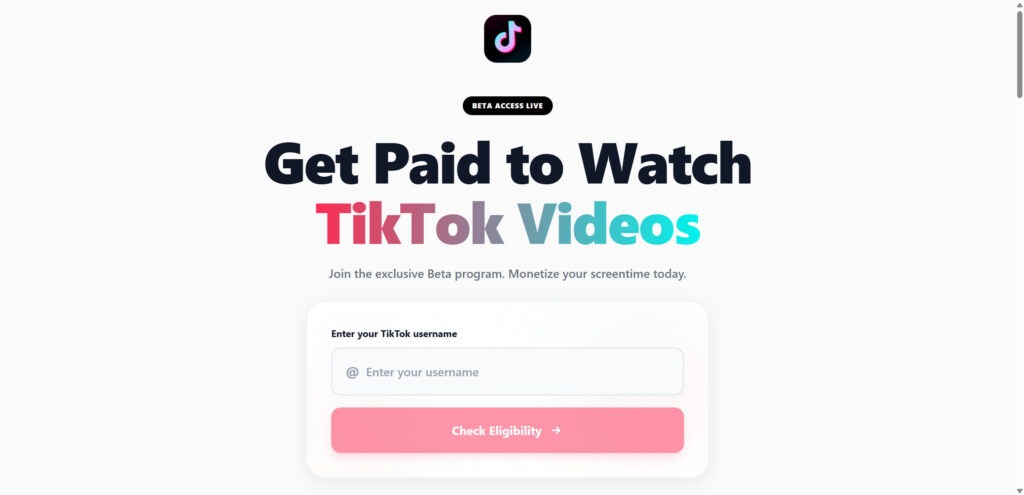
A slick page. A TikTok logo. A bold promise that feels almost believable: “Get paid to watch TikTok videos.”
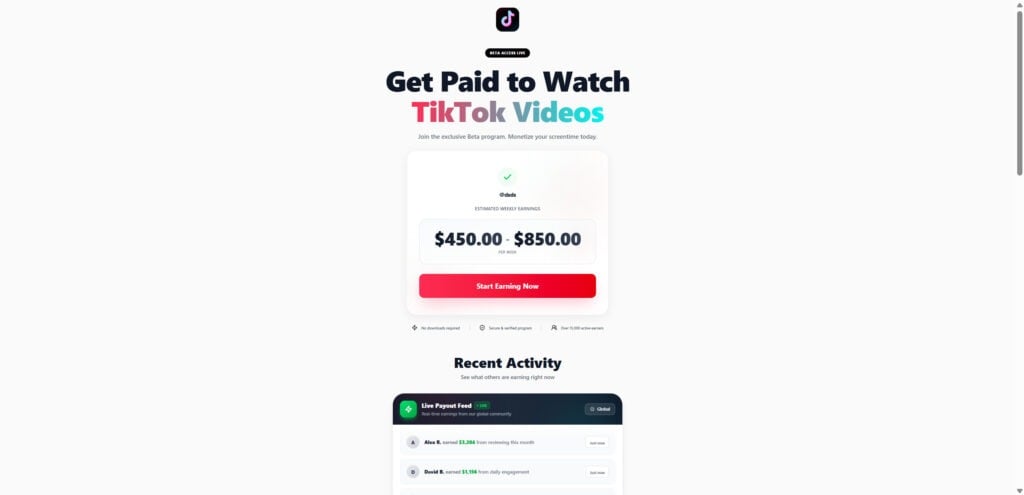
You type your username, hit a button, and within seconds the site “approves” you and shows a weekly earning estimate that makes you pause. Not $5. Not $20. Something big enough to feel like you just discovered a hidden feature.
Then you click “Start Earning.”
And that is where the real machine turns on, because these sites are not built to pay you. They are built to move you.
Scam Overview
“Get Paid to Watch TikTok Videos” scam websites are a rotating network of lookalike pages designed to funnel visitors into affiliate offers, survey walls, and subscription traps.
The domain names change constantly, but the playbook stays the same.
Today it might be TokOption. Tomorrow it is TikApproved, TikDrop, TikWatch, TikReviewer, or a dozen new variations you have never seen before. The design is usually nearly identical, the wording is familiar, and the steps are always simple.
That simplicity is intentional. It lowers your guard and speeds you toward the only thing that matters to the scammers: a conversion.
A conversion can mean many things in this ecosystem:
- You enter your email and phone number
- You install an app
- You complete a survey
- You sign up for a “free trial”
- You enter your payment details
- You accept terms that quietly authorize recurring billing
In many cases, victims do not lose money immediately. That is part of why the scam is so effective. The “damage moment” often arrives days later, when an unexpected charge appears or when spam and scam messages start flooding in.
Why this scam spreads so fast
These scam pages spread quickly because they exploit three powerful realities:
- TikTok is a household name
People instinctively trust familiar brands. When a page looks like it is connected to TikTok, many visitors start with “maybe this is real” instead of “this is fake.” - The promise feels effortless
Watching videos is something people already do. The scam’s pitch is basically: keep doing what you do, just get paid for it. - The barrier to entry is tiny
Most pages ask only for a TikTok username at first. That feels harmless. No password. No commitment. Just a quick check.
Once you take that first step, you are psychologically “in.” The scam relies on that momentum.
What these sites claim
While the exact wording varies, the claims usually sound like:
- “Join the TikTok earning beta”
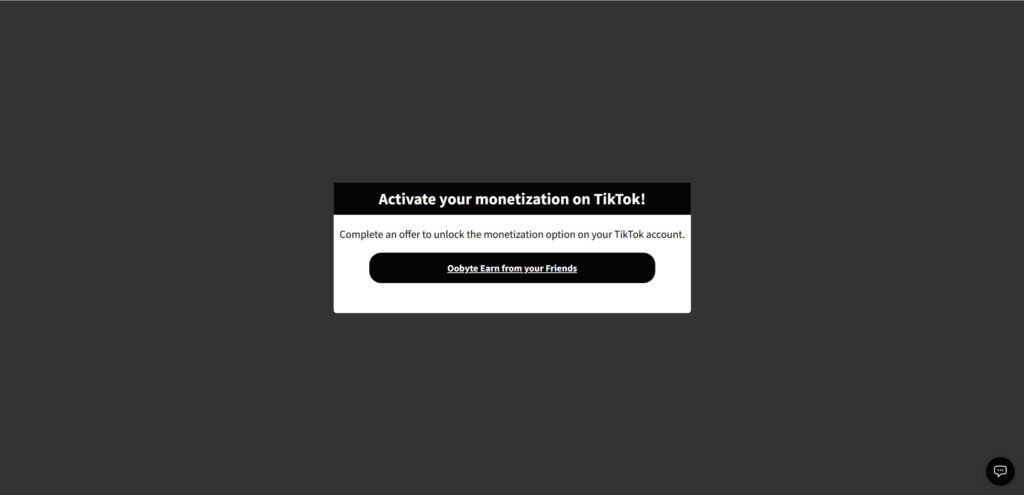
- “Activate monetization on TikTok”
- “Get paid for watching videos”
- “Instant payouts via PayPal or Cash App”
- “No experience required”
- “Limited spots available”
- “Check eligibility”
Some pages go even further with social proof:
- “15,000+ active earners”
- “$2.4M+ paid out”
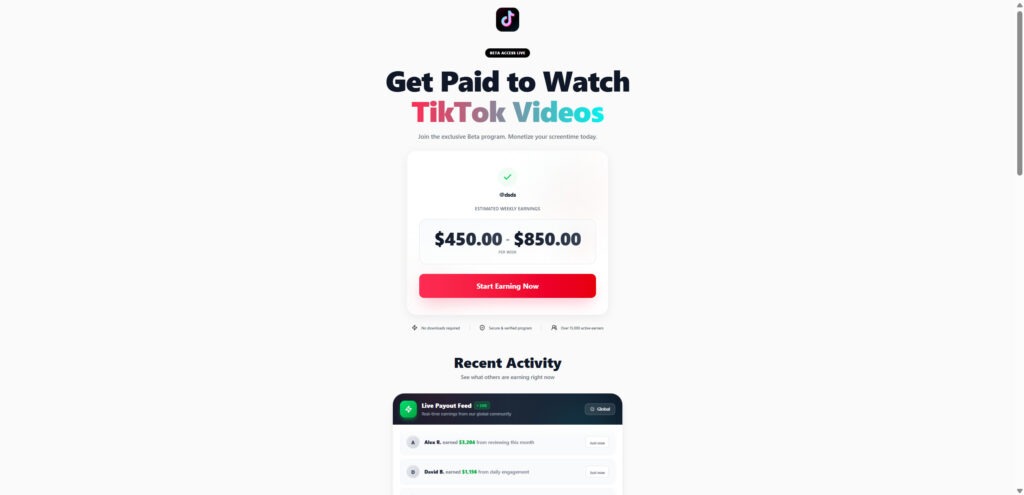
- “Recent activity” feeds that show names and earnings
- Testimonials with star ratings and “verified” badges
Those elements are easy to fake. They are there to create urgency, reduce skepticism, and make you feel like you are missing out.
The truth behind the “eligibility check”
The eligibility check is not a real verification.
In most cases, it is simply a scripted flow that produces the same outcome for nearly everyone: “Approved,” plus a flashy earnings estimate.
That estimate is the hook that keeps you moving.
It feels personalized because you entered a username. It feels official because it happens instantly. It feels credible because it is presented calmly, like a normal onboarding step.
But there is a key tell that gives it away.
These pages rarely explain how earnings are calculated. They do not describe real advertiser relationships. They do not provide a legitimate pay structure. They do not show a real dashboard tied to TikTok’s systems.
Instead, they push you to “unlock” earnings by completing offers.
The real business model: affiliate funnels and subscription traps
This scam is less about stealing money directly and more about monetizing your actions.
A large portion of these sites function like an affiliate funnel:
- The scammer buys traffic using ads, spam, or social posts
- They send that traffic to a convincing landing page
- The landing page pushes people into “offers”
- The scammer earns commissions when visitors complete those offers
Those commissions can come from:
- CPA offers (cost per action)
- lead generation networks
- survey wall providers
- app install campaigns
- subscription marketers
The visitor thinks they are earning money.
The scammer is earning money.
Why victims often end up with unwanted subscriptions
The most common financial harm in this scam is recurring billing.
Here is how it usually happens:
- The offer says “free trial” or “$1.00 verification”
- The page asks for a card “to confirm you are real”
- The terms include a recurring subscription buried in fine print
- The trial converts into a monthly charge
- Or multiple subscriptions are created across different services
Victims are often shocked because they never intended to subscribe to anything.
But from the funnel’s perspective, that is the goal. The offer page is engineered to get consent in the most confusing way possible while still being “technically disclosed” somewhere.
The role of redirect chains
If you click “Start Earning Now,” you may notice something strange.
You do not stay on the same site.
You bounce through multiple URLs. Pages load and redirect quickly. Sometimes you end up on a totally unrelated domain.
This is not a glitch. It is how affiliate tracking works.
The redirect chain can do several things at once:
- track which ad or referrer sent you
- assign credit to the scammer’s affiliate ID
- test different offer pages for the best conversion rate
- cloak the final destination to avoid detection
Some networks also use geo targeting, which means two people can click the same link and see different offers depending on country, device, or browser.
Why scammers keep changing domain names
If the scam is working, why not keep one website?
Because scam pages get burned quickly.
They are reported, blocked, and removed by:
- ad platforms
- browsers and security tools
- hosting providers
- payment processors
- consumer complaint sites
So scammers rotate.
They register fresh domains, copy the same design, and launch again. That is why you see endless variants: TokOption, TikApproved, TikDrop, TikWatch, TikReviewer, and many more.
If you are researching one domain, it helps to step back and see the bigger pattern.
You are not dealing with one website.
You are dealing with a campaign template.
The biggest red flags to remember
If you remember nothing else, remember these warning signs:
- A random site claims you can “activate TikTok monetization” outside TikTok
- You are “approved” instantly after entering a username
- You are shown an earnings estimate before doing any work
- You must “complete an offer” to unlock payouts
- The site pushes surveys, trials, installs, or subscriptions
- You are redirected through multiple unrelated domains
- Payout proof is just a “recent activity” widget or fake testimonials
Those are not features of a real earning platform.
They are features of a conversion funnel.
How The Scam Works
Below is the typical step-by-step flow used by “Get Paid to Watch TikTok Videos” scam websites. If you landed on TokOption, TikApproved, TikDrop, TikWatch, TikReviewer, or a similar page, you will recognize most of these steps.
Step 1: The ad or post plants the idea
Most victims do not find these sites through normal searching.
They are pulled in by:
- social media ads
- viral-looking posts
- short links that hide the destination
- comment spam under trending videos
- direct messages offering “easy income”
- fake influencer pages promoting a “beta” program
The messaging is designed to feel casual and low risk.
Sometimes it even sounds like a friendly tip, not an advertisement.
That makes people more likely to click.
Step 2: The landing page creates instant trust
Once you land, the page is optimized for one thing: keep you moving.
It usually has:
- clean design and lots of white space
- bold headline like “Get Paid to Watch TikTok Videos”
- TikTok icon or branding elements
- simple promise, minimal details
- a single call-to-action button
A good scam landing page does not overload you with information.
It gives you just enough to feel excited, then it asks you to take a small step.
Step 3: The username field builds commitment
You are prompted to enter a TikTok username.
This is a genius move from a scammer’s perspective.
A username feels:
- harmless
- non-sensitive
- quick to type
- like a real verification step
Once you enter it, you feel like you started something. You are more likely to continue because you already put something in.
Step 4: The “eligibility check” gives you a win
The site “checks” eligibility and returns a positive result.
This can appear as:
- a green check mark
- “Congratulations” messaging
- “You are eligible”
- “Estimated weekly earnings”
The numbers are always enticing. The range is often large enough to spark real emotion.
That emotion is the fuel that pushes you to the next click.
Step 5: Social proof seals the deal
Now the page reinforces the story.
Common elements include:
- “Recent Activity” feeds showing payouts
- “Live payout” notifications
- testimonials with star ratings
- claims of thousands of users
- claims of millions paid out
These are persuasion tools, not evidence.
They create the feeling that the platform is active and trusted, and that other people are already getting paid.
Step 6: The scam reframes itself as a real onboarding process
Many pages include a simple guide:
- Create your account
- Watch and earn
- Withdraw earnings
This structure is important.
It makes the experience feel legitimate. It looks like a real product with a real process.
But the key moment comes next.
Step 7: The “unlock monetization” requirement appears
At some point, the site tells you that you must complete an offer to activate monetization.
This can be phrased as:
- “Complete an offer to unlock earnings”
- “Verify your account”
- “Activate your payout method”
- “Confirm you are not a bot”
- “Finish one step to begin”
This is the pivot.
This is where the page stops pretending to be TikTok and starts acting like an affiliate gateway.
Step 8: You are pushed into a redirect chain
When you click to proceed, you often see:
- multiple redirects
- changing URLs
- pop-ups or new tabs
- landing pages that look unrelated
- region-based variations in offers
This chain is designed to track you and maximize conversions.
It also helps scammers avoid detection by separating the “TikTok earnings” pitch from the subscription and survey pages that do the charging.
Step 9: The offers are designed to extract value in different ways
Not every victim is monetized the same way.
These funnels typically use a mix of offer types, depending on what is most profitable in your region.
Offer type A: “Free trial” subscriptions
You are promised access, earnings, or instant payout.
In exchange, you are asked to start a free trial.
The catch is in the billing terms.
Common outcomes include:
- trial converts into a recurring charge
- multiple subscriptions are created at once
- charges appear under unfamiliar merchant names
- cancellation is intentionally confusing
This is the most common way victims lose money.
Offer type B: Survey walls and lead forms
You are asked to complete a survey.
Sometimes several.
The surveys collect:
- email address
- phone number
- demographic details
- interests and spending habits
- sometimes address or birthday
Even if no money is taken, your data has value.
It can be sold, reused, and leveraged for future scams.
Offer type C: App installs and permissions
The offer asks you to install an app to “verify” or “earn.”
Some apps are legitimate but used as part of an affiliate campaign.
Others are low-quality apps that push ads, collect data, or request excessive permissions.
Risks include:
- spam notifications
- aggressive ad tracking
- privacy loss
- additional scam prompts
Offer type D: Carrier billing and mobile subscriptions
On some offers, you may be signed up through your phone number.
Charges can appear on your phone bill instead of your bank statement.
This is especially tricky because people often do not check their carrier bill carefully.
Step 10: The payout never arrives, or a new barrier appears
After you complete an offer, the site typically does one of these:
- shows a “pending” payout that never clears
- claims you must complete more offers
- introduces a minimum withdrawal threshold
- asks you to invite friends
- asks for a “processing fee” to withdraw
This is the trap loop.
Each loop is designed to squeeze more value from you.
Step 11: The charges and spam appear later
Victims often realize what happened when:
- a charge appears days later
- a “trial ending” email shows up
- they see recurring billing on their statement
- their email is flooded with marketing messages
- they start receiving scam texts and calls
This delayed harm is a major reason the scam keeps working.
People do not connect the dots right away.
Step 12: The site disappears and returns under a new name
Finally, as complaints grow, the domain goes quiet.
Then a new one takes its place.
Same layout. Same promise. Same funnel.
TokOption becomes TikApproved.
TikApproved becomes TikWatch.
TikWatch becomes TikReviewer.
Different name, same scam.
What To Do If You Have Fallen Victim to This Scam
If you only visited the page and left, your risk is lower.
If you clicked through offers, entered personal information, or provided payment details, take these steps in order. Stay calm. Most damage can be stopped quickly when you act early.
- Stop clicking and close every related tab
Do not try to “fix” it by clicking more buttons on the scam site. More clicks often mean more redirects and more risk. - Take screenshots of what you saw
Save proof of:
- the landing page promise
- the earnings estimate
- the “complete an offer” requirement
- any offer pages you reached
- any confirmation screens
This helps with disputes and reports.
- Check your bank and card statements carefully
Look for:
- small test charges
- new merchants you do not recognize
- recurring charges weekly or monthly
- multiple related charges from different merchant names
If you see a suspicious charge, screenshot it.
- Search your email for receipts and subscription confirmations
Use keywords like:
- “receipt”
- “subscription”
- “trial”
- “welcome”
- “membership”
- “billing”
Many offer networks send confirmation emails immediately. Those emails often include cancellation instructions.
- Cancel any unwanted subscriptions right away
If you find a subscription, cancel it directly with the service provider.
After canceling, save:
- the cancellation confirmation page
- any confirmation emails
- ticket numbers or chat transcripts
If cancellation is unclear, do not wait. Contact support and request written confirmation.
- Contact your bank or card issuer to stop recurring charges
Explain clearly:
- you were led into deceptive subscriptions through a “get paid to watch TikTok videos” offer
- you want to block future recurring charges
- you want to dispute unauthorized charges if applicable
If you entered card details on any offer page, ask about replacing your card number. In many cases, that is the cleanest way to end the cycle.
- Check PayPal, Cash App, and digital wallets if you used them
If you linked a wallet or used it for a trial, review:
- automatic payments
- preapproved payments
- subscriptions
- recent transactions
Remove permissions you do not recognize.
- If you installed anything, uninstall it and review permissions
On mobile:
- uninstall the app
- remove notification permissions
- review device admin or accessibility access
- check for profiles or VPN configurations you did not add
On desktop:
- remove suspicious extensions
- reset browser settings if needed
- run a full security scan
- Change passwords if you entered them anywhere in the funnel
Many people reuse passwords under pressure.
If you entered a password on any page you do not trust, change it immediately, starting with your email account.
Then change passwords for:
- banking
- social accounts
- shopping sites
- any account tied to saved payment methods
Enable 2FA wherever possible.
- Watch for follow-up scams pretending to help you withdraw money
A common second-stage message is:
“You have $850 pending. Pay $29 to withdraw.”
That is another scam layer.
Do not pay fees to withdraw money from a system you cannot verify as legitimate.
- Report the ad or source that sent you there
Report:
- the social media ad
- the page or account posting the link
- the message sender if it came via DM
- the website to your browser’s phishing reporting tools
Each report reduces reach.
- Monitor statements for 30 to 60 days
Some subscriptions bill later, or bill under different merchant names.
Set reminders to check:
- bank statements
- credit card transactions
- phone carrier billing
If new charges appear, act immediately.
Is Your Device Infected? Run a Free Malware Scan
Slow performance, constant pop-ups, or strange behavior? These are classic signs of a malware infection. The fastest way to find out is to scan your device with Malwarebytes Free — one of the most trusted malware removal tools available.
The free version detects and removes the most common threats, including:
- Adware — the cause of those annoying pop-ups
- Browser hijackers — unwanted redirects and changed homepages
- Trojans and spyware — hidden programs stealing your data
- Potentially unwanted programs (PUPs) — software you never asked for
👉 Select your device below — Windows, Mac, or Android — then follow the simple steps to download Malwarebytes, scan your system, and remove any threats it finds. The scan usually takes 5 to 20 minutes.
Run a Malware Scan with Malwarebytes for Windows
Malwarebytes is one of the most popular and trusted anti-malware tools for Windows — and it’s completely free for removing infections. It catches threats that many antivirus programs miss, including adware, browser hijackers, and trojans. Follow the steps below to scan and clean your PC in just a few minutes.
Download Malwarebytes
Click the button below to download the latest version of Malwarebytes for Windows from the official source. The free version is all you need — it will scan your computer and remove adware, browser hijackers, and other malicious software at no cost.
Download MalwarebytesOfficial installer for Windows 11 and 10. Your download starts right away.Want real-time protection? See Malwarebytes Premium Malwarebytes Free for WindowsScans and removes malware at no cost
-
Install Malwarebytes
When the download finishes, open your Downloads folder and double-click the MBSetup file. If Windows shows a User Account Control pop-up, click “Yes” to allow the installation.

Follow the On-Screen Prompts to Install Malwarebytes
The setup wizard will walk you through a few quick screens:
-
Choose where you’re installing the program — “Personal Computer” or “Work Computer” — then click Next.

-
Malwarebytes will now install on your device. This usually takes under a minute.

-
When installation is complete, the “Welcome to Malwarebytes” screen will open automatically.

-
On the final screen, click Open Malwarebytes to launch the program.

-
Enable “Scan for Rootkits”
Before scanning, turn on rootkit detection so Malwarebytes can find even the most hidden threats. Click the Settings gear icon on the left side of the screen.

In the settings menu, find “Scan for rootkits” and click the toggle so it turns blue.

Done? Click “Dashboard” in the left pane to return to the main screen.
Start the Scan
Click the blue Scan button. Malwarebytes will automatically update its virus database and start checking your computer for malware.

-
Wait for the Scan to Finish
The scan checks your entire system for browser hijackers and other malicious programs, so it can take 5 to 20 minutes depending on your computer. Feel free to do something else — just check back occasionally to see the progress.

-
Quarantine the Detected Threats
When the scan is done, you’ll see a list of everything Malwarebytes found — malware, adware, and potentially unwanted programs. Click the “Quarantine” button to remove all of them at once.

Malwarebytes will now remove the malicious files and registry entries and move them safely into quarantine.

-
Restart Your Computer
Some threats can only be fully removed after a reboot. If Malwarebytes asks you to restart, click Yes. Once you’re logged back in, Malwarebytes has finished removing the threats it found.

That’s it — your Windows PC is now clean of trojans, adware, and other malware, and should be back to running smoothly.
If you are still having problems with your computer after completing these instructions, then please follow one of the steps:
- Run a computer scan with ESET Online Scanner
- Ask for help in our Windows Malware Removal Help & Support forum.
Run a Malware Scan with Malwarebytes for Mac
Malwarebytes for Mac is a free on-demand scanner that removes the malware other security software tends to miss — adware, browser hijackers, and unwanted programs included. Cleaning an infected Mac with Malwarebytes has always been completely free, and it’s our go-to recommendation. Follow the steps below to scan and clean your Mac in just a few minutes.
-
Download Malwarebytes for Mac
Click the button below to download the latest version of Malwarebytes for Mac.
Download MalwarebytesOfficial installer for macOS. Your download starts right away.Want real-time protection? See Malwarebytes PremiumMalwarebytes Free for MacScans and removes malware at no cost -
Open the Malwarebytes setup file
When the download finishes, open your Downloads folder and double-click the setup file to begin the installation.

-
Follow the On-Screen Prompts to Install Malwarebytes
The Malwarebytes for Mac Installer will guide you through a few quick screens. Click “Continue” and keep following the prompts until the installation completes.



When the installation is complete, Malwarebytes opens to the Welcome to Malwarebytes screen. Click “Get started“.
-
Select “Personal Computer” or “Work Computer”
Malwarebytes will ask what type of computer you’re installing it on. Click either Personal Computer or Work Computer, whichever applies.

-
Start the Scan
Click the “Scan” button. Malwarebytes will automatically update its detection database and begin checking your Mac for malware.

-
Wait for the Scan to Finish
Malwarebytes will scan your Mac for adware, browser hijackers, and other malicious programs. This can take a few minutes, so feel free to do something else — just check back occasionally to see the progress.

-
Quarantine the Detected Threats
When the scan is done, you’ll see a list of everything Malwarebytes found. Click the “Quarantine” button to remove all the threats at once.

-
Restart Your Mac
Malwarebytes will now remove all the malicious files it found. Some threats can only be fully removed after a reboot — if Malwarebytes asks you to restart, allow it. Once you’re logged back in, your Mac is clean.

That’s it — your Mac is now free of adware, rogue browser extensions, and other potentially harmful software.
If you are still experiencing problems while trying to remove a malicious program from your computer, please ask for help in our Mac Malware Removal Help & Support forum.
Run a Malware Scan with Malwarebytes for Android
Malwarebytes for Android automatically detects and removes dangerous threats like malware and ransomware so you don’t have to worry about your most-used device being compromised. Aggressive detection of adware and potentially unwanted programs keeps your Android phone or tablet running smooth.
-
Download Malwarebytes for Android.
You can download Malwarebytes for Android by clicking the link below.
Get Malwarebytes for AndroidOpens Google Play in a new tab.Want real-time protection? See Malwarebytes Premium for AndroidMalwarebytes for AndroidScans your phone and removes malware at no cost -
Install Malwarebytes for Android on your phone.
In the Google Play Store, tap “Install” to install Malwarebytes for Android on your device.

When the installation process has finished, tap “Open” to begin using Malwarebytes for Android. You can also open Malwarebytes by tapping on its icon in your phone menu or home screen.

-
Follow the on-screen prompts to complete the setup process
When Malwarebytes will open, you will see the Malwarebytes Setup Wizard which will guide you through a series of permissions and other setup options.
This is the first of two screens that explain the difference between the Premium and Free versions. Swipe this screen to continue.
Tap on “Got it” to proceed to the next step.
Malwarebytes for Android will now ask for a set of permissions that are required to scan your device and protect it from malware. Tap on “Give permission” to continue.
Tap on “Allow” to permit Malwarebytes to access the files on your phone.
-
Update database and run a scan with Malwarebytes for Android
You will now be prompted to update the Malwarebytes database and run a full system scan.

Click on “Update database” to update the Malwarebytes for Android definitions to the latest version, then click on “Run full scan” to perform a system scan.

-
Wait for the Malwarebytes scan to complete.
Malwarebytes will now start scanning your phone for adware and other malicious apps. This process can take a few minutes, so we suggest you do something else and periodically check on the status of the scan to see when it is finished.

-
Click on “Remove Selected”.
When the scan has been completed, you will be presented with a screen showing the malware infections that Malwarebytes for Android has detected. To remove the malicious apps that Malwarebytes has found, tap on the “Remove Selected” button.

-
Restart your phone.
Malwarebytes for Android will now remove all the malicious apps that it has found. To complete the malware removal process, Malwarebytes may ask you to restart your device.
That’s it — your Android phone is now clean — no more malicious apps, adware, or browser redirects.
If you are still having problems with your phone after completing these instructions, then please follow one of the steps:
- Restore your phone to factory settings by going to Settings > General management > Reset > Factory data reset.
- Ask for help in our Mobile Malware Removal Help & Support forum.
Stay Protected: Block Ads and Malicious Sites
Now that your device is clean, keep it that way. Most infections start with a malicious ad or a fake download button — so blocking them at the source is your best defense.
We recommend AdGuard, which blocks malicious ads, phishing pages, and dangerous redirects before they can reach you.
👉 Download AdGuard and browse safely
The Bottom Line
“Get Paid to Watch TikTok Videos” scam websites are not a real way to earn money, and they are not connected to TikTok’s official monetization.
They are rotating, copy-paste funnels that use TikTok branding and a fake “eligibility” check to push people into affiliate offers. Those offers commonly lead to unwanted subscriptions, recurring charges, and aggressive data collection.
The name changes, but the scam stays the same.
TokOption, TikApproved, TikDrop, TikWatch, TikReviewer, and countless lookalikes all follow the same pattern: promise easy money, then redirect you into traps designed to monetize you.
If you interacted with one of these sites, focus on the practical steps that stop harm fast: find and cancel subscriptions, block recurring charges, secure your accounts, and monitor your statements.
FAQ
What is the “Get Paid to Watch TikTok Videos” scam?
It is a network of fake websites that promise you can earn money just by watching TikTok videos. In reality, these sites funnel you through affiliate links to surveys, app installs, and “free trial” offers that often lead to unwanted subscriptions, recurring charges, or heavy spam.
Are these “TikTok earning beta” websites officially connected to TikTok?
No. These sites are not official TikTok programs. They use TikTok-themed branding and language like “beta access” or “activate monetization” to look legitimate, but they operate outside TikTok’s real monetization tools.
Why do these sites keep changing names and domains?
Because they get reported, blocked, and removed. When one domain gets flagged, scammers launch another with the same layout and the same funnel. That is why you see endless variants like TokOption, TikApproved, TikDrop, TikWatch, TikReviewer, and many more.
Is it possible to really get paid just for watching TikTok videos?
Not through random third-party websites. Legitimate earning options, when they exist, are offered through official platform tools or verified programs. If a site says you must complete offers, surveys, or trials to “unlock” earnings, treat it as a major red flag.
Why do they ask for my TikTok username?
It is a trust trick. A username feels harmless and makes it seem like the site is checking your eligibility. It also increases commitment, because once you enter something, you are more likely to keep going.
What does the “eligibility check” actually do?
Usually it is not a real check at all. Many of these pages are scripted to “approve” almost everyone and then display an exciting weekly earnings estimate to push you toward the next step.
Why do they show big earning estimates like $450.00 to $850.00 per week?
To trigger urgency and excitement. The number is designed to feel high enough to be motivating, but not so high that it sounds obviously impossible. Real platforms do not promise weekly income before you do anything.
What does “Complete an offer to unlock monetization” mean?
It means the site is monetizing you, not paying you. “Offers” are third-party promotions such as:
- free trials that require a card
- subscriptions with hidden recurring billing
- surveys that collect personal information
- app installs that generate affiliate commissions
Completing an offer helps the scammer get paid by an affiliate network.
Why am I being redirected to other websites?
Redirect chains are part of affiliate tracking. They track your click, assign credit, and send you to whatever offer is most profitable in your region. The bouncing between domains is a major warning sign.
What kind of charges might appear if I entered my card details?
Common outcomes include:
- a “trial” that converts to monthly billing
- weekly subscriptions that add up fast
- multiple subscriptions from different merchant names
- charges under confusing descriptors that do not match the site name
Sometimes there are small test charges first, followed by larger recurring charges later.
I did not see a price clearly. How can they still charge me?
Offer pages often hide billing terms in fine print, pre-checked boxes, or unclear consent flows. If you entered payment information, assume a subscription may have been created even if you did not realize it.
What should I do immediately if I think I subscribed to something?
Take these steps:
- Check your bank or card statement for new and pending charges
- Search your email for “receipt,” “subscription,” “trial,” “welcome,” and “billing”
- Cancel any subscriptions you find and save the cancellation proof
- Contact your bank to block recurring charges or replace the card if needed
What if the charges show up on my phone bill instead of my card?
Some offers use carrier billing. Check your mobile provider statement for:
- premium SMS charges
- recurring service fees
- “subscription” line items
If you find anything, contact your carrier and request cancellation and blocks for premium billing.
I only entered my TikTok username. Am I at risk?
Risk is lower if you only entered a username and left. The bigger risk starts when you provide:
- email address or phone number
- payment details
- app installs
- personal identity information
Even so, stay cautious if you notice a spike in spam messages afterward.
Can these sites hack my TikTok account?
Most of these pages do not ask for TikTok passwords, so direct hacking is not the main danger. The bigger risks are unwanted charges, data harvesting, and follow-up scams. If any page asked for your password and you entered it, change it immediately and enable 2FA.
Why do scammers mention PayPal, Cash App, or “instant withdrawals”?
It is a trust cue. Mentioning familiar payment brands makes the promise feel real. It does not mean payouts exist, and it does not mean the site is legitimate.
What are the biggest red flags that confirm it is a scam?
Watch for these signs:
- you are “approved” instantly
- earnings are promised before any real work
- you must complete offers to unlock monetization
- you get redirected through unrelated domains
- the site has no verifiable company details or official program documentation
- testimonials and “recent activity” feeds look generic or too perfect
How do I report these “watch TikTok videos for money” scam sites?
You can report:
- the ad or post that promoted it (inside the platform)
- the domain to your browser’s phishing reporting tool
- suspicious charges to your bank or card issuer
- the offer vendor to your consumer protection agency if needed
How do I protect myself from similar scams next time?
Use a quick rule:
If a random website claims it can “activate TikTok monetization” and asks you to complete offers, surveys, or trials, exit immediately. Stick to official TikTok tools and never enter payment details to “unlock” earnings.
If you share a merchant name from your statement or a screenshot of the charge descriptor, I can help you pinpoint which subscription it is and the fastest way to cancel it.








