


A Google Play listing says an Android app does not collect location, but the app still asks where you are. Those two messages answer different questions.
The store disclosure describes the developer’s practices. Android’s permission prompt gives you a choice about access on your device. Knowing which answer you need makes both screens more useful.
Overview
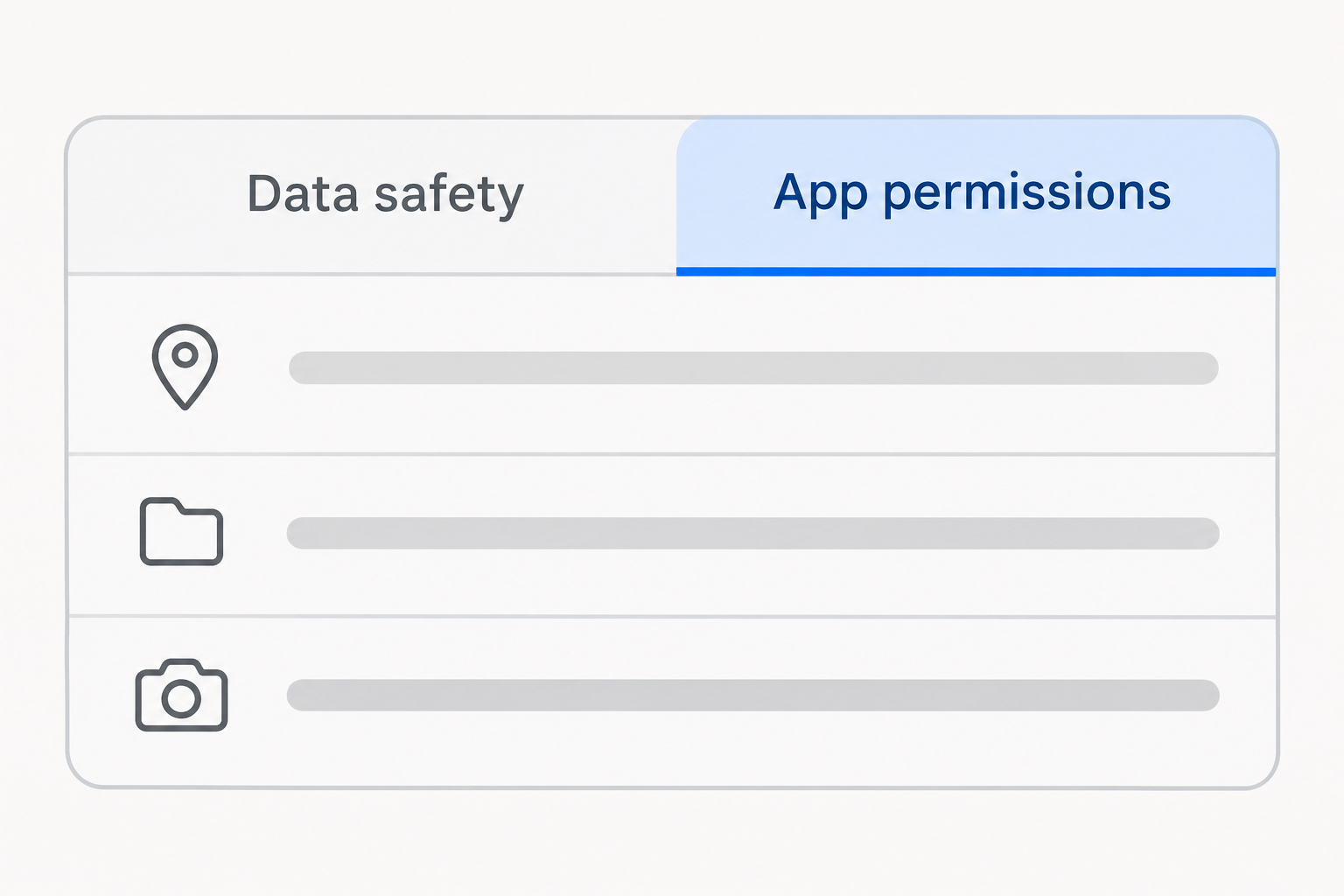
Data safety is a disclosure, not a permission screen
The Data safety panel is where a developer describes data collection, sharing, and related security practices. Read it before installing if you want to compare how two apps handle information.
A permission, by contrast, controls an app’s access to a function or category on your Android device. You can check which permissions a specific installed app has received.
A developer can declare that it collects one category of data without having a corresponding permission switch. Think of an email address you type voluntarily into an account registration form.
The same app can request access without declaring collection
Google’s definition focuses on information taken off the device, with exceptions. Data used only on the device doesn’t need to be declared as collected in this panel.
An app can request access for a local feature. A permission doesn’t establish that it uploaded anything, and the label doesn’t prove processing remained local.
Look for a description of the feature and check the grant on your own device. If a request makes no sense for what you’re doing, decline it and test.
Read the right signal for the question you have
- To see what a developer says about data use, read the listing’s Data safety details and the privacy policy.
- To see what this installed app may access, review its permissions in Android settings.
- To see recent use of a supported permission, check Privacy Dashboard where your Android version provides it.
- To stop future access to a permission, change the permission itself rather than relying on an app-store label.
- For information already held by the company, read the account or data deletion process separately.
Find Meaning in the Fine Print Before You Install
Start with the right app and developer
Go to the listing for the exact app you’re considering. A similar icon or matching brand name doesn’t tell you whether you’re looking at the same developer or product.
Open Data safety and then the detailed view. Google’s user guide to Data safety explains the summary and the categories that developers can describe.
Read the categories that matter for your activity. For a delivery app, for example, review both location and contact information instead of concentrating only on the most prominent line.
If a provider publishes several apps, evaluate the one you plan to install. An app from the same developer can collect different information or be designed for another audience.
Separate collection from sharing under Google’s definitions
The collected category concerns data that leaves your device under Google’s reporting rules. Sharing concerns certain transfers to third parties, not every processor that handles data.
Google lists exceptions for transfers to service providers processing on the developer’s behalf. It also describes some transfers you deliberately initiate, such as sharing a document with somebody.
No data shared therefore does not mean there are no outside systems involved. Check the app’s privacy policy if you need to know which services or recipients may handle information.
Likewise, no data collected doesn’t necessarily mean an app cannot access a sensor. Local processing and certain short-lived or encrypted uses are among the scenarios Google treats differently.
Look beyond a badge or a short label
An in-transit encryption claim concerns how data travels. It doesn’t say that the developer has no access to it, that it is never retained, or that it cannot be shared.
Google explains that independent security reviews do not verify the accuracy or completeness of the Data safety disclosure. Use that marker for its actual purpose, not as a privacy guarantee.
A listing can summarize the app across versions distributed through Google Play. Google notes that real practices can vary with usage, region, and age.
If you get the app somewhere else, don’t assume the Play listing covers that copy. The label describes the versions distributed through Google Play.
Check What the Installed Android App Can Access
Read the permission in context
Open Android settings, choose Apps, select the app, and inspect Permissions. Google’s instructions for changing app permissions also explain how to review permissions by type.
Location can offer more choices than a single on or off switch.
When available, use a narrower grant, such as access only while using the app, if it supports your feature.
If a restaurant app needs only your neighborhood, see whether entering a postal code works. You may not need live location at all for the way you use it.
A navigation app might behave differently if you deny location. Test the particular feature after a change rather than restoring every permission when the app opens with a warning.
Check the category, not just what you remember granting
Uses can change after an update or when you turn on a new feature. If something unexpected asks for access, note the app and the name of the permission.
For example, granting camera permission to scan a return label does not require giving a shopping app unrestricted access to your photo collection. Check what it actually asks for.
If you aren’t sure which apps have location access, open the permission manager and review that category across your installed apps. That is more direct than opening every store page.
Menu names vary by device and Android version. If you cannot find the exact screen, search settings for the permission or for Permission manager.
Review recent access without overreading the result
Android’s Privacy Dashboard guidance explains how to see which apps accessed supported permissions and when. Use it to compare an access event with what you were doing.
An event while you opened a map may have an ordinary explanation. An unexpected event gives you something specific to review, but does not identify what an app transmitted.
If you find access you don’t want, narrow or deny the grant and use the app again. Verify whether the feature you actually need still works.
Keep any notes focused on the app, permission, and time. Don’t forward a record of private activity that isn’t necessary to ask about the permission.
What to Do When a Play Store Label and an App Request Look Different
- Confirm the exact app and developer in Google Play. Open the detailed disclosure and look at the information type, collection, sharing, and any stated purpose.
- Check the permission on your device and what feature triggered it. Deny optional access or choose a narrower grant if you don’t need everything the prompt offers.
- If available, review the privacy dashboard for the relevant category. Relate the access to the activity you were doing instead of treating it as proof of transmission.
- Read the privacy policy or ask the developer about the specific feature if the answer matters. Don’t install a second app claiming it can diagnose a disclosure mismatch.
- Use the account or data deletion path if you’re concerned about information already held. Review separate copies or services only if you shared the information with them.
Compare two apps using the same practical questions
Suppose you only need to save a shopping list. Check whether each app works without a new account and whether it lets you keep the list on the device.
A label may list contact information because sign-in is available, not because contacts permission is required. Compare what the app asks you to enter with the permissions it requests.
If one provider does not explain why a feature needs a data category, decide how badly you need the feature. A clear alternative can be a better choice than guessing.
Neither a large number of downloads nor an uncomplicated-looking summary answers these questions. Choose based on the features you need and the level of access you’re willing to give.
Deletion, uninstalling and permission changes are separate
Denying access to contacts prevents future access through that permission. It cannot remove a phone number that you already typed into a form or uploaded to an account.
Similarly, uninstalling an app removes it from your device, but doesn’t by itself close the account on the developer’s servers. Use the account deletion route for that job.
If you want to keep the account but remove one uploaded item, look for that narrower option first. Closing an account can also remove content you still want.
If you sent information to a payment provider through a separate service, review that provider’s policy too. The app’s label describes the app, not each separate party’s terms.
Read the same category two different ways
Suppose a route app needs location to position a marker locally. An enabled location permission means the app can access location within the limits of that grant.
If its developer says it doesn’t collect that data, the next useful question is whether the feature keeps the data on the device.
The settings screen alone cannot tell you that.
Now picture a store that requests no contacts permission but asks you to type a shipping address.
It can receive the address you submit without needing access to your address book.
In both examples, the two screens aren’t contradicting each other by default. One describes access the device allows, and the other describes what the developer says it does with data.
Recognize when another provider becomes involved
When an app sends you to a separate checkout service, Google says some information given directly there need not appear in the app’s collection disclosure.
Read the privacy terms for that separate provider.
Look at what you entered and where. Denying a device permission won’t remove the payment or contact details you deliberately typed into that other service.
On a shared device, check which user profile installed and uses the app. You might otherwise compare a store listing with permission decisions that belong to another profile.
On a managed work device, some changes may be restricted by an administrator. Ask about the exact permission or installed version instead of trying to work around the restriction.
Separate an optional feature from a mandatory request
Before granting a permission, see whether the feature is optional. A messaging app might ask for contacts to suggest friends, while still supporting conversation with a known contact.
If denying a permission breaks the one function you installed the app for, decide whether to grant it more narrowly or choose a different app.
You don’t owe it every permission.
If equal alternatives offer clear explanations, prefer the one that serves your purpose with less access. A short label with fewer categories isn’t enough if the relevant practice is unclear.
After an update, repeat the check when an app presents an unexpected permission prompt.
The decision you made for a previous feature doesn’t have to carry over to a new one.
You can also compare relevant privacy choices while signed out if the app offers that mode. Decide whether you need an account before submitting data you would otherwise keep private.
Frequently Asked Questions
Can an app ask for location if Google Play says it collects none?
A permission can allow access for processing on the device. Google says local-only access does not have to be listed as collection under its Data safety rules.
That doesn’t prove how a specific app actually handles location. Review the permission, feature, and developer’s explanation if you need to make that decision.
Does no data shared mean nobody else handles the data?
Google excludes some transfers from its sharing label, including qualifying transfers to service providers acting on behalf of the developer. Read the policy if the exact recipients matter.
Read the collection field to see what data the developer says it takes off your device. The sharing field describes a different practice.
Is the permission list a record of data an app uploaded?
The settings show access you’ve allowed or denied, not the contents of past transmissions. The dashboard can provide recent access times for supported permissions.
Use that information to revise what the app can access. Don’t interpret it as a network or data deletion report.
Does an independent security review verify the disclosure?
Google says the review validates practices against a security standard, not the accuracy and completeness of the developer’s Data safety disclosure.
A review can still be useful for its intended purpose. It is separate from a decision about what information to give the app.
What if the same app has different behavior in another country?
Google says the summary can cover versions distributed through Play, while real practices may differ by region or use. Check the policy and settings for your situation.
A screenshot of another country’s listing doesn’t prove your app follows an identical path. Make the check with the version you can actually install.
Does revoking permissions delete what was already collected?
Changing permissions controls future access through those permissions. It does not send a request to delete the developer’s existing records.
If that’s what you want, look for the appropriate deletion option and follow through there. Keep a record of any response about what was removed.
The Bottom Line
Read Google Play’s Data safety panel for the developer’s disclosure and Android settings for the permissions on your device. Neither is a substitute for the other.
If an app asks for more access than the feature needs, narrow or deny the grant and test the feature.
Use the deletion route separately for data the provider already has.

Join the discussion
0 commentsShare your experience or ask a question about this article.
Community experiences
Did this happen to you?
Your experience could help someone recognize the same scam. Submit a private report for our team to review.
I experienced this tooReports are reviewed before publication. Sharing publicly is always your choice.
Discussion
Start the conversation
Have a question or something useful to share? Add the first comment.