

Have you ever received an email accusing you of watching inappropriate videos and threatening to expose you unless you pay up? This terrifying extortion scheme, known as the “Hello Pervert” email scam, has claimed countless victims. But before you give into panic, know that this is nothing but a treacherous hoax.
This article will provide an in-depth look at the devious workings of the “Hello Pervert” scam and empower you with the knowledge needed to protect yourself. We’ll explore how the scam operates, what to do if you fall prey, and most importantly, why you should never let fear and embarrassment manipulate you into filling these criminals’ pockets.
Overview of the Scam
The “Hello Pervert” scam starts with an email sent to the victim’s email account, often claiming to be from their own email service provider like iCloud, Gmail, Yahoo, etc.
The email will contain accusations that the sender has access to the victim’s devices and has been spying on them through their webcam. It will then claim to have embarrassing or incriminating videos of the victim, often of an adult nature, that will be sent to all of their contacts if a ransom is not paid.
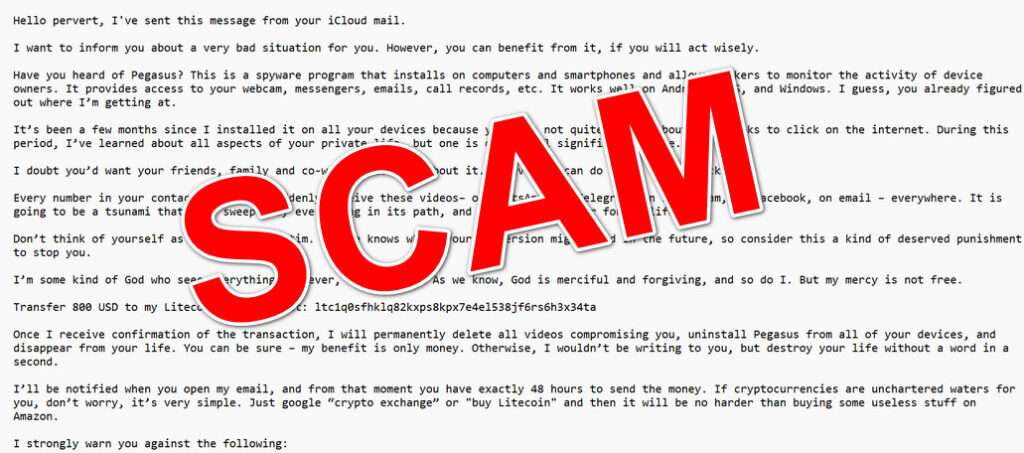
Here is how a typical email scam looks:
Hello pervert, I’ve sent this message from your iCloud mail.
I want to inform you about a very bad situation for you. However, you can benefit from it, if you will act wisеly.
Have you heard of Pegasus? This is a spyware program that installs on computers and smartphones and allows hackers to monitor the activity of device owners. It provides access to your webcam, messengers, emails, call records, etc. It works well on Android, iOS, and Windows. I guess, you already figured out where I’m getting at.
It’s been a few months since I installed it on all your devices because you were not quite choosy about what links to click on the intеrnеt. During this period, I’ve learned about all aspects of your private life, but one is of special significance to me.
I doubt you’d want your friends, family and co-workers to know about it. However, I can do it in a few clicks.
Every number in your contact list will suddenly receive these vidеоs– on WhatsApp, on Telegram, on Instagram, on Facebook, on email – everywhere. It is going to be a tsunami that will sweep away everything in its path, and first of all, your fоrmеr life.
Don’t think of yourself as an innocent victim. No one knows where your реrvеrsiоn might lead in the future, so consider this a kind of deserved рunishmеnt to stop you.
I’m some kind of God who sees everything. However, don’t panic. As we know, God is merciful and forgiving, and so do I. But my mercy is not free.
Transfer 800 USD to my Litecoin (LTC) wallet: ltc1q0sfhklq82kxps8kpx7e4el538jf6rs6h3x34ta
Once I receive confirmation of the transaction, I will permanently delete all videos compromising you, uninstаll Pegasus from all of your devices, and disappear from your life. You can be sure – my benefit is only money. Otherwise, I wouldn’t be writing to you, but destroy your life without a word in a second.
I’ll be notified when you open my email, and from that moment you have exactly 48 hours to send the money. If cryptocurrencies are unchartered waters for you, don’t worry, it’s very simple. Just google “crypto exchange” or “buy Litecoin” and then it will be no harder than buying some useless stuff on Amazon.
I strongly warn you against the following:
Do not reply to this email. I’ve sent it from your iCloud mail.
Do not contact the police. I have access to all your devices, and as soon as I find out you ran to the cops, videos will be published.
Don’t try to reset or destroy your devices. As I mentioned above: I’m monitoring all your activity, so you either agree to my terms or the vidеоs are published.
Also, don’t forget that cryptocurrencies are anonymous, so it’s impossible to identify me using the provided address.Good luck, my perverted friend. I hope this is the last time we hear from each other.
And some friendly advice: from now on, don’t be so careless about your online security.
This is what cybersecurity experts refer to as a sextortion scam, where criminals exploit fear and embarrassment to extort money. It is an increasingly common tactic, though the “Hello Pervert” variant with its ominous tone and spyware claims makes it particularly sinister.
How the Scam Works
Here is a step-by-step look at how the “Hello Pervert” scam operates:
1. Victims Receive a Malicious Email
The scam email arrives in the victim’s inbox unsolicited. The sender address is often spoofed to appear as if it is from the victim’s own email provider or other legitimate company.
The email contains alarming claims that spyware has been installed on all the victim’s devices, allowing the sender access to their personal information and webcam.
2. Threats of Blackmail
The email goes on to claim that embarrassing videos have been recorded through the victim’s webcam, threatening to send the videos to all of the victim’s contacts unless a ransom payment is made.
The message creates a sense of urgency, giving a deadline of usually 48 hours to pay the ransom before the videos are distributed.
3. Demand for Payment
Payment is demanded in the form of untraceable cryptocurrency, such as Bitcoin. The email provides a specific cryptocurrency wallet address where the funds should be sent.
The amount of money demanded varies, but is often between $500-$1000. The criminals rely on victims paying out of fear their contacts will see the videos.
4. Reassurances That Videos Will Be Deleted
The email promises that if the ransom is paid in full by the deadline, the videos will be permanently deleted and the malware removed from the victim’s devices.
This provides incentive for victims to quickly pay the money demanded. However, in reality, there is no guarantee the criminals will hold up their end of the bargain.
What to Do If You’ve Fallen Victim to This Scam
If you receive a “Hello Pervert” extortion email, stay calm and do not pay the ransom. Here are the steps you should take:
1. Do Not Reply to the Email
Replying could confirm your email address is active, potentially exposing you to more scam emails. The criminals cannot actually monitor if you’ve opened the email.
2. Check Your Devices for Malware
Run anti-virus scans on all your devices to check for signs of malware or remote access software. The odds are very low that actual spyware has been installed.
3. Change Your Passwords
Update passwords for your email, online banking, and other sensitive accounts. Use strong unique passwords for each account. Enable two-factor authentication where possible.
4. Contact Law Enforcement
Report the scam attempt to your local authorities and the FBI’s Internet Crime Complaint Center. Provide them with details including the Bitcoin address.
5. Warn Contacts Who May Also Be Targeted
Let your friends and family know about the scam so they don’t fall victim too. Awareness is key to stopping these scams.
The important thing is not to let fear and embarrassment push you into paying the ransom. The odds of the criminals actually having compromising videos of you are extremely slim. If you’ve taken steps to secure your devices and online accounts, there is little chance of the threats being carried out.
Is Your Device Infected? Run a Free Malware Scan
Slow performance, constant pop-ups, or strange behavior? These are classic signs of a malware infection. The fastest way to find out is to scan your device with Malwarebytes Free — one of the most trusted malware removal tools available.
The free version detects and removes the most common threats, including:
- Adware — the cause of those annoying pop-ups
- Browser hijackers — unwanted redirects and changed homepages
- Trojans and spyware — hidden programs stealing your data
- Potentially unwanted programs (PUPs) — software you never asked for
👉 Select your device below — Windows, Mac, or Android — then follow the simple steps to download Malwarebytes, scan your system, and remove any threats it finds. The scan usually takes 5 to 20 minutes.
Run a Malware Scan with Malwarebytes for Windows
Malwarebytes is one of the most popular and trusted anti-malware tools for Windows — and it’s completely free for removing infections. It catches threats that many antivirus programs miss, including adware, browser hijackers, and trojans. Follow the steps below to scan and clean your PC in just a few minutes.
Download Malwarebytes
Click the button below to download the latest version of Malwarebytes for Windows from the official source. The free version is all you need — it will scan your computer and remove adware, browser hijackers, and other malicious software at no cost.
Download MalwarebytesOfficial installer for Windows 11 and 10. Your download starts right away.Want real-time protection? See Malwarebytes Premium Malwarebytes Free for WindowsScans and removes malware at no cost
-
Install Malwarebytes
When the download finishes, open your Downloads folder and double-click the MBSetup file. If Windows shows a User Account Control pop-up, click “Yes” to allow the installation.

Follow the On-Screen Prompts to Install Malwarebytes
The setup wizard will walk you through a few quick screens:
-
Choose where you’re installing the program — “Personal Computer” or “Work Computer” — then click Next.

-
Malwarebytes will now install on your device. This usually takes under a minute.

-
When installation is complete, the “Welcome to Malwarebytes” screen will open automatically.

-
On the final screen, click Open Malwarebytes to launch the program.

-
Enable “Scan for Rootkits”
Before scanning, turn on rootkit detection so Malwarebytes can find even the most hidden threats. Click the Settings gear icon on the left side of the screen.

In the settings menu, find “Scan for rootkits” and click the toggle so it turns blue.

Done? Click “Dashboard” in the left pane to return to the main screen.
Start the Scan
Click the blue Scan button. Malwarebytes will automatically update its virus database and start checking your computer for malware.

-
Wait for the Scan to Finish
The scan checks your entire system for browser hijackers and other malicious programs, so it can take 5 to 20 minutes depending on your computer. Feel free to do something else — just check back occasionally to see the progress.

-
Quarantine the Detected Threats
When the scan is done, you’ll see a list of everything Malwarebytes found — malware, adware, and potentially unwanted programs. Click the “Quarantine” button to remove all of them at once.

Malwarebytes will now remove the malicious files and registry entries and move them safely into quarantine.

-
Restart Your Computer
Some threats can only be fully removed after a reboot. If Malwarebytes asks you to restart, click Yes. Once you’re logged back in, Malwarebytes has finished removing the threats it found.

That’s it — your Windows PC is now clean of trojans, adware, and other malware, and should be back to running smoothly.
If you are still having problems with your computer after completing these instructions, then please follow one of the steps:
- Run a computer scan with ESET Online Scanner
- Ask for help in our Windows Malware Removal Help & Support forum.
Run a Malware Scan with Malwarebytes for Mac
Malwarebytes for Mac is a free on-demand scanner that removes the malware other security software tends to miss — adware, browser hijackers, and unwanted programs included. Cleaning an infected Mac with Malwarebytes has always been completely free, and it’s our go-to recommendation. Follow the steps below to scan and clean your Mac in just a few minutes.
-
Download Malwarebytes for Mac
Click the button below to download the latest version of Malwarebytes for Mac.
Download MalwarebytesOfficial installer for macOS. Your download starts right away.Want real-time protection? See Malwarebytes PremiumMalwarebytes Free for MacScans and removes malware at no cost -
Open the Malwarebytes setup file
When the download finishes, open your Downloads folder and double-click the setup file to begin the installation.

-
Follow the On-Screen Prompts to Install Malwarebytes
The Malwarebytes for Mac Installer will guide you through a few quick screens. Click “Continue” and keep following the prompts until the installation completes.



When the installation is complete, Malwarebytes opens to the Welcome to Malwarebytes screen. Click “Get started“.
-
Select “Personal Computer” or “Work Computer”
Malwarebytes will ask what type of computer you’re installing it on. Click either Personal Computer or Work Computer, whichever applies.

-
Start the Scan
Click the “Scan” button. Malwarebytes will automatically update its detection database and begin checking your Mac for malware.

-
Wait for the Scan to Finish
Malwarebytes will scan your Mac for adware, browser hijackers, and other malicious programs. This can take a few minutes, so feel free to do something else — just check back occasionally to see the progress.

-
Quarantine the Detected Threats
When the scan is done, you’ll see a list of everything Malwarebytes found. Click the “Quarantine” button to remove all the threats at once.

-
Restart Your Mac
Malwarebytes will now remove all the malicious files it found. Some threats can only be fully removed after a reboot — if Malwarebytes asks you to restart, allow it. Once you’re logged back in, your Mac is clean.

That’s it — your Mac is now free of adware, rogue browser extensions, and other potentially harmful software.
If you are still experiencing problems while trying to remove a malicious program from your computer, please ask for help in our Mac Malware Removal Help & Support forum.
Run a Malware Scan with Malwarebytes for Android
Malwarebytes for Android automatically detects and removes dangerous threats like malware and ransomware so you don’t have to worry about your most-used device being compromised. Aggressive detection of adware and potentially unwanted programs keeps your Android phone or tablet running smooth.
-
Download Malwarebytes for Android.
You can download Malwarebytes for Android by clicking the link below.
Get Malwarebytes for AndroidOpens Google Play in a new tab.Want real-time protection? See Malwarebytes Premium for AndroidMalwarebytes for AndroidScans your phone and removes malware at no cost -
Install Malwarebytes for Android on your phone.
In the Google Play Store, tap “Install” to install Malwarebytes for Android on your device.

When the installation process has finished, tap “Open” to begin using Malwarebytes for Android. You can also open Malwarebytes by tapping on its icon in your phone menu or home screen.

-
Follow the on-screen prompts to complete the setup process
When Malwarebytes will open, you will see the Malwarebytes Setup Wizard which will guide you through a series of permissions and other setup options.
This is the first of two screens that explain the difference between the Premium and Free versions. Swipe this screen to continue.
Tap on “Got it” to proceed to the next step.
Malwarebytes for Android will now ask for a set of permissions that are required to scan your device and protect it from malware. Tap on “Give permission” to continue.
Tap on “Allow” to permit Malwarebytes to access the files on your phone.
-
Update database and run a scan with Malwarebytes for Android
You will now be prompted to update the Malwarebytes database and run a full system scan.

Click on “Update database” to update the Malwarebytes for Android definitions to the latest version, then click on “Run full scan” to perform a system scan.

-
Wait for the Malwarebytes scan to complete.
Malwarebytes will now start scanning your phone for adware and other malicious apps. This process can take a few minutes, so we suggest you do something else and periodically check on the status of the scan to see when it is finished.

-
Click on “Remove Selected”.
When the scan has been completed, you will be presented with a screen showing the malware infections that Malwarebytes for Android has detected. To remove the malicious apps that Malwarebytes has found, tap on the “Remove Selected” button.

-
Restart your phone.
Malwarebytes for Android will now remove all the malicious apps that it has found. To complete the malware removal process, Malwarebytes may ask you to restart your device.
That’s it — your Android phone is now clean — no more malicious apps, adware, or browser redirects.
If you are still having problems with your phone after completing these instructions, then please follow one of the steps:
- Restore your phone to factory settings by going to Settings > General management > Reset > Factory data reset.
- Ask for help in our Mobile Malware Removal Help & Support forum.
Stay Protected: Block Ads and Malicious Sites
Now that your device is clean, keep it that way. Most infections start with a malicious ad or a fake download button — so blocking them at the source is your best defense.
We recommend AdGuard, which blocks malicious ads, phishing pages, and dangerous redirects before they can reach you.
👉 Download AdGuard and browse safely
The Bottom Line
The “Hello Pervert” scam capitalizes on victims’ fears of being extorted with embarrassing videos to turn a profit. If you receive such an email, discretely take steps to protect yourself, but rest assured the content of the email itself is almost certainly an empty threat.
Do not let yourself be manipulated into paying ransoms that only serve to enable criminal activity. With awareness of common tactics, Internet users can recognize and report these scams without giving in to demands.
Frequently Asked Questions About the “Hello Pervert” Email Scam
What is the “Hello Pervert” email scam?
This is an online extortion scam where victims receive an email threatening to expose embarrassing or explicit videos or information to the victim’s contacts if payment is not made. The email tries to scare recipients into paying quickly.
How does the scam email threaten victims?
The email will claim the sender has access to the recipient’s devices and private information. It threatens to send compromising videos, browsing history, or other info to friends, family, coworkers.
What information do the scammers threaten to expose?
The email may threaten to expose sexually explicit videos recorded through malware on the victim’s webcam. Or it may claim to have access to porn browsing history, messages, or other private info.
How much money do the scammers ask for?
Demands are usually between $500-$2000 paid in untraceable cryptocurrency like Bitcoin or Litecoin. Scammers provide a wallet address for transferring the funds.
What malware or tactics give scammers access to information?
Emails often claim to use Pegasus spyware to access devices and information without the victim’s knowledge. But this is usually an empty threat intended to scare recipients.
How do scammers pressure victims to pay quickly?
Short payment deadlines are imposed, usually 24-48 hours. Threats create fear and urgency to comply before considering alternatives.
What should you do if you receive a “Hello Pervert” email?
Do not respond, report to authorities, run antivirus software, change account passwords, notify contacts mentioned, and report the sender’s email.
Can scammers actually expose videos or information if payment is not made?
In most cases, no. The threats are simply a tactic to extort money from victims. Scammers cannot follow through but rely on fear.
Are cryptocurrency payments like Bitcoin or Litecoin truly anonymous?
While cryptocurrency offers more anonymity, payments can sometimes still be traced by law enforcement. But this requires effort, unlike credit cards.
What happens if a victim makes the payment as demanded?
After receiving the money, scammers typically disappear and do nothing. They will not uphold promises to delete data as their only goal is to profit from the scam.
What should you do if personal information is actually exposed?
Contact authorities, explain the situation to contacts impacted, search removal of videos/info online, and consult professionals like lawyers or reputation firms if needed.
How can potential victims protect themselves from this scam?
Being cautious online, using strong passwords, avoiding suspicious links, using antivirus software, and not engaging with extortionists will help avoid this scam.

Join the discussion
0 commentsShare your experience or ask a question about this article.
Discussion
Start the conversation
Have a question or something useful to share? Add the first comment.