Hunny9.com Scam Exposed: We Uncover The Deceptive Tricks
Written by: Thomas Orsolya
Published on:
The internet is filled with opportunities to make money online. From taking surveys to selling products, there seem to be countless ways for anyone to earn extra income in their spare time. However, many of these “opportunities” end up being outright scams designed to steal people’s money.
One such scam that has recently emerged is Hunny9.com. This shady website promises users easy money just for sharing referral links. But does Hunny9 really pay out like it claims? Or is the whole thing an elaborate hoax to con unsuspecting victims?
In this article, we’ll take an in-depth look at the Hunny9 scam – how it works, what to watch out for, and most importantly, how to protect yourself.
Overview of the Hunny9 Scam
Hunny9.com is a fraudulent website that promises users can “Make Money Through Facebook, Instagram, SnapChat, Twitter” by sharing referral links. However, the site is an outright scam designed to steal money from victims through deceptive claims.
While Hunny9 may appear legitimate at first glance, featuring seemingly real user testimonials and screenshots of earnings, it exhibits all of the warning signs of an illegal get-rich-quick scheme. The promises of easy passive income made by Hunny9 are simply a ploy to convince unsuspecting users to promote the scam site as widely as possible.
Some of the most glaring red flags include:
Outrageous payout promises – Hunny9 claims users can earn up to $50 for every person referred, which translates to thousands in potential daily earnings. These figures are absurdly high and simply unrealistic. No legitimate business would pay random people exorbitant amounts just for referrals.
Emphasis on aggressive promotion – The site strongly pushes users to spam their referral links across social media platforms like Facebook, Instagram, Snapchat and Twitter. Their sole goal is gaining visibility to lure in more victims.
No verifiable company information – There is zero background information provided about Hunny9 as a company. No address, incorporation details, owners, etc. This lack of transparency is highly suspicious.
Withdrawal difficulties – Nearly every user reports being unable to actually withdraw their balances from Hunny9. Excuses are made why payouts cannot be processed. It’s clear the site never intends to pay anyone.
Rebranding – Hunny9 routinely changes its name slightly once exposed, like to Bumble7 or Bumble8. This allows the scam to continue under a new domain, deceiving a fresh batch of users who are unaware.
Based on these glaring red flags, it is abundantly clear that Hunny9 is a scam. The promises of easy passive income are a complete fabrication, meticulously designed to trick victims into promoting the scam site to enrich the operators.
No user has ever successfully withdrawn earnings from Hunny9. Any account balances shown are fake, solely intended to fool users into thinking they have money waiting to be claimed. In reality, Hunny9 is an illegal get-rich-quick scheme that relies on deceit to defraud internet users.
How the Hunny9 Scam Works
Hunny9 employs a multi-stage scam process maximizing deception at every step. Here is an in-depth look at how this scam operates:
Stage 1: Enticing Registration Page
The scam starts with the Hunny9 registration page located at dash.bumble9.com/login.php. This page displays persuasive claims of earning thousands of dollars daily through social media referrals and invites visitors to “Sign Up” for an account.
Stage 2: Fake Dashboard Displaying Earnings
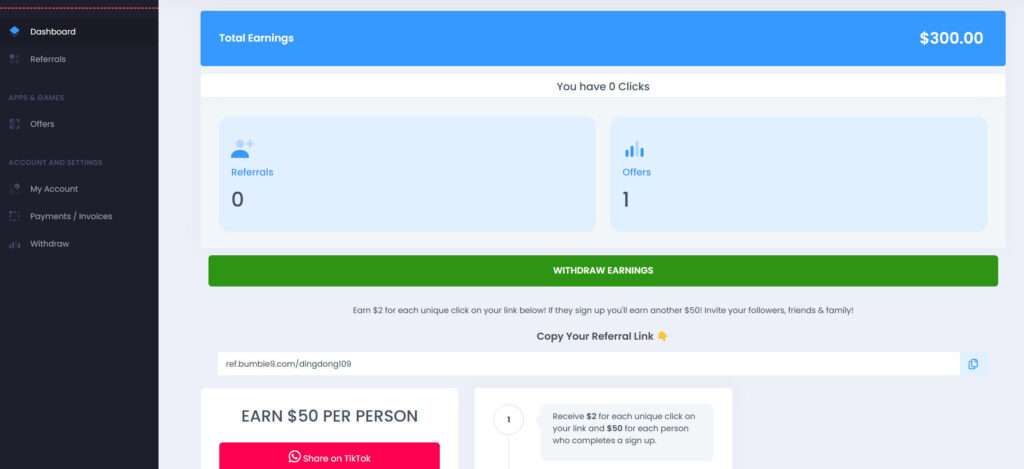
Once registered, victims are redirected to a dashboard at dash.bumble9.com/index.php. This dashboard immediately shows a fake balance of $300, deceiving victims into believing they have already earned money from Hunny9.
Below the balance, a widget prompts the victim to “Copy Your Referral Link” for earning $2 per click and $50 per signup. These claims reinforce the illusion that earning money with Hunny9 is quick and effortless.
Stage 3: Endless Referral Requests to Prevent Withdrawals
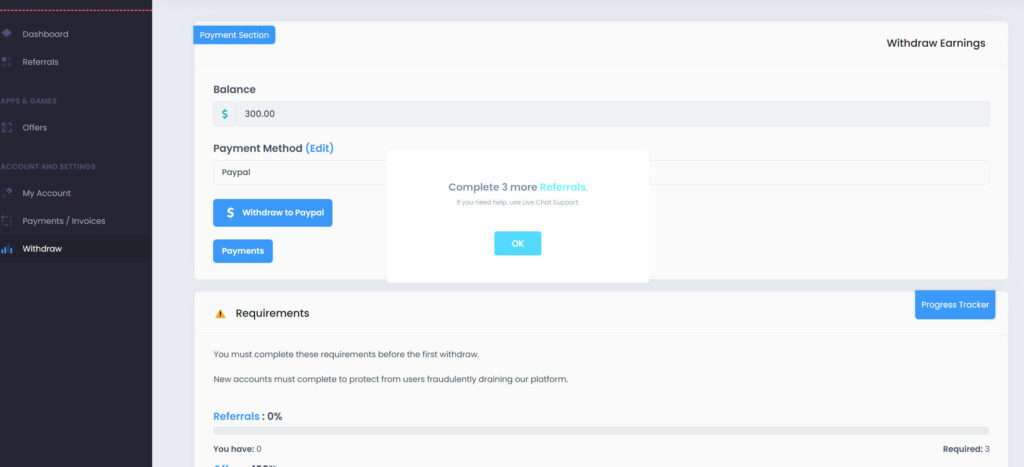
When victims attempt to withdraw their $300 balance, Hunny9 imposes an impossible prerequisite: Get 3 referrals first. This rule effectively prevents anyone from withdrawing funds.
Even after obtaining 3 referrals, Hunny9 will make up new withdrawal rules, like needing 5 referrals or 10 referrals. The cycle never ends, ensuring the balance remains frozen.
Stage 4: Fake Verification Fees
If a victim contacts support to inquire about withdrawals, Hunny9 employs another deception. Support staff will claim that a one-time verification fee is required via cryptocurrency payment. This introduces yet another way to steal money from victims.
Once this verification payment is processed, Hunny9 fabricates some excuse about it being insufficient or incorrect. Victims never receive any withdrawals after paying these fees.
Stage 5: Rebranding with a New Domain
After accumulating substantial victims, Hunny9 rebrands itself under a new domain name like Bumble7.com or Bumble8.com. This sheds negative associations with the Hunny9 name while allowing the scam operation to continue seamlessly.
By constantly rebranding itself and preventing withdrawals, Hunny9 is able to operate indefinitely while scamming countless victims in the process.
Warning Signs You May Be Dealing With the Hunny9 Scam
Hunny9 uses some common tricks and tactics to further their scam. Here are some of the warning signs that indicate a website may actually be Hunny9 or a similar scam:
The site focuses heavily on a referral program with unrealistic payouts
Large balances or earnings appear instantly on your account dashboard
Withdrawals are made extremely difficult or impossible
Poorly written content with lots of grammar/spelling errors
Urgency to act now or risk missing out
Aggressive demands to share your referral link
Excessive focus on social media for sharing links
Site encourages opening multiple accounts for more referrals
Support chat staff give vague or threatening responses
If you encounter a combination of these red flags, chances are high the site is Hunny9 or an imitation scam. Exercise extreme caution and avoid sending traffic to your referral link or depositing any money.
What to Do if You Fall Victim to the Hunny9 Scam
Unfortunately, many people do get deceived initially and fall prey to the Hunny9 scam. If you are one of these victims, here are some important next steps:
Cease promotion of your link – Immediately stop referring other people to prevent further spread of the scam. Do not send more money or traffic to the site.
Warn contacts – Alert anyone you referred about the scam to prevent them from also being victimized. Have them avoid sending clicks/money.
Secure accounts – Change the passwords of any accounts you used to sign up for Hunny9. Scammers may try to hack them.
Watch for unauthorized charges – Keep an eye out for any unauthorized credit card charges or withdrawals. Dispute with your bank immediately.
Report the site – File a complaint with the FTC and IC3 to get Hunny9 shut down and help warn others.
Spread awareness – Share your experience to make others aware of the scam. Post on social media and complaints boards to fight back.
The earlier you take action, the better chance you have of minimizing damages. But do not panic or feel ashamed if you were initially fooled. These scammers are masters of deception. The important thing is responding correctly once the scam is uncovered.
Hunny9 – The Recycled Scam Template
A crucial aspect enabling Hunny9 to persist involves the scammers reusing the same scam website template under different domains.
Once the Hunny9 name accumulates too many negative reviews and exposure, the scammers simply rebrand to a new domain. This allows them to shed the negative Hunny9 reputation while continuing the scam seamlessly.
Investigations reveal the scammers operate the same fraudulent site under domains like:
Bumble7.com
Bumble5.com
Bumble6.site
Bumble4.com
And many other increments and variations. The template stays identical, including the fake dashboard, impossible withdrawal rules, and demands for verification fees.
Only the domain name changes. This rebranding trick allows the scam to persist indefinitely, circling through various iterations of “Bumble” domain names.
By staying alert to this rebranding tactic, individuals can better detect new instances of the scam under different names. Avoiding any site promising easy money through social media referrals protects against falling for these recycled scams.
Is Your Device Infected? Run a Free Malware Scan
Slow performance, constant pop-ups, or strange behavior? These are classic signs of a malware infection. The fastest way to find out is to scan your device with Malwarebytes Anti-Malware Free — one of the most trusted malware removal tools available.
The free version detects and removes the most common threats, including:
Adware — the cause of those annoying pop-ups
Browser hijackers — unwanted redirects and changed homepages
Trojans and spyware — hidden programs stealing your data
Potentially unwanted programs (PUPs) — software you never asked for
👉 Select your device below — Windows, Mac, or Android — then follow the simple steps to download Malwarebytes, scan your system, and remove any threats it finds. The whole process takes about 5 minutes.
Malwarebytes for WindowsMalwarebytes for MacMalwarebytes for Android
Run a Malware Scan with Malwarebytes for Windows
Malwarebytes is one of the most popular and trusted anti-malware tools for Windows — and it’s completely free for removing infections. It catches threats that many antivirus programs miss, including adware, browser hijackers, and trojans. Follow the steps below to scan and clean your PC in just a few minutes.
Download Malwarebytes
Click the button below to download the latest version of Malwarebytes for Windows from the official source. The free version is all you need — it will scan your computer and remove adware, browser hijackers, and other malicious software at no cost.
(The link opens in a new page where your download will start)
Install Malwarebytes
When the download finishes, open your Downloads folder and double-click the MBSetup file. If Windows shows a User Account Control pop-up, click “Yes” to allow the installation.
Follow the On-Screen Prompts to Install Malwarebytes
The setup wizard will walk you through a few quick screens:
Choose where you’re installing the program — “Personal Computer” or “Work Computer” — then click Next.
Malwarebytes will now install on your device. This usually takes under a minute.
When installation is complete, the “Welcome to Malwarebytes” screen will open automatically.
On the final screen, click Open Malwarebytes to launch the program.
Enable “Scan for Rootkits”
Before scanning, turn on rootkit detection so Malwarebytes can find even the most hidden threats. Click the Settings gear icon on the left side of the screen.
In the settings menu, find “Scan for rootkits” and click the toggle so it turns blue.
Done? Click “Dashboard” in the left pane to return to the main screen.
Start the Scan
Click the blue Scan button. Malwarebytes will automatically update its virus database and start checking your computer for malware.
Wait for the Scan to Finish
The scan checks your entire system for browser hijackers and other malicious programs, so it can take several minutes. Feel free to do something else — just check back occasionally to see the progress.
Quarantine the Detected Threats
When the scan is done, you’ll see a list of everything Malwarebytes found — malware, adware, and potentially unwanted programs. Click the “Quarantine” button to remove all of them at once.
Malwarebytes will now remove the malicious files and registry entries and move them safely into quarantine.
Restart Your Computer
Some threats can only be fully removed after a reboot. If Malwarebytes asks you to restart, click Yes. Once you’re logged back in, your PC is clean and you can continue with the next steps in this guide.
When the scan finishes, click Quarantine to remove everything Malwarebytes found. That’s it — your Windows PC is now clean of trojans, adware, and other malware, and should be back to running smoothly.
If your current antivirus allowed this malicious program on your computer, you may want to consider purchasing Malwarebytes Premium to protect against these types of threats in the future. If you are still having problems with your computer after completing these instructions, then please follow one of the steps:
Malwarebytes for Mac is a free on-demand scanner that removes the malware other security software tends to miss — adware, browser hijackers, and unwanted programs included. Cleaning an infected Mac with Malwarebytes has always been completely free, and it’s our go-to recommendation. Follow the steps below to scan and clean your Mac in just a few minutes.
Download Malwarebytes for Mac
Click the button below to download the latest version of Malwarebytes for Mac.
When the download finishes, open your Downloads folder and double-click the setup file to begin the installation.
Follow the On-Screen Prompts to Install Malwarebytes
The Malwarebytes for Mac Installer will guide you through a few quick screens. Click “Continue” and keep following the prompts until the installation completes.
When the installation is complete, Malwarebytes opens to the Welcome to Malwarebytes screen. Click “Get started“.
Select “Personal Computer” or “Work Computer”
Malwarebytes will ask what type of computer you’re installing it on. Click either Personal Computer or Work Computer, whichever applies.
Start the Scan
Click the “Scan” button. Malwarebytes will automatically update its detection database and begin checking your Mac for malware.
Wait for the Scan to Finish
Malwarebytes will scan your Mac for adware, browser hijackers, and other malicious programs. This can take a few minutes, so feel free to do something else — just check back occasionally to see the progress.
Quarantine the Detected Threats
When the scan is done, you’ll see a list of everything Malwarebytes found. Click the “Quarantine” button to remove all the threats at once.
Restart Your Mac
Malwarebytes will now remove all the malicious files it found. Some threats can only be fully removed after a reboot — if Malwarebytes asks you to restart, allow it. Once you’re logged back in, your Mac is clean.
Once the scan is done, remove every threat it detected. Your Mac is now free of adware, rogue browser extensions, and other potentially harmful software.
If your current antivirus allowed a malicious program on your computer, you might want to consider purchasing the full-featured version of Malwarebytes Anti-Malware to protect against these types of threats in the future. If you are still experiencing problems while trying to remove a malicious program from your computer, please ask for help in our Mac Malware Removal Help & Support forum.
Run a Malware Scan with Malwarebytes for Android
Malwarebytes for Android automatically detects and removes dangerous threats like malware and ransomware so you don’t have to worry about your most-used device being compromised. Aggressive detection of adware and potentially unwanted programs keeps your Android phone or tablet running smooth.
Download Malwarebytes for Android.
You can download Malwarebytes for Android by clicking the link below.
In the Google Play Store, tap “Install” to install Malwarebytes for Android on your device.
When the installation process has finished, tap “Open” to begin using Malwarebytes for Android. You can also open Malwarebytes by tapping on its icon in your phone menu or home screen.
Follow the on-screen prompts to complete the setup process
When Malwarebytes will open, you will see the Malwarebytes Setup Wizard which will guide you through a series of permissions and other setup options. This is the first of two screens that explain the difference between the Premium and Free versions. Swipe this screen to continue. Tap on “Got it” to proceed to the next step. Malwarebytes for Android will now ask for a set of permissions that are required to scan your device and protect it from malware. Tap on “Give permission” to continue. Tap on “Allow” to permit Malwarebytes to access the files on your phone.
Update database and run a scan with Malwarebytes for Android
You will now be prompted to update the Malwarebytes database and run a full system scan.
Click on “Update database” to update the Malwarebytes for Android definitions to the latest version, then click on “Run full scan” to perform a system scan.
Wait for the Malwarebytes scan to complete.
Malwarebytes will now start scanning your phone for adware and other malicious apps. This process can take a few minutes, so we suggest you do something else and periodically check on the status of the scan to see when it is finished.
Click on “Remove Selected”.
When the scan has been completed, you will be presented with a screen showing the malware infections that Malwarebytes for Android has detected. To remove the malicious apps that Malwarebytes has found, tap on the “Remove Selected” button.
Restart your phone.
Malwarebytes for Android will now remove all the malicious apps that it has found. To complete the malware removal process, Malwarebytes may ask you to restart your device.
After the scan, tap Remove Selected to delete all detected threats. Your Android phone is now clean — no more malicious apps, adware, or browser redirects.
If your current antivirus allowed a malicious app on your phone, you may want to consider purchasing the full-featured version of Malwarebytes to protect against these types of threats in the future. If you are still having problems with your phone after completing these instructions, then please follow one of the steps:
Restore your phone to factory settings by going to Settings > General management > Reset > Factory data reset.
Now that your device is clean, keep it that way. Most infections start with a malicious ad or a fake download button — so blocking them at the source is your best defense.
We recommend AdGuard, which blocks malicious ads, phishing pages, and dangerous redirects before they can reach you.
Hunny9 is a fraudulent website that promises users can earn money by sharing referral links. However, it is a complete scam designed to steal users’ money through deception. Hunny9 entices new users by showing fake earnings accounts with balances up to $300. Victims are then pressured to promote their referral links in order to withdraw their “funds.” Of course, withdrawals never actually work. The site is simply a front to gain new sign ups and steal deposited money.
2. How does the Hunny9 scam work?
The scam operates in several stages. First, ads portray Hunny9 as an easy income source. Users are shown fake accounts with balances ready to withdraw. Next, users are pushed to aggressively share their referral links on social media to earn more. However, when users attempt withdrawals, they are met with refusal and demands for more actions. Hunny9 then rebrands itself to attract new victims once exposed.
3. What are some warning signs of the Hunny9 scam?
Warning signs include emphasis on referrals, unrealistic payouts, instantly loaded balances, withdrawal difficulties, poor site quality, urgency to act fast, excessive focus on social sharing, encouragement to open multiple accounts, and vague or threatening support staff.
4. What should I do if I already fell victim to Hunny9?
If you fell victim, immediately stop promoting your link or sending site traffic. Warn anyone you referred, change account passwords that you used on the site, watch for unauthorized charges, report Hunny9 to authorities like the FTC, and spread awareness of the scam online to help others avoid it.
5. Can I get my money back if I was scammed by Hunny9?
Unfortunately, it is very difficult to recoup any money lost in the Hunny9 scam. They are overseas fraudsters who cover their tracks. Your best bet is to contact your bank and dispute any unauthorized credit charges as fraudulent. You can also report the site to the FTC to potentially aid investigations and enforcement actions.
6. How can I avoid Hunny9 and similar scams?
Be skeptical of any site offering easy money for simple actions like sharing links or completing basic tasks. Research sites thoroughly before promoting them or sending money. Beware of red flags like pushy demands, too-good-to-be-true claims, and withdrawal difficulties. And never deposit to sites you aren’t 100% sure about.
7. Is Hunny9 legal? Can I get in trouble?
No, Hunny9 is an illegal fraudulent site. Victims who were scammed will not get in any legal trouble. However, knowingly promoting illegal scams can incur penalties. So if you suspect a site may be a scam, cease promotion immediately.
8. What precautions can I take to avoid online scams?
Steps to avoid scams include researching sites and offers thoroughly, not believing inflated income claims, being wary of referral programs pushing aggressive promotion, trying withdrawals before promoting sites, avoiding newly created sites without reputations, and relying on trusted sources for opportunities.
9. Who can I contact if I have more questions about Hunny9?
You can report Hunny9 directly to the FTC or IC3 for investigation. Additionally, many personal finance sites and scam victim resources have more information on recent schemes like Hunny9 to further educate yourself and avoid falling victim.
10. Where can I learn more about trending online scams?
Great resources to learn about current popular online scams are the FTC’s scam alerts, AARP’s scam watch network, scam detector websites like Scamalytics and Scam Guard, and cybersecurity firms like Norton LifeLock which detail emerging frauds.
The Bottom Line – Protect Yourself From Hunny9
Sites like Hunny9 reveal a dark underbelly of the internet – a proliferation of scams trying to take advantage of unsuspecting users. While their promises may seem tempting, the reality is these scams only exist to defraud people.
Protect yourself by being skeptical of any site offering easy money for simple tasks. Do your research before promoting links or sending site traffic. And never deposit funds or provide payment information without being 100% certain of legitimacy.
With vigilance, you can avoid falling into traps like the Hunny9 scam. Be cautious online and trust your instincts. If an opportunity seems too good to be true, it always is. Stay safe!
10 Rules to Avoid Online Scams
Here are 10 practical safety rules to help you avoid malware, online shopping scams, crypto scams, and other online fraud. Each tip includes a quick “if you already got hit” action.
Stop and verify before you click, log in, download, or pay.
Most scams win by creating urgency. Verify using a trusted method: type the website address yourself, use the official app, or call a known number (not the one in the message).
If you already clicked: close the page, do not enter passwords, and run a malware scan.
Keep your operating system, browser, and apps updated.
Updates patch security holes used by malware and malicious ads. Turn on automatic updates where possible.
If you saw a scary “update now” pop-up: close it and update only through your device settings or the official app store.
Use layered protection: antivirus plus an ad blocker.
Antivirus helps block malware. An ad blocker reduces scam redirects, phishing pages, and malvertising.
If your browser is acting weird: remove unknown extensions, reset the browser, then run a full scan.
Install apps, software, and extensions only from official sources.
Avoid cracked software, “keygens,” and random downloads. During installs, choose Custom/Advanced and decline bundled offers you do not recognize.
If you already installed something suspicious: uninstall it, restart, and scan again.
Treat links and attachments as untrusted by default.
Phishing often impersonates delivery services, banks, and popular brands. If it is unexpected, do not open attachments or log in through the message.
If you entered credentials: change the password immediately and enable 2FA.
Shop safely: research the store, then pay with protection.
Be cautious with brand-new stores, “closing sale” stories, and prices that make no sense. Prefer credit cards or PayPal for dispute options. Avoid wire transfers, gift cards, and crypto payments.
If you already paid: contact your card issuer or PayPal quickly to dispute the transaction.
Crypto rule: never pay a “fee” to withdraw or recover money.
Common patterns include fake profits, then “tax,” “gas,” or “verification” fees. Another is a “recovery agent” who demands upfront crypto.
If you already sent crypto: stop paying, save evidence (wallet addresses, TXIDs, chats), and report the scam to the platform used.
Secure your accounts with unique passwords and 2FA (start with email).
Use a password manager and unique passwords for every account. Enable 2FA using an authenticator app when possible.
If you suspect an account takeover: change passwords, sign out of all devices, and review recent logins and recovery settings.
Back up important files and keep one backup offline.
Backups protect you from ransomware and device failure. Keep at least one backup on an external drive that is not always connected.
If you suspect infection: do not connect backup drives until the system is clean.
If you think you are a victim: stop losses, document evidence, and escalate fast.
Move quickly. Speed matters for disputes, account recovery, and limiting damage.
Stop payments and contact: do not send more money or respond to the scammer.
Call your bank or card issuer: block transactions, replace the card if needed, and start a dispute or chargeback.
Secure your email first: change the email password, enable 2FA, and remove unfamiliar recovery options.
Secure other accounts: change passwords, enable 2FA, and log out of all sessions.
Scan your device: remove suspicious apps or extensions, then run a full malware scan.
Save evidence: screenshots, emails, order pages, tracking pages, wallet addresses, TXIDs, and chat logs.
Report it: to the payment provider, marketplace, social platform, exchange, or wallet service involved.
These rules are intentionally simple. Most online losses happen when decisions are rushed. Slow down, verify independently, and use payment methods and account controls that give you recourse.
Thomas is an expert at uncovering scams and providing in-depth reporting on cyber threats and online fraud. As an editor, he is dedicated to keeping readers informed on the latest developments in cybersecurity and tech.