

A strange and unsettling email lands in your inbox. It begins with the words, “I know that your are and this email is yours.” The message goes on to claim that the sender has hacked your computer, recorded intimate webcam footage of you, and threatens to release it to your family, friends, or coworkers unless you pay $1,200 in Bitcoin within 48 hours. The email even gives instructions on how to buy cryptocurrency and split the payment address in half to make it “secure.”
At first glance, it seems personal and terrifying. But here’s the truth: this email is a scam. The sender has no video, no access to your devices, and no connection to your online activity. The email is a psychological weapon designed to make you panic and pay.
This guide will explain exactly what the “I know that your are and this email is yours” email scam is, how it works in practice, why it’s so effective, what steps to take if you’ve received it, and how to protect yourself from future threats.
Scam Overview
What Is the “I Know That Your Are and This Email Is Yours” Email Scam?
The “I know that your are and this email is yours” email scam is part of a broad category of sextortion scams — cybercrimes that use intimidation and fear to extract money from victims. In this type of scam, the attacker claims to have hacked your computer or phone, accessed your webcam, and recorded compromising footage of you. They then threaten to send this alleged footage to everyone in your contact list or publish it online unless you pay a ransom in Bitcoin or another cryptocurrency.
The specific email you shared includes the following details:
A personal opening line to sound familiar: “I know that your are and this email is yours.
A claim of having recorded webcam footage of you “playing with yourself.”
A ransom demand of $1,200 in Bitcoin.
A strict 48-hour deadline.
Technical instructions for buying and transferring Bitcoin.
A threat that “one or two mouse clicks” can send the footage to your contacts.
This format is not unique. It mirrors countless variations of Bitcoin sextortion scams that have circulated globally since at least 2018. Each year, cybercriminals recycle these templates, change the wording slightly, and send them to millions of email addresses harvested from old data breaches or online leaks.
Why the Scam Works So Well
The power of this scam lies in psychological manipulation, not in technical sophistication. It preys on fear, shame, and urgency — emotions that override rational thinking.
Here are the key psychological tactics used:
Fear of exposure: The claim of having recorded private activity triggers immediate panic.
Shame: Even if the recipient has done nothing wrong, the idea of being seen in an embarrassing light is mortifying.
Urgency: The 48-hour deadline is designed to prevent the victim from thinking, verifying, or seeking advice.
Authority and technical jargon: The scammer mentions “ransomware,” “tracking,” and “remote access” to sound credible.
Isolation: The email warns not to tell anyone or seek help, which keeps the victim silent and alone.
These combined pressures can make even experienced internet users question themselves. Scammers know that embarrassment keeps victims from reporting the crime, which allows the scheme to continue undisturbed.
Where the Scammer Gets Your Email Address
You may wonder: how did this person find me? The answer is simple. Your email address — and possibly some other data — was likely exposed in a data breach. Cybercriminals collect and sell massive databases of email addresses and old passwords. These lists are easy to purchase on the dark web or even find freely online.
The scammer doesn’t actually know who you are. They just send identical or nearly identical emails to thousands of addresses. Occasionally, they personalize the message with a password or username obtained from a leak, but this does not mean they hacked your device. It only makes the threat appear more believable.
What Makes This Version Unique
The “I know that your are and this email is yours” variant has several specific features that make it slightly more advanced than older versions:
Split Bitcoin address: The message divides the wallet address into two parts and instructs the victim to merge them manually. This is meant to bypass automatic detection by spam filters.
Detailed payment instructions: It provides specific references to services like “BitPay,” “MoonPay,” and “Changelly,” guiding inexperienced users on how to buy Bitcoin.
Threat escalation: It directly threatens to contact your family, coworkers, and friends with “disgraceful footage.”
Mock empathy: The scammer writes, “I am not that kind of person,” pretending to be merciful to seem more human.
Emotional closing: It ends with lines like “It was nice meeting you” and “Don’t try to be a hero,” reinforcing the illusion of personal connection.
Each of these elements is meticulously designed to induce panic while maintaining a façade of authenticity.
Why It’s Not Real
Despite the scary wording, this email is completely fake in nearly all cases. Here’s why:
No actual hacking occurred.
The scammer has not gained access to your webcam, files, or network. They have no footage.Email spoofing is easy.
Scammers can make it look like the email was sent from your own address, but this does not mean your account is compromised.No technical evidence is provided.
The email offers no real proof of access — just threats.Mass distribution patterns.
Identical emails have been reported by thousands of recipients globally.Cryptocurrency tracebacks reveal mass operations.
The Bitcoin addresses used are connected to large-scale scam campaigns that collect small payments from multiple victims.
The Real Damage
Even though the claims are false, the consequences are real. Victims often experience intense anxiety, sleeplessness, and shame. Some delete social media accounts or isolate themselves out of fear. The emotional toll can be severe, even when no money is lost.
How the Scam Works
Let’s examine how this scam unfolds from the scammer’s perspective — from data collection to execution. Understanding these steps helps you recognize the red flags and respond wisely.
Step 1: Data Collection and Target Acquisition
Scammers start by gathering large lists of email addresses from data breaches, public forums, or email scraping tools. These databases may include old passwords, usernames, and sometimes phone numbers. The attacker buys or downloads these lists from online black markets and uses automated tools to sort and categorize them.
They may also check whether an address has appeared in known breaches using public resources like “Have I Been Pwned.” This helps them tailor the message with real details, giving the illusion of personalization.
Step 2: Writing the Script
The attacker then crafts the email. The writing style is crucial. The scammer deliberately uses conversational or broken English to sound like a real person rather than a machine. The script typically includes:
A personal-sounding greeting (“hello there”)
A fabricated backstory of hacking your device
Explicit language to evoke embarrassment
Instructions to pay a ransom in Bitcoin
A short time limit (48 hours)
A warning not to tell anyone
Closing lines implying politeness or sympathy
Every sentence is intentional. The scammer uses repetition (“we both know what I’m talking about”) to force you to internalize guilt, even if you did nothing wrong.
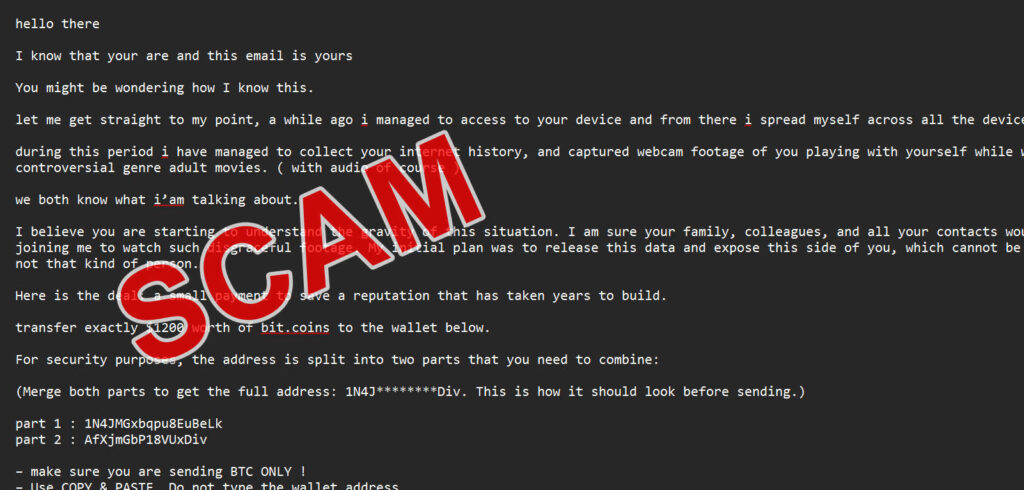
Here is how the email looks:
hello there
I know that your are and this email is yours
You might be wondering how I know this.
let me get straight to my point, a while ago i managed to access to your device and from there i spread myself across all the devices.
during this period i have managed to collect your internet history, and captured webcam footage of you playing with yourself while watching high controversial genre adult movies. ( with audio of course )
we both know what i’am talking about.
I believe you are starting to understand the gravity of this situation. I am sure your family, colleagues, and all your contacts would be interested in joining me to watch such disgraceful footage. My initial plan was to release this data and expose this side of you, which cannot be undone. However, I am not that kind of person.
Here is the deal: a small payment to save a reputation that has taken years to build.
transfer exactly $1200 worth of bit.coins to the wallet below.
For security purposes, the address is split into two parts that you need to combine:
(Merge both parts to get the full address: 1N4J********Div. This is how it should look before sending.)
part 1 : 1N4JMGxbqpu8EuBeLk
part 2 : AfXjmGbP18VUxDiv– make sure you are sending BTC ONLY !
– Use COPY & PASTE. Do not type the wallet address.the deal is clear, the ball is on your court
a little to imagine is how your beloved ones will look at you? i bet never the same again.
Once transfer notification is received, I’ll be out and the data will be permanently deleted. you have 48h
Things that may be concerning you:
That funds transfer won’t be delivered to me.
Breathe out, I can track down everything right away, so once funds transfer is finished,
you have my word.
so, Kindly think twice before you do something. If until now you don’t believe me, all I need is one-two mouse clicks to make all those videos with everyone you know, remember i have your email and contacts. so if you want to see proofs? just reply and i will spread everything.
if you are new to this payment method, google ‘Bit Pay’, ‘Moon Pay’ , ‘Changelly’, alternative option is to use CASH you can search ‘BTC ATM near me’
At the end i would like to express that it was nice meeting you and looking forward to doing business with you.
Always remember do not try to be hero.
Best regards,
LAZRUS
Step 3: Email Spoofing
The attacker uses spoofing tools to make the email appear as if it came from your own address. This trick reinforces the illusion that they have access to your account. However, spoofing does not require hacking. Anyone can manipulate the “From” field in an email using simple software.
When recipients see their own email address in the “From” line, panic sets in. That fear drives many to believe the scammer’s story without verifying it.
Step 4: Mass Distribution
Next, the attacker sends the message to thousands of recipients simultaneously using botnets or compromised email servers. Each message may contain a unique Bitcoin wallet to track who pays. The goal is volume: even if 1 in 10,000 victims pays, the attacker profits.
Scammers continuously test new subject lines, such as:
“You don’t want your secret out.”
“Your reputation is at risk.”
“I know you.”
“This email is yours.”
The aim is to bypass spam filters and maximize open rates.
Step 5: Fear and Confusion
Once the email reaches you, the psychological manipulation begins. The scammer’s objective is to make you act before thinking. The message claims they “will be notified once you open the email,” implying real-time monitoring. They threaten to release the footage if you don’t pay within the set timeframe.
This manipulation causes recipients to panic, leading to impulsive decisions — such as paying the ransom or deleting evidence instead of reporting it.
Step 6: The Payment Scheme
The scammer provides detailed instructions for buying Bitcoin. They mention legitimate exchanges like MoonPay or BitPay to appear credible. Some victims, unfamiliar with cryptocurrency, follow the instructions step by step.
Once Bitcoin is transferred, it’s nearly impossible to recover. The scammer moves the funds through multiple wallets or mixing services that obscure their origin. Most victims never hear from the scammer again after paying.
Step 7: Post-Payment Exploitation
If a victim pays, their email address is flagged as “responsive.” Scammers often share or sell lists of paying victims to other criminals. This can lead to future scams, additional extortion attempts, or phishing campaigns.
Step 8: The Aftermath
If no payment is made, nothing happens. The scammer doesn’t have any real footage to release. They simply move on to the next target. Many victims realize afterward that the entire story was fabricated.
What to Do If You Have Fallen Victim to This Scam
If you’ve received this email — or worse, paid the ransom — follow these steps immediately to secure your accounts, protect your identity, and prevent future targeting.
1. Do Not Reply or Engage
Never respond to the scammer. Engaging with them confirms your email is active and may trigger additional threats. Silence is your best defense.
2. Preserve the Evidence
Take screenshots of the email, including the header information. Save any details such as the Bitcoin wallet address and the exact wording of the threat. This information may be valuable for reporting to law enforcement.
3. Change All Passwords
If the email includes an old password or if you use the same password on multiple accounts, change them immediately. Use a strong, unique password for each site. A password manager can help you generate and store secure credentials.
4. Enable Two-Factor Authentication (2FA)
Activate 2FA on all critical accounts — email, banking, and social media. This adds an extra layer of protection, preventing unauthorized logins even if your password leaks.
5. Scan Your Devices
Run a full malware and antivirus scan using a trusted program. Although most sextortion scams don’t involve real hacking, it’s wise to confirm that your system is clean.
6. Check for Account Breaches
Visit “Have I Been Pwned” or similar services to check whether your email or passwords were leaked in past breaches. If so, change them and monitor your accounts closely.
7. Report the Scam
Report the incident to the relevant authorities in your country:
United States: FBI’s Internet Crime Complaint Center (IC3.gov) or FTC.gov
United Kingdom: National Cyber Security Centre (report@phishing.gov.uk)
Australia: Scamwatch.gov.au or Cyber.gov.au
Canada: Canadian Anti-Fraud Centre
Forward the scam email with full headers for investigation.
8. Notify Your Email Provider
Most email providers have a reporting function for phishing or scam messages. Reporting helps filter similar threats from reaching other users.
9. If You Paid, Take Immediate Action
If you’ve already sent money:
Report the transaction to law enforcement immediately.
Provide the wallet address and transaction ID.
Inform your bank if you used linked financial accounts.
Save all records of communication.
Although Bitcoin payments are difficult to trace, investigators track wallets across campaigns to build cases against organized groups.
10. Protect Your Identity
Monitor your credit reports and online profiles for unusual activity. Consider enabling fraud alerts if you suspect your personal data has been misused.
11. Educate Others
Warn friends, family, and colleagues about this scam. Many victims suffer alone out of embarrassment, but open discussion prevents others from falling prey to the same trap.
12. Manage Emotional Impact
The fear and shame triggered by these scams can be intense. Remember: you did nothing wrong. Scammers exploit human psychology. If anxiety persists, consider speaking to a counselor or a trusted friend.
13. Stay Informed
Follow cybersecurity news sources and learn about common scam patterns. Awareness is the strongest prevention against online fraud.
Is Your Device Infected? Run a Free Malware Scan
Slow performance, constant pop-ups, or strange behavior? These are classic signs of a malware infection. The fastest way to find out is to scan your device with Malwarebytes Free — one of the most trusted malware removal tools available.
The free version detects and removes the most common threats, including:
- Adware — the cause of those annoying pop-ups
- Browser hijackers — unwanted redirects and changed homepages
- Trojans and spyware — hidden programs stealing your data
- Potentially unwanted programs (PUPs) — software you never asked for
👉 Select your device below — Windows, Mac, or Android — then follow the simple steps to download Malwarebytes, scan your system, and remove any threats it finds. The scan usually takes 5 to 20 minutes.
Run a Malware Scan with Malwarebytes for Windows
Malwarebytes is one of the most popular and trusted anti-malware tools for Windows — and it’s completely free for removing infections. It catches threats that many antivirus programs miss, including adware, browser hijackers, and trojans. Follow the steps below to scan and clean your PC in just a few minutes.
Download Malwarebytes
Click the button below to download the latest version of Malwarebytes for Windows from the official source. The free version is all you need — it will scan your computer and remove adware, browser hijackers, and other malicious software at no cost.
Download MalwarebytesOfficial installer for Windows 11 and 10. Your download starts right away.Want real-time protection? See Malwarebytes Premium Malwarebytes Free for WindowsScans and removes malware at no cost
-
Install Malwarebytes
When the download finishes, open your Downloads folder and double-click the MBSetup file. If Windows shows a User Account Control pop-up, click “Yes” to allow the installation.

Follow the On-Screen Prompts to Install Malwarebytes
The setup wizard will walk you through a few quick screens:
-
Choose where you’re installing the program — “Personal Computer” or “Work Computer” — then click Next.

-
Malwarebytes will now install on your device. This usually takes under a minute.

-
When installation is complete, the “Welcome to Malwarebytes” screen will open automatically.

-
On the final screen, click Open Malwarebytes to launch the program.

-
Enable “Scan for Rootkits”
Before scanning, turn on rootkit detection so Malwarebytes can find even the most hidden threats. Click the Settings gear icon on the left side of the screen.

In the settings menu, find “Scan for rootkits” and click the toggle so it turns blue.

Done? Click “Dashboard” in the left pane to return to the main screen.
Start the Scan
Click the blue Scan button. Malwarebytes will automatically update its virus database and start checking your computer for malware.

-
Wait for the Scan to Finish
The scan checks your entire system for browser hijackers and other malicious programs, so it can take 5 to 20 minutes depending on your computer. Feel free to do something else — just check back occasionally to see the progress.

-
Quarantine the Detected Threats
When the scan is done, you’ll see a list of everything Malwarebytes found — malware, adware, and potentially unwanted programs. Click the “Quarantine” button to remove all of them at once.

Malwarebytes will now remove the malicious files and registry entries and move them safely into quarantine.

-
Restart Your Computer
Some threats can only be fully removed after a reboot. If Malwarebytes asks you to restart, click Yes. Once you’re logged back in, Malwarebytes has finished removing the threats it found.

That’s it — your Windows PC is now clean of trojans, adware, and other malware, and should be back to running smoothly.
If you are still having problems with your computer after completing these instructions, then please follow one of the steps:
- Run a computer scan with ESET Online Scanner
- Ask for help in our Windows Malware Removal Help & Support forum.
Run a Malware Scan with Malwarebytes for Mac
Malwarebytes for Mac is a free on-demand scanner that removes the malware other security software tends to miss — adware, browser hijackers, and unwanted programs included. Cleaning an infected Mac with Malwarebytes has always been completely free, and it’s our go-to recommendation. Follow the steps below to scan and clean your Mac in just a few minutes.
-
Download Malwarebytes for Mac
Click the button below to download the latest version of Malwarebytes for Mac.
Download MalwarebytesOfficial installer for macOS. Your download starts right away.Want real-time protection? See Malwarebytes PremiumMalwarebytes Free for MacScans and removes malware at no cost -
Open the Malwarebytes setup file
When the download finishes, open your Downloads folder and double-click the setup file to begin the installation.

-
Follow the On-Screen Prompts to Install Malwarebytes
The Malwarebytes for Mac Installer will guide you through a few quick screens. Click “Continue” and keep following the prompts until the installation completes.



When the installation is complete, Malwarebytes opens to the Welcome to Malwarebytes screen. Click “Get started“.
-
Select “Personal Computer” or “Work Computer”
Malwarebytes will ask what type of computer you’re installing it on. Click either Personal Computer or Work Computer, whichever applies.

-
Start the Scan
Click the “Scan” button. Malwarebytes will automatically update its detection database and begin checking your Mac for malware.

-
Wait for the Scan to Finish
Malwarebytes will scan your Mac for adware, browser hijackers, and other malicious programs. This can take a few minutes, so feel free to do something else — just check back occasionally to see the progress.

-
Quarantine the Detected Threats
When the scan is done, you’ll see a list of everything Malwarebytes found. Click the “Quarantine” button to remove all the threats at once.

-
Restart Your Mac
Malwarebytes will now remove all the malicious files it found. Some threats can only be fully removed after a reboot — if Malwarebytes asks you to restart, allow it. Once you’re logged back in, your Mac is clean.

That’s it — your Mac is now free of adware, rogue browser extensions, and other potentially harmful software.
If you are still experiencing problems while trying to remove a malicious program from your computer, please ask for help in our Mac Malware Removal Help & Support forum.
Run a Malware Scan with Malwarebytes for Android
Malwarebytes for Android automatically detects and removes dangerous threats like malware and ransomware so you don’t have to worry about your most-used device being compromised. Aggressive detection of adware and potentially unwanted programs keeps your Android phone or tablet running smooth.
-
Download Malwarebytes for Android.
You can download Malwarebytes for Android by clicking the link below.
Get Malwarebytes for AndroidOpens Google Play in a new tab.Want real-time protection? See Malwarebytes Premium for AndroidMalwarebytes for AndroidScans your phone and removes malware at no cost -
Install Malwarebytes for Android on your phone.
In the Google Play Store, tap “Install” to install Malwarebytes for Android on your device.

When the installation process has finished, tap “Open” to begin using Malwarebytes for Android. You can also open Malwarebytes by tapping on its icon in your phone menu or home screen.

-
Follow the on-screen prompts to complete the setup process
When Malwarebytes will open, you will see the Malwarebytes Setup Wizard which will guide you through a series of permissions and other setup options.
This is the first of two screens that explain the difference between the Premium and Free versions. Swipe this screen to continue.
Tap on “Got it” to proceed to the next step.
Malwarebytes for Android will now ask for a set of permissions that are required to scan your device and protect it from malware. Tap on “Give permission” to continue.
Tap on “Allow” to permit Malwarebytes to access the files on your phone.
-
Update database and run a scan with Malwarebytes for Android
You will now be prompted to update the Malwarebytes database and run a full system scan.

Click on “Update database” to update the Malwarebytes for Android definitions to the latest version, then click on “Run full scan” to perform a system scan.

-
Wait for the Malwarebytes scan to complete.
Malwarebytes will now start scanning your phone for adware and other malicious apps. This process can take a few minutes, so we suggest you do something else and periodically check on the status of the scan to see when it is finished.

-
Click on “Remove Selected”.
When the scan has been completed, you will be presented with a screen showing the malware infections that Malwarebytes for Android has detected. To remove the malicious apps that Malwarebytes has found, tap on the “Remove Selected” button.

-
Restart your phone.
Malwarebytes for Android will now remove all the malicious apps that it has found. To complete the malware removal process, Malwarebytes may ask you to restart your device.
That’s it — your Android phone is now clean — no more malicious apps, adware, or browser redirects.
If you are still having problems with your phone after completing these instructions, then please follow one of the steps:
- Restore your phone to factory settings by going to Settings > General management > Reset > Factory data reset.
- Ask for help in our Mobile Malware Removal Help & Support forum.
Stay Protected: Block Ads and Malicious Sites
Now that your device is clean, keep it that way. Most infections start with a malicious ad or a fake download button — so blocking them at the source is your best defense.
We recommend AdGuard, which blocks malicious ads, phishing pages, and dangerous redirects before they can reach you.
👉 Download AdGuard and browse safely
The Bottom Line
The “I know that your are and this email is yours” email scam is not a sign of hacking or exposure — it’s a global cyber extortion hoax. The sender has not accessed your webcam, files, or private life. They rely on fear and urgency to manipulate victims into paying Bitcoin ransoms.
If you receive such an email, do not panic.
Do not pay.
Do not reply.
Instead, secure your accounts, change your passwords, enable two-factor authentication, report the scam, and delete the message after documenting it.
Frequently Asked Questions
1. What is the “I Know That Your Are and This Email Is Yours” email scam?
The “I Know That Your Are and This Email Is Yours” email scam is a sextortion scheme where the scammer claims to have hacked your computer and recorded compromising footage of you. They threaten to release this footage to your family or colleagues unless you pay a ransom in Bitcoin. The email is designed to frighten you into paying quickly. The truth is that the scammer has not hacked your computer or obtained any video. These emails are mass-produced and sent to thousands of addresses harvested from data breaches or public lists.
2. Why does the scammer say “I know that your are and this email is yours”?
This line is written to sound personal and convincing. By pretending to recognize you and confirm your email, the scammer makes the message feel targeted. The broken grammar and slightly awkward tone make it seem authentic rather than automated. It’s part of the scammer’s attempt to make you think they genuinely know who you are.
3. Is this scam real?
No. The scam is fake. There is no hacker monitoring you and no private footage of you exists. Cybersecurity authorities and law enforcement agencies have confirmed that these sextortion scams are fraudulent mass emails. The attackers do not have real access to your computer, webcam, or files.
4. How did the scammer get my email address?
Your email address may have been exposed in a data breach or found on a marketing list. Attackers often buy leaked data from the dark web or use freely available breach databases to send millions of identical emails at once. If the message contains an old password, it likely came from one of those leaks, not from your device.
5. Why do they demand payment in Bitcoin?
Bitcoin and other cryptocurrencies allow anonymous and irreversible transactions. Once you send the money, there is no way to get it back. That anonymity protects scammers from being traced by law enforcement. It’s why nearly all email extortion scams use cryptocurrency.
6. Why does the Bitcoin address appear split into two parts?
Splitting the Bitcoin address into two parts helps the scammer avoid spam filters that automatically block or flag full cryptocurrency addresses. They instruct you to merge both parts before sending payment, which makes the message less detectable by security systems. It’s a technical trick, not a sign of sophistication.
7. How can I tell this email is fake?
Several warning signs reveal the scam. The email contains poor grammar, spelling errors, and strange phrases. It demands cryptocurrency for silence. It imposes a short deadline to make you act quickly. It claims to have infected all your devices without showing real evidence. It often warns you not to tell anyone. All of these features indicate a fraudulent message.
8. What should I do if I receive this email?
Stay calm and follow these steps. Do not reply. Do not pay. Do not click any links or open attachments. Change your passwords immediately, especially if the email includes one you recognize. Enable two-factor authentication on your accounts. Run a full malware scan on your computer. Report the scam to your local cybercrime agency or your email provider. After documenting it with a screenshot, delete the email.
9. Should I pay the ransom?
Never pay the ransom. The scammer has nothing to deliver or delete because no footage exists. Paying confirms that you are a potential target and could result in further extortion attempts. Law enforcement agencies advise against paying in all such cases.
10. Can the scammer really access my webcam or files?
In almost every instance, they cannot. Modern operating systems restrict camera and microphone use. Unauthorized access would trigger visible notifications or indicator lights. You can double-check by scanning your system for malware and reviewing app permissions. As long as you keep your device updated and protected, you are safe.
11. Why does the email look like it came from my own address?
That is called email spoofing. Scammers use software to forge the sender’s address so it looks like the message came from your account. This trick is simple to perform and does not mean your email was hacked. You can confirm by logging into your account directly. If you can still sign in, your email is secure.
12. What if I already paid the scammer?
If you already sent Bitcoin, gather all the evidence you can. Save the email, payment confirmation, wallet address, and any communication. Report the case to law enforcement and your national cybercrime agency. Contact the cryptocurrency exchange if you bought the Bitcoin through one and explain what happened. Although recovery is unlikely, your report helps authorities trace wallets and build cases against these criminals.
13. Can I get in trouble for receiving or ignoring the email?
No. You have not committed any crime by receiving or ignoring the message. The scammer is the one committing extortion. Authorities encourage victims to report such incidents so they can warn others and investigate the perpetrators.
14. How widespread is this scam?
This scam is extremely common. Variants of the “I know that your are and this email is yours” message have circulated worldwide for several years. According to the FBI Internet Crime Complaint Center, extortion emails and sextortion schemes cause tens of millions of dollars in reported losses each year. Because many victims do not report them, the true number of attempts is much higher.
15. What if the email includes my real password?
If the email lists a password you used, it came from a data breach, not from hacking your computer. Immediately change that password anywhere it was used. Use strong, unique passwords for each site and consider a password manager to help you maintain them safely.
16. Is it dangerous to open the email?
Opening the message is not automatically harmful, but do not click on any links or download attachments. Some scammers include malicious attachments that can install malware. To prevent hidden tracking, turn off automatic image loading in your email settings. This stops the sender from knowing you opened the email.
17. What happens if I ignore the message completely?
If you ignore it, nothing happens. The scammer cannot release any videos because none exist. Most recipients who ignore these threats never hear from the sender again. The scammer simply moves on to other potential victims.
18. Are there different versions of this scam?
Yes. There are numerous variants with slightly different wording but the same structure. Common subject lines include “I recorded you,” “Your account has been hacked,” and “Your reputation is at risk.” Some messages mention ransomware or data leaks. Regardless of the variation, all rely on the same lie and demand for Bitcoin.
19. How can I protect myself from similar scams?
Practice strong cybersecurity habits. Use unique passwords and enable two-factor authentication on every important account. Keep your operating system, browser, and antivirus programs updated. Never click unknown links or attachments. Regularly review whether your data has appeared in any breaches. Educate yourself and those around you about online scams so everyone can recognize the signs early.
20. Where should I report this scam?
Report the email to official agencies in your country. In the United States, file a complaint with the FBI Internet Crime Complaint Center (IC3.gov) or the Federal Trade Commission (ReportFraud.ftc.gov). In the United Kingdom, forward the email to report@phishing.gov.uk or contact Action Fraud. In Australia, report it to Scamwatch.gov.au or the Australian Cyber Security Centre. In Canada, contact the Canadian Anti-Fraud Centre. Provide screenshots and full email headers when reporting to help investigators.
21. What if I feel too embarrassed to report it?
Many victims feel embarrassed, but there is no reason to be ashamed. The scammers rely on shame and silence to keep operating. Reporting the incident is responsible and helps protect others. Law enforcement officers handle these cases confidentially and without judgment.
22. How can I help others avoid this scam?
Share what you know. Talk to friends, coworkers, and family members about these sextortion emails. Encourage them not to panic if they receive one. If you manage a workplace or community group, include scam-awareness information in newsletters or meetings. Public awareness weakens the power of such scams.
Final Takeaway
The “I Know That Your Are and This Email Is Yours” scam is a psychological attack, not a real hack. The person behind it does not have any footage, data, or control of your devices. Their only weapon is fear. When you receive such a message, remain calm, secure your accounts, report the incident, and delete the email. Awareness and careful digital habits protect you and others from falling into the same trap.

Join the discussion
0 commentsShare your experience or ask a question about this article.
Discussion
Start the conversation
Have a question or something useful to share? Add the first comment.