

A shipping email says damaged documents were corrected and the amendment for PO#RFQ10930 is complete. The attached workbook supposedly contains everything from the air waybill to loading photographs.
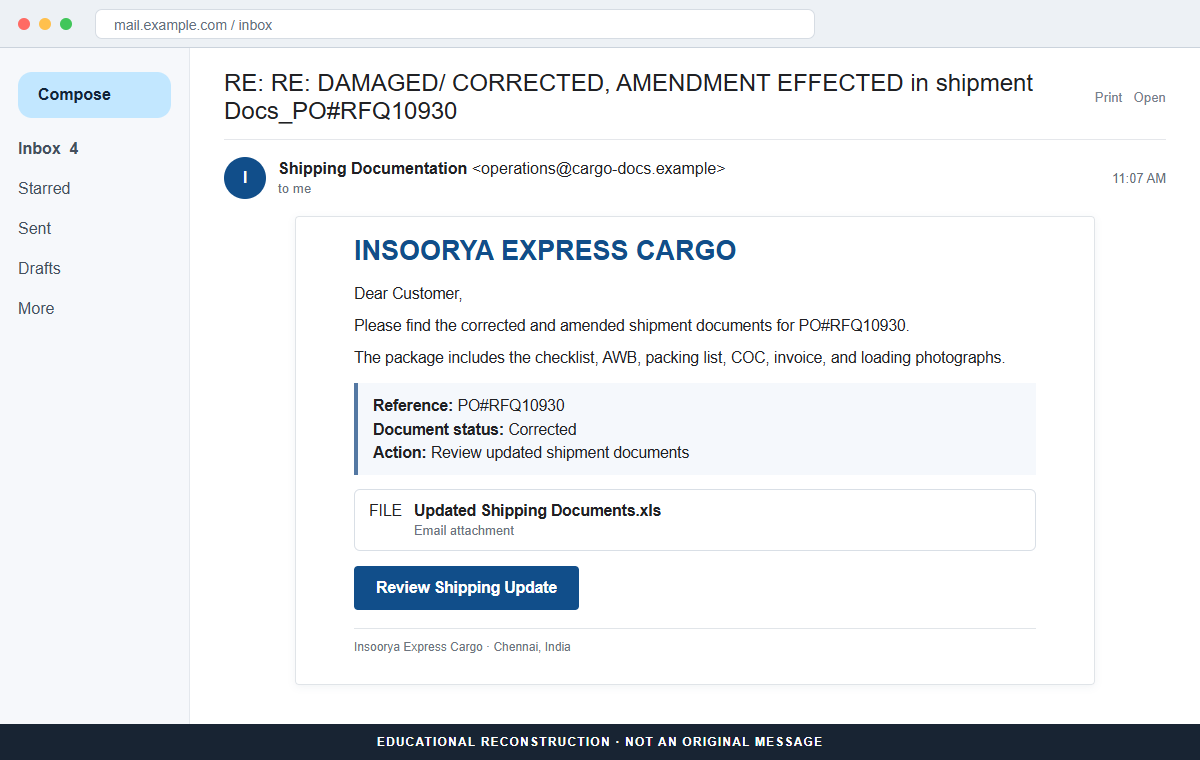
The Insoorya Express Cargo email scam uses that believable logistics update to deliver malware. Its Updated Shipping Documents.xls file is not a harmless bundle of cargo records. It contains hidden macro code designed to run after the user enables editing.
The message impersonates Insoorya Express Cargo, a legitimate logistics business in Chennai, India. The real company has no connection with the malicious email, even when the signature repeats accurate-looking names, addresses, or contact information.
The exact malware installed after the spreadsheet runs was not identified. That means the safest response is to treat the computer as potentially compromised rather than assuming the file delivered one particular threat family.
Overview
The subject looks like an ongoing shipment correction
The subject reads RE: RE: DAMAGED/ CORRECTED, AMENDMENT EFFECTED in shipment Docs_PO#RFQ10930. Repeated reply markers make the email look like part of an existing conversation rather than a first contact.
The body refers to corrected shipping documents and lists a checklist, AWB, packing list, certificate of conformity, invoice, and loading photos. Those items are familiar to people handling international cargo.
A legacy Excel workbook carries the dangerous content
The attachment is named Updated Shipping Documents.xls. The .xls extension belongs to an older Excel format that can contain Visual Basic for Applications macros and other active content.
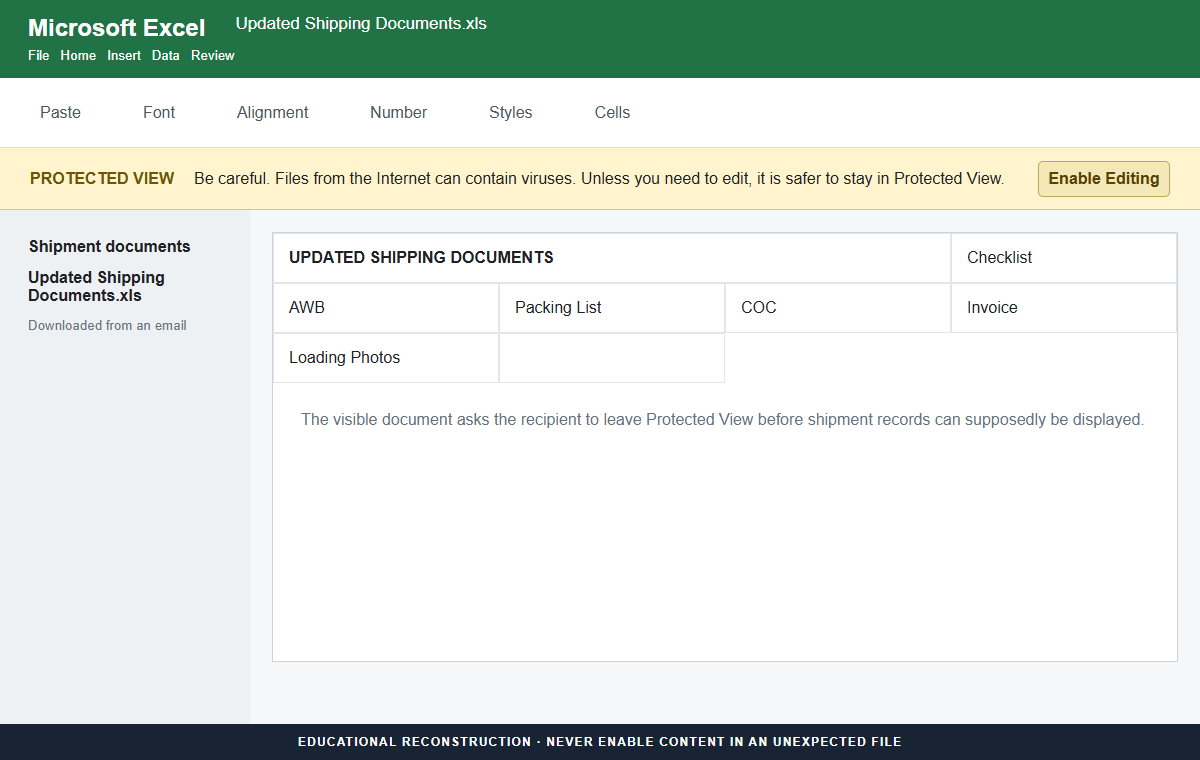
When the file opens, Microsoft Office places it in Protected View. The visible sheet may appear incomplete or inaccessible, creating pressure to click Enable Editing in order to see the promised records.
Enabling editing allows the hidden macro to run
Protected View limits what an untrusted internet or email file can do. Leaving that mode can expose the workbook's active content and allow malicious macro instructions to execute on the Windows computer.
The macro can retrieve or launch another program. Because the final payload was not confirmed, possible results include information theft, remote access, ransomware, or another infection, but none should be presented as the single verified outcome.
- The subject pretends to continue a discussion about damaged and corrected documents.
- A purchase-order reference, PO#RFQ10930, gives the email specificity.
- The message lists common cargo documents and loading photographs.
- It copies the identity of a real logistics company without authorization.
- The attachment is Updated Shipping Documents.xls.
- Excel opens the workbook in Protected View because it came from an untrusted source.
- The recipient is encouraged to enable editing to reveal the document.
- Hidden macros can then start an unknown malware-delivery chain.
Why Shipping Documents Are Valuable Cover for Malicious Spreadsheets
Logistics work produces a constant stream of checklists, invoices, packing lists, air waybills, customs forms, certificates, and delivery photographs. A spreadsheet containing several of those records does not seem unusual in a busy inbox.
Shipping schedules are also time-sensitive. A delayed amendment can hold cargo at a warehouse, disrupt production, or create storage fees. Attackers borrow that operational pressure so the recipient feels there is little time to verify the sender.
The repeated RE: RE: prefix is a social cue. It suggests coworkers or suppliers have already discussed the issue, which can make the latest recipient reluctant to slow the process by asking basic identity questions.
Copied company details strengthen that illusion. Addresses, telephone numbers, registration information, and employee names can be collected from websites or stolen correspondence. Accurate public information does not authenticate the email that repeats it.
The broken-document effect completes the lure. When the spreadsheet appears blank or incomplete, the victim may treat Excel's warning as the reason the cargo details are hidden instead of recognizing Protected View as the barrier keeping active code contained.
What Protected View and Macro Guidance Mean in This Case
Microsoft explains that Protected View opens files from potentially unsafe locations in a restricted, read-only mode. Email attachments and internet downloads are common reasons for Office to place a document behind that warning.
The yellow security bar is therefore not a routine obstacle to dismiss. It is a signal that the file has not earned the same trust as a document created locally or delivered through an approved company system.
Microsoft also warns that macros can carry viruses and should not be enabled unless the user knows what they do and trusts the source. A shipment email from an unverified sender does not meet that standard.
A real .xls workbook can contain legitimate macros, but legitimate use does not make an unexpected macro safe. The sender, business context, file hash, digital signature, and approved transfer method must be verified before active content is allowed.
The campaign's final downloaded malware was not identified. Security teams should preserve the attachment for controlled analysis and focus first on isolation, scanning, credentials, persistence, and network evidence rather than guessing from the lure alone.
How the Insoorya Express Cargo Email Scam Works
Step 1: The attacker sends a fake shipment-document update
The email claims to come from Insoorya Express Cargo or a related operations contact. It may copy logos, signatures, and Chennai contact information to resemble ordinary freight correspondence.
The sender address is the first useful check. A recognizable display name and realistic signature can be placed on a message sent from an unrelated or recently created domain.
Step 2: Reply markers and PO#RFQ10930 imply prior context
The subject begins RE: RE: and refers to damaged, corrected, and amended documents. Those terms make the recipient feel they have entered the middle of an active issue that others already understand.
The purchase-order reference may be invented, copied from public information, or taken from compromised correspondence. It must match internal records before it is treated as proof.
Step 3: A detailed document list lowers suspicion
The body mentions a checklist, AWB, packing list, COC, invoice, and loading photos. The variety explains why the attacker chose a workbook rather than placing the information directly in the email.
The list also gives several departments a reason to open the file. Logistics, purchasing, finance, warehouse, and compliance employees may all believe one of the promised records is relevant to them.
Step 4: The recipient opens Updated Shipping Documents.xls
The legacy Excel extension appears compatible with business workflows, but it can store active macro code. A document icon does not mean the file is passive or limited to cells and formulas.
Office recognizes that the attachment came from an untrusted location and opens it in Protected View. At this point, the malicious content has not necessarily executed.
Step 5: The workbook persuades the user to enable editing
The visible sheet may be empty, obscured, or accompanied by instructions that say content cannot be displayed until editing is enabled. The presentation turns a safety control into a supposed viewing requirement.
A legitimate sender can provide a PDF, share the data through an approved portal, or explain why a macro is required. An unexpected shipping document should not depend on overriding a security warning.
Step 6: Hidden macros launch the next stage
After the user enables editing or active content, macro code can execute commands, contact an outside server, and download or launch another file. The spreadsheet may close or display harmless content to reduce suspicion.
The absence of visible damage does not mean the action failed. Credential stealers and remote-access tools are designed to work quietly, while ransomware may wait until the attacker has explored the network.
Step 7: The attacker uses the compromised system
A successful payload may expose passwords, browser sessions, shipment records, invoices, customer details, and access to internal systems. Those records can support further phishing or payment-diversion attempts.
If the device belongs to a business, attackers may seek shared folders, remote-management tools, domain credentials, or other endpoints. Rapid isolation helps limit that expansion even before the exact malware is known.
Company and Checkout Checks
Match the purchase order and shipment
Search the approved purchasing, freight, warehouse, and accounting systems for PO#RFQ10930. Confirm the carrier, sender, route, air waybill, invoice, consignee, and expected document update.
If no matching shipment exists, do not open the attachment to discover one. A file supplied by the suspicious message cannot independently prove the business event described by that same message.
Contact the logistics partner through a known channel
Use a telephone number or email address already stored in the vendor record or contract. Ask whether corrected documents were sent and request a clean copy through the established exchange process.
Do not rely on the signature inside the message. A copied address or switchboard number may be accurate while the sender address and attachment remain fraudulent.
Treat Protected View as a stop sign
Do not click Enable Editing, Enable Content, or a similar macro control in an unexpected file. Close Excel and send the message to the security team for analysis in an isolated environment.
If the business genuinely uses macro-enabled documents, require a documented source, a digital signature where practical, and an approved workflow. Familiar file types still need verification.
Use safer document formats and transfer paths
Ask for the visible shipping information as a PDF or through the known carrier portal. A supplier should be able to provide readable records without requiring the recipient to run active code.
Organizations can also block internet macros, quarantine legacy Office formats, and route suspicious attachments through a sandbox. Those controls reduce reliance on one employee noticing every lure.
Warning Signs to Check Before You Act
- An unexpected email claims damaged shipment documents were corrected.
- RE: RE: implies a conversation the recipient cannot verify.
- PO#RFQ10930 does not match an approved purchase order or shipment.
- The sender address is unrelated to the logistics company being impersonated.
- The message relies on copied contact details as proof of identity.
- The attachment uses the legacy .xls format.
- Excel opens the file in Protected View.
- The sheet appears blank or unreadable until editing is enabled.
- The document asks the user to enable editing or active content.
- A shipping record unexpectedly requires executable macro code.
- No known contact confirms sending the corrected documents.
- The email creates urgency around a damaged shipment or amendment.
The campaign succeeds only if the recipient treats Protected View as a display problem. In reality, the warning separates an untrusted email attachment from the ability to run active code. Keep that boundary in place until the sender and shipment are verified independently.
What to Do if You Have Fallen Victim to This Scam
- Disconnect the affected computer from the network. If you opened or ran the file connected to the Insoorya Express Cargo email, turn off Wi-Fi or unplug Ethernet. Isolation can interrupt command traffic, additional downloads, lateral movement, and the transfer of stolen data while you assess the system.
- Do not keep reopening the document or installer. Preserve the original email, full headers, link, and file name for your security team, but do not test the Updated Shipping Documents.xls attachment again on a normal computer. Uploading it to random websites can expose confidential business material.
- Run a complete malware scan. Update Malwarebytes or another reputable security product, then perform a full scan rather than a quick scan. Quarantine confirmed threats, restart if requested, scan once more, and record every detection before deleting the evidence.
- Check for persistence and unfamiliar software. Review startup entries, scheduled tasks, browser extensions, recently installed applications, remote-access tools, new user accounts, and security exclusions. An empty antivirus result does not prove the system is clean if malicious code already changed its configuration.
- Change important passwords from a clean device. Start with email, company identity, banking, payment services, cloud storage, and password managers. Use new unique passwords and never make those changes on the possibly infected computer until it has been cleaned or rebuilt.
- Revoke active sessions and strengthen sign-in security. Sign out other sessions, remove unknown devices and app passwords, rotate exposed API keys, and enable a passkey, security key, or authenticator app. A password reset alone may leave stolen session tokens active.
- Notify the organization responsible for the device. A workplace security team may need to isolate other computers, reset credentials, review mail logs, inspect network activity, and preserve forensic evidence. Early reporting is far safer than quietly waiting for visible symptoms.
- Watch financial and business accounts. Review invoices, vendor-bank changes, wire requests, card activity, payroll settings, and mailbox rules. Malware delivered through business email can support payment diversion even when the original lure was framed as an ordinary document.
- Restore only from a known-clean backup. If files were damaged or encrypted, do not overwrite the last good backup. Confirm the threat is removed, rebuild the device when necessary, and restore data from a version created before the suspicious email was opened.
- Add preventive filtering without relying on it alone. AdGuard or another reputable DNS and content blocker can stop some known malicious pages and advertising redirects. New campaign domains may not be listed immediately, so domain checks and cautious file handling still matter.
- Report the campaign and reject recovery scams. Use the mail provider's phishing-report feature and notify the impersonated company through its official channel. Ignore strangers who promise to clean the computer, recover funds, or decrypt files for an advance payment.
Is Your Device Infected? Run a Free Malware Scan
Slow performance, constant pop-ups, or strange behavior? These are classic signs of a malware infection. The fastest way to find out is to scan your device with Malwarebytes Free — one of the most trusted malware removal tools available.
The free version detects and removes the most common threats, including:
- Adware — the cause of those annoying pop-ups
- Browser hijackers — unwanted redirects and changed homepages
- Trojans and spyware — hidden programs stealing your data
- Potentially unwanted programs (PUPs) — software you never asked for
👉 Select your device below — Windows, Mac, or Android — then follow the simple steps to download Malwarebytes, scan your system, and remove any threats it finds. The scan usually takes 5 to 20 minutes.
Run a Malware Scan with Malwarebytes for Windows
Malwarebytes is one of the most popular and trusted anti-malware tools for Windows — and it’s completely free for removing infections. It catches threats that many antivirus programs miss, including adware, browser hijackers, and trojans. Follow the steps below to scan and clean your PC in just a few minutes.
Download Malwarebytes
Click the button below to download the latest version of Malwarebytes for Windows from the official source. The free version is all you need — it will scan your computer and remove adware, browser hijackers, and other malicious software at no cost.
Download MalwarebytesOfficial installer for Windows 11 and 10. Your download starts right away.Want real-time protection? See Malwarebytes Premium Malwarebytes Free for WindowsScans and removes malware at no cost
-
Install Malwarebytes
When the download finishes, open your Downloads folder and double-click the MBSetup file. If Windows shows a User Account Control pop-up, click “Yes” to allow the installation.

Follow the On-Screen Prompts to Install Malwarebytes
The setup wizard will walk you through a few quick screens:
-
Choose where you’re installing the program — “Personal Computer” or “Work Computer” — then click Next.

-
Malwarebytes will now install on your device. This usually takes under a minute.

-
When installation is complete, the “Welcome to Malwarebytes” screen will open automatically.

-
On the final screen, click Open Malwarebytes to launch the program.

-
Enable “Scan for Rootkits”
Before scanning, turn on rootkit detection so Malwarebytes can find even the most hidden threats. Click the Settings gear icon on the left side of the screen.

In the settings menu, find “Scan for rootkits” and click the toggle so it turns blue.

Done? Click “Dashboard” in the left pane to return to the main screen.
Start the Scan
Click the blue Scan button. Malwarebytes will automatically update its virus database and start checking your computer for malware.

-
Wait for the Scan to Finish
The scan checks your entire system for browser hijackers and other malicious programs, so it can take 5 to 20 minutes depending on your computer. Feel free to do something else — just check back occasionally to see the progress.

-
Quarantine the Detected Threats
When the scan is done, you’ll see a list of everything Malwarebytes found — malware, adware, and potentially unwanted programs. Click the “Quarantine” button to remove all of them at once.

Malwarebytes will now remove the malicious files and registry entries and move them safely into quarantine.

-
Restart Your Computer
Some threats can only be fully removed after a reboot. If Malwarebytes asks you to restart, click Yes. Once you’re logged back in, Malwarebytes has finished removing the threats it found.

That’s it — your Windows PC is now clean of trojans, adware, and other malware, and should be back to running smoothly.
If you are still having problems with your computer after completing these instructions, then please follow one of the steps:
- Run a computer scan with ESET Online Scanner
- Ask for help in our Windows Malware Removal Help & Support forum.
Run a Malware Scan with Malwarebytes for Mac
Malwarebytes for Mac is a free on-demand scanner that removes the malware other security software tends to miss — adware, browser hijackers, and unwanted programs included. Cleaning an infected Mac with Malwarebytes has always been completely free, and it’s our go-to recommendation. Follow the steps below to scan and clean your Mac in just a few minutes.
-
Download Malwarebytes for Mac
Click the button below to download the latest version of Malwarebytes for Mac.
Download MalwarebytesOfficial installer for macOS. Your download starts right away.Want real-time protection? See Malwarebytes PremiumMalwarebytes Free for MacScans and removes malware at no cost -
Open the Malwarebytes setup file
When the download finishes, open your Downloads folder and double-click the setup file to begin the installation.

-
Follow the On-Screen Prompts to Install Malwarebytes
The Malwarebytes for Mac Installer will guide you through a few quick screens. Click “Continue” and keep following the prompts until the installation completes.



When the installation is complete, Malwarebytes opens to the Welcome to Malwarebytes screen. Click “Get started“.
-
Select “Personal Computer” or “Work Computer”
Malwarebytes will ask what type of computer you’re installing it on. Click either Personal Computer or Work Computer, whichever applies.

-
Start the Scan
Click the “Scan” button. Malwarebytes will automatically update its detection database and begin checking your Mac for malware.

-
Wait for the Scan to Finish
Malwarebytes will scan your Mac for adware, browser hijackers, and other malicious programs. This can take a few minutes, so feel free to do something else — just check back occasionally to see the progress.

-
Quarantine the Detected Threats
When the scan is done, you’ll see a list of everything Malwarebytes found. Click the “Quarantine” button to remove all the threats at once.

-
Restart Your Mac
Malwarebytes will now remove all the malicious files it found. Some threats can only be fully removed after a reboot — if Malwarebytes asks you to restart, allow it. Once you’re logged back in, your Mac is clean.

That’s it — your Mac is now free of adware, rogue browser extensions, and other potentially harmful software.
If you are still experiencing problems while trying to remove a malicious program from your computer, please ask for help in our Mac Malware Removal Help & Support forum.
Run a Malware Scan with Malwarebytes for Android
Malwarebytes for Android automatically detects and removes dangerous threats like malware and ransomware so you don’t have to worry about your most-used device being compromised. Aggressive detection of adware and potentially unwanted programs keeps your Android phone or tablet running smooth.
-
Download Malwarebytes for Android.
You can download Malwarebytes for Android by clicking the link below.
Get Malwarebytes for AndroidOpens Google Play in a new tab.Want real-time protection? See Malwarebytes Premium for AndroidMalwarebytes for AndroidScans your phone and removes malware at no cost -
Install Malwarebytes for Android on your phone.
In the Google Play Store, tap “Install” to install Malwarebytes for Android on your device.

When the installation process has finished, tap “Open” to begin using Malwarebytes for Android. You can also open Malwarebytes by tapping on its icon in your phone menu or home screen.

-
Follow the on-screen prompts to complete the setup process
When Malwarebytes will open, you will see the Malwarebytes Setup Wizard which will guide you through a series of permissions and other setup options.
This is the first of two screens that explain the difference between the Premium and Free versions. Swipe this screen to continue.
Tap on “Got it” to proceed to the next step.
Malwarebytes for Android will now ask for a set of permissions that are required to scan your device and protect it from malware. Tap on “Give permission” to continue.
Tap on “Allow” to permit Malwarebytes to access the files on your phone.
-
Update database and run a scan with Malwarebytes for Android
You will now be prompted to update the Malwarebytes database and run a full system scan.

Click on “Update database” to update the Malwarebytes for Android definitions to the latest version, then click on “Run full scan” to perform a system scan.

-
Wait for the Malwarebytes scan to complete.
Malwarebytes will now start scanning your phone for adware and other malicious apps. This process can take a few minutes, so we suggest you do something else and periodically check on the status of the scan to see when it is finished.

-
Click on “Remove Selected”.
When the scan has been completed, you will be presented with a screen showing the malware infections that Malwarebytes for Android has detected. To remove the malicious apps that Malwarebytes has found, tap on the “Remove Selected” button.

-
Restart your phone.
Malwarebytes for Android will now remove all the malicious apps that it has found. To complete the malware removal process, Malwarebytes may ask you to restart your device.
That’s it — your Android phone is now clean — no more malicious apps, adware, or browser redirects.
If you are still having problems with your phone after completing these instructions, then please follow one of the steps:
- Restore your phone to factory settings by going to Settings > General management > Reset > Factory data reset.
- Ask for help in our Mobile Malware Removal Help & Support forum.
Stay Protected: Block Ads and Malicious Sites
Now that your device is clean, keep it that way. Most infections start with a malicious ad or a fake download button — so blocking them at the source is your best defense.
We recommend AdGuard, which blocks malicious ads, phishing pages, and dangerous redirects before they can reach you.
👉 Download AdGuard and browse safely
Frequently Asked Questions
Is the Insoorya Express Cargo email genuine?
No. The documented campaign impersonates the real logistics company and distributes a malicious Excel workbook. Insoorya Express Cargo has no connection with the email.
What is Updated Shipping Documents.xls?
It is the attachment used by this campaign. The workbook contains malicious macros that can run after the user leaves Protected View and enables editing.
Is clicking Enable Editing enough to infect the computer?
It can allow hidden active content to execute, depending on Office settings and the file. If you enabled it, isolate the device and begin an incident response even if no symptom appeared.
Which malware does the spreadsheet install?
The exact final payload was not confirmed. It may change between deliveries, so do not assume one named family or wait for one specific symptom before responding.
What if I opened the workbook but kept Protected View enabled?
Close it without enabling editing or content and report the email. Infection is less likely if active content never ran, but a security team should still review the file and endpoint logs.
Can a real shipping company send Excel documents?
Yes, but that does not make every workbook safe. Match the shipment, verify the sender through a known channel, and do not enable macros merely to read ordinary cargo data.
The Bottom Line
The Insoorya Express Cargo email scam wraps malicious macro code in a believable shipment correction. Its reply markers, purchase-order reference, document list, and copied company identity are designed to make an untrusted workbook feel routine.
Protected View is the turning point. Do not leave it simply because the sheet appears empty. Verify the shipment and sender through existing records, then request a safe copy through an approved channel.
If the workbook's active content was enabled, isolate the device and respond promptly. The exact payload may be unknown, but the need to scan, preserve evidence, protect credentials, and check the wider business environment is clear.

Join the discussion
0 commentsShare your experience or ask a question about this article.
Discussion
Start the conversation
Have a question or something useful to share? Add the first comment.