

Live Security Platinum is a malicious program also known as rogue security software, which will display fake security alerts in an attempt to scare you into buying this fake security product.
In addition, Live Security Platinum has also hijacked your PC,blocking your from running files,so now when your trying to open and executable file (file ending with .exe), this program will instead display this fake alerts:
Warning!

Application cannot be executed. The file rdpclip.exe is infected. Please active your antivirus software.
Security Monitor: WARNING!

Attention! System detected a potential hazard (TrojanSPM/LX) on your computer that may infect executable files. Your private information and PC safety is at risk.

To get rid of unwanted spyware and keep your computer safe you need to update your current security software.

Click Yes to download official intrusion detection system (IDS software).
Live Security Platinum Warning Spyware.IEMonster activity detected. This is spyware that attempts to steal passwords from Internet Explorer, Mozilla FireFox, Outlook and other programs. Click here to remove it immediately with Live Security Platinum
Live Security Platinum Firewall Alert Live Security Platinum Firewall has blocked a program from accessing the Internet. Internet Explorer Internet Browser is infected with SVCHOST.Stealth.Key-logger. This worm is trying to send your credit card details using Internet Explorer Internet Browser to connect to remove host
Live Security Platinum will also cause malicious browser redirects and system slowdowns so it needs to be removed from your computer as soon as possible.
This is are a few images of Live Security Platinum:
![[Image: Live Security Platinum virus]](http://malwaretips.com/blogs/wp-content/uploads/2012/06/Live-Security-Platinum.png "Live Security Platinum")
![[Image: Live Security Platinum Alert]](http://malwaretips.com/blogs/wp-content/uploads/2012/06/Live-Security-Platinum-alert1.png "Live Security Platinum fake alert")
![[Image: Live Security Platinum Warning]](http://malwaretips.com/blogs/wp-content/uploads/2012/06/Live-Security-Platinum-warning1.png "Live Security Platinum fake warning")
Registration codes for Live Security Platinum
As an optional step,you can use the following license key to register Live Security Platinum and stop the fake alerts.
AA39754E-715219CE
Please keep in mind that entering the above registration code will NOT remove Live Security Platinum from your computer , instead it will just stop the fake alerts so that you’ll be able to complete our removal guide more easily.
Live Security Platinum Removal Guide
STEP 1 : Start your computer in Safe Mode with Networking
- Remove all floppy disks, CDs, and DVDs from your computer, and then restart your computer.
- Press and hold the F8 key as your computer restarts.Please keep in mind that you need to press the F8 key before the Windows start-up logo appears.
Note: With some computers, if you press and hold a key as the computer is booting you will get a stuck key message. If this occurs, instead of pressing and holding the “F8 key”, tap the “F8 key” continuously until you get the Advanced Boot Options screen. - On the Advanced Boot Options screen, use the arrow keys to highlight Safe Mode with Networking , and then press ENTER.
![[Image: Safemode.jpg]](data:image/gif;base64,R0lGODlhAQABAAAAACH5BAEKAAEALAAAAAABAAEAAAICTAEAOw== "Safe Mode with Networking screen")
![[Image: Safemode.jpg]](http://malwaretips.com/images/removalguide/safemode.jpg "Safe Mode with Networking screen")
STEP 2: Remove Live Security Platinum malicious proxy server
Live Security Platinum may add a proxy server which prevents the user from accessing the internet,follow the below instructions to remove the proxy.
- Start the Internet Explorer browser and if you are using Internet Explorer 9 ,click on the gear icon (Tools for Internet Explorer 8 users) ,then select Internet Options.
- Go to the tab Connections.At the bottom, click on LAN settings.
- Uncheck the option Use a proxy server for your LAN. This should remove the malicious proxy server and allow you to use the internet again.
![[Image: IE gear icon]](http://malwaretips.com/images/removalguide/icongear.jpg "Gear Icon") (Tools for Internet Explorer 8 users) ,then select Internet Options.
(Tools for Internet Explorer 8 users) ,then select Internet Options.![[Image: Internet-options-IE.png]](http://malwaretips.com/images/removalguide/ie1.png "Internet Options in IE")
![[Image: Remove-proxy-server2.png]](http://malwaretips.com/images/removalguide/ie2.png "Connections tab in Internet Explorer")
![[Image: Remove-proxy-server3.png]](http://malwaretips.com/images/removalguide/ie3.png "Uncheck the option Use a proxy server for your LAN")
If you are a Firefox users, go to Firefox(upper left corner) → Options → Advanced tab → Network → Settings → Select No Proxy
STEP 3: Repair your Windows Registry from Live Security Platinum malicious changes.
Smart Fortress 2012 has changed your Windows registry settings so that when you try to run a executable file (ending with .exe ) , it will instead launch the infection rather than the desired program.
- Download the registryfix.reg file to fix the malicious registry changes from Live Security Platinum.
REGISTRYFIX.REG DOWNLOAD LINK (This link will automatically download the registry fix called registryfix.reg) - Double-click on registryfix.reg file to run it. Click “Yes” for Registry Editor prompt window,then click OK.
![[Image: fix registry]](http://malwaretips.com/blogs/wp-content/uploads/2011/12/registry.png "Remove Live Security Platinum (Uninstall Guide) 1")
STEP 4: Run RKill to terminate known malware processes associated with Live Security Platinum.
RKill is a program that will attempt to terminate all malicious processes associated with Live Security Platinum,so that we will be able to perform the next step without being interrupted by this malicious software.
Because this utility will only stop Live Security Platinum running process, and does not delete any files, after running it you should not reboot your computer as any malware processes that are configured to start automatically will just be started again.
- While your computer is in Safe Mode with Networking ,please download the latest official version of RKill.Please note that we will use a renamed version of RKILL so that Live Security Platinum won’t block this utility from running.
RKILL DOWNLOAD LINK (This link will automatically download RKILL renamed as iExplore.exe) - Double-click on the iExplore.exe icon in order to automatically attempt to stop any processes associated with Live Security Platinum.
- RKill will now start working in the background, please be patient while the program looks for various malware programs and tries to terminate them.
IF you are having problems starting or running RKill, you can download any other renamed versions of RKill from here. - When Rkill has completed its task, it will generate a log. You can then proceed with the rest of the guide.
![[Image: run-rkill-1.png]](http://malwaretips.com/images/removalguide/rkill1.png "RKILL ICON")
![[Image: run-rkill-2.png]](http://malwaretips.com/images/removalguide/rkill2.png "RKILL Command prompt")
![[Image: Live Security Platinum rkill3.jpg]](http://malwaretips.com/images/removalguide/rkill3.png "RKILL LOG")
WARNING: Do not reboot your computer after running RKill as the malware process will start again , preventing you from properly performing the next step.
STEP 5: Remove Live Security Platinum malicious files with Malwarebytes Anti-Malware FREE
- Download the latest official version of Malwarebytes Anti-Malware FREE.
MALWAREBYTES ANTI-MALWARE DOWNLOAD LINK (This link will open a download page in a new window from where you can download Malwarebytes Anti-Malware Free) - Start the Malwarebytes’ Anti-Malware installation process by double clicking on mbam-setup file.
- When the installation begins, keep following the prompts in order to continue with the setup process. Do not make any changes to default settings and when the program has finished installing, make sure you leave both the Update Malwarebytes’ Anti-Malware and Launch Malwarebytes’ Anti-Malware checked. Then click on the Finish button. If Malwarebytes’ prompts you to reboot, please do not do so.
- Malwarebytes Anti-Malware will now start and you’ll be prompted to start a trial period , please select ‘Decline‘ as we just want to use the on-demand scanner.
- On the Scanner tab,select Perform full scan and then click on the Scanbutton to start scanning your computer.
- Malwarebytes’ Anti-Malware will now start scanning your computer for Live Security Platinum malicious files as shown below.
- When the scan is finished a message box will appear, click OK to continue.
- You will now be presented with a screen showing you the malware infections that Malwarebytes’ Anti-Malware has detected.Please note that the infections found may be different than what is shown in the image.Make sure that everything is Checked (ticked) and click on the Remove Selectedbutton.
- Malwarebytes’ Anti-Malware will now start removing the malicious files.After completing this task it will display a message stating that it needs to reboot,please allow this request and then let your PC boot in Normal mode.
![[Image: Malwarebytes Installer]](http://malwaretips.com/images/removalguide/malwarebytes-setup.png "Malwarebytes Anti-Malware Installer")
![[Image: Finishing Malwarebytes installation]](http://malwaretips.com/images/removalguide/update-malwarebytes.png "Malwarebytes last setup screen")
![[Image: Decline Malwarebytes trial]](http://malwaretips.com/images/removalguide/mbam3.PNG "Decline trial period in Malwarebytes Anti-Malware")
![[Image: Starting a full system sca]](http://malwaretips.com/images/removalguide/start-scan-malwarebytes.png "Perform a Full System Scan with Malwarebytes Anti-Malware")
![[Image: Malwarebytes scanning for malicious files]](http://malwaretips.com/images/removalguide/scan-malwarebytes.png "Malwarebytes Anti-Malware scanning for Live Security Platinum")
![[Image: Malwarebytes scan results]](http://malwaretips.com/images/removalguide/results-malwarebytes.png "Malwarebytes when the system scan has finished")
![[Image: Infections found by Malwarebytes]](http://malwaretips.com/images/removalguide/detection-malwarebytes.png "Removing the infections found by Malwarebytes")
STEP 6: Double check your system for any left over infections with HitmanPro
- This step can be performed in Normal Mode ,so please download the latest official version of HitmanPro.
HITMANPRO DOWNLOAD LINK(This link will open a download page in a new window from where you can download HitmanPro) - Double click on the previously downloaded fileto start the HitmanPro installation.
IF you are experiencing problems while trying to starting HitmanPro, you can use the “Force Breach” mode.To start this program in Force Breach mode, hold down the left CTRL-key when you start HitmanPro and all non-essential processes are terminated, including the malware process. (How to start HitmanPro in Force Breach mode – Video) - Click on Next to install HitmanPro on your system.
- The setup screen is displayed, from which you can decide whether you wish to install HitmanPro on your machine or just perform a one-time scan, select a option then click on Next to start a system scan.
- HitmanPro will start scanning your system for malicious files. Depending on the size of your hard drive, and the performance of your computer, this step will take several minutes.
- Once the scan is complete,a screen displaying all the malicious files that the program found will be shown as seen in the image below.After reviewing each malicious object click Next.
- Click Activate free license to start the free 30 days trial and remove the malicious files.
- HitmanPro will now start removing the infected objects, and in some instances, may suggest a reboot in order to completely remove the malware from your system. In this scenario, always confirm the reboot action to be on the safe side.
![[Image: hitmanpro-icon.png]](http://malwaretips.com/images/removalguide/hpro1.png "HitmanPro Installer")
![[Image: installing-hitmanpro.png]](http://malwaretips.com/images/removalguide/hpro2.png "HitmanPro installation process")
![[Image: hitmanpro-setup-options.png]](http://malwaretips.com/images/removalguide/hpro3.png "HitmanPro setup options")
![[Image: hitmanpro-scanning.png]](http://malwaretips.com/images/removalguide/hpro4.png "HitmanPro scanning for Live Security Platinum")
![[Image: hitmanpro-scan-results.png]](http://malwaretips.com/images/removalguide/hpro5.png "HitmanPro Live Security Platinum scan results")
![[Image: hitmanpro-activation.png]](http://malwaretips.com/images/removalguide/hpro6.png "Activate HitmanPro free license to remove detected infections")
STEP 7: Remove any left over malicious registry keys and files
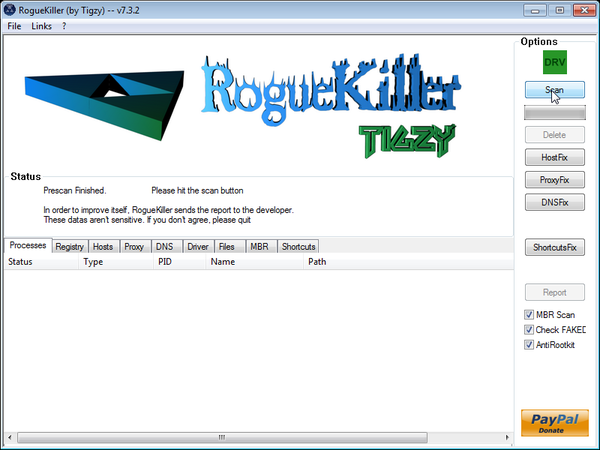
Live Security Platinum has sadded some malicious registry keys to your Windows installation , to remove this malicious changes we need to run a scan with RogueKiller
- Please download the latest official version of RogueKiller.
ROGUEKILLER DOWNLOAD LINK (This link will automatically download RogueKiller on your computer) - Double click on RogueKiller.exe to start this utility and then wait for the Prescan to complete.This should take only a few seconds and then you can click the Start button to perform a system scan.
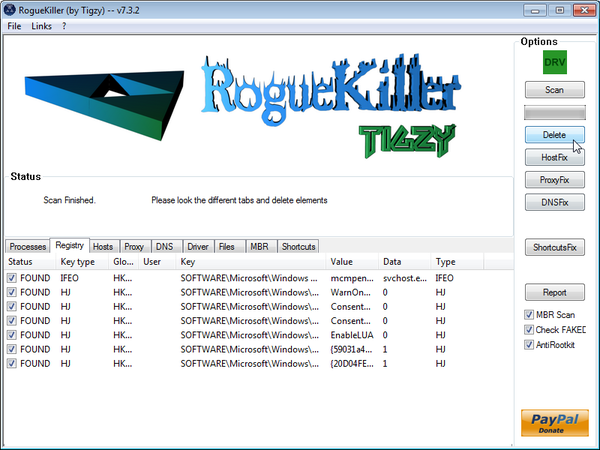
- After the scan has completed, press the Delete button to remove any malicious registry keys.
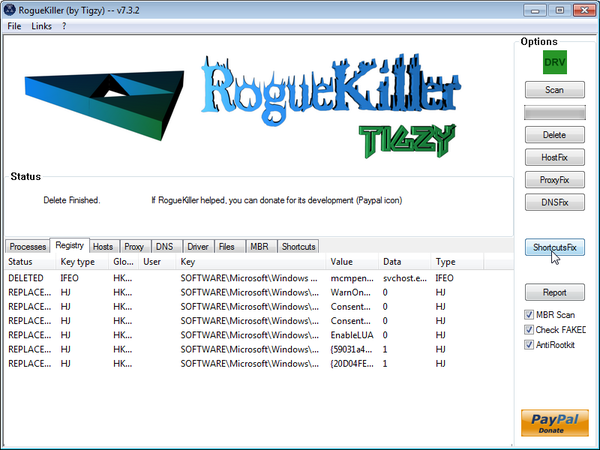
- Next we will need to restore your shortcuts, so click on the ShortcutsFix button and allow the program to run.









Thanks so much for these easy to follow instructions. I was so upset when I realized I had this virus and can’t tell you how relieved I am that I was able to remove myself. I so appreciate you putting this information out there for us.
Stelian,
All these processes worked tremendously. You are a gentleman and a computer scholar. Thanks for the help, and thanks for delivering it in a way that a “know-nothing” like me could understand.
You da man. :)
Thank you for sharing your knowledge and expertise.
People like you make up for the scumbags that create these viruses.
These instructions worked perfectly for me.
Thanks a million.
G
Even when in Firefox I turned on no proxy the Internet is super slow and doesn’t work, please I beg you help
Hello,
Ok,try to do this…
STEP 1 : While in NORMAL MODE,download HitmanPro and then start this program in ForceBreach Mode
1.Here are the direct download links for HitmanPro,
– http://dl.surfright.nl/HitmanPro36.exe (For 32bit)
– http://dl.surfright.nl/HitmanPro36_x64.exe (For 64bit)
2.Hold down the left CTRL-key when you start HitmanPro and all non-essential processes are terminated, including this rogue malicious process
Here is a video that explains with graphic details how to do this : http://www.youtube.com/watch?v=m6eRWTv2STk
3. If it start ,let it scan and remove all the detected threats.
STEP 2: Download/Run Rkill and then run a scan with Malwarebytes.
1.Download a different named Rkill (direct download links bellow):
http://download.bleepingcomputer.com/grinler/WiNlOgOn.exe
http://download.bleepingcomputer.com/grinler/uSeRiNiT.exe
http://download.bleepingcomputer.com/grinler/rkill.scr
2.And then follow the guide starting with the Malwarebytes scan.
STEP3 : Perform a system scan with Emsisoft Anti-Malware:
Make sure that everything is Checked (ticked) and click on the ‘Quarantine selected objects’ button.
If during the removal process Emsisoft will display a message stating that it needs to reboot, please allow this request.
If you are still experiencing problems , start a thread in our Malware Removal Support forum : http://malwaretips.com/Forum-Malware-Removal-Assistance
Oops, I forgot to include steps for removing the file pointed to by the shortcut. Here are the complete steps:
1. Click on the Windows icon at the lower left corner of the desktop to bring up the Start Menu.
2. Locate Live Security Platinum entry. In my case, it was a folder. In your case, it may be a file. Or it may not be there, in which case you may not have the executable on your computer.
3. Whether it is a file or folder, right-click on it. Do NOT left-click it!
4. In the pop-up menu, select Properties.
5. Go to the location shown in the Target box by using Windows Explorer. Let’s call this location A. Be very careful to not execute (e.g. left-click or doubleclick) any file at that location.
a. If it is a folder, open it.
b. Right-click on the file.
c. Select Properties in the popup menu. Go to the location shown in the Target box. Don’t left-click or doubleclick on any file found at that location.
e. At the location, you may see many files. Delete only the one pointed to by the Target box.
6. Go back to the location A (found via the first Target box in Step 5 above) and delete everything that you see there. In my case, it was just one folder, so it was very simple for me to remove it. This will cause Live Security Platinum entry to be removed from the Windows Start menu.
7. Go to the Recycle Bin and delete permanently.
Thanks for the help in removing the infection. However, there was one more thing that was not removed by Malwarebytes and Hitman Pro. After you run both programs, you should check to see if Live Security Platinum is in the Windows Start menu. In my case, it was still there, with the shortcut pointing to a file identified by Windows as an executable. I, of course, was very careful to not cause that file to execute. To check for that file and to remove it, I did the following:
1. Click on the Windows icon at the lower left corner of the desktop to bring up the Start Menu.
2. Locate Live Security Platinum entry. In my case, it was a folder. In your case, it may be a file. Or it may not be there, in which case you may not have the executable on your computer.
3. Whether it is a file or folder, right-click on it. Do NOT left-click it!
4. In the pop-up menu, select Properties.
5. Go to the location shown in the Target box by using Windows Explorer. Be very careful not to doubleclick on anything at that location.
6. Delete everything located at the Target location. In my case, it was just one folder, so it was very simple for me to remove it.
7. Go to the Recycle Bin and delete permanently.
Hi Stelian
I was trying to use the above steps you mentioned – today morning when I found my laptop(windows Vista) was infected.
But I found the following issues – can u please suggest me something
1} First when I tried to use reg fix it did open – the error message was -> cannot import C:\Users\2nd User\Desktop\registryfix.reg: Not all data was successfully written to the registry. Some keys are open by registry or other processes.
2} I proceeded to Rkil anyway – And it completed.
3} MalwareBytes – When I tried to run this in safe mode – Full system scan – my system started to power off after 15 mins or so. (This power off is now happening at other times as well – like when I am just using the PC for editing a excel file or any other usage) Coming back to Malware bytes – I tried to do a Quick scan – and it found 12 infected files – so I selected remove all – And it immediately asked me to restart. After restarting I ran MWB again – this time there were 11 infections instead of 12.
I read the scan log and manually deleted about 7 of the files.
The remaining four infected files – 3 registry entries and 1 trojan – I tried to delete – but they did not delete. And the MWB was also not able to delete them.
4} Then I came back to normal mode and ran hitman pro. It found 1 infected file and four cookies. It removed them ( I think it did) . Then I ran hit man pro. This time no infections were detected. I am just finished the second scan.
Can you please advise me. I am pasting below the scan log of malware bytes
Scan type: Quick scan
Scan options enabled: Memory | Startup | Registry | File System | Heuristics/Extra | Heuristics/Shuriken | PUP | PUM
Scan options disabled: P2P
Objects scanned: 158625
Time elapsed: 5 minute(s), 29 second(s)
Memory Processes Detected: 0
(No malicious items detected)
Memory Modules Detected: 0
(No malicious items detected)
Registry Keys Detected: 2
HKLM\SOFTWARE\Microsoft\Windows\CurrentVersion\Ext\PreApproved\{1D4DB7D2-6EC9-47a3-BD87-1E41684E07BB} (PUP.MyWebSearch) -> No action taken.
HKLM\SOFTWARE\FunWebProducts (PUP.MyWebSearch) -> No action taken.
Registry Values Detected: 1
HKLM\SOFTWARE\Microsoft\Windows\CurrentVersion\RunOnce|GrpConv (Trojan.Agent.Gen) -> Data: grpconv -o -> Delete on reboot.
Registry Data Items Detected: 0
(No malicious items detected)
Folders Detected: 0
(No malicious items detected)
Files Detected: 1
C:\WINDOWS\System32\grpconv.exe (Trojan.Agent.Gen) -> Delete on reboot.
I just want to add to my above post : – When I first saw the Live Security platinum – I went to control panel and un installed it. Then I started Avira Antivir scan to check if any infections were there. My comp seemed working fine. But after sometime – it was acting crazy. So I started the process described by you.
Please perform a scan with Emsisoft Anti-Malware :
Make sure that everything is Checked (ticked) and click on the ‘Quarantine selected objects’ button.
OMG thank you smart computer person! i totaly developed some white hairs when my computer freaked on me. But now it works rock on nerd rock on.
many thanks!
HUGE THANKS!!!
Thank yoU!You are awesome!
Everything worked great!!You saved my computer!
Looks like things worked well. Hitman did find things that MWB did not, however it did not have a 30 day trial. Only options were to purchase or cancel.
Hello,
1.Did you install HitmanPro on your computer or you’ve just selected to perform a one time scan???
Please uninstall HitmanPro and then download and install the build according to your operating system:
Here are the direct download links for HitmanPro,
– http://dl.surfright.nl/HitmanPro36.exe (For 32bit) < < x86 - http://dl.surfright.nl/HitmanPro36_x64.exe (For 64bit) << x64 2.Also please run again a scan with Malwarebytes Anti-Malware. 3.Lets try to remove the infection with another software:
Make sure that everything is Checked (ticked) and click on the ‘Quarantine selected objects’ button.
If during the removal process Emsisoft will display a message stating that it needs to reboot, please allow this request.
NEXT,install again HitmanPro and perform another scan,this time however write down the path of the infection so that we may remove them manually!
I’ll wait for your reply and help you remove them!:)
Stelian
You deserve a medal for this advise.
Not being that great with systems i was fearing teh worst as this fake security software seemed to have taken route on my new lappy – so much for Trend Micro secrurity !
The process worked realyy well and after about 3 hours of nail biting acyivity my lappy seems to be happy and working fine again.
The malware only found 2 problems but Hitman Pro discovered all sorts – I am truly considering buying it now thanks to your advsie. (please note this is not a sales note – I am a genuine user who is pleased to have found this blog).
You should be commended for your procedure in removing this malware. It worked just as described and my pc is mine again. Thanks for saving me $$$!
Hello Stelian,
the instruction to remove this malware were very useful for me and now my pc is working again!
Thank you very much!!!
Sincerely,
Lorenzo
Stay safe Lorenzo!
Thank you. You saved my wife’s computer and mine also.
///
Muito Obrigado. Você salvou o computador da minha mulher e a mina também.
Olá FELIPE! Fique seguro!
Excellent guide! This and sOme other threats where removed!!
Hi Stelian, Your procedure worked perfectly! Thank You!
Stay safe!!:D
Thank you …I was installing an adobe update then java update (from a website) and all hell broke loose…I got a message i had child porn and zoo somehting or other on my compyter and that the police had locked my computer and I had topay £100 to ukash
I think its all fixed now thanks to you :) I do appreciate it
Cheers GAry ps obv no porn on my computer
Regarding the ‘Ukash’ message, It’s a scam and you should contact your credit card company and dispute the charge stating that the program is a scam and a computer virus!!
Here is a common removal guide for this virus : http://malwaretips.com/blogs/remove-metropolitan-police/
Again , contact your credit card company and dispute the charge stating that the program is a scam and a computer virus!!
Hi Stelian
Inever gave it my credit card details but hitmanpro found a few things but one it kept..anyways I had a lot of trouble and a system restore helped a bit or so i thought but it kept on coming back…i used a fix vista disk that i happened to have from a different computer
In total ran lot of scans and about 20 hours later I think im clean
Thanks for your help aagin:)
Gary
wow im finally clean someohow (and i think it wa sfrom java update) had 2 trojans severe that went to 4 then 5 then 15 (all Sirefef trojans) !!!!..got rid ogf them al hitmanpro didnthelp much bu tthat kaspersky disk 10 did
Then I had a Blachole trojan severe and finally a Java exploit severe
Im finally cleannnnnnnnnnn !!!!!!!!!!!!!
few days ago I coudlhave cliamed I wa sclean but couldnt be sure today i am sure
THank you Thank You :)
Gary
Thanks alot bud, the HitmanPro trial scan at the end was much needed on mine, found 12 infection that MWB didnt find! :)
Thanks alot!
Thanks! This helped
The best and easy to follow help on the web.
Thanks Stelian.
Steve
Thanks a lot, the tut it’s so easy!
thanks for all.