

Live Security Platinum is a malicious program also known as rogue security software, which will display fake security alerts in an attempt to scare you into buying this fake security product.
In addition, Live Security Platinum has also hijacked your PC,blocking your from running files,so now when your trying to open and executable file (file ending with .exe), this program will instead display this fake alerts:
Warning!

Application cannot be executed. The file rdpclip.exe is infected. Please active your antivirus software.
Security Monitor: WARNING!

Attention! System detected a potential hazard (TrojanSPM/LX) on your computer that may infect executable files. Your private information and PC safety is at risk.

To get rid of unwanted spyware and keep your computer safe you need to update your current security software.

Click Yes to download official intrusion detection system (IDS software).
Live Security Platinum Warning Spyware.IEMonster activity detected. This is spyware that attempts to steal passwords from Internet Explorer, Mozilla FireFox, Outlook and other programs. Click here to remove it immediately with Live Security Platinum
Live Security Platinum Firewall Alert Live Security Platinum Firewall has blocked a program from accessing the Internet. Internet Explorer Internet Browser is infected with SVCHOST.Stealth.Key-logger. This worm is trying to send your credit card details using Internet Explorer Internet Browser to connect to remove host
Live Security Platinum will also cause malicious browser redirects and system slowdowns so it needs to be removed from your computer as soon as possible.
This is are a few images of Live Security Platinum:
![[Image: Live Security Platinum virus]](http://malwaretips.com/blogs/wp-content/uploads/2012/06/Live-Security-Platinum.png "Live Security Platinum")
![[Image: Live Security Platinum Alert]](http://malwaretips.com/blogs/wp-content/uploads/2012/06/Live-Security-Platinum-alert1.png "Live Security Platinum fake alert")
![[Image: Live Security Platinum Warning]](http://malwaretips.com/blogs/wp-content/uploads/2012/06/Live-Security-Platinum-warning1.png "Live Security Platinum fake warning")
Registration codes for Live Security Platinum
As an optional step,you can use the following license key to register Live Security Platinum and stop the fake alerts.
AA39754E-715219CE
Please keep in mind that entering the above registration code will NOT remove Live Security Platinum from your computer , instead it will just stop the fake alerts so that you’ll be able to complete our removal guide more easily.
Live Security Platinum Removal Guide
STEP 1 : Start your computer in Safe Mode with Networking
- Remove all floppy disks, CDs, and DVDs from your computer, and then restart your computer.
- Press and hold the F8 key as your computer restarts.Please keep in mind that you need to press the F8 key before the Windows start-up logo appears.
Note: With some computers, if you press and hold a key as the computer is booting you will get a stuck key message. If this occurs, instead of pressing and holding the “F8 key”, tap the “F8 key” continuously until you get the Advanced Boot Options screen. - On the Advanced Boot Options screen, use the arrow keys to highlight Safe Mode with Networking , and then press ENTER.
![[Image: Safemode.jpg]](data:image/gif;base64,R0lGODlhAQABAAAAACH5BAEKAAEALAAAAAABAAEAAAICTAEAOw== "Safe Mode with Networking screen")
![[Image: Safemode.jpg]](http://malwaretips.com/images/removalguide/safemode.jpg "Safe Mode with Networking screen")
STEP 2: Remove Live Security Platinum malicious proxy server
Live Security Platinum may add a proxy server which prevents the user from accessing the internet,follow the below instructions to remove the proxy.
- Start the Internet Explorer browser and if you are using Internet Explorer 9 ,click on the gear icon (Tools for Internet Explorer 8 users) ,then select Internet Options.
- Go to the tab Connections.At the bottom, click on LAN settings.
- Uncheck the option Use a proxy server for your LAN. This should remove the malicious proxy server and allow you to use the internet again.
![[Image: IE gear icon]](http://malwaretips.com/images/removalguide/icongear.jpg "Gear Icon") (Tools for Internet Explorer 8 users) ,then select Internet Options.
(Tools for Internet Explorer 8 users) ,then select Internet Options.![[Image: Internet-options-IE.png]](http://malwaretips.com/images/removalguide/ie1.png "Internet Options in IE")
![[Image: Remove-proxy-server2.png]](http://malwaretips.com/images/removalguide/ie2.png "Connections tab in Internet Explorer")
![[Image: Remove-proxy-server3.png]](http://malwaretips.com/images/removalguide/ie3.png "Uncheck the option Use a proxy server for your LAN")
If you are a Firefox users, go to Firefox(upper left corner) → Options → Advanced tab → Network → Settings → Select No Proxy
STEP 3: Repair your Windows Registry from Live Security Platinum malicious changes.
Smart Fortress 2012 has changed your Windows registry settings so that when you try to run a executable file (ending with .exe ) , it will instead launch the infection rather than the desired program.
- Download the registryfix.reg file to fix the malicious registry changes from Live Security Platinum.
REGISTRYFIX.REG DOWNLOAD LINK (This link will automatically download the registry fix called registryfix.reg) - Double-click on registryfix.reg file to run it. Click “Yes” for Registry Editor prompt window,then click OK.
![[Image: fix registry]](http://malwaretips.com/blogs/wp-content/uploads/2011/12/registry.png "Remove Live Security Platinum (Uninstall Guide) 1")
STEP 4: Run RKill to terminate known malware processes associated with Live Security Platinum.
RKill is a program that will attempt to terminate all malicious processes associated with Live Security Platinum,so that we will be able to perform the next step without being interrupted by this malicious software.
Because this utility will only stop Live Security Platinum running process, and does not delete any files, after running it you should not reboot your computer as any malware processes that are configured to start automatically will just be started again.
- While your computer is in Safe Mode with Networking ,please download the latest official version of RKill.Please note that we will use a renamed version of RKILL so that Live Security Platinum won’t block this utility from running.
RKILL DOWNLOAD LINK (This link will automatically download RKILL renamed as iExplore.exe) - Double-click on the iExplore.exe icon in order to automatically attempt to stop any processes associated with Live Security Platinum.
- RKill will now start working in the background, please be patient while the program looks for various malware programs and tries to terminate them.
IF you are having problems starting or running RKill, you can download any other renamed versions of RKill from here. - When Rkill has completed its task, it will generate a log. You can then proceed with the rest of the guide.
![[Image: run-rkill-1.png]](http://malwaretips.com/images/removalguide/rkill1.png "RKILL ICON")
![[Image: run-rkill-2.png]](http://malwaretips.com/images/removalguide/rkill2.png "RKILL Command prompt")
![[Image: Live Security Platinum rkill3.jpg]](http://malwaretips.com/images/removalguide/rkill3.png "RKILL LOG")
WARNING: Do not reboot your computer after running RKill as the malware process will start again , preventing you from properly performing the next step.
STEP 5: Remove Live Security Platinum malicious files with Malwarebytes Anti-Malware FREE
- Download the latest official version of Malwarebytes Anti-Malware FREE.
MALWAREBYTES ANTI-MALWARE DOWNLOAD LINK (This link will open a download page in a new window from where you can download Malwarebytes Anti-Malware Free) - Start the Malwarebytes’ Anti-Malware installation process by double clicking on mbam-setup file.
- When the installation begins, keep following the prompts in order to continue with the setup process. Do not make any changes to default settings and when the program has finished installing, make sure you leave both the Update Malwarebytes’ Anti-Malware and Launch Malwarebytes’ Anti-Malware checked. Then click on the Finish button. If Malwarebytes’ prompts you to reboot, please do not do so.
- Malwarebytes Anti-Malware will now start and you’ll be prompted to start a trial period , please select ‘Decline‘ as we just want to use the on-demand scanner.
- On the Scanner tab,select Perform full scan and then click on the Scanbutton to start scanning your computer.
- Malwarebytes’ Anti-Malware will now start scanning your computer for Live Security Platinum malicious files as shown below.
- When the scan is finished a message box will appear, click OK to continue.
- You will now be presented with a screen showing you the malware infections that Malwarebytes’ Anti-Malware has detected.Please note that the infections found may be different than what is shown in the image.Make sure that everything is Checked (ticked) and click on the Remove Selectedbutton.
- Malwarebytes’ Anti-Malware will now start removing the malicious files.After completing this task it will display a message stating that it needs to reboot,please allow this request and then let your PC boot in Normal mode.
![[Image: Malwarebytes Installer]](http://malwaretips.com/images/removalguide/malwarebytes-setup.png "Malwarebytes Anti-Malware Installer")
![[Image: Finishing Malwarebytes installation]](http://malwaretips.com/images/removalguide/update-malwarebytes.png "Malwarebytes last setup screen")
![[Image: Decline Malwarebytes trial]](http://malwaretips.com/images/removalguide/mbam3.PNG "Decline trial period in Malwarebytes Anti-Malware")
![[Image: Starting a full system sca]](http://malwaretips.com/images/removalguide/start-scan-malwarebytes.png "Perform a Full System Scan with Malwarebytes Anti-Malware")
![[Image: Malwarebytes scanning for malicious files]](http://malwaretips.com/images/removalguide/scan-malwarebytes.png "Malwarebytes Anti-Malware scanning for Live Security Platinum")
![[Image: Malwarebytes scan results]](http://malwaretips.com/images/removalguide/results-malwarebytes.png "Malwarebytes when the system scan has finished")
![[Image: Infections found by Malwarebytes]](http://malwaretips.com/images/removalguide/detection-malwarebytes.png "Removing the infections found by Malwarebytes")
STEP 6: Double check your system for any left over infections with HitmanPro
- This step can be performed in Normal Mode ,so please download the latest official version of HitmanPro.
HITMANPRO DOWNLOAD LINK(This link will open a download page in a new window from where you can download HitmanPro) - Double click on the previously downloaded fileto start the HitmanPro installation.
IF you are experiencing problems while trying to starting HitmanPro, you can use the “Force Breach” mode.To start this program in Force Breach mode, hold down the left CTRL-key when you start HitmanPro and all non-essential processes are terminated, including the malware process. (How to start HitmanPro in Force Breach mode – Video) - Click on Next to install HitmanPro on your system.
- The setup screen is displayed, from which you can decide whether you wish to install HitmanPro on your machine or just perform a one-time scan, select a option then click on Next to start a system scan.
- HitmanPro will start scanning your system for malicious files. Depending on the size of your hard drive, and the performance of your computer, this step will take several minutes.
- Once the scan is complete,a screen displaying all the malicious files that the program found will be shown as seen in the image below.After reviewing each malicious object click Next.
- Click Activate free license to start the free 30 days trial and remove the malicious files.
- HitmanPro will now start removing the infected objects, and in some instances, may suggest a reboot in order to completely remove the malware from your system. In this scenario, always confirm the reboot action to be on the safe side.
![[Image: hitmanpro-icon.png]](http://malwaretips.com/images/removalguide/hpro1.png "HitmanPro Installer")
![[Image: installing-hitmanpro.png]](http://malwaretips.com/images/removalguide/hpro2.png "HitmanPro installation process")
![[Image: hitmanpro-setup-options.png]](http://malwaretips.com/images/removalguide/hpro3.png "HitmanPro setup options")
![[Image: hitmanpro-scanning.png]](http://malwaretips.com/images/removalguide/hpro4.png "HitmanPro scanning for Live Security Platinum")
![[Image: hitmanpro-scan-results.png]](http://malwaretips.com/images/removalguide/hpro5.png "HitmanPro Live Security Platinum scan results")
![[Image: hitmanpro-activation.png]](http://malwaretips.com/images/removalguide/hpro6.png "Activate HitmanPro free license to remove detected infections")
STEP 7: Remove any left over malicious registry keys and files
Live Security Platinum has sadded some malicious registry keys to your Windows installation , to remove this malicious changes we need to run a scan with RogueKiller
- Please download the latest official version of RogueKiller.
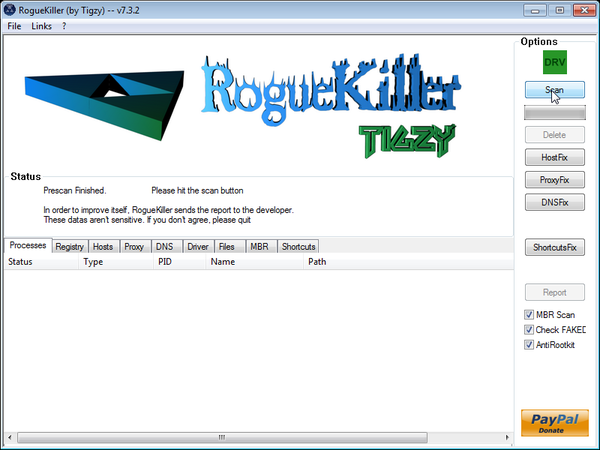
ROGUEKILLER DOWNLOAD LINK (This link will automatically download RogueKiller on your computer) - Double click on RogueKiller.exe to start this utility and then wait for the Prescan to complete.This should take only a few seconds and then you can click the Start button to perform a system scan.
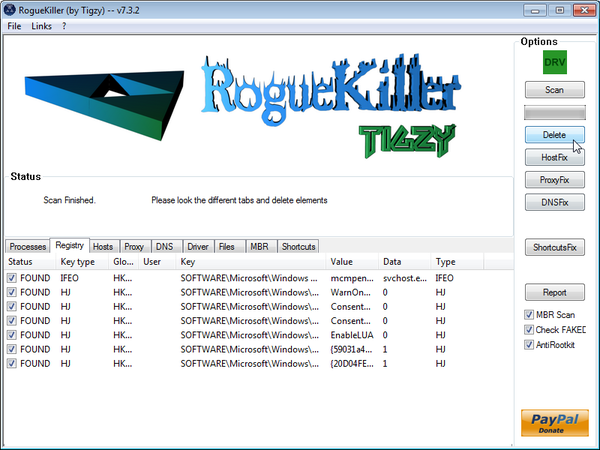
- After the scan has completed, press the Delete button to remove any malicious registry keys.
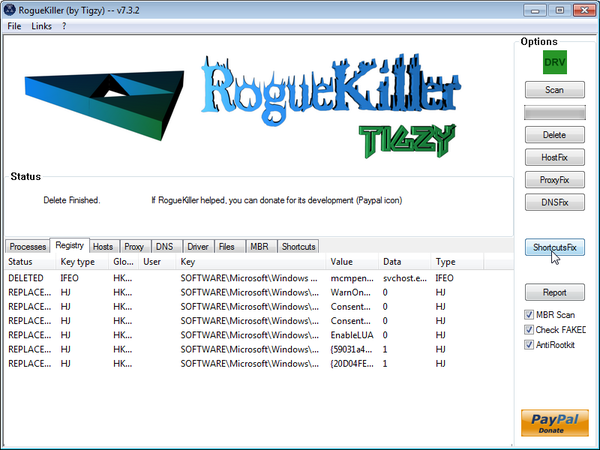
- Next we will need to restore your shortcuts, so click on the ShortcutsFix button and allow the program to run.









thank you so much for your clear and useful guide.
this virus has annoying my little bro. three days…(and he annoyed me as well)
i checked in yahoo and the suggestion i tried isn’t work, then i turn into yours, and it works!
although the step is a bit complicated for me (girl) , but i finally kill the virus, thanks!
Awesome tip, thank you so much for the help!
have the virus, vcan not use registryfix.reg no where to be found when imputted on internet. Other websites come up! Did something change?
1.Create and run your registryfix.reg
A.Copy all the text in bold below and paste to Notepad/Text Document
B.THIS IS VERY IMPORTANT! Save file as fix.reg to your Desktop. NOTE: (Save as type: All files)
C. Double-click on fix.reg file to run it. Click “Yes” for Registry Editor prompt window. Then click OK.
NEXT,
1.Download any re-named version of Rkill (direct download links bellow):
http://download.bleepingcomputer.com/grinler/WiNlOgOn.exe
http://download.bleepingcomputer.com/grinler/uSeRiNiT.exe
http://download.bleepingcomputer.com/grinler/rkill.scr
2.Next,follow the guide starting with the Malwarebytes scan as seen on the guide.
Stelian, Thank you so much! I followed your recommendations step by step, and even ran ESET Online Scanner, and my computer is working again. Live Security Platinum is a nasty bug to get rid of! I do have one question: I noticed that my desktop icons for both Malwarebytes and HitmanPro have the blue and gold shield in the bottom right hand corner. Is this normal or am I somehow still infected? I have Sophos Antivirus and nothing is showing up in any scans.
You’ve most likely chosen to scan your computer at start up with HitmanPro …that’s why you see that icon in the system tray!:)
I would suggest that you replace Sophos Antivirus with Avast 7 FREE because is so much better when it comes to preventing malware.
Dear Stelian,
I realy appriciate your guide. I have followed the guide, and had successfuly removed the Lifesecurity Viras. Thanks god, you are my life saver !
I could not express my deep thanks to your great work and great help. The guid is very pricise and in detail, easy to understand, easy to follow up.
Only one suggestion: for many dowload, you have a buton there, but I could not push that button, because I am on different files, I do need to copy the actual web address, so it is better to put the web address there for people to copy.
Thanks in millions.
Best regards,
Thomas Song from Quebec, Canada
Many many thanks!!!!
Thanks Stelian. Worked like a charm. :)
Thank you Stelian for the guide, I followed all the steps one of which included downloading the other versions of RKill link which I woefully did. The program was called JDownloader Manager or smth like this which tended to open some Babylon Search when I would start IE. :( I seem to have uninstalled both babylon and downloader manager and ran hitman but I keep getting prompts if I trust ActiveMail Com Server every time I try to open IE :( please help
Hello,
Go to the Add or Remove Programs section on Windows and remove this programs (Apart from that Babylon Search –removal guide here– I have never heard of them but they are need it).
Next,lets make some further check-ups:
1.Run a scan with Kaspersky Virus Removal Tool
Click here to download the Kaspersky Virus Removal Tool.
2.Run a scan with Eset Online Scanner.
ESET Online Scanner Download Link (This link will automatically download ESET Online Scanner on your computer.)
Stelian,
You are a lifesaver…..I contracted a strong case of the LSP and followed your instructions to the letter…THANK YOU VERY MUCH….What part of the world are you in….if you were in San Diego I would highly recommend you.
Thank you so much! Lengthy process but it did the trick.. what an annoying piece of crap that was!
Thank a lot! Everything is working!
WHEN THIS VIRUS FIRST POPPED UP ON MY SCREEN, I QUICKLY TURNED MY LAPTOP OFF, RESTARTED IT, THEN WENT TO CONTROL PANEL AND UNINSTALLED IT BUT IT STILL THERE AND IN MY START MENU BUT IT’S GONE FROM MY TASKBAR…….IT NEVER POPPED UP ON MY SCREEN AGAIN ( FAKE ALERTS ), AND I’M ABLE TO GET ON THE INTERNET……..WHAT SHOULD I DO ????
Hello,
Did you follow the guide?Did you scan with the recommended software?
THAT’S WHAT I’M ASKING, DO YOU THINK I SHOULD ???
YES, of course you need to remove this infection…Just follow the guide… :)
My father called me over early this morning, Apparently to him i am computer god tech support.
I saw this virus and had never encountered it, and malware bytes didnt pick it up right away, so I grabbed my laptop and found this. In less than 20 min his computer was like new. And I’m still the computer god. But he did get quite a yelling from me. He was trying to convince me to “buy the software because it will protect his computer” And explaining it was a virus was harder than getting rid of it. Thanks again.
Good to hear that you manage to avoid this …. Never pay for a product that requests money for removal.. :D
Thank God for you! I’m literally about to cry with tears of joy – that’s how happy I am for you saving my laptop. You’ll never know how appreciative I am for your tutorial. THANK YOU THANK YOU THANK YOU!!!
Thank you! Finally got it! Started removal process within minutes of infection……must have been a “drive by”. Had to use HitMan because Malwarebytes did not find anything. Ran several Rkill versions……said computer had been redirected, but never shut down any processes.
Hello,
If you want you can perform a double check with ESET Online Scanner.
1.Run a scan with Eset Online Scanner.
ESET Online Scanner Download Link (This link will automatically download ESET Online Scanner on your computer.)
Thanks for the easy instructions you left for removing the Live Security Platinum. Got most of the bugs out of my system.
However, I am still having problems with my Microsoft Security Essentials now. I uninstalled the program and re-installed it. Worked initially, but after starting it up again, MSE is having problems with updating and installing any new virus/malware definitions.
Any advice? Please let me know. Thanks.
1.Run a scan with Eset Online Scanner.
ESET Online Scanner Download Link (This link will automatically download ESET Online Scanner on your computer.)
2.Download Windows Repair by Tweaking.com to your desktop. Use the direct download link for the Portable version of Windows Repair by Tweaking.com
Note: When asked if you would like to create a restore point. It is recommended just in-case something does not go as planned.
Note: Leave everything else unchecked
3.How is your computer behaving now?
‘
PS. Microsoft Security Essential is good antivirus however Avast 7 Free is so much better :)
Got everything working and cleaned. Thanks to all who helped out.
One piece of advice, when using Tweaking.com – Windows Repair (all-in-one) file, be careful when using ComboFix, which is one of the recommended Malware programs unless you know what you are doing. Could cause problems.
It took a lot of work and time, but computer is running smoothly. Happy camper (still don’t like malware and virus programmers with a passion though). :)
Thanks again!
Thank you so much! Worked like a charm!
Thanks Stelian. Your well put together and easy to follow advice has worked a charm. If you ever happen to visit Ireland, let me know and I will repay you with many pints of creamy Guinness. :) Thanks again.
Tommy, Ireland.
Stelian,
I just wanted to let you know how much I appreciate you and your talents. You didn’t have to post this user friendly tutorial, but you did. ( And we “Non Computer Savoy” Folk thank you) I’m happy that your blog is the first thing that showed up when I performed a Google search. Thanks Again!
Thanks so much for the step-by-step directions and the visuals (screenshots). I use my computer nonstop for my job as a teacher, and I hate how much time I waste dealing with issues like this, but I’m so glad there are folks out there like you who are willing to share their knowledge with the rest of us who aren’t quite a tech-savvy.
My family and I just wanted to say Thank You for helping us. Your guide is easy to follow and removed things that aren’t supposed to be on our PC.
Thank You
Family
Thank you so much. My 62 year old father got this Virus and it really threw him into a panic as he uses his machine for research, current events and communication all the time. My initial attempts failed to remove this cleverly disguised virus and I found these instructions. Very easy to follow and based on the comments (as recently as today!) I am confident all will be well and I will be able get this machine back to my mom and dad…A couple of years I had to slay the Virtumonde virus for my Dad!