

If you’ve received messages about investing in scooter rentals through LSSC (also known as Lightning Shared Scooter Company, LSSC.ltd, LSSC6.com, or LSSCC.cc), you need a reality check—quickly. This scam targets hopeful investors with promises of easy, daily money from an electric scooter “profit-sharing scheme.” That may sound exciting, but caution is essential. This article breaks down the truth of LSSC’s operation: what it promises, how it works, how victims fall in, and what to do afterward.
Overview
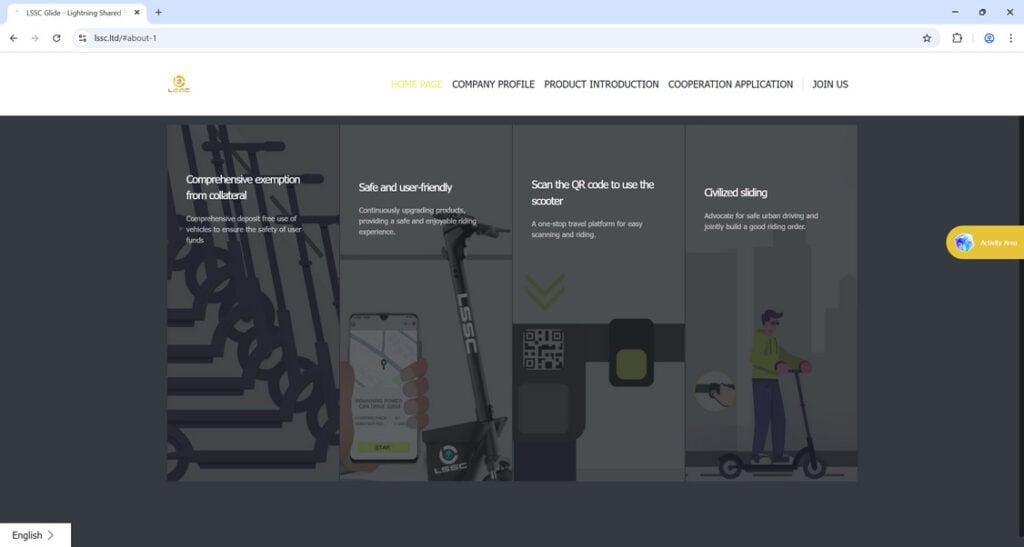
The Lightning Shared Scooter Company markets itself as a Hong Kong–based electric scooter rental business offering investors a slice of what it calls its “profit-sharing model.” You hear that phrase and imagine a network of scooters generating revenue. Yet credible evidence shows there are no scooters, no visible operations, and likely no underlying business at all.
Regulatory bodies have issued explicit warnings about LSSC’s legitimacy. The British Columbia Securities Commission (BCSC) put LSSC on its Investment Caution List. The BCSC stated LSSC is not registered with them—meaning it isn’t recognized as a lawful entity to sell securities or advise investors. That’s a serious red flag.
Similarly, the Autorité des marchés financiers (AMF) in Québec has warned that Lightning Shared Scooters Co., Ltd. is not registered with its regulator—meaning it’s unauthorized to solicit investments in that jurisdiction. The Alberta Securities Commission (ASC) echoes the same concern: LSSC is not registered to trade securities in Alberta.
On the consumer complaint front, Better Business Bureau Scam Tracker lists LSSC as operating suspiciously like a Ponzi‑style investment scheme. Users are led to purchase “virtual scooters” to earn “rental” income, but there’s no real product, and returns appear to come solely from new investors’ contributions.
Local law enforcement agencies have also taken note. The Salinas (California) Police Department is investigating LSSC after reports of individuals being lured into investing.(Facebook) News coverage details stories of victims losing thousands. One Orlando TV station reported a person claiming to have invested around $12,000 in LSSC.
A deep-dive article posted recently describes how LSSC used social media, WhatsApp, and messaging groups to spread promises of daily passive income and “upgrade opportunities” amidst a carnival‑like atmosphere. Users are encouraged to act immediately, upgrade tiers, and refer others—classic tactics to drive urgency and recruitment.
Reddit voices confirm this is more than just marketing manipulation. One user explained: “This is a ponzi scheme targeting immigrant communities. The fact that it’s an affinity scam preying on people more likely to be financially…”
All these pieces combine to paint a clear picture: LSSC is not a legitimate scooter rental business. It is a sophisticated Ponzi‑style fraud, targeting emotion, trust, and expectations of easy profit.
How the Scam Works
1. Initial Contact & Hype Generation
Scammers identify their targets through social media posts, WhatsApp chains, faith-based or community groups, and private invites. They draw you in with high-pressure language: limited-time upgrades, exclusive access, and guaranteed daily returns.
2. “Investment” via App or Website
You sign up via one of LSSC’s changing domains—like lssc-ltd, lssc6.com, or related names. The platform behaves like an investment portal where you deposit money (often via cryptocurrency, such as USDC or USDT) to “purchase scooters” that supposedly generate rental income.
3. Fake Dashboard & Early Payouts
Once funds are in, you’re granted access to a dashboard showing your “scooter fleet” and daily earnings. Initially, some small payouts may be issued to build your trust and encourage more investment and referrals. This is a common lure in Ponzi schemes.
4. Upgrade Pressure & Referral Incentives
Success hinges on recruiting new users and upgrading to higher tiers. The message: more scooters = more earnings. Referral bonuses are emphasized, and social proof—like “friends getting paid”—is displayed to amplify pressure.
5. Regulatory Warnings Ignored
While regulators like BCSC, ASC, and AMF issue warnings, users inside the scheme may ignore them. These warnings often come too late for participants already financially involved.
6. Withdrawal Delays & Excuses
At a certain point, withdrawal requests are delayed or blocked with vague reasons: “verification processing,” “peak user load,” or “security hold.” Meanwhile, the platform fares better in appearance, while actual funds dry up.
7. Collapse & Domain Disappearance
As fewer new funds arrive, the scheme collapses. Websites go offline, teams vanish, and excuses vanish with them. Victims are left with phishing links, defunct apps, and lost crypto.
8. Scattered Warnings & Rebranding
Authorities, media, and consumer forums begin to publish warnings. Meanwhile, operators quickly rebrand under new names or domains to restart the con elsewhere.
What to Do If You Have Fallen Victim to the LSSC Scam
If you’ve invested in LSSC—or are worried someone you know has—act fast. Here are clear, actionable steps:
- Stop All Payments Immediately
Do not invest more, upgrade further, or recruit others. More money only deepens losses. - Document Everything
Screenshot your dashboard, transaction history, referral messages, domain names, app downloads, and any correspondence. - Report to Law Enforcement
File a complaint with your local police. In the U.S., use the FBI’s Internet Crime Complaint Center (IC3). If you’re in Canada, report to provincial securities commissions. - Submit Complaints to Regulators
Report fraud to the Better Business Bureau Scam Tracker and regulators like BCSC, ASC, AMF, or similar bodies in your region. - Contact Your Crypto Platform
If you funded via crypto, inform exchanges or wallet providers. If possible, freeze transactions. - Warn Your Community
Share your experience on Reddit (e.g., r/Scams), local forums, and social media. Your story may help others. - Monitor for Further Scams
Be vigilant—scammers often use stolen identities to launch new cons. - Consult Professional Advice
If you invested substantial funds, a legal or financial adviser may help with potential reclamation strategies. - Seek Support
Psychological and peer support help manage stress and shame—scam victims are not alone.
Is Your Device Infected? Run a Free Malware Scan
Slow performance, constant pop-ups, or strange behavior? These are classic signs of a malware infection. The fastest way to find out is to scan your device with Malwarebytes Free — one of the most trusted malware removal tools available.
The free version detects and removes the most common threats, including:
- Adware — the cause of those annoying pop-ups
- Browser hijackers — unwanted redirects and changed homepages
- Trojans and spyware — hidden programs stealing your data
- Potentially unwanted programs (PUPs) — software you never asked for
👉 Select your device below — Windows, Mac, or Android — then follow the simple steps to download Malwarebytes, scan your system, and remove any threats it finds. The scan usually takes 5 to 20 minutes.
Run a Malware Scan with Malwarebytes for Windows
Malwarebytes is one of the most popular and trusted anti-malware tools for Windows — and it’s completely free for removing infections. It catches threats that many antivirus programs miss, including adware, browser hijackers, and trojans. Follow the steps below to scan and clean your PC in just a few minutes.
Download Malwarebytes
Click the button below to download the latest version of Malwarebytes for Windows from the official source. The free version is all you need — it will scan your computer and remove adware, browser hijackers, and other malicious software at no cost.
Download MalwarebytesOfficial installer for Windows 11 and 10. Your download starts right away.Want real-time protection? See Malwarebytes Premium Malwarebytes Free for WindowsScans and removes malware at no cost
-
Install Malwarebytes
When the download finishes, open your Downloads folder and double-click the MBSetup file. If Windows shows a User Account Control pop-up, click “Yes” to allow the installation.

Follow the On-Screen Prompts to Install Malwarebytes
The setup wizard will walk you through a few quick screens:
-
Choose where you’re installing the program — “Personal Computer” or “Work Computer” — then click Next.

-
Malwarebytes will now install on your device. This usually takes under a minute.

-
When installation is complete, the “Welcome to Malwarebytes” screen will open automatically.

-
On the final screen, click Open Malwarebytes to launch the program.

-
Enable “Scan for Rootkits”
Before scanning, turn on rootkit detection so Malwarebytes can find even the most hidden threats. Click the Settings gear icon on the left side of the screen.

In the settings menu, find “Scan for rootkits” and click the toggle so it turns blue.

Done? Click “Dashboard” in the left pane to return to the main screen.
Start the Scan
Click the blue Scan button. Malwarebytes will automatically update its virus database and start checking your computer for malware.

-
Wait for the Scan to Finish
The scan checks your entire system for browser hijackers and other malicious programs, so it can take 5 to 20 minutes depending on your computer. Feel free to do something else — just check back occasionally to see the progress.

-
Quarantine the Detected Threats
When the scan is done, you’ll see a list of everything Malwarebytes found — malware, adware, and potentially unwanted programs. Click the “Quarantine” button to remove all of them at once.

Malwarebytes will now remove the malicious files and registry entries and move them safely into quarantine.

-
Restart Your Computer
Some threats can only be fully removed after a reboot. If Malwarebytes asks you to restart, click Yes. Once you’re logged back in, Malwarebytes has finished removing the threats it found.

That’s it — your Windows PC is now clean of trojans, adware, and other malware, and should be back to running smoothly.
If you are still having problems with your computer after completing these instructions, then please follow one of the steps:
- Run a computer scan with ESET Online Scanner
- Ask for help in our Windows Malware Removal Help & Support forum.
Run a Malware Scan with Malwarebytes for Mac
Malwarebytes for Mac is a free on-demand scanner that removes the malware other security software tends to miss — adware, browser hijackers, and unwanted programs included. Cleaning an infected Mac with Malwarebytes has always been completely free, and it’s our go-to recommendation. Follow the steps below to scan and clean your Mac in just a few minutes.
-
Download Malwarebytes for Mac
Click the button below to download the latest version of Malwarebytes for Mac.
Download MalwarebytesOfficial installer for macOS. Your download starts right away.Want real-time protection? See Malwarebytes PremiumMalwarebytes Free for MacScans and removes malware at no cost -
Open the Malwarebytes setup file
When the download finishes, open your Downloads folder and double-click the setup file to begin the installation.

-
Follow the On-Screen Prompts to Install Malwarebytes
The Malwarebytes for Mac Installer will guide you through a few quick screens. Click “Continue” and keep following the prompts until the installation completes.



When the installation is complete, Malwarebytes opens to the Welcome to Malwarebytes screen. Click “Get started“.
-
Select “Personal Computer” or “Work Computer”
Malwarebytes will ask what type of computer you’re installing it on. Click either Personal Computer or Work Computer, whichever applies.

-
Start the Scan
Click the “Scan” button. Malwarebytes will automatically update its detection database and begin checking your Mac for malware.

-
Wait for the Scan to Finish
Malwarebytes will scan your Mac for adware, browser hijackers, and other malicious programs. This can take a few minutes, so feel free to do something else — just check back occasionally to see the progress.

-
Quarantine the Detected Threats
When the scan is done, you’ll see a list of everything Malwarebytes found. Click the “Quarantine” button to remove all the threats at once.

-
Restart Your Mac
Malwarebytes will now remove all the malicious files it found. Some threats can only be fully removed after a reboot — if Malwarebytes asks you to restart, allow it. Once you’re logged back in, your Mac is clean.

That’s it — your Mac is now free of adware, rogue browser extensions, and other potentially harmful software.
If you are still experiencing problems while trying to remove a malicious program from your computer, please ask for help in our Mac Malware Removal Help & Support forum.
Run a Malware Scan with Malwarebytes for Android
Malwarebytes for Android automatically detects and removes dangerous threats like malware and ransomware so you don’t have to worry about your most-used device being compromised. Aggressive detection of adware and potentially unwanted programs keeps your Android phone or tablet running smooth.
-
Download Malwarebytes for Android.
You can download Malwarebytes for Android by clicking the link below.
Get Malwarebytes for AndroidOpens Google Play in a new tab.Want real-time protection? See Malwarebytes Premium for AndroidMalwarebytes for AndroidScans your phone and removes malware at no cost -
Install Malwarebytes for Android on your phone.
In the Google Play Store, tap “Install” to install Malwarebytes for Android on your device.

When the installation process has finished, tap “Open” to begin using Malwarebytes for Android. You can also open Malwarebytes by tapping on its icon in your phone menu or home screen.

-
Follow the on-screen prompts to complete the setup process
When Malwarebytes will open, you will see the Malwarebytes Setup Wizard which will guide you through a series of permissions and other setup options.
This is the first of two screens that explain the difference between the Premium and Free versions. Swipe this screen to continue.
Tap on “Got it” to proceed to the next step.
Malwarebytes for Android will now ask for a set of permissions that are required to scan your device and protect it from malware. Tap on “Give permission” to continue.
Tap on “Allow” to permit Malwarebytes to access the files on your phone.
-
Update database and run a scan with Malwarebytes for Android
You will now be prompted to update the Malwarebytes database and run a full system scan.

Click on “Update database” to update the Malwarebytes for Android definitions to the latest version, then click on “Run full scan” to perform a system scan.

-
Wait for the Malwarebytes scan to complete.
Malwarebytes will now start scanning your phone for adware and other malicious apps. This process can take a few minutes, so we suggest you do something else and periodically check on the status of the scan to see when it is finished.

-
Click on “Remove Selected”.
When the scan has been completed, you will be presented with a screen showing the malware infections that Malwarebytes for Android has detected. To remove the malicious apps that Malwarebytes has found, tap on the “Remove Selected” button.

-
Restart your phone.
Malwarebytes for Android will now remove all the malicious apps that it has found. To complete the malware removal process, Malwarebytes may ask you to restart your device.
That’s it — your Android phone is now clean — no more malicious apps, adware, or browser redirects.
If you are still having problems with your phone after completing these instructions, then please follow one of the steps:
- Restore your phone to factory settings by going to Settings > General management > Reset > Factory data reset.
- Ask for help in our Mobile Malware Removal Help & Support forum.
Stay Protected: Block Ads and Malicious Sites
Now that your device is clean, keep it that way. Most infections start with a malicious ad or a fake download button — so blocking them at the source is your best defense.
We recommend AdGuard, which blocks malicious ads, phishing pages, and dangerous redirects before they can reach you.
👉 Download AdGuard and browse safely
FAQ: LSSC Scooter Investment Scam
What is LSSC or Lightning Shared Scooter Company?
LSSC, also known as the Lightning Shared Scooter Company, claims to be a Hong Kong-based electric scooter rental platform that offers investors a share of the company’s profits by renting out virtual scooters. In reality, LSSC has been identified by multiple financial watchdogs as a suspected Ponzi-style investment scam with no real scooter operations or legitimate rental services.
Is LSSC a legitimate company?
No, LSSC is not a legitimate business. Despite its polished website and app interface, there is no public evidence of any real scooter rentals, city partnerships, or functioning operations. Multiple securities commissions—including those in British Columbia, Alberta, and Québec—have issued public warnings stating that LSSC is not registered to trade or advise on securities.
How does the LSSC scooter scam work?
LSSC lures investors by promoting a “daily passive income” opportunity. Here’s how the scam typically unfolds:
- You sign up and invest money by “purchasing” digital scooters.
- The platform shows fake earnings on a dashboard.
- You’re encouraged to recruit others and “upgrade” to higher tiers.
- Small initial payouts build trust.
- Withdrawals eventually get blocked or delayed.
- The scam collapses once new investor funds run dry.
What are the warning signs of the LSSC scam?
- No real scooter fleet or city operation
- No app on official app stores
- Heavy focus on referrals and rank upgrades
- Lack of transparency about the team or company ownership
- Use of cryptocurrency only (USDT, USDC)
- Claims of guaranteed returns
- Changing domains (e.g., LSSC.ltd, LSSC.vip, LSSC6.com, LSSCC.cc)
- Official alerts from securities regulators
Is LSSC a Ponzi scheme?
Yes. LSSC operates like a Ponzi scheme, where returns paid to earlier investors come from the money of newer investors, not from actual business profits. When new investments slow down, payouts stop, and the entire system collapses.
Are there any government warnings about LSSC?
Yes. Several regulators have issued official warnings about LSSC:
- British Columbia Securities Commission (BCSC)
- Alberta Securities Commission (ASC)
- Autorité des marchés financiers (AMF) in Québec
These agencies confirm that LSSC is not registered and is illegally offering investment opportunities. This places LSSC on multiple investment caution lists.
How do people find out about LSSC?
LSSC spreads through WhatsApp, Telegram, Facebook groups, and community forums, especially in immigrant and tight-knit communities. Promoters often use emotional appeals and the promise of “financial freedom” to convince others to invest and recruit friends or family.
Can I get my money back from LSSC?
Unfortunately, recovering money from LSSC is very difficult, especially if cryptocurrency was used. However, victims are encouraged to:
- Gather and save all evidence
- Report the scam to law enforcement
- Notify their crypto exchange or wallet provider
- File a complaint with securities regulators
- Join support communities for scam victims
How do I report the LSSC scooter scam?
You can report LSSC to:
- FBI Internet Crime Complaint Center (IC3.gov)
- Better Business Bureau Scam Tracker (bbb.org)
- Securities regulators in your country or province
- Local police or cybercrime unit
Be sure to include:
- Screenshots of the app or website
- Wallet transaction IDs
- Invite messages and referral links
- Communication history
Are there real scooter rental investment platforms?
No reputable scooter-sharing companies offer public investment schemes like LSSC. Trusted micromobility companies (like Lime, Bird, or Tier) do not ask individuals to purchase scooters or earn daily returns. Any business promising “guaranteed daily income” from scooter rentals should be treated as a major red flag.
What should I do if I referred someone to LSSC?
If you’ve referred others to LSSC, you should:
- Inform them immediately about the scam
- Encourage them to stop investing and withdraw funds
- Share resources and contact information for reporting
- Take responsibility and act fast to prevent more losses
Why is LSSC still online if it’s a scam?
Scammers often host their platforms on offshore servers and change domain names frequently. Even if one version of the site is taken down, clones or rebranded versions quickly replace it. This tactic makes it harder for authorities to shut the operation down entirely.
The Bottom Line
The Lightning Shared Scooter Company (LSSC) is not a legitimate investment opportunity—it is a Ponzi-style scam masquerading as an electric scooter rental business. With no physical assets, unverifiable operations, changing domains, and strong regulatory warnings from BCSC, ASC, and AMF, the evidence is clear. If you have been approached, steer clear. If you’ve already invested, act swiftly: document, report, warn others, and protect your finances and community.

Reviews & discussion
0 commentsShare a firsthand experience, or ask a question.
Community reviews
LSSC Scooter
Moderated reader experiences, not an editorial verdict.
Reviews
Be the first to review
Approved reviews for this site or product will appear here.