

It starts with a simple nudge that feels routine: a “rewards alert” saying your points are about to expire.
If you bank with Macquarie, or even if you do not, that message can still land with the same emotional punch: act now or lose something you already “own.”
That urgency is the trap.
The so called “Macquarie Bank Rewards” notices spreading by SMS and email are commonly phishing attempts designed to push you to a fake login page, steal your credentials, and then use that access to move money, add payees, or take over your account.
In this guide, you will learn exactly how the scam is structured, what it looks like in the real world, how the criminals profit, and what to do if you clicked or entered any information.
Scam Overview
What the scam looks like in real life
Most victims describe the first contact as a short SMS or a polished email that looks like a bank notification.
A common theme is expiring points, expiring rewards, or a “redemption window” that closes at a specific time and date, often framed as “12:00 AM” on a near future deadline.
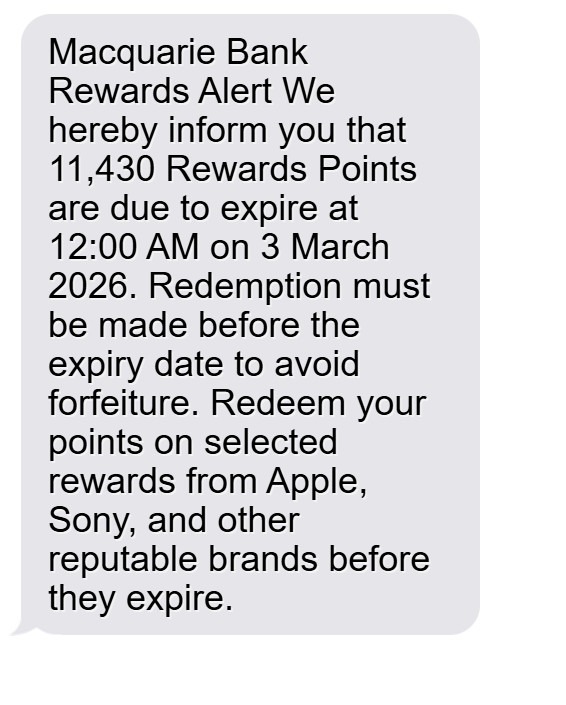
In one widely shared example, the message is labeled “Macquarie Bank Rewards Alert” and claims 11,430 reward points are due to expire in the next 48 hours, urging immediate redemption to avoid forfeiture.
It then encourages you to redeem points on “selected rewards” from recognizable brands like Apple and Sony, because familiar brand names reduce skepticism and increase click rates.
Another red flag in that example is the sender: the message appears to come from an international number (for instance, starting with +212). That does not automatically prove fraud, but it is uncommon for legitimate banking notifications to originate from random foreign mobile numbers.
Scammers rely on these subtle inconsistencies because many people only scan the headline and the deadline.
Why “rewards points” is such an effective lure
Banking phishing works best when it targets something that feels low risk and familiar.
Reward points checks those boxes.
Many customers are used to seeing points balances, promotional redemptions, and expiration reminders from retailers and airlines. So when a bank branded message uses the same language, it can feel normal.
This also lowers your guard because the request is not framed as “confirm your identity,” which sounds dangerous. It is framed as “redeem what is yours,” which sounds helpful.
The other advantage for criminals is that rewards messages can be sent to anyone, not just confirmed customers.
If you do not have a Macquarie account, you might still click out of curiosity, or because you once had an account, or because you assume you forgot about a rewards program. Phishing campaigns are built on volume and probability, not perfect targeting.
The core goal: steal access, then convert access into money
At its heart, this is an account takeover play.
The scammers want one or more of the following:
- Your online banking username and password
- One time passcodes (OTP) or 2 factor authentication codes
- Security question answers (often used as backup verification)
- Card details (card number, expiry date, CVV) if the fake page asks for them
- Personal data that helps them bypass verification later (date of birth, address, phone number)
Once they have credentials, they try to log in quickly, before you realize anything is wrong.
If they also capture an OTP, they may be able to complete a login even if you have multi factor authentication enabled.
From there, the conversion paths vary, but the end result is the same: money leaves your control.
Why the deadline is always “soon”
Urgency is not decoration. It is the mechanism.
A points expiration threat creates a narrow time window where you feel pressured to act first and verify later.
Scammers deliberately pick:
- Deadlines late at night or early morning (“12:00 AM”) so it feels official and automated
- Near term dates, often within days
- Language like “must be made before the expiry date to avoid forfeiture”
That last word, “forfeiture,” is a classic tell. It is legal sounding, heavy, and meant to trigger compliance.
The goal is to get you to tap the link while you are distracted: commuting, working, cooking, or about to sleep.
How the fake redemption flow typically works
Most versions of the “Macquarie Bank Rewards” scam follow the same pattern:
- A bank branded alert claims points are expiring.
- A link is included to “redeem now” or “secure your points.”
- A page opens that looks legitimate, using a bank logo, similar colors, and login fields.
- You enter credentials, and sometimes an OTP.
- The page may show an error, a loading spinner, or “session expired,” to keep you calm.
- Behind the scenes, the criminals are logging in with the details you provided.
Sometimes the fake page will redirect you to a real site afterward.
That trick is intentional. If you end up on a legitimate page, you may assume the earlier steps were fine and you just “misclicked.”
Why it can fool careful people
Many people assume phishing is easy to spot because it has bad grammar or obvious fake links.
That is not always true anymore.
Modern phishing kits are plug and play. Criminals can deploy polished templates that:
- Auto resize for mobile screens
- Use “https” so a padlock icon appears
- Copy real login layouts closely
- Include convincing error messages and progress screens
Some campaigns even personalize the page with “Macquarie” branding and “Rewards” terminology that feels plausible.
The scam does not need to fool everyone.
If it fools only 1% of recipients, a campaign sent to 100,000 numbers can still create a large number of compromised accounts.
Common red flags in Macquarie rewards phishing messages
Look for clusters of warning signs, not a single perfect indicator.
Here are patterns that show up again and again:
- Unexpected rewards balance: a specific number of points you do not recognize, like 11,430
- High pressure deadline: “due to expire,” “act now,” “avoid forfeiture”
- Generic branding: “Rewards Alert” without your name or account context
- Odd sender details: foreign numbers, random email domains, or unrelated display names
- Awkward formal language: “We hereby inform you” is more common in scams than in real customer messaging
- Incentive stacking: name dropping Apple, Sony, and “other reputable brands” to amplify trust
- A link that does not match the bank: shortened links, misspellings, extra words, or strange subdomains
- Requests for login or verification: any link that pushes you to sign in from a message should be treated as high risk
If you see multiple red flags at once, assume it is malicious until proven otherwise.
Who is targeted
Phishing campaigns like this typically cast a wide net.
That said, certain groups are hit harder because they are more likely to engage with rewards messaging:
- People who frequently redeem loyalty points (credit cards, airlines, retailers)
- Busy professionals who skim notifications and act quickly
- Older customers who are less familiar with phishing patterns on mobile
- New customers who are still learning what “normal” Macquarie messages look like
Criminals also rely on “list recycling.” Your number may be on a leaked marketing list, a data breach list, or a scraped database.
That is why you can receive the message even if you are not a Macquarie customer.
The real risk: it is not about points at all
The “points” are bait.
The real prize is your banking access and the ability to move funds.
Once inside an account, attackers may attempt to:
- Create or modify payees
- Schedule transfers
- Change contact details to lock you out
- Add new devices as trusted devices
- Trigger password resets and intercept confirmation steps
- Harvest additional data from statements and profile screens
In some cases, the financial theft happens fast.
In other cases, the attacker plays a longer game, using your access to learn your habits and attempt larger transfers later.
That is why it matters to respond quickly even if you “only clicked.”
How The Scam Works
Step 1: The initial hook arrives by SMS or email
The first message is designed to look like a standard bank notification.
It usually includes:
- A Macquarie branded subject line or header
- A statement that your rewards points are expiring soon
- A specific number of points to make it feel account based
- A redemption instruction with a link
The criminals want you to feel like you are fixing a small administrative task.
If you think, “I should handle this quickly,” the scam is already working.
Here is how the scam texts might look
Macquarie Bank Rewards Alert
We hereby inform you that 11,430 Rewards Points are due to expire at 12:00 AM on [date]. Redemption must be made before the expiry date to avoid forfeiture.
Redeem your points on selected rewards from Apple, Sony, and other reputable brands before they expire.
Step 2: Urgency and loss aversion push you to click
Most people do not click phishing links because they want to.
They click because they are trying to prevent a loss.
This is basic behavioral psychology: losing something you think you already have feels worse than missing out on a new benefit.
That is why the message emphasizes forfeiture and deadlines.
It is also why the time window is short.
The scammers want a rushed decision.
Step 3: The link leads to a fake redemption or login page
When you tap the link, you are typically sent to one of these setups:
- A fake “Rewards Redemption” landing page with a “Log in to continue” button
- A direct fake “Macquarie login” page
- A page that claims you must “verify” before redeeming points
These pages are usually mobile optimized and visually clean.
They often include:
- A copied logo
- Familiar banking style fonts
- Clean form fields for username and password
- Sometimes a banner about “security” to reassure you
The layout is designed to reduce friction so you type without thinking.
Step 4: Credential harvesting happens instantly
As soon as you enter your username and password, the information is transmitted to the attacker’s server.
Two important details many victims do not realize:
- The fake page can validate formatting, not correctness. It can accept any input and still feel “real.”
- The attacker can use your credentials immediately, often within seconds.
Some phishing kits are integrated with real time relay tools.
That means the attacker enters your credentials on the real Macquarie login screen while you are still on the fake page.
Step 5: The scam tries to capture your OTP or 2FA code
If your account uses an OTP via SMS, authenticator, or push notification, the attacker still needs a second factor.
That is why many fake pages include a second step:
- “Enter the verification code we sent you”
- “Confirm your identity to redeem points”
- “Security check required”
This is the most dangerous moment.
If you enter the OTP, you are effectively authorizing the attacker’s login in real time.
Even cautious people can fall for this because the code does arrive on their phone, which makes it feel legitimate.
But the code is being triggered by the attacker attempting to sign in.
Step 6: The fake page shows an error to buy time
After collecting credentials, many phishing pages display a message like:
- “Invalid password, please try again”
- “System error, please retry later”
- “Session timed out”
This is a deliberate delay tactic.
It keeps you interacting with the fake page while the attacker works in the background.
It also encourages you to re enter your password, giving the attacker a second copy in case the first one had a typo.
Sometimes, after the “error,” the page redirects you to a legitimate website.
That reduces suspicion and makes victims less likely to report quickly.
Step 7: Account takeover and financial theft attempts begin
Once the attacker logs into the real account, they move fast.
Common actions include:
- Checking balances and recent transactions
- Reviewing linked accounts and payees
- Attempting transfers to mule accounts
- Trying to add a new payee if required
- Attempting to change your phone number or email address
- Triggering password resets or security setting changes
If the attacker can change contact details, they can intercept alerts that would otherwise warn you.
If they cannot, they may still attempt small “test” transfers first.
Those smaller transfers are meant to slip through unnoticed.
Step 8: Follow on scams and resale of your data
Even if the attacker fails to move funds, your information still has value.
Compromised banking credentials and personal data are commonly:
- Sold to other criminals
- Used in future phishing attempts with more personalization
- Combined with other breached data for identity fraud
That is why you may receive more scam messages after engaging with one.
From a criminal’s perspective, a “clicker” is a higher value target than someone who ignores messages.
Variations you might see
The theme stays the same, but the wording shifts.
You may see:
- “Your Macquarie Rewards will expire today”
- “Redeem points for a $100 gift card”
- “You have been selected for a rewards upgrade”
- “Rewards points pending confirmation”
- “Rewards account locked, verify now”
Some versions also use email attachments or QR codes to bypass link filtering.
Others push you to call a phone number, where a fake “support agent” tries to extract login details verbally.
No matter the variant, the safe rule is consistent: do not use message links to log into your bank.
What To Do If You Have Fallen Victim to This Scam
If you clicked the link, entered details, or shared an OTP, act as if your account is compromised and move quickly.
The goal is to cut off access, secure your identity, and limit any losses.
- Stop interacting with the message and do not click again
Close the browser tab. Do not reply to the SMS or email. Do not call any number shown in the message. - Log into your bank using a trusted route, not the link
Open your banking app directly or type the bank’s official website address yourself.
If you are unsure, use a saved bookmark you created previously, not a search ad. - Change your banking password immediately
Use a strong, unique password you have never used anywhere else.
If the bank supports passkeys or stronger authentication options, enable them. - Change passwords for any reused credentials
If you used the same password on email, shopping sites, or other banks, change those too.
Credential reuse is one of the fastest ways a phishing incident becomes a wider takeover. - Review account activity and look for subtle changes
Check for anything you did not do, including:- New payees or edited payee details
- New scheduled transfers
- Changes to your email address or phone number
- Alerts that were turned off
- Unknown devices or sessions (if your bank shows them)
- Contact the bank through official support channels
Use the phone number on the back of your card, inside the official app, or on official bank statements.
Tell them you entered credentials into a phishing page and ask them to:- Add extra monitoring to your profile
- Confirm no new payees were added
- Confirm no contact details were changed
- Block transfers if any are pending
- Guide you through any required security reset
- If you shared an OTP, treat it as high risk
An OTP entered into a phishing flow often means the attacker already attempted or completed a login.
Ask the bank to review recent login events and force logout on all devices if possible. - Turn on transaction alerts and lower your risk window
Enable notifications for:- New payees
- Transfers above $0
- Login from a new device
- Profile changes
Alerts are not just convenience. They are early warning systems.
- Scan your device and update your software
Most phishing is web based and does not install malware, but it is still smart to:- Update your operating system
- Update your browser
- Run a reputable security scan
- Remove unknown browser extensions
If you installed anything during the process, uninstall it immediately.
- If you entered card details, request new card numbers
If the fake page asked for card number and CVV, assume it can be used for fraudulent purchases.
Ask your bank about canceling the card and issuing a new one. - Document what happened while details are fresh
Take screenshots of the message and any pages you saw.
Write down dates, times, the phone number or email address used, and any links (do not click them again). - Report the phishing attempt to the appropriate authorities and platforms
Reporting helps reduce future victims and can support investigations.
You can report the SMS as spam through your phone, forward suspicious emails to your email provider’s abuse process, and report the scam through consumer fraud channels in your country. - Watch for follow up scams in the next 30 days
After a phishing attempt, criminals often try again with:
- Fake “fraud department” calls
- “Account locked” emails
- Refund scams claiming they can recover your money
Stay skeptical of any inbound message that pushes urgency.
- If money was stolen, act fast and stay persistent
Ask the bank about dispute processes and any recall options for transfers.
Time matters. The sooner you report, the higher the chance funds can be intercepted.
Is Your Device Infected? Run a Free Malware Scan
Slow performance, constant pop-ups, or strange behavior? These are classic signs of a malware infection. The fastest way to find out is to scan your device with Malwarebytes Free — one of the most trusted malware removal tools available.
The free version detects and removes the most common threats, including:
- Adware — the cause of those annoying pop-ups
- Browser hijackers — unwanted redirects and changed homepages
- Trojans and spyware — hidden programs stealing your data
- Potentially unwanted programs (PUPs) — software you never asked for
👉 Select your device below — Windows, Mac, or Android — then follow the simple steps to download Malwarebytes, scan your system, and remove any threats it finds. The scan usually takes 5 to 20 minutes.
Run a Malware Scan with Malwarebytes for Windows
Malwarebytes is one of the most popular and trusted anti-malware tools for Windows — and it’s completely free for removing infections. It catches threats that many antivirus programs miss, including adware, browser hijackers, and trojans. Follow the steps below to scan and clean your PC in just a few minutes.
Download Malwarebytes
Click the button below to download the latest version of Malwarebytes for Windows from the official source. The free version is all you need — it will scan your computer and remove adware, browser hijackers, and other malicious software at no cost.
Download MalwarebytesOfficial installer for Windows 11 and 10. Your download starts right away.Want real-time protection? See Malwarebytes Premium Malwarebytes Free for WindowsScans and removes malware at no cost
-
Install Malwarebytes
When the download finishes, open your Downloads folder and double-click the MBSetup file. If Windows shows a User Account Control pop-up, click “Yes” to allow the installation.

Follow the On-Screen Prompts to Install Malwarebytes
The setup wizard will walk you through a few quick screens:
-
Choose where you’re installing the program — “Personal Computer” or “Work Computer” — then click Next.

-
Malwarebytes will now install on your device. This usually takes under a minute.

-
When installation is complete, the “Welcome to Malwarebytes” screen will open automatically.

-
On the final screen, click Open Malwarebytes to launch the program.

-
Enable “Scan for Rootkits”
Before scanning, turn on rootkit detection so Malwarebytes can find even the most hidden threats. Click the Settings gear icon on the left side of the screen.

In the settings menu, find “Scan for rootkits” and click the toggle so it turns blue.

Done? Click “Dashboard” in the left pane to return to the main screen.
Start the Scan
Click the blue Scan button. Malwarebytes will automatically update its virus database and start checking your computer for malware.

-
Wait for the Scan to Finish
The scan checks your entire system for browser hijackers and other malicious programs, so it can take 5 to 20 minutes depending on your computer. Feel free to do something else — just check back occasionally to see the progress.

-
Quarantine the Detected Threats
When the scan is done, you’ll see a list of everything Malwarebytes found — malware, adware, and potentially unwanted programs. Click the “Quarantine” button to remove all of them at once.

Malwarebytes will now remove the malicious files and registry entries and move them safely into quarantine.

-
Restart Your Computer
Some threats can only be fully removed after a reboot. If Malwarebytes asks you to restart, click Yes. Once you’re logged back in, Malwarebytes has finished removing the threats it found.

That’s it — your Windows PC is now clean of trojans, adware, and other malware, and should be back to running smoothly.
If you are still having problems with your computer after completing these instructions, then please follow one of the steps:
- Run a computer scan with ESET Online Scanner
- Ask for help in our Windows Malware Removal Help & Support forum.
Run a Malware Scan with Malwarebytes for Mac
Malwarebytes for Mac is a free on-demand scanner that removes the malware other security software tends to miss — adware, browser hijackers, and unwanted programs included. Cleaning an infected Mac with Malwarebytes has always been completely free, and it’s our go-to recommendation. Follow the steps below to scan and clean your Mac in just a few minutes.
-
Download Malwarebytes for Mac
Click the button below to download the latest version of Malwarebytes for Mac.
Download MalwarebytesOfficial installer for macOS. Your download starts right away.Want real-time protection? See Malwarebytes PremiumMalwarebytes Free for MacScans and removes malware at no cost -
Open the Malwarebytes setup file
When the download finishes, open your Downloads folder and double-click the setup file to begin the installation.

-
Follow the On-Screen Prompts to Install Malwarebytes
The Malwarebytes for Mac Installer will guide you through a few quick screens. Click “Continue” and keep following the prompts until the installation completes.



When the installation is complete, Malwarebytes opens to the Welcome to Malwarebytes screen. Click “Get started“.
-
Select “Personal Computer” or “Work Computer”
Malwarebytes will ask what type of computer you’re installing it on. Click either Personal Computer or Work Computer, whichever applies.

-
Start the Scan
Click the “Scan” button. Malwarebytes will automatically update its detection database and begin checking your Mac for malware.

-
Wait for the Scan to Finish
Malwarebytes will scan your Mac for adware, browser hijackers, and other malicious programs. This can take a few minutes, so feel free to do something else — just check back occasionally to see the progress.

-
Quarantine the Detected Threats
When the scan is done, you’ll see a list of everything Malwarebytes found. Click the “Quarantine” button to remove all the threats at once.

-
Restart Your Mac
Malwarebytes will now remove all the malicious files it found. Some threats can only be fully removed after a reboot — if Malwarebytes asks you to restart, allow it. Once you’re logged back in, your Mac is clean.

That’s it — your Mac is now free of adware, rogue browser extensions, and other potentially harmful software.
If you are still experiencing problems while trying to remove a malicious program from your computer, please ask for help in our Mac Malware Removal Help & Support forum.
Run a Malware Scan with Malwarebytes for Android
Malwarebytes for Android automatically detects and removes dangerous threats like malware and ransomware so you don’t have to worry about your most-used device being compromised. Aggressive detection of adware and potentially unwanted programs keeps your Android phone or tablet running smooth.
-
Download Malwarebytes for Android.
You can download Malwarebytes for Android by clicking the link below.
Get Malwarebytes for AndroidOpens Google Play in a new tab.Want real-time protection? See Malwarebytes Premium for AndroidMalwarebytes for AndroidScans your phone and removes malware at no cost -
Install Malwarebytes for Android on your phone.
In the Google Play Store, tap “Install” to install Malwarebytes for Android on your device.

When the installation process has finished, tap “Open” to begin using Malwarebytes for Android. You can also open Malwarebytes by tapping on its icon in your phone menu or home screen.

-
Follow the on-screen prompts to complete the setup process
When Malwarebytes will open, you will see the Malwarebytes Setup Wizard which will guide you through a series of permissions and other setup options.
This is the first of two screens that explain the difference between the Premium and Free versions. Swipe this screen to continue.
Tap on “Got it” to proceed to the next step.
Malwarebytes for Android will now ask for a set of permissions that are required to scan your device and protect it from malware. Tap on “Give permission” to continue.
Tap on “Allow” to permit Malwarebytes to access the files on your phone.
-
Update database and run a scan with Malwarebytes for Android
You will now be prompted to update the Malwarebytes database and run a full system scan.

Click on “Update database” to update the Malwarebytes for Android definitions to the latest version, then click on “Run full scan” to perform a system scan.

-
Wait for the Malwarebytes scan to complete.
Malwarebytes will now start scanning your phone for adware and other malicious apps. This process can take a few minutes, so we suggest you do something else and periodically check on the status of the scan to see when it is finished.

-
Click on “Remove Selected”.
When the scan has been completed, you will be presented with a screen showing the malware infections that Malwarebytes for Android has detected. To remove the malicious apps that Malwarebytes has found, tap on the “Remove Selected” button.

-
Restart your phone.
Malwarebytes for Android will now remove all the malicious apps that it has found. To complete the malware removal process, Malwarebytes may ask you to restart your device.
That’s it — your Android phone is now clean — no more malicious apps, adware, or browser redirects.
If you are still having problems with your phone after completing these instructions, then please follow one of the steps:
- Restore your phone to factory settings by going to Settings > General management > Reset > Factory data reset.
- Ask for help in our Mobile Malware Removal Help & Support forum.
Stay Protected: Block Ads and Malicious Sites
Now that your device is clean, keep it that way. Most infections start with a malicious ad or a fake download button — so blocking them at the source is your best defense.
We recommend AdGuard, which blocks malicious ads, phishing pages, and dangerous redirects before they can reach you.
👉 Download AdGuard and browse safely
The Bottom Line
The “Macquarie Bank Rewards” points expiring alert is a classic phishing setup dressed in friendly loyalty language.
It is not really about rewards. It is about getting you to click, sign in, and hand over the keys to your bank account.
If you receive one of these messages, do not use the link. Open your banking app directly, check your real rewards balance, and delete the message.
If you already interacted with it, treat it seriously, secure your account immediately, and contact your bank through official channels.

Join the discussion
0 commentsShare your experience or ask a question about this article.
Discussion
Start the conversation
Have a question or something useful to share? Add the first comment.