

The “Messages Blocked” email scam is a phishing attack designed to steal personal information and compromise user accounts. This article will provide an in-depth overview of how this scam works, who is behind it, and most importantly, how you can protect yourself.
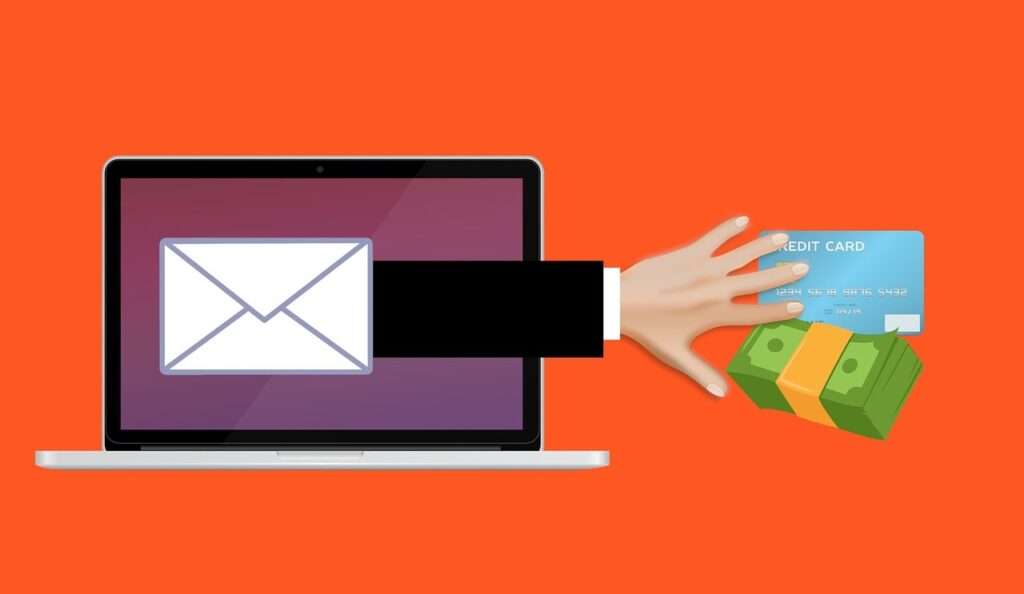
Scam Overview
The “Messages Blocked” phishing email claims your inbox is full and you have messages that failed to send to multiple recipients. It includes a link to “fix the problem” along with a note to “verify you are not a robot.”
This email is carefully crafted to appear legitimate. The subject line and message content are designed to panic recipients into clicking the link to avoid “blocked messages.”
However, the email address it comes from is not a real system administrator. The link also does not lead to a mailbox storage page. Instead, it goes to a fake login page controlled by scammers.
Once you enter your email login credentials, cybercriminals can access your inbox, contacts, and account settings. They use this to steal personal information or launch additional attacks.
This scam has skyrocketed in popularity since 2021, with millions of these emails sent daily. Their surge in volume corresponds with the rise in remote work and reliance on email for business communication.
Who is Being Targeted?
The scam targets business email users across all industries and regions. However, Trickbot seems particularly focused on larger organizations in English-speaking countries like the United States, Canada, Australia, and the United Kingdom.
Employees at any level may receive the phishing email, as cybercriminals use brute force techniques to send mass volumes. C-suite executives and people in finance roles are high-value targets.
Most reports indicate the scam links go to fake Office 365 login pages. This shows Trickbot’s efforts to infiltrate Microsoft accounts for access to sensitive data.
Potential Damages
If you enter credentials into a fake login page, consider your account fully compromised. Criminals can leverage it to:
- Access your inbox to send more phishing scams using your identity
- Download contacts to target your clients or colleagues
- Adjust account settings like forwarding rules or login requirements
- Access proprietary data, financial records, trade secrets, or personal information
- Install malware like info-stealing Trojans or ransomware
These damages can result in massive financial losses, legal liabilities, and brand reputation harm.
Phishing scams also weaken security cultures by training employees to blindly click links. Ongoing education is essential to avoid real threats exploiting these learned behaviors.
Email Header Analysis
Analyzing email headers reveals signs a “Messages Blocked” email is fake, including:
- Mismatched sender and reply addresses
- Random garbled strings in place of a sender name
- Irrelevant subject lines on enclosed messages
- Differences in encoded and displayed sender names
- Suspicious origin servers from non-corporate IP ranges
Relying solely on header analysis has limitations, however, as scammers constantly test new techniques to mimic legitimate emails. Do not ignore your intuition if an email just seems “off” in some way.
How the Scam Works
The “Messages Blocked” scam uses psychological tricks and technical deceit to steal credentials. Here is a step-by-step overview of how it unfolds:
1. You Receive the Phishing Email
The scam email lands in your inbox and can easily blend in with other messages.
On first glance, it appears to come from your email provider or company IT department. The subject line is urgent, implying a risk of losing message data.
![Messages blocked email screenshot][]
Deceptive “Messages Blocked” Email
2. You Click the Link
Concerned about a blocked inbox, you click the link without much thought. After all, avoiding data loss is important for your work.
The link often uses a redirected URL to hide the true landing page. For example, it may route through an off-brand URL shortener to seem harmless.
3. You Arrive at a Fake Login Page
Your browser lands on a nearly perfect replica of your email provider’s login screen. All branding, graphics, and text mimic the real site.![Fake login page example][]
Fake Login Page Designed to Steal Credentials
4. You Enter Your Credentials
Believing the site is legitimate, you enter your email address and password into the fake form.
Behind the scenes, the criminals immediately capture your credentials and can access your real inbox using this data.
5. The Scammers Leverage Your Account
With your username and password, the attackers log into your real email account. They can now browse inboxes or reset passwords for other services.
The criminals may enable email forwarding to collect copies of messages over time. Or they immediately start sending their own phishing scams to contacts.
In other cases, they may search for financial records, customer data, or other sensitive information. If they gain access to your entire system, deploying ransomware is also a risk.
6. You May Notice Unusual Activity
Odd activity in your email account may signal it has been compromised. Watch for unexplained forwarded messages, new rules, sent emails you did not send, or password reset notifications.
If you fall victim, immediately change your password and alert IT staff to scan for threats. But the most effective way to stop this scam is by recognizing it before entering credentials.
What to Do If You Fall Victim
If you entered your login credentials through a fake “Messages Blocked” page, take these steps to secure your account:
Reset Your Password
Change your email password immediately. Make it long and complex. Do this from a known safe device, not the compromised one.
Enable Two-Factor Authentication
Add an extra layer of security by requiring a confirmation code with each login. Generate backup codes in case you lose your device.
Check Forwarding Rules
Look for unauthorized forwarding rules sending copies of your email externally. Delete them.
Scan for Malware
Run a full virus scan to check for any Trojans, keyloggers, or other threats that may have been downloaded.
Contact Support
Alert your IT team or email provider to a potential breach of your account. They can implement extra protection measures like forced re-authentication.
Monitor Accounts Closely
Watch for any unusual security alerts about your online accounts, as hackers may have gained info to compromise other services. Change passwords frequently.
Educate Contacts
If any fraudulent emails were sent from your account, let all contacts know it was part of a phishing scam and they should ignore the messages.
Is Your Device Infected? Run a Free Malware Scan
Slow performance, constant pop-ups, or strange behavior? These are classic signs of a malware infection. The fastest way to find out is to scan your device with Malwarebytes Anti-Malware Free — one of the most trusted malware removal tools available.
The free version detects and removes the most common threats, including:
- Adware — the cause of those annoying pop-ups
- Browser hijackers — unwanted redirects and changed homepages
- Trojans and spyware — hidden programs stealing your data
- Potentially unwanted programs (PUPs) — software you never asked for
👉 Select your device below — Windows, Mac, or Android — then follow the simple steps to download Malwarebytes, scan your system, and remove any threats it finds. The whole process takes about 5 minutes.
Run a Malware Scan with Malwarebytes for Windows
Malwarebytes is one of the most popular and trusted anti-malware tools for Windows — and it’s completely free for removing infections. It catches threats that many antivirus programs miss, including adware, browser hijackers, and trojans. Follow the steps below to scan and clean your PC in just a few minutes.
Download Malwarebytes
Click the button below to download the latest version of Malwarebytes for Windows from the official source. The free version is all you need — it will scan your computer and remove adware, browser hijackers, and other malicious software at no cost.
Download MalwarebytesOfficial installer for Windows 11 and 10. Your download starts right away.Want real-time protection? See Malwarebytes Premium Malwarebytes Free for WindowsScans and removes malware at no cost
-
Install Malwarebytes
When the download finishes, open your Downloads folder and double-click the MBSetup file. If Windows shows a User Account Control pop-up, click “Yes” to allow the installation.

Follow the On-Screen Prompts to Install Malwarebytes
The setup wizard will walk you through a few quick screens:
-
Choose where you’re installing the program — “Personal Computer” or “Work Computer” — then click Next.

-
Malwarebytes will now install on your device. This usually takes under a minute.

-
When installation is complete, the “Welcome to Malwarebytes” screen will open automatically.

-
On the final screen, click Open Malwarebytes to launch the program.

-
Enable “Scan for Rootkits”
Before scanning, turn on rootkit detection so Malwarebytes can find even the most hidden threats. Click the Settings gear icon on the left side of the screen.

In the settings menu, find “Scan for rootkits” and click the toggle so it turns blue.

Done? Click “Dashboard” in the left pane to return to the main screen.
Start the Scan
Click the blue Scan button. Malwarebytes will automatically update its virus database and start checking your computer for malware.

-
Wait for the Scan to Finish
The scan checks your entire system for browser hijackers and other malicious programs, so it can take 5 to 20 minutes depending on your computer. Feel free to do something else — just check back occasionally to see the progress.

-
Quarantine the Detected Threats
When the scan is done, you’ll see a list of everything Malwarebytes found — malware, adware, and potentially unwanted programs. Click the “Quarantine” button to remove all of them at once.

Malwarebytes will now remove the malicious files and registry entries and move them safely into quarantine.

-
Restart Your Computer
Some threats can only be fully removed after a reboot. If Malwarebytes asks you to restart, click Yes. Once you’re logged back in, continue with the next step below to make sure nothing was left behind.

When the scan finishes, click Quarantine to remove everything Malwarebytes found. That’s it — your Windows PC is now clean of trojans, adware, and other malware, and should be back to running smoothly.
If you are still having problems with your computer after completing these instructions, then please follow one of the steps:
- Run a computer scan with ESET Online Scanner
- Ask for help in our Windows Malware Removal Help & Support forum.
Run a Malware Scan with Malwarebytes for Mac
Malwarebytes for Mac is a free on-demand scanner that removes the malware other security software tends to miss — adware, browser hijackers, and unwanted programs included. Cleaning an infected Mac with Malwarebytes has always been completely free, and it’s our go-to recommendation. Follow the steps below to scan and clean your Mac in just a few minutes.
-
Download Malwarebytes for Mac
Click the button below to download the latest version of Malwarebytes for Mac.
Download MalwarebytesOfficial installer for macOS. Your download starts right away.Want real-time protection? See Malwarebytes PremiumMalwarebytes Free for MacScans and removes malware at no cost -
Open the Malwarebytes setup file
When the download finishes, open your Downloads folder and double-click the setup file to begin the installation.

-
Follow the On-Screen Prompts to Install Malwarebytes
The Malwarebytes for Mac Installer will guide you through a few quick screens. Click “Continue” and keep following the prompts until the installation completes.



When the installation is complete, Malwarebytes opens to the Welcome to Malwarebytes screen. Click “Get started“.
-
Select “Personal Computer” or “Work Computer”
Malwarebytes will ask what type of computer you’re installing it on. Click either Personal Computer or Work Computer, whichever applies.

-
Start the Scan
Click the “Scan” button. Malwarebytes will automatically update its detection database and begin checking your Mac for malware.

-
Wait for the Scan to Finish
Malwarebytes will scan your Mac for adware, browser hijackers, and other malicious programs. This can take a few minutes, so feel free to do something else — just check back occasionally to see the progress.

-
Quarantine the Detected Threats
When the scan is done, you’ll see a list of everything Malwarebytes found. Click the “Quarantine” button to remove all the threats at once.

-
Restart Your Mac
Malwarebytes will now remove all the malicious files it found. Some threats can only be fully removed after a reboot — if Malwarebytes asks you to restart, allow it. Once you’re logged back in, your Mac is clean.

Once the scan is done, remove every threat it detected. Your Mac is now free of adware, rogue browser extensions, and other potentially harmful software.
If you are still experiencing problems while trying to remove a malicious program from your computer, please ask for help in our Mac Malware Removal Help & Support forum.
Run a Malware Scan with Malwarebytes for Android
Malwarebytes for Android automatically detects and removes dangerous threats like malware and ransomware so you don’t have to worry about your most-used device being compromised. Aggressive detection of adware and potentially unwanted programs keeps your Android phone or tablet running smooth.
-
Download Malwarebytes for Android.
You can download Malwarebytes for Android by clicking the link below.
MALWAREBYTES FOR ANDROID DOWNLOAD LINK
(The above link will open a new page from where you can download Malwarebytes for Android) -
Install Malwarebytes for Android on your phone.
In the Google Play Store, tap “Install” to install Malwarebytes for Android on your device.

When the installation process has finished, tap “Open” to begin using Malwarebytes for Android. You can also open Malwarebytes by tapping on its icon in your phone menu or home screen.

-
Follow the on-screen prompts to complete the setup process
When Malwarebytes will open, you will see the Malwarebytes Setup Wizard which will guide you through a series of permissions and other setup options.
This is the first of two screens that explain the difference between the Premium and Free versions. Swipe this screen to continue.
Tap on “Got it” to proceed to the next step.
Malwarebytes for Android will now ask for a set of permissions that are required to scan your device and protect it from malware. Tap on “Give permission” to continue.
Tap on “Allow” to permit Malwarebytes to access the files on your phone.
-
Update database and run a scan with Malwarebytes for Android
You will now be prompted to update the Malwarebytes database and run a full system scan.

Click on “Update database” to update the Malwarebytes for Android definitions to the latest version, then click on “Run full scan” to perform a system scan.

-
Wait for the Malwarebytes scan to complete.
Malwarebytes will now start scanning your phone for adware and other malicious apps. This process can take a few minutes, so we suggest you do something else and periodically check on the status of the scan to see when it is finished.

-
Click on “Remove Selected”.
When the scan has been completed, you will be presented with a screen showing the malware infections that Malwarebytes for Android has detected. To remove the malicious apps that Malwarebytes has found, tap on the “Remove Selected” button.

-
Restart your phone.
Malwarebytes for Android will now remove all the malicious apps that it has found. To complete the malware removal process, Malwarebytes may ask you to restart your device.
After the scan, tap Remove Selected to delete all detected threats. Your Android phone is now clean — no more malicious apps, adware, or browser redirects.
If your current antivirus allowed a malicious app on your phone, you may want to consider purchasing the full-featured version of Malwarebytes to protect against these types of threats in the future.
If you are still having problems with your phone after completing these instructions, then please follow one of the steps:
- Restore your phone to factory settings by going to Settings > General management > Reset > Factory data reset.
- Ask for help in our Mobile Malware Removal Help & Support forum.
Stay Protected: Block Ads and Malicious Sites
Now that your device is clean, keep it that way. Most infections start with a malicious ad or a fake download button — so blocking them at the source is your best defense.
We recommend AdGuard, which blocks malicious ads, phishing pages, and dangerous redirects before they can reach you.
👉 Download AdGuard and browse safely
Frequently Asked Questions about the “Messages Blocked” Email Scam
1. What is the “Messages Blocked” email scam?
The “Messages Blocked” scam is a phishing email designed to trick users into revealing their login credentials. The email claims your inbox is full and messages have failed to send to multiple recipients. It provides a fake link to “fix” the problem and verify you’re not a robot. If you click the link, it takes you to a phony login page that steals your username and password when entered. Hackers then access your account to steal data, contacts, and launch additional attacks.
2. Who is behind the “Messages Blocked” scam?
Security researchers attribute the scam to the Trickbot cybercriminal group. They are involved in identity theft, financial fraud, and ransomware distribution. Trickbot sends these phishing emails globally but seems to target larger organizations in English-speaking countries.
3. How can I recognize a fake “Messages Blocked” email?
Warning signs of a scam email include mismatched sender/reply addresses, suspicious links, unknown sender domains, garbled sender names, irrelevant enclosed message subjects, and other oddities. Compare against a real system notification email to identify differences. The most important clue is an urgent call to action to click a link and verify you’re not a robot.
4. What happens if I click the link in a “Messages Blocked” scam email?
The link sends you to a convincing replica of your email login page. If you enter your credentials, criminals immediately capture them and gain full access to your inbox. They can steal data, contacts, and control your account.
5. How can I stay safe from the “Messages Blocked” phishing scam?
Never click links in suspicious emails, no matter how realistic they look. Instead, manually navigate to your email provider’s website through a known safe link to check your inbox. Implement security awareness training focused on phishing prevention. Enable multi-factor authentication for an extra account security layer.
6. What should I do if I entered my credentials through a “Messages Blocked” scam page?
Immediately change your email password, enable two-factor authentication, check for unauthorized forwarding rules, and scan your device for malware. Alert your IT team to a potential email breach. Monitor accounts closely for suspicious activity and reset passwords on other services if necessary.
7. How can organizations defend against the “Messages Blocked” phishing scam?
Implement ongoing end user education to avoid blind link clicking. Use email filtering tools to block dangerous file types, links, and sender addresses. Enforce MFA and limit public email exposure. Adopt cyber threat intelligence sharing to stay ahead of new variations. Maintain incident response plans for email breach containment.
The Bottom Line
The “Messages Blocked” phishing scam aims to overload recipients with urgency to click on a malicious link. With countless variations, this scam will likely continue evolving in the future.
Stay vigilant for any unusual emails and do not click on links from unverified senders. If concerned about storage limits, access your account directly through a known safe web page.
Implementing security awareness education, account monitoring, and email filtering are also key defenses against “Messages Blocked” and other phishing scams. But ultimately, organizational cyber-resilience depends on each individual avoiding these attacks at the human level.








