

The internet can be a dangerous place if you aren’t careful. In recent years, a new email scam called the “My Naive Comrade” email scam has emerged, preying on the unwary. This fraudulent email attempts to extort money from recipients by threatening to expose their browsing history and personal information.
In this article, we will do a deep dive into this scam, including how it works, who is behind it, and most importantly, what you should do if you receive this ominous email.
Overview of the My Naive Comrade Scam
The My Naive Comrade scam email typically starts off appearing relatively harmless, addressing the recipient as “my naive comrade” before pivoting to threats and blackmail. While the tone aims for an air of edgy danger, the reality is that this is just another scam trying to fool victims out of money.
The email claims to be from a Russian hacker group and asserts that you have gotten on their “mess.” It goes on to say that in addition to hacking, they monitor suspicious online accounts for blackmail purposes. The email tries to shame the victim, claiming their browsing history doesn’t fit into moral standards.
Threatening to release inappropriate search history and recordings from your webcam, the email demands a bitcoin payment of $1,350 within 48 hours to avoid exposure. It includes a bitcoin wallet address and claims the victim’s activity is being monitored to prevent going to the authorities.
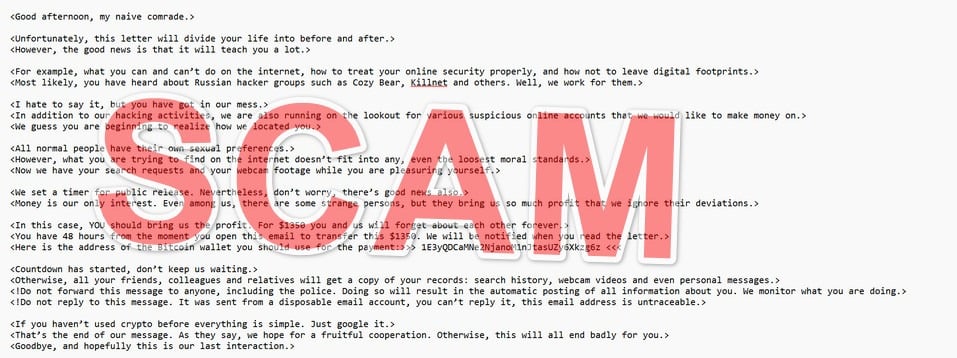
Here is what the “My Naive Comrade” email scam usually says:
Good afternoon, my naive comrade.
Unfortunately, this letter will divide your life into before and after.
However, the good news is that it will teach you a lot.For example, what you can and can’t do on the internet, how to treat your online security properly, and how not to leave digital footprints.
Most likely, you have heard about Russian hacker groups such as Cozy Bear, Killnet and others. Well, we work for them.I hate to say it, but you have got in our mess.
In addition to our hacking activities, we are also running on the lookout for various suspicious online accounts that we would like to make money on.
We guess you are beginning to realize how we located you.All normal people have their own sexual preferences.
However, what you are trying to find on the internet doesn’t fit into any, even the loosest moral standards.
Now we have your search requests and your webcam footage while you are pleasuring yourself.We set a timer for public release. Nevertheless, don’t worry, there’s good news also.
Money is our only interest. Even among us, there are some strange persons, but they bring us so much profit that we ignore their deviations.In this case, YOU should bring us the profit. For $1350 you and us will forget about each other forever.
You have 48 hours from the moment you open this email to transfer this $1350. We will be notified when you read the letter.
Here is the address of the Bitcoin wallet you should use for the payment: 1E3yQDCaMNe2NjanoM1nJtasUZy6Xkzg6zCountdown has started, don’t keep us waiting.
Otherwise, all your friends, colleagues and relatives will get a copy of your records: search history, webcam videos and even personal messages.
!Do not forward this message to anyone, including the police. Doing so will result in the automatic posting of all information about you. We monitor what you are doing.
!Do not reply to this message. It was sent from a disposable email account, you can’t reply it, this email address is untraceable.If you haven’t used crypto before everything is simple. Just google it.
That’s the end of our message. As they say, we hope for a fruitful cooperation. Otherwise, this will all end badly for you.
Goodbye, and hopefully this is our last interaction.P. S. Remember for the future, the Internet is not some kind of a Wild West where you can do anything you want.
There is a wholesome shiver of hungry sharks searching for irresponsible persons like you.
This scam email is untraceable, coming from a disposable account. The criminals behind it are difficult to track, often routing their online activity through VPNs and dark web tools to avoid identification. While references are made to infamous Russian hacker groups, security experts believe a wide range of cybercriminals across the world perpetrate these “My Naive Comrade” scams.
How the My Naive Comrade Scam Works
The My Naive Comrade scam is essentially a variant of traditional extortion scams conducted through email. Here is a step-by-step look at how this scam operates:
1. Recipients Receive Unsolicited Email
The scam begins with victims receiving an unsolicited email in their inbox with no context. The sender uses a disposable email address, often routing through foreign servers to preserve anonymity. Email spam filters generally will not flag these scam emails as dangerous due to this obfuscation.
2. Email Makes Bold Claims and Threats
As outlined in the overview, the email makes bold claims about having access to the target’s browsing history, webcam, and personal information. Threats are made to release embarrassing or damaging material publicly if payment is not received.
3. Demand for Urgent Payment in Bitcoin
The email demands payment within 48 hours to a provided bitcoin wallet address. The shortened timeframe adds to the intimidation, urging victims to act quickly rather than think twice. Bitcoin is used due to the pseudo-anonymity it provides.
4. Disposable Email Makes it Untraceable
Victims are told not to respond to the email, as it comes from an untraceable disposable account operated by the scammers. This covers their tracks and makes it difficult for authorities to pursue them.
5. Scammers Monitor Incoming Bitcoin Payments
Once the scam email is sent out, the criminals simply monitor their provided bitcoin wallet address for any incoming payments. No actual hacking or compromised information is involved typically.
6. Criminals Disappear Once Paid
For victims that do send bitcoin payments out of fear, the scammers simply pocket the funds and disappear. Their disposable email systems make it essentially impossible for targets to ever make contact again.
This straightforward process allows scammers to cast a wide net for potential blackmail victims. Even a tiny conversion rate can lead to profitable returns given the minimal effort and anonymity afforded by electronic communications.
What to Do If You Get the My Naive Comrade Email
If this ominous email lands in your inbox one day, don’t panic. Here are some tips on what to do to protect yourself if targeted by the My Naive Comrade scam:
- Remain calm – The email tries to frighten you into hasty action. Take a deep breath and think carefully before doing anything.
- Do not reply – As the email states, replies will not reach real people. Responding confirms an active account.
- Do not pay – Wiring money only enables and emboldens these criminals to keep scamming. Report, block, and delete.
- Check login locations – Log into your email and online accounts to check recent IP locations. Scammers sometimes hack inboxes to make claims more credible.
- Run antivirus software – Scan your devices in case of malware installation. However, the email itself is not dangerous without clicks.
- Change passwords – Update passwords on your email, social media, and online accounts as a precaution. Make them strong and unique phrases.
- Contact authorities – File a complaint with the FBI’s Internet Crime Complaint Center (www.ic3.gov). They can work with international partners to investigate.
- Warn contacts – Let your friends and family know of new potential scams making the rounds. Awareness protects against phishing exploits.
- Adjust privacy settings – Go through your online accounts and ensure your privacy settings are locked down. Reduce public information visibility.
- Learn from it – Stay vigilant for potential scams and suspicious emails. Remember that if it seems too outlandish to be true, it likely is.
With the proper precautions, you can protect yourself from potential harm. The My Naive Comrade scam can only succeed if victims take the bait. Keep your wits about you and avoid funding criminal enterprises.
Is Your Device Infected? Run a Free Malware Scan
Slow performance, constant pop-ups, or strange behavior? These are classic signs of a malware infection. The fastest way to find out is to scan your device with Malwarebytes Free — one of the most trusted malware removal tools available.
The free version detects and removes the most common threats, including:
- Adware — the cause of those annoying pop-ups
- Browser hijackers — unwanted redirects and changed homepages
- Trojans and spyware — hidden programs stealing your data
- Potentially unwanted programs (PUPs) — software you never asked for
👉 Select your device below — Windows, Mac, or Android — then follow the simple steps to download Malwarebytes, scan your system, and remove any threats it finds. The scan usually takes 5 to 20 minutes.
Run a Malware Scan with Malwarebytes for Windows
Malwarebytes is one of the most popular and trusted anti-malware tools for Windows — and it’s completely free for removing infections. It catches threats that many antivirus programs miss, including adware, browser hijackers, and trojans. Follow the steps below to scan and clean your PC in just a few minutes.
Download Malwarebytes
Click the button below to download the latest version of Malwarebytes for Windows from the official source. The free version is all you need — it will scan your computer and remove adware, browser hijackers, and other malicious software at no cost.
Download MalwarebytesOfficial installer for Windows 11 and 10. Your download starts right away.Want real-time protection? See Malwarebytes Premium Malwarebytes Free for WindowsScans and removes malware at no cost
-
Install Malwarebytes
When the download finishes, open your Downloads folder and double-click the MBSetup file. If Windows shows a User Account Control pop-up, click “Yes” to allow the installation.

Follow the On-Screen Prompts to Install Malwarebytes
The setup wizard will walk you through a few quick screens:
-
Choose where you’re installing the program — “Personal Computer” or “Work Computer” — then click Next.

-
Malwarebytes will now install on your device. This usually takes under a minute.

-
When installation is complete, the “Welcome to Malwarebytes” screen will open automatically.

-
On the final screen, click Open Malwarebytes to launch the program.

-
Enable “Scan for Rootkits”
Before scanning, turn on rootkit detection so Malwarebytes can find even the most hidden threats. Click the Settings gear icon on the left side of the screen.

In the settings menu, find “Scan for rootkits” and click the toggle so it turns blue.

Done? Click “Dashboard” in the left pane to return to the main screen.
Start the Scan
Click the blue Scan button. Malwarebytes will automatically update its virus database and start checking your computer for malware.

-
Wait for the Scan to Finish
The scan checks your entire system for browser hijackers and other malicious programs, so it can take 5 to 20 minutes depending on your computer. Feel free to do something else — just check back occasionally to see the progress.

-
Quarantine the Detected Threats
When the scan is done, you’ll see a list of everything Malwarebytes found — malware, adware, and potentially unwanted programs. Click the “Quarantine” button to remove all of them at once.

Malwarebytes will now remove the malicious files and registry entries and move them safely into quarantine.

-
Restart Your Computer
Some threats can only be fully removed after a reboot. If Malwarebytes asks you to restart, click Yes. Once you’re logged back in, Malwarebytes has finished removing the threats it found.

That’s it — your Windows PC is now clean of trojans, adware, and other malware, and should be back to running smoothly.
If you are still having problems with your computer after completing these instructions, then please follow one of the steps:
- Run a computer scan with ESET Online Scanner
- Ask for help in our Windows Malware Removal Help & Support forum.
Run a Malware Scan with Malwarebytes for Mac
Malwarebytes for Mac is a free on-demand scanner that removes the malware other security software tends to miss — adware, browser hijackers, and unwanted programs included. Cleaning an infected Mac with Malwarebytes has always been completely free, and it’s our go-to recommendation. Follow the steps below to scan and clean your Mac in just a few minutes.
-
Download Malwarebytes for Mac
Click the button below to download the latest version of Malwarebytes for Mac.
Download MalwarebytesOfficial installer for macOS. Your download starts right away.Want real-time protection? See Malwarebytes PremiumMalwarebytes Free for MacScans and removes malware at no cost -
Open the Malwarebytes setup file
When the download finishes, open your Downloads folder and double-click the setup file to begin the installation.

-
Follow the On-Screen Prompts to Install Malwarebytes
The Malwarebytes for Mac Installer will guide you through a few quick screens. Click “Continue” and keep following the prompts until the installation completes.



When the installation is complete, Malwarebytes opens to the Welcome to Malwarebytes screen. Click “Get started“.
-
Select “Personal Computer” or “Work Computer”
Malwarebytes will ask what type of computer you’re installing it on. Click either Personal Computer or Work Computer, whichever applies.

-
Start the Scan
Click the “Scan” button. Malwarebytes will automatically update its detection database and begin checking your Mac for malware.

-
Wait for the Scan to Finish
Malwarebytes will scan your Mac for adware, browser hijackers, and other malicious programs. This can take a few minutes, so feel free to do something else — just check back occasionally to see the progress.

-
Quarantine the Detected Threats
When the scan is done, you’ll see a list of everything Malwarebytes found. Click the “Quarantine” button to remove all the threats at once.

-
Restart Your Mac
Malwarebytes will now remove all the malicious files it found. Some threats can only be fully removed after a reboot — if Malwarebytes asks you to restart, allow it. Once you’re logged back in, your Mac is clean.

That’s it — your Mac is now free of adware, rogue browser extensions, and other potentially harmful software.
If you are still experiencing problems while trying to remove a malicious program from your computer, please ask for help in our Mac Malware Removal Help & Support forum.
Run a Malware Scan with Malwarebytes for Android
Malwarebytes for Android automatically detects and removes dangerous threats like malware and ransomware so you don’t have to worry about your most-used device being compromised. Aggressive detection of adware and potentially unwanted programs keeps your Android phone or tablet running smooth.
-
Download Malwarebytes for Android.
You can download Malwarebytes for Android by clicking the link below.
Get Malwarebytes for AndroidOpens Google Play in a new tab.Want real-time protection? See Malwarebytes Premium for AndroidMalwarebytes for AndroidScans your phone and removes malware at no cost -
Install Malwarebytes for Android on your phone.
In the Google Play Store, tap “Install” to install Malwarebytes for Android on your device.

When the installation process has finished, tap “Open” to begin using Malwarebytes for Android. You can also open Malwarebytes by tapping on its icon in your phone menu or home screen.

-
Follow the on-screen prompts to complete the setup process
When Malwarebytes will open, you will see the Malwarebytes Setup Wizard which will guide you through a series of permissions and other setup options.
This is the first of two screens that explain the difference between the Premium and Free versions. Swipe this screen to continue.
Tap on “Got it” to proceed to the next step.
Malwarebytes for Android will now ask for a set of permissions that are required to scan your device and protect it from malware. Tap on “Give permission” to continue.
Tap on “Allow” to permit Malwarebytes to access the files on your phone.
-
Update database and run a scan with Malwarebytes for Android
You will now be prompted to update the Malwarebytes database and run a full system scan.

Click on “Update database” to update the Malwarebytes for Android definitions to the latest version, then click on “Run full scan” to perform a system scan.

-
Wait for the Malwarebytes scan to complete.
Malwarebytes will now start scanning your phone for adware and other malicious apps. This process can take a few minutes, so we suggest you do something else and periodically check on the status of the scan to see when it is finished.

-
Click on “Remove Selected”.
When the scan has been completed, you will be presented with a screen showing the malware infections that Malwarebytes for Android has detected. To remove the malicious apps that Malwarebytes has found, tap on the “Remove Selected” button.

-
Restart your phone.
Malwarebytes for Android will now remove all the malicious apps that it has found. To complete the malware removal process, Malwarebytes may ask you to restart your device.
That’s it — your Android phone is now clean — no more malicious apps, adware, or browser redirects.
If you are still having problems with your phone after completing these instructions, then please follow one of the steps:
- Restore your phone to factory settings by going to Settings > General management > Reset > Factory data reset.
- Ask for help in our Mobile Malware Removal Help & Support forum.
Stay Protected: Block Ads and Malicious Sites
Now that your device is clean, keep it that way. Most infections start with a malicious ad or a fake download button — so blocking them at the source is your best defense.
We recommend AdGuard, which blocks malicious ads, phishing pages, and dangerous redirects before they can reach you.
👉 Download AdGuard and browse safely
Frequently Asked Questions about the My Naive Comrade Scam
1. What is the My Naive Comrade scam?
The My Naive Comrade scam is a phishing email that attempts to extort money from recipients by threatening to publicly release personal information. The email claims to be from Russian hackers who have compromised your data. In reality, it is an empty threat designed to trick victims into sending bitcoin payments.
2. How does the My Naive Comrade scam email work?
The scam email is sent from a disposable account and makes bold claims that your browsing history, webcam footage, and personal information have been hacked. It demands a bitcoin payment within 48 hours or the data will be leaked publicly. However, no actual hacking takes place.
3. What are some key identifiers of the My Naive Comrade scam email?
- Addressing the recipient as “my naive comrade”
- Claims of being Russian hackers involved in cybercrime
- Threats to release browsing history, webcam footage, personal data
- Demand for urgent bitcoin payment to a provided wallet address
- Short 48 hour deadline
- Requests not to respond or contact authorities
- Sent from a disposable, untraceable email address
4. What should I do if I receive the My Naive Comrade email?
- Do not panic or reply to the email
- Do not send any payment – Report the scam attempt to authorities
- Check login locations on your online accounts
- Change passwords and enable two-factor authentication
- Run anti-virus software to check for malware
- Warn contacts about the new phishing scam
5. Can the scammers actually hack my webcam or PC?
No, this is an empty threat designed to trick you into paying. The scam email is not capable of hacking into your webcam or computer directly. Make sure your security software firewalls and antivirus programs are up to date.
6. Should I report the My Naive Comrade email scam to the authorities?
Yes, you can report this scam attempt to the FBI’s Internet Crime Complaint Center at www.ic3.gov or local law enforcement. This helps authorities track cybercrime patterns and work to pursue justice against scammers.
7. How can I protect myself from the My Naive Comrade scam in the future?
- Use strong unique passwords on all accounts
- Enable two-factor authentication where possible
- Keep software updated and run antivirus scans
- Watch out for suspicious unsolicited emails
- Never send money or personal info to random contacts
- Learn how to identify key scam indicators
8. What is the bottom line on the My Naive Comrade scam?
It is a deceptive attempt to extort money using baseless threats and intimidation. Protect yourself through awareness, good security practices, and avoiding engagement with suspicious emails. Report scam attempts to help prevent others from falling victim.
The Bottom Line on the My Naive Comrade Scam
The My Naive Comrade scam is just one of the many phishing and extortion attempts flooding cyberspace today. While references to Russian hackers and compromised accounts create a frightening impression, the reality is mundane.
By cutting through the aggressive threats and ransom demands, we see this scam relies entirely on intimidating victims rather than any actual hacked data. With strong passwords, updated security, and avoiding engagement, these scams can be easily defeated.
Awareness is key when it comes to modern cybercrime. Scammers rely on shock, awe, and confusion to exploit internet users. By informing yourself on the latest phishing techniques and choosing non-engagement, you deprive these fraudsters of what they need most – targets. Keep your personal data locked down tight.
The My Naive Comrade scam will surely persist as long as distant anonymity makes digital communication vulnerable. But a vigilant and proactive public can stifle these criminal enterprises. Share information, strengthen security, and think carefully before you act. With care and awareness, we can turn the tables on scammers and create a safer web for all.

Join the discussion
0 commentsShare your experience or ask a question about this article.
Discussion
Start the conversation
Have a question or something useful to share? Add the first comment.