

The Password Credentials email scam aims to trick victims into handing over their login credentials by sending fake notifications about password expirations.
This article will provide an in-depth overview of how this scam works, including the tactics used to fool victims. We will outline the key steps to identify these malicious emails and provide recommendations on what to do if you fall prey
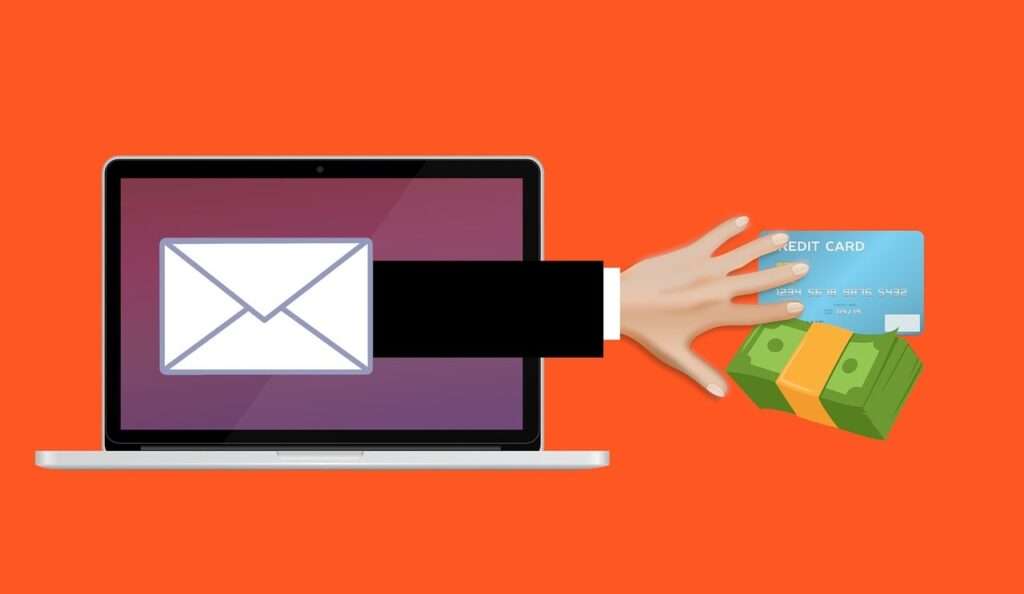
Overview of the Password Credentials Email Scam
The password credentials email scam starts with victims receiving an email claiming to be from an email service provider, like Gmail or Yahoo. The email states that the recipient’s password is expiring or requires validation to avoid automatic account closure.
To maintain access, the victim is instructed to click on a link to renew their password credentials. However, this link does not lead to the legitimate service provider site. Instead, it directs to a fake phishing site designed to mirror the real login page and steal account information.
Once on the phishing site, victims enter their username and password, unwittingly providing their credentials to cybercriminals. With this stolen data, scammers gain access to victim’s accounts and sensitive information. Email scams using this approach rely on urgency and fear to pressure users into immediate action before carefully examining the message source and claims.
How the Password Credentials Email Scam Works
The password credentials scam employs carefully crafted messages and fake sites to execute its fraud. Here is a step-by-step breakdown of how this scam operates:
Step 1: Crafting Deceptive Emails
The first step for scammers is creating emails that appear to come from legitimate and trusted sources. For example, if targeting Gmail users, they will spoof the email to make it seem like an official notification from Google. Emails will contain:
- Gmail logo and branding elements to look authentic.
- Subject lines with security warnings, like “Gmail Password Expiring” or “Revalidate Gmail Password Now.”
- Official sounding language in the message, like “Your account requires password renewal” or “Your password validation expires on [date].”
- False claims that the account will be locked without immediate action, creating urgency.
- A “Renew Password” or “Keep Same Password” clickable call-to-action button.
This crafted message is designed expressly to worried recipients that their account security is at risk, prompting hasty action.
Step 2: Directing Victims to Fake Websites
When victims click the deceptive call-to-action buttons, they are redirected away from the official service provider site. Instead, the link goes to professionally designed imposter sites that closely mirror the real login page.
For example, scammers may register a Gmail lookalike domain and create login pages with Google branding, colors, typeface, and overall design. The site asking users to enter their credentials appears legitimate at first glance.
In some cases, the URLs may be close misspellings of the actual domain meant to trick hasty users. Security indicators like “HTTPS” can also be faked to further confuse victims.
Step 3: Harvesting Login Credentials
On the fraudulent site, victims are prompted to enter their email address and current password to “renew” their account access. By submitting this data, they have just handed their login credentials directly to scammers.
The fake site is setup to capture and record all entered information. Once scammers obtain the credentials, they can access and take over the victim’s real account.
Step 4: Deleting Traces
To cover their tracks, scammers will quickly delete the phishing site after getting victim credentials. Links in the emails will be disabled, removing evidence that could reveal the scam.
At the same time, they will change passwords, alter security settings, and modify account information to lock out the real account owner. This allows them to ransack the compromised account without the victim immediately realizing what happened.
Step 5: Exploiting the Accounts
With full access obtained, scammers can now exploit compromised accounts for profit in various ways:
- Accessing and extracting any sensitive data.
- Impersonating the account owner identity.
- Monitoring emails and contacts for future phishing.
- Sending malware or malicious links to contacts.
- Posting spam or scams using the account.
- Accessing and emptying financial accounts linked to the email.
Without quick detection, stolen accounts can be exploited in many damaging ways before victims regain control.
Tactics Used to Deceive Victims
The password credentials scam relies on clever psychological tactics to manipulate victims:
1. Appearing as a Trusted Source
The emails are carefully designed to appear as if they are from a real service provider that the recipient already trusts. Official logos, fonts, and messaging is used to assume that identity. Victims let their guard down to sources thought to be legitimate.
2. Conveying Urgency and Threats
Language emphasizing immediate threats, like a password expiring or account closure, manufactures urgency to panic recipients. This pressures hasty actions without double checking legitimacy first.
3. Demanding Confirmation to Avoid Consequences
Stating that accounts will be automatically deactivated or deleted unless the victim provides updated credentials portrays dire consequences. This compels entering information to avoid assumed account access loss.
4. Linking to Fake Sites
Links are embedded to direct victims to imposter sites on the fly. Careful mimicry of the real sites allows for seamless transitions that avoid suspicion.
5. Limiting Ability to Vet or Validate
With threats of quick consequences, links that direct away from trusted sources, and urgent pressures, victims are unable to properly vet the emails first. Scammers intentionally limit avenues for carefully examining their claims.
Understanding these manipulation methods is key to recognizing and avoiding falling victim yourself.
How to Identify the Password Credentials Email Scam
While scammers are employing increasingly sophisticated techniques, there are key signs you can look for to detect phishing emails:
- Generic Greetings – Legitimate notices will address you directly, such as “Hi John.” Scam emails will use impersonal greetings like “Dear user.”
- Spelling and Grammar Errors – While not a perfect indicator, poor writing quality can signal scam attempts.
- Threatening Language – Real providers convey urgency politely, not with threatening account closures.
- Requests for Sensitive Info – Providers don’t send emails asking for your password or account details proactively.
- Mismatched Links – Hover over links to see if URLs match the company. Links should connect back to official sites.
- Odd Sender Addresses – Verify the sender domain name matches the company, like @gmail.com.
- HTTPS Missing – Secure sites should show “HTTPS” in URLs. Non-secure imposter sites likely won’t.
- Poor Logo Quality – Logos may look blurry or low-resolution if copied.
- No Personalization – Real notices reference your account specifically.
- Requests Account Updates – Companies don’t renew passwords via unsolicited emails.
Always scrutinize any emails requesting login information thoroughly before acting. When in doubt, contact the company directly through their official customer service channels to verify legitimacy.
What to Do If You Fall Victim to the Password Credentials Scam
If you supplied your username and password on a phishing site, here are the steps to take immediately:
1. Change Your Password
If you still can access your account, change your password immediately. Make sure it is unique from prior passwords. Enable two-factor authentication for added security.
2. Contact the Company
Reach out to the service provider via their official contact number or help center. Alert them that your account was compromised through a phishing attack. They may be able to lock the account to resecure it.
3. Review Account Activity and Settings
Check for any signs of unauthorized access like changed recovery emails, suspicious forwards, or financial transactions. Update your settings and recover anything modified by scammers.
4. Run Anti-virus Scans
If malware may have been downloaded onto your devices, run complete scans using up-to-date anti-virus software to detect and remove anything suspicious.
5. Reset Devices Accessing the Account
Wipe and reset any phones, tablets, computers or devices that were used to access the scam link and enter credentials. This clears out any spyware.
6. Enable Login Approvals
Turn on two-factor or multi-factor authentication requirements for additional login verifications via codes or biometrics.
7. Change Passwords On Other Accounts
If you reuse the compromised password elsewhere, change it on all other accounts immediately to block wider vulnerability.
8. Monitor Accounts Closely
Carefully check all account activity and statements over the next weeks and months for any signs of misuse. Report unauthorized charges or access immediately.
9. Beware of Secondary Scams
After gaining account access, scammers may launch secondary cons against contacts by emailing from a compromised account. Warn your connections to ignore suspicious messages “from you”.
10. Contact Banks/Employers if Breached
If any financial accounts or work accounts were accessed, alert those institutions. They can watch for fraudulent activity and help protect assets.
Is Your Device Infected? Run a Free Malware Scan
Slow performance, constant pop-ups, or strange behavior? These are classic signs of a malware infection. The fastest way to find out is to scan your device with Malwarebytes Free — one of the most trusted malware removal tools available.
The free version detects and removes the most common threats, including:
- Adware — the cause of those annoying pop-ups
- Browser hijackers — unwanted redirects and changed homepages
- Trojans and spyware — hidden programs stealing your data
- Potentially unwanted programs (PUPs) — software you never asked for
👉 Select your device below — Windows, Mac, or Android — then follow the simple steps to download Malwarebytes, scan your system, and remove any threats it finds. The scan usually takes 5 to 20 minutes.
Run a Malware Scan with Malwarebytes for Windows
Malwarebytes is one of the most popular and trusted anti-malware tools for Windows — and it’s completely free for removing infections. It catches threats that many antivirus programs miss, including adware, browser hijackers, and trojans. Follow the steps below to scan and clean your PC in just a few minutes.
Download Malwarebytes
Click the button below to download the latest version of Malwarebytes for Windows from the official source. The free version is all you need — it will scan your computer and remove adware, browser hijackers, and other malicious software at no cost.
Download MalwarebytesOfficial installer for Windows 11 and 10. Your download starts right away.Want real-time protection? See Malwarebytes Premium Malwarebytes Free for WindowsScans and removes malware at no cost
-
Install Malwarebytes
When the download finishes, open your Downloads folder and double-click the MBSetup file. If Windows shows a User Account Control pop-up, click “Yes” to allow the installation.

Follow the On-Screen Prompts to Install Malwarebytes
The setup wizard will walk you through a few quick screens:
-
Choose where you’re installing the program — “Personal Computer” or “Work Computer” — then click Next.

-
Malwarebytes will now install on your device. This usually takes under a minute.

-
When installation is complete, the “Welcome to Malwarebytes” screen will open automatically.

-
On the final screen, click Open Malwarebytes to launch the program.

-
Enable “Scan for Rootkits”
Before scanning, turn on rootkit detection so Malwarebytes can find even the most hidden threats. Click the Settings gear icon on the left side of the screen.

In the settings menu, find “Scan for rootkits” and click the toggle so it turns blue.

Done? Click “Dashboard” in the left pane to return to the main screen.
Start the Scan
Click the blue Scan button. Malwarebytes will automatically update its virus database and start checking your computer for malware.

-
Wait for the Scan to Finish
The scan checks your entire system for browser hijackers and other malicious programs, so it can take 5 to 20 minutes depending on your computer. Feel free to do something else — just check back occasionally to see the progress.

-
Quarantine the Detected Threats
When the scan is done, you’ll see a list of everything Malwarebytes found — malware, adware, and potentially unwanted programs. Click the “Quarantine” button to remove all of them at once.

Malwarebytes will now remove the malicious files and registry entries and move them safely into quarantine.

-
Restart Your Computer
Some threats can only be fully removed after a reboot. If Malwarebytes asks you to restart, click Yes. Once you’re logged back in, Malwarebytes has finished removing the threats it found.

That’s it — your Windows PC is now clean of trojans, adware, and other malware, and should be back to running smoothly.
If you are still having problems with your computer after completing these instructions, then please follow one of the steps:
- Run a computer scan with ESET Online Scanner
- Ask for help in our Windows Malware Removal Help & Support forum.
Run a Malware Scan with Malwarebytes for Mac
Malwarebytes for Mac is a free on-demand scanner that removes the malware other security software tends to miss — adware, browser hijackers, and unwanted programs included. Cleaning an infected Mac with Malwarebytes has always been completely free, and it’s our go-to recommendation. Follow the steps below to scan and clean your Mac in just a few minutes.
-
Download Malwarebytes for Mac
Click the button below to download the latest version of Malwarebytes for Mac.
Download MalwarebytesOfficial installer for macOS. Your download starts right away.Want real-time protection? See Malwarebytes PremiumMalwarebytes Free for MacScans and removes malware at no cost -
Open the Malwarebytes setup file
When the download finishes, open your Downloads folder and double-click the setup file to begin the installation.

-
Follow the On-Screen Prompts to Install Malwarebytes
The Malwarebytes for Mac Installer will guide you through a few quick screens. Click “Continue” and keep following the prompts until the installation completes.



When the installation is complete, Malwarebytes opens to the Welcome to Malwarebytes screen. Click “Get started“.
-
Select “Personal Computer” or “Work Computer”
Malwarebytes will ask what type of computer you’re installing it on. Click either Personal Computer or Work Computer, whichever applies.

-
Start the Scan
Click the “Scan” button. Malwarebytes will automatically update its detection database and begin checking your Mac for malware.

-
Wait for the Scan to Finish
Malwarebytes will scan your Mac for adware, browser hijackers, and other malicious programs. This can take a few minutes, so feel free to do something else — just check back occasionally to see the progress.

-
Quarantine the Detected Threats
When the scan is done, you’ll see a list of everything Malwarebytes found. Click the “Quarantine” button to remove all the threats at once.

-
Restart Your Mac
Malwarebytes will now remove all the malicious files it found. Some threats can only be fully removed after a reboot — if Malwarebytes asks you to restart, allow it. Once you’re logged back in, your Mac is clean.

That’s it — your Mac is now free of adware, rogue browser extensions, and other potentially harmful software.
If you are still experiencing problems while trying to remove a malicious program from your computer, please ask for help in our Mac Malware Removal Help & Support forum.
Run a Malware Scan with Malwarebytes for Android
Malwarebytes for Android automatically detects and removes dangerous threats like malware and ransomware so you don’t have to worry about your most-used device being compromised. Aggressive detection of adware and potentially unwanted programs keeps your Android phone or tablet running smooth.
-
Download Malwarebytes for Android.
You can download Malwarebytes for Android by clicking the link below.
Get Malwarebytes for AndroidOpens Google Play in a new tab.Want real-time protection? See Malwarebytes Premium for AndroidMalwarebytes for AndroidScans your phone and removes malware at no cost -
Install Malwarebytes for Android on your phone.
In the Google Play Store, tap “Install” to install Malwarebytes for Android on your device.

When the installation process has finished, tap “Open” to begin using Malwarebytes for Android. You can also open Malwarebytes by tapping on its icon in your phone menu or home screen.

-
Follow the on-screen prompts to complete the setup process
When Malwarebytes will open, you will see the Malwarebytes Setup Wizard which will guide you through a series of permissions and other setup options.
This is the first of two screens that explain the difference between the Premium and Free versions. Swipe this screen to continue.
Tap on “Got it” to proceed to the next step.
Malwarebytes for Android will now ask for a set of permissions that are required to scan your device and protect it from malware. Tap on “Give permission” to continue.
Tap on “Allow” to permit Malwarebytes to access the files on your phone.
-
Update database and run a scan with Malwarebytes for Android
You will now be prompted to update the Malwarebytes database and run a full system scan.

Click on “Update database” to update the Malwarebytes for Android definitions to the latest version, then click on “Run full scan” to perform a system scan.

-
Wait for the Malwarebytes scan to complete.
Malwarebytes will now start scanning your phone for adware and other malicious apps. This process can take a few minutes, so we suggest you do something else and periodically check on the status of the scan to see when it is finished.

-
Click on “Remove Selected”.
When the scan has been completed, you will be presented with a screen showing the malware infections that Malwarebytes for Android has detected. To remove the malicious apps that Malwarebytes has found, tap on the “Remove Selected” button.

-
Restart your phone.
Malwarebytes for Android will now remove all the malicious apps that it has found. To complete the malware removal process, Malwarebytes may ask you to restart your device.
That’s it — your Android phone is now clean — no more malicious apps, adware, or browser redirects.
If you are still having problems with your phone after completing these instructions, then please follow one of the steps:
- Restore your phone to factory settings by going to Settings > General management > Reset > Factory data reset.
- Ask for help in our Mobile Malware Removal Help & Support forum.
Stay Protected: Block Ads and Malicious Sites
Now that your device is clean, keep it that way. Most infections start with a malicious ad or a fake download button — so blocking them at the source is your best defense.
We recommend AdGuard, which blocks malicious ads, phishing pages, and dangerous redirects before they can reach you.
👉 Download AdGuard and browse safely
Frequently Asked Questions About the Password Credentials Email Scam
1. What is the password credentials email scam?
The password credentials email scam is a phishing scam where users receive an email claiming to be from a trusted service provider stating that the user’s password is expiring. The email prompts the user to click on a link to renew their password, but the link directs to a fake website designed to steal login credentials. Cybercriminals use the stolen usernames and passwords to access and takeover victims’ accounts.
2. How does the password credentials scam work?
The scam begins with a fake email using logos and messaging of a legitimate service to trick users. The email claims the password is expiring and the account will close if not renewed immediately. A link in the email goes to an imposter site mirroring the real login page. If users enter their username and password, the criminals capture the data and gain account access.
3. What are some tactics scammers use in these emails?
Tactics include using logos and branding from real services, urgent threats of account closure, short deadlines to panic victims, and spoofed sender emails and addresses. Links in the emails bypass the real site to fake ones. The emails limit ways to validate them to trick hurried users.
4. How can I identify these phishing emails?
Look for odd sender emails, spelling errors, general greetings, threats, requests for sensitive information, mismatched links between text and URL, missing HTTPS security, poor logos, lack of personalization and other signs it is not a valid message.
5. What should I do if I entered my password on a phishing site?
Immediately change your password and enable login approvals on the real site. Contact the provider to secure the account. Scan devices for malware and wipe any that accessed the scam link. Monitor accounts closely for fraudulent activity and beware of secondary scams using your compromised account.
6. How can I keep my accounts safe from this scam?
Never click links or provide information in unsolicited emails. Verify messages are real directly with the company. Use secure passwords and login approvals. Watch for phishing red flags like threats, urgency, and requests for sensitive data. Keep software updated and use anti-phishing filters.
7. What happens if scammers access my account?
They can steal personal data, impersonate you, access financial accounts, post spam/scams, change account information to lock you out, and exploit the account in other damaging ways.
8. Should I report these scam emails or sites?
Yes, you should report phishing emails, sites, or if you fall victim to the authorities like the Anti-Phishing Working Group, FTC, and FBI IC3 to help warn others and support investigations.
9. How can I protect my online accounts overall?
Use unique complex passwords on all accounts, enable two-factor authentication, check privacy settings, be vigilant about phishing tactics, keep software updated, monitor account activity routinely, and contact companies about suspicious activity related to your accounts.
The Bottom Line
The password credentials email scam is a dangerous fraud that can lead to account access theft, identity theft, financial theft and more if victims are tricked. However, understanding common phishing techniques and tactics makes it possible to detect these scams before falling prey.
Key takeaways if you receive a notice about an expiring or invalid password include:
- Never provide sensitive information via an unsolicited email link. Only enter data on verified official sites, not linked pages.
- Double check that all links go to legitimate sites and the senders are really the company.
- Contact companies via customer service numbers to confirm legitimacy if unsure.
- Avoid acting hurriedly in response to threats of account deactivation. Carefully vet all messages first.
- Use anti-phishing email filters and be vigilant about identifying scam red flags.
Protecting your accounts and data requires proactive scrutiny of all password expiration and verification notices. But with proper awareness safeguards in place, individuals can equip themselves to avoid being victimized by even sophisticated phishing scams aimed at stealing login credentials and identities.

Join the discussion
0 commentsShare your experience or ask a question about this article.
Discussion
Start the conversation
Have a question or something useful to share? Add the first comment.