

A terrifying new variant of the Pegasus spyware extortion scam has emerged, using photos of victims’ homes pulled from mapping services to increase pressure. Emails now open with chilling messages like “Look familiar?” above an image of your street or residence.
This highly personalized sextortion scheme aims to create urgency by pretending the scammers know where you live. But in truth, home images are easily obtainable online through public sources. Don’t let false claims about recording you backed by public pictures push you into rash decisions.
This article reveals how scammers exploit home images and Pegasus malware claims to fabricate threats. Armed with insights into their tactics, their smoke and mirrors intimidation attempts lose all sway over you.
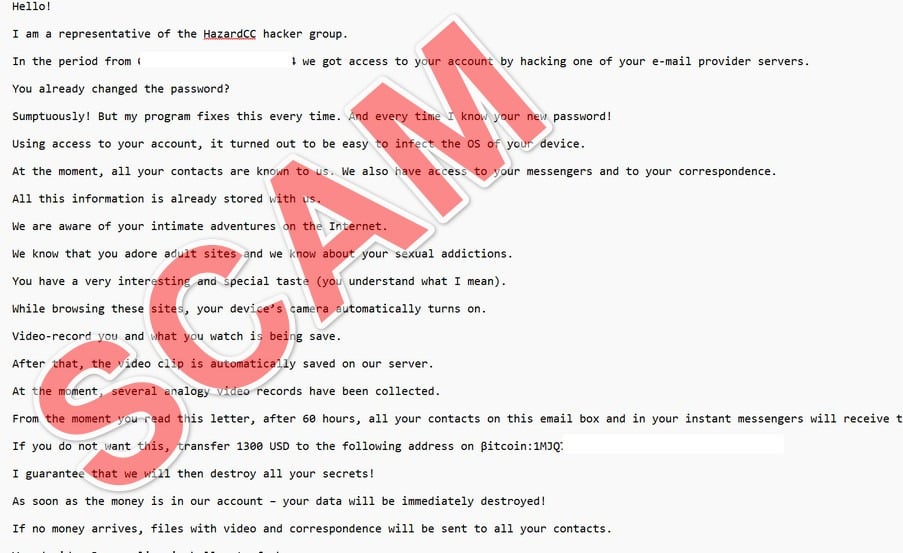
Overview of the Pegasus Spyware Scam Using Home Images
This recently emerged extortion scheme opens emails with a chilling personalized message like “Look familiar?” above an image of the recipient’s home or street. This aims to shock victims by implying their residence is under surveillance.
The email then claims the sender used Pegasus spyware to hack and monitor the recipient’s devices, recording inappropriate videos through their webcam for months. Threatening to send edited clips to all the victim’s contacts, the scammer demands payment of around $2,000 in untraceable Bitcoin within 24 hours.
Vague warnings are made about avoiding involving authorities and keeping the message confidential. Ominous threats refer to automatically releasing the supposed sex tapes if demands aren’t met or the email shared. This aims to prevent scrutiny and create urgent pressure to pay the ransom.
In reality, residential images included in the emails are easily obtained from public mapping sources like Google Street View using just a home address. The supposed inappropriate videos do not actually exist either – the criminals have no access to victims’ accounts or webcams.
By personalizing emails with home images sourced online, the scammers aim to trick recipients into thinking their residence is under close surveillance. But addresses are readily available information, allowing anyone to search and locate images of a home.
Unfortunately, discovering a photo of your own home coupled with warnings about Pegasus spyware makes the supposed hacking and recording claims seem plausible. This is what scammers are counting on – the shock factor of the personalized image distracting critical thinking.
In truth, distributing real Pegasus malware requires advanced skills and resources not possessed by random online scammers. Their claims of recording your activity are fabrication, with public pictures providing no evidence of real surveillance or leverage.
Do not let personalized details like images sourced from your address lull you into accepting the message’s bold claims at face value. This is precisely the reaction scammers hope for, relying on deception about their capabilities to trick victims into urgent payment.
But scrutinizing the anatomy of this scam exposes how they actually have no access, videos, or control over you. The home image offers no proof other than being obtainable online through public sources. They cannot follow through on threats since it’s all manipulation.
By understanding where these photos truly come from and the limits of real Pegasus spyware distribution, recipients can protect themselves from knee-jerk reactions. Don’t allow scammers to intimidate you with your own address and fictional surveillance claims.
How the Home Images Pegasus Scam Unfolds
Understanding the careful choreography of online extortion schemes helps protect against hasty reactions. Here’s a closer look at how the Pegasus variant using home images operates:
Step 1: Obtain Victims’ Names and Addresses
Scammers first acquire names and physical addresses through data breaches, public records, or social engineering, compiling a list of potential targets.
Step 2: Search Public Sources for Images of Homes
Using mapping sites like Google Street View or Zillow, the scammers input addresses to locate and save images of targets’ actual residences.
Step 3: Craft Emails Personalized with Recipients’ Names and Home Photos
Messages are prepped opening with recipients’ names and images of their home or street for shock value.
Step 4: Pretend Home Image Shows Close Surveillance
The email acts like sending a photo of your residence proves sophisticated hacking capabilities and ongoing monitoring.
Step 5: Threaten Exposure Through Fake Pegasus Videos
Echoing similar scams, they threaten embarrassing videos recorded through Pegasus spyware as blackmail.
Step 6: Demand Untraceable Ransom Paid Quickly
Payment in Bitcoin is demanded within 24 hours to preserve anonymity and fund other criminal efforts.
Step 7: Insist Scrutiny Will Trigger Video Release
They warn sharing the message or contacting police will unleash exposure, deterring investigation.
Step 8: Make Ominous Threats of Life Destruction
Vague warnings of destroying your life help manufacture urgency to pay up or face fabricated consequences.
Step 9: Send Variations Targeting More Victims
Successful tactics are repeated, targeting more recipients pulled from data breach lists with similar home image emails.
Step 10: Quietly Collect Any Ransoms Paid
Scammers monitor their Bitcoin payment address to reap profits from those scared into paying up.
As we can see, the inclusion of home images provides no actual evidence of access or control. Publicly available photos only increase intimidation through deception. Do not let them manipulate you with smoke and mirrors.
As we can see, residential images provide no actual evidence of access or surveillance. Public pictures from mapping sites only intimidate through deception.
What to Do if You Receive This Scam Email Threatening Home Exposure
Discovering an image of your own residence used in a chilling extortion scheme can be deeply unsettling. It’s natural to feel violation and urgency to make the threats stop. However, it’s crucial not to let scammers provoke rash decisions they are counting on.
Here are the smartest steps to take if confronted with this scam variant:
1. Avoid Communicating With the Sender
Do not reply to the email, as this confirms your address is active. Completely ignore all future contact attempts to deny scammers engagement.
2. Do Not Pay the Demanded Ransom
Wiring funds only enables and enrichers criminals, leading to potential repeat targeting. No real leverage exists behind their threats.
3. Run Security Scans to Check for Malware
Scan your devices using updated antivirus software to be safe, but true Pegasus infection is unlikely from random scammers.
4. Change Online Account Passwords if Concerned
Refresh logins as a precaution, avoiding password reuse across sites. Enable two-factor authentication where possible.
5. Report the Sextortion Attempt to Authorities
Contact agencies like the FBI IC3 at www.ic3.gov to aid investigation and tracking of home image extortion schemes.
6. Expose the Home Photo Source to Contacts
Show friends and family the image comes from public mapping sites, not actual surveillance. This reveals the deception.
7. Warn Contacts Who Could Also Be Targeted
Let loved ones know to ignore similar emails using home images and Pegasus threats. Share awareness.
8. Contact Services to Remove Your Home Images
Opting out of public home imagery in Google Maps, Zillow etc removes scammers’ ammo.
9. Strengthen Online Privacy Precautions Going Forward
Be vigilant about app permissions, location sharing, social media oversharing, and info accessible online tied to your address.
10. Seek Emotional Support If Needed
Confide in trusted connections for reassurance. You have 100% control over this – the scammers have no real leverage.
Remember, residential photos provide no evidence of actual access or hacking. The criminals’ threats are empty fabrications relying on trickery. Avoid reactionary choices and instead take smart steps to protect yourself while exposing their deception. power. Take smart steps to protect yourself and others instead of reacting hastily out of fear.
Is Your Device Infected? Run a Free Malware Scan
Slow performance, constant pop-ups, or strange behavior? These are classic signs of a malware infection. The fastest way to find out is to scan your device with Malwarebytes Free — one of the most trusted malware removal tools available.
The free version detects and removes the most common threats, including:
- Adware — the cause of those annoying pop-ups
- Browser hijackers — unwanted redirects and changed homepages
- Trojans and spyware — hidden programs stealing your data
- Potentially unwanted programs (PUPs) — software you never asked for
👉 Select your device below — Windows, Mac, or Android — then follow the simple steps to download Malwarebytes, scan your system, and remove any threats it finds. The scan usually takes 5 to 20 minutes.
Run a Malware Scan with Malwarebytes for Windows
Malwarebytes is one of the most popular and trusted anti-malware tools for Windows — and it’s completely free for removing infections. It catches threats that many antivirus programs miss, including adware, browser hijackers, and trojans. Follow the steps below to scan and clean your PC in just a few minutes.
Download Malwarebytes
Click the button below to download the latest version of Malwarebytes for Windows from the official source. The free version is all you need — it will scan your computer and remove adware, browser hijackers, and other malicious software at no cost.
Download MalwarebytesOfficial installer for Windows 11 and 10. Your download starts right away.Want real-time protection? See Malwarebytes Premium Malwarebytes Free for WindowsScans and removes malware at no cost
-
Install Malwarebytes
When the download finishes, open your Downloads folder and double-click the MBSetup file. If Windows shows a User Account Control pop-up, click “Yes” to allow the installation.

Follow the On-Screen Prompts to Install Malwarebytes
The setup wizard will walk you through a few quick screens:
-
Choose where you’re installing the program — “Personal Computer” or “Work Computer” — then click Next.

-
Malwarebytes will now install on your device. This usually takes under a minute.

-
When installation is complete, the “Welcome to Malwarebytes” screen will open automatically.

-
On the final screen, click Open Malwarebytes to launch the program.

-
Enable “Scan for Rootkits”
Before scanning, turn on rootkit detection so Malwarebytes can find even the most hidden threats. Click the Settings gear icon on the left side of the screen.

In the settings menu, find “Scan for rootkits” and click the toggle so it turns blue.

Done? Click “Dashboard” in the left pane to return to the main screen.
Start the Scan
Click the blue Scan button. Malwarebytes will automatically update its virus database and start checking your computer for malware.

-
Wait for the Scan to Finish
The scan checks your entire system for browser hijackers and other malicious programs, so it can take 5 to 20 minutes depending on your computer. Feel free to do something else — just check back occasionally to see the progress.

-
Quarantine the Detected Threats
When the scan is done, you’ll see a list of everything Malwarebytes found — malware, adware, and potentially unwanted programs. Click the “Quarantine” button to remove all of them at once.

Malwarebytes will now remove the malicious files and registry entries and move them safely into quarantine.

-
Restart Your Computer
Some threats can only be fully removed after a reboot. If Malwarebytes asks you to restart, click Yes. Once you’re logged back in, Malwarebytes has finished removing the threats it found.

That’s it — your Windows PC is now clean of trojans, adware, and other malware, and should be back to running smoothly.
If you are still having problems with your computer after completing these instructions, then please follow one of the steps:
- Run a computer scan with ESET Online Scanner
- Ask for help in our Windows Malware Removal Help & Support forum.
Run a Malware Scan with Malwarebytes for Mac
Malwarebytes for Mac is a free on-demand scanner that removes the malware other security software tends to miss — adware, browser hijackers, and unwanted programs included. Cleaning an infected Mac with Malwarebytes has always been completely free, and it’s our go-to recommendation. Follow the steps below to scan and clean your Mac in just a few minutes.
-
Download Malwarebytes for Mac
Click the button below to download the latest version of Malwarebytes for Mac.
Download MalwarebytesOfficial installer for macOS. Your download starts right away.Want real-time protection? See Malwarebytes PremiumMalwarebytes Free for MacScans and removes malware at no cost -
Open the Malwarebytes setup file
When the download finishes, open your Downloads folder and double-click the setup file to begin the installation.

-
Follow the On-Screen Prompts to Install Malwarebytes
The Malwarebytes for Mac Installer will guide you through a few quick screens. Click “Continue” and keep following the prompts until the installation completes.



When the installation is complete, Malwarebytes opens to the Welcome to Malwarebytes screen. Click “Get started“.
-
Select “Personal Computer” or “Work Computer”
Malwarebytes will ask what type of computer you’re installing it on. Click either Personal Computer or Work Computer, whichever applies.

-
Start the Scan
Click the “Scan” button. Malwarebytes will automatically update its detection database and begin checking your Mac for malware.

-
Wait for the Scan to Finish
Malwarebytes will scan your Mac for adware, browser hijackers, and other malicious programs. This can take a few minutes, so feel free to do something else — just check back occasionally to see the progress.

-
Quarantine the Detected Threats
When the scan is done, you’ll see a list of everything Malwarebytes found. Click the “Quarantine” button to remove all the threats at once.

-
Restart Your Mac
Malwarebytes will now remove all the malicious files it found. Some threats can only be fully removed after a reboot — if Malwarebytes asks you to restart, allow it. Once you’re logged back in, your Mac is clean.

That’s it — your Mac is now free of adware, rogue browser extensions, and other potentially harmful software.
If you are still experiencing problems while trying to remove a malicious program from your computer, please ask for help in our Mac Malware Removal Help & Support forum.
Run a Malware Scan with Malwarebytes for Android
Malwarebytes for Android automatically detects and removes dangerous threats like malware and ransomware so you don’t have to worry about your most-used device being compromised. Aggressive detection of adware and potentially unwanted programs keeps your Android phone or tablet running smooth.
-
Download Malwarebytes for Android.
You can download Malwarebytes for Android by clicking the link below.
Get Malwarebytes for AndroidOpens Google Play in a new tab.Want real-time protection? See Malwarebytes Premium for AndroidMalwarebytes for AndroidScans your phone and removes malware at no cost -
Install Malwarebytes for Android on your phone.
In the Google Play Store, tap “Install” to install Malwarebytes for Android on your device.

When the installation process has finished, tap “Open” to begin using Malwarebytes for Android. You can also open Malwarebytes by tapping on its icon in your phone menu or home screen.

-
Follow the on-screen prompts to complete the setup process
When Malwarebytes will open, you will see the Malwarebytes Setup Wizard which will guide you through a series of permissions and other setup options.
This is the first of two screens that explain the difference between the Premium and Free versions. Swipe this screen to continue.
Tap on “Got it” to proceed to the next step.
Malwarebytes for Android will now ask for a set of permissions that are required to scan your device and protect it from malware. Tap on “Give permission” to continue.
Tap on “Allow” to permit Malwarebytes to access the files on your phone.
-
Update database and run a scan with Malwarebytes for Android
You will now be prompted to update the Malwarebytes database and run a full system scan.

Click on “Update database” to update the Malwarebytes for Android definitions to the latest version, then click on “Run full scan” to perform a system scan.

-
Wait for the Malwarebytes scan to complete.
Malwarebytes will now start scanning your phone for adware and other malicious apps. This process can take a few minutes, so we suggest you do something else and periodically check on the status of the scan to see when it is finished.

-
Click on “Remove Selected”.
When the scan has been completed, you will be presented with a screen showing the malware infections that Malwarebytes for Android has detected. To remove the malicious apps that Malwarebytes has found, tap on the “Remove Selected” button.

-
Restart your phone.
Malwarebytes for Android will now remove all the malicious apps that it has found. To complete the malware removal process, Malwarebytes may ask you to restart your device.
That’s it — your Android phone is now clean — no more malicious apps, adware, or browser redirects.
If you are still having problems with your phone after completing these instructions, then please follow one of the steps:
- Restore your phone to factory settings by going to Settings > General management > Reset > Factory data reset.
- Ask for help in our Mobile Malware Removal Help & Support forum.
Stay Protected: Block Ads and Malicious Sites
Now that your device is clean, keep it that way. Most infections start with a malicious ad or a fake download button — so blocking them at the source is your best defense.
We recommend AdGuard, which blocks malicious ads, phishing pages, and dangerous redirects before they can reach you.
👉 Download AdGuard and browse safely
FAQ: The Pegasus Home Images Sextortion Scam
1. Are the home images sent by scammers obtained through hacking?
No. The photos are sourced from public mapping sites by searching your address, not illegal access to device cameras or accounts.
2. Can I get mapped images of my home removed?
Yes, you can opt-out of public home imagery on Google Maps and sites like Zillow. This denies scammers future ammunition.
3. What should I do if I already paid the ransom?
Immediately contact your bank about possibly reversing the transaction, then report it to the FBI and warn loved ones who may be targeted next using the same tactics.
4. Are the videos the scammers threaten to leak real?
No. With no actual malware infection, the supposed inappropriate videos of you do not exist. It is complete fabrication with no supporting evidence.
5. What happens if I don’t pay the ransom?
Nothing. The threats are a bluff with no leverage or ability to follow through. The scammers will simply move on to target more potential victims.
6. Could my devices really be infected with Pegasus malware?
Extremely unlikely. Distributing real Pegasus requires millions in sophisticated skills and resources criminals do not possess to remotely hack you.
7. Should I factory reset my devices if I receive this scam?
Resetting is unnecessary since no real malware infection ever occurred. But you can run scans using trusted AV software and change passwords as precautions.
8. What details can I safely share to expose this scam?
The residential image itself proves it comes from public mapping sources, not actual access. Sharing this example with contacts reveals the deception.
9. Who should I report this sextortion scheme to?
Notify the FBI IC3, your local authorities, and email providers. Reporting helps authorities build cases against scammers exploiting home images.
10. How can I protect myself from future extortion attempts?
Increase privacy precautions online, avoid oversharing details like your address, report all sextortion attempts, and warn others to recognize such scams.
The Bottom Line on the Home Images Pegasus Scam
Being confronted with photos of your own home in a threatening email can be deeply unsettling. However, residential images actually provide zero evidence of surveillance or hacking capabilities.
Scammers exploit public home photos coupled with Pegasus spyware’s dangerous reputation for deception. But their supposed access and videos of you are pure fiction.
Don’t let scammers provoke you into rash decisions through smoke and mirrors intimidation tactics. Spread awareness on their methods to shut down these predatory extortion schemes for good.

Join the discussion
0 commentsShare your experience or ask a question about this article.
Discussion
Start the conversation
Have a question or something useful to share? Add the first comment.