


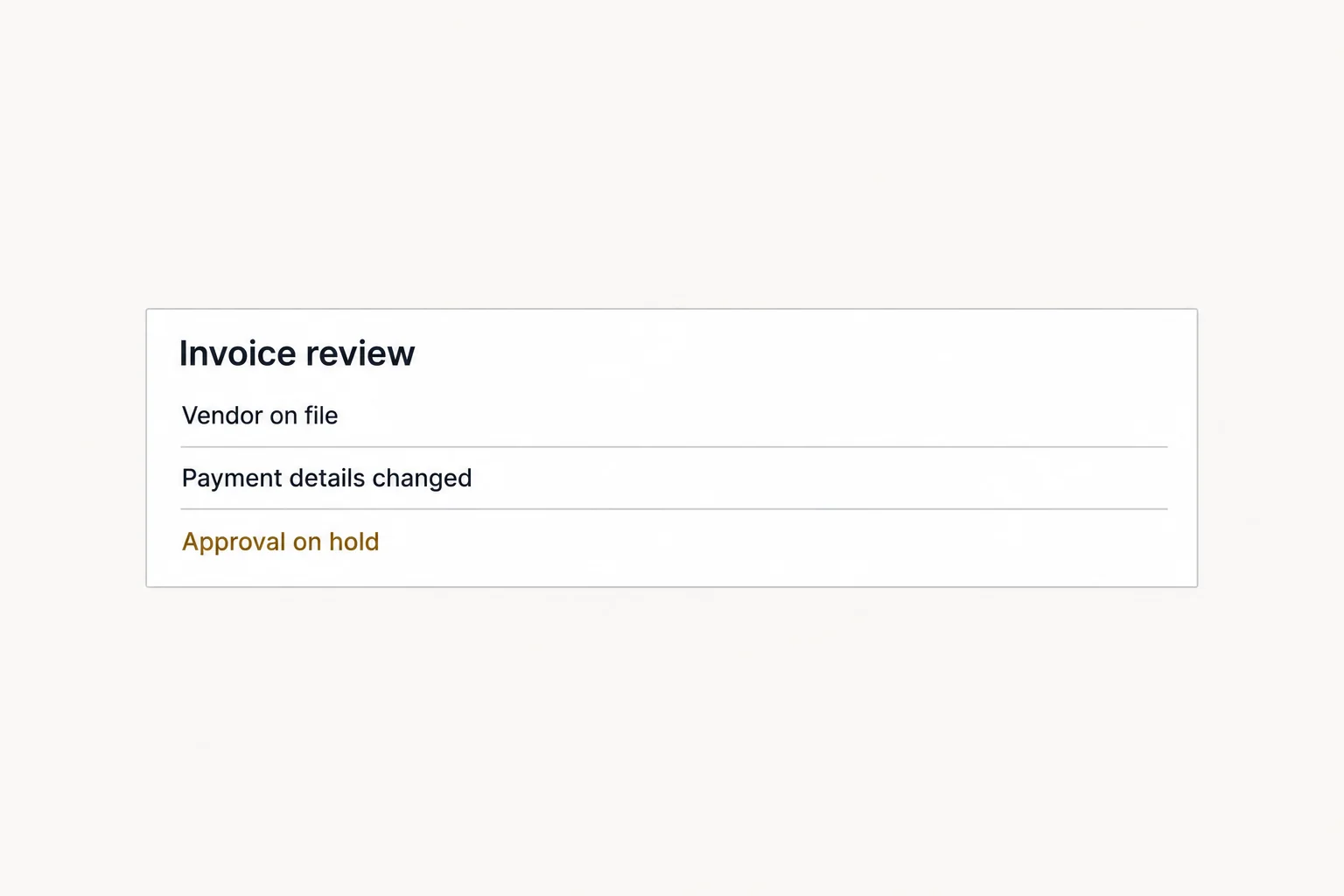
The invoice matches a delivery your company actually received. The supplier’s name, order number, and amount look right, but the payment instructions have changed.
There are two things to verify before the next payment run. Confirm the debt and confirm the destination, because one can be genuine without the other.
Overview
The debt and the destination need separate approval
A QuickBooks invoice scam can exploit a real business relationship. Someone can copy details of a genuine bill and ask your team to pay a different account.
The FBI’s business email compromise guidance describes supplier requests that appear routine but redirect payment. Verify a changed destination through an existing contact, not the request itself.
A correct invoice amount tells you that somebody knew the amount. It doesn’t tell you whether the supplier approved the bank details attached to it.
Sort the invoice into the right queue
- If no purchase matches, leave the bill unapproved and ask the internal requester whether anyone ordered it. Do not use the sender’s callback number.
- If the purchase matches but the destination changed, put the transfer on hold until you verify the change with your supplier through an established contact.
- If a transfer already went out, call the originating financial institution immediately. Continue the supplier-side verification in parallel rather than waiting for a reply.
Do not let a reply in the same thread authorize a change. If that mailbox was misused, an apparently reassuring reply may come from the same person.
Know what a QuickBooks notification actually proves
A familiar email layout or billing link can tell you something about its format. It can’t establish that your company ordered what the notice describes.
Intuit’s guidance for identifying suspicious messages recommends opening the product independently. Check the company and transactions through your usual sign-in, not an unsolicited message.
Treat an invoice from someone using an invoicing service differently from a notice about your own subscription. Seeing the software name doesn’t tell you who is asking to be paid.
Reconcile the Bill Before Anyone Changes the Vendor Record
Open the right QuickBooks company independently
Sign in through your usual QuickBooks route and confirm the company file is correct. Businesses with multiple entities can have repeated supplier names or overlapping invoice numbers.
In QuickBooks Online, open All apps, then Expenses & Bills, then Bills. Intuit’s Bills guide explains the For review, Unpaid, and Paid tabs.
Find the vendor and invoice number in the relevant tab. If the bill arrived through the network and is still For review, leave it there while you verify.
A bill in your accounting queue isn’t proof of authorization. Search your purchase order, delivery record, and prior approvals before treating the bill as payable.
Match the original purchase to the supplier’s record
Ask the person responsible for the purchase to match the description, quantity, date, and amount to the original order. Verify exceptions, such as partial deliveries, through business records.
Search Paid for another record with the same vendor and invoice number. Compare any existing payment reference with your bank or payment platform before approving a second one.
An unfamiliar sender may attach a real bill that has already been paid. Your ledger and the supplier’s own records tell you more than its urgency.
If the amount is valid but the invoice number changed, ask the supplier what was reissued and why. Do not adopt a new destination while resolving a numbering discrepancy.
Keep the old payout details available for comparison
Before anyone updates a vendor, preserve the last verified payment details and the request to change them. Limit access to staff who handle vendor records.
Use outside verification even if the sender mentions a real merger, account closure, or change in ownership. A reasonable explanation is not independent proof.
Payment approval should say which destination it covers. Approval for the invoice amount is not approval to enter replacement banking instructions or to create a new vendor.
Verify the Change With Someone You Already Know
Call from a trusted vendor record
Get a contact number from your established onboarding records, an earlier verified contract, or a contact you actually know. Don’t start with the current email signature.
Say which invoice and vendor account you are checking. Ask the authorized contact whether they requested the change and when it should take effect.
If the familiar number reaches a receptionist, ask for the vendor’s billing team. Do not accept a new number only because it appears in the disputed message.
Use whatever secure channel your organizations already use to confirm sensitive details. Avoid putting complete bank information in a group email just to get a quick yes.
Separate who changes the destination from who sends money
Have one person enter a verified change and another approve it independently, if your team can do that. Record who verified it, with whom, and through which channel.
A one-person company can still pause and confirm with the supplier through a known number. The crucial part is the independent contact, not the size of your finance department.
If a manager asks you to bypass the callback, verify that request through the existing internal approval channel. A message from a manager’s address can also be misused.
Do not send a token payment as a verification shortcut. A successful transfer shows an account can receive funds, not that it belongs to the supplier.
If the change appears inside QuickBooks, check its history
If you have the necessary access, open Settings, then Audit log. Filter the relevant dates and look at events around the vendor or bill.
Intuit’s audit log documentation explains that it can record vendor edits, transaction changes, and sign-ins. A logged action can help narrow the time and user.
Audit history is not a substitute for the supplier’s confirmation. An edit could be legitimate, mistaken, or performed through access that shouldn’t have been used.
If you cannot view the log, ask your authorized company administrator to preserve the entries. Do not grant account access to an unsolicited support caller.
If the Message Says You Already Paid
Check your own bank and ledger before calling anyone
Look at the relevant bank or card transaction in the account you manage. Then match any real debit to the supplier, amount, and transaction reference.
If there’s no charge, do not call the phone number on a receipt to cancel it. Treat the message as unverified and check your own accounting application.
Our QuickBooks payment receipt scam guide covers an unsolicited confirmation that directs the recipient elsewhere. A changed vendor account needs its own verification even if the bill is genuine.
If a real payment exists, distinguish an unauthorized payment from a legitimate debit showing an unfamiliar descriptor. Both the accounting team and the bank can help reconcile it.
Keep internal instructions separate from a vendor’s requests
If the message says to install software or read a code to cancel payment, stop. Contact your own administrator or Intuit through an established channel.
For employees, report the message using your organization’s phishing procedure. Give the accounting team the invoice reference and the supposed change without forwarding active links to the payment approver.
If you only received the email and took no action, the appropriate starting point is reconciliation and reporting. Receiving a bill is not evidence that you lost account access.
What to Do If a Payment Went to the Wrong Account
- Call the originating bank through a trusted number. Give it the transfer reference, amount, timestamp, and destination, and request an urgent recall or reversal if available.
- Stop pending payments involving the disputed vendor through your ordinary bank or payment controls. Ask your finance lead to check whether a scheduled payment is already processing.
- Preserve the invoice, change request, approval entries, and transfer confirmation. Keep original messages for your investigators rather than relying on a screenshot alone.
- Notify the genuine supplier through an established channel. Confirm the last authorized payment instructions and document what they say their organization received.
- Report business email compromise to the FBI’s Internet Crime Complaint Center. Give the bank’s case reference if available, and do not wait to report to the bank.
- Review who accessed the mailbox and accounting records. If credentials, codes, or access were shared, use a trusted device and involve the authorized account administrator.
If the vendor still has an unpaid balance, keep that issue separate from the bank recall. Paying the vendor correctly may be necessary, but coordinate it through finance.
Ask the bank whether it needs any formal documentation to pursue recovery. Do not assume a pending fraud report means your transfer is stopped or that money will return.
Cancel an eligible scheduled Bill Pay transaction through the product
If your business scheduled the transfer through QuickBooks Bill Pay, open Expenses, then Bill payments. Choose the payment and select View details before taking any action.
Intuit’s cancellation guide describes Cancel this payment for eligible payments. Check the status afterward and keep the confirmation if the button is available and cancellation succeeds.
If the control is missing or the funds are already moving, contact the bank and payment service. Don’t delete the bill in the accounting ledger to stop a transfer.
If you scheduled the transfer through a different bank portal, use its established controls. The QuickBooks record may only show what the accounting team entered after arranging payment elsewhere.
Leave a Record the Next Approver Can Use
Record the hold and its release condition
Document what is disputed: the bill, the payment destination, or both. A short record should tell whoever takes over after you why the payment is stopped.
If a valid change is confirmed later, attach the date and verification channel to your internal record. Confirm that the first approved payment uses the intended destination.
If the supplier denies the change, keep the old verified information and escalate the message. Compare any other recent payout changes before restarting the full payment run.
Check for a broader change without assuming compromise
A misdirected invoice can be isolated, but check whether the disputed destination appeared on other vendor records. Use documented approval and bank records instead of editing in bulk.
If compromised access is suspected, investigators may need mailbox and account history. Preserve those records before making routine cleanup changes that could remove useful evidence.
A Walk-Through for the Next Payment Run
Start with what the last approved payment actually used
Consider a fictional supplier that invoices monthly. The amount matches an approved contract, but the new bill asks you to send this month’s payment to another account.
Open the most recent successful payment through your own bank or processor. Compare it with the supplier record and note that the destination changed, even though the debt is valid.
If the older payment was to an authorized payment service, confirm that relationship with the supplier. A different payee name might be legitimate, but the invoice cannot prove it alone.
Record the result before releasing the payment
Staff can document that the original debt is approved while the new destination remains unapproved. This prevents someone from assuming that the accounting entry settled both questions.
If a supplier confirms it changed accounts, make the change through the normal controlled process. Verify the recipient on the final payment screen before accepting the transfer.
If the supplier says it asked for no change, preserve the response and notify finance. Check whether other staff got a similar request before resuming payments to that vendor.
If nobody can reach an authorized contact, leave the updated payment on hold and escalate internally. A due date doesn’t make a new destination safer.
Frequently Asked Questions
Does an Intuit address prove the invoice is mine to pay?
No, because the route a message used doesn’t establish the purchase or payee. Match the invoice with your company’s order and established vendor records.
Can I reply to the supplier’s email thread to confirm the new account?
Use a separate channel, because a compromised thread can produce a convincing reply. Call an authorized contact using details you already verified before this request.
What if the bank change is visible in the audit log?
It can help identify a user and time, but it does not prove authorization. Verify the change independently and preserve the event for your accounting or security team.
Does Paid in QuickBooks mean money reached the supplier?
It tells you the bill’s accounting status. Compare the linked payment or other record with the bank and supplier before deciding whether the right party received it.
Should I delete a suspicious bill immediately?
Don’t delete useful evidence before your company records it. Keep it unapproved, follow your company’s process for removing or correcting the entry, and preserve the original request securely.
Who should I contact first after a wrong transfer?
Call the originating financial institution promptly, then notify your internal team and genuine supplier. Report to IC3 without waiting for a reply from the suspicious sender.
The Bottom Line
Don’t approve new payment instructions just because the invoice itself is real. Verify the purchase and the destination separately before moving money.
If a transfer already went out, contact the originating bank right away. Preserve the original request, identify which destination was used, and use a known channel to reach the supplier.

Join the discussion
0 commentsShare your experience or ask a question about this article.
Community experiences
Did this happen to you?
Your experience could help someone recognize the same scam. Submit a private report for our team to review.
I experienced this tooReports are reviewed before publication. Sharing publicly is always your choice.
Discussion
Start the conversation
Have a question or something useful to share? Add the first comment.