


A typing tool becomes part of your routine so quietly that you barely notice it anymore. A security warning bearing an unfamiliar name changes that.
If DarkVigil has appeared in an alert, take a breath before clicking through. A few careful decisions now can make the next steps much easier.

Overview
An input tool, not a counterfeit installer
DarkVigil is a Windows implant. ESET traced a delivery route to Sogou Input Method, the legitimate typing application whose official site appears above.
The reported attack redirected a background request. It didn’t depend on the user downloading a counterfeit Sogou installer.
Start with the warning you actually received
An installed copy alone doesn’t establish infection. A detection needs its file path, recorded action, and surrounding activity to tell you what happened.
Before dismissing the warning, write down or photograph:
- The full detection name and the security product displaying it.
- The affected file’s location and whether the alert says blocked, quarantined, removed, or unresolved.
- When the warning appeared and what you were doing immediately beforehand.
- Whether this is your own computer or a device managed by work, school, or another organization.
Those details help distinguish a stopped attempt from something that ran. Don’t reopen a flagged file just to see whether the warning happens again.
Close the weakness and deal with any infection
Sogou version 16.10 closes this reported delivery weakness. An existing implant still needs investigation and removal.
Think of this as separate jobs: examine the computer, repair its software, investigate suspicious network settings, and protect any access that may have been exposed.
Work through the removal procedure below first, unless a responsible security team needs to preserve the device before changes.
How to Remove DarkVigil Malware from Windows
Step 1: Pause sensitive activity and preserve the alert
If an alert indicates active infection, disconnect Wi-Fi or unplug the network cable. Use a different, trusted device for urgent messages and account changes.
On a managed computer, contact your IT or incident-response team. Ask before restarting, uninstalling applications, or running cleanup, since those changes can affect evidence.
For a personal PC, keep the warning details and a short timeline. Note whether the alert appeared during ordinary typing, after an application update, or after reconnecting.
Don’t upload private documents, complete browser profiles, or unknown program folders to a public scanner. A detection report is safer to share with a trusted helper.
The online scanner below needs internet access for updates. If compromise is active, arrange that access with trusted support rather than reconnecting simply to continue browsing.
Step 2: Obtain the genuine ESET Online Scanner
Once your cleanup plan permits it, use this site’s established route to ESET Online Scanner, a free one-time Windows scanner.
The destination should identify ESET Online Scanner. Paid full-protection offers are separate; you don’t need to buy them to follow this procedure.
Some download links may support MalwareTips through an affiliate relationship. This doesn’t make a purchase necessary or change the scanner’s limits.
Open your Downloads folder and locate esetonlinescanner.exe. Confirm you obtained it from the genuine ESET page before opening it.
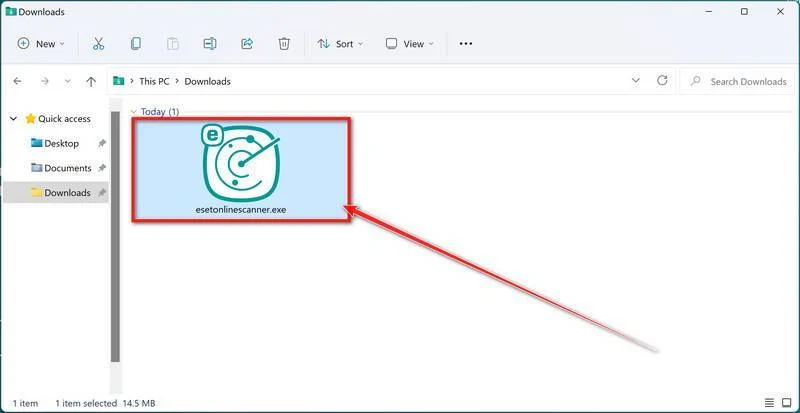
The tutorial pictures identify the relevant controls. Interface wording can change, so use the actual application’s prompts rather than a matching filename as your only check.
Step 3: Open the scanner and review its terms
Run the genuine executable. If Windows asks for permission to let it make changes, confirm the expected application before choosing Yes.
Select the language you want, then choose Get started.
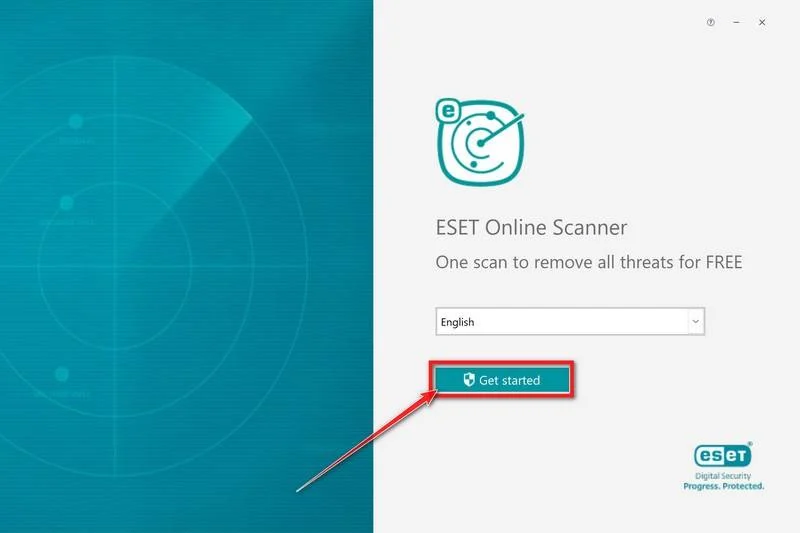
Read the current terms presented by ESET. Choose Accept if you agree, then continue through any further Get Started prompt.
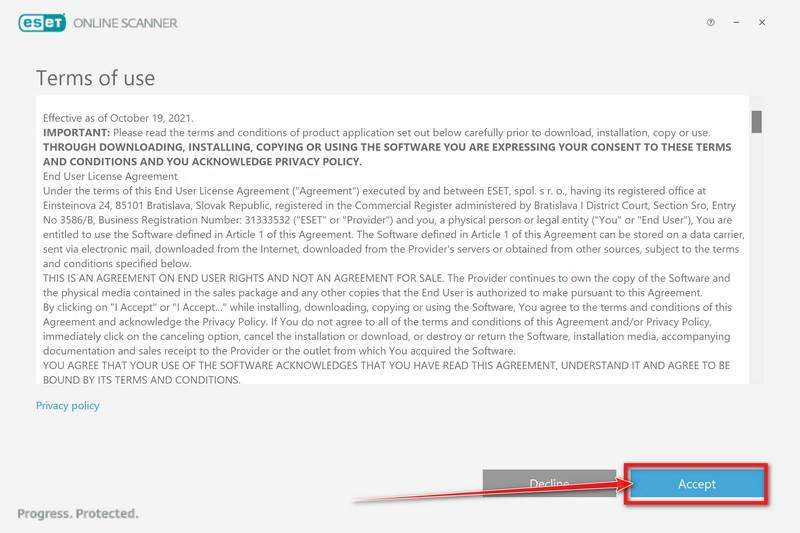
Unexpected requests to disable Windows security or use an unrelated installer are not part of these instructions. Stop and obtain help if the setup differs materially.
Step 4: Choose optional feedback preferences
The application may offer its Customer Experience Improvement Program and Detection feedback system. Review both options and choose your preferences, then select Continue.
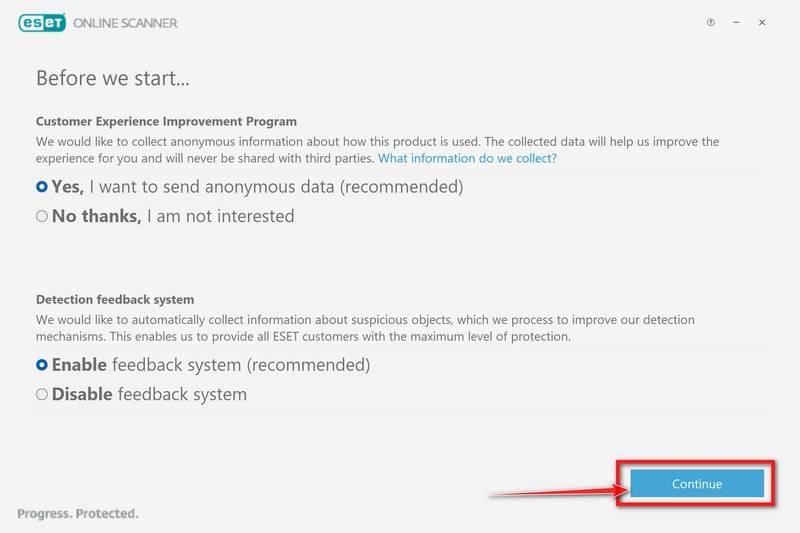
Participation in feedback is optional. If you’re reopening the application, choose Computer scan from its welcome screen.
Step 5: Select Full Scan and unwanted-application detection
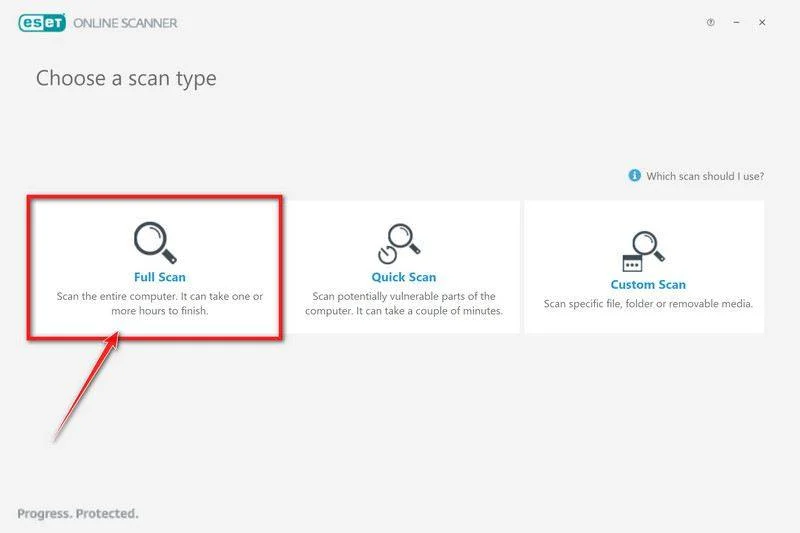
Choose Full Scan from the available scan types. This is a system examination, not a claim that every inaccessible or excluded file will be inspected.
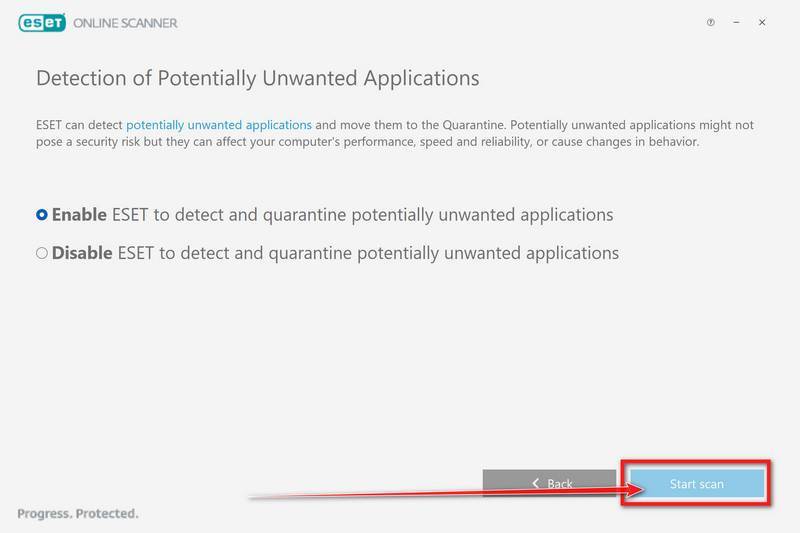
At the potentially unwanted applications setting, select Enable, then Start scan. Keep any coverage warnings for the person helping you assess the result.
Step 6: Let updates and scanning complete
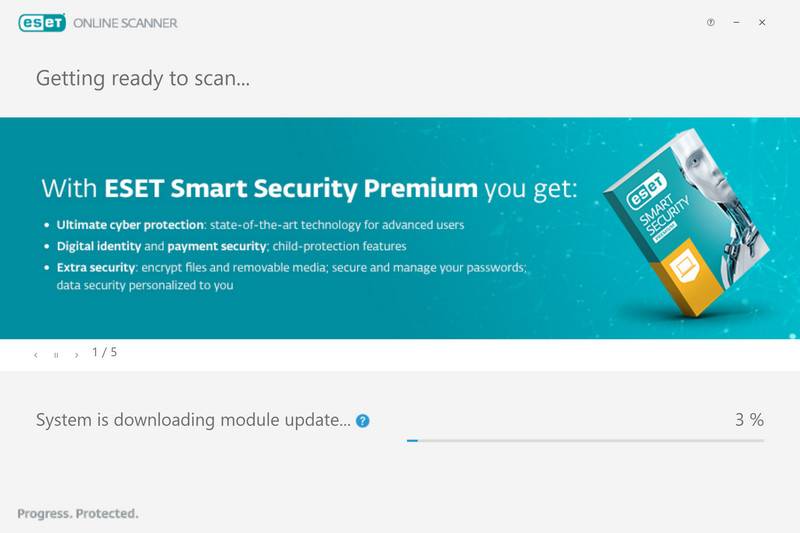
ESET downloads module updates before the file examination begins. The picture below shows that preparation stage, not a completed scan or a detection from your computer.
Wait for the actual scan to finish. Don’t sign into accounts while you wait, and don’t treat a stopped scan as a clean result.
If updating fails or the application closes unexpectedly, save the error details. Don’t substitute a scanner offered by an unsolicited caller or pop-up.
Step 7: Review actions, quarantine, and the saved report
Open View detailed results when the examination ends. Read each detection and its recorded action, especially anything that could not be resolved.
ESET can clean or quarantine detected items automatically. Don’t restore something simply because it resembles a useful Windows file; have any disputed detection assessed first.
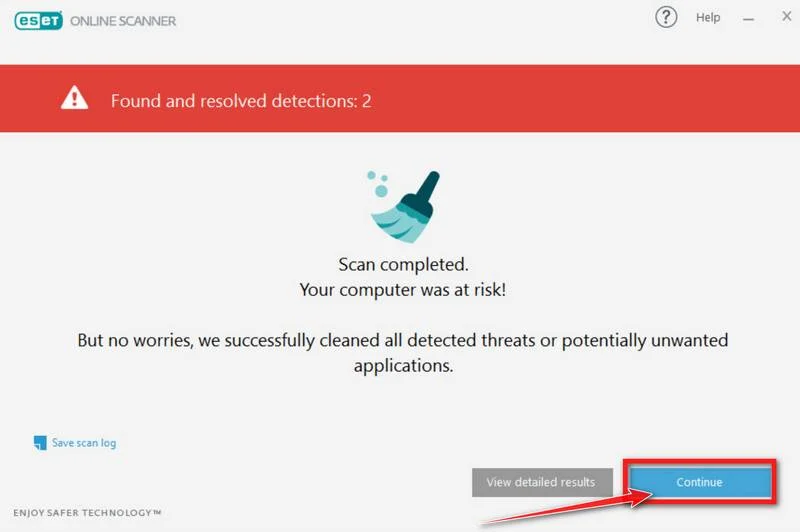
Select Save scan log before moving on. The pictured arrow points to Continue, not to the detailed-results control.
Keep the report even if nothing was found. It records one examination, not everything that may have happened to the computer or accounts beforehand.
Don’t copy quarantined executables into a personal backup for safekeeping. Preserve the detection record and let a responder decide how evidence should be retained.
Step 8: Complete requested follow-up and seek help when needed
Restart if the scanner requests it and your response plan permits it. Save work first, then check any follow-up results and unresolved actions.
Optional monthly scans and paid protection aren’t required to finish the one-time scan. Don’t let a sales offer distract from the report.
If detections return or the scan cannot complete, use the MalwareTips Windows removal-help forum with your saved logs.
The official ESET instructions explain its controls. For a confirmed, persistent compromise, discuss professional rebuilding instead of repeating scans indefinitely.
How the Sogou Delivery Attack Works
Step 1: A background request goes to the wrong server
Sogou’s brand-vocabulary feature requests icon instructions over HTTP. ESET found DNS redirection steering this traffic toward an attacker-controlled server.
DNS helps a computer find the server behind a name. The familiar name on a request isn’t enough if the answer points elsewhere.
Step 2: A configuration places files where software loads them
The replacement configuration directs files into component folders. A signed Adobe helper then loads a malicious DLL through the application’s normal workflows.
A digital signature identifies the signed file, not every neighboring file it might load. That distinction matters when deciding what to trust during repair.
Step 3: The implant establishes remote access
DarkVigil connects to its controller and can receive data-collection plugins. Its remote commands give the operator a foothold beyond the original delivery.
Closing the program you were using isn’t an investigation of that foothold. Follow the cleanup result through to software repair and a review of sensitive access.
Repair Sogou Without Bringing the Problem Back
Check the version before using it again
Don’t assume a recent-looking download button means your installed copy is current. Record the application’s version information, or have your administrator identify it.
Obtain an appropriate supported release through Sogou’s genuine publisher site or your organization’s software channel, using a trusted computer and connection when necessary.
Keep the distinction between a repaired installation and an approved machine clear. A successful update is one maintenance action, not permission to resume sensitive work immediately.
If replacement is advised, make sure you have another working input method first. You don’t want to lose the ability to type an account name during recovery.
Don’t reuse the old program directory
A saved application folder is not the same thing as a clean installer. Avoid copying the old installation back over a newly repaired system.
Preserve personal dictionaries or preferences only with guidance about what can safely be carried forward. Keep a backup separate rather than automatically restoring everything.
On Windows 11, open Settings > Apps > Installed apps. Find the intended application, select its More menu, then choose Uninstall.
If that option isn’t available, use Control Panel > Programs > Programs and Features. Select the identified application and follow its uninstall prompts.
If removal fails, don’t start deleting similarly named components. Save the error and ask for help; a broken uninstall can leave you with less information.
A filename such as libcef.dll is not a safe deletion rule. Legitimate applications can use that name too. Let detection context guide removal.
Decide whether a rebuild is the better repair
A personal computer used for low-risk tasks and a workstation holding confidential work don’t have the same recovery requirements. Tell your helper what the machine could access.
Where trust can’t be restored confidently, plan a clean Windows installation with qualified help. First protect irreplaceable documents and confirm access to disk-encryption recovery information.
Don’t erase the only copy of your files or assume a backup is safe merely because it’s recent. Separate personal data from programs and unknown scripts.
What to Do About the Network and Your Accounts
-
Give the network owner the facts, not a diagnosis. Share the detection time, affected device, connection used, and any changes you noticed before the warning.
ESET didn’t establish where DNS tampering occurred. A compromised router and provider-side interception remain possibilities, not findings about your own connection.
At work, contact the network team. At home, use your router manufacturer’s or internet provider’s genuine support channel, not a number supplied by a pop-up.
-
Have unexpected DNS settings checked. Record existing settings before anyone changes them. Work VPNs, security software, and managed networks can set DNS legitimately.
Don’t disconnect approved organizational controls or factory-reset a shared router as a guess. That can disrupt other people and erase information useful to the investigation.
Flushing a DNS cache isn’t a substitute for malware removal. Any network repair should address an identified problem, not just make a warning disappear temporarily.
-
Protect important accounts from a trusted device. Start with the email account used to recover other accounts, then review financial, work, and cloud-storage access.
Check recent sign-ins, recovery addresses, forwarding rules, and unfamiliar connected applications. Follow the provider’s compromised-account process if anything is wrong.
For a personal Microsoft account, use its Sign out everywhere instructions. That process can take up to 24 hours and excludes Xbox consoles.
-
Match credential changes to the exposure. Make password changes on a trusted device. Use different passwords and review multifactor-authentication methods and recovery codes.
If the computer accessed work systems, ask the security team about sessions, certificates, API credentials, or other access that a password change alone wouldn’t address.
Don’t paste secrets into a support conversation to help someone assess them. Describe the kind of access involved without sharing the credential itself.
-
Review files and shared access with the right people. Identify sensitive folders available to the affected Windows account, including shared drives and synchronized workspaces.
Tell the person responsible for that information if confirmed compromise could affect it. You don’t need to prove a specific document was stolen before seeking advice.
Keep private files out of public forum attachments. Share redacted logs and a description of the concern, then follow the helper’s instructions.
-
Check the repaired setup before normal use resumes. Keep a short record of the scan result, application replacement, network review, and account actions.
Agree with your helper which unresolved findings would stop you reconnecting or signing in. A list of completed actions is more useful than repeatedly running the same scan.
If a warning returns, record whether it happens on one connection or several. Report that pattern instead of testing suspicious links or deliberately reproducing the infection.
Frequently Asked Questions
Does having Sogou installed mean my computer is infected?
No. Check actual security alerts and exposure details before treating an installed application as evidence of compromise.
Is this the same as a Sogou homepage redirect?
No. A changed browser homepage needs its own diagnosis. Don’t assume a redirect-removal guide addresses an implant detected elsewhere on Windows.
Can I fix everything by updating the input method?
No. An update repairs software; a system with confirmed malware still needs cleanup and a decision about whether it can be trusted.
Should I delete every DLL in the Sogou folder?
No. That risks breaking software and losing evidence. Use identified detections and qualified guidance, not a filename-only deletion list.
Must I pay for ESET to follow these steps?
No. The procedure uses its free one-time Windows scanner. Paid continuous protection is a separate choice.
What should I send a removal helper?
Start with the detection name, redacted file path, scan log, timing, and actions already taken. Don’t attach private documents or live malware unless specifically directed.
The Bottom Line
Don’t ignore a DarkVigil alert or return to sensitive work after dismissing it. Preserve the warning, follow the illustrated cleanup, and get unresolved findings assessed.
Repair the application and investigate any network concern separately. If the computer’s integrity remains uncertain, choose professional recovery rather than trusting it with fresh credentials.

Join the discussion
0 commentsShare your experience or ask a question about this article.
Your progress
Did these steps help?
Let us know how the guide worked for you.
Describe what you see and the step you reached. Keep passwords and other private information out.
Discussion
Start the conversation
Have a question or something useful to share? Add the first comment.