

RobloxSummer.com presents itself as an official-looking “Summer Robux Event” for 2026. It uses Roblox branding, flashy graphics, and a simple promise: enter your username, complete a few steps, and get “Free Robux.”
It is not an official Roblox event. It is an affiliate scheme designed to push you into app installs, signups, and “verification” steps that generate commissions for the site’s operators, not Robux for you.
Scam Overview
What RobloxSummer.com is really doing
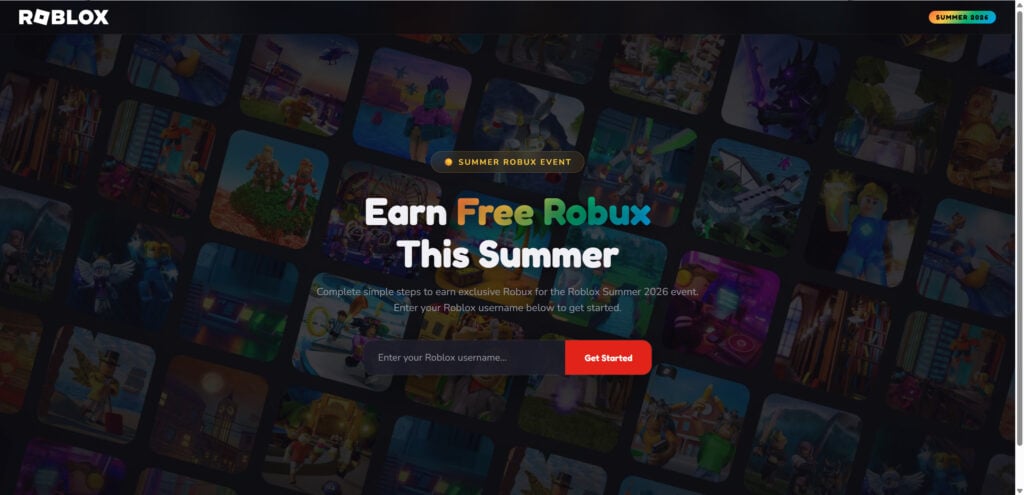
RobloxSummer.com is built to look trustworthy at a glance. The landing page features a Roblox-style header, a “SUMMER 2026” badge, and a large headline that says “Earn Free Robux This Summer.” Under that, it prompts you to “Enter your Roblox username” and click “Get Started.”
That first step is important because it creates momentum. The site is not asking for your password right away. It asks for something that feels harmless, and many users assume they are safe because they did not type a password.
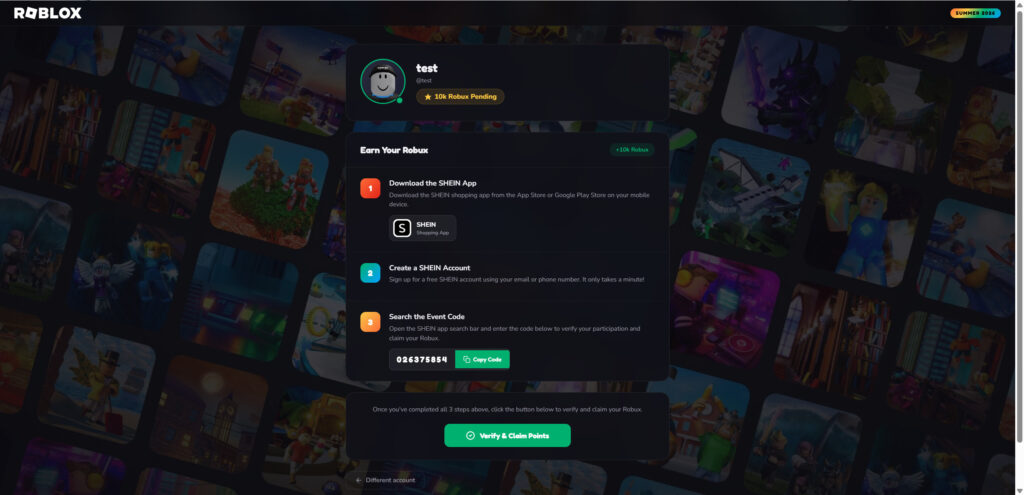
Once you continue, the site shows a “profile” style panel and claims you have a reward pending, such as “10k Robux Pending.” It then walks you into a task list that looks like a legit rewards flow.
The tasks include:
- Download the SHEIN app
- Create a SHEIN account
- Search an “event code” inside the app (a visible numeric code with a “Copy Code” button)
- Click a final button like “Verify & Claim Points”
That “verify” step is the hook. It is designed to keep you completing offers and clicking through loops until you give up, while the operators still benefit from your actions.
Why the Robux promise is not credible
Robux is not something random websites can generate or “credit” to your account.
Robux comes through Roblox’s own systems, such as purchasing Robux, Premium stipends, selling items, game monetization, or group payouts. A third-party site cannot “add Robux” just because you installed a shopping app or entered a code.
When a website claims you can earn 10,000 Robux by downloading an unrelated app, that is your clearest sign you are looking at a scam.
This is an affiliate scheme dressed up as a giveaway
RobloxSummer.com fits a common pattern: an “offer wall” or affiliate locker.
Here is the business model in plain English:
- The site buys traffic from social media or shady ad networks, targeting Roblox players.
- It pushes users into “offers” like app installs, account registrations, surveys, or trials.
- The affiliate network pays the promoter a commission when the user completes those actions.
- The user never receives the promised reward.
Even when the offers themselves involve real companies or real apps, the scam is the false promise attached to them. The site is using Roblox branding and the idea of “free Robux” to drive conversions.
SHEIN, in this example, may be a legitimate business, but that does not make RobloxSummer.com legitimate. It just means the scam is piggybacking on an affiliate program.
The “event code” trick and why it exists
The “event code” step is not there to help you. It is there to help them.
Affiliate campaigns often need a way to attribute installs or signups to a specific promoter. Codes, referral identifiers, and tracking links are how they get paid.
So when RobloxSummer.com tells you to search an event code inside an app, that is likely an attribution step, not a redemption step.
It creates the illusion that you are “verifying participation,” but the real goal is confirming that you completed the affiliate action in a way that gets credited to their account.
Why the final button says “Verify & Claim Points”
The wording matters.
Scam pages like this often shift vocabulary from “Robux” to “points” once you are inside the flow. That is because the back-end is usually a generic affiliate rewards template that works for any bait phrase.
You will see terms like:
- Verify
- Claim
- Points pending
- Reward pending
- Complete the steps above
Those are classic signs of an offer wall funnel. Legitimate Roblox promotions do not require you to “verify” by installing unrelated apps, creating external accounts, or entering codes.
Common outcomes for victims
Most people experience one of these outcomes:
- You complete the steps and nothing happens.
- You are told to complete “one more offer” to unlock the reward.
- You are stuck in a loop where the site never confirms verification.
- You get redirected to more offers, more downloads, more signups.
In other cases, the risk goes beyond wasted time:
- Some variants try to collect Roblox login credentials through a fake login page.
- Some push browser notifications that later spam you with scam ads.
- Some direct you to shady downloads or extensions.
- Some offers lead to paid trials, subscription traps, or unexpected charges.
The surface-level promise is “free Robux.” The real outcome is often lost time, compromised accounts, or money leaving your wallet in a way you did not intend.
Quick red flags visible on RobloxSummer.com
These are strong warning signs:
- “Earn Free Robux” tied to a “Summer 2026” event with no official proof
- Username capture followed by “10k Robux Pending”
- Tasks that involve unrelated third-party apps and shopping signups
- A copied numeric “event code” step
- A final “Verify & Claim Points” button
- Roblox branding used to imply legitimacy
If a site needs you to download a shopping app to “claim Robux,” you are not dealing with Roblox. You are dealing with marketing, tracking, and commissions.
How The Scam Works
Step 1: The hook, the branding, and the urgency
The scam starts with attention and emotion.
Roblox players, especially younger users, are constantly exposed to “free Robux” promises on TikTok, YouTube, Discord, comment sections, and sketchy ads. RobloxSummer.com is designed to look like the answer to that wish.
It uses:
- Roblox-style visuals and wording
- A seasonal theme like “Summer Robux Event”
- A date marker like “SUMMER 2026” to make it feel current and official
- A simple path: username, click, claim
The goal is to get you to act before you think. The more excited you feel, the less likely you are to question why a random website can do something Roblox itself does not offer.
Step 2: The “harmless” username capture
Next, the site asks for your Roblox username.
This is a psychological trick: it feels safe because it is not a password. Many users think, “It’s fine, they cannot do anything with my username.”
Two things are happening here:
- The site creates the feeling that you have started a legitimate process.
- Your username can be used to personalize the next screen, which boosts trust.
Entering a username leads to a dashboard-style page showing a profile and a claim like “10k Robux Pending.” That personal touch makes the scam feel real.
Step 3: The fake dashboard and the “pending Robux” claim
Once you see “pending Robux,” your brain switches from “Is this real?” to “How do I finish?”
That is exactly what scammers want.
This page is designed to:
- Provide a reward number big enough to motivate you
- Make you feel you are already close
- Reduce your willingness to back out
The wording “pending” is key. It implies the Robux exists and just needs a final unlock.
Step 4: The offer wall tasks (the affiliate engine)
Now the site introduces the real money-making component: offers.
The tasks are clearly affiliate-driven:
- Download the SHEIN app
- Create a SHEIN account
- Search the event code
These steps are classic “cost per action” offers.
The operator typically earns a commission when you:
- Install an app and open it
- Register a new account
- Provide an email or phone number
- Engage in certain in-app actions
You do the work. They collect the payout.
You do not get Robux because there is no mechanism for them to deliver it, and there is no reason for them to do so once they have already been paid.
Step 5: The “event code” attribution step
The event code step is where users think, “Okay, this must be how Roblox verifies it.”
But it is not Roblox verification. It is likely tracking.
Affiliate programs often require proof that the user completed a specific campaign action. Codes can be part of that attribution system.
So when RobloxSummer.com shows a numeric code and tells you to search it in an app, it is probably instructing you to complete a tracked action that benefits the affiliate campaign.
It is not a redemption code for Robux.
Step 6: The “Verify & Claim Points” loop
After you complete the tasks, the scam needs one more trick: deny the payout.
That is where the “verify” step comes in.
Most victims will see one of these behaviors:
- The site claims it cannot verify your completion
- It says you must complete an additional offer
- It resets the tasks
- It keeps you waiting indefinitely
This is intentional.
The longer you stay, the higher the chance you complete more offers. Each extra offer is another commission opportunity.
This is why the button often says “Verify & Claim Points” instead of “Get Robux now.” Points are vague. Robux is specific. Vague language gives scammers more room to stall.
Step 7: Where the real harm can happen
Sometimes the harm is “only” wasted time. But scams like this often have escalation paths.
Escalation A: Phishing for Roblox credentials
Some versions eventually push you to “log in to verify.”
That can lead to a fake Roblox login page that steals your username and password. If you enter those credentials, scammers can take over your account.
Escalation B: Browser notification spam
Another common trick is asking you to “Allow notifications” to continue.
If you allow it, your browser can start showing spam alerts and scam ads, even when you are not on the site. That can lead you to more scams, fake giveaways, fake security warnings, and subscription traps.
Escalation C: Paid trials and subscription traps
Many offers in these funnels are not just “install an app.”
They can include:
- “$1 trial” offers
- Subscription signups
- Credit card entry for “age verification”
- Unclear billing terms buried in fine print
If you do not notice what you are agreeing to, you can end up with recurring charges.
Escalation D: Privacy harvesting
Even when no money is stolen directly, these schemes can still collect valuable data:
- Email addresses
- Phone numbers
- Device identifiers
- IP addresses
- Marketing profiles
That data can be sold or used for future targeting.
Why this scam targets Roblox players specifically
Roblox has a massive user base, and many users are young.
That makes “free Robux” one of the most effective baits online. The scam relies on two realities:
- Players want Robux.
- Players often do not know how Robux distribution actually works.
The result is a steady stream of traffic, clicks, installs, and signups that can be monetized through affiliate networks.
What To Do If You Have Fallen Victim to This Scam
- Stop interacting with the site immediately
Close the tab. Do not complete more offers. Do not click “verify” again. The longer you stay, the more chances the scheme has to push you into riskier steps. - Figure out what you actually entered
Your next steps depend on what information you provided:- If you only entered a Roblox username, the risk is lower, but you should still be cautious.
- If you entered a Roblox password anywhere, treat it as compromised immediately.
- If you entered email, phone, or payment info in any offers, take additional steps below.
- If you entered your Roblox password, change it now
Go directly to Roblox through the official app or the official site. Change your password to something unique and strong.Then log out of other sessions if Roblox provides a way to do that from your account settings. - Turn on 2-step verification and review account security
Enable 2-step verification. If your Roblox account has security settings for sign-in alerts, turn those on too.Also check:- Linked email address and phone number
- Any connected accounts
- Any suspicious login activity, if available
- Secure the email tied to your Roblox account
If someone gets into your email, they can reset Roblox passwords.Change your email password, and enable 2-step verification on your email account as well. Review recent sign-ins and recovery options. - If you installed an app as part of the “steps,” review permissions and subscriptions
If you installed SHEIN or any other app because the site told you to:- Remove the app if you do not want it
- Review any subscriptions or paid trials
- Check your Apple App Store or Google Play subscriptions list
- Look for confirmation emails that mention billing
- Check your bank and card statements for unexpected charges
Look for small “test” charges and subscription charges.If you find something you did not authorize:- Contact your bank or card issuer
- Dispute the transaction
- Ask about blocking future charges from the same merchant
- If you allowed browser notifications, disable them
If you clicked “Allow” on notification prompts, remove that permission now.In most browsers, you can go to site settings and block notifications for suspicious domains. Once blocked, the spam popups usually stop. - Run a basic security check on your device
If you clicked multiple downloads, installed extensions, or visited several redirect pages:- Uninstall any unknown browser extensions
- Clear site permissions for suspicious sites
- Run a reputable malware scan if you suspect anything unusual
- Report the scam to help reduce harm to others
Reporting will not guarantee the site disappears, but it can help reduce exposure.
- Report the link wherever you found it (TikTok, YouTube, Discord, Facebook)
- If a Roblox impersonation is involved, report it through Roblox support channels
- Consider reporting the domain to browser safe browsing systems and your security software vendor if they accept submissions
- If a child was targeted, treat it as a teachable moment, not a punishment
Many victims are kids who simply want Robux.
Explain a simple rule they can remember:
- If a site says “free Robux” and asks for verification steps outside Roblox, it is not real.
Encourage them to ask before clicking these links next time.
Is Your Device Infected? Run a Free Malware Scan
Slow performance, constant pop-ups, or strange behavior? These are classic signs of a malware infection. The fastest way to find out is to scan your device with Malwarebytes Free — one of the most trusted malware removal tools available.
The free version detects and removes the most common threats, including:
- Adware — the cause of those annoying pop-ups
- Browser hijackers — unwanted redirects and changed homepages
- Trojans and spyware — hidden programs stealing your data
- Potentially unwanted programs (PUPs) — software you never asked for
👉 Select your device below — Windows, Mac, or Android — then follow the simple steps to download Malwarebytes, scan your system, and remove any threats it finds. The scan usually takes 5 to 20 minutes.
Run a Malware Scan with Malwarebytes for Windows
Malwarebytes is one of the most popular and trusted anti-malware tools for Windows — and it’s completely free for removing infections. It catches threats that many antivirus programs miss, including adware, browser hijackers, and trojans. Follow the steps below to scan and clean your PC in just a few minutes.
Download Malwarebytes
Click the button below to download the latest version of Malwarebytes for Windows from the official source. The free version is all you need — it will scan your computer and remove adware, browser hijackers, and other malicious software at no cost.
Download MalwarebytesOfficial installer for Windows 11 and 10. Your download starts right away.Want real-time protection? See Malwarebytes Premium Malwarebytes Free for WindowsScans and removes malware at no cost
-
Install Malwarebytes
When the download finishes, open your Downloads folder and double-click the MBSetup file. If Windows shows a User Account Control pop-up, click “Yes” to allow the installation.

Follow the On-Screen Prompts to Install Malwarebytes
The setup wizard will walk you through a few quick screens:
-
Choose where you’re installing the program — “Personal Computer” or “Work Computer” — then click Next.

-
Malwarebytes will now install on your device. This usually takes under a minute.

-
When installation is complete, the “Welcome to Malwarebytes” screen will open automatically.

-
On the final screen, click Open Malwarebytes to launch the program.

-
Enable “Scan for Rootkits”
Before scanning, turn on rootkit detection so Malwarebytes can find even the most hidden threats. Click the Settings gear icon on the left side of the screen.

In the settings menu, find “Scan for rootkits” and click the toggle so it turns blue.

Done? Click “Dashboard” in the left pane to return to the main screen.
Start the Scan
Click the blue Scan button. Malwarebytes will automatically update its virus database and start checking your computer for malware.

-
Wait for the Scan to Finish
The scan checks your entire system for browser hijackers and other malicious programs, so it can take 5 to 20 minutes depending on your computer. Feel free to do something else — just check back occasionally to see the progress.

-
Quarantine the Detected Threats
When the scan is done, you’ll see a list of everything Malwarebytes found — malware, adware, and potentially unwanted programs. Click the “Quarantine” button to remove all of them at once.

Malwarebytes will now remove the malicious files and registry entries and move them safely into quarantine.

-
Restart Your Computer
Some threats can only be fully removed after a reboot. If Malwarebytes asks you to restart, click Yes. Once you’re logged back in, Malwarebytes has finished removing the threats it found.

That’s it — your Windows PC is now clean of trojans, adware, and other malware, and should be back to running smoothly.
If you are still having problems with your computer after completing these instructions, then please follow one of the steps:
- Run a computer scan with ESET Online Scanner
- Ask for help in our Windows Malware Removal Help & Support forum.
Run a Malware Scan with Malwarebytes for Mac
Malwarebytes for Mac is a free on-demand scanner that removes the malware other security software tends to miss — adware, browser hijackers, and unwanted programs included. Cleaning an infected Mac with Malwarebytes has always been completely free, and it’s our go-to recommendation. Follow the steps below to scan and clean your Mac in just a few minutes.
-
Download Malwarebytes for Mac
Click the button below to download the latest version of Malwarebytes for Mac.
Download MalwarebytesOfficial installer for macOS. Your download starts right away.Want real-time protection? See Malwarebytes PremiumMalwarebytes Free for MacScans and removes malware at no cost -
Open the Malwarebytes setup file
When the download finishes, open your Downloads folder and double-click the setup file to begin the installation.

-
Follow the On-Screen Prompts to Install Malwarebytes
The Malwarebytes for Mac Installer will guide you through a few quick screens. Click “Continue” and keep following the prompts until the installation completes.



When the installation is complete, Malwarebytes opens to the Welcome to Malwarebytes screen. Click “Get started“.
-
Select “Personal Computer” or “Work Computer”
Malwarebytes will ask what type of computer you’re installing it on. Click either Personal Computer or Work Computer, whichever applies.

-
Start the Scan
Click the “Scan” button. Malwarebytes will automatically update its detection database and begin checking your Mac for malware.

-
Wait for the Scan to Finish
Malwarebytes will scan your Mac for adware, browser hijackers, and other malicious programs. This can take a few minutes, so feel free to do something else — just check back occasionally to see the progress.

-
Quarantine the Detected Threats
When the scan is done, you’ll see a list of everything Malwarebytes found. Click the “Quarantine” button to remove all the threats at once.

-
Restart Your Mac
Malwarebytes will now remove all the malicious files it found. Some threats can only be fully removed after a reboot — if Malwarebytes asks you to restart, allow it. Once you’re logged back in, your Mac is clean.

That’s it — your Mac is now free of adware, rogue browser extensions, and other potentially harmful software.
If you are still experiencing problems while trying to remove a malicious program from your computer, please ask for help in our Mac Malware Removal Help & Support forum.
Run a Malware Scan with Malwarebytes for Android
Malwarebytes for Android automatically detects and removes dangerous threats like malware and ransomware so you don’t have to worry about your most-used device being compromised. Aggressive detection of adware and potentially unwanted programs keeps your Android phone or tablet running smooth.
-
Download Malwarebytes for Android.
You can download Malwarebytes for Android by clicking the link below.
Get Malwarebytes for AndroidOpens Google Play in a new tab.Want real-time protection? See Malwarebytes Premium for AndroidMalwarebytes for AndroidScans your phone and removes malware at no cost -
Install Malwarebytes for Android on your phone.
In the Google Play Store, tap “Install” to install Malwarebytes for Android on your device.

When the installation process has finished, tap “Open” to begin using Malwarebytes for Android. You can also open Malwarebytes by tapping on its icon in your phone menu or home screen.

-
Follow the on-screen prompts to complete the setup process
When Malwarebytes will open, you will see the Malwarebytes Setup Wizard which will guide you through a series of permissions and other setup options.
This is the first of two screens that explain the difference between the Premium and Free versions. Swipe this screen to continue.
Tap on “Got it” to proceed to the next step.
Malwarebytes for Android will now ask for a set of permissions that are required to scan your device and protect it from malware. Tap on “Give permission” to continue.
Tap on “Allow” to permit Malwarebytes to access the files on your phone.
-
Update database and run a scan with Malwarebytes for Android
You will now be prompted to update the Malwarebytes database and run a full system scan.

Click on “Update database” to update the Malwarebytes for Android definitions to the latest version, then click on “Run full scan” to perform a system scan.

-
Wait for the Malwarebytes scan to complete.
Malwarebytes will now start scanning your phone for adware and other malicious apps. This process can take a few minutes, so we suggest you do something else and periodically check on the status of the scan to see when it is finished.

-
Click on “Remove Selected”.
When the scan has been completed, you will be presented with a screen showing the malware infections that Malwarebytes for Android has detected. To remove the malicious apps that Malwarebytes has found, tap on the “Remove Selected” button.

-
Restart your phone.
Malwarebytes for Android will now remove all the malicious apps that it has found. To complete the malware removal process, Malwarebytes may ask you to restart your device.
That’s it — your Android phone is now clean — no more malicious apps, adware, or browser redirects.
If you are still having problems with your phone after completing these instructions, then please follow one of the steps:
- Restore your phone to factory settings by going to Settings > General management > Reset > Factory data reset.
- Ask for help in our Mobile Malware Removal Help & Support forum.
Stay Protected: Block Ads and Malicious Sites
Now that your device is clean, keep it that way. Most infections start with a malicious ad or a fake download button — so blocking them at the source is your best defense.
We recommend AdGuard, which blocks malicious ads, phishing pages, and dangerous redirects before they can reach you.
👉 Download AdGuard and browse safely
The Bottom Line
RobloxSummer.com is not an official Roblox event and it is not a legitimate way to earn Robux. The “Summer Robux Event” branding is a wrapper around an affiliate funnel that pushes app installs, signups, and verification loops so the operators can earn commissions.
If you interacted with it, focus on practical damage control: secure your Roblox account and email, cancel any unwanted subscriptions, block notifications, and watch for suspicious charges. Then move on.
There is no free Robux shortcut here, and that is the point. The reward is the bait. The affiliate commissions are the real product.








