


Have you seen ads on social media or texts on WhatsApp and Telegram promising easy money as a “Tesco Product Reviewer”? Don’t fall for it – it’s a scam designed to trick you into signing up for unwanted services, downloading malware, and buying overpriced products.
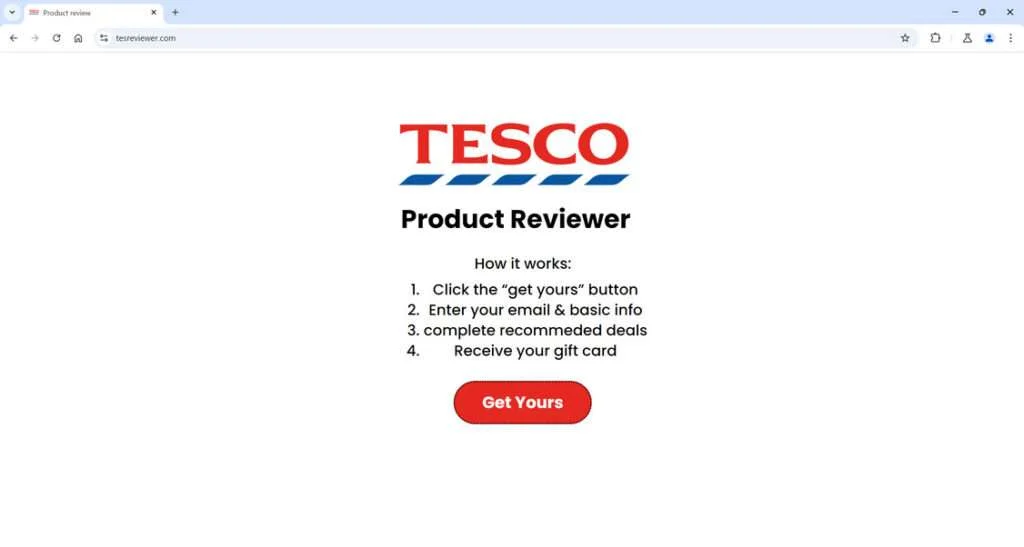
Overview of the Tesco Product Reviewer Scam
The Tesco Product Reviewer scam operates by directing victims to fake websites that mimic the look and feel of the real Tesco website. These scam sites advertise a way to earn gift cards and cash by reviewing Tesco products.
To apply, victims are instructed to click a “Get Yours” or “Get Started” button, which leads to a form asking for your email address and other personal details. After submitting your information, you are redirected to various shady websites and asked to complete surveys, download apps, or purchase products and services.
Despite promises of easy money for product reviews, there is no such job opportunity with Tesco. The scammers register you for unwanted, recurring subscriptions and services designed to extract as much money from victims as possible. Many people end up spending far more than they would ever earn from the fictional review tasks.
How to Recognize the Tesco Review Scam
The scam sites use the Tesco logo and color scheme to appear credible at first glance. However, upon closer inspection, several red flags indicate the site’s fraudulent nature:
- The domain name does not match the official Tesco website (tesco.com) and often includes the words “review” or “tester”. Common examples include tes-reviewer.com, tescoreviews.com, and tescotester.co.uk.
- Poor grammar, spelling mistakes, and awkward phrasing in the text.
- Stock photos of people holding gift cards instead of real Tesco employees.
- Claims that seem too good to be true, like “Earn £1000 per week!”
- Links to unfamiliar domains instead of tesco.com.
- No physical address, company registration, terms of service, or other official business details on the site.
Any job opportunity claiming you can make easy money testing products for Tesco or writing reviews is a scam. Tesco does not hire random people online for this type of work.
How the Tesco Product Reviewer Scam Works
While scammers may change their domain names often to avoid blacklists, the general scam process follows the same pattern:
Step 1: Victims Encounter Scam Ads or Messages
Scam ads promoting the fake Tesco job opportunity frequently appear on social media sites like Facebook, Instagram, and TikTok. The ads seem legitimate at first glance, using Tesco’s logo and photos of gift cards or happy people.
Scammers also spam messages via WhatsApp, Telegram, SMS text messaging, and other platforms. The messages state that Tesco is hiring product testers and provide a link to the fraudulent site.
Step 2: Victims Input Personal Information
After clicking the link, victims arrive at the scam website and are greeted with details about the fictional product testing program. To “apply”, they are instructed to click a button such as “Get Started” or “Get Yours”.
This leads to a form asking for the victim’s name, email address, phone number, home address and other personal details. Victims provide this information believing they are applying for a Tesco job.
Step 3: Redirect to Shady Sites
Once submitted, the victim’s details are captured by the scammers. The victim is then redirected from the fake Tesco site to various survey, offer, and download sites.
These third-party sites have paid the scammers to send traffic and signups their way. They make money by getting victims to complete subscription signups, download malware-infected apps, purchase overpriced products, and more.
Step 4: Complete Offers and Downloads
To receive the promised gift cards or cash rewards, victims are told they must first complete a number of “tasks” like:
- Take paid surveys
- Sign up for suspect free trials or monthly subscriptions
- Download specific mobile apps, games, and software
- Make purchases for products, gift cards, or services
- Provide more personal details for data harvesting
- Watch videos or click ads
The scammers earn affiliate commissions, fees, or buyer information every time victims complete an offer. The third-party sites also profit when victims forget to cancel the recurring subscriptions.
Step 5: No Rewards Provided
After completing several tasks, it quickly becomes clear that no Tesco job or rewards exist. Victims who request their promised gift cards receive messages asking them to complete more offers to unlock the non-existent rewards.
Meanwhile, scammers have already profited from the victim’s personal data, downloads, purchases, and subscriptions. Even if you complete every task demanded, you will never receive gift cards or cash from these scams.
What to Do If You Fell For the Tesco Reviewer Scam
If you submitted personal details or completed questionable offers related to a Tesco Product Reviewer job opportunity, take the following steps right away:
Cancel Recurring Subscriptions and Services
Act fast to cancel any ongoing subscription services, free trials, or recurring payments signed up for through the scam site. Don’t forget magazines, software, phone services, and other monthly memberships. Cancel immediately to avoid being charged.
Scan Your Device for Malware
If you downloaded any apps or software during the scam process, scan your computer or mobile devices for malware, viruses, adware, and spyware. Use security software like Norton, Malwarebytes, or BitDefender to remove dangerous infected files.
Monitor Your Accounts
Closely monitor bank and credit card statements for any fraudulent or unauthorized charges. Also watch for misuse of stolen personal information like your government ID, address, or date of birth. Sign up for credit monitoring if concerned.
Reset Passwords
Change passwords on all online accounts, especially if you used the same password during the scam. Enable two-factor authentication wherever possible as an extra layer of security on key logins.
Contact Banks and Credit Bureaus
If you suspect financial fraud like stolen card numbers, contact your bank and credit bureaus right away. Freeze your credit reports if necessary to prevent scammers from opening new accounts in your name.
Report the Scam
To help warn others, report the Tesco Product Reviewer scam to the FTC and ActionFraud. Provide website details, screenshots, offer details, and any other evidence you collected.
By acting quickly, you can minimize damage, secure your accounts, remove malware, and avoid recurring charges from the scam. Don’t feel bad if you fell for it – these schemes are designed to deceive.
Is Your Device Infected? Run a Free Malware Scan
Slow performance, constant pop-ups, or strange behavior? These are classic signs of a malware infection. A quick way to check is to scan your device with Malwarebytes Free, one of the most trusted malware removal tools available. If you only visited a scam page and didn’t download or install anything, this scan is optional.
The free version detects and removes the most common threats, including:
- Adware — the cause of those annoying pop-ups
- Browser hijackers — unwanted redirects and changed homepages
- Trojans and spyware — hidden programs stealing your data
- Potentially unwanted programs (PUPs) — software you never asked for
👉 Select your device below — Windows, Mac, or Android — then follow the simple steps to download Malwarebytes, scan your system, and remove any threats it finds. The scan usually takes 5 to 20 minutes.
Run a Malware Scan with Malwarebytes for Windows
Malwarebytes is one of the most popular and trusted anti-malware tools for Windows — and it’s completely free for removing infections. It catches threats that many antivirus programs miss, including adware, browser hijackers, and trojans. Follow the steps below to scan your PC and remove what Malwarebytes finds.
Download Malwarebytes
Click the button below to download the latest version of Malwarebytes for Windows from the official source. The free version is all you need — it will scan your computer and remove adware, browser hijackers, and other malicious software at no cost.
Download MalwarebytesOfficial installer for Windows 11 and 10. Your download starts right away.Want real-time protection? See Malwarebytes Premium Malwarebytes Free for WindowsScans and removes malware at no cost
-
Install Malwarebytes
When the download finishes, open your Downloads folder and double-click the MBSetup file. If Windows shows a User Account Control pop-up, click “Yes” to allow the installation.

Follow the On-Screen Prompts to Install Malwarebytes
The setup wizard will walk you through a few quick screens:
-
Choose where you’re installing the program — “Personal Computer” or “Work Computer” — then click Next.

-
Malwarebytes will now install on your device. This usually takes under a minute.

-
When installation is complete, the “Welcome to Malwarebytes” screen will open automatically.

-
On the final screen, click Open Malwarebytes to launch the program.

-
Optional: Check for rootkits with a Custom Scan
You don’t need to change any settings for a normal scan. The standard Threat Scan in the next step is enough for most problems, so you can go straight to it.
If you also want to check for rootkits, use a Custom Scan. In current versions of Malwarebytes, rootkit scanning is only available there:
- On the Scanner tile, click the three-dot menu and select Advanced Scan.
- Choose Custom Scan. In its options, check Scan for rootkits.
- Select your system drive (usually C:\) as the location to scan, then start the scan. It takes longer than a Threat Scan.
- When it finishes, review and quarantine the results as described in the steps below.
Rootkit scanning isn’t available on Windows devices with ARM processors.
Start the Scan
Click the blue Scan button. Malwarebytes will automatically update its virus database and start checking your computer for malware.

-
Wait for the Scan to Finish
The scan checks your entire system for browser hijackers and other malicious programs, so it can take 5 to 20 minutes depending on your computer. Feel free to do something else — just check back occasionally to see the progress.

-
Quarantine the Detected Threats
When the scan is done, you’ll see a list of everything Malwarebytes found — malware, adware, and potentially unwanted programs. Click the “Quarantine” button to remove all of them at once.

Malwarebytes will now remove the malicious files and registry entries and move them safely into quarantine.

-
Restart Your Computer
Some threats can only be fully removed after a reboot. If Malwarebytes asks you to restart, click Yes. Once you’re logged back in, Malwarebytes has finished removing the threats it found.

When the scan is done, check whether the problems you noticed have stopped. If they continue, see the options below.
If you are still having problems with your computer after completing these instructions, then please follow one of the steps:
- Run a computer scan with ESET Online Scanner
- Ask for help in our Windows Malware Removal Help & Support forum.
Run a Malware Scan with Malwarebytes for Mac
Malwarebytes for Mac is a free on-demand scanner that removes the malware other security software tends to miss — adware, browser hijackers, and unwanted programs included. Cleaning an infected Mac with Malwarebytes has always been completely free, and it’s our go-to recommendation. Follow the steps below to scan your Mac and remove what Malwarebytes finds.
-
Download Malwarebytes for Mac
Click the button below to download the latest version of Malwarebytes for Mac.
Download MalwarebytesOfficial installer for macOS. Your download starts right away.Want real-time protection? See Malwarebytes PremiumMalwarebytes Free for MacScans and removes malware at no cost -
Open the Malwarebytes setup file
When the download finishes, open your Downloads folder and double-click the setup file to begin the installation.

-
Follow the On-Screen Prompts to Install Malwarebytes
The Malwarebytes for Mac Installer will guide you through a few quick screens. Click “Continue” and keep following the prompts until the installation completes.



When the installation is complete, Malwarebytes opens to the Welcome to Malwarebytes screen. Click “Get started“.
Malwarebytes needs Full Disk Access to check your whole Mac. When it asks, open System Settings > Privacy & Security > Full Disk Access, turn on Malwarebytes (it may be listed as Malwarebytes Protection), and confirm with your password or Touch ID. Then return to Malwarebytes. On macOS Monterey and earlier, this setting is in System Preferences > Security & Privacy > Privacy.
-
Select “Personal Computer” or “Work Computer”
Malwarebytes will ask what type of computer you’re installing it on. Click either Personal Computer or Work Computer, whichever applies.

-
Start the Scan
Click the “Scan” button. Malwarebytes will automatically update its detection database and begin checking your Mac for malware.

-
Wait for the Scan to Finish
Malwarebytes will scan your Mac for adware, browser hijackers, and other malicious programs. This can take a few minutes, so feel free to do something else — just check back occasionally to see the progress.

-
Quarantine the Detected Threats
When the scan is done, you’ll see a list of everything Malwarebytes found. Click the “Quarantine” button to remove all the threats at once.

-
Restart Your Mac
Malwarebytes will now remove all the malicious files it found. Some threats can only be fully removed after a reboot — if Malwarebytes asks you to restart, allow it. Once you’re logged back in, check whether the problems you noticed have stopped. If they come back, save the scan report and ask for help in our forum.

If the problems you noticed continue after the scan, see the options below.
If you are still experiencing problems while trying to remove a malicious program from your computer, please ask for help in our Mac Malware Removal Help & Support forum.
Run a Malware Scan with Malwarebytes for Android
Malwarebytes for Android scans your phone or tablet for malware, adware, and potentially unwanted apps. The free version scans only when you start a scan. Real-time protection, which checks apps automatically, is part of the paid Premium version.
-
Download Malwarebytes for Android.
You can download Malwarebytes for Android by clicking the link below.
Get Malwarebytes for AndroidOpens Google Play in a new tab.Want real-time protection? See Malwarebytes Premium for AndroidMalwarebytes for AndroidScans your phone and removes malware at no cost -
Install Malwarebytes for Android on your phone.
In the Google Play Store, tap “Install” to install Malwarebytes for Android on your device.

When the installation process has finished, tap “Open” to begin using Malwarebytes for Android. You can also open Malwarebytes by tapping on its icon in your phone menu or home screen.

-
Follow the on-screen prompts to complete the setup process
When Malwarebytes opens, it walks you through a short setup. Tap Get started and follow the prompts. If you see an offer for a trial or a paid plan, read it before you accept. You can skip it and keep using the free scanner.
Malwarebytes will ask for permission to access the files on your phone so it can scan them. Tap Allow, or turn on the permission in the Android screen that opens, then return to Malwarebytes.
-
Run a scan with Malwarebytes for Android
On the main screen, tap Scan now. In some versions, you open the menu, tap Scanner, and then tap Run a scan.
-
Wait for the Malwarebytes scan to complete.
Malwarebytes will now start scanning your phone for adware and other malicious apps. This process can take a few minutes, so we suggest you do something else and periodically check on the status of the scan to see when it is finished.

-
Remove the detected apps.
When the scan has been completed, you will see a list of the threats that Malwarebytes for Android has detected. Next to each detected item, tap the menu icon (three dots), then choose to uninstall the app or delete the file. Android then asks you to confirm. Tap OK or Uninstall to remove the app.
-
Restart your phone.
When the detected apps are removed, restart your phone if Malwarebytes asks you to. Then check whether the problems you noticed have stopped.
If the problems you noticed continue after the scan, see the options below.
If you are still having problems with your phone after completing these instructions, then please follow one of the steps:
- Ask for help in our Mobile Malware Removal Help & Support forum.
- Only as a last resort, reset your phone to factory settings. Read the warning below first.
- Back up your photos, videos, files, and messages, for example to your Google account or a computer.
- Make sure you know your Google account email and password. The phone asks for them after the reset. If you changed the password recently, Google recommends waiting 24 hours before you reset.
- On a Samsung phone, also make sure you know your Samsung account password.
- If you use an authenticator app for two-step verification, move your accounts to another device or save your backup codes first.
Stay Protected: Block Ads and Malicious Sites
No scan can prove a device is completely clean, so it helps to block threats before they reach you. Most infections start with a malicious ad or a fake download button — so blocking them at the source is your best defense.
We recommend AdGuard, which blocks malicious ads, phishing pages, and dangerous redirects before they can reach you.
👉 Download AdGuard and browse safely
Frequently Asked Questions about the Tesco Product Reviewer Scam
1. What is the Tesco Product Reviewer scam?
The Tesco Product Reviewer scam is a fraud designed to steal personal information and money from victims under the false pretense of a job opportunity with Tesco. Scammers create fake websites mimicking Tesco’s branding and claim to offer easy product testing and review tasks in exchange for gift cards or cash rewards. However, it’s a scam and there is no job – victims end up paying more in unwanted subscriptions and services than any supposed rewards.
2. How does the Tesco Product Reviewer scam work?
The scammers post online ads or send spam messages promoting a lucrative Tesco job offer and a link to their fake site. Victims input personal details thinking they are applying for the job, but are actually giving their info directly to scammers. Victims get redirected to shady third-party sites and told to complete offers like paid surveys and subscription signups to receive their “rewards.” Scammers earn affiliate fees and harvest data, while victims end up losing money.
3. What are some red flags of the Tesco Reviewer scam sites?
Red flags include non-Tesco domains, poor grammar/spelling, unrealistic earnings claims, stock photos instead of real employees, links to unfamiliar sites, and lack of official business details. Tesco does not hire random online applicants for these roles. Avoid any site offering easy money for product testing or reviews.
4. What should I do if I shared my information or completed offers?
Act quickly to cancel any monthly subscriptions, scan devices for malware if you downloaded anything, monitor financial accounts for fraud, change passwords, and contact banks about suspicious charges. Report the scam to authorities to help warn others avoid being victimized.
5. How can I avoid the Tesco Product Reviewer scam?
Avoid sharing personal details or clicking links in unsolicited messages. Verify unfamiliar companies are legit before providing info. Watch for warning signs like upfront fees, urgent calls to act fast, and offers too good to be true. Sign up for credit monitoring and enable two-factor authentication to protect yourself from fraud.
6. Does Tesco really offer Product Reviewer jobs?
No, Tesco does not hire random people who apply online for product testing and review jobs. Any site offering easy payments to review Tesco items is a fraudulent scam. Tesco does not partner with third parties for this type of work. Be wary of anyone claiming you can make fast money reviewing products for major retailers.
7. Where can I report the Tesco Reviewer scam?
Notify the FTC and ActionFraud about scam websites, ads, or messages related to fake Tesco jobs. Provide as many details as possible like screenshots and offer instructions so they can investigate the scammers and warn other potential victims. Reporting frauds helps prevent more people from falling prey.
The Bottom Line on the Tesco Product Reviewer Scam
The Tesco Product Reviewer scam preys on innocent people looking to earn extra income online. Scammers rely on the trusted Tesco brand name to trick victims into providing personal details and completing dubious offers.
Remember – Tesco does NOT hire random people online to test products or write reviews. Any job opportunity promising easy money in exchange for an upfront “registration fee” or personal details is a fraud.
Protect yourself by learning to spot the warning signs of a scam website or job offer:
- Unrealistic promises of high earnings for simple tasks
- Requests for personal information like bank accounts or ID numbers
- Poor grammar and spelling mistakes
- Links leading away from the real company’s website
- High-pressure tactics telling you to act fast
If you come across a deal that seems too good to be true, proceed with extreme caution. Search online to verify the company’s reputation before providing any sensitive information. Avoid clicking links or downloading software from unfamiliar sites to keep your devices malware-free.
With vigilance and awareness, you can avoid falling prey to Tesco Reviewer scams and other online job frauds using trusted brands as bait. Only provide your details directly to legitimate, established businesses you can independently verify. Don’t let scammers use the trusted Tesco name to steal your money and personal information.

Join the discussion
0 commentsShare your experience or ask a question about this article.
Discussion
Start the conversation
Have a question or something useful to share? Add the first comment.