

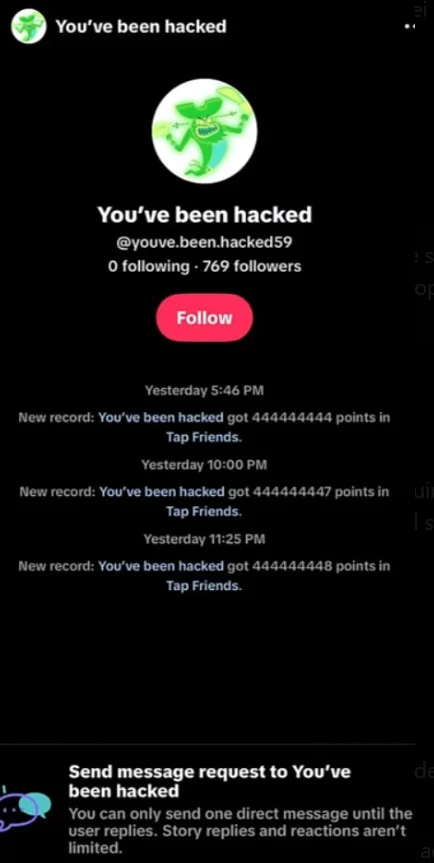
This TikTok profile is running a deceptive spam campaign. The repeated “You’ve been hacked” Tap Friends messages are not real security alerts, and receiving one does not mean the account has broken into your phone or TikTok profile.
The account shown in the screenshot uses an alarming name, absurdly high game scores, and repeated unsolicited messages to manufacture curiosity and clicks. Block and report it. If it sends an external link, asks for a login code, or offers paid “recovery,” treat that follow-up as phishing.
Overview
The screenshot shows @youve.been.hacked59 repeatedly claiming scores of 444,444,444, 444,444,447, and 444,444,448 in Tap Friends. These mechanically rising scores are bait, not a TikTok breach notice or credible proof that the sender hacked anyone.
This is a scammy spam pattern, not a harmless official notification. The profile name is chosen to frighten recipients, while the game record provides a clickable pretext for contacting strangers and attracting follows, replies, or traffic.
The account itself may initially be chasing engagement, but the tactic creates a ready-made path into phishing. A follow-up message can claim your account is at risk and send you to a fake TikTok login page, request a verification code, or direct you to a paid “recovery expert.”
The correct response is simple: do not follow, reply, or open anything sent by the profile. Block and report the account. Receiving the message alone does not mean you were hacked; entering credentials or codes on a linked page is where the real account theft begins.
The three versions people are most likely to see
- A genuine TikTok game invitation: an in-app activity with a provocative title intended to generate clicks and shares.
- Annoying engagement spam: a real account repeatedly sharing games or effects to get attention, visits, or rewards.
- A phishing message: a fake warning that sends you outside TikTok and asks for your password, email code, phone code, or payment details.
How the TikTok “You’ve Been Hacked” Message Works
Step 1: A frightening notification appears in your inbox
The scam account chooses a name like “You’ve been hacked” and sends repeated Tap Friends records. This is deliberate social engineering: it makes the notification look urgent even though no TikTok security system generated it.
Step 2: The message tries to turn fear into a click
In this campaign, the notification pushes the recipient toward the Tap Friends interaction or the suspicious profile. The operator benefits when curiosity produces a tap, follow, reply, or later conversation. If the account adds an external link, the campaign can immediately escalate into phishing.
This is the point where the paths separate. A title can be silly or misleading, but an outside login page creates a real opportunity for credential theft.
Step 3: A fake security page asks for sensitive information
The page may copy TikTok’s colors, logo, and sign-in form. It can claim that you must enter your username and password to cancel an attack, review an unknown device, or confirm that you own the account.
Some pages also request the one-time code sent by text or email. That code is often the final piece a criminal needs to complete a login or password reset. TikTok says it will not contact users to request passwords, verification codes, or other sensitive account information.
Step 4: The account is stolen or used to spread the same message
Once scammers enter an account, they may change its recovery details, message the victim’s contacts, promote fake investments, or send more “hacked” warnings. Messages from a familiar profile are more convincing, which helps the campaign spread.
Step 5: Recovery scammers target frightened victims
Comments and direct messages may offer paid help from someone who claims to be an ethical hacker or TikTok employee. These people cannot unlock TikTok’s systems. They normally collect an upfront fee, steal more information, or send the victim to another phishing page.
Does the Message Mean Your TikTok Account Is Hacked?
No. Receiving or viewing the message by itself is not evidence of an account takeover. The more useful question is what happened after it arrived.
Your account is probably fine if:
- You only saw the message and did not open anything.
- The card opened a normal game or effect within TikTok.
- You did not enter a password or verification code.
- You see no unknown devices, profile changes, or messages you did not send.
Treat it as a possible compromise if:
- You signed in through a page opened from the message.
- You shared a text or email verification code.
- Your password, email address, phone number, or username changed unexpectedly.
- Your account sent messages, followed profiles, or posted content without you.
- TikTok shows a device or location you do not recognize.
Red Flags That the Message Is a Real Scam
- An external login link: security changes should be made from TikTok’s own settings, not a page sent by a stranger.
- A request for a verification code: never send a one-time code to another person, even if they claim to work for TikTok.
- Threats and countdowns: messages such as “verify in 10 minutes or your account will be deleted” are designed to suppress careful checking.
- An unofficial support account: a username, profile photo, or blue-looking symbol can be copied.
- A file or app download: TikTok does not require a remote-access app or unofficial security tool to protect your profile.
- Payment for recovery: anyone demanding cryptocurrency, gift cards, or an upfront fee to recover an account is not legitimate TikTok support.
What to Do If You Received the Message
If you did not click anything
- Delete or ignore the message.
- Block and report the sender if the message is repetitive or deceptive.
- Open TikTok directly and review your security settings.
- Enable two-step verification if it is not already active.
- Use a unique password that is not shared with email, Instagram, or other accounts.
If you clicked but entered no information
Close the page and do not return to it. Check your downloads and remove any unfamiliar app or file that appeared. If the page requested browser notifications, revoke that permission in your browser settings.
If you entered your password or verification code
- Change your TikTok password immediately from the official app.
- Remove unknown devices from the account security page.
- Confirm that your email address and phone number have not been replaced.
- Change the password anywhere else you reused it.
- Secure the connected email account because it can be used to reset TikTok again.
- Report the account as compromised through TikTok’s official support flow.
- Warn contacts if messages were sent from your profile.
The Bottom Line
The account shown in the screenshot is scam spam. Its repeated “You’ve been hacked” game records are fabricated engagement bait, not a legitimate TikTok warning and not proof that your account is compromised.
Block and report the profile. If you opened only the in-app message, check your account activity but do not panic. If you entered a password or verification code after following a link, change the password immediately, remove unknown sessions, and secure the connected email account.

Reviews & discussion
0 commentsShare a firsthand experience, or ask a question.
Community reviews
TikTok “You’ve Been Hacked
Moderated reader experiences, not an editorial verdict.
Start the conversation
Have a question or something useful to share? Add the first comment.