


A browser can look completely ordinary while a security alert tells a different story. Your tabs still open, and your familiar accounts may remain signed in.
Seeing VoidStealer in that alert raises an uncomfortable question: what happened to the information your browser was supposed to protect?
Overview
VoidStealer Targets Browser Information
VoidStealer is information-stealing malware. Technical research describes attempts to obtain protected browser data rather than merely changing a homepage or displaying unwanted advertisements.
That distinction matters. A browser reset may change settings, but it cannot revoke a stolen session or remove an unrelated malicious process by itself.
This guide focuses on Windows remediation and account protection. Do not diagnose the family from a freeze or unexpected tab without supporting security evidence.
Browser Encryption Is Protection, Not an Absolute Guarantee
Gen Threat Labs’ analysis describes a VoidStealer technique that reads a browser encryption key from memory using debugger-related functionality.
The researched implementation uses hardware breakpoints and does not require privilege escalation or code injection for that method. The malware also has another bypass route.
Those findings concern malicious code already running on the endpoint. They do not mean any website can instantly read every browser password.
Your Response Must Cover the Computer and the Accounts
- Contain the suspected Windows infection.
- Keep actual detection and execution details.
- Scan and address remaining malicious components.
- Replace exposed passwords and review authorized sessions.
- Escalate work-account or financial exposure promptly.
Do not disable browser protections in response to the bypass report. Extra protection remains useful even when attackers develop ways around one layer.
How VoidStealer’s Browser-Theft Method Works
Step 1: Malicious Software Gains a Foothold
The technical bypass is not the initial download. Before it can operate, malicious code must have a way to run on the affected system.
Investigate the actual incident: suspicious installers, executed attachments, and prior security alerts. A list of common malware delivery methods is not proof of your entry point.
Do not recreate the incident by launching the file again. Preserve the alert and obtain the path or hash through safe tools if needed.
Step 2: The Malware Watches a Browser Process
The researched method attaches as a debugger and targets the brief moment when a browser uses an unencrypted key in memory.
Think of a protected document that must be opened before it can be read. Protecting its stored copy does not eliminate every risk during use.
This explanation is not an instruction to change debugging settings. Ordinary users do not need to manipulate browser memory to respond safely.
Step 3: Protected Data Becomes Accessible to the Attacker
Obtaining the relevant key can enable decryption of associated browser information. The reported research demonstrates why local code execution remains a serious security boundary.
Do not assume that a locked-down-looking browser profile proves safety. Equally, do not assume every account was accessed simply because an alert named a stealer.
Use security reports and provider activity records to establish what happened. Take protective action while that investigation continues rather than waiting for visible misuse.
Step 4: Copied Credentials and Sessions Outlive the Process
An attacker can retain copied information after the malicious program is removed. A session token may have a different lifetime from the password that created it.
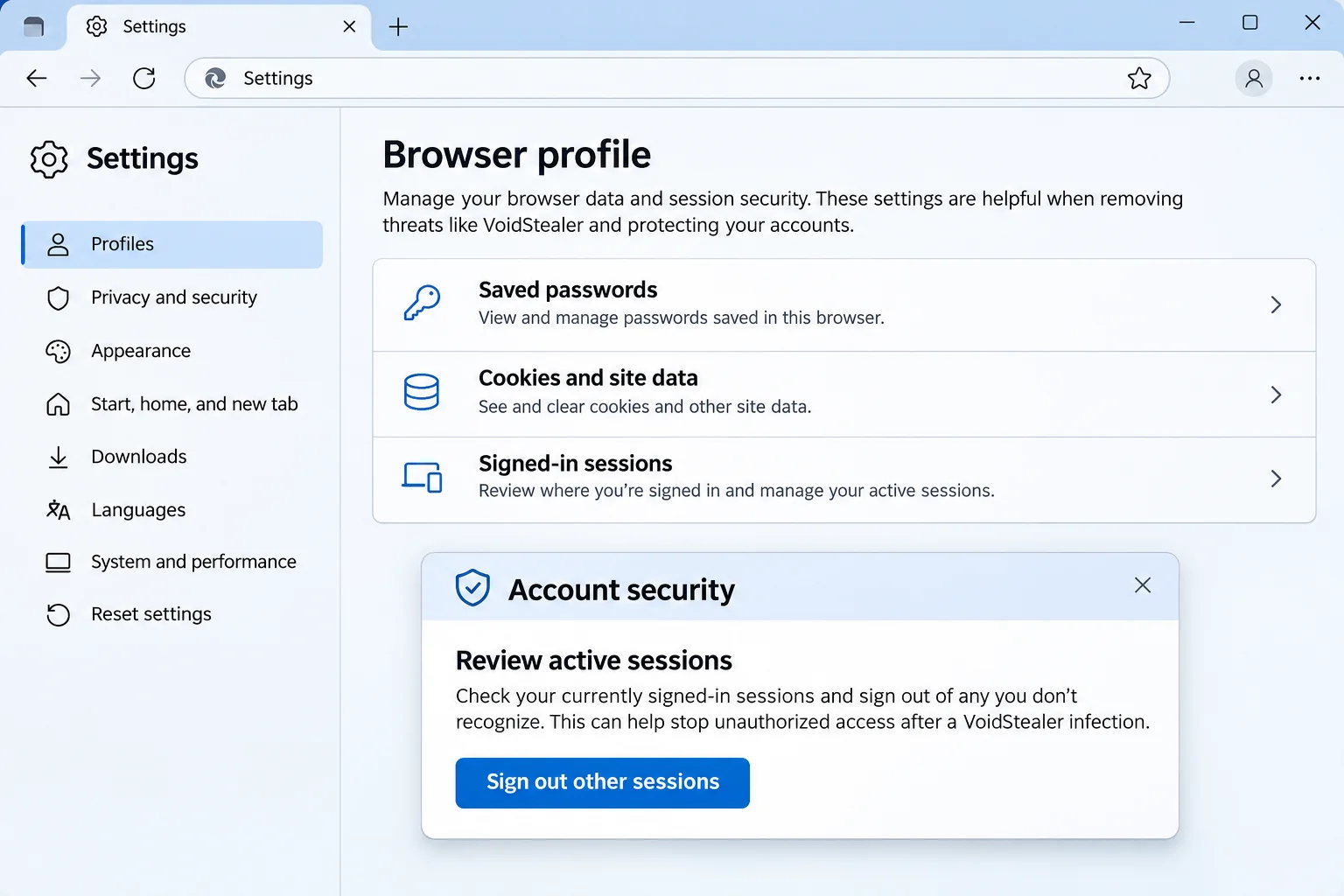
Changing a password does not always revoke every session or connected application’s access. Use the service’s dedicated session and access-review controls.
Deleting local cookies is also different from invalidating the attacker’s copy. Account-side recovery is the part that addresses access held elsewhere.
What This Does Not Tell You About Your Browser
The research does not establish a universal, permanent bypass of every browser version. Browser implementations, defenses, and malware variants can change.
Keep browsers updated instead of installing an obscure replacement advertised as immune. Moving to another browser on an infected PC does not remove the malware.
Do not confuse a technical family name with a perfect antivirus label. Different products can identify related behavior under different detection names.
If the only evidence is a phone caller announcing VoidStealer, end the call. A caller’s diagnosis is not a scan report from your computer.
Use your installed security software or a trusted helper to assess the system. Do not pay an unsolicited caller to run a supposed browser-key repair.
What to Do If VoidStealer Is Suspected on Your PC
-
Stop sensitive sign-ins on the affected computer. Disconnect it where appropriate and use a known-clean device to plan recovery.
For a managed laptop, report the alert through your organization’s incident channel. Preserve evidence before installing another scanner or restarting.
-
Save the actual security findings. Keep the detection name, file location, time, and action taken. Distinguish a blocked download from a program that executed.
Do not restore a quarantined file to learn what its window looks like. A responder can assess preserved evidence without rerunning it.
-
Recover your main email and identity accounts. Replace exposed passwords from clean equipment and check recovery addresses, phone numbers, and recent security changes.
Prioritize accounts that can reset others. If you find an unauthorized recovery method, save evidence and remove it through the real provider.
-
Review sessions and connected access. Use available sign-out controls, remove unfamiliar devices, and revoke unknown application permissions.
Check that the actions actually completed. An attacker using an old session should not remain authorized merely because you chose a stronger password.
-
Address payment and workplace exposure. Contact the bank about suspicious transactions and tell administrators which work services were accessible.
They may need to revoke application tokens or review cloud access. Do not privately reset corporate credentials while leaving the incident unreported.
-
Remediate Windows and monitor recovery. Complete the illustrated procedure, retain its reports, and investigate recurring detections before returning to normal use.
Keep watching provider alerts afterward. That monitoring checks for ongoing misuse; it is not a substitute for securing the original endpoint.
Remove VoidStealer From a Windows Computer
Step 1: Preserve Evidence and Obtain Trusted Tools
Do not download a claimed VoidStealer remover from an advertisement or unsolicited message. Use the established Windows scanner route below.
Leave Windows Security and other legitimate protective controls enabled. A browser-encryption bypass does not justify weakening the rest of the system.
If your work environment requires forensic collection, wait for that collection before consumer cleanup. A quarantine or restart can change useful evidence.
Step 2: Run the Illustrated Scan and Review Its Findings
Download the Correct Windows Installer
Use the download below for Malwarebytes for Windows. Obtain the installer on a trusted computer if the affected machine cannot browse safely.
Download MalwarebytesOpens the official free-scanner page. Choose the Windows download.Optional real-time protection: Malwarebytes Premium
On the official page, choose the free scanner download for Windows. Save the installer; manual scanning and quarantine do not require a Premium purchase.
MalwareTips may earn a commission through its product links. Buying ongoing protection is optional and is not a condition for following this cleanup procedure.
Do not run an installer supplied by the suspicious message, a remote caller, or a search advertisement pretending to offer urgent technical help.
Install and Open Malwarebytes
Open Downloads and double-click the MBSetup installer. Approve the Windows permission prompt only after confirming that it belongs to the installer you obtained.

Follow the setup screens and choose the appropriate personal or work option. On a managed computer, obtain your security team’s approval before installing another tool.
Read optional offers carefully. You can skip an unwanted trial, browser add-on, or paid plan without abandoning a normal manual Windows scan.
Open the application when installation finishes. Let its detection information update if safe connectivity is available; do not reconnect an isolated business endpoint without authorization.
Run a Threat Scan, Then Check Other Affected Locations
From the dashboard, select Scan to start a Threat Scan. This checks common infection locations, memory, startup items, and the registry.
A Threat Scan is not a complete inspection of every drive. Use the Scanner tile’s three-dot menu and Advanced Scan for additional scanning choices.
Choose Custom Scan to inspect specific drives or folders. Select the Windows system drive and any other affected location your responder has approved.
Rootkit scanning is an optional Custom Scan setting on supported systems. Its absence on Windows ARM is not a reason to disable Windows protection.

Allow the selected scan to finish. The duration depends on its scope, available storage, and the computer’s condition, so avoid a promised completion time.
If the application cannot update, start, or finish, save its error message. Repeatedly forcing a broken scanner is not a substitute for incident-response help.
When a report becomes available, review the detected names, locations, and actions. Keep a copy for whoever is helping investigate the compromise.
Review Detections and Quarantine Threats
Leave confirmed malicious items selected and choose Quarantine. Do not create an exclusion simply because a familiar program or system-looking filename appears in the report.
If a finding is unclear, record the detection and ask for advice. Do not manually delete random Windows files based only on their names.

Quarantine isolates the items the tool identifies. Keep them there while the incident is assessed rather than restoring a suspicious file to test it.
Save the scan report after applying the actions. It can show a responder whether the original threat, related components, or potentially unwanted software was found.
A clean result does not undo earlier data theft. Continue the account and recovery actions relevant to this incident even when no active threat remains.
Restart if Requested and Review the Result
Save open work and allow a restart if Malwarebytes requests one. A managed-system responder may need to preserve evidence before approving that restart.
Keep backup storage disconnected during cleanup. Do not interpret a restart as permission to restore files or resume sensitive sign-ins immediately.

After Windows returns, reopen Malwarebytes and check the report. Run the follow-up scan appropriate to the affected locations and note any recurring detections.
Keep Windows Security and other established protection enabled. If threats return, stop ordinary use and obtain help rather than repeatedly excluding or deleting files.
For unresolved personal-device infections, ask in the MalwareTips malware-removal help forum. Do not post passwords, private logs, or confidential work documents publicly.
Step 3: Check Persistent Problems With a Qualified Helper
If a detection returns, keep the report and stop sensitive use. Additional components or another entry point may remain unresolved.
For an additional built-in check, open Windows Security, then Virus & threat protection and Scan options. Review Microsoft Defender Offline before starting it.
That option restarts the PC. Save work first, obtain approval on managed equipment, and review Protection history after Windows returns.
Step 4: Rebuild When the Machine Cannot Be Trusted
Discuss a verified Windows reinstall when the scope remains unclear or malicious access continues. Understand which data and applications a rebuild will remove.
Restore personal documents from assessed copies, not a folder full of old installers. Reintroducing the original launcher can undo the work.
A rebuilt PC still needs account recovery. Removing local software does not invalidate credentials or session material already held by somebody else.
Reduce What a Future Stealer Could Reach
Protect important services with strong, unique passwords and suitable multifactor authentication. Keep account-recovery options current so legitimate recovery remains possible.
Use provider security pages to understand session revocation before an emergency. A clear recovery plan is more valuable than hurriedly installing several unfamiliar tools.
Consider an established password manager rather than scattering reused passwords across services. An unlocked vault on a compromised endpoint still requires an incident-specific assessment.
Avoid exporting all saved passwords to an unprotected text file during cleanup. That can create another sensitive copy precisely when the system is least trustworthy.
AdGuard can help limit malicious-ad exposure. It does not reverse browser-data theft or replace endpoint protection and account-side recovery.
Be skeptical of anyone selling certainty after a single scan. Ask what was checked, what remains unknown, and which accounts need further action.
Frequently Asked Questions
Is VoidStealer Just a Browser Extension?
No. The researched malware operates at the Windows endpoint level. Reviewing extensions can be useful, but an extension list is not a complete malware assessment.
Does Browser Encryption Still Matter?
Yes. It adds a protective layer. The reported bypass shows why preventing malicious code execution remains important, not why encryption should be switched off.
Can a Browser Freeze Confirm This Infection?
No. Freezes have many causes. Use actual security findings, file evidence, and account activity rather than treating a brief performance problem as a diagnosis.
Should I Delete All My Cookies?
Clearing local data can affect your own sessions, but it does not reliably revoke a copied token elsewhere. Use each affected service’s security controls.
Will a Password Change Remove VoidStealer?
No. Password recovery addresses accounts, while malware removal addresses the endpoint. Carry out both through a trusted recovery plan.
What If the Antivirus Says the File Was Blocked?
Check the action and timing. Blocking before execution is different from finding an active payload later. Keep the report for assessment.
The Bottom Line
Do not keep banking or signing into important accounts on a PC suspected of running VoidStealer. Contain the device and obtain a proper malware assessment.
Then replace exposed credentials and revoke unwanted sessions from trusted equipment. A deleted file or clean scan cannot retrieve browser information already copied.

Join the discussion
0 commentsShare your experience or ask a question about this article.
Discussion
Start the conversation
Have a question or something useful to share? Add the first comment.