

The “We Have Hacked Your Website” email scam is an example of a social engineering attack that preys on people’s fears of having their online privacy and security compromised. It is important to understand that this is a hoax and the claims made in this email are false. The scammers have not compromised any websites associated with the recipient’s company or stolen any data.
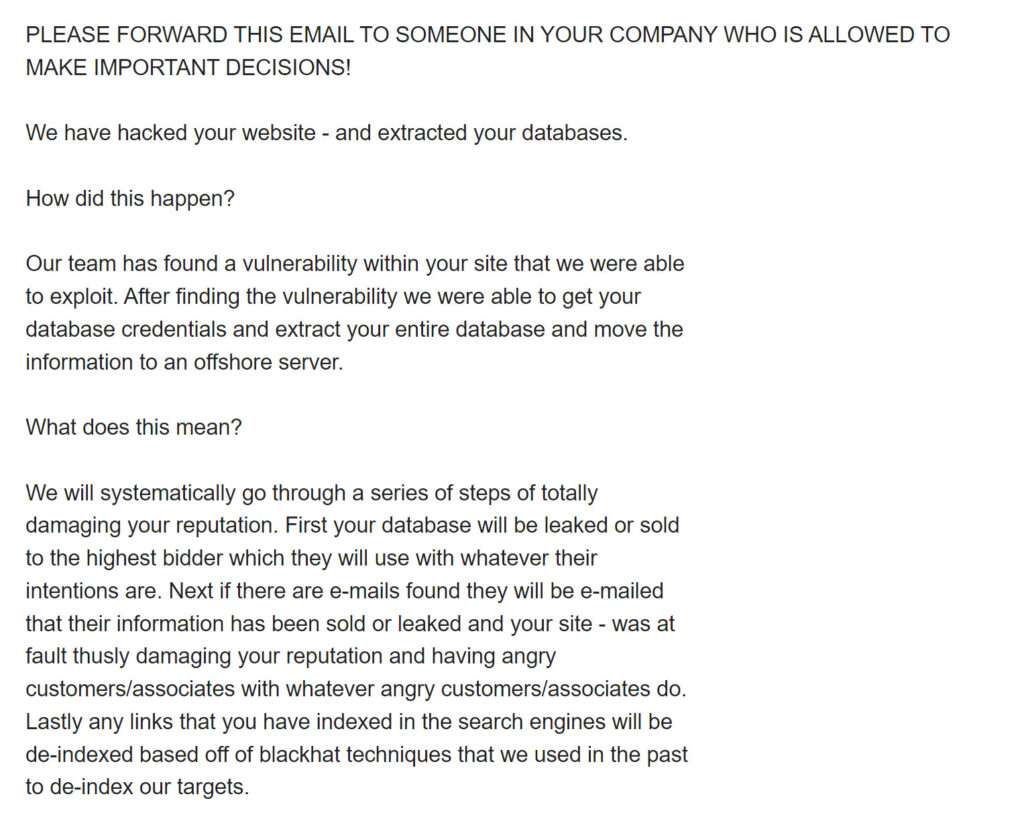
What is the “We Have Hacked Your Website” email?
The “We Have Hacked Your Website” email scam is a form of cyber extortion that has become increasingly prevalent in recent years. In this type of scam, an individual or group claiming to be a hacker sends an email to a website owner or administrator claiming that the website has been compromised and that the hacker has stolen sensitive information such as customer data, financial information, and login credentials.
The “We Have Hacked Your Website” email typically includes a threat to release the stolen information publicly or to sell it to the highest bidder unless a ransom is paid within a specified time frame. The ransom demand is usually made in Bitcoin or another cryptocurrency, which makes it difficult to trace the identity of the hacker.
It is important to note that the “We Have Hacked Your Website” email is a hoax and none of the claims made in the email are true. The scammers have not actually hacked into the recipient’s website or stolen any sensitive information. They are simply trying to scare the recipient into paying a ransom by making false threats.
There exist multiple variations of this email scam, some of which include:
PLEASE FORWARD THIS EMAIL TO SOMEONE IN YOUR COMPANY WHO IS ALLOWED TO MAKE IMPORTANT DECISIONS!
We have hacked your website – and extracted your databases.
How did this happen?
Our team has found a vulnerability within your site that we were able to exploit. After finding the vulnerability we were able to get your database credentials and extract your entire database and move the information to an offshore server.
What does this mean?
We will systematically go through a series of steps of totally damaging your reputation. First your database will be leaked or sold to the highest bidder which they will use with whatever their intentions are. Next if there are e-mails found they will be e-mailed that their information has been sold or leaked and your site – was at fault thusly damaging your reputation and having angry customers/associates with whatever angry customers/associates do. Lastly any links that you have indexed in the search engines will be de-indexed based off of blackhat techniques that we used in the past to de-index our targets.
How do I stop this?
We are willing to refrain from destroying your site’s reputation for a small fee. The current fee is $2000 USD in bitcoins (BTC).
Send the bitcoin to the following Bitcoin address (Copy and paste as it is case sensitive):
1Bs6CYDuHy1UGLr5ccz2UxRNcPGpeAa7tz
Once you have paid we will automatically get informed that it was your payment. Please note that you have to make payment within 5 days after receiving this notice or the database leak, e-mails dispatched, and de-index of your site WILL start!
How do I get Bitcoins?
You can easily buy bitcoins via several websites or even offline from a Bitcoin-ATM. We suggest you hxxps://cex.io/ for buying bitcoins.
What if I don’t pay?
If you decide not to pay, we will start the attack at the indicated date and uphold it until you do, there’s no counter measure to this, you will only end up wasting more money trying to find a solution. We will completely destroy your reputation amongst google and your customers.
This is not a hoax, do not reply to this email, don’t try to reason or negotiate, we will not read any replies. Once you have paid we will stop what we were doing and you will never hear from us again!
Please note that Bitcoin is anonymous and no one will find out that you have complied.
PLEASE FORWARD THIS EMAIL TO SOMEONE IN YOUR COMPANY WHO IS ALLOWED TO MAKE IMPORTANT DECISIONS!
We have hacked your website – and extracted your databases.
How did this happen?
Our team has found a vulnerability within your site that we were able to exploit. After finding the vulnerability we were able to get your database credentials and extract your entire database and move the information to an offshore server.
What does this mean?
We will systematically go through a series of steps of totally damaging your reputation. First your database will be leaked or sold to the highest bidder which they will use with whatever their intentions are. Next if there are e-mails found they will be e-mailed that their information has been sold or leaked and your – was at fault thusly damaging your reputation and having angry customers/associates with whatever angry customers/associates do. Lastly any links that you have indexed in the search engines will be de-indexed based off of blackhat techniques that we used in the past to de-index our targets.
How do I stop this?
We are willing to refrain from destroying your site’s reputation for a small fee. The current fee is $1500 in bitcoins (BTC).
Please send the bitcoin to the following Bitcoin address (Copy and paste as it is case sensitive):
1JToMSCtc4nW3fNDUL4xV9QYqmyKJEYMdj
Once you have paid we will automatically get informed that it was your payment. Please note that you have to make payment within 5 days after receiving this e-mail or the database leak, e-mails dispatched, and de-index of your site WILL start!
How do I get Bitcoins?
You can easily buy bitcoins via several websites or even offline from a Bitcoin-ATM. We suggest you to start with localbitcoins.com, paxful.com or do a google search.
What if I don’t pay?
If you decide not to pay, we will start the attack at the indicated date and uphold it until you do, there’s no counter measure to this, you will only end up wasting more money trying to find a solution. We will completely destroy your reputation amongst google and your customers.
This is not a hoax, do not reply to this email, don’t try to reason or negotiate, we will not read any replies. Once you have paid we will stop what we were doing and you will never hear from us again!
Please note that Bitcoin is anonymous and no one will find out that you have complied.
Hi.
We are a group of highly qualified ethical hackers who scan tens of thousands of sites every day for critical vulnerabilities and patch them for a small fee of $ 1500 per site.
On your site – we have discovered 50 critical vulnerabilities, each of which can give attackers full access to your site, databases and the server as a whole.
Pay $ 1500 to this Bitcoin wallet bc1qw8uwvpx3jnz8jlyj5j6zff9z5ztlsggvyq5pfj
And after payment within 3 hours we will fix all the vulnerabilities on your site and you can sleep peacefully without worrying about the safety of your site and server.
If we are hired by well-known corporations, then we charge from $ 50000 for our services, so you are lucky that we offer you the same service for $ 1500.
Is the “We Have Hacked Your Website” email legitimate?
There are several reasons why this scam is unlikely to be legitimate. First, if a hacker had actually breached a website and stolen sensitive information, they would not typically announce their actions in an email. Instead, they would likely attempt to sell the stolen information on the dark web or use it for their own nefarious purposes.
Second, the ransom demand in the email is relatively small, typically only a few thousand dollars. This is unlikely to be a significant sum for a legitimate hacker who has actually breached a website and stolen valuable information. They would likely demand a much larger sum in order to make their efforts worthwhile.
Finally, the scammers often use generic language and make vague threats that do not specifically identify the recipient’s website or any specific information that has been stolen. This suggests that the email is being sent to a large number of recipients in the hopes that some of them will fall for the scam and pay the ransom.
What should I do if I received the “We Have Hacked Your Website” email?
If you receive a “We Have Hacked Your Website” email, the best course of action is to ignore it. Do not respond to the email or attempt to negotiate with the scammers. Instead, contact your website hosting provider or IT department to ensure that your website is secure and that no sensitive information has been compromised.
It is also a good idea to regularly back up your website and store your backups in a secure location. This will help to minimize the impact of any future security breaches and ensure that your website can be quickly restored in the event of an attack.
Check for Malware on Your Device
To check your computer or phone for Trojans, browser hijackers, or other malware and remove them for free, you run a scan with Malwarebytes Free.
Malwarebytes runs on Windows, Mac, and Android. Click the tab below for the device you want to scan, then follow the steps to remove any malware it finds.
Scan Your Computer with Malwarebytes for Windows
Malwarebytes is one of the most popular and trusted anti-malware tools for Windows — and it’s completely free for removing infections. It catches threats that many antivirus programs miss, including adware, browser hijackers, and trojans. Follow the steps below to scan and clean your PC in just a few minutes.
Download Malwarebytes
Click the button below to download the latest version of Malwarebytes for Windows from the official source. The free version is all you need — it will scan your computer and remove adware, browser hijackers, and other malicious software at no cost.
Download MalwarebytesOfficial installer for Windows 11 and 10. Your download starts right away.Want real-time protection? See Malwarebytes Premium Malwarebytes Free for WindowsScans and removes malware at no cost
-
Install Malwarebytes
When the download finishes, open your Downloads folder and double-click the MBSetup file. If Windows shows a User Account Control pop-up, click “Yes” to allow the installation.

Follow the On-Screen Prompts to Install Malwarebytes
The setup wizard will walk you through a few quick screens:
-
Choose where you’re installing the program — “Personal Computer” or “Work Computer” — then click Next.

-
Malwarebytes will now install on your device. This usually takes under a minute.

-
When installation is complete, the “Welcome to Malwarebytes” screen will open automatically.

-
On the final screen, click Open Malwarebytes to launch the program.

-
Enable “Scan for Rootkits”
Before scanning, turn on rootkit detection so Malwarebytes can find even the most hidden threats. Click the Settings gear icon on the left side of the screen.

In the settings menu, find “Scan for rootkits” and click the toggle so it turns blue.

Done? Click “Dashboard” in the left pane to return to the main screen.
Start the Scan
Click the blue Scan button. Malwarebytes will automatically update its virus database and start checking your computer for malware.

-
Wait for the Scan to Finish
The scan checks your entire system for browser hijackers and other malicious programs, so it can take 5 to 20 minutes depending on your computer. Feel free to do something else — just check back occasionally to see the progress.

-
Quarantine the Detected Threats
When the scan is done, you’ll see a list of everything Malwarebytes found — malware, adware, and potentially unwanted programs. Click the “Quarantine” button to remove all of them at once.

Malwarebytes will now remove the malicious files and registry entries and move them safely into quarantine.

-
Restart Your Computer
Some threats can only be fully removed after a reboot. If Malwarebytes asks you to restart, click Yes. Once you’re logged back in, Malwarebytes has finished removing the threats it found.

That’s it — your Windows computer is now free of trojans, adware, browser hijackers, and other malware.
If you are still having problems with your computer after completing these instructions, then please follow one of the steps:
- Run a computer scan with ESET Online Scanner
- Ask for help in our Windows Malware Removal Help & Support forum.
Scan Your Mac with Malwarebytes for Mac
Malwarebytes for Mac is a free on-demand scanner that removes the malware other security software tends to miss — adware, browser hijackers, and unwanted programs included. Cleaning an infected Mac with Malwarebytes has always been completely free, and it’s our go-to recommendation. Follow the steps below to scan and clean your Mac in just a few minutes.
-
Download Malwarebytes for Mac
Click the button below to download the latest version of Malwarebytes for Mac.
Download MalwarebytesOfficial installer for macOS. Your download starts right away.Want real-time protection? See Malwarebytes PremiumMalwarebytes Free for MacScans and removes malware at no cost -
Open the Malwarebytes setup file
When the download finishes, open your Downloads folder and double-click the setup file to begin the installation.

-
Follow the On-Screen Prompts to Install Malwarebytes
The Malwarebytes for Mac Installer will guide you through a few quick screens. Click “Continue” and keep following the prompts until the installation completes.



When the installation is complete, Malwarebytes opens to the Welcome to Malwarebytes screen. Click “Get started“.
-
Select “Personal Computer” or “Work Computer”
Malwarebytes will ask what type of computer you’re installing it on. Click either Personal Computer or Work Computer, whichever applies.

-
Start the Scan
Click the “Scan” button. Malwarebytes will automatically update its detection database and begin checking your Mac for malware.

-
Wait for the Scan to Finish
Malwarebytes will scan your Mac for adware, browser hijackers, and other malicious programs. This can take a few minutes, so feel free to do something else — just check back occasionally to see the progress.

-
Quarantine the Detected Threats
When the scan is done, you’ll see a list of everything Malwarebytes found. Click the “Quarantine” button to remove all the threats at once.

-
Restart Your Mac
Malwarebytes will now remove all the malicious files it found. Some threats can only be fully removed after a reboot — if Malwarebytes asks you to restart, allow it. Once you’re logged back in, your Mac is clean.

That’s it — your Mac is now free of adware, browser hijackers, and other malware.
If you are still experiencing problems while trying to remove a malicious program from your computer, please ask for help in our Mac Malware Removal Help & Support forum.
Scan Your Phone with Malwarebytes for Android
Malwarebytes for Android automatically detects and removes dangerous threats like malware and ransomware so you don’t have to worry about your most-used device being compromised. Aggressive detection of adware and potentially unwanted programs keeps your Android phone or tablet running smooth.
-
Download Malwarebytes for Android.
You can download Malwarebytes for Android by clicking the link below.
Get Malwarebytes for AndroidOpens Google Play in a new tab.Want real-time protection? See Malwarebytes Premium for AndroidMalwarebytes for AndroidScans your phone and removes malware at no cost -
Install Malwarebytes for Android on your phone.
In the Google Play Store, tap “Install” to install Malwarebytes for Android on your device.

When the installation process has finished, tap “Open” to begin using Malwarebytes for Android. You can also open Malwarebytes by tapping on its icon in your phone menu or home screen.

-
Follow the on-screen prompts to complete the setup process
When Malwarebytes will open, you will see the Malwarebytes Setup Wizard which will guide you through a series of permissions and other setup options.
This is the first of two screens that explain the difference between the Premium and Free versions. Swipe this screen to continue.
Tap on “Got it” to proceed to the next step.
Malwarebytes for Android will now ask for a set of permissions that are required to scan your device and protect it from malware. Tap on “Give permission” to continue.
Tap on “Allow” to permit Malwarebytes to access the files on your phone.
-
Update database and run a scan with Malwarebytes for Android
You will now be prompted to update the Malwarebytes database and run a full system scan.

Click on “Update database” to update the Malwarebytes for Android definitions to the latest version, then click on “Run full scan” to perform a system scan.

-
Wait for the Malwarebytes scan to complete.
Malwarebytes will now start scanning your phone for adware and other malicious apps. This process can take a few minutes, so we suggest you do something else and periodically check on the status of the scan to see when it is finished.

-
Click on “Remove Selected”.
When the scan has been completed, you will be presented with a screen showing the malware infections that Malwarebytes for Android has detected. To remove the malicious apps that Malwarebytes has found, tap on the “Remove Selected” button.

-
Restart your phone.
Malwarebytes for Android will now remove all the malicious apps that it has found. To complete the malware removal process, Malwarebytes may ask you to restart your device.
That’s it — your Android device is now free of malicious apps, adware, and browser redirects.
If you are still having problems with your phone after completing these instructions, then please follow one of the steps:
- Restore your phone to factory settings by going to Settings > General management > Reset > Factory data reset.
- Ask for help in our Mobile Malware Removal Help & Support forum.








