


An email says you’ve broken a webmail rule. It even gives a time down to the second when sending and receiving are supposed to stop.
Watching the clock won’t tell you whether your account is really restricted. There’s a better place to start than the appeal offered in the message.
Overview
A policy warning that won’t tell you which policy
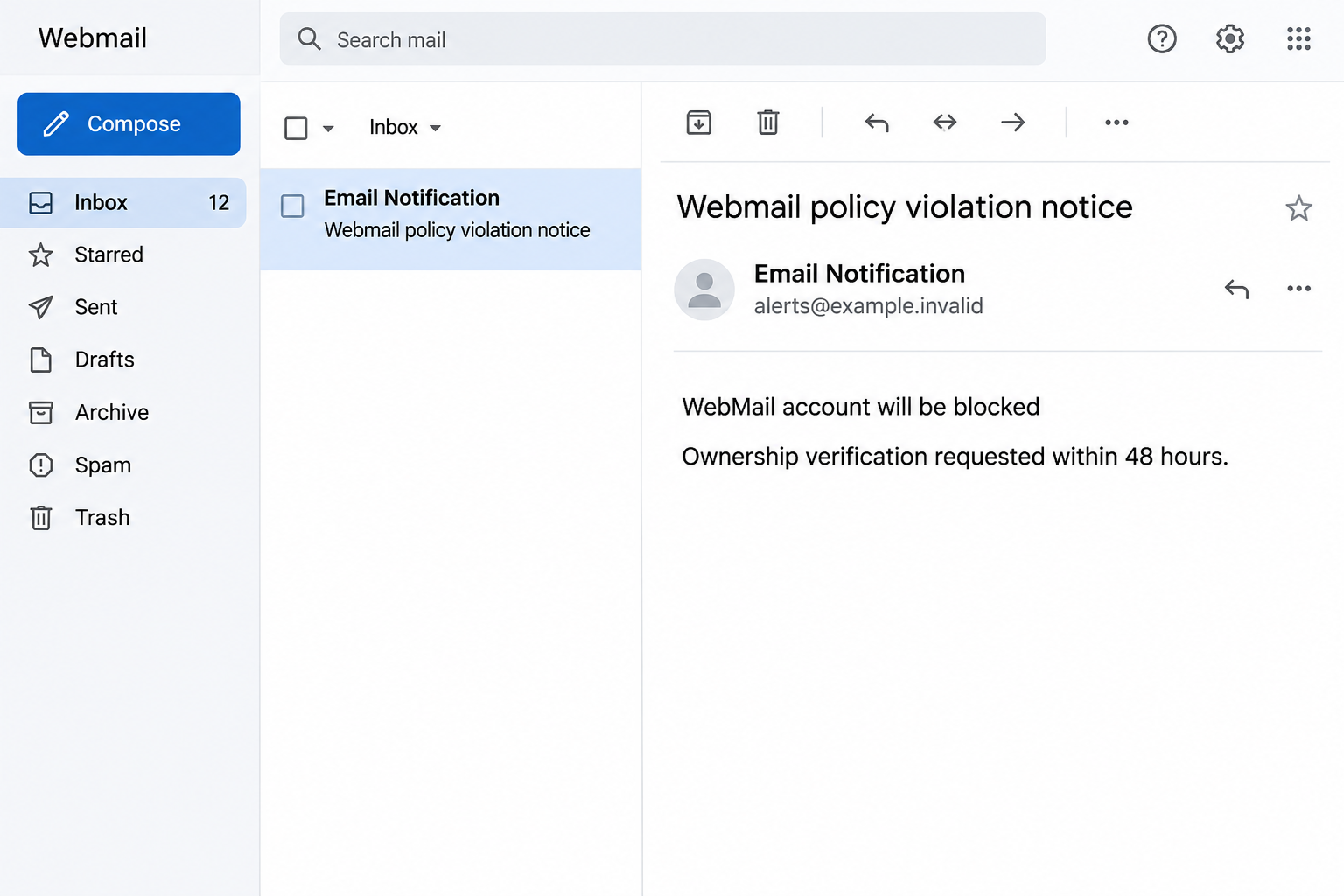
The Webmail Policy Violation email scam claims your account will be blocked from sending and receiving messages. It gives you 48 hours to verify ownership.
The sample includes a reference number and an exact time, 07:15:37 AM. They make the warning look like a notification generated by a service that knows your account.
It doesn’t identify a specific message, rule or account action that triggered the claim. The notice asks you to fix the violation before it lets you examine it.
The image above recreates the opening threat. It does not show a real moderation action or a captured sign-in page.
The ownership check leads to a copied login
The recorded link displayed a fake Gmail sign-in under a message saying the session had expired. That isn’t a page that explains a Webmail policy decision.
The key distinction is between what the email claims, what the next page shows, and where the genuine account lives. In the reported case, those did not line up.
A fake login can show familiar brand names without any connection to them. A request to sign in again doesn’t establish that a genuine session existed in the first place.
The observed screen copied Gmail. The case does not prove that every reader saw another version or that other mail providers were actually impersonated in this specific sample.
A real restriction has details you can check
Unusual account activity, spam complaints or an organization’s own rules can cause legitimate restrictions. You can ask the provider about one without using the email.
If you own or administer the mailbox, look for the notice through the system you control. If someone else manages it, ask them to confirm the account status.
Look for answers you can obtain independently:
- Which account, service or type of mail is supposedly affected?
- Which rule did the provider or administrator say was involved?
- Can you see the restriction in the real portal, or can support confirm it?
- Is the official resolution a password reset, an administrative review or something else entirely?
How the Webmail Policy Violation Scam Works
Step 1: A timed suspension makes the message look like an internal record
The subject contains reference information and a timestamp. That looks like something a help desk or automated policy system might generate.
But the numbers are printed in the message. They don’t prove a ticket exists, which system created it, or when an account will actually stop working.
The exact time also makes the warning feel imminent, especially if important messages are expected. The date and purpose of the alleged restriction still need to be checked elsewhere.
Write down the reference if you report the lure, but don’t use it as proof that the sender works for your provider. Ask the real provider what it recognizes.
Step 2: The email invites you to solve a rule violation without explaining it
People do not want to be accused of misusing a work or personal account. An unexplained warning can be unsettling even when you haven’t done anything unusual.
The notice channels that feeling into one action. It says to prove the account belongs to you instead of explaining which behavior needs to stop.
Those are very different tasks. A genuine abuse investigation might involve sending logs, account management or a service-specific review, depending on your role and the issue.
The message offers no independently verifiable explanation. If you manage the account, check administrative records. Otherwise schedule a conversation through the established support desk.
Step 3: The 48-hour window discourages a useful second opinion
The deadline is short enough to make the next click feel like an easy way to avoid a problem. It is long enough to resemble a routine process.
This matters at work because people may worry they’ll miss a customer or deadline if the mailbox goes quiet. It doesn’t take a complete outage to make them act.
If availability matters now, arrange a legitimate fallback with your team. You can make sure someone is reachable without trusting the suspension threat.
An administrator can tell you whether a restriction affects sending, receiving or sign-in. A vague notice that threatens both directions does not answer those questions.
Step 4: “Session expired” makes the password request sound routine
A person expecting an ownership form instead sees a copied Gmail prompt. The session message makes entering a password look like a familiar interruption.
That’s not evidence that your Google account logged out. The next page came through the suspicious notice rather than a route you established yourself.
You don’t need to see what happens after entering an answer to spot the problem. Leave the page and open the real work or personal account independently.
A legitimate login prompt can appear when you start an official session. The same-looking prompt on an unrelated page belongs to a very different situation.
Step 5: Once a password is exposed, the content of the warning is secondary
Someone with access to an inbox might see real correspondence or receive password resets going to that address. The warning never has to be true for that harm to occur.
The sign-in screen doesn’t tell you what was done with anything you entered. Your real account activity and the provider’s records are the places to check.
If you can still send and receive, that is good to know, but it doesn’t rule out suspicious access. Treat a known password disclosure separately from service availability.
If you didn’t submit anything, let support know that too. It helps the person investigating decide whether it is a message report or an account incident.
How to Verify a Real Mailbox Restriction
Check the provider you actually use
Open your trusted bookmark or work app. Check whether you can access the mailbox and whether the provider itself shows a notice that matches what you received.
If the account is managed by an employer, contact IT through the staff directory or support system you already use. Don’t use contact information copied from the warning.
If only one app won’t connect, do not assume the provider blocked all mail. A device sign-in or setup issue may have nothing to do with sending and receiving.
If several users can’t send or receive, ask about a wider fault. An ordinary outage can happen on the same day an unrelated phishing message turns up.
Ask what the policy means before changing credentials
If the real provider confirms a restriction, ask which service it affects, what caused it and what steps are expected. Don’t assume a self-service password form will reverse it.
A business might limit outgoing mail while reviewing unusual activity. A different account problem might affect only sign-in. The response depends on the actual restriction.
When reporting suspicious mail, record which address got it and what it said. Avoid sharing the link in a group chat just to ask whether the others got it too.
If colleagues already clicked, have them contact IT and say what they entered. That gives support a way to prioritize without making people publicly explain their actions.
Check whether your mailbox is responsible for other resets
Losing control of an email account can affect services that use it to recover access. Make a list from the accounts you actually use rather than assuming everything is compromised.
If it receives finance approvals or handles a customer inbox, tell the people responsible for those systems what happened. Do that through a separate channel if access is in question.
A restricted account and a shared mailbox can also require different administrators. Tell support whether you were acting under your own login or a shared address.
The security goal isn’t simply to make mail arrive again. It’s to understand whether the person who knows the password can still access anything important.
If you administer the mailbox, check the claim against actual controls
Start with the account identifier and time from your own admin records. A real policy event should be examined in the system responsible for that type of access.
If the mail service and your organization’s sign-in service are separate, find out where the restriction would be applied. An outside Gmail-looking page can’t answer that question for you.
Check whether the report is isolated or many people saw the same warning. An account-specific incident and a batch of copies may require different next steps.
If you notify staff, distinguish the signs they should report from the actions they should take. They shouldn’t need to reopen the link to tell you they’ve seen it.
Document any verified restrictions separately from the reported message. If the policy notice was unrelated to an actual access problem, say so plainly to the people who received it.
Give staff a contact they can reach even if they can’t sign in. An internal support number or another established communication channel makes a fake appeal less tempting.
If the real service sent a warning of its own, explain where users should find it. A vague instruction to look for a second email can create more confusion.
What to Do If You Fell Victim
-
End the verification attempt and report the warning.
If you only received the message, use your provider’s phishing report option. If you opened the page and did not enter anything, leave it closed.
Give your administrator the subject, reference and approximate time if needed. Don’t ask a colleague to open the page to confirm what it looks like.
Check the mailbox from a route you already know if you still want to confirm whether sending or receiving works.
-
If you entered a password, treat it as exposed.
Reset it through the genuine account or the work administrator. If your account is Google-based, use Google’s compromised account guidance when it applies.
Use a fresh, unique password. Replace copies used on other accounts, especially services that control account recovery or provide workplace access.
If the password no longer works or your recovery details changed, tell the provider you may have lost control. Use an established recovery route, not the email.
-
Tell support if anything besides the password was approved.
A code, push approval or unexpected sign-in request can matter. Report the time and account, not the secret itself.
Ask support to review sign-ins, sessions and authorized devices. Check whether someone changed account recovery settings or added a new way to access the mailbox.
If you use a work account and don’t have the necessary controls, let the administrator handle those steps. Don’t attempt to bypass restrictions through another login screen.
-
Inspect mailbox settings and check how the account was used.
Look for unexpected forwarding, filters, delegates or outgoing messages. Save details needed for the investigation before removing an unfamiliar setting, especially on work accounts.
If a fake message went to your contacts, warn them independently. Tell them which instruction to ignore without forwarding the original link.
Separate any later file download or app installation in your report. The documented copy requested sign-in credentials; it does not show an installed payload.
-
Go back to the provider about any actual suspension.
Once access is secure, determine whether sending, receiving or login is really restricted. Use the provider or administrator that runs the mailbox.
Ask for the specific policy or case they can confirm. Don’t let a printed time or unfamiliar case number decide where you sign in.
Keep the incident notes separate from any genuine appeal or support request. That way you can answer both issues without relying on the fake notice.
Frequently Asked Questions
Is the Webmail policy violation message real?
The documented warning led to an unrelated page with a copied Gmail sign-in. Verify a genuine restriction through the account or administrator you already trust.
Does the 48-hour deadline prove the mailbox will be suspended?
No. It is part of the email’s claim. Ask your provider whether there is a real restriction and which time or policy actually applies.
What if I really use Gmail for work?
Open your real work sign-in independently. A fake page can use Gmail branding even when it has no relationship to your organization or Google.
Why does the page say my session has expired?
It makes another password prompt feel ordinary. A notice shown on an unrelated page does not tell you the status of your genuine account session.
Should I reset my password if I only opened the email?
Reading the email doesn’t disclose it. Report the notice. Reset the password through the real provider if you typed it into the fake page.
Can I fix a real restriction without clicking the warning?
Yes. Start with the verified account portal or contact your administrator directly. They can explain the reason and the legitimate way to resolve it.
The Bottom Line
Don’t verify your mailbox through the policy violation email. Ask the real provider about any restriction and use the route you already know.
If you entered a password, secure the account and check recent access. The countdown in the email is not the thing you need to fix.

Join the discussion
0 commentsShare your experience or ask a question about this article.
Discussion
Start the conversation
Have a question or something useful to share? Add the first comment.