Woolworths Review Program Scam – FAKE $500 Woolworths Gift Card Trap
Written by: Thomas Orsolya
Published on:
The so-called Woolworths Review Program is designed to look like a legitimate customer feedback promotion.
The page usually presents a simple process, a clean layout, and a high-value reward, often a $500 Woolworths gift card. At first glance, it can look like a normal survey campaign from a major retailer.
That first impression is exactly what makes these pages effective.
If you landed on one of these “review program” sites through an ad, pop-up, or redirect, this guide will help you understand what you are looking at, how the process works, and what steps to take if you already entered information.
Scam Overview
What the Woolworths Review Program scam looks like
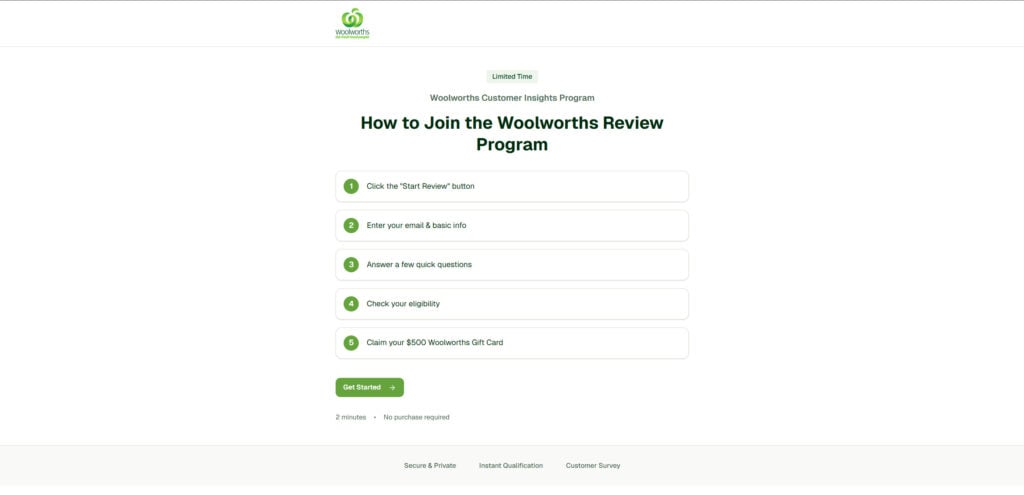
The Woolworths Review Program scam typically presents itself as a limited-time “Customer Insights Program” or “Review Program.” The page often uses Woolworths-style branding elements, green accents, and corporate-sounding language that mimics real market research campaigns.
The pitch is usually simple:
Click a “Start Review” button
Enter your email and basic details
Answer a few quick questions
“Check eligibility”
Claim a $500 Woolworths gift card
It reads like a legitimate consumer feedback flow, which is exactly why it works. Real retailers do ask for feedback. Real retailers do run promotions. Real retailers do offer gift cards.
The scam depends on that familiarity.
Why a $500 gift card is such powerful bait
A $500 gift card hits a sweet spot:
It is large enough to feel worth your time
It is practical enough to feel believable
It creates urgency because people assume there are limited slots
It encourages quick decisions, especially when paired with “Limited Time” labels
The reward amount is not random. It is chosen to motivate action.
If the page promised $10, most people would close it. At $500, people pause and think, “This might be real.”
The key issue: the domain is not Woolworths
A legitimate Woolworths campaign would be hosted through official Woolworths channels, such as an official domain, verified app experience, or a promotion page that clearly links back to official terms and support.
Scam pages often live on unrelated domains that have nothing to do with Woolworths. They may include words like “grab,” “reward,” “review,” “deal,” “insights,” or “claim,” and they are usually registered and rotated quickly.
If the website is not clearly tied to Woolworths, that is not a small detail. It is the first and biggest authenticity test.
What these pages usually are in practice
Most “Woolworths Review Program” scam pages function as reward-style affiliate funnels.
That means the operator earns money when you take certain actions, such as:
Submitting your email address and personal details
Registering for third-party sites
Downloading apps and keeping them installed
Starting subscription trials
Joining services that convert into paid billing after a short trial period
The “review program” is the wrapper. The third-party offers are the revenue engine.
The gift card is the hook that keeps people moving.
How the scam stays just within plausible deniability
A classic scam asks you for money directly. These funnels often avoid that upfront demand.
Instead, they use a more indirect approach:
They promise a gift card
They require “eligibility” steps
They present “required offers” as part of verification
They rely on tracking systems to determine “completion”
This gives the funnel room to deny delivery without admitting wrongdoing. If you complain, the page can claim you did not qualify, your completion did not track, or you did not finish every step inside the third-party offer.
From the user’s point of view, it feels like a scam because the result is the same: you do the work and the reward never arrives.
Why the design looks clean and professional
Many people assume scam pages look sloppy. Modern reward funnels are built by marketers who understand conversion.
They use:
Minimal text and lots of whitespace
Big, friendly buttons like “Get Started”
Numbered steps that create a sense of legitimacy
Short, reassuring phrases like “Secure & Private” or “Instant Qualification”
“No purchase required” to reduce resistance
This is not accidental design. It is deliberate trust engineering.
The page is trying to look like a corporate survey portal, not a pop-up scam.
The “no purchase required” line is a tactic, not a guarantee
“No purchase required” sounds like a consumer protection signal. It is also one of the easiest ways to disarm suspicion.
In these funnels, “no purchase required” does not mean “no risk.”
You can still be pushed into:
Trials that require a credit card
App subscriptions
Shipping-fee “sample” offers
Discount clubs with recurring billing
In other words, you might not be required to buy a product from Woolworths, but you can still end up paying money to third parties during the “required offers” stage.
What “eligibility check” usually means
In legitimate market research programs, eligibility is specific and transparent: location, age, membership status, or survey quotas.
In these scam funnels, the “eligibility check” is often just a transition screen designed to make you feel approved.
It creates a sense of progress:
You started. You answered questions. You are eligible. Now claim your reward.
And right after that, the funnel introduces the part that actually makes money: sponsor offers.
The moving finish line problem
One of the most common experiences is the moving finish line:
You complete one offer
The page says you need another
You complete another
The page says your completion is pending
It suggests you complete more offers while you wait
This loop is not a bug. It is the business model.
Every additional offer increases the operator’s revenue and increases your exposure to spam, tracking, and possible charges.
Tracking is used as a built-in escape hatch
Affiliate funnels rely on tracking: cookies, device identifiers, referral parameters, and conversion pixels.
Tracking can fail for normal reasons:
Cookies blocked or cleared
Private browsing mode
Switching devices or browsers
Using a VPN
Ad blockers or privacy tools
In scam funnels, tracking uncertainty becomes a convenient explanation when you do not receive the reward.
If you challenge the missing gift card, the system can respond with:
The offer did not track
The completion is still pending
You did not complete all steps inside the offer
You must complete a different offer
The outcome is always the same: you are pushed back toward more offers.
Why these scams keep reappearing
These funnels are easy to clone.
Operators can copy the template, swap the brand, register a new domain, and run ads again. If one domain gets reported or blocked, another takes its place.
That is why you see similar schemes for other brands too: Target, McDonald’s, Costco, Amazon, and more.
The branding changes. The mechanics stay the same.
The real risks go beyond “no gift card”
The missing reward is frustrating, but the bigger risks are financial, privacy-related, and security-related.
Financial risk
The highest-paying sponsor offers often involve billing:
Free trials that convert into subscriptions
Shipping-fee offers that enroll you in recurring plans
Membership programs that renew monthly
Charges can appear later under unfamiliar merchant names.
Privacy risk
Email addresses and phone numbers can be added to marketing lists. After interacting with one of these funnels, many people see:
More spam emails
Scam texts about deliveries, refunds, or rewards
Robocalls and marketing calls
More targeted phishing attempts
Security risk
If you reuse passwords, or if you provide information that overlaps with other accounts, you can become a target for follow-up scams that feel personalized.
This is how a “gift card” click turns into a long-term nuisance.
How The Scam Works
Step 1: You are pulled in through a fast, believable hook
The scam usually starts with a message designed for quick clicks:
“Join the Woolworths Review Program”
“Customer Insights Program”
“Claim a $500 Woolworths gift card”
“Limited time, no purchase required”
The hook is deliberately simple. It relies on brand recognition and reward size.
Often, people arrive through:
Pop-ups and redirects
Social posts and ads
Spam emails or texts
Push notification spam from sketchy sites
Low-quality ad networks
The goal is volume. The funnel does not need every visitor to convert.
Step 2: The landing page uses structure to create trust
When the page loads, it usually looks like an official process.
Instead of shouting at you, it calmly guides you:
Step 1, Step 2, Step 3
A single prominent button
A claim that the process takes only a couple minutes
This structure lowers your skepticism. It makes you feel like you are completing a legitimate workflow.
Step 3: The first click is a commitment trigger
The “Start Review” or “Get Started” button is more than a button.
It is a psychological switch.
Before clicking, you are evaluating the page.
After clicking, you are participating.
That shift makes people more likely to comply with later steps, because backing out now feels like abandoning progress.
Step 4: Email and “basic info” are collected early
Next, you are asked for an email address and sometimes additional details.
This is positioned as necessary for:
Confirmation
Eligibility
Sending the reward
Program updates
This step is strategically early because it converts well. Most people think an email address is low risk.
But the email is valuable:
It can be monetized as a lead
It can be used for retargeting
It can be added to marketing lists
It can be used for follow-up “reward” messages that pull you back in
If a phone number is requested, the value increases even more, because SMS lists are highly monetizable.
Step 5: “Quick questions” build momentum and reduce drop-off
The questions are usually generic. They often feel like basic consumer research.
Their real job is to build momentum:
You spend time answering
You feel invested
You believe you are nearing completion
This is a classic persuasion tactic. The more small steps you complete, the harder it feels to leave without finishing.
Step 6: The “eligibility check” creates a fake approval moment
The eligibility step is where many users feel reassured.
It implies the program is real and selective.
But in scam funnels, this step is often just a scripted transition designed to move you into the offer stage.
You are made to feel like you passed.
Then you are shown what you must do next.
Step 7: The funnel pivots into sponsor offers
This is the heart of the scam.
Instead of delivering a Woolworths gift card, you are presented with “required offers” or “sponsor deals.”
These can include:
Trial subscriptions
App installs
Sweepstakes entries
Membership programs
Product samples with shipping fees
Services that require a credit card
The offers are often framed as required. The page may show progress counters like:
“Complete 1 of 3 offers”
“Finish 2 offers to qualify”
“More offers, faster verification”
These messages are designed to push you toward the offers that generate the highest payout for the operator.
Step 8: The funnel starts with low-friction offers
Most funnels do not start with “pay now.”
They start with offers that feel easy:
Create an account
Install an app
Enter an email
Complete a short form
These actions build compliance and reduce your resistance.
Once you complete one offer, the second feels easier. That is the pattern the funnel wants.
Step 9: The funnel escalates toward paid trials and subscriptions
After a user completes one or two lower-risk steps, higher-paying offers appear.
These often involve payment details, framed as:
“Free trial, cancel anytime”
“Small fee”
“Pay $1 shipping”
This is where financial harm can begin.
The offer might be technically “real,” but the way it is presented is deceptive, because you are doing it under the belief you will receive a $500 Woolworths gift card.
Even a legitimate trial can become a problem if:
You forget to cancel
The cancellation process is difficult
The billing descriptor is unfamiliar
The renewal happens quickly
The funnel benefits regardless, because the affiliate commission is often earned at sign-up.
Step 10: “Pending” status delays the reward and keeps you engaged
Even after offers are completed, many users see:
Pending
Processing
Verification required
Please wait
Complete more offers while you wait
This delay is strategic.
It prevents immediate backlash, because you think the reward is still coming.
It also creates a reason to keep completing offers, because you want to “make sure it counts.”
Step 11: Tracking excuses deny completion and reset the loop
If the reward does not unlock, the funnel can blame tracking.
Common reasons include:
Cookies were blocked or deleted
You used private browsing mode
You switched devices
You did not finish every step inside the offer
You did not keep the trial active long enough
Your completion is still pending
Each excuse points you back to the offer wall.
The loop continues.
Step 12: The aftermath begins in your inbox and on your phone
After engaging with these funnels, victims often notice:
Increased spam emails
More scam texts about rewards, refunds, or deliveries
Calls from unknown numbers
Retargeting ads for similar gift card offers
This is what happens when your information is fed into marketing ecosystems that prioritize volume over trust.
Even if you never entered payment details, your inbox can become a long-term mess.
Step 13: The template repeats under new domains
When a domain is reported, blocked, or loses performance, the operator can:
Register a new domain
Use the same template
Swap in new branding
Restart traffic campaigns
That is why these scams feel endless.
They are designed to be easy to rebuild.
What To Do If You Have Fallen Victim to This Scam
Stop immediately and do not complete more offers. Do not chase the reward. Every additional offer increases your exposure and potential financial risk.
Document the page and the domain. Take screenshots of the claim page, the $500 gift card promise, and any “eligibility” screens. Write down the domain you visited and any redirects you noticed.
Search your email for confirmations and receipts. Look for keywords like: “welcome,” “trial,” “receipt,” “invoice,” “subscription,” “membership,” and “billing.” Make a list of every service you signed up for.
Cancel any trials or subscriptions you started. Cancel directly through the merchant’s billing page or account settings. Save cancellation confirmation emails or screenshots.
Check mobile subscriptions if you installed any apps. Review subscriptions inside your app store settings and cancel anything you did not intend to keep.
Review your bank and card statements for new or pending charges. Look for unfamiliar merchant names and small test charges. Monitor for at least 30 days, because some trials bill later.
If you see unwanted charges or cannot cancel, contact your card issuer. Ask about disputing charges, blocking the merchant, and replacing your card number if needed. If your card details were used across multiple offers, replacing the card is often the cleanest fix.
Secure your email account first. Change your email password and enable 2-factor authentication. Your email is the gateway to resets for many accounts.
Change passwords anywhere you reused the same login. If you reused a password during sign-ups, update it on important accounts first, especially banking and shopping accounts.
Expect spam and treat “reward follow-ups” as suspicious. Messages that say “verify your reward” or “finish eligibility” are often designed to pull you back into the funnel or into a second scam.
Disable browser notifications for unknown sites. If you allowed notifications, remove permission for unfamiliar websites in your browser settings to stop pop-up spam.
Scan your device and remove suspicious extensions or apps. Uninstall anything you did not intentionally install. Remove unknown browser extensions. Run a reputable security scan if redirects persist.
Report the scam where you encountered it. Report the ad, post, or website that sent you to the claim page. Reporting can reduce how long these domains stay active.
Is Your Device Infected? Run a Free Malware Scan
Slow performance, constant pop-ups, or strange behavior? These are classic signs of a malware infection. The fastest way to find out is to scan your device with Malwarebytes Anti-Malware Free — one of the most trusted malware removal tools available.
The free version detects and removes the most common threats, including:
Adware — the cause of those annoying pop-ups
Browser hijackers — unwanted redirects and changed homepages
Trojans and spyware — hidden programs stealing your data
Potentially unwanted programs (PUPs) — software you never asked for
👉 Select your device below — Windows, Mac, or Android — then follow the simple steps to download Malwarebytes, scan your system, and remove any threats it finds. The whole process takes about 5 minutes.
Malwarebytes for WindowsMalwarebytes for MacMalwarebytes for Android
Run a Malware Scan with Malwarebytes for Windows
Malwarebytes is one of the most popular and trusted anti-malware tools for Windows — and it’s completely free for removing infections. It catches threats that many antivirus programs miss, including adware, browser hijackers, and trojans. Follow the steps below to scan and clean your PC in just a few minutes.
Download Malwarebytes
Click the button below to download the latest version of Malwarebytes for Windows from the official source. The free version is all you need — it will scan your computer and remove adware, browser hijackers, and other malicious software at no cost.
(The link opens in a new page where your download will start)
Install Malwarebytes
When the download finishes, open your Downloads folder and double-click the MBSetup file. If Windows shows a User Account Control pop-up, click “Yes” to allow the installation.
Follow the On-Screen Prompts to Install Malwarebytes
The setup wizard will walk you through a few quick screens:
Choose where you’re installing the program — “Personal Computer” or “Work Computer” — then click Next.
Malwarebytes will now install on your device. This usually takes under a minute.
When installation is complete, the “Welcome to Malwarebytes” screen will open automatically.
On the final screen, click Open Malwarebytes to launch the program.
Enable “Scan for Rootkits”
Before scanning, turn on rootkit detection so Malwarebytes can find even the most hidden threats. Click the Settings gear icon on the left side of the screen.
In the settings menu, find “Scan for rootkits” and click the toggle so it turns blue.
Done? Click “Dashboard” in the left pane to return to the main screen.
Start the Scan
Click the blue Scan button. Malwarebytes will automatically update its virus database and start checking your computer for malware.
Wait for the Scan to Finish
The scan checks your entire system for browser hijackers and other malicious programs, so it can take several minutes. Feel free to do something else — just check back occasionally to see the progress.
Quarantine the Detected Threats
When the scan is done, you’ll see a list of everything Malwarebytes found — malware, adware, and potentially unwanted programs. Click the “Quarantine” button to remove all of them at once.
Malwarebytes will now remove the malicious files and registry entries and move them safely into quarantine.
Restart Your Computer
Some threats can only be fully removed after a reboot. If Malwarebytes asks you to restart, click Yes. Once you’re logged back in, your PC is clean and you can continue with the next steps in this guide.
When the scan finishes, click Quarantine to remove everything Malwarebytes found. That’s it — your Windows PC is now clean of trojans, adware, and other malware, and should be back to running smoothly.
If your current antivirus allowed this malicious program on your computer, you may want to consider purchasing Malwarebytes Premium to protect against these types of threats in the future. If you are still having problems with your computer after completing these instructions, then please follow one of the steps:
Malwarebytes for Mac is a free on-demand scanner that removes the malware other security software tends to miss — adware, browser hijackers, and unwanted programs included. Cleaning an infected Mac with Malwarebytes has always been completely free, and it’s our go-to recommendation. Follow the steps below to scan and clean your Mac in just a few minutes.
Download Malwarebytes for Mac
Click the button below to download the latest version of Malwarebytes for Mac.
When the download finishes, open your Downloads folder and double-click the setup file to begin the installation.
Follow the On-Screen Prompts to Install Malwarebytes
The Malwarebytes for Mac Installer will guide you through a few quick screens. Click “Continue” and keep following the prompts until the installation completes.
When the installation is complete, Malwarebytes opens to the Welcome to Malwarebytes screen. Click “Get started“.
Select “Personal Computer” or “Work Computer”
Malwarebytes will ask what type of computer you’re installing it on. Click either Personal Computer or Work Computer, whichever applies.
Start the Scan
Click the “Scan” button. Malwarebytes will automatically update its detection database and begin checking your Mac for malware.
Wait for the Scan to Finish
Malwarebytes will scan your Mac for adware, browser hijackers, and other malicious programs. This can take a few minutes, so feel free to do something else — just check back occasionally to see the progress.
Quarantine the Detected Threats
When the scan is done, you’ll see a list of everything Malwarebytes found. Click the “Quarantine” button to remove all the threats at once.
Restart Your Mac
Malwarebytes will now remove all the malicious files it found. Some threats can only be fully removed after a reboot — if Malwarebytes asks you to restart, allow it. Once you’re logged back in, your Mac is clean.
Once the scan is done, remove every threat it detected. Your Mac is now free of adware, rogue browser extensions, and other potentially harmful software.
If your current antivirus allowed a malicious program on your computer, you might want to consider purchasing the full-featured version of Malwarebytes Anti-Malware to protect against these types of threats in the future. If you are still experiencing problems while trying to remove a malicious program from your computer, please ask for help in our Mac Malware Removal Help & Support forum.
Run a Malware Scan with Malwarebytes for Android
Malwarebytes for Android automatically detects and removes dangerous threats like malware and ransomware so you don’t have to worry about your most-used device being compromised. Aggressive detection of adware and potentially unwanted programs keeps your Android phone or tablet running smooth.
Download Malwarebytes for Android.
You can download Malwarebytes for Android by clicking the link below.
In the Google Play Store, tap “Install” to install Malwarebytes for Android on your device.
When the installation process has finished, tap “Open” to begin using Malwarebytes for Android. You can also open Malwarebytes by tapping on its icon in your phone menu or home screen.
Follow the on-screen prompts to complete the setup process
When Malwarebytes will open, you will see the Malwarebytes Setup Wizard which will guide you through a series of permissions and other setup options. This is the first of two screens that explain the difference between the Premium and Free versions. Swipe this screen to continue. Tap on “Got it” to proceed to the next step. Malwarebytes for Android will now ask for a set of permissions that are required to scan your device and protect it from malware. Tap on “Give permission” to continue. Tap on “Allow” to permit Malwarebytes to access the files on your phone.
Update database and run a scan with Malwarebytes for Android
You will now be prompted to update the Malwarebytes database and run a full system scan.
Click on “Update database” to update the Malwarebytes for Android definitions to the latest version, then click on “Run full scan” to perform a system scan.
Wait for the Malwarebytes scan to complete.
Malwarebytes will now start scanning your phone for adware and other malicious apps. This process can take a few minutes, so we suggest you do something else and periodically check on the status of the scan to see when it is finished.
Click on “Remove Selected”.
When the scan has been completed, you will be presented with a screen showing the malware infections that Malwarebytes for Android has detected. To remove the malicious apps that Malwarebytes has found, tap on the “Remove Selected” button.
Restart your phone.
Malwarebytes for Android will now remove all the malicious apps that it has found. To complete the malware removal process, Malwarebytes may ask you to restart your device.
After the scan, tap Remove Selected to delete all detected threats. Your Android phone is now clean — no more malicious apps, adware, or browser redirects.
If your current antivirus allowed a malicious app on your phone, you may want to consider purchasing the full-featured version of Malwarebytes to protect against these types of threats in the future. If you are still having problems with your phone after completing these instructions, then please follow one of the steps:
Restore your phone to factory settings by going to Settings > General management > Reset > Factory data reset.
Now that your device is clean, keep it that way. Most infections start with a malicious ad or a fake download button — so blocking them at the source is your best defense.
We recommend AdGuard, which blocks malicious ads, phishing pages, and dangerous redirects before they can reach you.
The Woolworths Review Program scam is a familiar trap dressed up as a simple survey and reward.
It uses trusted branding, a structured checklist, and a high-value promise like a $500 Woolworths gift card to push users into third-party offers that monetize personal data, sign-ups, and sometimes subscriptions.
If a “review program” requires unrelated sponsor offers to unlock a gift card, treat it as a trap and exit.
If you already interacted with one, focus on practical cleanup: cancel trials, monitor statements, secure your accounts, and ignore follow-up messages that try to pull you back in.
FAQ: Woolworths Review Program Scam
Is the Woolworths Review Program real?
In most cases, no. The pages using this name are usually not official Woolworths promotions. They are commonly built to funnel users into third-party offers, signups, or subscriptions.
Is this an official Woolworths website or campaign?
Usually not. A real Woolworths promotion should be hosted on an official Woolworths domain or clearly linked through verified Woolworths channels with transparent terms and support.
Why does the page offer a $500 Woolworths gift card?
The high-value gift card is used as bait. It creates urgency and makes people more willing to follow the steps without stopping to verify the website.
What does “Start Review” or “Check Eligibility” really mean?
These steps are usually part of the funnel design. They create a sense of progress and make the process feel legitimate before the site introduces third-party offers.
What are the “required offers” on these pages?
They are typically third-party promotions that can include:
Free trials that require a credit card
Subscription services that auto-renew
App installs that may lead to paid plans
Survey or sweepstakes signups that collect personal data
Membership offers with recurring fees
Will I actually receive the $500 Woolworths gift card?
Most people do not. Many users get stuck in “pending” or “verification” loops, or they are told their offer completion did not track.
Why does the site say my offer is “pending” or “not tracked”?
That is a common tactic in reward funnels. The site may blame cookies, device changes, ad blockers, VPN use, or incomplete steps, then ask you to complete more offers.
Can this scam lead to charges on my card?
Yes. Some offers involve free trials or low-cost signups that turn into recurring monthly charges. The billing name may not match the website you remember.
I only entered my email. Is that a problem?
It can be. Even without payment details, your email may be added to marketing lists. Many people notice more spam, scam emails, and follow-up “reward” messages afterward.
I entered my phone number. What should I expect?
You may receive more marketing calls, scam texts, or “verification” messages. Be cautious with any follow-up that asks you to click a link or pay a small fee.
I entered payment information. What should I do now?
Take these steps right away:
Cancel any trials or subscriptions you started
Check your bank or card statements for pending charges
Contact your card issuer if you see suspicious billing
Consider replacing your card if you used it on multiple offers
How can I tell if a gift card promotion is fake?
Watch for these red flags:
The domain is not an official brand website
The page pushes urgency and quick clicks
You must complete third-party offers to unlock the reward
The reward stays “pending” or vague
There is no clear support or official rules page
Where should I report a Woolworths Review Program scam page?
You can report it to:
The platform where you saw the ad or link
Your browser’s phishing or deceptive site reporting tool
Local consumer fraud reporting channels
Woolworths customer support to report brand impersonation
10 Rules to Avoid Online Scams
Here are 10 practical safety rules to help you avoid malware, online shopping scams, crypto scams, and other online fraud. Each tip includes a quick “if you already got hit” action.
Stop and verify before you click, log in, download, or pay.
Most scams win by creating urgency. Verify using a trusted method: type the website address yourself, use the official app, or call a known number (not the one in the message).
If you already clicked: close the page, do not enter passwords, and run a malware scan.
Keep your operating system, browser, and apps updated.
Updates patch security holes used by malware and malicious ads. Turn on automatic updates where possible.
If you saw a scary “update now” pop-up: close it and update only through your device settings or the official app store.
Use layered protection: antivirus plus an ad blocker.
Antivirus helps block malware. An ad blocker reduces scam redirects, phishing pages, and malvertising.
If your browser is acting weird: remove unknown extensions, reset the browser, then run a full scan.
Install apps, software, and extensions only from official sources.
Avoid cracked software, “keygens,” and random downloads. During installs, choose Custom/Advanced and decline bundled offers you do not recognize.
If you already installed something suspicious: uninstall it, restart, and scan again.
Treat links and attachments as untrusted by default.
Phishing often impersonates delivery services, banks, and popular brands. If it is unexpected, do not open attachments or log in through the message.
If you entered credentials: change the password immediately and enable 2FA.
Shop safely: research the store, then pay with protection.
Be cautious with brand-new stores, “closing sale” stories, and prices that make no sense. Prefer credit cards or PayPal for dispute options. Avoid wire transfers, gift cards, and crypto payments.
If you already paid: contact your card issuer or PayPal quickly to dispute the transaction.
Crypto rule: never pay a “fee” to withdraw or recover money.
Common patterns include fake profits, then “tax,” “gas,” or “verification” fees. Another is a “recovery agent” who demands upfront crypto.
If you already sent crypto: stop paying, save evidence (wallet addresses, TXIDs, chats), and report the scam to the platform used.
Secure your accounts with unique passwords and 2FA (start with email).
Use a password manager and unique passwords for every account. Enable 2FA using an authenticator app when possible.
If you suspect an account takeover: change passwords, sign out of all devices, and review recent logins and recovery settings.
Back up important files and keep one backup offline.
Backups protect you from ransomware and device failure. Keep at least one backup on an external drive that is not always connected.
If you suspect infection: do not connect backup drives until the system is clean.
If you think you are a victim: stop losses, document evidence, and escalate fast.
Move quickly. Speed matters for disputes, account recovery, and limiting damage.
Stop payments and contact: do not send more money or respond to the scammer.
Call your bank or card issuer: block transactions, replace the card if needed, and start a dispute or chargeback.
Secure your email first: change the email password, enable 2FA, and remove unfamiliar recovery options.
Secure other accounts: change passwords, enable 2FA, and log out of all sessions.
Scan your device: remove suspicious apps or extensions, then run a full malware scan.
Save evidence: screenshots, emails, order pages, tracking pages, wallet addresses, TXIDs, and chat logs.
Report it: to the payment provider, marketplace, social platform, exchange, or wallet service involved.
These rules are intentionally simple. Most online losses happen when decisions are rushed. Slow down, verify independently, and use payment methods and account controls that give you recourse.
Thomas is an expert at uncovering scams and providing in-depth reporting on cyber threats and online fraud. As an editor, he is dedicated to keeping readers informed on the latest developments in cybersecurity and tech.