


You find a movie you want, press a download button, and suddenly the page says your browser needs fixing. The movie is still waiting behind it.
The YIFY browser repair scam turns that interruption into a decision about your computer. Here’s how to recognize the detour and handle whatever happened next.
Overview
A movie download becomes a repair request
A movie page has no business deciding which unfamiliar software belongs on your computer. A supposed playback problem doesn’t make its suggested installer trustworthy.
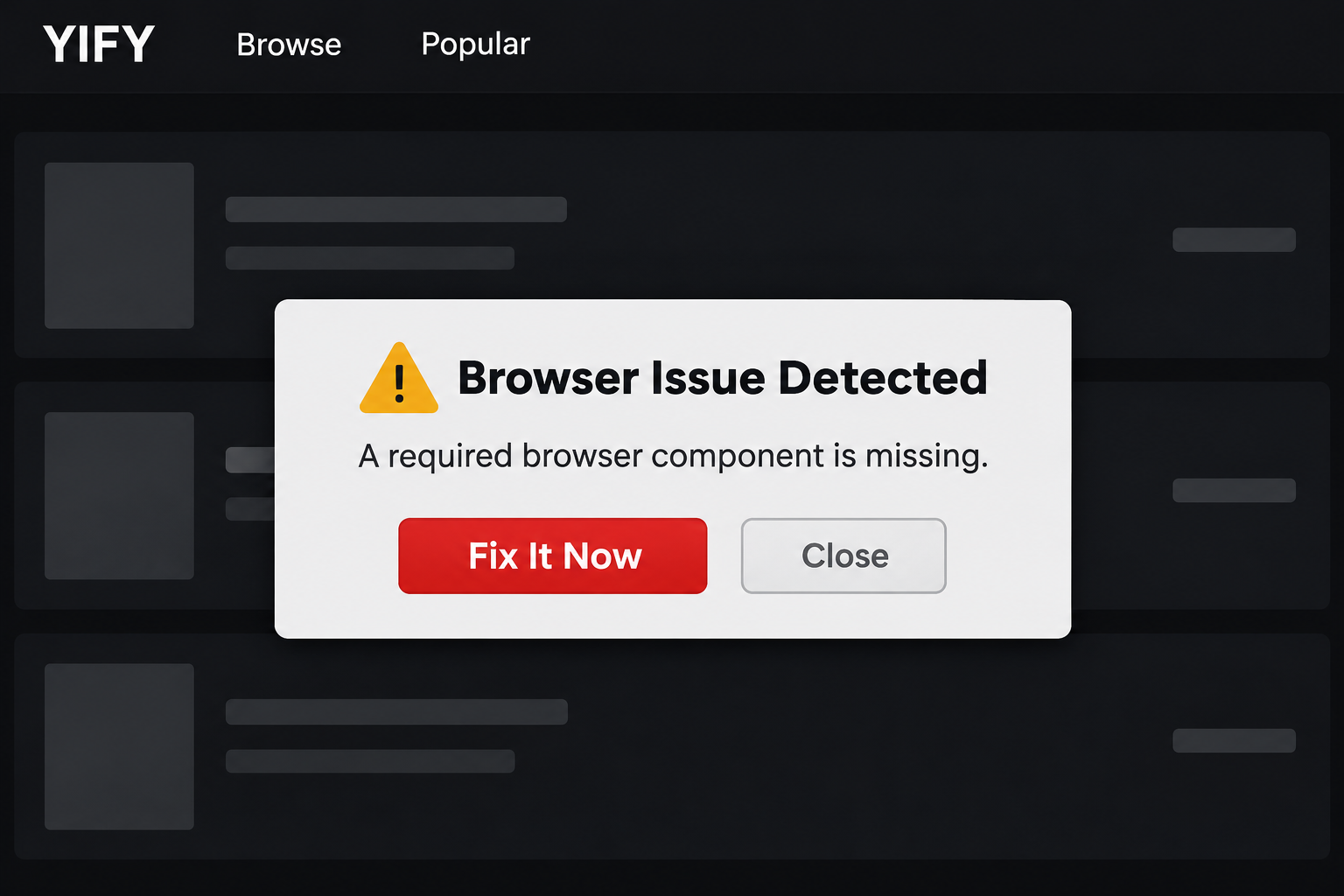
In TrendLife’s documented example, a YTS-branded page displays “Browser Issue Detected” and claims YIFY needs a missing component.
Its repair button leads to “Finding Your Fix,” followed by a page offering a file. Those screens document a fake repair lure, not a successful infection.
The important question is what you allowed
Don’t put every encounter in the same category. The response depends on whether you merely saw the page or gave it something more.
- Opened the page only: close it and check whether anything downloaded.
- Downloaded a file: leave it unopened and remove that unwanted download.
- Opened or installed the file: stop using sensitive accounts and follow the Windows cleanup guide below.
- Entered a password or card details: secure the affected account or contact the card issuer separately.
- Allowed notifications or an extension: revoke that specific permission or remove that addition.
The fake fix is the subject, not every YTS website
This warning concerns the repair-and-download trick. A familiar piracy label doesn’t identify the operator of every page using it or authenticate its downloads.
No current attack popup or downloaded payload was tested for this article. The source images don’t identify a malware family or establish command execution.
Why a Movie Page Is Not a Browser Diagnosis
A page can display a warning-shaped box, a progress bar, or a lock graphic. Those elements are page content, not independent findings from Windows.
The distinction matters because the suggested solution asks you to trust the same party that invented the problem. There is no separate diagnosis to justify it.
A legitimate service can publish compatibility requirements. You should be able to confirm them through its own help pages and your browser’s official update controls.
You don’t need to prove what an unfamiliar installer contains before refusing it. An unexplained software requirement is already enough reason to leave that offer.
If videos fail across trusted services, investigate the problem separately. Update the browser through its menu, check the service’s help, or ask its actual support.
Don’t use the movie page’s repair link as a shortcut to any of those tasks. Starting from a trusted application separates troubleshooting from the unsolicited offer.
The illustration above shows the kind of interruption involved, not a captured attack page. Its purpose is to make the switch from entertainment to installation recognizable.
How the YIFY Browser Repair Scam Works
Step 1: The movie gives you a reason to stay
The bait is access to a film, not a repair tool. That context makes an interruption feel like another obstacle between you and something already chosen.
This is the moment to stop treating every button as part of obtaining the movie. A new request deserves its own decision, especially when it changes your device.
Step 2: An invented obstacle makes software seem necessary
The documented warning ties access to an alleged missing browser component. It presents a repair as the way forward rather than explaining a verifiable compatibility requirement.
The practical trap is accepting that premise. Once you believe the page knows what’s wrong, its next button can feel helpful rather than intrusive.
Step 3: A loading screen lends the detour a purpose
The example’s intermediate screen claims to be finding a device-appropriate fix. A progress animation can suggest useful work without showing any real diagnostic result.
Waiting doesn’t validate a download. Neither does a reassuring color scheme. Judge the request by where it came from and why you would need that software.
Step 4: A repair download becomes the next request
The final documented screen offers a download. It doesn’t establish the file’s contents, a completed installation, or what would happen on a particular computer.
The dangerous handoff is from viewing a web page to trusting a file. Close the detour instead of trying its alternative buttons to locate the movie.
What to Do if You Have Fallen Victim to This Scam
-
Leave through the browser, not the warning. Close the tab using the browser’s controls. Don’t press a button inside the page to dismiss its supposed problem.
If Edge stops responding, right-click Windows Start, open Task Manager, select Microsoft Edge under Processes, and choose End task.
That closes other Edge windows too, so unsaved browser work may be lost. Microsoft’s instructions describe this escape route.
Reopen the browser without restoring the unwanted tab. A restored session can bring the same page back without proving that software installed itself.
-
Find out whether a download happened. Open the browser’s Downloads list and your Downloads folder. Look for an unfamiliar item created around the encounter.
Don’t double-click it to identify it. A plausible filename, recognizable icon, or familiar extension isn’t a reason to open an unsolicited file.
If it remains unopened, cancel an unfinished transfer or delete the unwanted file. Removing an entry from browser history alone doesn’t remove the file.
On a work-managed device, report the incident before deleting evidence. Your IT team may need the filename, address, and time of the encounter.
-
If you ran the file, stop the experiment. Don’t reopen it, approve another prompt, or follow instructions to weaken security settings.
If suspicious software is active, disconnect Wi-Fi or unplug Ethernet while seeking help. Avoid banking, shopping, and entering new passwords on that computer.
Use a separate trusted device for urgent account protection. The Windows guide below provides a consumer cleanup route; managed devices belong with their incident-response team.
-
Undo permissions you actually granted. A notification approval needs a notification-settings change. An installed browser extension needs an extension review.
Use the targeted browser instructions after the scanning guide. Don’t wipe every browser profile simply because one site displayed an alarming message.
-
Protect any account you exposed. If you typed a password into an unfamiliar form, change it through the real service from a trusted device.
Replace that password anywhere you reused it. Review account sessions and recovery details, sign out unfamiliar sessions, and enable multifactor authentication where available.
If software ran, tell support that too. Changing one password doesn’t automatically revoke every existing session or undo other information that might have been exposed.
-
Handle payment details through your issuer. If you supplied card information, call the number on the card or use your bank’s genuine app.
Explain what you entered and whether a charge appeared. Ask about blocking the card, replacement, and disputes, consistent with the FTC’s recovery guidance.
-
Keep a small, useful record. Save the address from browser history, the time, filenames, and any security report. Don’t reopen the page for better evidence.
Redact personal details before posting publicly. Ignore anyone demanding payment to retrieve stolen information or promising that a single scan guarantees complete recovery.
Scan a Windows PC If You Opened the Download
Use this section if you opened the supposed repair file, installed its software, or have persistent symptoms. Seeing the warning alone doesn’t establish infection.
These instructions are for a personally owned Windows PC. If the computer belongs to work or school, contact IT before installing tools or changing evidence.
Keep the suspicious installer closed. If the computer is isolated because software is active, seek help planning cleanup rather than reconnecting it just to fetch a scanner.
The tutorial screenshots show an older Malwarebytes interface. The illustrated Threat Scan route requires an eligible plan; the free Custom Scan path is explained separately.
Step 1: Get the genuine Malwarebytes installer
Use the established download below, not a search advertisement or the movie page. Malwarebytes offers manual scanning without requiring a paid prevention subscription.
MalwareTips may earn a commission through qualifying purchases. The optional Premium link is separate from the installer and isn’t required to follow the free scan path.
Download Malwarebytes
Windows installer. Save the file before opening it.
Malwarebytes Free product details
Optional: Malwarebytes Premium protection
Already have Malwarebytes installed? Open your existing application instead. Don’t install a second copy just because a different page tells you to.
Step 2: Install and open the application
After the genuine download finishes, open Downloads and double-click its MBSetup installer. This is the security-tool download, not the earlier movie-page file.

Approve Windows’ installation prompt only for the installer you intentionally obtained. In the setup wizard, choose Install, then Personal for your own household computer.

Choose Next and let setup finish. Read optional product offers rather than approving them automatically. Use the available skip option for extras you don’t want.
Click Open Malwarebytes when installation completes. If you already pay for the product, activate through your genuine account; a purchase isn’t necessary for Custom Scan.

If installation fails or the menus don’t match, stop and ask for help. Don’t disable antivirus or bypass a security warning to make an unfamiliar file run.
The official installation instructions cover the current setup sequence. Their subscription-activation instructions apply to customers activating a purchased plan.
Step 3: Use Custom Scan for the free route
The current feature table lists Custom Scan as free and Threat Scan as paid. Don’t buy a plan merely because the dashboard promotes one.
Open Malwarebytes. On the Scanner tile, select the three-dot menu, then Advanced Scan. Choose Custom Scan in the window that opens.
On Configure Custom Scan, expand the file finder and select the folders or drives to inspect. Include the suspicious download’s location and the Windows system drive.
Review how potentially unwanted programs and modifications are handled. Keep detection enabled rather than adding an exclusion for the supposed repair tool.
Choose Start Custom Scan and allow it to finish. A larger selection can take longer; the selected scope determines what the scanner examines.
Malwarebytes provides the current Custom Scan click path. If those controls are absent, ask support instead of substituting a similarly named paid feature.
Rootkit scanning is an optional Custom Scan setting, not a requirement established by this movie lure. Don’t change Windows security settings to expose an unavailable option.
Step 4: Alternatively, run Threat Scan if your plan includes it
If your active plan includes Threat Scan, you can choose the dashboard’s Scan button. The following historical screenshots show that route, not today’s free Custom interface.

Allow the scan to complete. Don’t interpret an early zero-detection count as the finished result, and don’t interrupt it just because the progress bar pauses.

The older screen includes scan options that may differ today. Its rootkit status doesn’t establish a current default or mean rootkit scanning is necessary here.
Choose one appropriate scan route, then continue with its results. You don’t need to purchase Threat Scan or run both routes to reach the quarantine step.
Step 5: Review detections and quarantine threats
When scanning finishes, read the detected names and locations. A result identifies what the scanner found, not necessarily which website put it there.
Select the threats to remove and choose Quarantine. The historical example below shows a Threat Scan result; your own findings may be different or empty.

If a detection is unclear, save its report and ask for help before excluding or restoring it. Don’t whitelist something because the download page called it necessary.
Wait for quarantine to finish. This separates detected items from normal use; it isn’t an instruction to restore them or open the original installer again.

Use View report or the Reports area to keep the findings. Malwarebytes’ scan and result instructions explain reviewing and quarantining detections.
Step 6: Restart if requested and check what remains
Save open work first. If Malwarebytes requests a restart to complete removal, accept it and let Windows finish restarting.

Open Malwarebytes again and review the report for unresolved items. If it requests another action, follow that specific instruction or seek assistance.
Check whether unexpected programs, redirects, or extensions return during ordinary browsing. Don’t revisit the movie page as a test of whether cleanup worked.
A clean scan is useful, but it cannot guarantee that nothing happened. It also cannot revoke stolen sessions, reverse payments, or recover information already disclosed.
If detections return, security tools fail, or suspicious behavior continues, stop improvising. Post the report and symptoms in MalwareTips’ Windows malware-removal help forum.
Don’t post passwords, card numbers, or private documents. A helper can decide whether further investigation or rebuilding is warranted without asking you to run the suspicious file.
Remove Browser Access You Granted
Some unwanted messages come from a website permission rather than an installed infection. Fix the permission involved instead of assuming the computer needs a complete reset.
In Chrome, open the three-dot menu, then Settings, Privacy and security, Site settings, and Notifications. Review the sites allowed to send notifications.
Block the unwanted site’s permission. Chrome also lets you add its address under the blocked list, as described in Google’s notification instructions.
Don’t click an arriving notification to reach those settings. Open Chrome’s settings directly, particularly when the message claims an antivirus subscription expired.
If you installed an extension, open Chrome’s menu, choose Extensions, then Manage extensions. Find the unwanted addition, select Remove, and confirm.
Google’s extension guide also explains reviewing site access. Don’t remove legitimate work-managed extensions without checking with your administrator.
If an unwanted extension returns after removal, ask for help investigating what reinstalls it. Repeatedly deleting profiles can destroy useful settings without resolving the cause.
Use the corresponding permission controls if you browse with another application. The Windows scanner screenshots above aren’t instructions for cleaning an iPhone, Android phone, or Mac.
For persistent problems on a different platform, use the appropriate MalwareTips support area. Describe the device and what you actually installed or approved.
Frequently Asked Questions
Does seeing the YIFY warning mean my computer is infected?
No. A warning displayed by a web page isn’t a malware diagnosis. Check for downloads and permissions, then match your response to what you actually did.
Should I install the suggested browser component?
No. Don’t obtain a browser repair tool from this movie-page detour. Investigate genuine playback problems separately through the browser vendor or the real streaming service.
Is downloading the file the same as running it?
No. A saved file and an executed program are different exposures. Leave the unwanted download unopened; use the cleanup guide if you opened or installed it.
Was a specific malware payload identified?
No. The documented screens show a fake repair and file offer. They don’t identify the download’s contents or demonstrate a successful infection.
Do I need Malwarebytes Premium to follow the scan guide?
No. The current free option is Custom Scan. The separately illustrated Threat Scan route is plan-dependent, and the older trial screenshots don’t make it a free feature.
What if I entered information but didn’t install anything?
Protect the information involved: secure exposed accounts or contact your card issuer. Device scanning doesn’t replace those actions, and credential entry alone doesn’t prove software execution.
The Bottom Line
Don’t use the YIFY browser repair offer or open its download. A movie page’s invented obstacle is not a trustworthy reason to install software.
If you only saw it, close it and check downloads and permissions. If you ran the file, follow the Windows guide or contact your device’s support team.
Handle exposed passwords and payment details separately from cleanup. Leave the movie-page detour behind rather than returning to see whether its next button works.

Join the discussion
0 commentsShare your experience or ask a question about this article.
Your progress
Did these steps help?
Let us know how the guide worked for you.
Describe what you see and the step you reached. Keep passwords and other private information out.
Discussion
Start the conversation
Have a question or something useful to share? Add the first comment.