


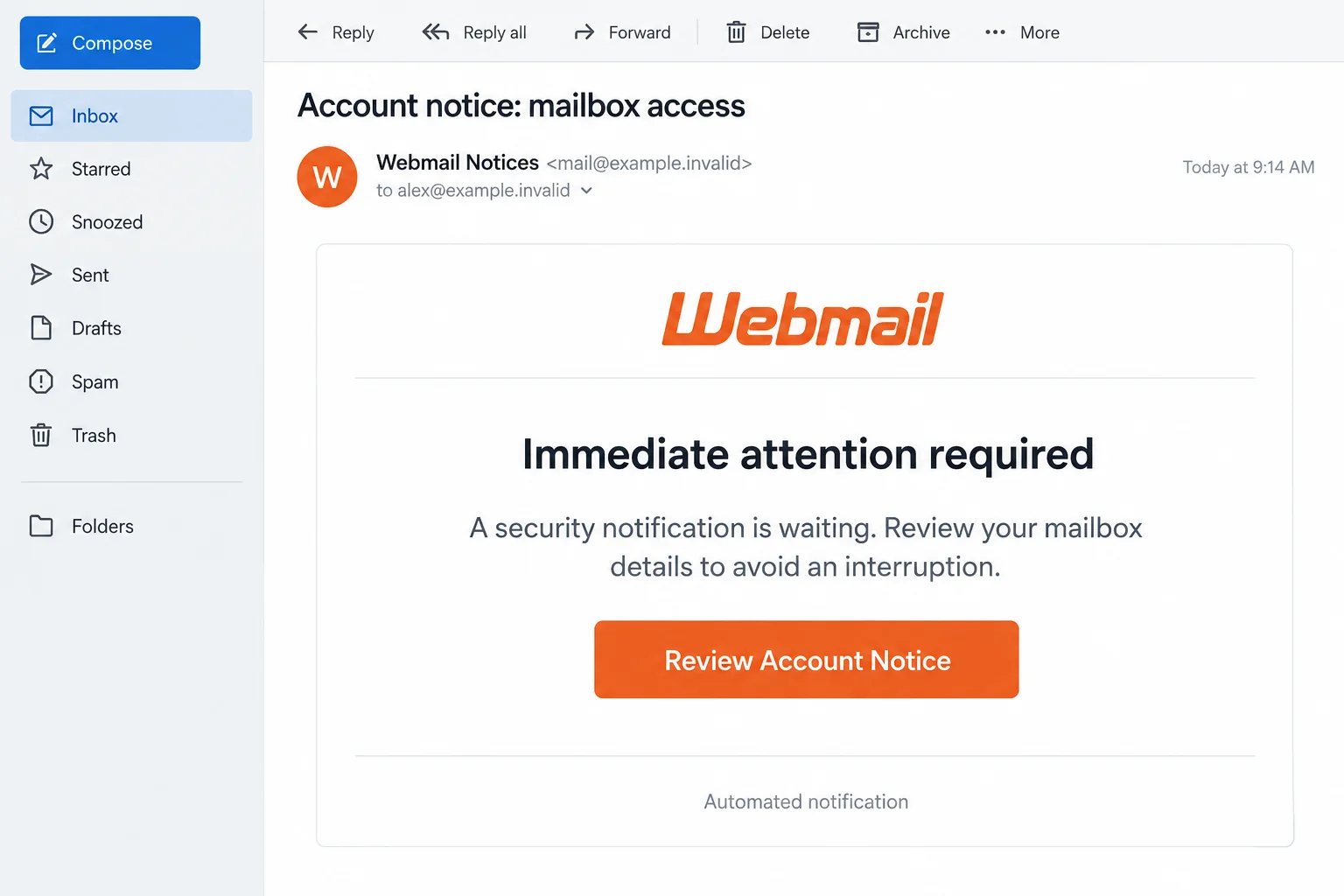
A cPanel notice says your mailbox needs immediate attention. The button promises an account review, and the possibility of losing email makes it difficult to ignore.
If your business depends on that inbox, even a vague shutdown warning can feel urgent. Before following its instructions, take a closer look at the request.
Overview
A shutdown threat dressed as routine hosting administration
The cPanel security-related issue email scam uses a hosting-control-panel identity to pressure recipients into confirming mailbox details through a fraudulent sign-in route.
The reported campaign pairs a shutdown-themed subject with a Review Account Notice button. A linked credential page was documented on pencontrol[.]com, using Gmail-style branding.
Do not follow that route. The email’s purpose is to obtain account information, not to resolve a demonstrated defect in your hosting service.
The real cPanel service is not the impersonator
cPanel is legitimate hosting software. A provider may use it to manage websites, mailboxes, backups, and other account functions.
Real security and account notifications also exist. The deception here is the specific warning and its credential destination, not the mere presence of the cPanel name.
- A threatened interruption creates pressure before a concrete problem is explained.
- A mailbox-information review becomes a request for sign-in credentials.
- The documented destination does not establish a relationship with your hosting provider.
- Branding changes along the route encourage recognition without proving who is collecting the information.
Verify the account through your hosting provider
Use the customer portal you normally visit, or contact your host through an established support channel. Ask whether there is an actual notice affecting your account.
The domain above identifies a reported phishing destination, not a current safety test or an allegation about every service that might use that domain later.
The accompanying email illustration uses invented contact details. Its purpose is to explain the visual pretext, not reproduce a verified message from your own provider.
Why This Warning Can Confuse Website Owners
Hosting relationships are not always obvious. Your domain registrar, website developer, mail provider, and server host may be different businesses.
You might recognize cPanel from setting up an address years ago without knowing which company currently administers it. The attacker benefits from that uncertainty.
A security-related issue sounds technical enough that many readers expect the details to appear after they sign in. That expectation makes a vague notice surprisingly effective.
Professional wording isn’t enough. Your existing provider should be able to confirm the claimed problem without sending you back to the suspicious link.
If an employee receives the notice, they should not have to decide how the hosting account works. They need a clear way to send it to the administrator.
That protects the employee and the business. A report sent early is more useful than a password changed quietly after someone realizes the page looked wrong.
How the cPanel Security-Related Issue Email Scam Works
Step 1: The subject makes continued mailbox access feel uncertain
The campaign begins with the possibility of an account shutdown. That is a stronger prompt than an ordinary product message because it threatens something you already use.
Its body refers to pending security information and asks for attention to avoid disruption. The reader is left to fill in the consequences.
For a freelancer, that might mean missing a client reply. For a shop, it might mean losing order questions. The message does not need to name either.
Pause long enough to locate the provider behind your mailbox. An attacker-created deadline should not determine where you enter the password protecting your work.
Step 2: An account-review button supplies the next action
The button feels like a safe intermediate step. Reviewing a notice sounds less risky than changing a payment method or installing a program.
However, the label describes what the sender wants you to believe, not what the destination will do. A button can send you anywhere.
Inspecting a link can reveal a mismatch, but you do not need to visit it to resolve the warning. Open your host’s known portal instead.
If the real account shows no corresponding issue, ask support through that portal. Do not reply to the suspicious email asking whether its own instructions are genuine.
Step 3: Familiar sign-in branding hides an unfamiliar recipient
The reported destination displayed a recognizable email-provider style. That helps the password request feel like the normal login that would precede an account notice.
There is an important distinction between a page showing your provider’s name and a page actually operated by that provider.
Some legitimate services use federated sign-in, so a brand change alone is not proof of fraud. The website address and authorized relationship still need to make sense.
A generic cPanel warning is not a reason to trust a Gmail password form on an unrelated host. Do not provide a code to bridge that gap.
If a prompt also asks you to approve a mobile sign-in notification, decline it. Approval can authorize access even when you never see the attacker’s session.
Step 4: The exposed account becomes the actual emergency
Once credentials are submitted, the threat changes. The original shutdown warning may be fictional, but an unauthorized sign-in attempt can be very real.
What happens next depends on the credentials shared and the account’s protections. There is no need to assume every website or mailbox on the server was breached.
A mailbox password may expose correspondence. A reused hosting password could create a separate risk to files, configurations, or other email accounts.
Tell the administrator exactly which username and service were involved. Precision helps them protect the right access without causing unnecessary disruption elsewhere.
How to Check cPanel Notices Without Dismissing Real Alerts
Distinguish the software vendor from your host
Your hosting company normally controls the account you bought from it. Knowing that company is more useful than guessing from a logo inside an email.
Find an earlier invoice, saved customer portal, or contract. Use those records to identify the support route rather than searching the warning for a convenient number.
If someone else maintains the site, ask them to confirm the provider and whether the mailbox is actually hosted there. Do not send them your password.
Look beyond a single From address
cPanel’s guidance on suspicious email recommends checking message headers and authentication information when assessing impersonation.
The vendor also publishes details about its own security notices. Hosting-server notifications are a separate context, so one universal sender-address rule would be misleading.
A display name can be copied, while technical authentication needs the correct domain relationship. A successful check for an unrelated domain does not make it cPanel.
Confirm the issue in the real account
Use a saved address for the hosting portal. If a new login is necessary, inspect that address before typing and use your normal sign-in method.
Look for a matching ticket or alert. If the notice concerns your server rather than your customer account, ask the administrator to inspect the appropriate logs.
Do not ignore a confirmed security problem merely because a scam used similar wording. Investigate the real problem through verified tools and support.
Mailbox Access and Hosting Access Are Not the Same Thing
A business can have separate credentials for webmail, its hosting control panel, a website administrator, and the billing portal. Recovery should reflect those differences.
Write down the service you thought you were entering and the username you supplied. That helps identify whether password reuse has expanded the exposure.
If only one employee’s email password was entered, do not assume a full server takeover. Check that mailbox first while the administrator assesses related access.
If a hosting administrator’s password was shared, broader checks may be warranted. The host can help review account changes and determine what additional credentials need replacement.
Copies of websites, unknown mail accounts, new forwarding destinations, or unexpected configuration changes would require explanation. Do not delete unfamiliar items without preserving evidence.
Where money is involved, keep the financial investigation separate. A forged supplier instruction can remain dangerous even after the mailbox password has been replaced.
What to Do If You Responded to the Fake cPanel Notice
Stop the conversation at its source. Close the linked login screen and leave any follow-up requests unanswered. Do not approve codes or authentication prompts it triggered.
Use your mail client’s reporting option. If this is a workplace account, provide the original message to the team responsible for email security.
Secure the credential you actually exposed. Go to the legitimate service directly and replace its password. Use a separate trusted device after any software installation.
If that password also protected hosting or billing, change those accounts too. Do not reuse the replacement across services.
Remove unfamiliar access and recovery changes. Review active sessions, trusted devices, connected apps, and recovery details. Ask your host for help where the interface is unclear.
For email, inspect rules, forwarding, and delegated access. For hosting, request a review proportionate to the account permissions that were exposed.
Tell colleagues what happened without spreading the link. Explain which mailbox and approximate time were involved. Share the suspicious message through the approved reporting process.
If invoices or customer information may have been accessed, let the responsible business team decide how affected people should be notified.
Check the computer only when device exposure warrants it. A password form and an installed program require different remedies. Identify any downloads, extensions, or permission changes.
Use Malwarebytes for suspected unwanted software. AdGuard may help limit malicious ads and known risky destinations, but it cannot revoke an intruder’s mailbox session.
Protect payment activity affected by the intrusion. Contact your financial institution promptly about unauthorized transfers or altered payment instructions. Use a number from trusted records.
Keep copies of receipts, account alerts, and the original notice. Ask the host to preserve relevant access records rather than relying on memory.
Rebuild confidence through specific checks. Confirm that expected mail arrives, recovery contacts are yours, and the hosting account has no unexplained changes.
Monitor for follow-up impersonation. A person claiming to resolve this incident still needs independent verification, even if they know details of the warning.
Is Your Device Infected? Run a Free Malware Scan
Slow performance, constant pop-ups, or strange behavior? These are classic signs of a malware infection. A quick way to check is to scan your device with Malwarebytes Free, one of the most trusted malware removal tools available. If you only visited a scam page and didn’t download or install anything, this scan is optional.
The free version detects and removes the most common threats, including:
- Adware — the cause of those annoying pop-ups
- Browser hijackers — unwanted redirects and changed homepages
- Trojans and spyware — hidden programs stealing your data
- Potentially unwanted programs (PUPs) — software you never asked for
👉 Select your device below — Windows, Mac, or Android — then follow the simple steps to download Malwarebytes, scan your system, and remove any threats it finds. The scan usually takes 5 to 20 minutes.
Run a Malware Scan with Malwarebytes for Windows
Malwarebytes is one of the most popular and trusted anti-malware tools for Windows — and it’s completely free for removing infections. It catches threats that many antivirus programs miss, including adware, browser hijackers, and trojans. Follow the steps below to scan your PC and remove what Malwarebytes finds.
Download Malwarebytes
Click the button below to download the latest version of Malwarebytes for Windows from the official source. The free version is all you need — it will scan your computer and remove adware, browser hijackers, and other malicious software at no cost.
Download MalwarebytesOfficial installer for Windows 11 and 10. Your download starts right away.Want real-time protection? See Malwarebytes Premium Malwarebytes Free for WindowsScans and removes malware at no cost
-
Install Malwarebytes
When the download finishes, open your Downloads folder and double-click the MBSetup file. If Windows shows a User Account Control pop-up, click “Yes” to allow the installation.

Follow the On-Screen Prompts to Install Malwarebytes
The setup wizard will walk you through a few quick screens:
-
Choose where you’re installing the program — “Personal Computer” or “Work Computer” — then click Next.

-
Malwarebytes will now install on your device. This usually takes under a minute.

-
When installation is complete, the “Welcome to Malwarebytes” screen will open automatically.

-
On the final screen, click Open Malwarebytes to launch the program.

-
Optional: Check for rootkits with a Custom Scan
You don’t need to change any settings for a normal scan. The standard Threat Scan in the next step is enough for most problems, so you can go straight to it.
If you also want to check for rootkits, use a Custom Scan. In current versions of Malwarebytes, rootkit scanning is only available there:
- On the Scanner tile, click the three-dot menu and select Advanced Scan.
- Choose Custom Scan. In its options, check Scan for rootkits.
- Select your system drive (usually C:\) as the location to scan, then start the scan. It takes longer than a Threat Scan.
- When it finishes, review and quarantine the results as described in the steps below.
Rootkit scanning isn’t available on Windows devices with ARM processors.
Start the Scan
Click the blue Scan button. Malwarebytes will automatically update its virus database and start checking your computer for malware.

-
Wait for the Scan to Finish
The scan checks your entire system for browser hijackers and other malicious programs, so it can take 5 to 20 minutes depending on your computer. Feel free to do something else — just check back occasionally to see the progress.

-
Quarantine the Detected Threats
When the scan is done, you’ll see a list of everything Malwarebytes found — malware, adware, and potentially unwanted programs. Click the “Quarantine” button to remove all of them at once.

Malwarebytes will now remove the malicious files and registry entries and move them safely into quarantine.

-
Restart Your Computer
Some threats can only be fully removed after a reboot. If Malwarebytes asks you to restart, click Yes. Once you’re logged back in, Malwarebytes has finished removing the threats it found.

When the scan is done, check whether the problems you noticed have stopped. If they continue, see the options below.
If you are still having problems with your computer after completing these instructions, then please follow one of the steps:
- Run a computer scan with ESET Online Scanner
- Ask for help in our Windows Malware Removal Help & Support forum.
Run a Malware Scan with Malwarebytes for Mac
Malwarebytes for Mac is a free on-demand scanner that removes the malware other security software tends to miss — adware, browser hijackers, and unwanted programs included. Cleaning an infected Mac with Malwarebytes has always been completely free, and it’s our go-to recommendation. Follow the steps below to scan your Mac and remove what Malwarebytes finds.
-
Download Malwarebytes for Mac
Click the button below to download the latest version of Malwarebytes for Mac.
Download MalwarebytesOfficial installer for macOS. Your download starts right away.Want real-time protection? See Malwarebytes PremiumMalwarebytes Free for MacScans and removes malware at no cost -
Open the Malwarebytes setup file
When the download finishes, open your Downloads folder and double-click the setup file to begin the installation.

-
Follow the On-Screen Prompts to Install Malwarebytes
The Malwarebytes for Mac Installer will guide you through a few quick screens. Click “Continue” and keep following the prompts until the installation completes.



When the installation is complete, Malwarebytes opens to the Welcome to Malwarebytes screen. Click “Get started“.
Malwarebytes needs Full Disk Access to check your whole Mac. When it asks, open System Settings > Privacy & Security > Full Disk Access, turn on Malwarebytes (it may be listed as Malwarebytes Protection), and confirm with your password or Touch ID. Then return to Malwarebytes. On macOS Monterey and earlier, this setting is in System Preferences > Security & Privacy > Privacy.
-
Select “Personal Computer” or “Work Computer”
Malwarebytes will ask what type of computer you’re installing it on. Click either Personal Computer or Work Computer, whichever applies.

-
Start the Scan
Click the “Scan” button. Malwarebytes will automatically update its detection database and begin checking your Mac for malware.

-
Wait for the Scan to Finish
Malwarebytes will scan your Mac for adware, browser hijackers, and other malicious programs. This can take a few minutes, so feel free to do something else — just check back occasionally to see the progress.

-
Quarantine the Detected Threats
When the scan is done, you’ll see a list of everything Malwarebytes found. Click the “Quarantine” button to remove all the threats at once.

-
Restart Your Mac
Malwarebytes will now remove all the malicious files it found. Some threats can only be fully removed after a reboot — if Malwarebytes asks you to restart, allow it. Once you’re logged back in, check whether the problems you noticed have stopped. If they come back, save the scan report and ask for help in our forum.

If the problems you noticed continue after the scan, see the options below.
If you are still experiencing problems while trying to remove a malicious program from your computer, please ask for help in our Mac Malware Removal Help & Support forum.
Run a Malware Scan with Malwarebytes for Android
Malwarebytes for Android scans your phone or tablet for malware, adware, and potentially unwanted apps. The free version scans only when you start a scan. Real-time protection, which checks apps automatically, is part of the paid Premium version.
-
Download Malwarebytes for Android.
You can download Malwarebytes for Android by clicking the link below.
Get Malwarebytes for AndroidOpens Google Play in a new tab.Want real-time protection? See Malwarebytes Premium for AndroidMalwarebytes for AndroidScans your phone and removes malware at no cost -
Install Malwarebytes for Android on your phone.
In the Google Play Store, tap “Install” to install Malwarebytes for Android on your device.

When the installation process has finished, tap “Open” to begin using Malwarebytes for Android. You can also open Malwarebytes by tapping on its icon in your phone menu or home screen.

-
Follow the on-screen prompts to complete the setup process
When Malwarebytes opens, it walks you through a short setup. Tap Get started and follow the prompts. If you see an offer for a trial or a paid plan, read it before you accept. You can skip it and keep using the free scanner.
Malwarebytes will ask for permission to access the files on your phone so it can scan them. Tap Allow, or turn on the permission in the Android screen that opens, then return to Malwarebytes.
-
Run a scan with Malwarebytes for Android
On the main screen, tap Scan now. In some versions, you open the menu, tap Scanner, and then tap Run a scan.
-
Wait for the Malwarebytes scan to complete.
Malwarebytes will now start scanning your phone for adware and other malicious apps. This process can take a few minutes, so we suggest you do something else and periodically check on the status of the scan to see when it is finished.

-
Remove the detected apps.
When the scan has been completed, you will see a list of the threats that Malwarebytes for Android has detected. Next to each detected item, tap the menu icon (three dots), then choose to uninstall the app or delete the file. Android then asks you to confirm. Tap OK or Uninstall to remove the app.
-
Restart your phone.
When the detected apps are removed, restart your phone if Malwarebytes asks you to. Then check whether the problems you noticed have stopped.
If the problems you noticed continue after the scan, see the options below.
If you are still having problems with your phone after completing these instructions, then please follow one of the steps:
- Ask for help in our Mobile Malware Removal Help & Support forum.
- Only as a last resort, reset your phone to factory settings. Read the warning below first.
- Back up your photos, videos, files, and messages, for example to your Google account or a computer.
- Make sure you know your Google account email and password. The phone asks for them after the reset. If you changed the password recently, Google recommends waiting 24 hours before you reset.
- On a Samsung phone, also make sure you know your Samsung account password.
- If you use an authenticator app for two-step verification, move your accounts to another device or save your backup codes first.
Stay Protected: Block Ads and Malicious Sites
No scan can prove a device is completely clean, so it helps to block threats before they reach you. Most infections start with a malicious ad or a fake download button — so blocking them at the source is your best defense.
We recommend AdGuard, which blocks malicious ads, phishing pages, and dangerous redirects before they can reach you.
👉 Download AdGuard and browse safely
A Practical Reporting Checklist for Small Teams
A reported domain is a clue, not the entire identification rule
Keep pencontrol[.]com defanged in incident notes so nobody accidentally visits it. Your provider can use the original email to examine the actual destination.
Future copies may use another address. A blacklist of one domain would miss the same shutdown story hosted somewhere else.
Conversely, an old domain name alone cannot establish what a page contains today. Do not accuse an unrelated future operator based solely on an earlier report.
The durable warning combines the threatened interruption, missing account detail, and an unexplained credential request. Those features remain useful when addresses or branding change.
Keep ownership of the follow-up clear
After an employee reports the notice, tell them who will handle it. Otherwise, they may keep trying the link because the alleged shutdown still feels unresolved.
Confirm whether their normal mailbox continues to function and whether any actual provider action is needed. Do not leave the phishing email as their only available instruction.
A useful report does not need a technical diagnosis. Give the administrator the original email and a plain account of what you did.
- Which mailbox received the warning, and when did you open it?
- Did you click, type credentials, approve a prompt, or download anything?
- Which service did you believe you were accessing?
- Have you seen unfamiliar messages, password changes, or payment requests since then?
Never include the password itself in that report. The administrator needs to understand the exposure, not receive another copy of a secret.
For personal hosting accounts, the same information helps support decide whether to investigate mailbox access, hosting authentication, or a potentially infected local computer.
That focused approach is faster than changing random settings. It also avoids accidentally disabling legitimate notifications that could help detect a future unauthorized login.
Frequently Asked Questions
Is cPanel shutting down accounts through this email?
The campaign’s shutdown claim is a phishing pretext. Confirm any genuine service problem through your existing hosting account rather than its Review Account Notice button.
Does cPanel ever send legitimate security messages?
Yes. Genuine notices exist, and hosting servers can generate their own notifications. Verify the sender context, authentication, and issue through the appropriate established service.
Why would a cPanel notice open a Gmail-looking form?
The reported phishing route borrows recognizable login branding to encourage disclosure. A familiar logo cannot establish that your host authorized the destination or password request.
Should I visit pencontrol[.]com to compare my message?
No. You do not need to test a reported phishing domain. Send the original message to your provider or administrator for assessment.
Did this email infect my web server?
Receiving the notice does not demonstrate server infection. The relevant questions are what credentials were disclosed, what access they allowed, and whether any software ran.
Can I delete the email after reporting it?
Yes, once any needed evidence has been preserved through your reporting process. Avoid retaining an easily clicked phishing button in your everyday inbox.
The Bottom Line
Do not verify your mailbox through this cPanel security-related issue email. Its shutdown story directs attention toward a credential trap rather than a confirmed hosting problem.
Check with your actual host. If you responded, protect the specific account involved and have the administrator review the access it could have granted.

Join the discussion
0 commentsShare your experience or ask a question about this article.
Discussion
Start the conversation
Have a question or something useful to share? Add the first comment.