

If your iPhone Calendar is suddenly filled with alerts that say “Your iPhone Is Not Protected”, you are not looking at a real Apple security warning.
You are looking at a calendar subscription scam. Scammers trick people into subscribing to a rogue calendar, then blast their phone with scary notifications designed to push clicks, calls, and payments.
The domain linked in the event might be important-notices.com today, and something completely different tomorrow. That is why the smartest way to cover this scam is to target the message itself, not the website name.
This guide breaks down exactly what the “Your iPhone Is Not Protected” calendar scam is, how it gets on your device, how it profits, and how to remove it safely.
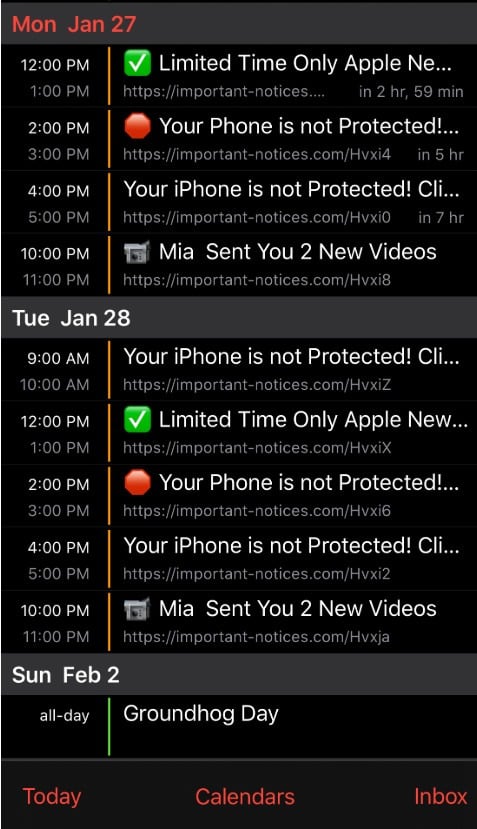
Scam Overview
The “Your iPhone Is Not Protected” Calendar Scam is a well-known iPhone and iOS threat pattern that people often call a “calendar virus.” Despite the label, it usually is not a traditional virus or a piece of malware that infected your phone.
Instead, it is a phishing and fraud tactic that abuses a legitimate iOS feature: subscribed calendars.
What is actually happening
Your iPhone can subscribe to calendars using links. This is a normal feature. People subscribe to calendars for:
- holidays
- sports schedules
- school events
- work shifts
- public event listings
When you subscribe, your Calendar app is allowed to pull events from that calendar feed. Those events can include reminders and alerts. That means they can show up as notifications on your Lock Screen and Notification Center.
Scammers use that exact feature against you.
They trick you into subscribing to a calendar that they control. Then they flood it with spam events and aggressive reminders that look like urgent system warnings.
That is how you end up with repeated calendar entries such as:
- Your iPhone Is Not Protected
- Your Phone Is Not Protected! Click…
- Apple Security Alert
- Limited Time Only Apple News…
- You Have a New Message
- Someone Sent You Videos
In many cases, the events include a link to a domain that changes frequently. One campaign might use important-notices.com, while the next rotates to a new URL to evade blocks and reports.
Why the domain changes so often
Scammers change domains constantly for the same reason counterfeiters change packaging. It helps them:
- avoid being flagged by browsers and security tools
- outrun takedowns and abuse reports
- keep campaigns alive after a domain gets labeled as malicious
- test different redirect chains and monetization partners
That is why targeting the phrase “Your iPhone Is Not Protected” is important. The message pattern stays consistent even when the domain changes.
Why it feels like your iPhone has been hacked
Calendar alerts can look surprisingly official because they use the same notification system as real reminders. They show up:
- on the Lock Screen
- in Notification Center
- as banners while you are using your phone
- repeatedly, throughout the day
If you are not expecting calendar alerts, your brain interprets them as system warnings. That is the scam’s advantage.
The scam also uses classic pressure tactics:
- fear: “Your iPhone is not protected”
- urgency: “act now,” “limited time,” “security risk”
- authority: mentions of Apple, iCloud, protection, or “system notices”
- repetition: multiple alerts per day to wear you down
- curiosity bait: “new videos,” “new message,” “private photos”
Once you see these messages popping up all day, you are more likely to click just to make it stop. That is exactly what scammers want.
What the calendar spam often looks like in real life
A common pattern is a full day packed with events that repeat every couple of hours.
You might see:
- one block that says “Limited Time Only Apple Ne…” with a checkmark icon
- several blocks that say “Your Phone is not Protected…” with an alert icon
- a random bait entry like “Mia Sent You 2 New Videos”
- the same suspicious link attached to each event, sometimes with random letters at the end
This mixture is not accidental.
Scammers run multiple angles at once:
- People motivated by fear click “not protected” warnings.
- People motivated by deals click “limited time Apple” hooks.
- People motivated by curiosity click “videos” or “new message” bait.
It is conversion testing, delivered through your Calendar.
What scammers want you to do
The calendar notifications are not the goal. They are the delivery system.
Scammers want one of these outcomes:
1. Click a link and enter personal information
The link leads to a page that imitates Apple, a security service, or a “device cleaner,” then asks for:
- Apple ID email and password
- billing details
- name, address, phone number
- security codes or verification prompts
If you give up Apple ID credentials, scammers can attempt account takeover, lock you out, and access iCloud data depending on your account protections.
2. Call a fake support number
Some calendar events push victims to call “Apple Support” or “Security Support.”
The person who answers is trained to:
- keep you panicked
- claim your phone is compromised
- pressure you into paying for “protection” or “removal”
- sometimes steer you into installing apps that enable ongoing fraud
Tech support scams often demand payment in hard-to-reverse forms. If anyone asks for gift cards, crypto, or wire transfers, treat it as an immediate scam.
3. Sign you up for paid subscriptions
Many victims end up pushed into “security apps,” VPN offers, or device cleaner subscriptions with recurring billing.
Even when the app itself is not malicious, the marketing funnel is deceptive and the billing is designed to stick.
4. Monetize your click through advertising and redirects
Even if you never buy anything, scammers can still profit from:
- affiliate networks
- redirect monetization
- low-quality lead gen offers
- aggressive ad pages
That is why these campaigns are so persistent. A small percentage of clicks can generate steady income.
Why Apple is not sending these alerts
Apple does not use your Calendar to warn you that your phone is not protected.
Real Apple security notifications do not work like this:
- Apple does not schedule urgent security warnings as calendar events.
- Apple does not attach random third-party links to device warnings.
- Apple does not use scare language like “infected” or “not protected” through Calendar notifications.
- Apple does not push “limited time only” offers as security prompts.
If the message is coming from a calendar entry, and it includes a suspicious external URL, it is almost always a scam.
Is your iPhone infected?
In the vast majority of “Your iPhone Is Not Protected” calendar cases, the answer is:
No, your iPhone is not infected with a traditional virus.
What you have is a spam calendar subscription that is blasting you with scam events.
However, your risk level changes based on what you did after the spam started.
Your situation is higher risk if you:
- clicked the link in the event
- entered any passwords
- installed anything promoted by the page
- allowed notifications or permissions on a suspicious site
- paid for a “protection plan”
- called a number and shared personal information
If you only saw the spam and did not engage, cleanup is usually quick and complete.
Common red flags that confirm it is a calendar scam
Use this checklist. If you see several of these at once, you are dealing with calendar spam:
- Events you did not create are appearing across multiple days.
- The titles use panic language: “not protected,” “infected,” “warning,” “risk.”
- The events contain a link to a domain you do not recognize.
- The alerts repeat every few hours.
- The event descriptions feel like ads, threats, or clickbait.
- Deleting one event does nothing and more appear later.
The key clue is persistence. If it keeps coming back, there is usually a subscription behind it.
Why people accidentally subscribe
Most victims do not intentionally subscribe to a scam calendar. They are tricked.
The most common pathways are:
Pop-up traps in Safari
You hit a site and a pop-up claims your phone is at risk. The page may show fake scan graphics and force you to tap quickly.
Fake CAPTCHA screens
You see “I’m not a robot.” You tap. Then a prompt appears that says you need to “allow” something to continue. The action is actually a calendar subscription.
Package delivery lures
A fake tracking page claims there is a delivery problem. You tap through a few steps and suddenly you are asked to subscribe, accept, or confirm.
Prize and adult-themed bait
Some scam pages use giveaways, explicit content bait, or “new videos” messages. If you click, you may be pushed into subscription prompts.
The scam thrives on two conditions:
- You are distracted.
- The prompt looks routine enough that you tap without reading.
The reason this scam keeps evolving
The calendar scam model works because it is cheap to run and hard for victims to understand instantly.
Scammers can rotate:
- event titles
- icons and emojis inside event names (even if the phone UI shows them as normal symbols)
- domains and redirect paths
- languages and regional targeting
- the end goal (phishing, support scam, subscription trap)
But the core strategy stays the same:
Get the victim to subscribe to a calendar, then spam them until they click.
How The Scam Works
Below is a detailed, step-by-step breakdown of how the “Your iPhone Is Not Protected” Calendar Scam typically spreads and converts victims.
Step 1: The victim is funneled to a deceptive page
The scam begins with traffic. Scammers get people onto bait pages through:
- sketchy pop-up ads
- malicious ad networks
- spam links in texts or emails
- “prize” ads and fake giveaways
- redirect chains from other scam sites
Most victims do not type a scam domain manually. They arrive through a tap they did not fully trust, often on mobile.
Step 2: The page manufactures urgency
Once you land on the bait page, it tries to push your brain into panic mode.
Common elements include:
- bold warnings like “Your iPhone is at risk”
- fake alerts that resemble Apple branding
- claims that your phone is “not protected”
- countdown timers or “limited time” banners
- instructions like “tap OK to continue”
This is not technical hacking. It is behavioral manipulation.
The scammers want you to stop evaluating and start reacting.
Step 3: A subscription or calendar prompt is triggered
At some point, the page triggers a prompt that leads to adding a calendar.
The visuals vary by iOS version and browser flow, but the scammer’s goal is always the same:
Make you tap Subscribe.
They do this by:
- placing the prompt right after you tap something else
- making it feel like part of a verification step
- telling you it is required to proceed
- timing it when you are trying to close a pop-up
Many victims later describe it as “I was trying to close the warning and I hit the wrong button.”
That is the scam working as designed.
Step 4: The rogue calendar is added to your iPhone
Once you subscribe, iOS treats that calendar feed as a legitimate source of events.
The subscribed calendar might be labeled with a name that sounds official, vague, or clickable, such as:
- Security Alerts
- iPhone Protection
- Important Notices
- Apple Warning
- Click Here
- Calendar Events
Sometimes the name is intentionally bland so it blends into your calendar list.
Step 5: The scam calendar syncs a wave of spam events
After subscription, your Calendar app starts pulling events from the calendar feed.
This is why the events can appear suddenly and in bulk.
Scammers often schedule them:
- multiple times per day
- across different hours
- with repeating reminders
They also pack the event titles with the strongest hooks:
- Your iPhone Is Not Protected
- Your Phone Is Not Protected! Click…
- Apple Notice
- Limited Time Only
- New Message
- Videos Sent
The goal is to hijack attention.
Step 6: The notifications start hitting your Lock Screen
Now the scam becomes hard to ignore.
Your iPhone displays calendar alerts like normal reminders. They show up next to your real life events.
That creates two problems for victims:
- The alerts feel “internal,” like the phone is warning you.
- The repetition creates pressure to click just to end the annoyance.
This is the psychological engine of the scam.
Step 7: The link pushes the victim into a monetization funnel
Each event includes a link. That link can change daily.
One week it might be important-notices.com. The next week it may be a completely different domain.
The domain is a wrapper. The real goal is to send you to whatever offer pays right now.
Common funnels include:
Funnel A: Fake security scan and “protection”
You land on a page that claims your device is unprotected, then pushes:
- a paid app
- a subscription “security plan”
- a fake “cleaner” service
The pitch usually includes urgent language and immediate calls to action.
Funnel B: Phishing for Apple ID credentials
You land on a page that mimics Apple sign-in or iCloud.
It claims you need to verify to fix the issue.
If you enter your credentials, scammers can attempt account takeover.
Funnel C: Tech support phone scam
You land on a page that tells you to call a number.
The agent claims they can fix it for a fee.
This is where people lose $200, $399, $699, or more.
Funnel D: Reward or adult-themed bait
You land on a page that promises rewards or content.
It then pushes paid trials, sketchy sign-ups, or data harvesting.
The calendar spam is just the loudspeaker that keeps driving you back into the funnel.
Step 8: The victim tries to delete events, but they come back
This is the most frustrating stage.
Victims often delete a few events and think the problem is solved.
Then the next day:
- the events reappear
- new ones show up
- the spam continues
That happens because the source is not the events themselves.
The source is the subscribed calendar.
As long as the subscription exists, iOS will keep syncing whatever events the scammer publishes.
Step 9: The scam spreads across devices through syncing
If your iPhone calendar is connected to:
- iCloud
- Google Calendar
- Outlook
the scam can sometimes appear on:
- iPad
- Mac
- other phones signed into the same account
This is not because your Apple ID is “infected,” but because your calendar ecosystem syncs data.
It also means cleanup sometimes requires checking more than one place.
Step 10: The scam evolves based on what gets clicks
Scammers monitor performance.
If fear-based hooks perform well, you see more “not protected” warnings.
If curiosity hooks perform well, you see “new videos” and “message received” titles.
If certain domains get blocked, they rotate domains.
That is why this scam never looks exactly the same for everyone, but the structure stays consistent.
What To Do If You Have Fallen Victim to This Scam
Follow these steps in order. Do not skip ahead.
If you remove the subscription correctly, the spam stops. If you only delete events, it usually comes back.
1. Do not click any links inside the calendar events
Treat every event as hostile.
- Do not tap the URL.
- Do not call any phone number shown.
- Do not install apps promoted by the landing pages.
If you already clicked, do not click again. Move to cleanup.
2. Identify the spam calendar in the Calendar app
- Open Calendar.
- Tap Calendars at the bottom.
- Look for any calendar you do not recognize.
Common clues:
- odd names
- names that sound like warnings or promotions
- a calendar you never remember adding
If you see it, that is likely the source.
3. Unsubscribe or delete the spam calendar from the Calendar app
In many cases you can remove it directly:
- Tap the suspicious calendar.
- Tap the info icon (if shown).
- Tap Unsubscribe or Delete Calendar.
Once removed, wait a minute and check if new spam events stop syncing in.
4. If you cannot find it in Calendar, remove it in Settings
Some iOS versions hide the subscription more clearly in Settings.
- Open Settings
- Tap Calendar
- Tap Accounts
- Tap Subscribed Calendars
- Tap the suspicious subscription
- Tap Delete Account
This usually wipes the entire spam feed instantly.
5. Delete leftover spam events after unsubscribing
Sometimes old events remain visible even after the subscription is gone.
- Tap the event
- Tap Delete Event
The difference is this:
- If the subscription is removed, deleted events stay deleted.
- If the subscription is still active, they come back.
6. Check your calendar accounts for anything you did not add
Go to:
- Settings > Calendar > Accounts
Review each account listed.
If you see an account you do not recognize, remove it.
If you use Google or Outlook, confirm you recognize the account and that calendar syncing is intentional.
7. If you use Google Calendar or Outlook, check the calendar list there too
If your iPhone syncs calendars from Google or Outlook, spam can sometimes live in those systems.
If the spam calendar is not visible on iPhone but events keep returning, check:
- Google Calendar on the web: look for subscribed calendars you do not recognize
- Outlook calendar settings: remove unknown shared calendars or subscriptions
This step matters when the spam appears across multiple devices.
8. Clear Safari website data if pop-ups keep returning
If the scam started from a pop-up site that keeps reappearing:
- Settings
- Safari
- Clear History and Website Data
This does not remove calendar subscriptions by itself, but it helps reduce repeated exposure to the same trap pages.
9. Check for profiles or device management entries
Most “calendar virus” cases do not involve device profiles, but some scam pages try.
Go to:
- Settings > General > VPN & Device Management
If you see a profile you did not intentionally install, remove it.
If this menu is empty, that is fine.
10. If you entered your Apple ID password, secure your Apple account immediately
If you typed your Apple ID credentials into any page reached from these calendar events:
- Change your Apple ID password right away
- Review trusted devices
- Check account recovery methods
- Confirm two-factor authentication is enabled
Also review your email for security alerts and your Apple ID account settings for changes you did not make.
11. If you entered card details or paid money, contact your bank or card issuer
If you entered payment information on a page reached through this scam, or you paid for “protection”:
- Call your card issuer using the phone number on the back of your card
- Explain you may have entered details on a scam page
- Ask about blocking charges, disputing transactions, and issuing a new card
- Monitor your statements closely
If you paid via gift cards, wire transfer, or crypto, report it immediately. Those methods are commonly used in fraud because they are difficult to reverse.
12. If you installed an app because of the alerts, remove it and check subscriptions
If you installed anything after clicking the scam link:
- Delete the app
- Go to Settings > Apple ID > Subscriptions
- Cancel anything you do not recognize
Subscription traps are a common monetization path after calendar spam clicks.
13. Tell your family what to watch for
This scam spreads because it looks like a system warning and people panic.
Share these prevention rules:
- Do not subscribe to calendars from pop-ups
- Do not trust alerts that claim your phone is “not protected” via Calendar
- Never call numbers or click links inside spam events
- If you see repeated calendar warnings, remove the subscribed calendar, not individual events
Cleanup Safari & iPhone
If you’re still having issues with unwated ads or pop-ups, follow these 2 steps:
STEP 1: Clean your browser
First, we’ll clean Safari using the built-in “Clear History and Website Data” feature. This removes your browsing history, cookies, and cached data — including the stored data that scam sites use to keep showing you pop-ups and redirects. Don’t worry: this won’t delete your photos, apps, or saved passwords.
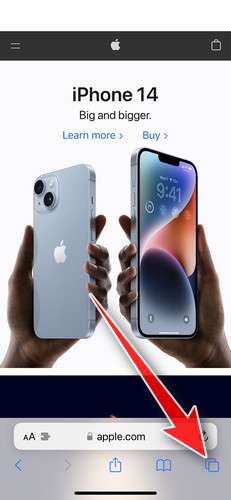
- Don’t tap anything inside the scam page or pop-up — the buttons are designed to trick you. Instead, tap the tabs icon in the lower-right corner of Safari, as shown below.
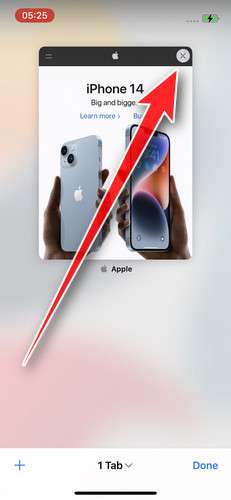
- Tap the X on the malicious tab (or swipe it up) to close it safely.
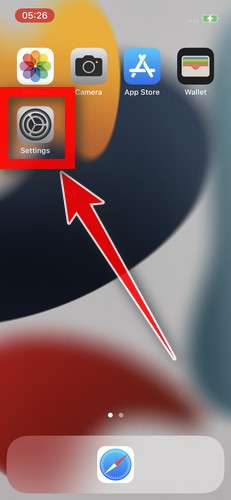
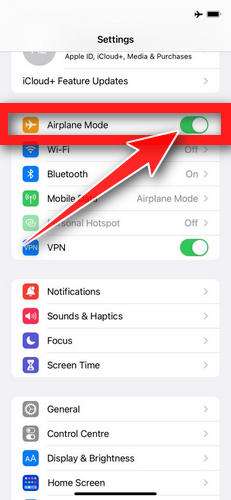
- Open the Settings app.
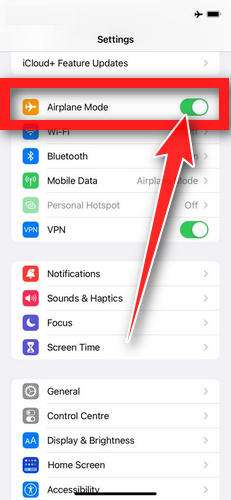
- Turn on Airplane Mode. This temporarily disconnects your iPhone from the internet, so the scam site can’t load anything while we clean up. We’ll turn it back off at the end.
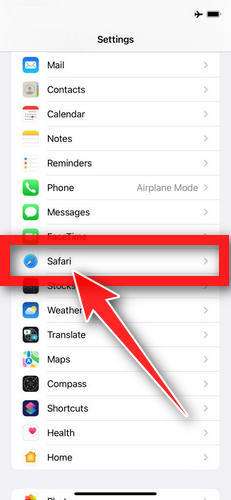
- Scroll down and tap Safari.
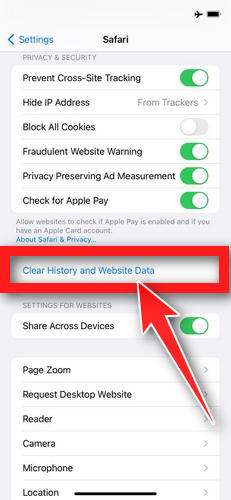
- Tap Clear History and Website Data.
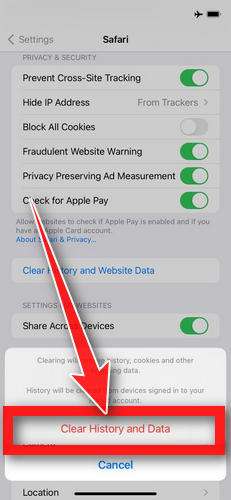
- Confirm by tapping “Clear History and Data” in the pop-up.
- While you’re still in Safari settings, turn on Block Pop-ups and Fraudulent Website Warning. These two switches stop most scam pages before they can even load.
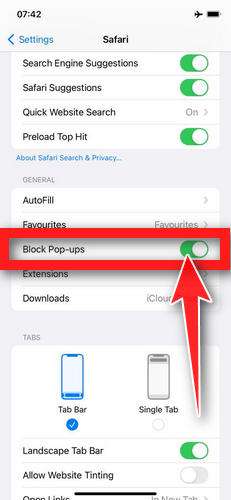
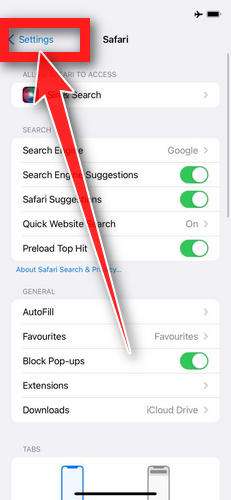
- Tap Settings in the upper-left corner to return to the main Settings menu.
- Turn Airplane Mode back off to reconnect your iPhone to the internet.
STEP 2: Delete unwanted apps
Next, we’ll remove any suspicious apps from your iPhone. If a shady website redirected you to the App Store and you installed an app — or you spot an app you don’t remember downloading — delete it now:
-
On the home screen, tap and hold the unwanted app’s icon until the icons start to wiggle.
-
Tap the minus (–) badge in the corner of the app icon, then tap Delete App. (On older iOS versions, this badge appears as an “X”.)
-
Confirm by tapping “Delete“.
That’s it — your iPhone is now clean and safe to use.
To stop these scam pages from coming back, we recommend installing an ad blocker like AdGuard. It blocks the malicious ads and redirects that cause these pop-ups in the first place.
Still having issues after completing these steps? Try one of the following:
- Run a scan with Malwarebytes for iOS
- Ask for help in our free Mobile Malware Removal Help & Support forum — our team will assist you personally.
The Bottom Line
The “Your iPhone Is Not Protected” Calendar Scam is a persistent, high-pressure phishing tactic that abuses calendar subscriptions to flood your phone with fake security notifications.
The domain inside the event can change every day. The message pattern is what matters.
If you are seeing these alerts:
- remove the suspicious subscribed calendar
- delete leftover events
- avoid clicking links
- secure your Apple ID and payment methods if you interacted with the scam
Once the subscription is gone, your iPhone should return to normal quickly, and the “not protected” warnings should stop for good.
FAQ
Is “Your iPhone Is Not Protected” a real Apple security warning?
No. Apple does not send security warnings through Calendar events. If the message appears as a calendar notification with a link inside, it is almost certainly a scam designed to scare you into clicking.
Is this actually a virus on my iPhone?
Usually not. In most cases, it is a spam calendar subscription, not malware installed on the device. The alerts feel like a virus because they are persistent and show up like system notifications.
Why does the link domain keep changing?
Scammers rotate domains to avoid blocks, takedowns, and abuse reports. The notification text stays similar, but the URL changes frequently. That is why targeting the phrase “Your iPhone Is Not Protected” is more reliable than targeting a single domain.
Why do the spam events come back after I delete them?
Because you are deleting the symptoms, not the source. If your iPhone is still subscribed to the scam calendar, it will keep syncing new events. You need to unsubscribe or delete the subscribed calendar.
What is the fastest way to remove the scam calendar?
Try this first:
- Open Calendar
- Tap a spam event
- Tap Unsubscribe from this Calendar (if shown)
If that option is missing:
- Go to Settings > Calendar > Accounts > Subscribed Calendars
- Tap the suspicious subscription
- Tap Delete Account
I cannot find “Subscribed Calendars.” What should I do?
Go to Settings > Calendar > Accounts and review the list carefully. Some iOS versions show the spam calendar inside the Calendar app instead:
- Open Calendar
- Tap Calendars
- Look for a calendar you do not recognize
- Delete or unsubscribe from it
Can this scam hack my iPhone just from the calendar subscription?
The subscription alone typically cannot access your photos, messages, or passwords. The real risk starts if you click the link, install something, call a number, or enter personal information on a page the scam sends you to.
I clicked the link. What now?
Close the page and do not install anything. Then:
- If you entered your Apple ID password, change it immediately and review your account security.
- If you entered card details, contact your bank or card issuer to block or dispute fraud.
- Remove the spam calendar so the alerts stop.
Why do some events say things like “Mia Sent You 2 New Videos”?
Scammers test different hooks. Some people respond to fear (“not protected”), while others click out of curiosity (“videos,” “new message”). It is the same scam calendar using multiple bait styles to drive clicks.
Will removing the scam calendar delete my real calendar events?
Not if you remove only the suspicious subscribed calendar. Your iCloud, Google, work, and personal calendars remain intact. If you are unsure, check the calendar name carefully before deleting.
How do I prevent this from happening again?
- Never tap Subscribe on unexpected prompts in Safari
- Treat “your iPhone is infected/not protected” pop-ups as scams
- Do not click links inside random calendar events
- If a site pressures you to “allow” or “subscribe” to continue, leave immediately
- Keep iOS updated and be cautious with sketchy ad-heavy websites








