

If your iPhone Calendar is suddenly packed with events that scream “Your iPhone is not protected!” and every entry pushes a link to important-notices.com, you are not dealing with a real Apple warning.
You are looking at a calendar subscription scam that uses fake alerts and nonstop reminders to scare you into clicking a malicious link, calling a scam number, or paying for something you do not need.
This article explains what the important-notices.com scam is, why it spreads through the iPhone Calendar, how it traps people, and exactly how to remove it safely.
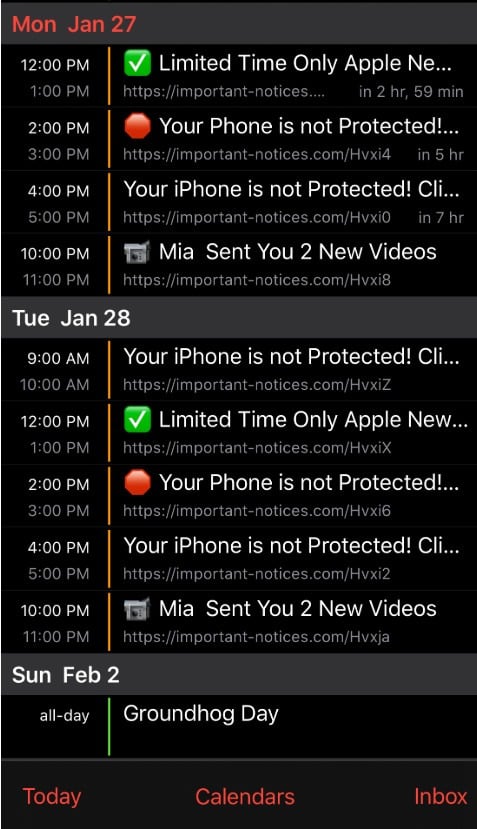
Scam Overview
The important-notices.com scam is part of a widespread iPhone and iOS “calendar virus” scheme. Despite the frightening language, it usually is not a virus in the traditional sense. It is a social engineering attack that abuses a legitimate feature: calendar subscriptions.
Instead of installing malware, scammers trick you into subscribing to a rogue calendar feed. Once that happens, your iPhone starts displaying spam calendar events like they are normal reminders, and they can appear on your Lock Screen, Notification Center, and inside the Calendar app.
The reason it feels so invasive is simple: calendar alerts behave like real life notifications. They pop up repeatedly. They demand attention. They show up at the worst times. And they are designed to make you react emotionally.
What important-notices.com is doing in these events
In the scam reports tied to this domain, important-notices.com appears inside calendar event details as a clickable link, often followed by random characters or a short path. The event title is usually written to look urgent or official, for example:
- “Your iPhone is not Protected! Click…”
- “Limited Time Only Apple Ne…”
- “Mia Sent You 2 New Videos”
That mix is not random. It is intentional. Scammers test different “hooks” to see which one gets clicks.
- Fear hooks: “Your phone is not protected,” “Virus detected,” “Security warning”
- Authority hooks: “Apple notice,” “iOS alert,” “Important notice”
- Curiosity hooks: “Someone sent you videos,” “Private message,” “Photos received”
- Scarcity hooks: “Limited time only,” “Offer expires today,” “Act now”
No matter the hook, the objective is the same: get you to tap the link.
Why scammers prefer the Calendar app
Calendar spam is effective because it bypasses the skepticism people apply to email and texts.
Most users have learned to ignore suspicious emails and random SMS messages. But the Calendar app feels “internal,” like it belongs to the iPhone itself. When the warning appears as a calendar alert, it feels more believable.
Scammers also like calendar spam because:
- It is persistent. The events keep coming until you remove the subscription.
- It is noisy. Multiple reminders can hit every day.
- It is cross-device. If your calendars sync through iCloud or another account, the spam can follow you to an iPad or Mac.
- It is low effort. One subscription can spam thousands of victims automatically.
This is why people search for “iPhone calendar virus” even though the technical reality is usually a calendar subscription problem.
How people get subscribed without realizing it
Victims often say, “I never subscribed to anything.”
In many cases, they did not mean to. They were manipulated into it.
The most common entry points are:
1. Pop-ups on sketchy websites
A website throws a fake warning: “Your iPhone is infected” or “You must verify now.” It may show a fake scan animation, a fake Apple logo, or a countdown timer.
Then it triggers a subscription prompt that looks like a normal system dialog. People tap quickly just to make the pop-up go away.
2. Fake CAPTCHA pages
You see a “Verify you are human” screen. You tap a box. The page then says you must “allow” or “subscribe” to continue. The goal is to create a habit loop: click, approve, move on.
3. Delivery tracking lures
A fake shipping page claims you have a package problem. The link leads to a chain of redirects and ends in a subscription request, or it pushes you into clicking an “iOS calendar update” link.
4. Prize and giveaway traps
“You won,” “Claim your reward,” “Get a free iPhone.” The calendar spam is then used to keep chasing you after you leave the page.
In each case, the “subscribe” step is hidden behind urgency, confusion, or fatigue. Scammers are not relying on technical hacking. They are relying on human psychology.
Why this is dangerous, even if it is not “malware”
If you only subscribed to a spam calendar, the direct damage is usually limited to:
- Annoying events
- Constant alerts
- Increased risk of clicking something harmful
But the real danger is what happens after you click.
Links associated with these scams often lead to one or more of the following:
- Phishing pages that try to steal your Apple ID and password
- Fake security pages that push you to install shady apps or pay for fake protection
- Tech support scams that instruct you to call a number for “Apple Support”
- Subscription traps that quietly sign you up for recurring charges
- Survey and affiliate funnels that monetize your clicks and data
So while the calendar itself is often “just spam,” it is functioning as a delivery system for higher-risk fraud.
Clear red flags that important-notices.com is not legitimate
Here is how you can quickly tell this is a scam and not Apple:
- Apple does not send security warnings through random calendar events.
- Apple does not warn you that your iPhone is “not protected” via the Calendar app.
- Apple does not use third-party domains like important-notices.com for critical security communications.
- Apple does not push “limited time offers” in system alerts.
- Real Apple notifications do not rely on panic language and external links.
A good rule: if a “security alert” is trying to make you click a link to an unrelated domain, it is almost always a scam.
Why the messages look “system-like”
Calendar notifications are formatted like other iOS notifications. That is why the scam feels convincing.
A calendar alert can appear:
- on the Lock Screen
- in Notification Center
- on a banner while you are using your phone
When you are busy, half-asleep, or distracted, it is easy to misread a spam calendar notification as a real iOS warning.
That is the entire design. The scam is not trying to win a debate with you. It is trying to trigger a reflex.
What this scam is commonly called
Depending on where someone first encountered it, you will see different names:
- iPhone Calendar Virus
- iOS Calendar Spam
- Apple Security Alert Calendar Scam
- Calendar Subscription Scam
- iPhone Calendar Notification Virus
They are usually describing the same core behavior: a rogue calendar feed pushing spam events and links.
If important-notices.com is the domain showing up in the event details, it is simply the current “brand” the scammers are using to route victims into their funnel.
How The Scam Works
Below is a realistic, step-by-step breakdown of how the important-notices.com calendar scam typically runs in the wild.
Step 1: You are pushed into a trap page
The first stage is traffic acquisition. Scammers get victims onto pages through:
- malicious ad networks
- pop-ups on low-quality sites
- spam texts linking to “alerts”
- fake prize pages shared on social media
- redirects from other scam domains
You rarely land on important-notices.com directly. More commonly, you land on a page that is designed to trigger a subscription action, and important-notices.com becomes the link used inside the calendar spam afterwards.
Step 2: The page creates urgency and confusion
The page will use one or more pressure tactics:
- Fake virus scan animation
- Warning colors, siren icons, “critical alert” text
- Countdown timers
- Claims that your device is “at risk” or “blocked”
- A message that you must tap “OK” or “Allow” to continue
This is psychological priming. Your brain shifts from “evaluate” to “escape.”
Step 3: A calendar subscription prompt appears
At some point, you see a subscription prompt or a dialog that leads to adding a calendar.
Scammers want you to tap Subscribe. If you do, the rogue calendar is now a trusted source of events on your device.
Many victims later remember it as:
- “I clicked OK to close a pop-up.”
- “It asked me to confirm I was not a robot.”
- “It looked like a system message.”
- “I thought I was blocking something.”
This is exactly why the scam works. It is engineered to blend into normal iPhone flows.
Step 4: The spam calendar starts syncing events
Once subscribed, the calendar feed begins pushing events into your Calendar app. The events often show up in clusters:
- multiple times per day
- repeating daily
- spread across different hours to maximize visibility
The event titles are short and dramatic, so they stand out in the Calendar list and notification banners.
The link to important-notices.com is placed where you are most likely to tap it:
- in the event title (sometimes truncated with “Click…”)
- in the event notes field
- as a URL line inside the event details
Step 5: Notifications flood your phone
This is the “takeover” stage.
The scam calendar sets alerts that trigger notifications. That can mean:
- constant pings throughout the day
- repeated warnings that feel like system alerts
- distraction and anxiety that make you more likely to click
This stage is not about stealing money yet. It is about training your behavior.
If you see the alert ten times a day, eventually curiosity, frustration, or fear wins.
Step 6: The click sends you into a scam funnel
If you tap the important-notices.com link, you may be routed through multiple pages. The final landing page depends on the scammer’s current campaign.
Common outcomes include:
Phishing pages
A page that imitates Apple, iCloud, or a security service and asks you to sign in.
Goal: steal credentials.
Tech support scam pages
A page that claims your phone is infected and provides a number to call.
Goal: manipulate you into paying for fake services, or extracting personal information.
Fake “protection” offers
A page pushing an app, VPN, cleaner, or “security subscription.”
Goal: monetize you through subscriptions, affiliate links, or deceptive billing.
Survey and reward traps
“You won,” “confirm your prize,” “complete a survey.”
Goal: collect data and push you into paid trials.
No legitimate security process routes you from a calendar alert to a random domain for “protection.” That logic only exists in scams.
Step 7: The scam adapts to your reactions
If you do not click fear-based alerts, scammers may rotate to curiosity or adult-themed bait.
That is why you can see event titles that have nothing to do with security, like “Someone sent you videos.” They are A/B testing human behavior.
The important-notices.com link remains the common thread.
Step 8: Victims try to delete events, but the spam returns
Many people delete a few events and think it is fixed.
Then the next day, they come back.
That is because the events are generated by an active calendar subscription. As long as the subscription exists, the spam feed will repopulate.
The only real solution is to remove the calendar itself, not just the events.
What the important-notices.com Calendar Spam Typically Looks Like
When this scam is active on an iPhone, victims commonly report patterns like these:
- Repeating event titles that claim your iPhone is unsafe
- Multiple entries on the same day with similar wording
- Links that point to important-notices.com with short random paths
- A mix of “Apple notice” language and unrelated bait like messages or videos
- Alerts scheduled at predictable times to force repeated exposure
Common titles include variants of:
- “Your iPhone is not Protected! Click…”
- “Your Phone is not Protected…”
- “Limited Time Only Apple News…”
- “Apple Security Notice…”
- “You have (1) new message…”
- “Someone sent you videos…”
If you are seeing this pattern and the domain important-notices.com, treat it as malicious spam and focus on removing the subscription.
What To Do If You Have Fallen Victim to This Scam
Follow the steps below in order. The early steps remove the spam. The later steps handle risk if you clicked, installed something, or shared information.
1. Do not click any more links in the events
Do not tap the important-notices.com URL.
Do not call any phone number that appears inside a spam event.
Do not install any app suggested by a “security warning” page reached from these events.
Your goal is cleanup, not investigation.
2. Try the fastest fix: Unsubscribe from inside the Calendar app
On many iPhones, you can remove the spam calendar directly:
- Open Calendar.
- Tap a spam event.
- Look for an option that says Unsubscribe from this calendar.
- Confirm Unsubscribe.
If you see it, use it. It is often the quickest path.
3. Remove the calendar from the Calendars list
If you do not see “Unsubscribe” in the event view, remove the calendar from the list:
- Open Calendar.
- Tap Calendars at the bottom.
- Look for a calendar you do not recognize (often with a weird name).
- Tap the info icon next to it.
- Tap Delete Calendar.
After deleting, give it a minute and check if new spam events stop appearing.
4. If the subscription is hidden, delete it in Settings
Sometimes the spam calendar is easiest to remove from Settings:
- Open Settings.
- Tap Calendar.
- Tap Accounts.
- Tap Subscribed Calendars.
- Tap any calendar you do not recognize.
- Tap Delete Account.
This typically removes the entire spam feed in one action.
5. Delete leftover spam events after unsubscribing
After removing the subscription, you might still see some cached events. Delete them manually:
- Tap the event
- Tap Delete Event
If the calendar subscription is truly gone, the events should not return.
6. Check if your calendars sync across devices
If you use iCloud, Google Calendar, or Outlook, your calendars may sync across devices.
Do a quick sweep:
- Check your iPad or Mac (if you use them)
- Check any Google Calendar or Outlook calendar associated with your email accounts
If the spam calendar exists at the account level, removing it on one device may not be enough. You may need to remove it from the provider’s calendar settings as well.
7. Clear Safari history if you keep getting the same pop-ups
If you keep landing on similar scam pages in Safari, clear the web data:
- Settings
- Safari
- Clear History and Website Data
This does not remove a calendar subscription by itself, but it can stop the same trap site from reappearing.
8. Check for suspicious profiles or device management entries
Most calendar scams do not install profiles, but some scam pages try.
Check:
- Settings
- General
- VPN & Device Management (or Profiles)
If you see anything you did not intentionally install, remove it.
9. If you entered your Apple ID password anywhere, change it immediately
If you clicked the link and entered Apple ID credentials on any page that was reached from these spam events:
- Change your Apple ID password right away
- Review your trusted devices
- Check for changes to your recovery email or phone number
- Verify two-factor authentication is enabled
Do not wait. Calendar spam becomes serious the moment credentials are involved.
10. If you gave payment details, contact your bank or card issuer
If you entered card details or paid for a “security service” prompted by these alerts:
- Call the number on the back of your card
- Explain you may have been scammed
- Ask about blocking charges, chargebacks, and replacing the card
- Monitor your statements closely
If the scammer demanded payment via gift cards or wire transfer, report it immediately. Those payment methods are favored by scammers because they are hard to reverse.
11. If you installed an app because of the alerts, remove it and audit subscriptions
If you installed anything after clicking important-notices.com:
- Delete the app
- Check subscriptions on your iPhone:
- Settings > Apple ID > Subscriptions
- Cancel anything you do not recognize
Many “phone cleaner” and “security scan” scams monetize through subscriptions that quietly renew.
12. Report and document what happened
If you want to take action beyond removal:
- Take screenshots of the calendar name and event details
- Note the domain and any phone numbers shown
- Report the phishing site to your email provider or relevant reporting channels
- If money was lost, file a report with your payment provider and local consumer protection agency
Even if you cannot recover losses, reporting helps reduce harm to others.
Cleanup Safari & iPhone
If you’re still seeing unwated ads, follow these steps:
STEP 1: Clean your browser
First, we’ll clean Safari using the built-in “Clear History and Website Data” feature. This removes your browsing history, cookies, and cached data — including the stored data that scam sites use to keep showing you pop-ups and redirects. Don’t worry: this won’t delete your photos, apps, or saved passwords.
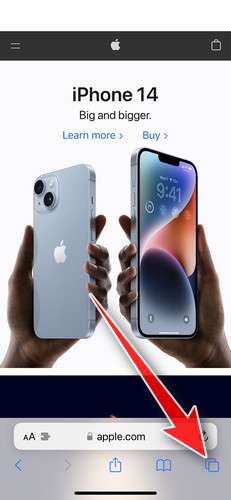
- Don’t tap anything inside the scam page or pop-up — the buttons are designed to trick you. Instead, tap the tabs icon in the lower-right corner of Safari, as shown below.
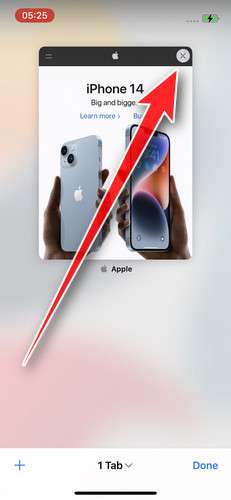
- Tap the X on the malicious tab (or swipe it up) to close it safely.
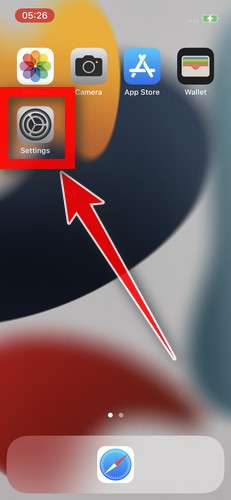
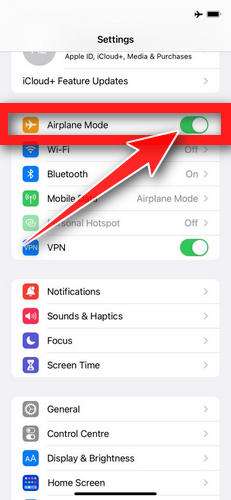
- Open the Settings app.
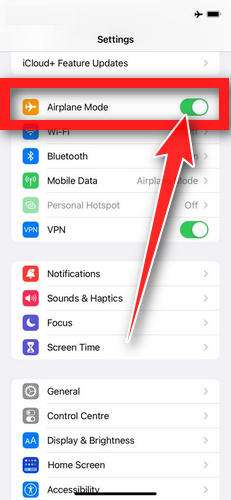
- Turn on Airplane Mode. This temporarily disconnects your iPhone from the internet, so the scam site can’t load anything while we clean up. We’ll turn it back off at the end.
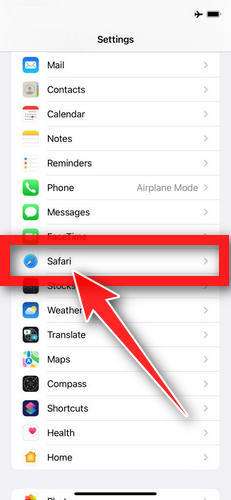
- Scroll down and tap Safari.
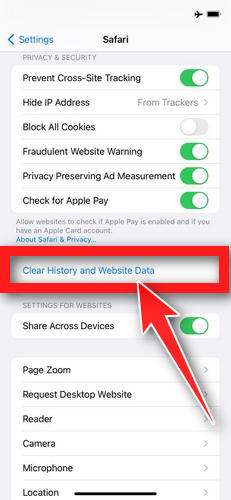
- Tap Clear History and Website Data.
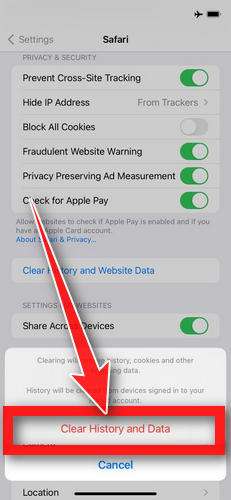
- Confirm by tapping “Clear History and Data” in the pop-up.
- While you’re still in Safari settings, turn on Block Pop-ups and Fraudulent Website Warning. These two switches stop most scam pages before they can even load.
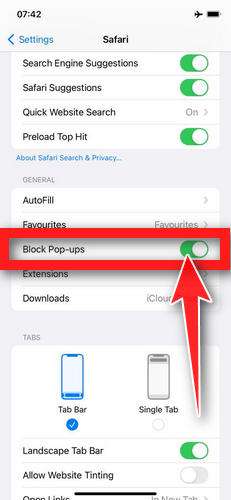
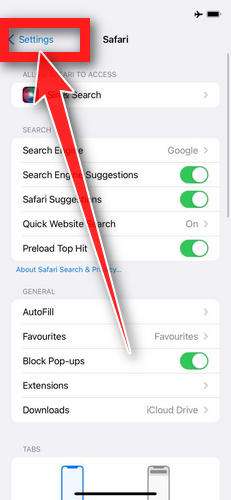
- Tap Settings in the upper-left corner to return to the main Settings menu.
- Turn Airplane Mode back off to reconnect your iPhone to the internet.
STEP 2: Delete unwanted apps
Next, we’ll remove any suspicious apps from your iPhone. If a shady website redirected you to the App Store and you installed an app — or you spot an app you don’t remember downloading — delete it now:
-
On the home screen, tap and hold the unwanted app’s icon until the icons start to wiggle.
-
Tap the minus (–) badge in the corner of the app icon, then tap Delete App. (On older iOS versions, this badge appears as an “X”.)
-
Confirm by tapping “Delete“.
That’s it — your iPhone is now clean and safe to use.
To stop these scam pages from coming back, we recommend installing an ad blocker like AdGuard. It blocks the malicious ads and redirects that cause these pop-ups in the first place.
Still having issues after completing these steps? Try one of the following:
- Run a scan with Malwarebytes for iOS
- Ask for help in our free Mobile Malware Removal Help & Support forum — our team will assist you personally.
How to Protect Yourself From Calendar Subscription Scams Like important-notices.com
Once you have cleaned it up, prevention is mostly habit-based.
Avoid tapping “Subscribe” unless you expected it
A legitimate calendar subscription usually happens when you intentionally choose it, such as:
- holiday calendars
- school calendars
- work shift calendars
- sports schedules
You should not be seeing “Subscribe” prompts from random browsing.
If a website prompts you to subscribe to a calendar to “continue,” leave the site.
Treat any “virus detected” pop-up in Safari as a scam
Safari pop-ups that claim you are infected are almost always fake. iPhones do not work like that.
If you see one:
- close the tab
- do not tap within the pop-up
- if it is stubborn, force close Safari and clear website data
Never trust security warnings that route to random domains
Apple does not use random domains to fix your phone. Your iPhone settings are where security issues are handled, not third-party links embedded in calendar events.
Keep iOS updated
Updates will not prevent every scam, but they reduce exposure to known exploit chains and improve browser and permission prompts over time.
Use a calmer rule for yourself
If something is truly urgent, you will be able to verify it calmly.
Scams rely on speed. Real security relies on verification.
The Bottom Line
The important-notices.com scam is a classic iPhone calendar subscription attack: it tricks users into adding a rogue calendar, then floods the device with fake “security” events and urgent clickbait designed to drive victims into phishing pages, tech support scams, or paid traps.
In most cases, the fix is straightforward:
- Remove the subscribed spam calendar
- Delete any leftover events
- Do not click the links
- Secure your accounts if you interacted with the scam
If you are seeing important-notices.com inside Calendar events, treat it as malicious, remove the subscription, and assume the warnings are designed to manipulate you, not protect you.








