

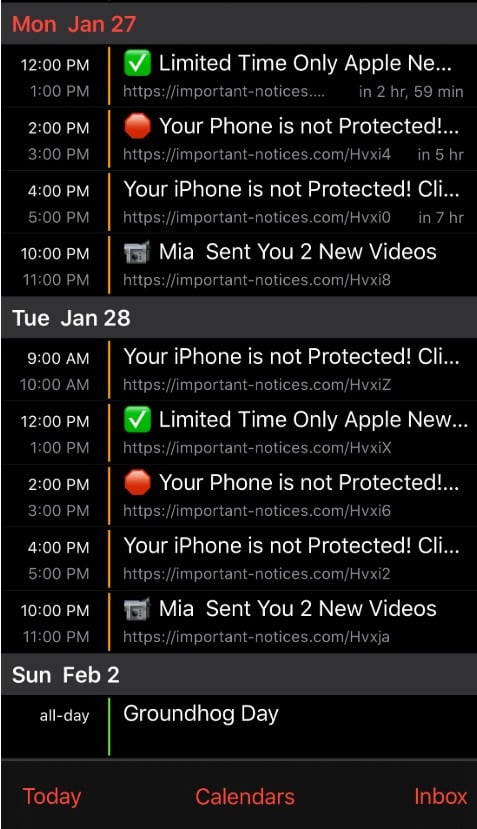
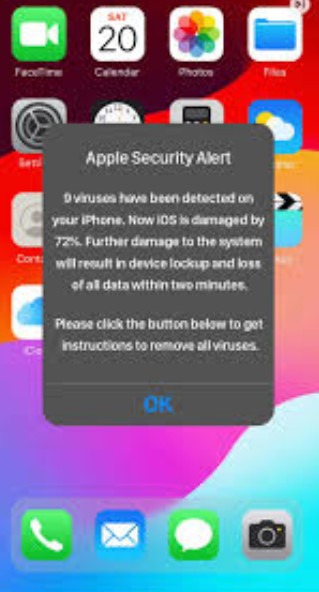
One minute you are using your iPhone normally. The next, your Calendar is firing off relentless alerts like “Your iPhone is infected,” “Apple Security Warning,” or “You won a prize.”
It feels like a virus.
But in most cases, it is not malware living on your iPhone at all. It is a calendar subscription scam. Scammers trick people into subscribing to a rogue calendar, then spam that calendar with scary, urgent events designed to push clicks, phone calls, or payments.
The good news: you can remove it completely, and you can usually do it in a few minutes.
This guide breaks down what the iPhone Calendar “virus” really is, how scammers get it onto your device, what to do if you clicked, and how to stop it from coming back.
Scam Overview
The “iPhone Calendar Scam Virus” is a misleading name for a simple, effective phishing tactic: scammers abuse the fact that iOS lets anyone subscribe to public calendars using a link.
A calendar subscription is normally harmless. People subscribe to calendars for holidays, sports schedules, school events, or work shifts. When you subscribe, iOS automatically adds that calendar to your Calendar app, and it can push events and notifications to your device.
Scammers use that same legitimate feature as their delivery system.
Instead of adding useful events, the scam calendar is packed with spam entries that show up as calendar events and notifications. Those notifications often look like system alerts, even though they are not. They might claim:
- Your iPhone is infected
- Your Apple ID is locked
- You have been hacked
- A payment is pending for $399, $699, or $2,499
- You won an iPhone, gift card, or cash prize
- You must “verify” your device immediately
The goal is predictable: panic first, action second.
Why people call it a “calendar virus”
Most victims do not remember installing anything. They did not download an app. They did not approve a strange permission. All they see is their iPhone suddenly screaming warnings.
So people assume there is a virus on the phone.
In reality, iOS is doing exactly what it is supposed to do: it is displaying calendar events from a subscribed calendar. Apple treats subscribed calendars as user-approved content, so iOS delivers the notifications like any other calendar reminder. Apple even has a dedicated support path for deleting unwanted calendars and events, because this problem is common.
What is actually happening under the hood
When you subscribe to a calendar, iOS stores a calendar feed URL (often an ICS feed). The Calendar app periodically syncs that feed. If the feed contains events with alerts, those alerts can trigger notifications.
Scammers take advantage of three things:
- Subscriptions are fast
One tap on a “Subscribe” prompt can add the calendar. - Notifications feel authoritative
Calendar notifications show on your Lock Screen and Notification Center, right next to legitimate reminders. - Events can contain links and phone numbers
The scam content usually includes a link to a phishing page, a fake “support” number, or both.
The scam works even better because it looks like the iPhone itself is warning you.
Where these calendar subscriptions come from
Most people get hit in one of a few ways:
1. Deceptive website pop-ups
You land on a sketchy page and get a pop-up that claims you must confirm something:
- “Verify you are not a robot”
- “Tap OK to continue”
- “Your device is at risk”
- “Allow calendar to proceed”
Sometimes the prompt is visually disguised so the calendar subscription dialog appears right when you are trying to close something else. Malwarebytes notes that scammers often use distractions like fake CAPTCHA flows to trick users into approving the calendar subscription.
2. Fake delivery or tracking links
A common path is a text or ad about a package delivery issue. You tap a tracking link, then you are pushed into a flow that ends with a calendar subscription prompt.
3. “Prize” pages and fake giveaways
The calendar spam is used as a funnel into sweepstakes scams, survey scams, or pages that push shady apps and subscriptions. The calendar alerts are the “follow-up harassment” that keeps dragging you back.
4. Calendar invite spam tied to email services
Some spam shows up as invites or events associated with email and calendar providers (iCloud, Google, Outlook). In these cases, you might see events that keep reappearing because they sync across devices and accounts.
What scammers want from you
Calendar spam is not the end goal. It is the pressure tool that drives you into one of these outcomes:
- Phishing: You land on a page that imitates Apple, iCloud, or a security product and asks for your Apple ID, password, or card details.
- Tech support scam: The alert tells you to call a number. The “agent” claims your iPhone or Apple ID is compromised, then pushes you to pay for fake services or give remote access on another device.
- Subscription traps: You are routed to “security apps,” VPN offers, or “cleaner tools” with recurring charges.
- Ad fraud and tracking: Even when nothing is purchased, clicks generate money through affiliate schemes and ad networks.
Apple explicitly warns that scammers use urgent claims and impersonation to pressure victims into giving up sensitive information, and that you should not follow links or trust unsolicited security warnings.
Why this scam is so effective on iPhone
This is a psychological attack more than a technical one.
It succeeds because it combines:
- Fear: “Your iPhone is infected.”
- Urgency: “Act now” and countdown language.
- Authority cues: The notification looks like it came from the phone.
- Repetition: Multiple alerts per day, sometimes dozens.
- Simplicity: One tap is enough to get pulled deeper.
Even cautious users slip because the initial subscription approval can be disguised as a harmless “OK” on a busy screen.
Is your iPhone compromised?
In the most common version of this scam, your iPhone is not infected with malware. Your Calendar is subscribed to a spam feed.
That said, the risk increases if you did any of the following after the spam started:
- Clicked the links inside the calendar events
- Installed an app from a pop-up or unofficial page
- Entered passwords, Apple ID info, or payment details
- Installed a configuration profile or device management profile
If you only received calendar spam and did not engage with it, removal is usually straightforward and you can move on with minimal fallout.
How The Scam Works
Below is the typical lifecycle of the iPhone Calendar “virus” scam, broken into clear steps.
Step 1: The bait gets you to a web page or prompt
The scam starts with a lure that gets you to tap. Common entry points include:
- A pop-up ad on a streaming or adult site
- A “Your iPhone has been hacked” warning page
- A fake CAPTCHA screen
- A text about a missed package delivery
- A social media ad promising a prize
At this stage, scammers are not trying to steal your money yet. They are trying to get one approval: a calendar subscription.
Step 2: The subscription approval is disguised as something else
On iPhone, subscribing often happens through a system-style dialog that appears in Safari or after tapping a calendar file/link. The attacker’s job is to make you tap “Subscribe” without thinking.
Common manipulation tricks:
- Overlay the subscription dialog right where a “Close” button would normally be
- Trigger the dialog immediately after you tap “OK” on a fake CAPTCHA
- Use text like “Tap Subscribe to continue”
- Add visual noise and countdown timers so you react quickly
Malwarebytes describes this as a “distraction” pattern: you think you are completing one action, but you accidentally approve the calendar subscription prompt. (Malwarebytes)
Step 3: The rogue calendar is added to your device
Once subscribed, the calendar appears in your list of calendars. It may have a name like:
- Calendar Events
- iPhone Protection
- Security Alerts
- Click Here
- System Notification
- Virus Removal
- Congratulations Winner
Sometimes scammers use names that resemble legitimate services, hoping you will not notice it in your calendar list.
From iOS’s perspective, this is now a trusted content source because it was user-approved.
Step 4: The spam events flood your Calendar
Now the attacker loads the calendar feed with events, often scheduled multiple times per day.
These events are engineered to trigger notifications:
- They include alerts or reminders
- They are placed at times when you are likely to see them
- They use short, punchy titles that read like warnings
This is why it feels like your iPhone is infected. The alerts do not stop, and the language is designed to spike anxiety.
Step 5: The event content pushes you to click, call, or pay
Inside many spam events, you will see:
- A link to “remove the virus”
- A link to “secure your Apple ID”
- A phone number for “Apple Support”
- A threat about charges, account lockouts, or identity theft
This is where the scam converts.
If you click the link, you are typically routed through one or more redirect pages before landing on:
- A fake Apple sign-in page
- A tech support scam page demanding you call
- A fake antivirus or “cleaner” subscription offer
Apple’s own guidance on social engineering emphasizes that scammers create urgency, impersonate trusted brands, and attempt to push you into giving up account information or security codes.
Step 6: The scam escalates if you engage
If you call the number, the flow often looks like this:
- The “agent” claims your iPhone is sending data or your Apple ID is compromised.
- They ask questions to gauge your technical comfort.
- They push you to “verify” personal information.
- They present a paid solution, often hundreds of dollars, sometimes in gift cards or bank transfer.
- In some variants, they try to get remote access to a computer, not the iPhone, because iOS is harder to control remotely.
If you enter credentials on a phishing page, the scam escalates into account takeover attempts and fraud.
Step 7: The spam persists across devices via sync
A nasty surprise for many victims is that deleting a few events does not fix it.
Why?
Because the calendar is a subscription. Even if you delete events, the feed syncs again and re-adds them.
Also, if your calendar is synced through iCloud or another account, the spam can appear on your iPad, Mac, or any device connected to the same calendar ecosystem. Malwarebytes highlights that calendar entries can keep coming back because calendars often sync across devices and services.
That is why the real fix is removing the calendar subscription itself.
What To Do If You Have Fallen Victim to This Scam
Use the steps below in order. The early steps remove the spam. The later steps are for damage control if you clicked links or shared information.
1. Stop interacting with the events immediately
Do not click links inside the event.
Do not call numbers shown in the event.
Do not tap “Accept,” “Maybe,” or “Decline” on invites if it looks like an invitation.
Your only goal right now is removal.
2. Unsubscribe directly from the Calendar event if the option appears
On many iOS versions, you can remove the spam calendar from the event itself:
- Open the Calendar app.
- Tap a spam event.
- Tap Unsubscribe from this Calendar.
- Tap Unsubscribe again to confirm.
Apple documents this flow for iOS 14.6 or later.
3. Remove the calendar from your Calendars list in the Calendar app
If you can see the spam calendar in your calendar list:
- Open the Calendar app.
- Tap Calendars.
- Find a calendar you do not recognize.
- Tap the info icon next to it.
- Tap Delete Calendar or Unsubscribe.
Apple supports both “Delete Calendar” and “Unsubscribe” depending on the calendar type.
4. If “Unsubscribe” is missing, delete the subscription in Settings
Sometimes the subscription is easier to remove from Settings:
- Open Settings.
- Tap Calendar.
- Tap Accounts.
- Tap Subscribed Calendars.
- Tap any calendar you do not recognize.
- Tap Delete Account.
This is the specific path Apple lists for removing spam calendar subscriptions in older iOS versions and in cases where the in-app method does not work.
5. Delete any leftover spam events and report junk where available
After unsubscribing, you might still see some events that were cached.
- Tap an unwanted event and choose Delete Event.
- If you see Report Junk, use it.
Apple notes you may see “Report Junk” as an option for unknown events.
6. Check whether the spam is coming from an email calendar account
If the spam is tied to an account (Gmail, Outlook, iCloud), it may keep syncing until the account-level calendar or invite behavior is addressed.
In Settings > Calendar > Accounts, open each account and check:
- Are there any unknown accounts you never added?
- Are calendar sync options enabled for accounts you do not use?
- Is the spam calendar actually part of a third-party service like Outlook or Google?
If the spam is account-driven, you may need to remove the calendar from that provider’s side (for example, in Google Calendar on the web, or Outlook settings), not just on the iPhone. Cross-device sync is a common reason events “come back.”
7. Clear Safari website data if the pop-ups keep reappearing
Unsubscribing fixes Calendar spam, but many victims also keep seeing aggressive pop-ups in Safari from the same shady sites.
If that is happening:
- Open Settings.
- Tap Safari.
- Tap Clear History and Website Data.
This step is not always required for calendar spam removal, but it helps cut off the same web pages that triggered the subscription in the first place.
8. Check for configuration profiles or device management profiles
This is not the normal “calendar virus” path, but some scam pages try to push configuration profiles.
Check:
- Settings
- General
- VPN & Device Management (or Profiles on some versions)
If you see a profile you did not intentionally install, remove it.
Apple warns that unknown configuration profiles can grant control or change settings, and you should avoid installing them from untrusted sources.
9. If you clicked links, assume the page was hostile
If you tapped any links inside the spam events, take a cautious approach:
- Close the page.
- Do not install anything it offered.
- Do not allow notifications or downloads.
- If it asked you to sign in, treat it as phishing until proven otherwise.
Apple’s guidance is clear: do not follow links or open attachments in unsolicited or suspicious messages. (Apple Support)
10. If you entered your Apple ID password, change it immediately
If you typed your Apple ID credentials into any page that came from a calendar spam link:
- Change your Apple ID password.
- Review your trusted devices.
- Enable or confirm two-factor authentication.
- Check your account for unexpected changes (recovery email, phone number, payment methods).
This is the point where “calendar spam” becomes “account security.”
11. If you entered payment information, contact your bank or card issuer
If you entered card details:
- Call the number on the back of your card.
- Explain you may have entered details on a phishing page.
- Ask about blocking charges, replacing the card, and monitoring for fraud.
If you paid someone claiming to be “support,” document everything.
12. Report the scam in the places that matter
Reporting helps platforms and providers take down domains and phone numbers faster.
Useful reporting options include:
- Forward suspicious Apple-impersonation emails to Apple’s phishing reporting address (Apple publishes reporting guidance and addresses on its support pages).
- Report junk invites where iOS provides the option.
- Report scam calls and phishing pages to your local consumer protection agency.
Even if you cannot recover money, reporting reduces harm for others.
Remove unwated notifications from Safari (iPhone)
Follow these steps:
STEP 1: Clean your browser
First, we’ll clean Safari using the built-in “Clear History and Website Data” feature. This removes your browsing history, cookies, and cached data — including the stored data that scam sites use to keep showing you pop-ups and redirects. Don’t worry: this won’t delete your photos, apps, or saved passwords.
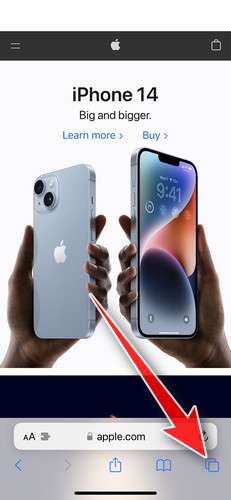
- Don’t tap anything inside the scam page or pop-up — the buttons are designed to trick you. Instead, tap the tabs icon in the lower-right corner of Safari, as shown below.
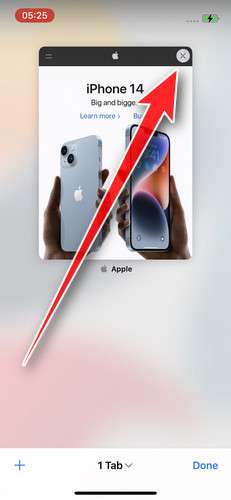
- Tap the X on the malicious tab (or swipe it up) to close it safely.
- Open the Settings app.
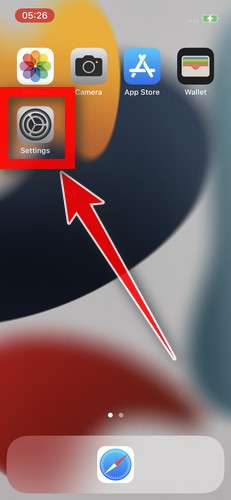
- Turn on Airplane Mode. This temporarily disconnects your iPhone from the internet, so the scam site can’t load anything while we clean up. We’ll turn it back off at the end.
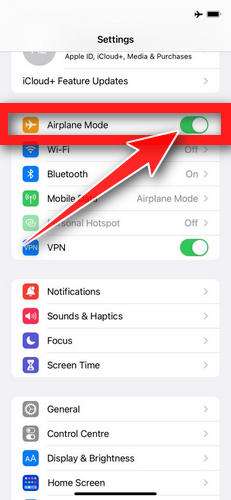
- Scroll down and tap Safari.
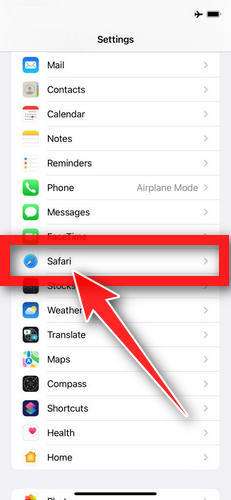
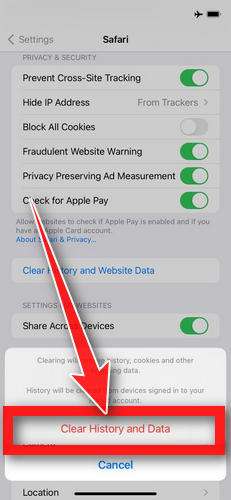
- Tap Clear History and Website Data.
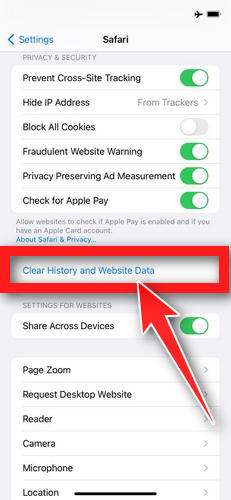
- Confirm by tapping “Clear History and Data” in the pop-up.
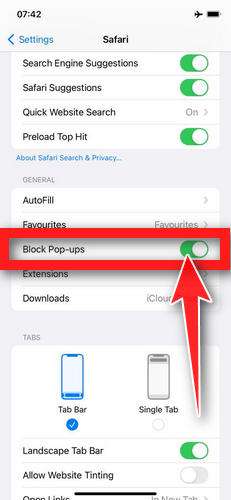
- While you’re still in Safari settings, turn on Block Pop-ups and Fraudulent Website Warning. These two switches stop most scam pages before they can even load.
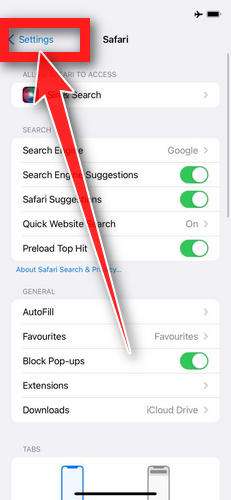
- Tap Settings in the upper-left corner to return to the main Settings menu.
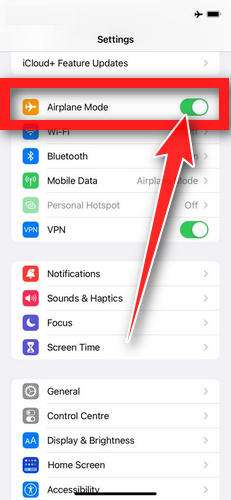
- Turn Airplane Mode back off to reconnect your iPhone to the internet.
STEP 2: Delete unwanted apps
Next, we’ll remove any suspicious apps from your iPhone. If a shady website redirected you to the App Store and you installed an app — or you spot an app you don’t remember downloading — delete it now:
-
On the home screen, tap and hold the unwanted app’s icon until the icons start to wiggle.
-
Tap the minus (–) badge in the corner of the app icon, then tap Delete App. (On older iOS versions, this badge appears as an “X”.)
-
Confirm by tapping “Delete“.
That’s it — your iPhone is now clean and safe to use.
To stop these scam pages from coming back, we recommend installing an ad blocker like AdGuard. It blocks the malicious ads and redirects that cause these pop-ups in the first place.
Still having issues after completing these steps? Try one of the following:
- Run a scan with Malwarebytes for iOS
- Ask for help in our free Mobile Malware Removal Help & Support forum — our team will assist you personally.
The Bottom Line
The iPhone Calendar “virus” is usually not a virus. It is a calendar subscription scam that turns your notification system into a pressure machine.
Once you remove the subscribed calendar, the problem typically stops immediately. The key is not to waste time deleting individual events. Unsubscribe from the calendar, or delete it from Settings > Calendar > Accounts > Subscribed Calendars, then clean up anything that remains.
If you clicked links or entered information, treat it like a phishing incident and secure your accounts right away. Otherwise, you can chalk it up to a nasty trick, tighten your habits around pop-ups and “verify” prompts, and move on with your iPhone back to normal.
FAQ
Is the iPhone Calendar “virus” an actual virus?
In most cases, no. It is usually a spam calendar subscription that you accidentally approved. The notifications feel like a virus because they show on your Lock Screen, but the content is coming from a subscribed calendar, not from malware installed on your iPhone.
How did this get on my iPhone if I never installed anything?
You typically get tricked into subscribing through a pop-up, fake CAPTCHA, “allow to continue” prompt, or a shady link. One tap on “Subscribe” is enough. You do not need to install an app for this scam to start.
Why do the spam events keep coming back after I delete them?
Because deleting individual events does not remove the subscription source. The calendar syncs again and re-adds them. You need to unsubscribe or delete the subscribed calendar itself.
What is the fastest way to remove it?
Usually:
- Open Calendar and tap a spam event.
- Tap Unsubscribe from this Calendar.
If you do not see that option:
- Go to Settings > Calendar > Accounts > Subscribed Calendars
- Tap the suspicious subscription
- Tap Delete Account
I do not see “Subscribed Calendars.” What now?
On some iOS versions, it may be under Settings > Calendar > Accounts, then look for an entry related to subscriptions. If you still cannot find it, remove the suspicious calendar from inside the Calendar app by tapping Calendars at the bottom, then deleting the unknown calendar.
Can this scam steal my photos or passwords by itself?
The calendar subscription alone typically cannot access your photos, files, or passwords. The real danger starts if you click links in the events, call the number listed, install something, or enter your Apple ID or card details on a page it sends you to.
I clicked a link in a spam event. What should I do?
Close the page and do not install anything. If you entered any login details, change that password immediately (especially your Apple ID) and review your account security settings. If you entered card details, contact your bank or card issuer to monitor or block fraud.
Will removing the spam calendar delete my real calendars?
No, as long as you remove only the suspicious subscribed calendar. Your iCloud calendar and legitimate subscribed calendars (holidays, school schedules, etc.) will remain. If you are unsure, take a screenshot of the calendar list before deleting anything.
Why do the alerts look like Apple security warnings?
Scammers write event titles to mimic system language and create urgency. iOS displays calendar alerts prominently, so the messages feel official even though Apple did not generate them.
How can I prevent this from happening again?
- Never tap Subscribe on unexpected calendar prompts
- Avoid interacting with pop-ups that claim your iPhone is “infected”
- Do not click links or call numbers inside suspicious calendar events
- If you land on a sketchy page, close it immediately and clear Safari website data if it keeps returning
- Keep iOS updated, since Apple regularly improves protections and warning flows








