

You check your inbox and find an alarming email claiming your device has been hacked, your private moments captured, and your secrets are about to be exposed. The message demands payment, threatening to share your personal information with your contacts if you don’t comply. Your mind races with questions: Could this be real? What should you do?
This is the unsettling situation many people face when targeted by the “Your System Was Breached By Remote Desktop Protocol” scam. In this comprehensive article, we’ll take a detailed look at how this scam operates, provide guidance on what to do if you’re targeted, and share essential tips to protect yourself from falling victim to similar scams in the future.
By understanding the tactics used by scammers and knowing how to respond, you can take control of the situation and safeguard your online security. Let’s dive in and explore the facts behind this alarming scam email.
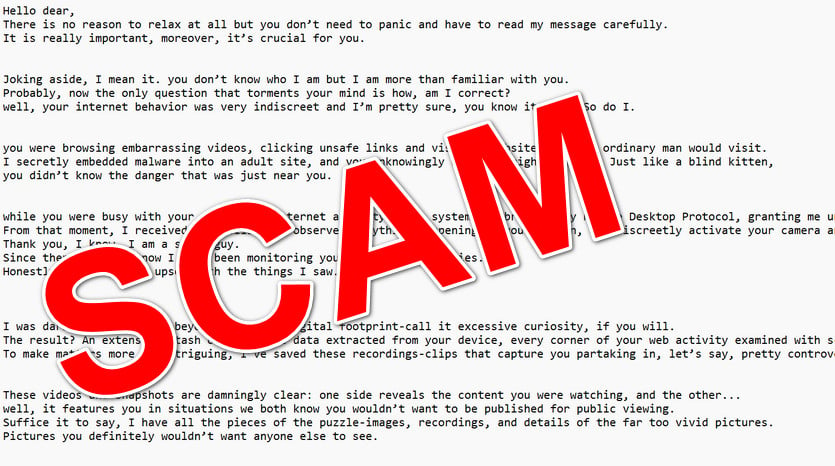
Scam Overview
The “Your System Was Breached By Remote Desktop Protocol” email scam is a sophisticated form of extortion that leverages social engineering tactics to manipulate and intimidate its victims. The scammer sends an email alleging that they have gained unauthorized access to your device through a Remote Desktop Protocol (RDP) vulnerability. They claim to have installed malware on an adult website you visited, allowing them to monitor your internet activity, access your camera and microphone, and gather sensitive data.
The email often includes disturbingly specific details about your alleged online behavior, designed to lend credibility to their claims. They assert that they have recorded you in compromising situations and threaten to expose this content to your contacts unless you pay a ransom, typically in cryptocurrency.
The language used in these emails is carefully crafted to induce fear, shame, and a sense of urgency. The scammer presents you with two stark choices: ignore the email and face the consequences of having your private moments leaked, or pay the demanded sum to make the problem disappear. This false dichotomy is a common manipulation tactic used in extortion schemes.
This is how the “Your System Was Breached By Remote Desktop Protocol” email scam might look:
Subject: Your time is almost up.
Hello dear,
There is no reason to relax at all but you don’t need to panic and have to read my message carefully.
It is really important, moreover, it’s crucial for you.Joking aside, I mean it. you don’t know who I am but I am more than familiar with you.
Probably, now the only question that torments your mind is how, am I correct?
well, your internet behavior was very indiscreet and I’m pretty sure, you know it well. So do I.you were browsing embarrassing videos, clicking unsafe links and visiting websites that no ordinary man would visit.
I secretly embedded malware into an adult site, and you unknowingly wandered right into it. Just like a blind kitten,
you didn’t know the danger that was just near you.while you were busy with your suspicious Internet activity, your system was breached by Remote Desktop Protocol, granting me unrestricted access to your device.
From that moment, I received the ability to observe everything happening on your screen, and discreetly activate your camera and microphone, and you wouldn’t even realize it.
Thank you, I know, I am a smart guy.
Since then and until now I have been monitoring your internet activities.
Honestly, I was pretty upset with the things I saw.I was daring to delve far beyond into your digital footprint-call it excessive curiosity, if you will.
The result? An extensive stash of sensitive data extracted from your device, every corner of your web activity examined with scientific precision.
To make matters more… intriguing, I’ve saved these recordings-clips that capture you partaking in, let’s say, pretty controversial moments within the privacy of your home.These videos and snapshots are damningly clear: one side reveals the content you were watching, and the other…
well, it features you in situations we both know you wouldn’t want to be published for public viewing.
Suffice it to say, I have all the pieces of the puzzle-images, recordings, and details of the far too vivid pictures.
Pictures you definitely wouldn’t want anyone else to see.However, with just a single click, I could reveal this to every contact you have-no exceptions, no filters.
Now you are hoping for a rescue, I understand. But let me be clear: don’t expect any mercy or second chances from me.
Now, here’s the deal: I’m offering you a way out. Two choices, and what happens next depends entirely on your decision.Option One: Pretend this message doesn’t exist. Ignore me, and you’ll quickly discover the consequences of that choice.
The video will be shared with your entire network. your colleagues, friends, and family will have front-row seats to a spectacle you’d rather they never saw.
Imagine their reactions. Holy shit, what an embarrassment! well, actions have consequences. Don’t play the victim-this is on you.Option Two: Pay me to keep this matter buried.
Consider it a privacy fee-a small price to ensure your secrets remain where they belong: hidden.
Here’s how it works: once I receive the payment, I’ll erase everything. No leaks. No traces. your life continues as if nothing ever happened. The payment must be made in cryptocurrency-no exceptions.
I’m aiming for a resolution that works for us both, but let me emphasize: my terms are final and non-negotiable.990 USD to my Bitcoin address below (remove any spaces): 1KKo 7QtKcW wFLXEiRh 8xmGG v3MbBjn 7LzC
It’s crucial to understand that, in the vast majority of cases, these claims are entirely fabricated. The scammer does not actually have access to your device, nor do they possess any incriminating recordings. They rely on the fear and panic that their threatening message instills to coerce victims into paying.
How the Scam Works
Step 1: Crafting the Bait
The scammer begins by composing an email designed to grab your attention and incite fear. The subject line is often provocative, such as “Your time is almost up” or “You have been hacked.” The email body is written in a conversational tone, addressing you directly to create a false sense of familiarity and intimacy.
Step 2: Establishing Credibility
To make their claims seem believable, the scammer includes disturbingly specific details about your alleged online activities. They might mention embarrassing videos you’ve watched or unsafe links you’ve clicked. These details are often vague enough to apply to a wide range of people but specific enough to make you question whether they might be true.
Step 3: Exploiting Fear and Shame
The email then takes a sinister turn, claiming that the scammer has used malware and Remote Desktop Protocol to gain complete access to your device. They allege that they’ve been monitoring your internet activity, recording your screen, and even activating your camera and microphone without your knowledge.
The scammer preys on the fear and shame that accompany the thought of one’s private moments being exposed. They paint a vivid picture of the humiliation you would face if the supposed recordings were leaked to your contacts, colleagues, friends, and family.
Step 4: Presenting a False Choice
The scammer presents you with two options: ignore the email and face the consequences, or pay a ransom to make the problem disappear. They frame this as a “privacy fee” – a small price to keep your secrets hidden. The urgency and finality with which they present these choices are designed to pressure you into making a hasty decision.
Step 5: Demanding Payment in Cryptocurrency
If you choose to pay, the scammer demands that the payment be made in cryptocurrency, typically Bitcoin. Cryptocurrency transactions are difficult to trace, allowing the scammer to remain anonymous and evade law enforcement. They provide a Bitcoin address and specify the amount to be paid, usually in the range of a few hundred to a few thousand dollars.
Step 6: Disappearing Act
Once the scammer receives the payment, they disappear. They do not provide any confirmation that the supposed recordings have been deleted, leaving the victim in a state of perpetual uncertainty and anxiety. In reality, there were likely never any recordings to begin with.
What to Do If You’ve Fallen Victim to This Scam
If you’ve received this scam email, it’s natural to feel frightened and overwhelmed. However, it’s essential to keep a clear head and take the following steps:
- Do not engage with the scammer. Do not reply to the email, and do not pay the ransom. Engaging or paying will only encourage the scammer to continue their malicious activities.
- Report the email to your email provider. Most email platforms have a built-in option to report spam and phishing attempts. Reporting helps providers improve their filters and protect other users.
- Delete the email. Once you’ve reported it, delete the email from your inbox. There’s no need to keep a distressing message lingering in your mailbox.
- Change your passwords. Although it’s unlikely that the scammer actually has access to your accounts, it’s a good precautionary measure to change your passwords, especially if you use the same password across multiple sites.
- Run a virus scan. Use reputable antivirus software to scan your device for any potential malware. This will help ease your mind and ensure that your device is secure.
- Protect your webcam. If you’re concerned about webcam hacking, consider covering your webcam with a sticker or tape when not in use. Many laptops also have a built-in webcam light that indicates when the camera is active.
- Educate yourself about online scams. Take the time to learn about common online scams and how to protect yourself. The more informed you are, the less likely you are to fall victim in the future.
- Seek support if needed. Falling for a scam can be an emotionally distressing experience. If you’re struggling with anxiety or shame, consider reaching out to a trusted friend, family member, or mental health professional for support.
Is Your Device Infected? Run a Free Malware Scan
Slow performance, constant pop-ups, or strange behavior? These are classic signs of a malware infection. The fastest way to find out is to scan your device with Malwarebytes Free — one of the most trusted malware removal tools available.
The free version detects and removes the most common threats, including:
- Adware — the cause of those annoying pop-ups
- Browser hijackers — unwanted redirects and changed homepages
- Trojans and spyware — hidden programs stealing your data
- Potentially unwanted programs (PUPs) — software you never asked for
👉 Select your device below — Windows, Mac, or Android — then follow the simple steps to download Malwarebytes, scan your system, and remove any threats it finds. The scan usually takes 5 to 20 minutes.
Run a Malware Scan with Malwarebytes for Windows
Malwarebytes is one of the most popular and trusted anti-malware tools for Windows — and it’s completely free for removing infections. It catches threats that many antivirus programs miss, including adware, browser hijackers, and trojans. Follow the steps below to scan and clean your PC in just a few minutes.
Download Malwarebytes
Click the button below to download the latest version of Malwarebytes for Windows from the official source. The free version is all you need — it will scan your computer and remove adware, browser hijackers, and other malicious software at no cost.
Download MalwarebytesOfficial installer for Windows 11 and 10. Your download starts right away.Want real-time protection? See Malwarebytes Premium Malwarebytes Free for WindowsScans and removes malware at no cost
-
Install Malwarebytes
When the download finishes, open your Downloads folder and double-click the MBSetup file. If Windows shows a User Account Control pop-up, click “Yes” to allow the installation.

Follow the On-Screen Prompts to Install Malwarebytes
The setup wizard will walk you through a few quick screens:
-
Choose where you’re installing the program — “Personal Computer” or “Work Computer” — then click Next.

-
Malwarebytes will now install on your device. This usually takes under a minute.

-
When installation is complete, the “Welcome to Malwarebytes” screen will open automatically.

-
On the final screen, click Open Malwarebytes to launch the program.

-
Enable “Scan for Rootkits”
Before scanning, turn on rootkit detection so Malwarebytes can find even the most hidden threats. Click the Settings gear icon on the left side of the screen.

In the settings menu, find “Scan for rootkits” and click the toggle so it turns blue.

Done? Click “Dashboard” in the left pane to return to the main screen.
Start the Scan
Click the blue Scan button. Malwarebytes will automatically update its virus database and start checking your computer for malware.

-
Wait for the Scan to Finish
The scan checks your entire system for browser hijackers and other malicious programs, so it can take 5 to 20 minutes depending on your computer. Feel free to do something else — just check back occasionally to see the progress.

-
Quarantine the Detected Threats
When the scan is done, you’ll see a list of everything Malwarebytes found — malware, adware, and potentially unwanted programs. Click the “Quarantine” button to remove all of them at once.

Malwarebytes will now remove the malicious files and registry entries and move them safely into quarantine.

-
Restart Your Computer
Some threats can only be fully removed after a reboot. If Malwarebytes asks you to restart, click Yes. Once you’re logged back in, Malwarebytes has finished removing the threats it found.

That’s it — your Windows PC is now clean of trojans, adware, and other malware, and should be back to running smoothly.
If you are still having problems with your computer after completing these instructions, then please follow one of the steps:
- Run a computer scan with ESET Online Scanner
- Ask for help in our Windows Malware Removal Help & Support forum.
Run a Malware Scan with Malwarebytes for Mac
Malwarebytes for Mac is a free on-demand scanner that removes the malware other security software tends to miss — adware, browser hijackers, and unwanted programs included. Cleaning an infected Mac with Malwarebytes has always been completely free, and it’s our go-to recommendation. Follow the steps below to scan and clean your Mac in just a few minutes.
-
Download Malwarebytes for Mac
Click the button below to download the latest version of Malwarebytes for Mac.
Download MalwarebytesOfficial installer for macOS. Your download starts right away.Want real-time protection? See Malwarebytes PremiumMalwarebytes Free for MacScans and removes malware at no cost -
Open the Malwarebytes setup file
When the download finishes, open your Downloads folder and double-click the setup file to begin the installation.

-
Follow the On-Screen Prompts to Install Malwarebytes
The Malwarebytes for Mac Installer will guide you through a few quick screens. Click “Continue” and keep following the prompts until the installation completes.



When the installation is complete, Malwarebytes opens to the Welcome to Malwarebytes screen. Click “Get started“.
-
Select “Personal Computer” or “Work Computer”
Malwarebytes will ask what type of computer you’re installing it on. Click either Personal Computer or Work Computer, whichever applies.

-
Start the Scan
Click the “Scan” button. Malwarebytes will automatically update its detection database and begin checking your Mac for malware.

-
Wait for the Scan to Finish
Malwarebytes will scan your Mac for adware, browser hijackers, and other malicious programs. This can take a few minutes, so feel free to do something else — just check back occasionally to see the progress.

-
Quarantine the Detected Threats
When the scan is done, you’ll see a list of everything Malwarebytes found. Click the “Quarantine” button to remove all the threats at once.

-
Restart Your Mac
Malwarebytes will now remove all the malicious files it found. Some threats can only be fully removed after a reboot — if Malwarebytes asks you to restart, allow it. Once you’re logged back in, your Mac is clean.

That’s it — your Mac is now free of adware, rogue browser extensions, and other potentially harmful software.
If you are still experiencing problems while trying to remove a malicious program from your computer, please ask for help in our Mac Malware Removal Help & Support forum.
Run a Malware Scan with Malwarebytes for Android
Malwarebytes for Android automatically detects and removes dangerous threats like malware and ransomware so you don’t have to worry about your most-used device being compromised. Aggressive detection of adware and potentially unwanted programs keeps your Android phone or tablet running smooth.
-
Download Malwarebytes for Android.
You can download Malwarebytes for Android by clicking the link below.
Get Malwarebytes for AndroidOpens Google Play in a new tab.Want real-time protection? See Malwarebytes Premium for AndroidMalwarebytes for AndroidScans your phone and removes malware at no cost -
Install Malwarebytes for Android on your phone.
In the Google Play Store, tap “Install” to install Malwarebytes for Android on your device.

When the installation process has finished, tap “Open” to begin using Malwarebytes for Android. You can also open Malwarebytes by tapping on its icon in your phone menu or home screen.

-
Follow the on-screen prompts to complete the setup process
When Malwarebytes will open, you will see the Malwarebytes Setup Wizard which will guide you through a series of permissions and other setup options.
This is the first of two screens that explain the difference between the Premium and Free versions. Swipe this screen to continue.
Tap on “Got it” to proceed to the next step.
Malwarebytes for Android will now ask for a set of permissions that are required to scan your device and protect it from malware. Tap on “Give permission” to continue.
Tap on “Allow” to permit Malwarebytes to access the files on your phone.
-
Update database and run a scan with Malwarebytes for Android
You will now be prompted to update the Malwarebytes database and run a full system scan.

Click on “Update database” to update the Malwarebytes for Android definitions to the latest version, then click on “Run full scan” to perform a system scan.

-
Wait for the Malwarebytes scan to complete.
Malwarebytes will now start scanning your phone for adware and other malicious apps. This process can take a few minutes, so we suggest you do something else and periodically check on the status of the scan to see when it is finished.

-
Click on “Remove Selected”.
When the scan has been completed, you will be presented with a screen showing the malware infections that Malwarebytes for Android has detected. To remove the malicious apps that Malwarebytes has found, tap on the “Remove Selected” button.

-
Restart your phone.
Malwarebytes for Android will now remove all the malicious apps that it has found. To complete the malware removal process, Malwarebytes may ask you to restart your device.
That’s it — your Android phone is now clean — no more malicious apps, adware, or browser redirects.
If you are still having problems with your phone after completing these instructions, then please follow one of the steps:
- Restore your phone to factory settings by going to Settings > General management > Reset > Factory data reset.
- Ask for help in our Mobile Malware Removal Help & Support forum.
Stay Protected: Block Ads and Malicious Sites
Now that your device is clean, keep it that way. Most infections start with a malicious ad or a fake download button — so blocking them at the source is your best defense.
We recommend AdGuard, which blocks malicious ads, phishing pages, and dangerous redirects before they can reach you.
👉 Download AdGuard and browse safely
Frequently Asked Questions About the “Your System Was Breached” Scam
Q1: What is the “Your System Was Breached By Remote Desktop Protocol” scam?
The “Your System Was Breached By Remote Desktop Protocol” scam is a type of online extortion where a scammer sends an email claiming they have gained unauthorized access to your device through a Remote Desktop Protocol (RDP) vulnerability. They allege to have recorded you in compromising situations and threaten to expose this content to your contacts unless you pay a ransom, usually in cryptocurrency.
Q2: How do I know if the email I received is a scam?
There are several red flags that indicate an email is a scam:
- The email comes from an unknown sender or an unverified domain.
- The email uses threatening or alarmist language to create a sense of urgency.
- The email includes vague or general details about your alleged online activities.
- The email demands payment in cryptocurrency.
- The email contains grammatical and spelling errors.
Q3: Does the scammer really have access to my device and recordings of me?
In the vast majority of cases, no. Scammers rely on fear and intimidation to trick victims into believing their claims. They do not actually have access to your device or any compromising recordings. Their goal is to scare you into paying the ransom.
Q4: What should I do if I receive this scam email?
If you receive this scam email, do not engage with the scammer or pay the ransom. Instead, report the email to your email provider, delete it from your inbox, and change your passwords as a precautionary measure. Run a virus scan on your device to check for any potential malware and consider covering your webcam when not in use.
Q5: Should I reply to the email or try to reason with the scammer?
No, you should not reply to the email or attempt to communicate with the scammer in any way. Engaging with the scammer may encourage them to continue their malicious activities and could potentially provide them with more information they can use against you.
Q6: What if I already paid the ransom? Can I get my money back?
Unfortunately, it is highly unlikely that you will be able to recover money paid to a scammer. Cryptocurrency transactions are difficult to trace, and scammers typically disappear after receiving payment. If you have paid a ransom, report the incident to your local law enforcement and your bank or credit card company.
Q7: Can the scammer be traced and caught?
Tracing and catching online scammers is a challenging task, as they often operate from different countries and use sophisticated methods to hide their identities. However, by reporting the scam to the proper authorities, you contribute to the collective effort to combat online crime.
Q8: How can I protect myself from falling victim to similar scams in the future?
To protect yourself from online scams:
- Be cautious of unsolicited emails, especially those that use threatening language or demand urgent action.
- Keep your software and operating system up-to-date and use reputable antivirus software.
- Use strong, unique passwords for each of your online accounts and enable two-factor authentication when available.
- Be mindful of the information you share online and the links you click.
- Educate yourself about common online scams and stay informed about new threats.
Q9: Where can I report this scam email?
You can report the scam email to:
- Your email provider. Most email platforms have a built-in option to report spam and phishing attempts.
- The Federal Trade Commission (FTC) at ftc.gov/complaint.
- The Internet Crime Complaint Center (IC3), a partnership between the Federal Bureau of Investigation (FBI) and the National White Collar Crime Center (NW3C), at ic3.gov.
Q10: What should I do if I’m feeling anxious or distressed after receiving this scam email?
Falling victim to a scam can be an emotionally distressing experience. If you’re struggling with anxiety, shame, or fear, it’s important to reach out for support. Talk to a trusted friend, family member, or mental health professional. Remember, you are not alone, and there is no shame in asking for help when you need it.
The Bottom Line
The “Your System Was Breached By Remote Desktop Protocol” scam is a disturbing but ultimately hollow threat. By understanding how these scams work and taking steps to protect yourself, you can avoid falling victim and maintain your online security and peace of mind.
Remember, scammers rely on fear and intimidation to manipulate their victims. By refusing to engage, reporting the scam, and taking proactive steps to secure your devices and accounts, you take away their power. Stay informed, stay vigilant, and don’t let the scammers win.

Join the discussion
0 commentsShare your experience or ask a question about this article.
Discussion
Start the conversation
Have a question or something useful to share? Add the first comment.