


An unexpected email says your address was selected by an electronic draw. A foundation linked to famous technology philanthropists supposedly wants to give you $440,000, with no application and no obligation to repay it.
The sender asks for a quiet reply so a representative can explain the release process. That reply opens the door to the real transaction.

Overview
The foundation name is assembled to sound wealthy and credible
The Yvonne Ballmer Page Foundation scam is an advance-fee grant scheme built around an organization name that appears philanthropic but does not match the genuine Ballmer Group. Messages claim a recipient was randomly selected for a large donation, grant, lottery, or humanitarian award.
The name mixes familiar technology and philanthropy associations, encouraging readers to assume a connection to wealthy families without checking the exact organization. The supposed “Yvonne Ballmer Page Foundation” should not be confused with the real Ballmer Group or any legitimate grantmaker.
The Ballmer Group’s official fraud warning says criminals impersonate its founders, their close contacts, and employees. It states that the organization does not host internet lotteries, request administrative fees for grants, or solicit sensitive personal information in this manner.
The $440,000 promise is only the beginning
Early messages may ask merely for a reply, full name, phone number, or confirmation that an email address belongs to you. The low-pressure opening is designed to identify responsive targets.
Later requests commonly involve:
- A passport or driver’s license for beneficiary verification
- Bank and routing details for an international transfer
- A processing, tax, insurance, or anti-money-laundering fee
- A courier payment for a check, card, or grant certificate
- Gift cards, cryptocurrency, wire transfers, or cash
- Secrecy while a supposed legal or banking team works
- Additional fees after the first payment is made
The grant does not become real because the paperwork looks official
Scammers can create award letters, certificates, bank notices, tax forms, courier receipts, and identification cards. Logos, signatures, seals, and photographs can be copied from legitimate sources.
The documents exist to support the story, not to prove that funds are reserved. A genuine grantmaker does not select random email addresses through a private “spinball” draw and then charge recipients to collect a donation.
Why the Message Feels Personal
The email may include your address, surname, city, or other details from a data leak. Personalized information makes a mass campaign feel like a carefully chosen award.
Religious language, blessings, and charitable themes reduce suspicion by presenting the sender as generous rather than commercial. The criminal may describe illness, retirement, or a desire to distribute wealth before death.
A large amount encourages the recipient to tolerate smaller inconsistencies. A $300 fee can seem insignificant next to a promised $440,000, even though the large figure is imaginary and the smaller payment is real.
Secrecy is framed as privacy or fraud prevention. In reality, it separates the victim from relatives, bank employees, and others who might recognize the scam.
A Grant, Donation, and Lottery Are Not the Same Thing
A grant normally funds a defined purpose and follows published eligibility, application, review, and reporting rules. A foundation does not need to disguise a random lottery as a grant.
A personal donation may be generous, but an unsolicited stranger still needs independent verification. Wealthy names and charitable language do not remove the risk of impersonation.
A lottery or sweepstakes has separate rules. If you never entered, a private email announcing that a computer selected you should not be treated as an award notice.
Scam messages blur these categories because each supplies a different emotional hook. “Grant” sounds respectable, “donation” sounds kind, and “lottery” explains why no application was needed.
The shifting language is itself evidence of a weak story. Ask the sender to identify the exact legal program, official rules, selection process, and public contact channel.
Never let the promised amount answer those questions for you. A larger imaginary award requires no more effort for a criminal to type than a smaller one.
How Fake Grant Documents Manufacture Legitimacy
After a victim asks for proof, scammers often send a certificate containing a seal, reference number, and signature. The design can be assembled from online templates and copied government graphics.
A passport or employee badge belonging to the supposed officer may also appear. The document can be stolen from another victim, altered, generated, or completely unrelated to the person writing.
Fake bank letters may show funds in a suspense account awaiting tax clearance. A screenshot or PDF is not a bank confirmation, especially when the only contact number returns to the sender’s associate.
Courier tracking pages can be copied to suggest a check, card, or cash parcel exists. Even real tracking proves only that an object entered a delivery network, not that a grant is inside.
Check document domains, call institutions independently, and ask officials to confirm the reference. Do not send additional identification merely because the first fake document includes your name.
If the sender becomes angry when you verify, pause the exchange. Genuine grant staff expect applicants and recipients to take financial security seriously.
Why the Requested Fee Keeps Changing
The first demand is often deliberately small compared with the promised $440,000. A modest registration or certificate fee feels manageable, and the enormous supposed reward makes the risk appear worthwhile.
After the victim pays, the scammer learns two things: the victim believes the story and has access to a working payment method. A new obstacle can then appear, such as insurance, taxes, anti-money-laundering clearance, courier costs, or a currency conversion charge.
Real taxes are not collected through gift cards, cryptocurrency wallets, or transfers to an individual “grant agent.” A legitimate organization can explain any lawful obligation in writing and through contact details verified outside the original message.
Scammers may claim that earlier fees are refundable when the grant arrives. This keeps the victim focused on recovering money already sent instead of recognizing that every additional payment increases the loss.
There is no final fee that unlocks the award because the award does not exist. When the victim stops paying, the supposed official may become threatening, claim the funds were seized, or introduce a recovery agent who begins the cycle again.
How the Scam Works
Step 1: A mass email announces a random grant winner
The message says your email was selected electronically for a grant donation. It may refer to a foundation, billionaire family, charitable program, or global relief fund.
No application is mentioned because the element of surprise is part of the bait. The recipient is told to reply for further instructions rather than use a public application portal.
Step 2: The reply confirms an active and interested target
Once you answer, a supposed foundation officer asks for basic information. The questions may appear administrative, but they help build a profile and make the correspondence increasingly personal.
The attacker can also learn which doubts need to be addressed. A skeptical recipient receives more documents, while an enthusiastic one moves quickly toward payment.
Step 3: Fake officials and departments reinforce the story
You may be introduced to an attorney, bank officer, courier, tax agent, or foundation director. Different email addresses create the illusion that several independent organizations have verified the award.
In practice, one person can operate several identities, or a small group can follow the same script. The number of people in the email chain is not evidence.
Step 4: Identity and banking documents are requested
The scammers ask for a passport, license, address, occupation, phone number, bank account, or selfie with identification. They say these details are required by beneficiary or anti-fraud rules.
The information can support identity theft even if you never pay. It may be reused in new credit applications or sold to other criminals.
Step 5: A small fee blocks the imaginary transfer
A processing charge, clearance certificate, tax, insurance premium, courier fee, or account activation cost appears. The sender promises the grant will be released immediately after payment.
The fee is often requested through a method with weak recovery options. The recipient may be told that normal deductions from the grant are impossible because of regulations.
Step 6: Every payment reveals another obstacle
After the first fee, a bank code, international transfer charge, customs payment, or late penalty is invented. Fake account screens may display the grant as “pending” to keep hope alive.
The promised money remains one step away because there is no money. The process ends only when the victim stops paying or the scammers believe no more can be extracted.
Step 7: Recovery scammers approach the victim again
The same group or another criminal may later claim investigators recovered the grant. They know the original amount, names, and fees, making the recovery message unusually convincing.
A legitimate authority will not require gift cards or cryptocurrency to return stolen funds. An upfront recovery fee is another warning.
Company, Address, and Fulfillment Checks
The invented foundation is not the Ballmer Group
Compare the exact name, domain, officers, programs, and contact channels with the official organization. Familiar surnames do not establish affiliation.
Search the genuine foundation’s site for the grant and fraud warnings. Do not rely on a link or profile supplied by the sender.
The address may be copied from a real organization
Scam letters often borrow offices, banks, law firms, or courier addresses. Confirm whether the exact sender works there through independently obtained contact information.
A prestigious address in a signature proves only that the criminal could copy it.
Support exists only inside the scam’s private channel
Real foundations publish staff and grant processes. Fraudulent “agents” insist on email, WhatsApp, or Telegram and avoid independently verifiable switchboards.
If every verification request returns you to the same contacts, the process is circular rather than independent.
The promised payment has no traceable grant process
Ask when you applied, which program awarded funds, what selection criteria were used, and where public terms can be reviewed. A random draw is not a grant program.
Courier certificates and pending-transfer screenshots do not show that a regulated institution holds money for you.
How to Verify a Charitable Grant
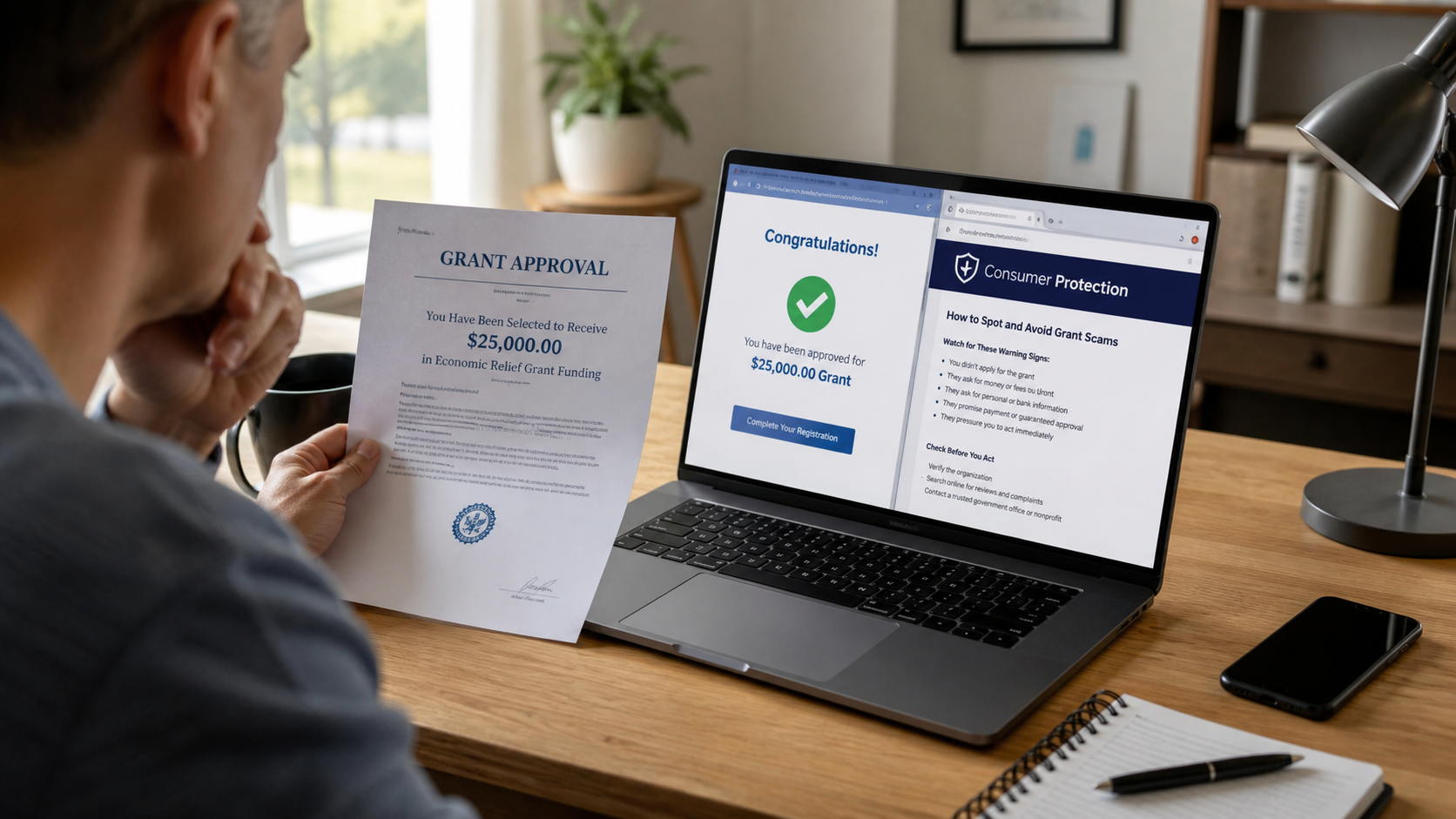
Start with the grantmaker’s official website, not the message. Search for the named program, application process, eligibility rules, deadlines, and staff contact.
Call the organization through a published number and forward the suspicious message to its security contact. A genuine foundation will not object to verification.
Check nonprofit and business registries for the exact legal name. Registration alone is not proof of an award, but an organization that cannot be found deserves immediate caution.
Never pay to receive a prize or unsolicited grant. The FTC’s grant and prize guidance consistently warns that taxes and fees demanded before payout are standard advance-fee tactics.
What to Do if You Have Fallen Victim to This Scam
- Stop contact and preserve the complete exchange. Save emails with headers, chats, phone numbers, documents, payment instructions, wallet addresses, and receipts.
- Contact the payment provider immediately. Ask banks, transfer services, card issuers, or cryptocurrency exchanges about freezes, recalls, disputes, and destination-account preservation.
- Protect exposed identity documents. Place a fraud alert or credit freeze, monitor reports, notify document issuers, and report Social Security number exposure through IdentityTheft.gov.
- Secure email and financial accounts. Change unique passwords, enable multifactor authentication, and remove unfamiliar recovery methods, sessions, or forwarding rules.
- Report the impersonation. Notify Ballmer Group through official channels, the email or social platform, the FTC, and local law enforcement when money or identity theft occurred.
- Inspect downloaded files. If you opened an attachment or installed software, run Malwarebytes to check for credential stealers, remote access tools, and other threats.
- Reduce repeat exposure. AdGuard can help block known phishing pages and malicious ad redirects, but it cannot recover documents or payments already shared.
- Reject recovery offers. Do not pay a new agent, lawyer, or investigator who unexpectedly promises the grant or lost fees back.
Is Your Device Infected? Run a Free Malware Scan
Slow performance, constant pop-ups, or strange behavior? These are classic signs of a malware infection. A quick way to check is to scan your device with Malwarebytes Free, one of the most trusted malware removal tools available. If you only visited a scam page and didn’t download or install anything, this scan is optional.
The free version detects and removes the most common threats, including:
- Adware — the cause of those annoying pop-ups
- Browser hijackers — unwanted redirects and changed homepages
- Trojans and spyware — hidden programs stealing your data
- Potentially unwanted programs (PUPs) — software you never asked for
👉 Select your device below — Windows, Mac, or Android — then follow the simple steps to download Malwarebytes, scan your system, and remove any threats it finds. The scan usually takes 5 to 20 minutes.
Run a Malware Scan with Malwarebytes for Windows
Malwarebytes is one of the most popular and trusted anti-malware tools for Windows — and it’s completely free for removing infections. It catches threats that many antivirus programs miss, including adware, browser hijackers, and trojans. Follow the steps below to scan your PC and remove what Malwarebytes finds.
Download Malwarebytes
Click the button below to download the latest version of Malwarebytes for Windows from the official source. The free version is all you need — it will scan your computer and remove adware, browser hijackers, and other malicious software at no cost.
Download MalwarebytesOfficial installer for Windows 11 and 10. Your download starts right away.Want real-time protection? See Malwarebytes Premium Malwarebytes Free for WindowsScans and removes malware at no cost
-
Install Malwarebytes
When the download finishes, open your Downloads folder and double-click the MBSetup file. If Windows shows a User Account Control pop-up, click “Yes” to allow the installation.

Follow the On-Screen Prompts to Install Malwarebytes
The setup wizard will walk you through a few quick screens:
-
Choose where you’re installing the program — “Personal Computer” or “Work Computer” — then click Next.

-
Malwarebytes will now install on your device. This usually takes under a minute.

-
When installation is complete, the “Welcome to Malwarebytes” screen will open automatically.

-
On the final screen, click Open Malwarebytes to launch the program.

-
Optional: Check for rootkits with a Custom Scan
You don’t need to change any settings for a normal scan. The standard Threat Scan in the next step is enough for most problems, so you can go straight to it.
If you also want to check for rootkits, use a Custom Scan. In current versions of Malwarebytes, rootkit scanning is only available there:
- On the Scanner tile, click the three-dot menu and select Advanced Scan.
- Choose Custom Scan. In its options, check Scan for rootkits.
- Select your system drive (usually C:\) as the location to scan, then start the scan. It takes longer than a Threat Scan.
- When it finishes, review and quarantine the results as described in the steps below.
Rootkit scanning isn’t available on Windows devices with ARM processors.
Start the Scan
Click the blue Scan button. Malwarebytes will automatically update its virus database and start checking your computer for malware.

-
Wait for the Scan to Finish
The scan checks your entire system for browser hijackers and other malicious programs, so it can take 5 to 20 minutes depending on your computer. Feel free to do something else — just check back occasionally to see the progress.

-
Quarantine the Detected Threats
When the scan is done, you’ll see a list of everything Malwarebytes found — malware, adware, and potentially unwanted programs. Click the “Quarantine” button to remove all of them at once.

Malwarebytes will now remove the malicious files and registry entries and move them safely into quarantine.

-
Restart Your Computer
Some threats can only be fully removed after a reboot. If Malwarebytes asks you to restart, click Yes. Once you’re logged back in, Malwarebytes has finished removing the threats it found.

When the scan is done, check whether the problems you noticed have stopped. If they continue, see the options below.
If you are still having problems with your computer after completing these instructions, then please follow one of the steps:
- Run a computer scan with ESET Online Scanner
- Ask for help in our Windows Malware Removal Help & Support forum.
Run a Malware Scan with Malwarebytes for Mac
Malwarebytes for Mac is a free on-demand scanner that removes the malware other security software tends to miss — adware, browser hijackers, and unwanted programs included. Cleaning an infected Mac with Malwarebytes has always been completely free, and it’s our go-to recommendation. Follow the steps below to scan your Mac and remove what Malwarebytes finds.
-
Download Malwarebytes for Mac
Click the button below to download the latest version of Malwarebytes for Mac.
Download MalwarebytesOfficial installer for macOS. Your download starts right away.Want real-time protection? See Malwarebytes PremiumMalwarebytes Free for MacScans and removes malware at no cost -
Open the Malwarebytes setup file
When the download finishes, open your Downloads folder and double-click the setup file to begin the installation.

-
Follow the On-Screen Prompts to Install Malwarebytes
The Malwarebytes for Mac Installer will guide you through a few quick screens. Click “Continue” and keep following the prompts until the installation completes.



When the installation is complete, Malwarebytes opens to the Welcome to Malwarebytes screen. Click “Get started“.
Malwarebytes needs Full Disk Access to check your whole Mac. When it asks, open System Settings > Privacy & Security > Full Disk Access, turn on Malwarebytes (it may be listed as Malwarebytes Protection), and confirm with your password or Touch ID. Then return to Malwarebytes. On macOS Monterey and earlier, this setting is in System Preferences > Security & Privacy > Privacy.
-
Select “Personal Computer” or “Work Computer”
Malwarebytes will ask what type of computer you’re installing it on. Click either Personal Computer or Work Computer, whichever applies.

-
Start the Scan
Click the “Scan” button. Malwarebytes will automatically update its detection database and begin checking your Mac for malware.

-
Wait for the Scan to Finish
Malwarebytes will scan your Mac for adware, browser hijackers, and other malicious programs. This can take a few minutes, so feel free to do something else — just check back occasionally to see the progress.

-
Quarantine the Detected Threats
When the scan is done, you’ll see a list of everything Malwarebytes found. Click the “Quarantine” button to remove all the threats at once.

-
Restart Your Mac
Malwarebytes will now remove all the malicious files it found. Some threats can only be fully removed after a reboot — if Malwarebytes asks you to restart, allow it. Once you’re logged back in, check whether the problems you noticed have stopped. If they come back, save the scan report and ask for help in our forum.

If the problems you noticed continue after the scan, see the options below.
If you are still experiencing problems while trying to remove a malicious program from your computer, please ask for help in our Mac Malware Removal Help & Support forum.
Run a Malware Scan with Malwarebytes for Android
Malwarebytes for Android scans your phone or tablet for malware, adware, and potentially unwanted apps. The free version scans only when you start a scan. Real-time protection, which checks apps automatically, is part of the paid Premium version.
-
Download Malwarebytes for Android.
You can download Malwarebytes for Android by clicking the link below.
Get Malwarebytes for AndroidOpens Google Play in a new tab.Want real-time protection? See Malwarebytes Premium for AndroidMalwarebytes for AndroidScans your phone and removes malware at no cost -
Install Malwarebytes for Android on your phone.
In the Google Play Store, tap “Install” to install Malwarebytes for Android on your device.

When the installation process has finished, tap “Open” to begin using Malwarebytes for Android. You can also open Malwarebytes by tapping on its icon in your phone menu or home screen.

-
Follow the on-screen prompts to complete the setup process
When Malwarebytes opens, it walks you through a short setup. Tap Get started and follow the prompts. If you see an offer for a trial or a paid plan, read it before you accept. You can skip it and keep using the free scanner.
Malwarebytes will ask for permission to access the files on your phone so it can scan them. Tap Allow, or turn on the permission in the Android screen that opens, then return to Malwarebytes.
-
Run a scan with Malwarebytes for Android
On the main screen, tap Scan now. In some versions, you open the menu, tap Scanner, and then tap Run a scan.
-
Wait for the Malwarebytes scan to complete.
Malwarebytes will now start scanning your phone for adware and other malicious apps. This process can take a few minutes, so we suggest you do something else and periodically check on the status of the scan to see when it is finished.

-
Remove the detected apps.
When the scan has been completed, you will see a list of the threats that Malwarebytes for Android has detected. Next to each detected item, tap the menu icon (three dots), then choose to uninstall the app or delete the file. Android then asks you to confirm. Tap OK or Uninstall to remove the app.
-
Restart your phone.
When the detected apps are removed, restart your phone if Malwarebytes asks you to. Then check whether the problems you noticed have stopped.
If the problems you noticed continue after the scan, see the options below.
If you are still having problems with your phone after completing these instructions, then please follow one of the steps:
- Ask for help in our Mobile Malware Removal Help & Support forum.
- Only as a last resort, reset your phone to factory settings. Read the warning below first.
- Back up your photos, videos, files, and messages, for example to your Google account or a computer.
- Make sure you know your Google account email and password. The phone asks for them after the reset. If you changed the password recently, Google recommends waiting 24 hours before you reset.
- On a Samsung phone, also make sure you know your Samsung account password.
- If you use an authenticator app for two-step verification, move your accounts to another device or save your backup codes first.
Stay Protected: Block Ads and Malicious Sites
No scan can prove a device is completely clean, so it helps to block threats before they reach you. Most infections start with a malicious ad or a fake download button — so blocking them at the source is your best defense.
We recommend AdGuard, which blocks malicious ads, phishing pages, and dangerous redirects before they can reach you.
👉 Download AdGuard and browse safely
Frequently Asked Questions
Is the Yvonne Ballmer Page Foundation real?
The name used in these grant messages does not match the genuine Ballmer Group. Treat unsolicited awards under that name as fraudulent.
Does Ballmer Group give random email grants?
Its official warning says it does not host internet lotteries or offer prizes by email, phone, mail, social media, or in person.
Why would a scammer ask only for a reply?
A reply confirms that your address is active and that the promise gained your attention. Sensitive requests usually appear later.
Can a grant require a processing fee?
Legitimate grant expenses are not collected through secret gift-card, crypto, or personal transfer requests. An unsolicited grant that requires payment is an advance-fee scam.
What if the sender has identification and legal documents?
Images of IDs, seals, certificates, and signatures can be stolen or fabricated. Verify the person through the organization’s official contact channel.
Can I safely provide bank details only?
No. Bank information can support unauthorized debits and targeted impersonation. A random grant sender has no legitimate need for it.
The Bottom Line
The Yvonne Ballmer Page Foundation message uses a fabricated identity and an enormous grant to make small requests feel reasonable. The real Ballmer Group has explicitly warned about this type of impersonation.
Do not reply, send documents, or pay any fee. Verify philanthropic offers through the organization’s official website and established grant process.

Join the discussion
0 commentsShare your experience or ask a question about this article.
Discussion
Start the conversation
Have a question or something useful to share? Add the first comment.