
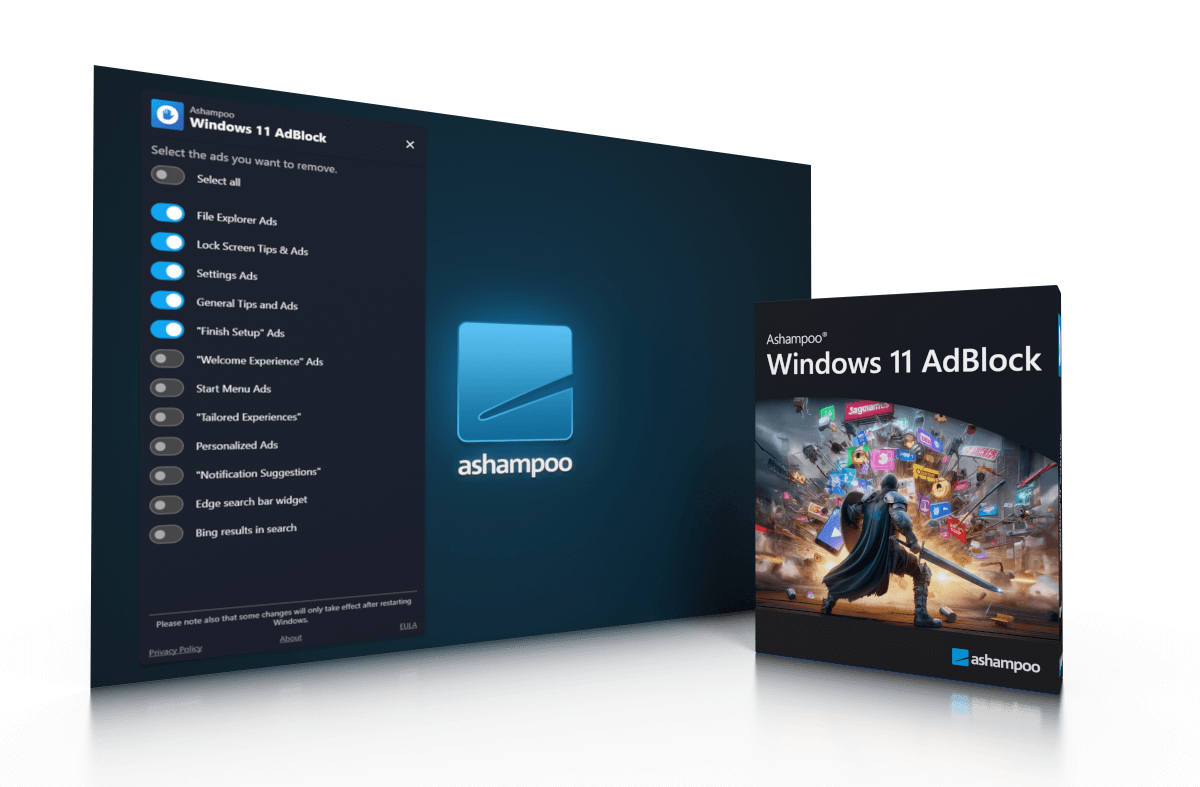
Ashampoo Windows 11 AdBlock

Brownie2019

Level 23
Thread author
Verified
Well-known
Forum Veteran
Mar 9, 2019
1,008
5,205
2,168
Germany


Features of Ashampoo Windows 11 AdBlock:

Bing Results in Search

Bing search results can often include sponsored content and ads that clutter the search experience. Windows 11 AdBlock effectively removes these ads, providing cleaner and more relevant search results.
Edge Search Bar Widget
The Edge search bar widget is another area where ads can appear. By disabling these ads, users can enjoy a more streamlined and distraction-free browsing experience in Microsoft Edge.
File Explorer Ads
Ads in File Explorer can be particularly intrusive, interrupting the workflow and creating unnecessary distractions. Windows 11 AdBlock removes these ads, allowing users to focus on their tasks without unwanted interruptions.
“Finish Setup” Ads
Windows 11 often includes “Finish Setup” ads that prompt users to complete their setup with unnecessary and irrelevant suggestions. Windows 11 AdBlock eliminates these prompts, simplifying the setup process.
General Tips and Ads
General tips and ads scattered throughout Windows 11 can be both distracting and irrelevant. By removing these, Windows 11 AdBlock creates a cleaner, more focused user interface.
Lock Screen Tips & Ads
Lock screen tips and ads can detract from the visual appeal and functionality of the lock screen. Disabling these ads results in a more aesthetically pleasing and functional lock screen experience.

Notification Suggestions

Notification suggestions can be helpful, but they often include ads that are irrelevant to the user. Windows 11 AdBlock filters out these ads, ensuring that notifications remain useful and relevant.
Personalized Ads
Personalized ads based on user activity can feel invasive and unwelcome. By blocking these ads, Windows 11 AdBlock enhances user privacy and delivers a more comfortable browsing experience.
Settings Ads
Ads within the Windows settings menu can make navigating and configuring the OS more cumbersome. Removing these ads with Windows 11 AdBlock simplifies the settings experience.
Start Menu Ads
Start menu ads can clutter the start menu and make it harder to find important apps and files. Windows 11 AdBlock ensures a cleaner, more organized start menu.

Tailored Experiences
Tailored experiences often include ads and suggestions that are not always relevant to the user. Disabling these features results in a more streamlined and user-centric Windows 11 experience.
“Welcome Experience” Ad
The “Welcome Experience” ad can detract from the initial setup and onboarding process. Removing this ad with Windows 11 AdBlock creates a smoother and more enjoyable setup experience for new users.
 
  • Like
Reactions: Sorrento


Features of Ashampoo Windows 11 AdBlock:

Bing Results in Search

Bing search results can often include sponsored content and ads that clutter the search experience. Windows 11 AdBlock effectively removes these ads, providing cleaner and more relevant search results.
Edge Search Bar Widget
The Edge search bar widget is another area where ads can appear. By disabling these ads, users can enjoy a more streamlined and distraction-free browsing experience in Microsoft Edge.
File Explorer Ads
Ads in File Explorer can be particularly intrusive, interrupting the workflow and creating unnecessary distractions. Windows 11 AdBlock removes these ads, allowing users to focus on their tasks without unwanted interruptions.
“Finish Setup” Ads
Windows 11 often includes “Finish Setup” ads that prompt users to complete their setup with unnecessary and irrelevant suggestions. Windows 11 AdBlock eliminates these prompts, simplifying the setup process.
General Tips and Ads
General tips and ads scattered throughout Windows 11 can be both distracting and irrelevant. By removing these, Windows 11 AdBlock creates a cleaner, more focused user interface.
Lock Screen Tips & Ads
Lock screen tips and ads can detract from the visual appeal and functionality of the lock screen. Disabling these ads results in a more aesthetically pleasing and functional lock screen experience.

Notification Suggestions

Notification suggestions can be helpful, but they often include ads that are irrelevant to the user. Windows 11 AdBlock filters out these ads, ensuring that notifications remain useful and relevant.
Personalized Ads
Personalized ads based on user activity can feel invasive and unwelcome. By blocking these ads, Windows 11 AdBlock enhances user privacy and delivers a more comfortable browsing experience.
Settings Ads
Ads within the Windows settings menu can make navigating and configuring the OS more cumbersome. Removing these ads with Windows 11 AdBlock simplifies the settings experience.
Start Menu Ads
Start menu ads can clutter the start menu and make it harder to find important apps and files. Windows 11 AdBlock ensures a cleaner, more organized start menu.

Tailored Experiences
Tailored experiences often include ads and suggestions that are not always relevant to the user. Disabling these features results in a more streamlined and user-centric Windows 11 experience.
“Welcome Experience” Ad
The “Welcome Experience” ad can detract from the initial setup and onboarding process. Removing this ad with Windows 11 AdBlock creates a smoother and more enjoyable setup experience for new users.
The page you linked describes a “Windows 11 ad/suggestions disabler” rather than a traditional browser adblocker, so the main considerations are privacy, reversibility, and what system changes it makes.

What this type of tool usually does
In general, apps like this work by changing Windows settings (and sometimes Group Policy / registry values) that control “suggestions,” “tips,” “tailored experiences,” and Microsoft promotional content.

That can be useful, but it also means you should treat it like a system-tweaking utility (i.e., something that can affect multiple parts of Windows at once and may be impacted by future Windows updates).

Security / trust checks before installing
I can’t verify from here whether this specific product is safe or unsafe, but you can reduce risk with standard checks:

  • Download only from the vendor’s official site (avoid repack sites).
  • Check the installer’s digital signature (Properties -> Digital Signatures) and confirm it matches the expected publisher.
  • Upload the installer to VirusTotal and review results carefully (single/low-count detections can be false positives with “tweaker” tools, but multiple solid detections are a red flag).
  • Create a System Restore Point before applying changes, and confirm the tool offers a clear “revert/undo” option.
  • Read the Privacy Policy/EULA to see what telemetry (if any) it collects and whether it bundles offers.

Low-risk alternatives: do a lot of this using built-in Windows settings
Many of the items listed (tips, suggestions, “tailored experiences,” advertising ID, etc.) can often be reduced using Windows’ own toggles:

  • Settings -> Privacy & security -> General: disable advertising ID / suggested content options (wording varies by build).
  • Settings -> System -> Notifications: disable “suggestions” and “tips” style notifications (wording varies).
  • Settings -> Personalization: review Start/lock screen “suggestions” style toggles (varies).
  • Settings -> Privacy & security -> Diagnostics & feedback: disable tailored experiences / relevant suggestions where available.

This approach is slower, but it’s the safest and most transparent because Windows is making the change directly.

Important expectations / limitations
  • Some “ads” are actually Microsoft “suggestions” and may return after major feature updates or if settings are reset.
  • Some areas (e.g., “Bing results in search”) may depend on Edge/Bing behavior and might not be fully controllable system-wide by one toggle.
  • Anything that claims to remove “all ads everywhere” should be treated cautiously—Windows behavior differs by region, edition, and update channel.

Practical next step
If you want maximum safety, use the built-in Windows toggles first; if you still prefer a one-click tool, only proceed after signature verification + VirusTotal check + restore point, and make sure you can cleanly revert changes.