


silversurfer
Super Moderator
Thread author
Verified
Top Poster
Staff Member
Malware Hunter
Forum Veteran
- Aug 17, 2014
- 13,163
- 126,054
- 8,399
Over the last day or two, there have been a growing number of reports by people who own certain Canon Pixma printers that the devices either won’t turn on at all or, once turned on, get stuck in a reboot loop, cycling on and off as long as they’re plugged in. Verge reader Jamie pointed us to posts on Reddit about the problem and Canon’s own support forum, citing problems with models including the MX490, MX492, MB2010, and MG7520.
Some believe their problem is due to a software update Canon pushed to the printers, but that hasn’t been confirmed yet. In response to an inquiry from The Verge, corporate communications senior director and general manager Christine Sedlacek said, “We are currently investigating this issue and hope to bring resolution shortly as customer satisfaction is our highest priority.”
Until there is an official update or fix, some people in the forums have found that disconnecting the printers from the internet is enough to keep them from rebooting, with control still possible via USB.
To get the printers to work while maintaining your connection to the internet and their connection to local network devices, one reply from a customer on Canon’s support forum suggests a method that many people report has worked for them. If you’re experienced with network setups, DNS servers, and IP addresses, it could be worth trying, but for most people, I’d recommend waiting for an official solution.
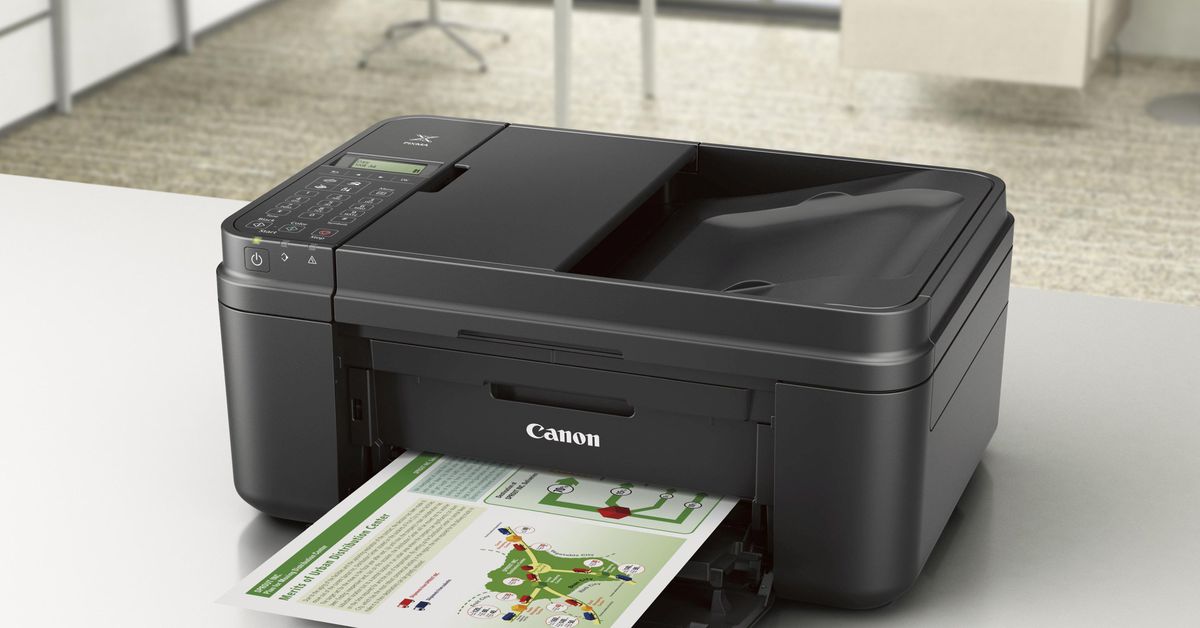
Canon wireless printers are getting stuck in reboot loops, but there may be a way for you to fix it
Disconnecting your printer from the internet might fix it.
 www.theverge.com


