New Update Defender Hardening Console Executable

I tested all the scans and they were rather quick considering I've a lot of software and videogames on my system. I ran also a Deep Firewall Scan and I particularly like the colored icons which identify the rules by Categories (Communication, Gaming, Security etc.) I don't remember if they were already present in the previous version.
Nice work !

View attachment 296640View attachment 296641View attachment 296642View attachment 296643View attachment 296644View attachment 296645
Thanks, that's what I like to hear
:)

Yes, the icons were there since the DFC redesign.

In the next version there is scan progress indication in taskbar and a small tracker when the window is minimized.

There is one setting which is not blocked by Tamper Protection but is displayed as such - the cloud membership level.
 
Also I've enabled the view of hidden files in Explorer to follow the advice I got in Total Care Scan.

Total Care Scan. advice.jpg
 
What's coming up in the next release:
-Real Time Firewall (under consideration). In this case the software name will change to Privacy + Hardening
-Logs

Helios Web Marshall and Talon have now been complete. I am waiting for the updated extension to be reviewed and published on Chrome Store. The updated extension is already on Mozilla store.

If you are using Firefox and you've previously downloaded Web Marshall, PM me for the update.

The product is officially launching in a few days.

View attachment 296627View attachment 296628

Talon will be available as a standalone extension as well, for Linux users.
Nice new update (y)

What is the difference between Helios Web Marshall and Talon?

As Edge user with Web Marshall and AiDefender I unfortuntely have to wait till the Web Marshall extension is updated in the chrome store before trying this new version.
 
Nice new update (y)

What is the difference between Helios Web Marshall and Talon?

As Edge user with Web Marshall and AiDefender I unfortuntely have to wait till the Web Marshall extension is updated in the chrome store before trying this new version.
Hopefully it wouldn’t be a long wait but it’s outside of my control. Now the weekend is coming so I am expecting for it to be published next week.

The difference is that Talon only cares about the shopping part of the web, pulling reviews and other factors to rate the website. Web Marshall is a more complete solution. Talon can block scam sites because they inevitably won’t have a good track record.

In the updated Web Marshall version zero trust is back, settings are back, the blue colour is gone (hence it is gone from AiDefender as well) and the download protection has been fixed.

Now I will focus on the AiDefender real time firewall, I am considering how exactly I wanna implement it. It’s clear that it will have a background service which will handle several tasks (including updates and scheduled scans) and there will be a notification agent (WebView 2 + C++23).
I am examining several other factors.

It is obvious that this firewall will provide a great deal of information like the Deep Firewall Control. There will be automation as well.
 
New update has been pushed.

Introducing Network Monitor - the proper way.

The network monitor powered by Helios DynaTune/CSE allows risky connections to be spotted at a glance.

It works in conjunction with other modules such as Helios Web Marshall and takes into account a variety of factors for its overall score.

Some of them are displayed in a table.

The overall score is computed in real time and all connections are enriched.

For performance, the module uses aggressive caching and other optimisation tactics.
1774733899660.png
1774733916951.png


Full Intro:

Dynamically Tuned Firewall and network monitor with memory, cloud intelligence and variable policies. That’s DynaTune.

Helios DynaTune: Your Network Has a Memory Now
Every application on your computer talks to the internet. Your browser, your email client, cloud storage, messaging apps — dozens of silent conversations happening every second. Most are perfectly normal. Some are not.
The challenge has always been telling the difference.
Traditional network monitors show you a snapshot: what’s connected right now. The moment a connection closes, it’s gone — no record, no context, no way to spot patterns over time. Helios DynaTune changes that fundamentally.

It Remembers Everything
DynaTune maintains a complete, encrypted history of every network connection your system has ever made. When you open the Network Monitor tomorrow, you don’t start from zero — you see the full picture. Connections that were active yesterday, last week, last month. Which servers your applications have contacted, when they first appeared, and when they were last active.
This history is encrypted and stored locally on your machine. Nobody else can read it — not even if they copy the file to another computer. It’s your data, on your machine, protected by Windows itself.

It Learns What’s Normal
The first time DynaTune sees Microsoft OneDrive connecting to a Microsoft server, it checks. It verifies the server’s identity, confirms the connection against cloud threat intelligence, and examines the process making the connection. Once verified, that knowledge persists. The next time OneDrive connects to the same server — even after a restart — DynaTune already knows it’s safe.
This means the system gets faster and more accurate the longer it runs. A fresh installation needs a few minutes to build its picture of your network. After a day of normal use, DynaTune knows your system’s baseline and can instantly identify anything unusual.

Deep, Multi-Layered Analysis
Every connection is evaluated from multiple angles simultaneously. DynaTune doesn’t rely on any single indicator — it builds a composite picture by examining the process, the destination, the behaviour, and the context together.
Is the process signed by a known publisher? Is the server owned by a recognised company? Does the binary show signs of being tampered with or disguised? Was it recently downloaded from the internet? Has the process been behaving consistently, or did it just appear and immediately start reaching out?

Each factor contributes to a single, easy-to-read risk score. Zero means everything checks out. Higher numbers mean more questions. The reasons are always explained in plain English — just clear statements like “Downloaded binary with active network connections” or “Process connecting to commonly abused infrastructure.”

Cloud Intelligence, Built In
DynaTune doesn’t work alone. Every address your computer contacts is checked against our cloud threat intelligence database. Known botnet command servers, phishing infrastructure, and malicious hosts are flagged immediately. Clean addresses receive a confidence boost that reduces their risk score.
This happens automatically in the background. You don’t need to configure anything, and it doesn’t slow down your connection.

It Knows Who’s Who
When a Microsoft-signed application connects to a Microsoft-owned server, DynaTune recognises the relationship. The process publisher matches the network owner — that’s expected behaviour. The risk drops accordingly.
But when a trusted process connects to an unknown server with no identifiable owner? That’s unusual. When an unsigned program connects to a hosting provider commonly associated with malicious activity? That’s flagged.
DynaTune understands the major network providers and can identify who owns the infrastructure on the other end of every connection. It knows the difference between a legitimate content delivery network and a hosting provider with a poor reputation.

Attention Where It’s Needed
Not every process needs the same level of scrutiny. Trusted, signed applications with clean histories are monitored gently. Unsigned binaries, recently downloaded programs, or anything showing concerning behaviour receives closer attention and more frequent checks.
DynaTune assigns a monitoring level to every process — mild or aggressive — based on what it knows. This happens automatically and adjusts as the picture becomes clearer.

Action Plans, Not Just Alerts
Every process receives a DynaTune Action Plan based on its risk profile:
BHC — Block High Confidence Only. For trusted applications with clean records. Only confirmed threats would trigger a response. The lightest touch, reserved for software that has earned trust.
BMC — Block Medium Confidence. For processes with moderate risk indicators. Suspicious connections are handled individually while the process continues to operate.
BBD — Block by Default. For untrusted software showing suspicious characteristics. Network access is restricted until the application is analysed in depth.
GB — Global Block. For high-risk processes where multiple indicators align. All network access is blocked.
These plans are assigned automatically and adjust as new information becomes available.

*This is an early implementation that does not enforce policy yet. It has been released for users to get accustomed to the CSE.

What You’ll See

When you expand any process in the Network Monitor, you see a complete intelligence briefing.

Process identity — who made it, where it’s installed, whether it’s visible on your screen. A signed application from Program Files that’s been there for months is very different from something that appeared in your Downloads folder this morning.

Binary integrity — whether the file carries proper metadata, whether it was downloaded from the internet, and whether its contents look normal or show signs of being deliberately obscured.

Runtime behaviour — whether the process contains code that shouldn’t be there, and whether all of its components come from trusted sources.

Lineage — which process launched this one, and whether the parent itself is trustworthy. A browser launched normally is expected. A networking tool launched through a chain of script interpreters is worth investigating.

Connection intelligence — when the connection was first seen, the server’s geographic location, the organisation that owns it, and what our cloud database says about it.

Your Network, Understood
Helios DynaTune transforms the Network Monitor from a simple connection list into a persistent intelligence system. It builds knowledge over time, remembers what it’s learned, investigates what it doesn’t recognise, and presents everything in a single, clear interface.
Every connection scored. Every process profiled. Every session remembered.


 
Last edited:
"DynaTune maintains a complete, encrypted history of every network connection your system has ever made. When you open the Network Monitor tomorrow, you don’t start from zero — you see the full picture" / just asking why isn't this a privacy concern, or at least a question? all on the pc or in the cloud? no offense intended, just wondering, it's not what I usually see...
 
"DynaTune maintains a complete, encrypted history of every network connection your system has ever made. When you open the Network Monitor tomorrow, you don’t start from zero — you see the full picture" / just asking why isn't this a privacy concern, or at least a question? all on the pc or in the cloud? no offense intended, just wondering, it's not what I usually see...
The history is written in encrypted file C:\ProgramData\Hawk Eye Analysis\DHC\DynaTune\DTCache.bin.
It is not sent to the cloud.
The key is derived locally so your key is for your file.

The risk factor is computed (again and again) based on this history and many other indicators, through 27 different groups of heuristics, all processed locally by the C++ code.

There are several factors that determine how often the risk score gets updated and it is per-connection.
 
Last edited:
Hello,
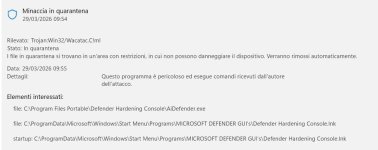
Microsoft Defender flagged it as Trojan and quarantined AIDefender.exe and its lnk file. I had no similar issue with previous AIDefender.exe version. I used portable version, not the installer.

AIDefender.jpg
 
Last edited:
Hello,
Microsoft Defender flagged it as Trojan and quarantined AIDefender.exe and its lnk file. I had no similar issue with previous AIDefender.exe version. I used portable version, not the installer.

View attachment 296692
I will submit the next version to them, over the next few days the DynaTune engine will be upgraded to the 2.1 which is the current version. This module will get the most attention over the next few updates.
 
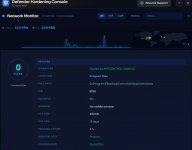
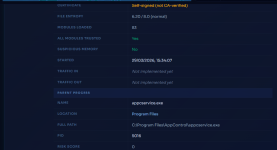
While waiting for the AIDefender.exe file to be approved by Microsoft I added it to Microsoft Defender exclusions. I just started to explore the new features and I must say that Network Monitoring gives a lot of infos about the processes which are connecting to the web. I needed to take 3 screenshots to list all the infos about the file Appcontrol.exe which I took just as example.
 

Attachments

  • NM (1).jpg
    NM (1).jpg
    53.1 KB · Views: 48
  • NW (2).png
    NW (2).png
    111.2 KB · Views: 44
  • NW (3).png
    NW (3).png
    52.6 KB · Views: 54
If I may suggest some enhancements:
- Defender Hardening Console's window should be resizeable, also to fullscreen.
- The world map with the active network connections should be visible, not only in the small format at the top right, but also in a separate tab in a larger format. Currently it's not so simple to hover the mouse cursor with precision on the small dots.
- Defender Hardening Console should have also a option to autostart with Windows, minimized to traybar. This way the network monitoring will be always active, without need to manually start Defender Hardening Console for that purpose.
- By clicking on the World map's dots should show / filter which processes are connected to them
 
Last edited:
If I may suggest some enhancements:
- Defender Hardening Console's window should be resizeable, also to fullscreen.
- The world map with the active network connections should be visible, not only in the small format at the top right, but also in a separate tab in a larger format. Currently it's not so simple to hover the mouse cursor with precision on the small dots.
- Defender Hardening Console should have also a option to autostart with Windows, minimized to traybar. This way the network monitoring will be always active, without need to manually start Defender Hardening Console for that purpose.
Thanks for your feedback, DHC is actually resizable to full screen, just drag it to the top portion of the screen and it will go in full screen. It is not very common for security tools to go full screen but now it will become necessary.

The wolrd map in later versions (1.95 of the module if I remember right) is more prominent, there is even more information and it is all better presented. There is also improved scoring.

There will be a background service actually that will work at all times, I am just exploring several optimisations before I release that. The network monitor module will definitely be active 24/7, just not through a tray icon.

This version also added scan progress indicator in taskbar.
 
I just submitted AiDefender.exe to VirusTotal and, apart from Microsoft Defender, which is perhaps the most used antivirus, among the other best known ones that flag AiDefender.exe as malware, there are BitDefender, GData and Vipre VirusTotal
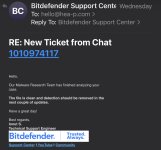
Yeah, the issue with Bitdefender is known and it’s already a few emails back and forth.

Despite them promising to clear the detection in the next few updates, this hasn’t happened.

This causes all BD-based solutions (around 8 to detect).
IMG_3720.jpeg

Anyway, I am about to release a new version by the end of the day. 1.95 is behaving well.

The architecture of the software and the overall design is different from what these companies are used to.