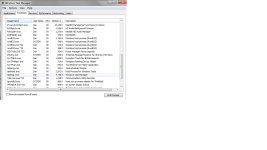
Solved help remove the *32 COM Surrogate

pdph77

New Member
I have downloaded a file and the pc has been affected by this COM Surrogate virus which slows down the CPU and takes all memory from the CPU

I have downloaded Farbar Recovery Tool and did a scan. the logs have been uploaded..

appreciate for the help
 

Attachments

FRST.gif
Fix with Farbar Recovery Scan Tool

icon_exclaim.gif
This fix was created for this user for use on that particular machine.
icon_exclaim.gif

icon_exclaim.gif
Running it on another one may cause damage and render the system unstable.
icon_exclaim.gif
​

Download attached fixlist.txt file and save it to the Desktop:

Both files, FRST and fixlist.txt have to be in the same location or the fix will not work!

  • Right-click on
    FRST.gif
    icon and select
    RunAsAdmin.jpg
    Run as Administrator to start the tool.
    (XP users click run after receipt of Windows Security Warning - Open File).
  • Press the Fix button just once and wait.
  • If for some reason the tool needs a restart, please make sure you let the system restart normally. After that let the tool complete its run.
  • When finished FRST will generate a log on the Desktop, called Fixlog.txt.

Please attach it to your reply.


adwcleaner_new.png
Fix with AdwCleaner

Please download AdwCleaner by Xplode and save the file to your Desktop.
  • Right-click on
    adwcleaner_new.png
    icon and select
    RunAsAdmin.jpg
    Run as Administrator to start the tool.
  • Wait until the database is updated.
  • Accept the Terms of use and click Scan.
  • When finished, please click Clean.
  • Upon completion, click Report. A log (AdwCleaner[S*].txt) will open.

Please include the contents of that file in your reply.

Note: Reports will be saved in your system partition, usually at C:\Adwcleaner


51a46ae42d560-malwarebytes_anti_malware.png
Scan with Malwarebytes' Anti-Malware

Please download Malwarebytes Anti-Malware and save it to your desktop.
  • Install the progam and select update.
  • Once updated, click the Settings tab, in the left panel choose Detection & Protection and tick Scan for rootkits.
  • Click the Scan tab, choose Threat Scan is checked and click Scan Now.
  • If threats are detected, click the Apply Actions button. You will now be prompted to reboot. Click Yes.
  • Upon completion of the scan (or after the reboot), click the History tab.
  • Click Application Logs and double-click the Scan Log.
  • At the bottom click Export and choose Text file.
Save the file to your desktop and include its content in your next reply.
 

Attachments

Let's see if we missed something:


51a612a8b27e2-Zoek.png
Scan with ZOEK

Please download ZOEK by Smeenk and save it to your desktop (preferred version is the *.exe one)
Temporary disable your AntiVirus and AntiSpyware protection - instructions here.

  • Right-click on
    51a612a8b27e2-Zoek.png
    icon and select
    RunAsAdmin.jpg
    Run as Administrator to start the tool.
  • Wait patiently until the main console will appear, it may take a minute or two.
  • In the main box please paste in the following script:
    Code:
    createsrpoint;
    autoclean;
    emptyalltemp;
    ipconfig /flushdns;b
  • Make sure that Scan All Users option is checked.
  • Push Run Script and wait patiently. The scan may take a couple of minutes.
  • When the scan completes, a zoek-results logfile should open in notepad.
  • If a reboot is needed, it will be opened after it. You may also find it at your main drive (usually C:\ drive)

Post its content into your next reply.


FRST.gif
Scan with Farbar Recovery Scan Tool

Please re-run Farbar Recovery Scan Tool to give me a fresh look at your system.
  • Right-click on
    FRST.gif
    icon and select
    RunAsAdmin.jpg
    Run as Administrator to start the tool.
    (XP users click run after receipt of Windows Security Warning - Open File).
  • Make sure that Addition option is checked.
  • Press Scan button and wait.
  • The tool will produce two logfiles on your desktop: FRST.txt and Addition.txt.
Please include their content into your next reply.
 
when I run IE, there are always be one IE with lower CPU % and the other one IE*32 with a very high % which wasn't like this before..is this normal?
 
Yes it is fine. I have already told you when you see *32 in processes it is not something malicious, it is 32-bit application working on 64-bit operating system.
 

Recently browsing

Members who viewed this thread in the last 5 minutes

Back
Top