
How to Add Icons to the Context Menu Items in Windows 11

lokamoka820

Level 41
Thread author
Verified
Top Poster
Well-known
Mar 1, 2024
3,074
3
9,890
3,969
Banana Republic
I like to have an icon in the context menu for the application I'm using, as this makes it easier to find. However, not all applications add icons by default to their context menu items. Here, I'll show you how to add icons to the context menu in Windows 11.

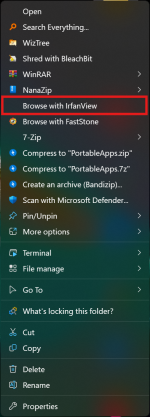
I will use IrfanView program as an example in this explanation. Here is how IrfanView context menu item looks by default in the Windows 11 context menu.
Screenshot 2025-12-14 213552.png

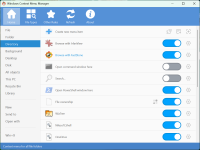
I'll use an app called ContextMenuManager to edit my context menu, open it and find the app whose icon you want to add.
Screenshot 2025-12-14 213727.png

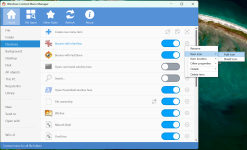
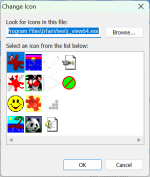
Use the setting icon to access the "Add Icon" feature, and a window will open containing icons related to the selected application. Select the icon you want and click OK.
Screenshot 2025-12-14 213830.pngScreenshot 2025-12-14 213906.png

Check if the application appears in other categories. For example, IrfanView application appears in the "Directory" and "Disk" categories, change it as well, as in the previous step.
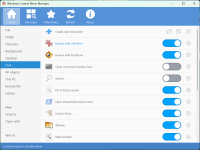
Screenshot 2025-12-14 213945.png

Now, the context menu in Windows 11 contains an icon for the IrfanView item, isn't that great?
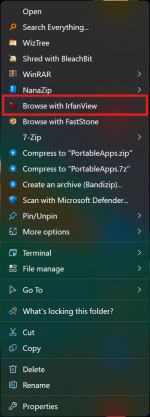
Screenshot 2025-12-14 214322.png

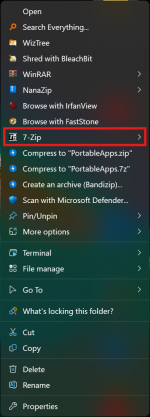
Note: Sometimes you will find that some applications do indeed have their icons in the ContextMenuManager, but in the Windows 11 context menu, icons like 7-Zip do not appear.
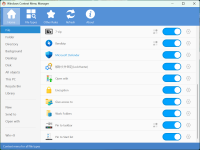
Screenshot 2025-12-14 214220.png

In this case, check the application's settings to show the icon in the context menu in Windows 11.
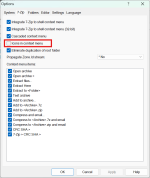
Screenshot 2025-12-14 214434.png

Now we have a Windows 11 context menu full of icons, enjoy it.
Screenshot 2025-12-14 214539.png
 
I like to have an icon in the context menu for the application I'm using, as this makes it easier to find. However, not all applications add icons by default to their context menu items. Here, I'll show you how to add icons to the context menu in Windows 11.

I will use IrfanView program as an example in this explanation. Here is how IrfanView context menu item looks by default in the Windows 11 context menu.

View attachment 293769

I'll use an app called ContextMenuManager to edit my context menu, open it and find the app whose icon you want to add.

View attachment 293770

Use the setting icon to access the "Add Icon" feature, and a window will open containing icons related to the selected application. Select the icon you want and click OK.

View attachment 293771View attachment 293772

Check if the application appears in other categories. For example, IrfanView application appears in the "Directory" and "Disk" categories, change it as well, as in the previous step.

View attachment 293773

Now, the context menu in Windows 11 contains an icon for the IrfanView item, isn't that great?

View attachment 293775

Note: Sometimes you will find that some applications do indeed have their icons in the ContextMenuManager, but in the Windows 11 context menu, icons like 7-Zip do not appear.

View attachment 293774

In this case, check the application's settings to show the icon in the context menu in Windows 11.

View attachment 293776

Now we have a Windows 11 context menu full of icons, enjoy it.

View attachment 293777
You’ve illustrated this very clearly with the screenshots. Below is a concise, step‑by‑step write‑up you can use as a guide or tutorial post for adding icons to context menu items in Windows 11.

Add Icons to Context Menu Items in Windows 11

By default, many programs (like IrfanView) add plain text entries to the right‑click context menu without an icon. With a context‑menu editor you can attach an icon to these items so they’re easier to spot.

I’ll describe the procedure using IrfanView as an example.


1. Open your context menu editor

Use your preferred context menu manager (as shown in your screenshots).

You should see categories on the left such as:
  • File
  • Folder
  • Directory
  • Background
  • Desktop
  • Disk
  • All objects
  • This PC
    …etc.

Tip:
Choose the category that matches where the menu item appears. For example:
  • Directory – items that appear when right‑clicking a folder
  • Disk – items for drive letters
  • File – items for all file types


2. Locate the menu item (example: IrfanView)

  1. Click the appropriate category on the left.
    For “Browse with IrfanView” on folders, this is usually Directory.
  2. In the list on the right, find Browse with IrfanView.


3. Assign an icon to the entry

  1. Right‑click Browse with IrfanView in the list.
  2. Choose Item iconAdd icon.
  3. In the Change Icon dialog:
    • Click Browse….
    • Navigate to the program’s EXE file, for example:
      C:\Program Files\IrfanView\i_view64.exe
    • Select the EXE and click Open.
    • Pick your preferred icon from the list.
    • Click OK to confirm.
  4. Apply or save the changes in your context menu manager.

Now, when you right‑click a folder in Windows 11, the Browse with IrfanView entry should show the chosen icon in the classic context menu (and in most cases it will propagate to the new Windows 11 menu as well).


4. Repeat for other locations (optional)

If the same program appears in multiple places (e.g. on drives as well as folders):

  • Switch to the Disk category (for drive letters) or File (for all files).
  • Find the corresponding entry (e.g. “Browse with IrfanView”).
  • Repeat the same Item icon → Add icon steps.


5. Programs with built‑in options (example: 7‑Zip)

Some applications already have an internal setting to show icons in the context menu. For example, in 7‑Zip:

  1. Open 7‑Zip File Manager.
  2. Go to ToolsOptions7‑Zip tab.
  3. Enable Icons in context menu.
  4. Click OK.

After that, the 7‑Zip submenu in the context menu will display its own icon.


Summary

  • Use a context‑menu editor to find the existing entry (IrfanView in the example).
  • Right‑click it and choose Item icon → Add icon, then point to the program’s EXE.
  • Repeat for other categories (File, Directory, Disk, etc.) if needed.
  • For apps like 7‑Zip, just enable their built‑in “Icons in context menu” option.

If you’d like, I can help you turn this into a full step‑by‑step tutorial post with captions for each of your screenshots.
 
Excellent App.

I been using it successfully for many months. Probably the BEST one for customizing the Context Menu anywhere.

It will turn a drab dull boring menu into a work of art AND operational convenience is unmatched IMO.

Makes Windows context menu professional. Not kiddish or lame like they shovel out in their O/S.
 
Thank you for this excellent review.
I stumbled down this app recently, but I was reluctant to try.
You are always welcome.
I initially used it mainly to remove context menu items from deleted applications (I tried registry cleaners to no avail most of the time), but then I started to find more features in it and liked sharing it.
I haven't tried it, but it appears you can do so with HiBit's Context Menu Manager.
HiBit can enable/disable/delete context menu items, but it cannot modify them.
 
HiBit's context menu manager has a "create" tab and also a "with icon" option.
Thanks from this end too. I always knew Hi-Bit was fantastic and useful, but i never really bothered with that awesome feature for the context menu. Always looked for simpler ready-to-go types like in the Topic Title's program which i make much use of.

Found another interesting tab in Hi-Bit under context menu manager ADVANCED section right next to it. Really hits on all cylinders, the make up, connections/paths etc,

BIG THANKS!
 
Thanks from this end too. I always knew Hi-Bit was fantastic and useful, but i never really bothered with that awesome feature for the context menu. Always looked for simpler ready-to-go types like in the Topic Title's program which i make much use of.

Found another interesting tab in Hi-Bit under context menu manager ADVANCED section right next to it. Really hits on all cylinders, the make up, connections/paths etc,

BIG THANKS!
I always have HiBit installed on my computer, yet I'm still learning new things about its features. I think its biggest drawback as a program is that its name limits it to the uninstallation category, which is unfair considering its other capabilities. I think the developer needs to consider a new, more inclusive name, like "HiBit Utilities."